
This page says what the importer moves over from WpRently (Booking and Rental Manager by MagePeople) and what you set up by hand. How to run a dry run, an import and a rollback is in Import from another plugin.
The importer reads WpRently’s rental items and the bookings on your orders straight from the database, so WpRently may be active or deactivated. It was tested with the free WpRently 2.8.5.
How WpRently items become products #
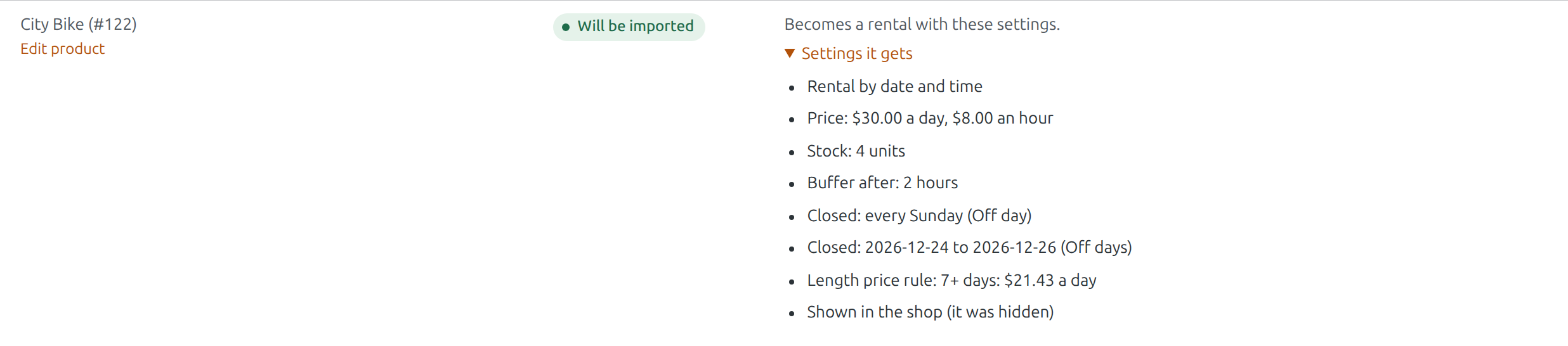
WpRently keeps each rental as its own “rental item” with its own page, and links it to a hidden WooCommerce product that the orders use. The importer turns that WooCommerce product into the rental, because your orders already point to it:
- the product is made visible in the shop (it was hidden), and
- when it was only a placeholder, it gets the rental item’s name.
| In WpRently | In Rentals & Bookings |
|---|---|
| Daily rate | Rental by date, price per day |
| Hourly rate | Rental by date and time, price per hour |
| Weekly and monthly rates | Length price rules |
| Stock quantity | Stock |
| Off days and off-day ranges | Closed days on the product |
| Security deposit | Security Deposits on the product, when Security Deposits is active (Pro) |
Bookings #
The booking details on your order lines (start and end, and the quantity) become bookings. Past bookings stay plain orders. When one order line holds several bookings, each is imported as its own booking.
The rental item’s own page #
WpRently’s rental item keeps its page and its booking form, for example /city-bike/. The report lists each one under “Check these”:
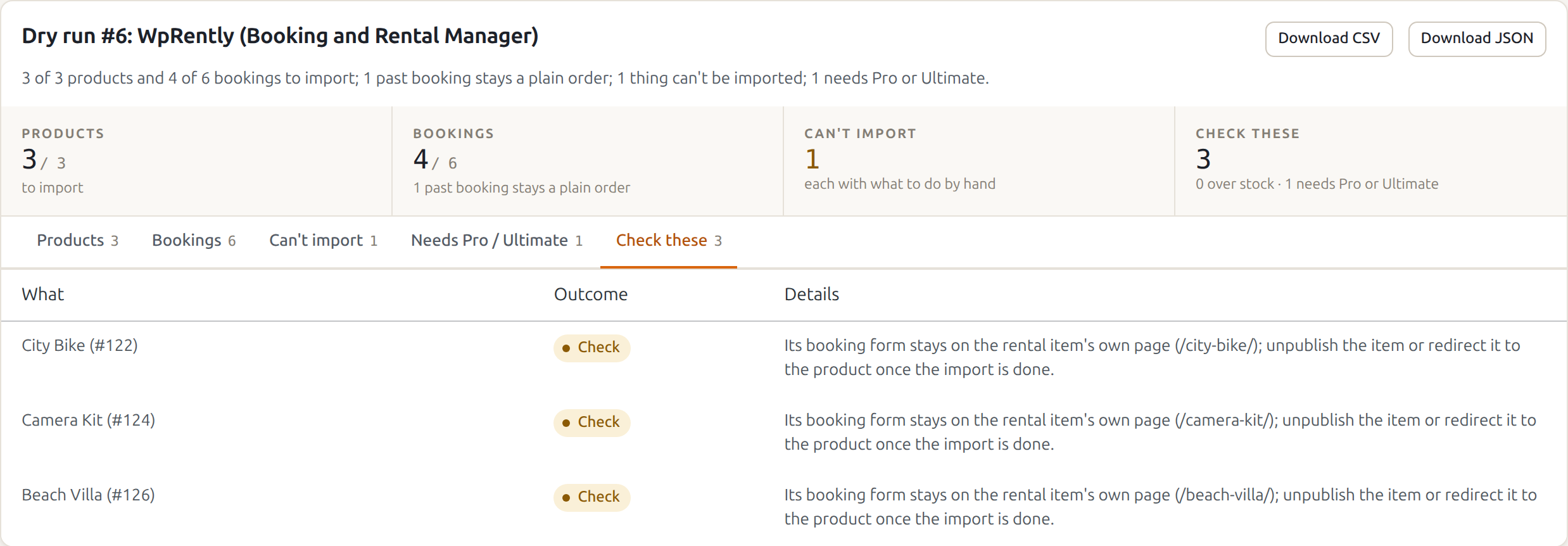
Once the import is done, unpublish the rental items, or redirect their pages to the products (with a redirect plugin), so customers book through the product page.
Needs Pro or Ultimate #
- Security deposit: imported only when Security Deposits is active (Pro and Ultimate); otherwise listed on the Needs Pro / Ultimate tab.
- Stock per location: listed on the same tab. Multi Location Inventory, in Ultimate, holds stock per location; set it up there by hand.
What you set up by hand #
These show on the Can’t import tab of the report, each with what to do. The rest of the product is still imported.
- Room types (resort items): imported as one room type. Make a product per room type, or use variations.
- Day-long (day use) prices: not imported; the stay is priced per night.
- Single-day time slots and types: imported as an hourly rental without its slots. Use fixed start times on the product, or Tours & activities.
- Multiple items in one rental: imported as one rental product. Make a product per item, or a rental bundle.
- Half-day rate: add a length price rule for rentals up to 12 hours.
- Pick-up and drop-off points: set pick-up and delivery under Rentals › Settings › Delivery & pickup.
- Extra services: add them as product add-ons.
- Item variations (sizes, colours): turn the product into a variable product with one variation per option.
- Fees: add them as fees or add-ons.
While WpRently stays active #
The WooCommerce products show only the Rentals & Bookings calendar. WpRently’s own item pages keep working until you unpublish or redirect them. When you are happy with the import, deactivate WpRently.
Rolling back hides the product again and gives it back its old name, if the import changed them.


