
One Live Chat & AI Chatbot install can answer chats from several websites: the WordPress site it runs on, plus other websites, WordPress or not. All their chats come into the same inbox, each with a badge that names the website it came from. Each website has its own widget look, proactive messages, privacy setting and AI knowledge.
Add a website #
- Go to Live chat › Settings › Sites and click Add a website.
- Name: what the inbox badge and the emails to visitors say, for example the brand. You can change it any time.
- Badge colour: the colour of the website’s badge in the inbox.
- Badge letters: up to 4 letters or numbers on the website’s chip in Live visitors and the inbox, for example RBS. Leave it empty to use the initials of the name. The WordPress site the chat runs on can have its own name, colour and letters too.
- Web addresses: one per line, like
https://example.com. The first one is the main address: it takes one site on your licence. List every address the chat will run on, for example a shop on a subdomain.www.and nowww.count as one address. No wildcards. - Set the website’s widget (colours, texts, position, pages to hide it on), privacy (the tracking consent mode, Google Analytics chat events) and AI (what its AI knows: Same as this site’s AI, or Its own pages and docs; extra instructions; whether it may check rental availability, off by default).
- Click Add the website, then Copy next to the install snippet on the website’s card.
- Put the snippet on every page of that website, just before
</body>. On a WordPress website, a small must-use plugin or your theme’s footer setting will do.
The snippet looks like this:
<script src="https://your-wordpress-site.com/wp-json/silc/v1/embed?site=KEY" async></script>That’s it: the chat shows on that website, and its chats come into your inbox. Proactive messages are set up per website too: under Widget › Proactive messages, Show on picks the website.
What the AI knows on each website #
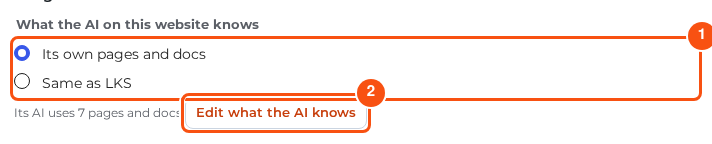
- Same as: the website’s AI uses what the AI on this WordPress site uses. New websites start this way.
- Its own pages and docs: save, then Edit what the AI knows. Its own set starts as a copy of this site’s, and you pick pages and docs from any of your websites, this one included (the AI agent explains the editor).
- A connected WordPress website is read through its public WordPress API: its published, public pages, posts and docs. Press Check now on its card in the editor to list them; nothing is used until you tick it. Pages hidden from search engines are listed with a flag and only used when you tick them.
- It is kept current every 6 hours, and at once when the website pings: the must-use plugin that prints the snippet can tell the chat that a page changed. The ping carries no secret and no content; the pages are read again within about a minute.
- When the same doc is on two of your websites, an answer uses one copy, the one on the visitor’s website. The editor marks it Copy on ….
- A web address the AI writes is a link only when it points to the chat’s website, a website its AI reads, a page it cites, or a website named in its AI instructions.
Your licence: one site per website #
Every connected website takes one site on your Live Chat licence, the same as installing the plugin there; your account page shows how many sites your plan has and which are in use. Adding a website activates your licence for its main address; removing it frees that site again. The Sites screen shows each website’s state:
| The screen says | What happens |
|---|---|
| Takes one site on your licence | All good. |
| No sites left | The website is saved, but its chat is off. Upgrade to the 10-site plan, or free a site on your account page, then click Try again. |
| Licence spot removed | Someone removed the website from your licence on your account page. The chat keeps running for 7 days, then stops until the site is back. It is taken again by itself once there is room. |
| Your licence has expired | Nothing stops: the chat keeps running on every website and all settings stay open. Renew to keep getting updates. |
| The licence server could not be reached | Nothing changes; it is checked again the next day. |
| The licence server did not accept this website | The chat is off on that website. Check your licence on your account page, then click Try again. |
In the inbox #
- Every chat, visitor and proactive message carries its website. With more than one website, Live visitors starts the page each visitor is on with the website’s chip (its letters). Hover or focus the chip or the page, or tap the chip, to see the website’s name and the full address.
- The visitor details and the chat view (the profile beside a conversation) have a Website card: the website’s name and address, the page they are on now (or started on), and Show only this site for the list beside it. The inbox rows show the website’s letters and the conversation header its domain.
- Live visitors has a chip per website above its numbers, with a count each, to see one website’s visitors. The inbox has a Website filter, and saved views can keep it.
- Emails to a visitor about a chat from another website use that website’s name (“Your conversation with …”) and its address for Continue in chat.
How it stays safe #
- Only the web addresses you list can use the chat, and only for the widget’s own requests: starting a chat, sending and reading messages, and the pages the visitor views. The inbox, the settings and every team screen answer only on your WordPress site, and nobody is ever logged in from another website.
- On another website a visitor’s browser is known by a random token kept in that website’s browser storage. Your database keeps only a hash of it, like the cookie on your own site, and a token from one website never works on another.
- The snippet loads the same public widget settings for everyone, with nothing personal in it.
- Removing a website stops its chat at once. Its chats stay in your inbox, marked “Removed site”.
Good to know #
- Up to 50 other websites, each with up to 10 web addresses.
- WooCommerce carts and recognising logged-in customers work on your WordPress site only.
- The “From” name of chat emails stays your mailbox’s own.
Licence first #
A new install opens Live chat › Settings › Licence first. The settings, sites, mailboxes, routing, team, proactive messages and knowledge stay closed, and the chat widget waits, until the licence key is entered and activated. Team members who aren’t administrators see “Enter your licence key first” until then. Sites that were set up before version 1.0.1 keep their inbox and widget running and only ask for the key before the next settings change.
An expired licence never locks anything: the Licence screen asks for a renewal, and everything keeps working. A key that was never activated, is invalid, or was revoked or deactivated on your account page closes the settings again; the inbox and the chat keep running.


