
A rental business website has four jobs a normal online shop doesn’t: take bookings for real dates, count every unit so nothing is double-booked, collect deposits, and show you what goes out today and what comes back. This 53-minute tutorial builds one on WooCommerce, starting from a blank WordPress site, with Rentals & Bookings, our plugin.
By the end you’ll have a working rental store, and you’ll know how to run it day to day: pricing, calendars, deposits, sending out and checking in, delivery, quotes and maintenance. This page is the whole video written out, chapter by chapter and in the same order, with the screens from each step. Read it instead of watching, or follow along: every chapter has a link that plays the video from that point.
The short version. Install WooCommerce, Rentals & Bookings and the free Secure Custom Fields plugin, add one product with day and week rates, and take a test booking. That takes about five minutes on screen. Dates, times, nights, guests and reminder emails are free in Lite. The video installs Regular and says which edition each feature needs at the end of every chapter.
- What you’ll build
- What you need
- Chapter guide
- Quickstart
- Rental themes
- Ways to rent
- Variable rentals
- Rental pricing
- Availability
- iCal sync
- Date search and maps
- Checkout
- Deposits and balances
- The daily desk
- Send & Return
- Delivery & pick-up
- Late returns
- Reminders
- Request a Quote
- Maintenance
- Reports
- Which edition
- Where to go next
- FAQ
What your rental business website will do
The video builds an outdoor shop with bikes, kayaks and a cabin, then a party rental shop for the quote chapter. By the end you’ll know how to set up all of this:
- Customers pick dates and see how many units are left on each day. Rentals can run by the hour, the day or the night, for a fixed length, or on set departure dates.
- Prices follow the rental: hourly, daily and weekly rates, seasons, discounts for longer rentals, and prices per guest.
- Every unit is counted day by day, with store hours, closed days and turnover time between rentals.
- Dates booked on Airbnb and Booking.com are blocked, and a date search shows what’s free, with prices and a map.
- Checkout asks your own questions, offers a damage waiver, checks an ID and collects a signed rental agreement.
- You take a booking deposit now, the balance by emailed payment link, and a refundable security deposit.
- Staff work from a dashboard and a bookings calendar, and can take phone orders and change dates.
- Units go out and come back by serial number, with QR and barcode labels. Delivery has time slots, and late returns get a late fee.
- Big jobs go through quotes customers accept and pay online. Maintenance tickets, reports and reminders by email, SMS and WhatsApp cover the rest.
What you need before you start
- A WordPress site. Lite needs WordPress 6.6 or newer and PHP 8.1 or newer. The video starts on a new site with nothing on it.
- WooCommerce, free from the Plugins screen. The video fills in the store basics off camera: the address, US dollars, and cash on pick-up for a test order.
- Secure Custom Fields, also free. Rentals & Bookings uses it for its product fields and settings.
- Rentals & Bookings. The video installs Regular, downloaded from your account with its licence key. Lite is free on WordPress.org and covers the install, the first product, dates, the cart and the booking.
- A rental theme, if you want one. There are 16 free rental themes. A rental theme is a kit of content and settings, so the WordPress theme you already use stays active.
- A gateway that saves cards, only if you want balances charged automatically. Emailed payment links work without one.
Chapter guide: all 20 chapters, with times
Click a time to play the video from there. “Comes with” shows the edition you need to follow along. The sections after this table follow the same order.
| Time | Chapter | What it covers | Comes with |
|---|---|---|---|
| 0:00 | Intro | What the plugin does and who it suits. | Any edition |
| 0:42 | Quickstart: rentals live in 5 minutes | Install on a new site, add a bike with day and week rates and a turnover day, take a test booking. | Regular (the basics work in Lite) |
| 5:28 | Rental themes in one click | Import a theme: colours, a homepage, page sections and six sample products. Export your own shop too. | Lite; homepage date search in Regular |
| 7:01 | Every way to rent | A kayak by the hour, a cabin by the night with guests, a fixed-length camping kit, set departures. | Lite; fixed lengths and departures in Regular |
| 10:44 | Variable rentals | One e-bike in three frame sizes, each with its own stock and calendar. | Lite |
| 12:02 | Rental pricing | Hourly and daily rates, price points, seasons, longer-rental discounts, the return day, guests. | Lite; advanced pricing in Regular |
| 15:57 | Availability and calendars | Units left per day, store hours, closed days, turnover time, and how the last unit is protected. | Lite; inline pickers in Regular |
| 18:33 | iCal calendar sync | Block dates booked on Airbnb or Booking.com, and share your own dates with them. | Regular |
| 19:39 | Date search and maps | A date search that marks or hides what is booked, the Search Builder, results beside a map. | Regular; dates that follow the customer in Lite |
| 22:11 | Checkout | Custom fields, a damage waiver, ID checks and a signed rental contract. | Pro |
| 25:56 | Deposits and balances | A 25% booking deposit, the balance by payment link, then refunding a security deposit in part or in full. | Regular; security deposits in Pro |
| 30:05 | The daily desk | Dashboard, bookings list and calendar, a phone order, date changes, overbooking and Swap item. | Lite; Dashboard in Regular; contract amendments in Pro |
| 34:41 | Send & Return | Serial numbers, QR and barcode labels, the Send desk, scanning returns, readings per unit. | Regular |
| 37:39 | Delivery & pick-up | Three ways out and back, time slots, delivery areas, days in transport. | Regular |
| 40:59 | Late returns and extensions | Customers extend from My Account; late fees wait for staff to review. | Regular |
| 42:44 | Reminders | Pick-up and return emails, overdue reminders, SMS, WhatsApp and review requests. | Emails in Lite; the rest in Regular |
| 44:10 | Request a Quote | Hide prices, take an event quote request, send versions, and let the customer accept and pay online. | Ultimate, or sold on its own |
| 49:00 | Maintenance and inspections | Tickets from check-in, service schedules, and units kept off the calendar until they are fixed. | Ultimate, or sold on its own |
| 50:35 | Reports | Inventory by day, usage per product and serial, late fees, CSV exports. | 7-day inventory in Lite; the rest in Regular |
| 51:30 | Which edition do you need? | Lite to Ultimate in a minute, and how the licence key works. | Any edition |
Quickstart: your first booking in five minutes
Five minutes from now, your WooCommerce store will take rental bookings by date, with day and week rates. The chapter sets it up from scratch, on a brand-new WordPress site with no WooCommerce and no products, just a blog.
Install the plugins
- Go to Plugins, Add Plugin, and search for WooCommerce. Install it and activate it.
- Get Rentals & Bookings Regular from your account on rentalbookingsoftware.com. Log in, and it opens on your licences. Under Downloads, click the zip file to download Regular. Back on Licenses, copy your licence key.
- Back on the new site, go to Plugins, Add Plugin, Upload Plugin. Choose the zip file and click Install Now, then Activate Plugin.
It activates with a notice: Regular isn’t running yet. It needs the free Secure Custom Fields plugin for its product fields and settings.
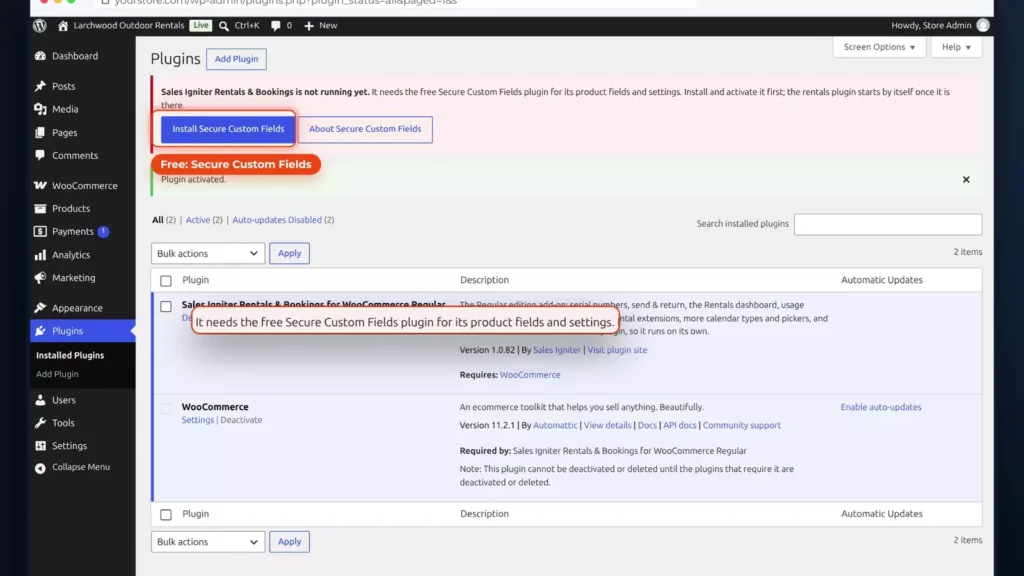
So go to Add Plugin again, install Secure Custom Fields and activate it. Regular then starts by itself. That’s three plugins, all active. Regular includes the Lite plugin, so it runs on its own.
The WooCommerce basics were filled in off camera: a store in Bend, Oregon, US dollars, and cash on pick-up for a test order. A bike photo went into the media library too.
Activate your licence
Open Rentals, Settings. Until a key is active, it opens on the licence page. Paste your key and click Activate license. The site now gets plugin updates, and every settings tab opens up.
With Regular, the Rentals menu opens on the Dashboard: what needs you, what goes out today, what’s due back, the next seven days and the money. The settings are grouped, with a search box. Typing “Minimum” goes straight to the minimum booking length. These are store-wide defaults, and every product can override them.
Add the first rental product
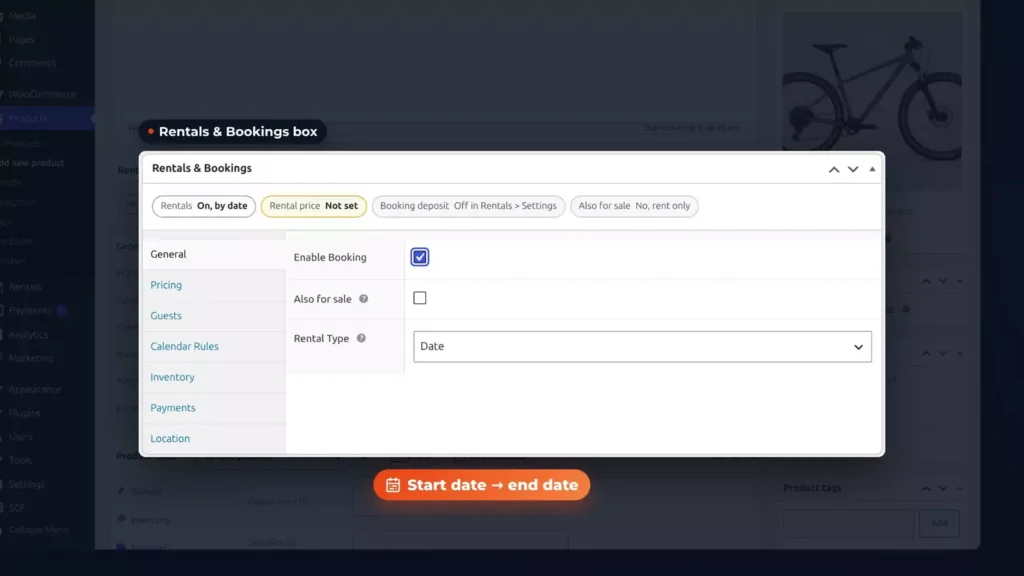
Now the first rental: a new product called Mountain Bike, with the photo. In the Rentals & Bookings box, tick Enable Booking. The rental type is Date, so customers pick a start date and an end date.
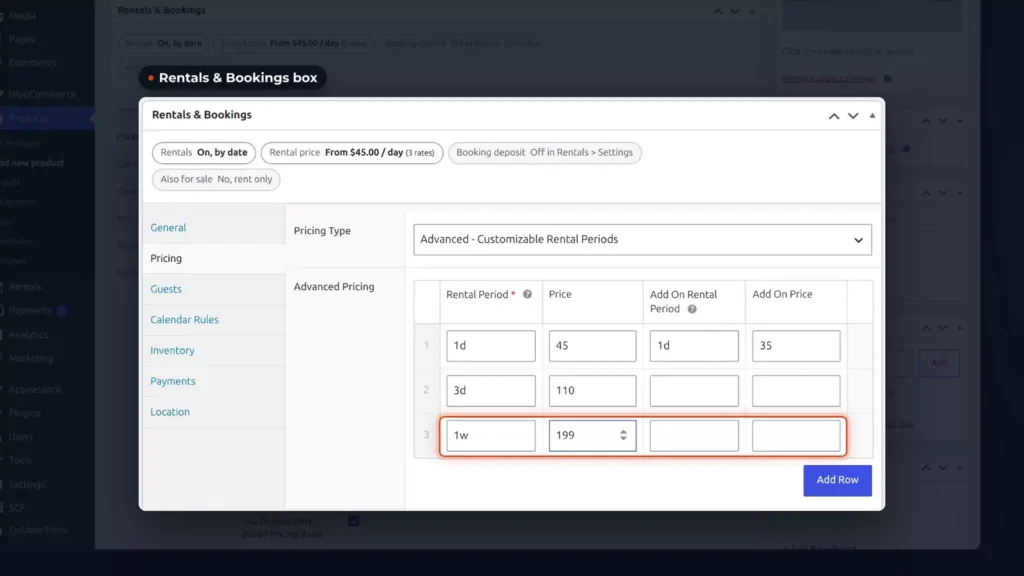
On the Pricing tab, Regular starts every new product on advanced pricing: a grid of price points. Add a row for one day at $45, then $35 for each extra day. Add three days at $110 and one week at $199.
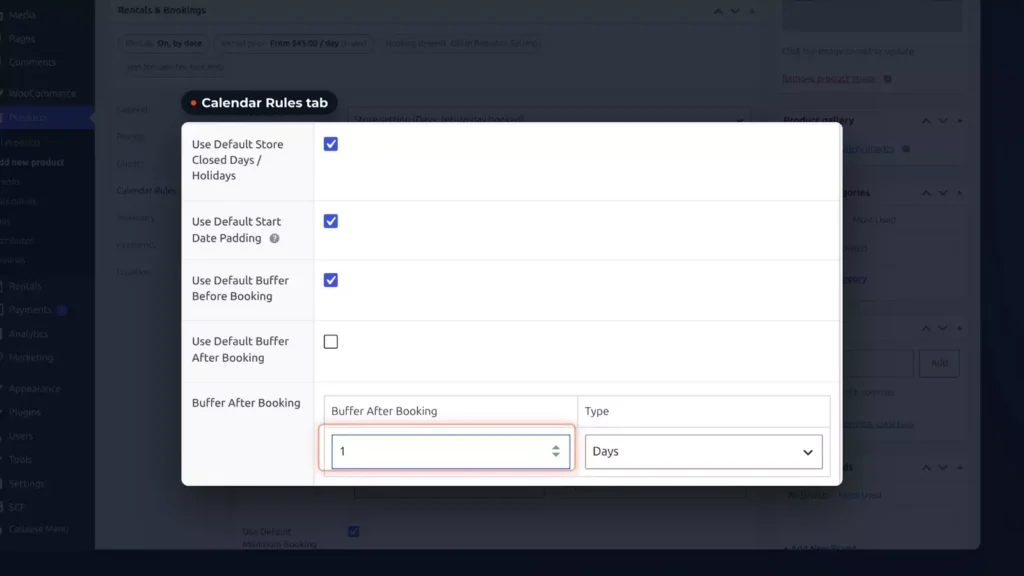
On the Calendar Rules tab, untick Use Default Buffer After Booking and set one day. That’s your turnover day: after every rental, the bike rests a day, for cleaning and a quick check.
The stock is WooCommerce’s own: on its Inventory tab, track stock, enter three bikes and publish. The Rentals & Bookings box then sums it up: rentals on, by date, from $45 a day, three rates, rent only.
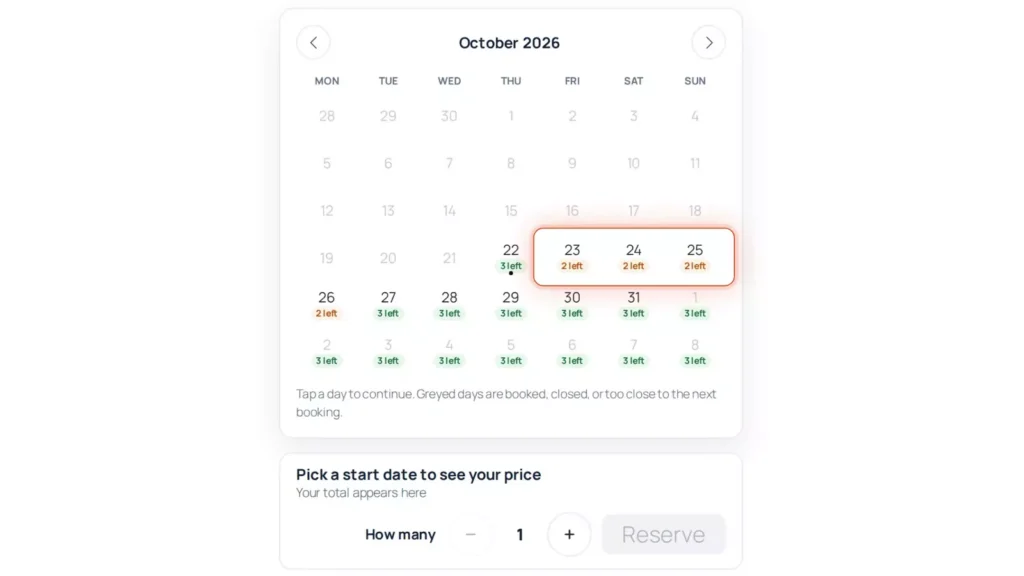
One more switch. In the Calendar Styler, turn on Show units left in each day and save. The date picker is Regular’s inline range picker, right on the product page.
Book it as a customer
The product page shows from $45 a day, three units available and the rates, and the picker has three left under every day. Pick Friday the 23rd to start and Sunday the 25th to return. That’s two days: one day at $45 plus one extra day at $35, so $80. The return day isn’t charged unless you switch that on. Click Reserve.
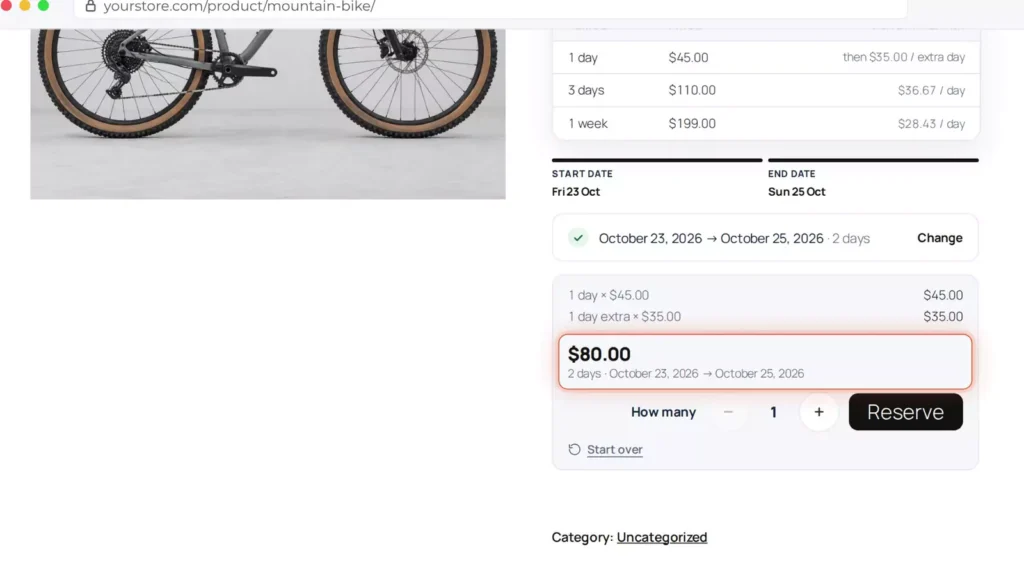
The bike is in the cart, with the dates and the length. At checkout, Sarah fills in her details, chooses cash on pick-up and places the order. The order received page has the rental dates on it.
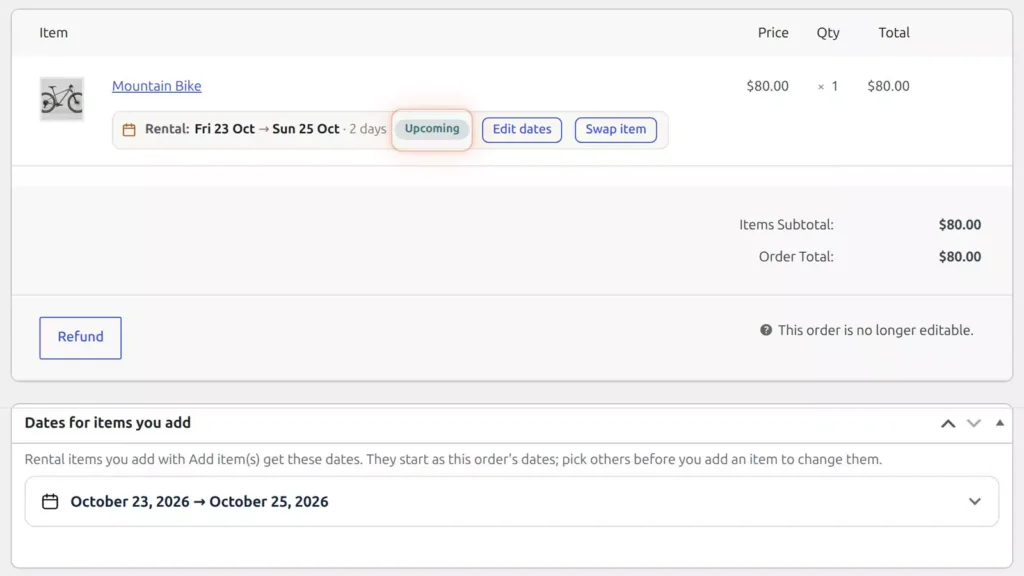
Back in the admin, the order shows the rental, Friday the 23rd to Sunday the 25th, marked Upcoming, with Edit dates and Swap item right there. Under Rentals, the Bookings list shows it too. The bookings calendar shows one bike going out on Friday and one coming back on Sunday, and the Dashboard has it in the next seven days, with $80 of revenue.
Back on the product page, those days now show two left. Monday does too, because that’s the bike’s turnover day.
That’s a live rental store, built from scratch.
Which edition: installing, the first product, dates, the cart and the booking also work in Lite, free on WordPress.org. The price grid, the inline picker and the Dashboard are Regular.
Rental themes in one click
A ready-made rental theme gives you the look, a homepage and sample products for your kind of rental shop, in one import.
- Download the free rental themes from our website.
- Open Rentals, Settings, Advanced, Theme Import / Export, and upload them. There are 16, one for each kind of rental business.
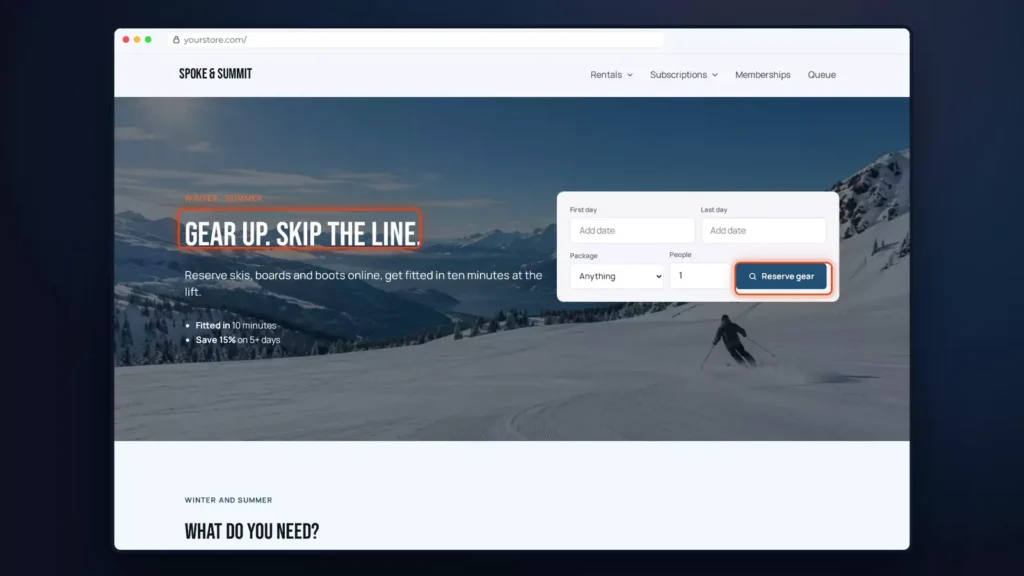
- Pick Ski & Outdoor Gear Rental and click Import.
- Choose what comes in: calendar presets, six sample products, page sections, a homepage, and Astra’s colours and fonts.
- Make it your homepage, type your shop name and import.
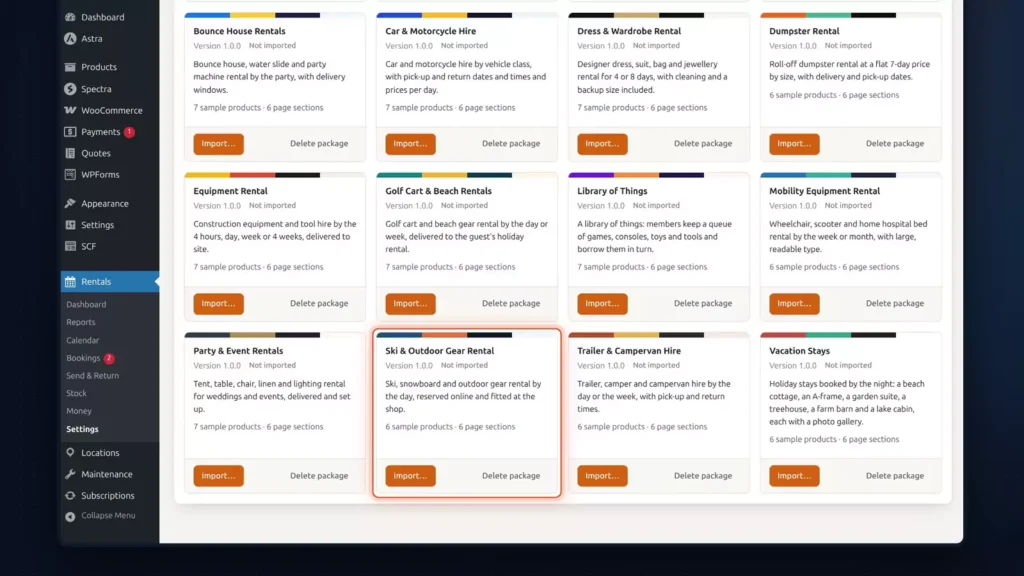
Seconds later, the report lists everything it added. Import again and nothing is duplicated.
The store now has new fonts and colours, page sections and six sample products, each with a price per day, units available and a calendar to match.
It works the other way too. Export Theme saves your own shop, with the categories you pick, as a theme for your second store.
You can choose from 16 free themes, including party rentals, car hire, vacation stays and baby gear. Browse all 16 here.
Which edition: Theme Import / Export is free in Lite, and the homepage date search comes with Regular.
Every way to rent: hours, nights, set lengths and departures
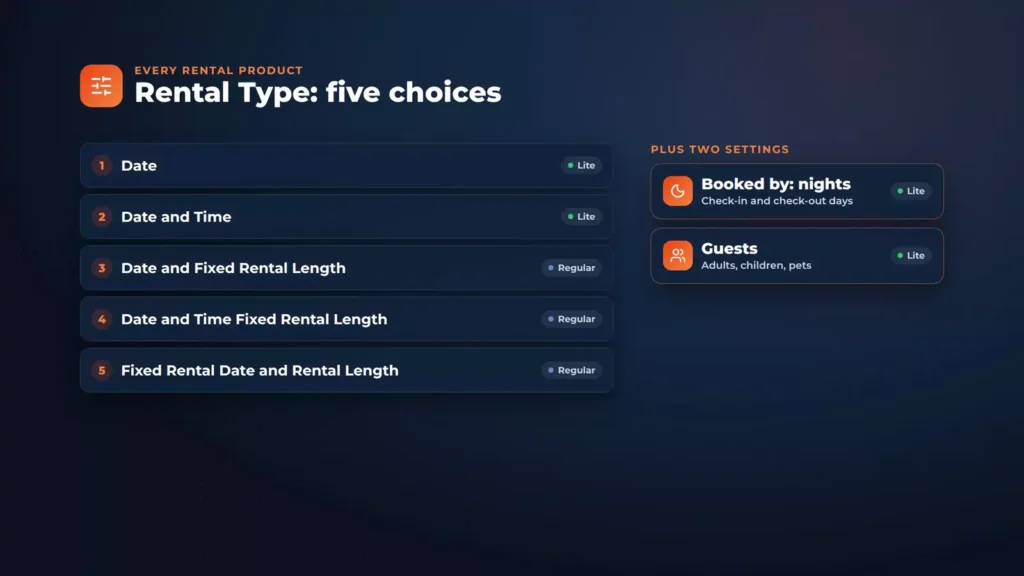
Not every rental is a day rental. You can rent by the hour, by the night, for a fixed length, or on set departure dates, all in WooCommerce. Every rental product has a Rental Type, and there are five. Two more settings take care of nights and guests. The chapter sets them all up in one outdoor shop.
By the hour: a double kayak
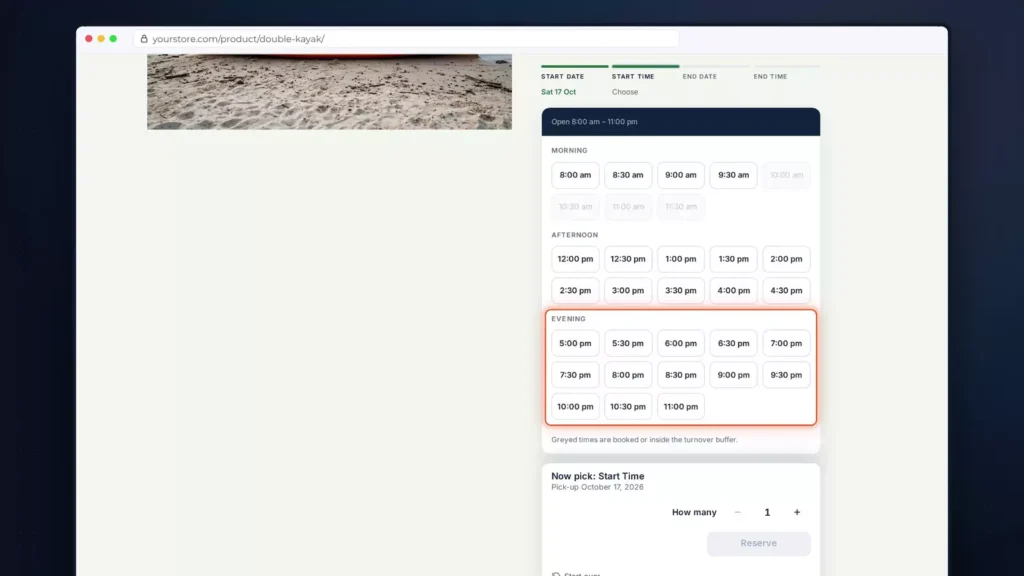
First, a double kayak. On the General tab, the Rental Type is Date and Time, so customers pick a start time and an end time. On the Pricing tab the rates are $18 an hour or $95 a day. On the product page, two kayaks are available.
Pick Saturday. The times come in morning, afternoon and evening. 10:00 to 11:30 are greyed out, because James has both kayaks then. Start at 8:00 and every end time after 10:00 is greyed too. End at 10:00, and two hours at $18 comes to $36.
By the night: a lakeside cabin
Date rentals count whole days. But what about the return day? In Rentals, Settings, Calendar, you have three choices:
- The return day is booked, and the next rental starts the day after.
- The unit can go out again on the return day.
- Book by nights, like a hotel: the check-out day is the next guest’s check-in day.
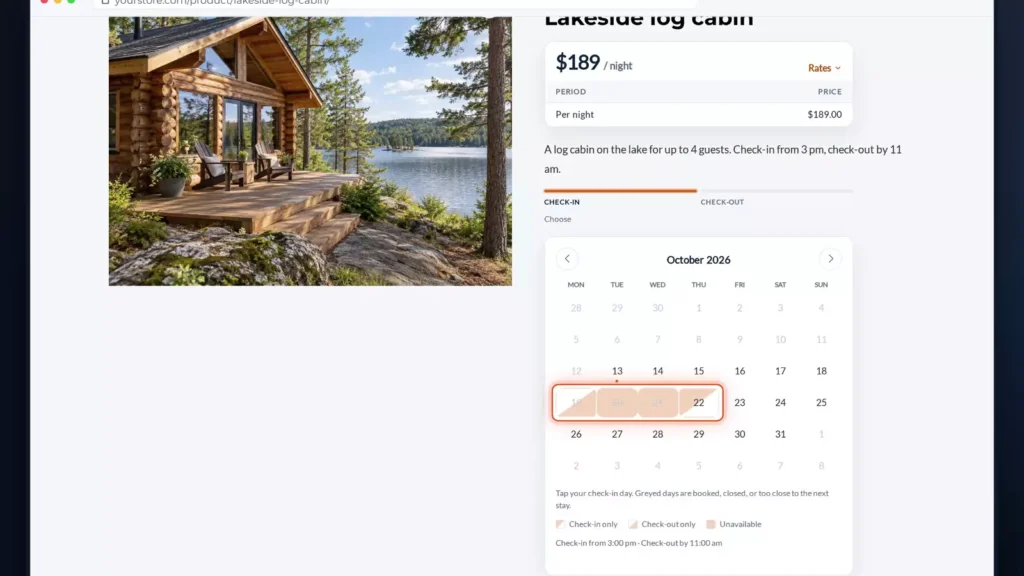
Each product can choose its own. This lakeside cabin is booked by nights, with check-in from 3:00 and check-out by 11:00, at $189 a night.
On the product page, the steps read check-in and check-out. Marco stays from the 19th to the 22nd, so the 19th is check-out only and the 22nd is check-in only. Check in on Friday the 16th and you can stay until Monday, the day Marco arrives. Three nights comes to $567.
Guests
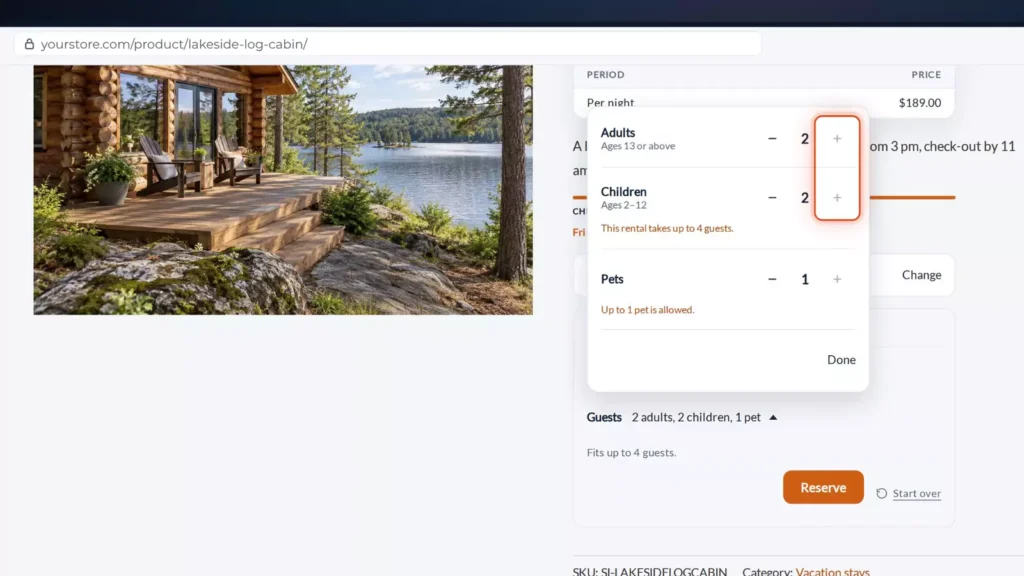
The cabin sleeps four. On the Guests tab, each unit holds up to four guests. The guest types are children and pets, with one pet at most.
On the page, open Guests and add two adults, two children and a pet. At four guests the plus button stops, and one pet is the limit. The guest types go further too: seniors, students and up to three types of your own can sit beside adults, children and pets.
Fixed lengths: a weekend camping kit
Some rentals come in set lengths. This weekend camping kit uses Date and Fixed Rental Length, with one length: two days, shown as Weekend. The customer only picks a start date. Saturday gives two days at $40, so $80.
Set departures: a sunset paddle
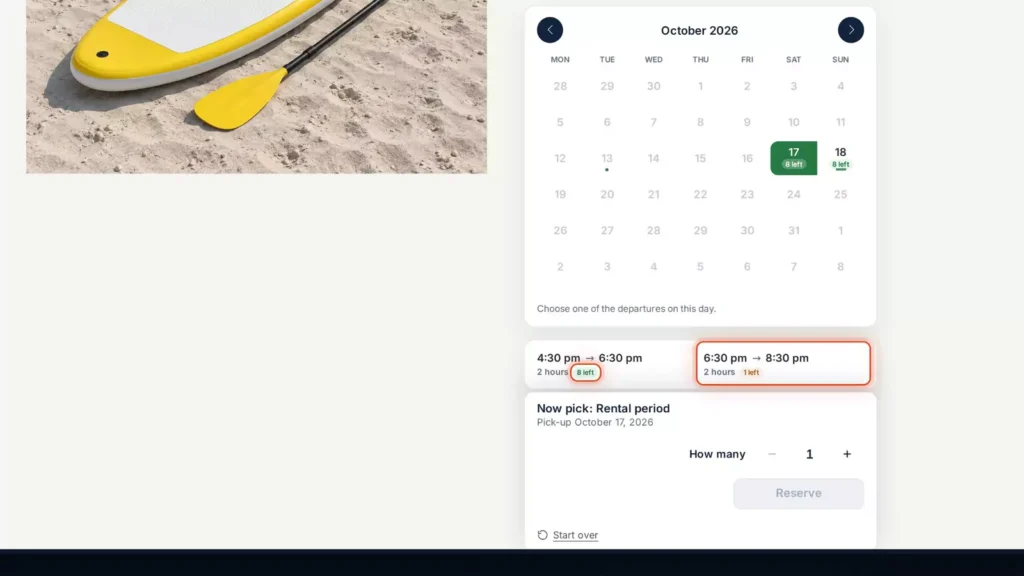
Some run only on set dates. The sunset paddle uses Fixed Rental Date and Rental Length. Each row is one departure with its own price: two on Saturday at $55 and one on Sunday at $45.
On the calendar, only those days can be picked. Saturday has two departures, so they show as cards, with the boards left on each. 6:30 has one left. Pick it, and that’s $55. Sunday has one departure, so it’s picked for you, at $45.
Selling tours? Departures with seats and guides, staff schedules, guest types with their own prices, group prices and a waiver for every guest are all in our Tours & Activities video.
Which edition: dates, times, nights and guests are free in Lite. Fixed lengths and departures come with Regular.
Variable rentals: one e-bike in three frame sizes
Some rentals come in sizes. This e-bike is a WooCommerce variable product with the attribute Frame size: small, medium and large. Enable Booking is ticked on the product itself.
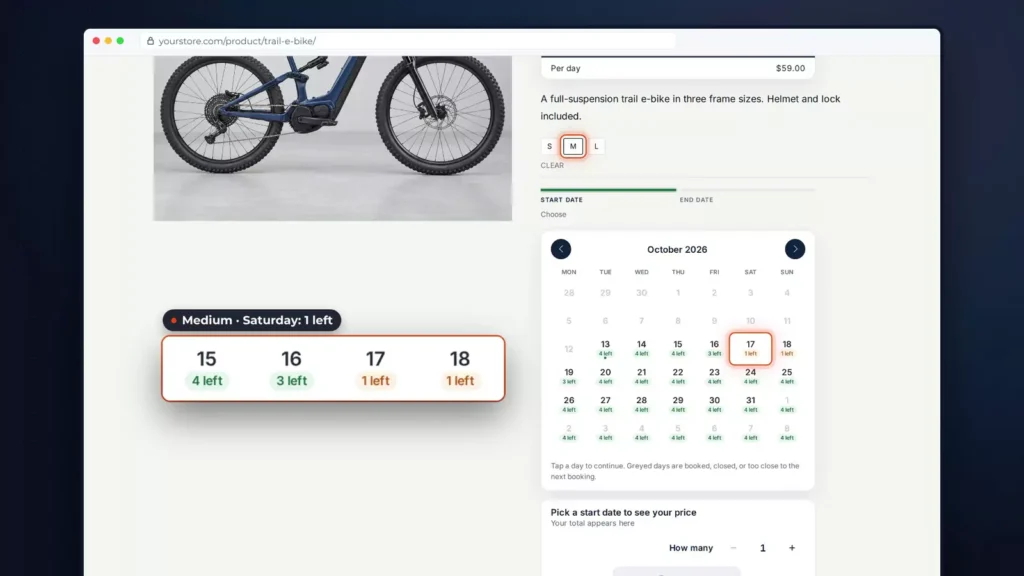
Each size is a variation with its own WooCommerce stock: two small, four medium and two large. So a booking for a medium takes a medium, and the other sizes stay free.
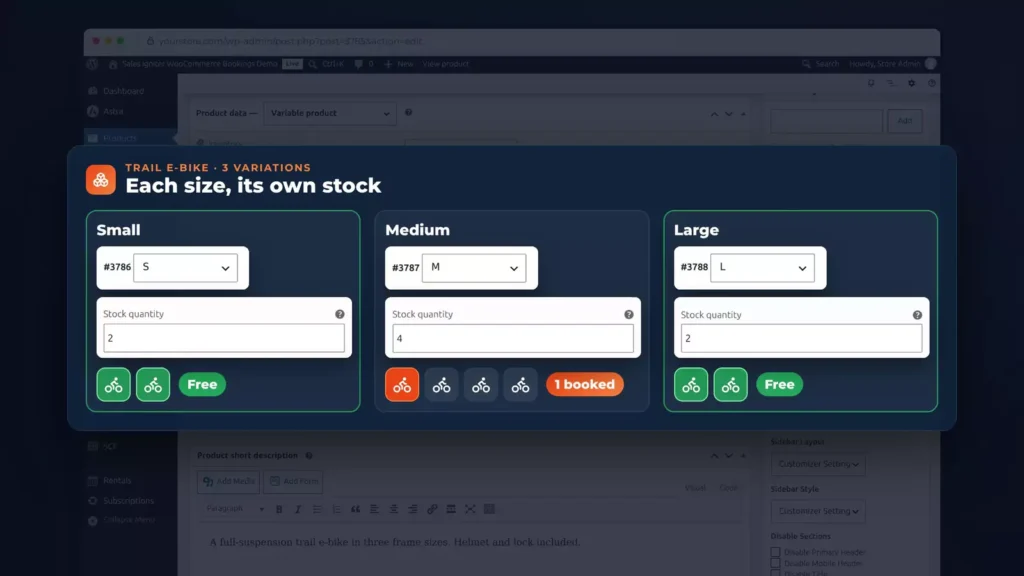
On the product page, the calendar waits until a size is chosen. Pick medium, and Saturday has one left. Switch to large and the free days change, because the large frame has its own two bikes.
In the admin, the order line names the size. If Sarah needs a different size after she’s booked, Swap item moves her booking to a size that’s free on her dates.
Kits, bundles and build-your-own packages have their own video: Bundles & Composites, included with Regular.
Which edition: variable rentals are free in Lite.
Rental pricing: rates, seasons, discounts and guests
Good rental pricing follows the rental: by the hour, the day or the week, a little more in high season, and fair for every guest.
Hourly and daily rates
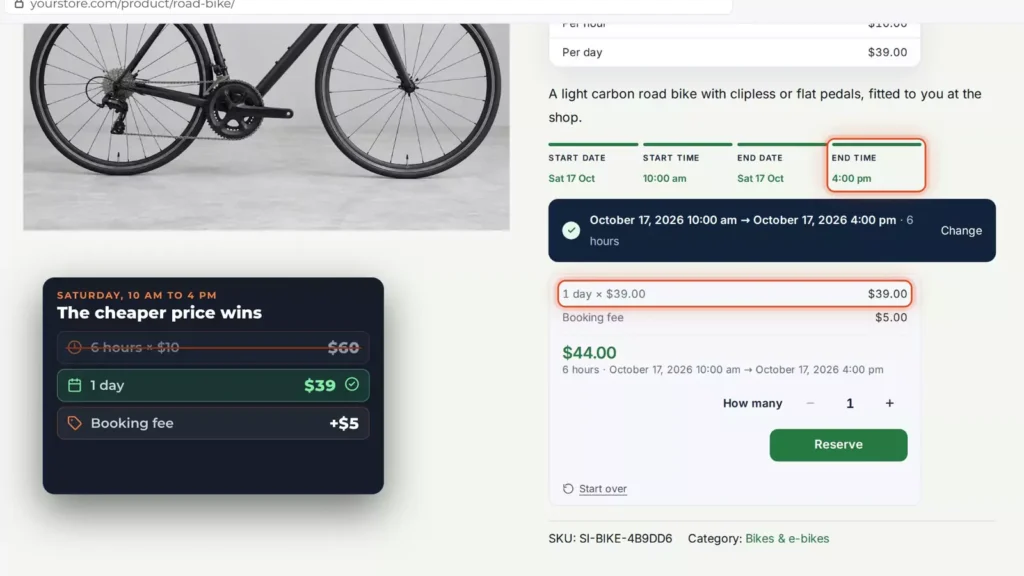
Start with the road bike. Its Pricing Type is Simple, Day Hour Only: a fixed price of $5, $10 an hour and $39 a day.
On the product page, pick Saturday from 10 to 1. That’s three hours at $10, plus the $5 as a booking fee: $35. End at 4 instead, and six hours would be $60, but a day is cheaper, so it’s $44.
Advanced pricing: a grid of price points
For longer rentals, Regular adds advanced pricing. The City e-bike has four hours for $29, then $6 for each extra hour, one day for $49, three days for $129 and a week for $249. On the page, the grid becomes a rate table, with a price per day.
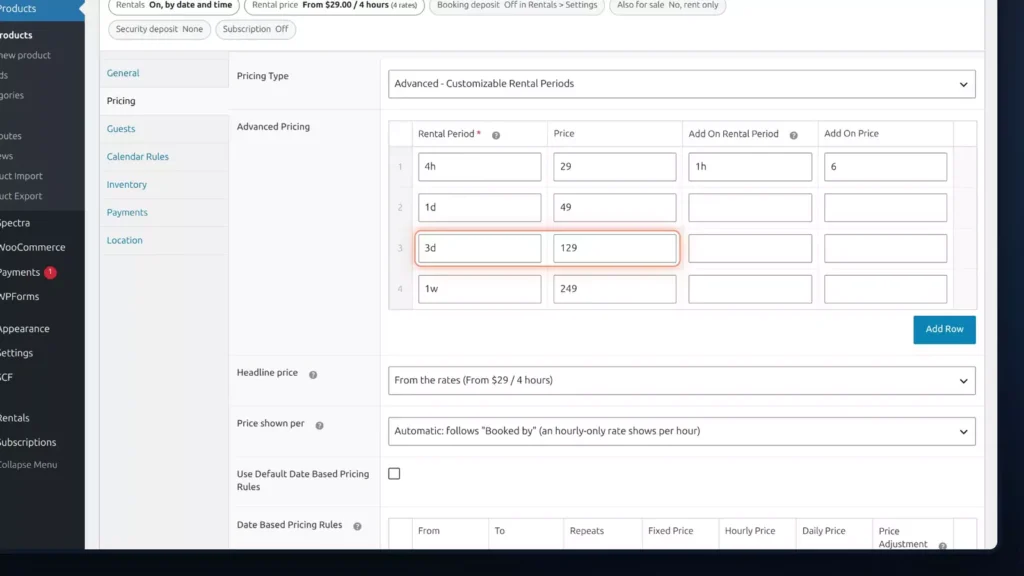
The total follows the length. Six hours is the four-hour price plus two extra hours: $41. One day is $49. Nine days is one week plus two days: $347.
Seasons and length rules
Below the grid are the rules. This bike has a season from 1 June to 31 August, every year, at plus 20%, and two length rules: 10% off from 14 days and 15% off from 28 days.
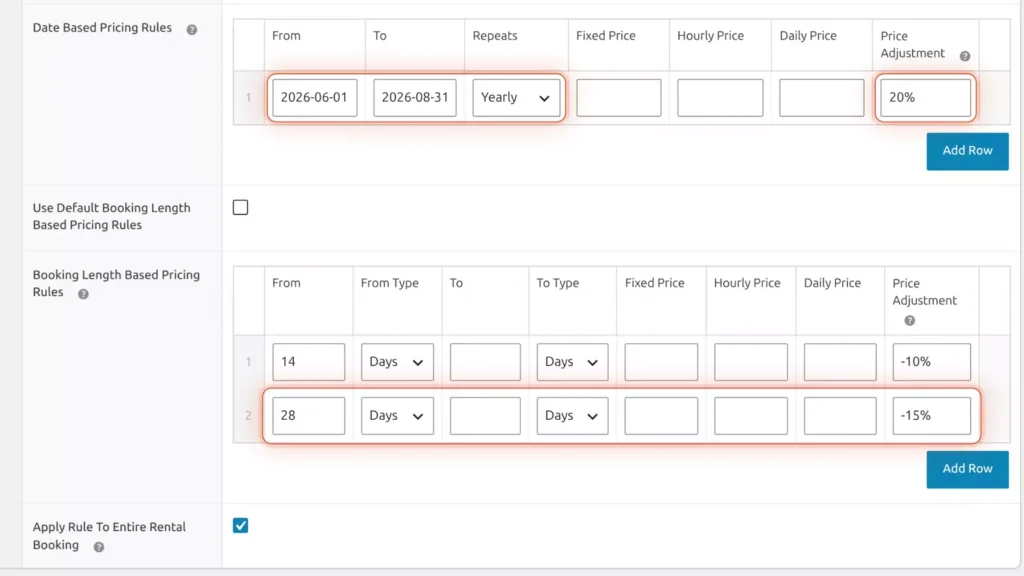
These are this bike’s own rules. The store-wide defaults are in Rentals, Settings, Pricing, and when two length rules match, the greater length wins.
So 14 days is two weeks less 10%: $448.20. And 28 days gets just the 15%: $846.60. A week in July is 20% more: $298.80. A week that starts in May pays extra only for its hours in June.
The return day
The kids’ bike is $19 a day, so Saturday to Sunday is one day. Set Also charge the return day to Yes, and the same dates are two days: $38. Nights are always charged per night.
Prices per guest
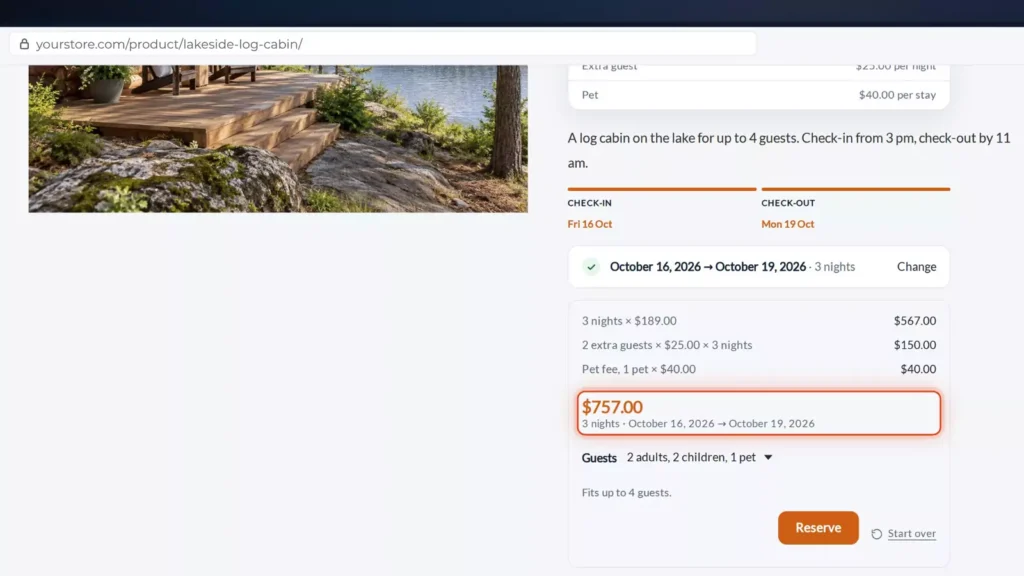
The lakeside cabin, at $189 a night, includes two guests in the price. Each extra guest is $25 a night, and a pet is $40 per stay. Two adults for three nights is $567. Add two children and a pet, and that’s $150 for the extra guests and $40 for the pet: $757.
On a tour, each rider takes a seat, so a child can have a price of its own: $89 a rider and $45 a child. Two adults and two children come to $268.
Where the total shows
Last, the layout, in the Calendar Styler. This store uses the Pricing card and booking bar from Regular, so the total stays in view. The Pricing card layout is free in Lite: select it and save, and the total for your dates sits above Reserve.
Weddings, film shoots and big events often need a quote, not a cart price. Request a Quote has its own chapter further down and its own full tutorial.
Which edition: rates, the return day and the pricing card are free in Lite. Advanced pricing is in Regular.
Availability and calendars
Every rental counts its units, day by day, so the last one can’t be booked twice. When the last one is booked, that day closes.
This double kayak has three units, in WooCommerce’s own stock, and on its product page every day shows what’s left. James has one from the 20th, so two are left. Emily takes another on the 21st, so one is left. Olivia books all three on the 24th, so that day is fully booked.
Store hours and closed days
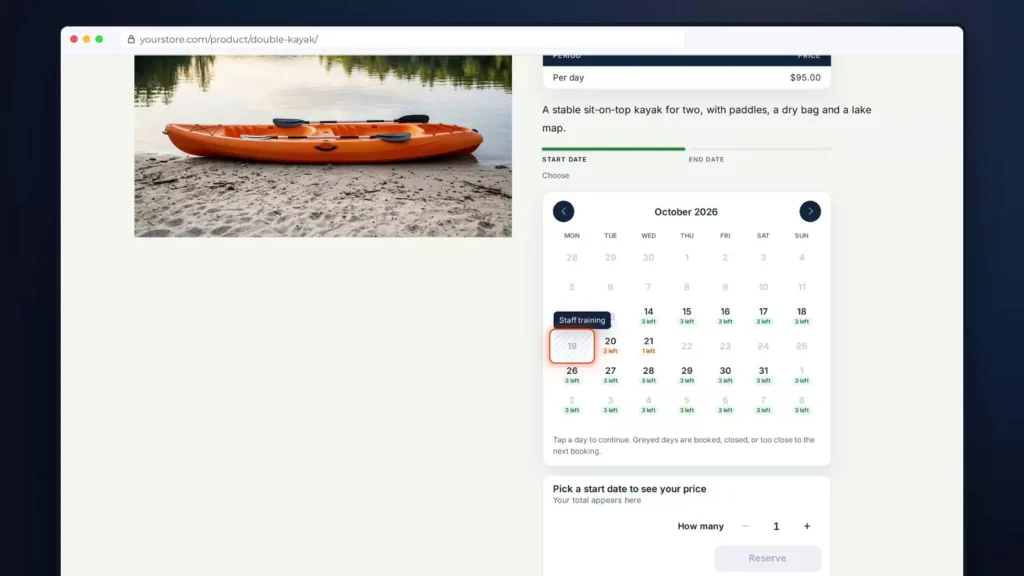
Open Rentals, Settings, Calendar. Store hours here run from 8 in the morning to 11 at night. The closed days and holidays are Monday the 19th for staff training, and Thanksgiving, every year.
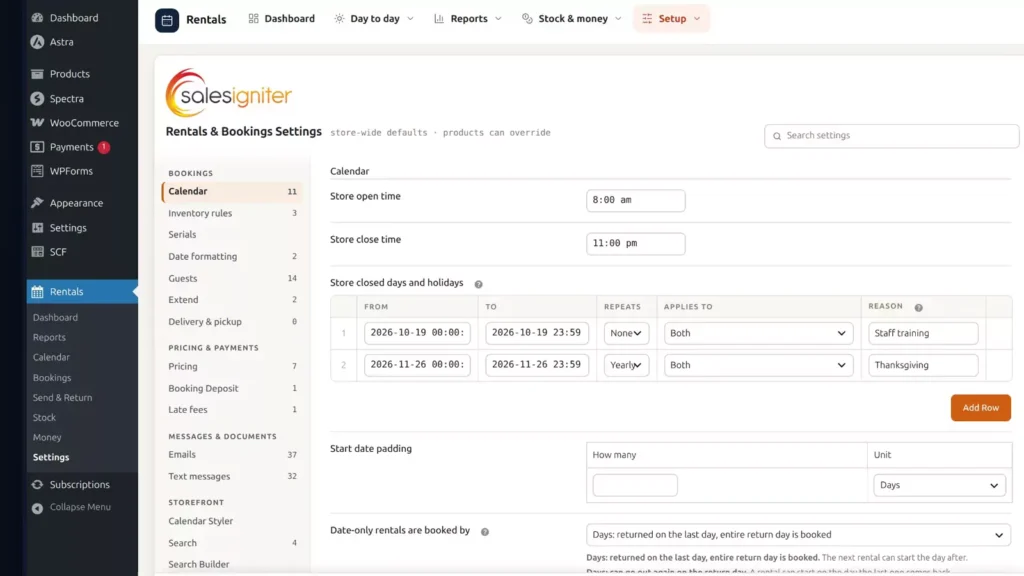
On the calendar, closed days are hatched, and hovering shows the reason. A rental can run through a closed day but can’t start or end on one. Sunday to Tuesday is two days, $190. Monday is charged, because the kayak is out.
Calendar rules on one product
Each product can set its own Calendar Rules. This kayak has one day of start date padding, rentals of two to seven days, and bookings up to 60 days ahead. So today can’t be picked, and December stops at the 12th. Start on Monday the 26th: the first return day is Wednesday, and the last is 2 November. Pick Wednesday, and that’s two days at $190.
Turnover time
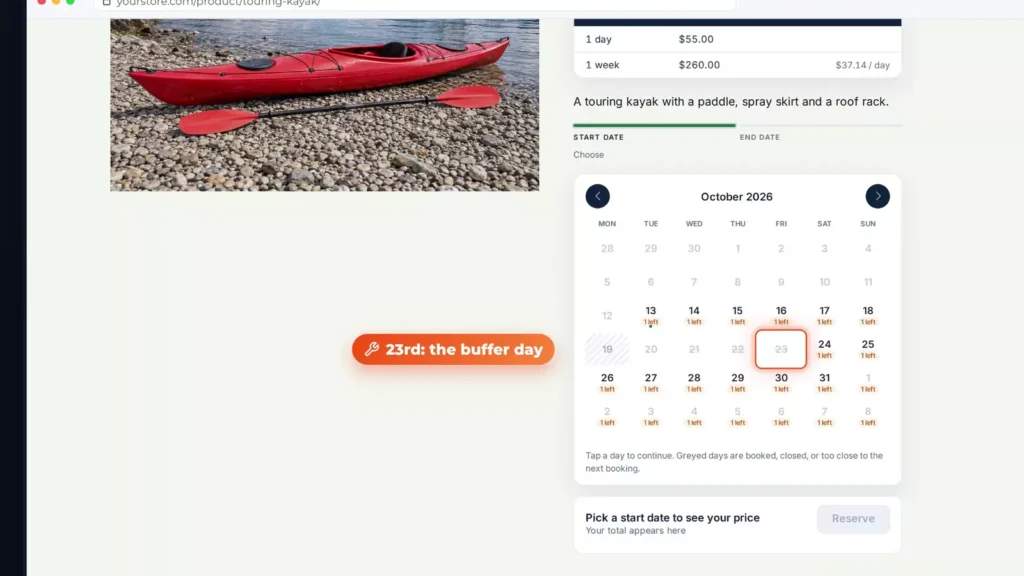
Turnover time keeps a gap between rentals, in minutes, hours or days. This touring kayak has one unit and a one-day buffer after each booking. Sarah has it from the 21st, so her return day and the buffer day are preparation days.
Protecting the last unit
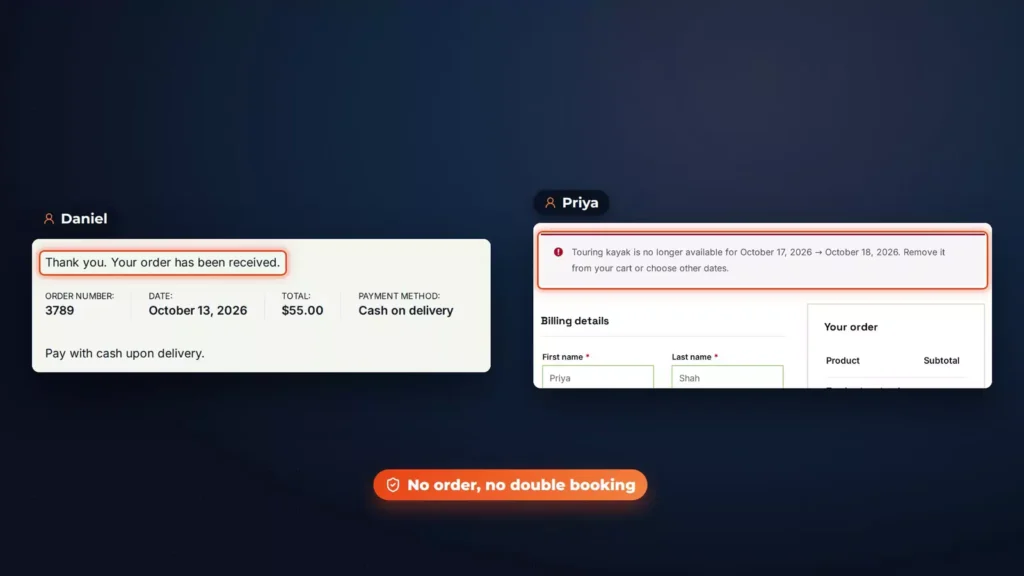
Now the last unit. Two shoppers want this kayak for Saturday. Both pick Saturday to Sunday, add it to the cart and fill in the checkout. Daniel places his order first. A moment later, Priya clicks Place order. The whole cart is checked again, and the kayak is no longer available. No order, no double booking. The next visitor sees Saturday fully booked.
Date pickers
Choose the date picker in the Calendar Styler. The popup range picker is free in Lite. Regular adds the inline range picker and separate date pickers. Then pick one of four looks, Airy, Card, Bold or Classic, with a live preview.
iCal calendar sync with Airbnb and Booking.com
Rent the same cottage on Airbnb or Booking.com? Calendar sync comes with Regular. Each product has its own iCal address for those sites, with only the fully booked dates: no names, no order numbers.
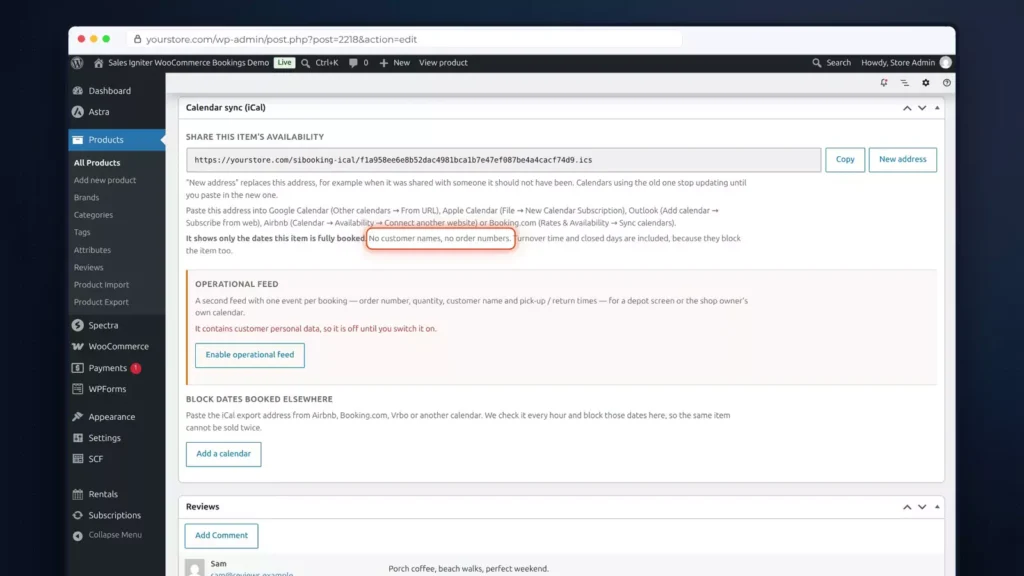
To block dates booked elsewhere, add a calendar, paste its address and save. It syncs at once, then every hour. On the cottage’s page, those nights are taken: 23 and 24 October, and 6 and 7 November.
Each calendar you add can block all the units or only some. An opt-in staff feed adds the order number and the customer, for your own team’s calendar. And in Lite, the Bookings Calendar has an ICS feed for Google Calendar, Outlook or Apple Calendar.
Which edition: stock, closed days, buffers, booking rules and last-unit protection are free in Lite. Inline pickers and calendar sync come with Regular. You can try the calendar on the live demo.
Date search and maps
A date search lets customers pick their dates and see only what’s free, with prices, and on a map.
Search by date
Here’s a date search in the shop’s sidebar. Pick-up is Saturday the 17th, return is Sunday the 18th, and the type is bikes and e-bikes. Click Find rentals. The free bikes now show their price for those dates. The road bike and the kids’ bike are booked that weekend, so they’re greyed out: not available for your dates.
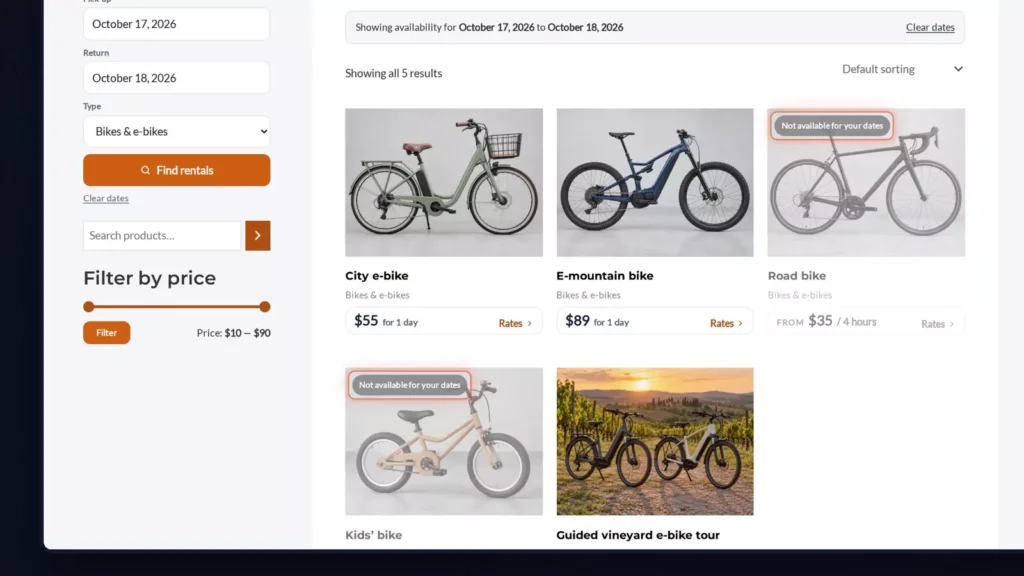
You set that under Rentals, Settings, Search: mark what’s booked, hide it, or turn the filter off. Pick Hide and click Update, and the same search now lists three bikes. Marking keeps the shop full. Hiding suits a pure availability search.
The Search Builder
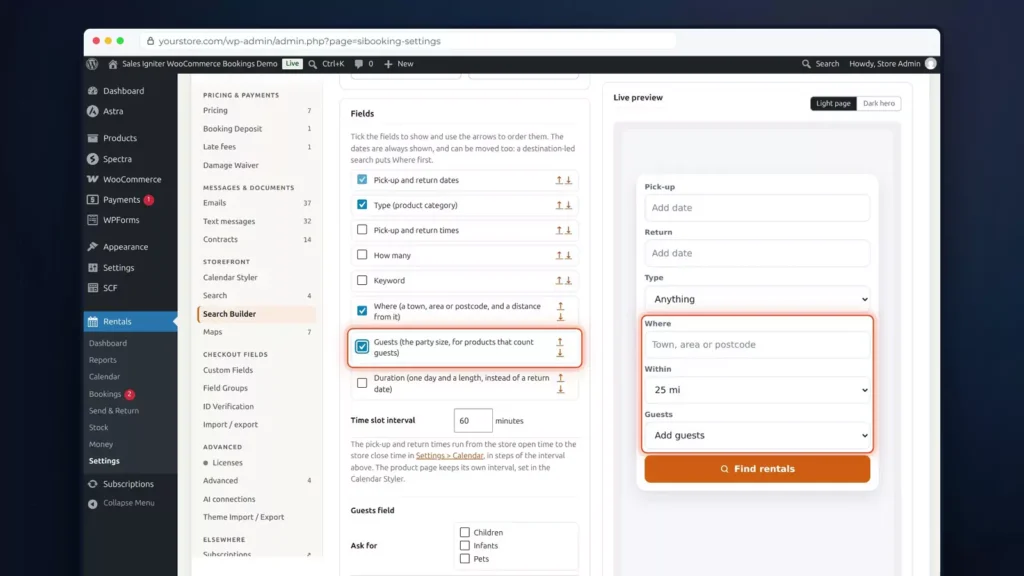
The form itself comes from the Search Builder, with a live preview. Pick a layout: bar, stacked, card or pill. Tick Where and Guests, and the form asks for a place, a distance and a party size. Results can show as the theme’s grid, wide cards, or cards beside a map.
Maps
Maps use OpenStreetMap, free with no key, or Google Maps with an API key. Each rental gets a Location tab: this beach cottage is at Kelley Point, in Portland.
Now a stays shop. Where is Portland, within 25 miles, from Friday the 23rd to Sunday the 25th, for two guests. Click Search. Six stays are free, each with its total for two nights, beside a map with a price pin for every stay. Click a pin to see it.
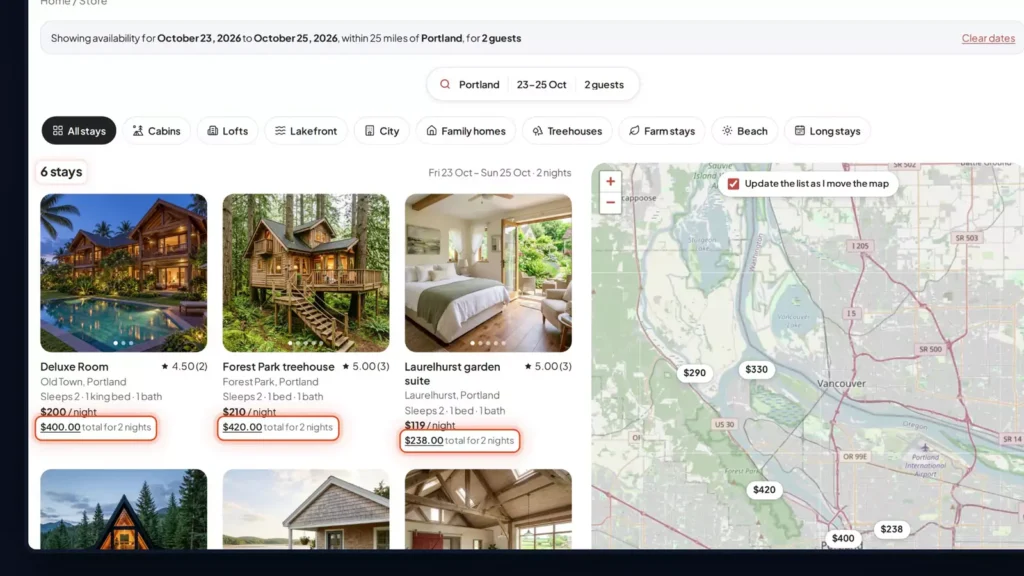
On the cottage’s page, a circle shows the area, and the exact address comes with the booking. The booking card already holds the search: two nights, $330.
Want a map on any page? It’s one shortcode, in a Shortcode block.
Running more than one branch, each with its own stock, pick-up and return? That’s Multi Location Inventory, which has its own video.
The dates follow the customer too. On the e-mountain bike, pick Saturday morning to Sunday afternoon. Then open the City e-bike: the same dates are already filled in, with the price.
Which edition: search and maps are in Regular, and dates that follow the customer are free in Lite.
Checkout: questions, a damage waiver, ID checks and a signed contract
Before a bike leaves your shop, you want a signed contract, a damage waiver and a photo ID. This shop’s checkout does four jobs: it asks the rider a few questions, offers a damage waiver, checks a photo ID and collects a signed rental agreement. First, the setup.
Custom fields
The questions are custom fields, under Rentals, Settings: rider height, rear panniers, riding with a child and an emergency contact phone. Edit one and a live preview shows it on a real product. Switch to phone size or change the label, and the preview follows.
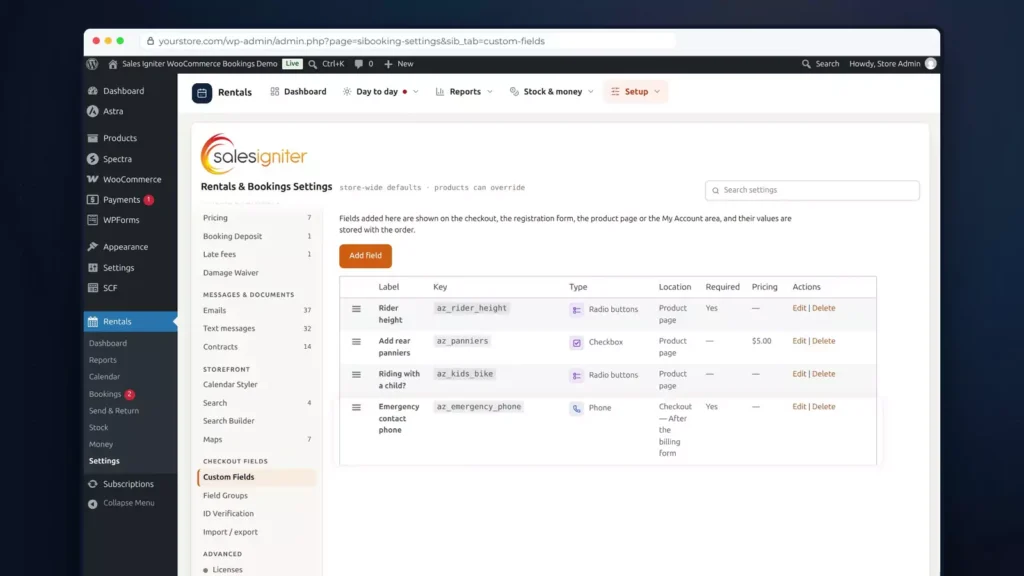
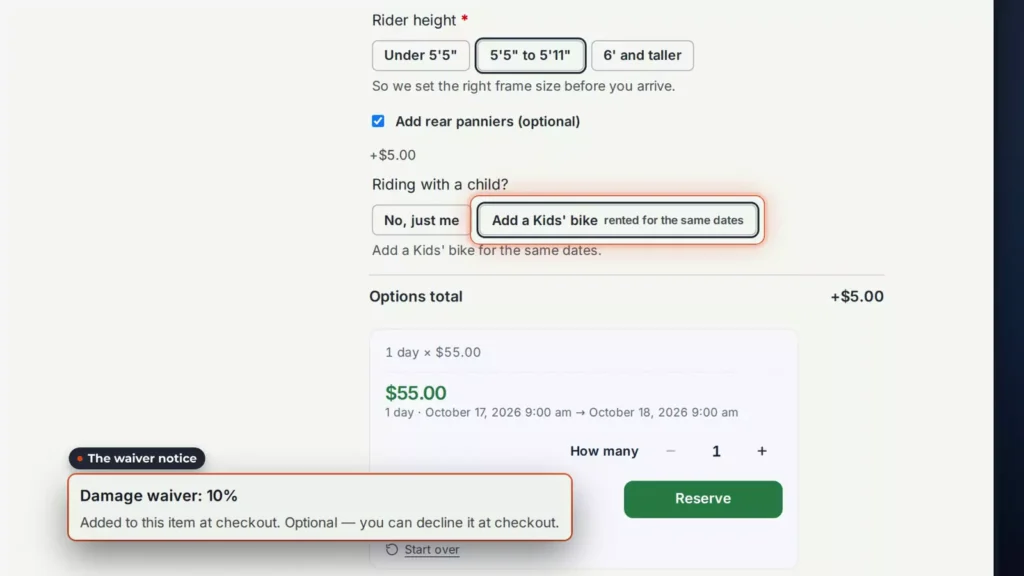
A field can carry a price: rear panniers add $5. An answer can add a product: Add a Kids’ bike books one for the same dates. On a tour, an option can charge per guest, such as lunch, times the number of guests. And a linked rental set to One per guest books a wetsuit for every guest, from the wetsuit stock.
The emergency phone is a checkout field, placed after the billing form. A field group, Ride details, gives all four fields to every bike in one go.
Damage waiver, ID check and contract
The damage waiver is 10% of the line price. It’s optional: the box starts ticked, and the customer can untick it.
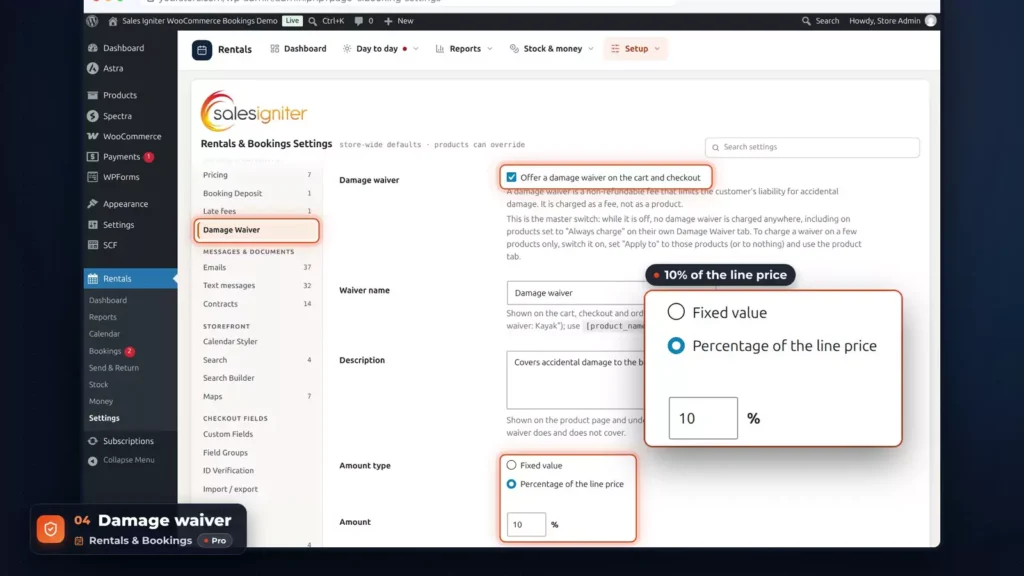
ID verification takes a passport, a driver’s licence or a national ID card, and no order goes through without one. Under Contracts, checkout needs a signature, typed or signed. The agreement uses your own terms, your logo and your legal name.
Booking as the customer
Now Sarah books the City e-bike, Saturday to Sunday. Between the dates and the Reserve button come the questions. She picks 5 ft 5 to 5 ft 11, adds panniers for $5 and adds a kids’ bike. The waiver notice says she can decline it at checkout.
In the cart, her answers sit on the bike’s line, and the kids’ bike has a line of its own, added with the City e-bike. The waiver and the panniers are fees: $89.70 in all.
At checkout she adds an emergency contact, then her ID: a driver’s licence, a photo of the front, her name and the expiry date. Untick the waiver and both waiver lines go, leaving $82. She ticks it again.
Last comes the Rental Agreement. The terms open with her name already in them. Place the order without signing, and it’s refused.
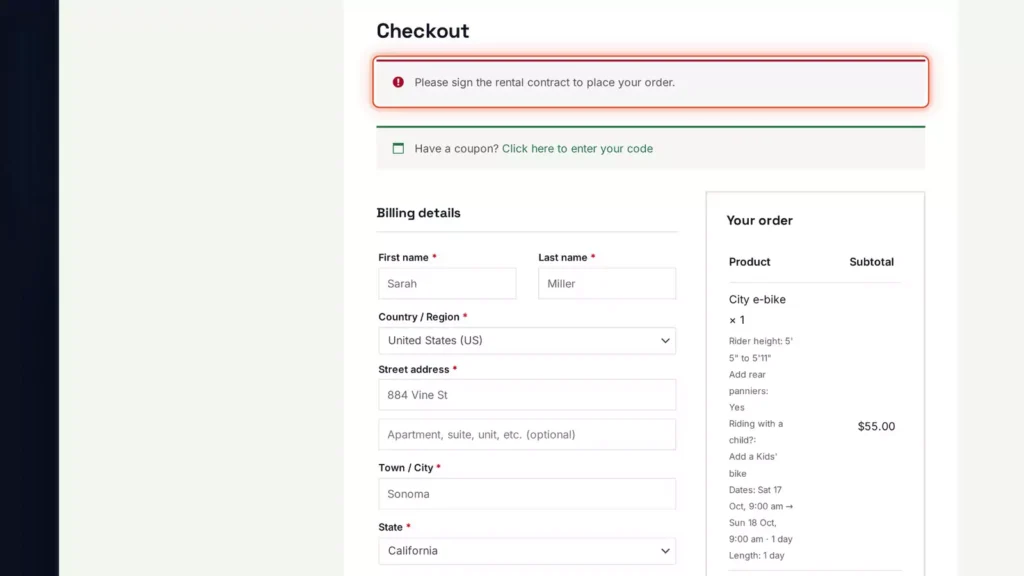
So she draws her signature, ticks the consent box and places the order. Order 3787 is in, with every answer on it.
After the order
Staff check her ID under Rentals, Bookings, ID checks. Review puts the scan beside the order details. Click Approve.
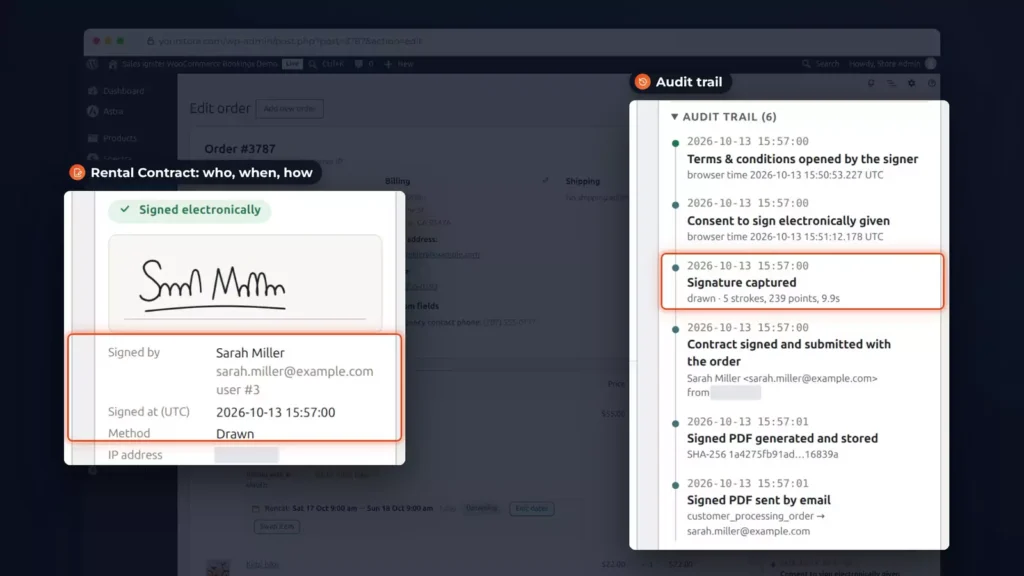
On the order, the Rental Contract box shows who signed, when and how, with an audit trail: terms opened, consent given, signature captured, and the signed PDF emailed. Sarah’s order email carries that PDF: the agreement, her signature and a signature certificate on the last page.
The block checkout works the same way. Her ID is already approved, so she isn’t asked again, and the agreement card sits under the order summary.
Which edition: custom fields, the damage waiver, ID checks and contract signing are all in Pro.
Deposits and balances
Deposits make it easy to say yes to a booking, and balances make sure you still get paid: part now, the balance before pick-up, and a security deposit that goes back after the return.
Set up the booking deposit
The setting is under Rentals, Settings, Booking Deposit. Switch on Let customers pay a booking deposit, and customers choose: pay in full or pay a deposit. Here it’s 25% of the rental price. The balance is due seven days before the start, at 9 in the morning, collected by an emailed payment link.
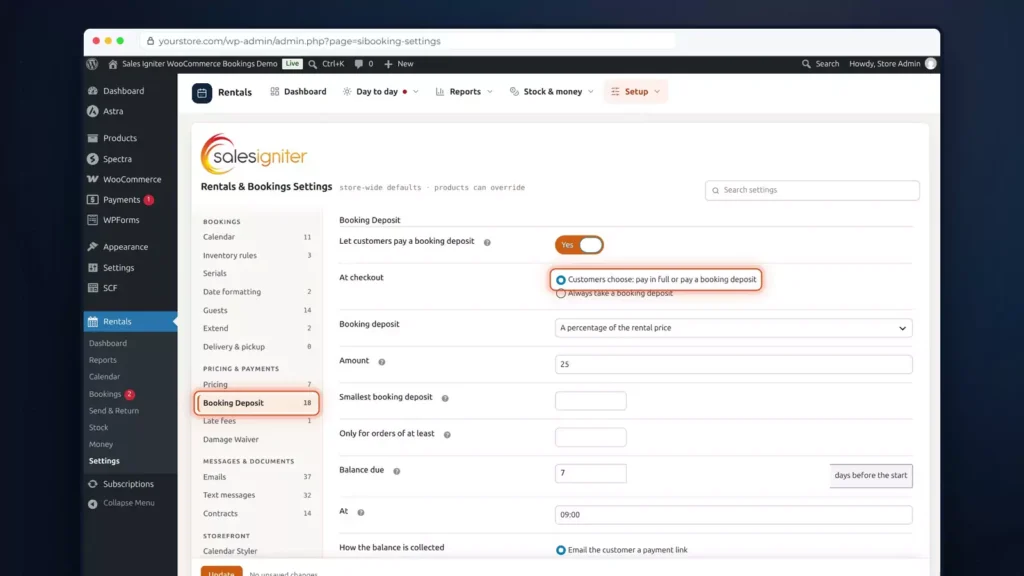
You can also charge the card used at checkout, automatically, on the due date. That needs a gateway that saves cards. This shop has none, so here it stays a setting.
Security deposits come with Pro. On the E-mountain bike, the Security Deposit tab collects a fixed $200, multiplied by quantity.
Booking with a deposit
Sarah books that bike from Monday 26 to Thursday 29 October: three days at $89. Under Reserve, the page says: reserve with 25% now, the rest by Monday the 19th. The security deposit is shown too. In the cart, the refundable deposit is its own line, and the total is $467.
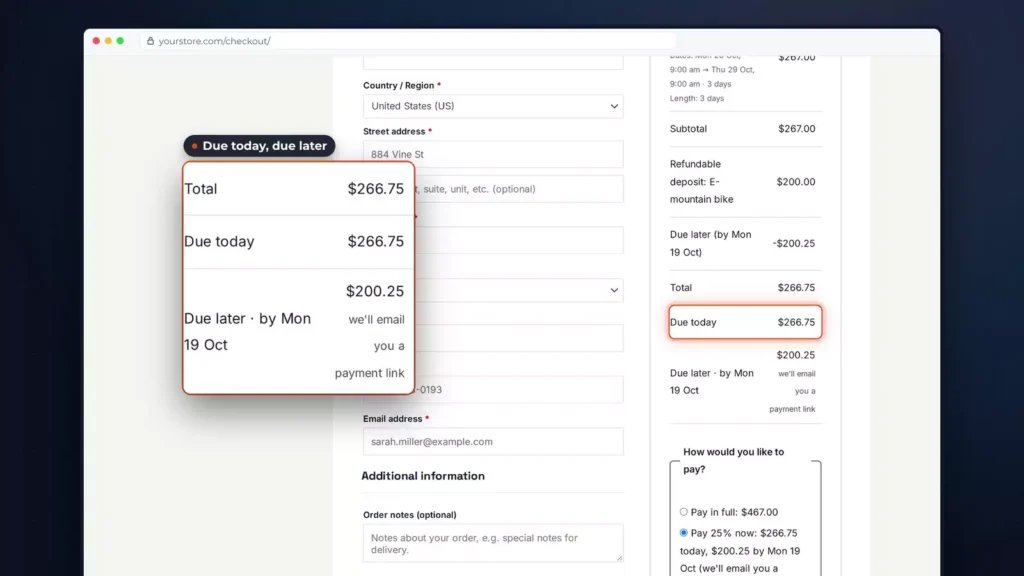
At checkout she picks how to pay: in full, or 25% now. Choose the deposit and the totals split: $266.75 due today, and $200.25 due later by payment link. Today’s amount is a quarter of the rental plus the whole security deposit. She picks bank transfer and places the order.
Her order page shows the payment schedule: due now, the balance due Monday the 19th, and a payment link on the way.
Recording and collecting payments
When her transfer arrives, staff open the order. The Rental payment box shows what’s due now and the balance. Open Record the deposit payment, choose bank transfer, add a reference and record it. The box now reads: deposit paid, balance due Monday the 19th.
Rentals, Money, Balances lists every balance, in tabs: due this week, overdue, failed, waiting for the customer, scheduled and paid. Two are due this week: James Cooper owes $73.50 by Friday the 16th, and Sarah owes her balance by the 19th.
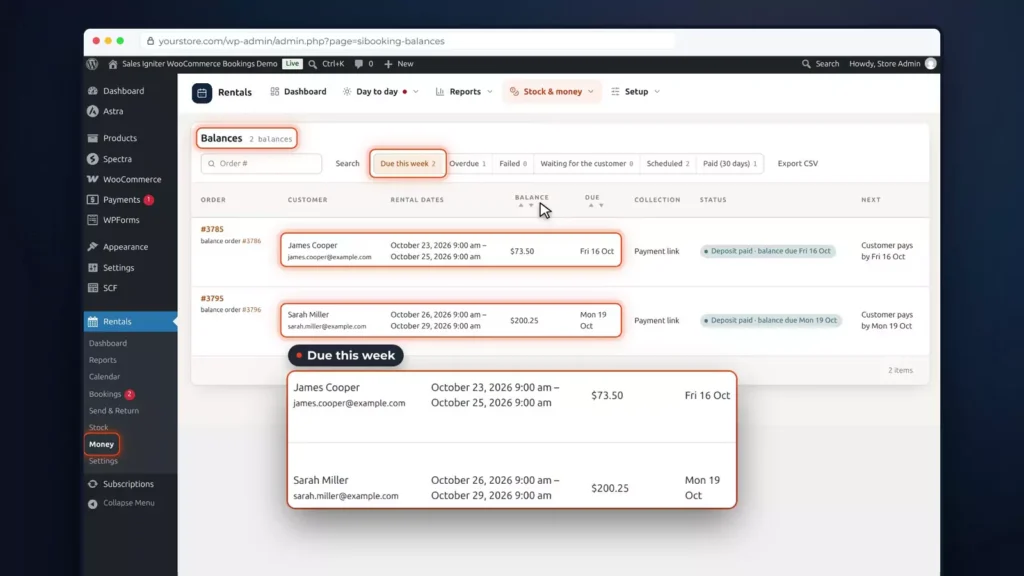
Under Overdue, Emily Nguyen’s $133.50 was due on the 8th, and the screen says to contact the customer. Under Paid, Aisha Rahman settled at the counter, by card terminal.
Hover a row for Record payment, Send payment link or Waive. Send the link and the screen confirms it. James gets an email with a Pay your balance link and the balance, $73.50.
On the order, Change due date moves James from Friday the 16th to Monday the 19th. Waive balance closes one for good: Tom Beckett’s is waived, and his balance order is cancelled. Sarah sees it in My Account too, with a Pay balance button and her payment schedule.
Refunding the security deposit
Daniel’s bike came back with a bent rear derailleur hanger, so the shop keeps $50 of his $200. The order has a Security Deposits Summary. Refund $150 on the deposit line and add the reason, and the summary reads: refunded $150, remaining $50. Daniel gets an email with the amount and the reason.
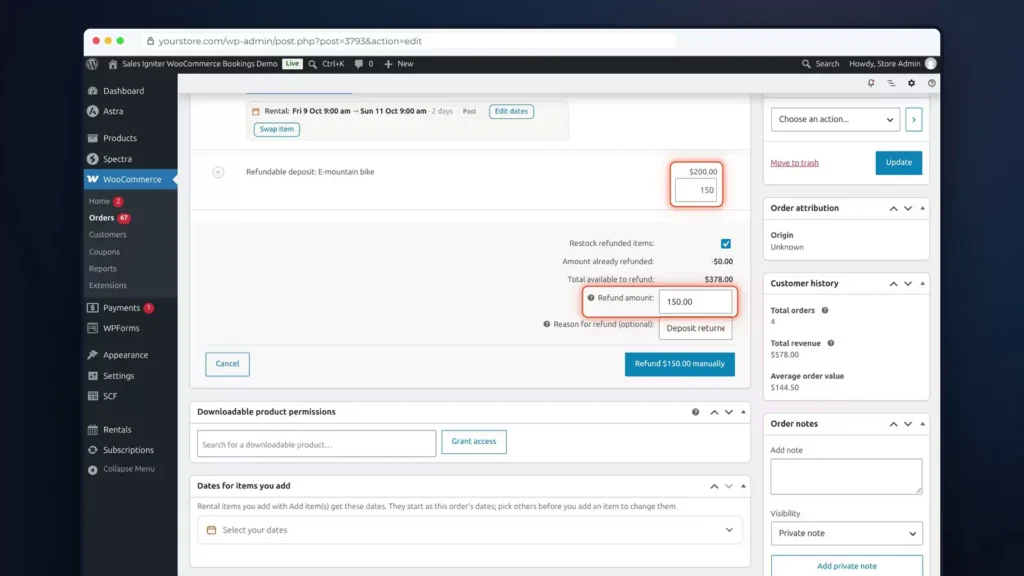
Lucia’s bike came back clean. One click on Refund All Security Deposits, confirm, and the summary reads: all security deposits refunded. Her email says: We refunded $200 of your $200 security deposit.
Which edition: booking deposits, balances and payment links come with Regular. Refundable security deposits are in Pro.
The daily desk: dashboard, bookings and changes
One screen shows what goes out today, what comes back and what’s late, and booking changes take seconds. Every Rentals page has the same top bar: Dashboard, Day to day, Reports, Stock and money, and Setup, with the page’s own tabs right under it. Press Control K to jump to any Rentals page or tab, or to find a booking.
The Rentals Dashboard
Every morning starts on the Rentals Dashboard. It’s Thursday the 15th: four bookings go out today, six units, and three aren’t sent yet. Three come back, and one is already in. And one bike is overdue.
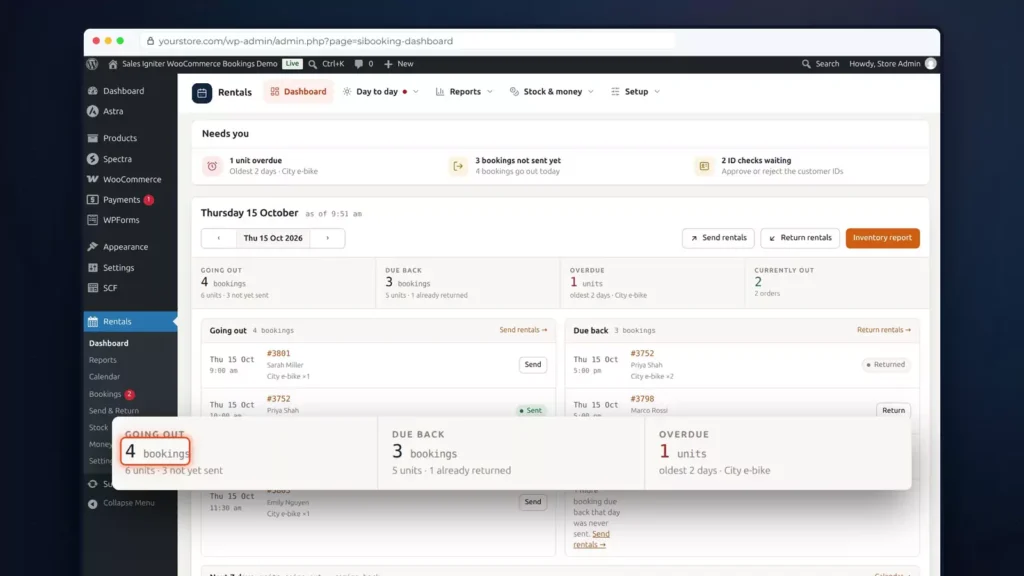
At the top, Needs you lists what’s waiting on you, each with a link: bookings not sent yet, a late fee to review and a balance that’s overdue. ID checks to review and overdue repairs join it from the add-ons.
Below are the day’s lists. Going out: Sarah Miller at 9, then James Cooper and Emily Nguyen, each with a Send button. Due back: Marco Rossi at 5 and Daniel Park at 6, each with Return.
Next seven days shows how many units go out and come back each day, so you can plan the week. The Money card adds revenue this month, the last 30 days, the average rental order and what’s still awaiting payment.
At the bottom is the overdue list: Lucas Grant’s City e-bike was due back on the 13th, two days ago. Step to tomorrow and the same screen shows Friday: Ava Morgan picks up a City e-bike at 9:30. The same summary sits on the WordPress dashboard, so it’s the first thing you see when you log in.
The bookings list and calendar
Rentals, Bookings lists every booking, with tabs for upcoming, out, overdue and returned, and a search by order, product or note.
The Bookings Calendar shows the month: units going out and coming back each day. Today, six go out and six come back, and the 13th flags the overdue bike. Click a day to see its orders. By order shows each booking as a bar. And the ICS feed puts your bookings in Google Calendar, Outlook or Apple Calendar.
Taking a phone order
Grace Liu calls for two City e-bikes on Saturday the 17th. Under Orders, Add order, choose her as the customer and pick the day in Dates for items you add. Then add the City e-bike, quantity two. Edit dates opens the line’s calendars, where a dot marks a day that’s partly booked. Set the pick-up hours, 9 to 5, and apply. The total is $110. Create the order, and the order notes record the dates.
Moving a booking to a full day
Ava Morgan booked a road bike for Friday the 23rd, and she’s paid. Now she’d rather come on Saturday. Open Edit dates on her order and pick the 24th. Every road bike is booked that day, so the screen warns: saving this will overbook. One needed, none free.
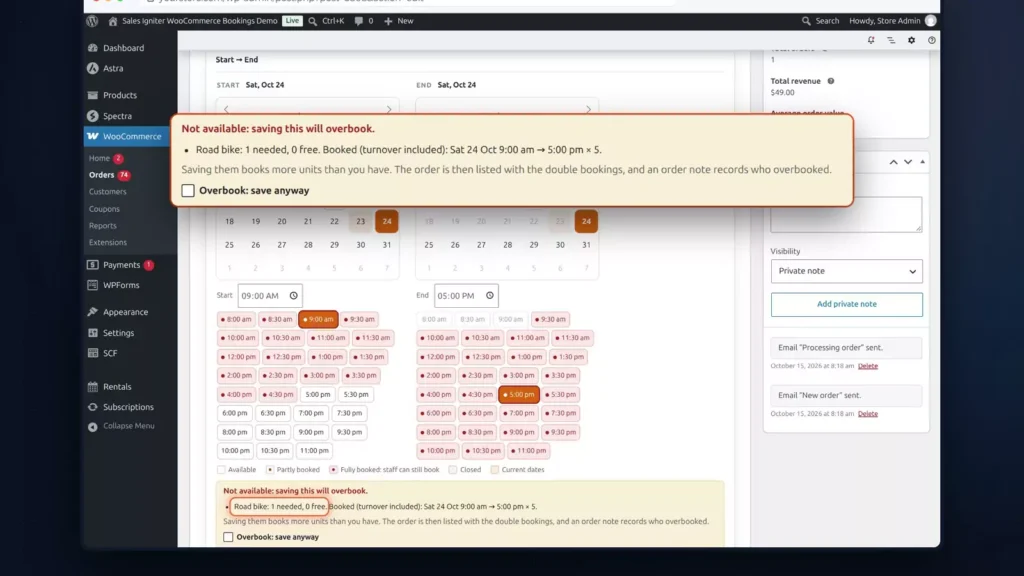
In Settings, you decide who may overbook: administrators and shop managers, administrators only, or nobody. Tick Overbook: save anyway, and apply. The line is marked Overbooked, and an order note records who did it.
Fixing it with Swap item
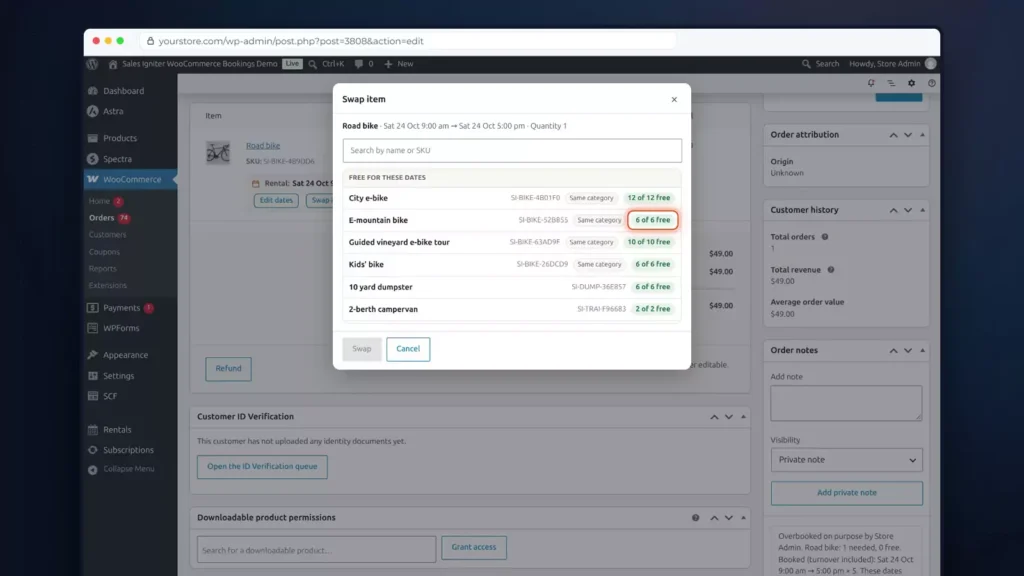
To fix it, use Swap item. It lists what’s free on those dates: the E-mountain bike, six of six free. It would cost $89, but the line keeps her $49 unless you tick Re-price. Click Swap, and Ava rides an E-mountain bike on Saturday, with nothing overbooked.
Date changes on a signed booking
Date changes on a signed booking are covered too. Sarah signed her contract at checkout, and her booking just moved a day. The order’s Rental Contract box lists what changed since she signed: the old dates and the new. Send the changes to sign, and she signs an amendment from the email or from My Account.
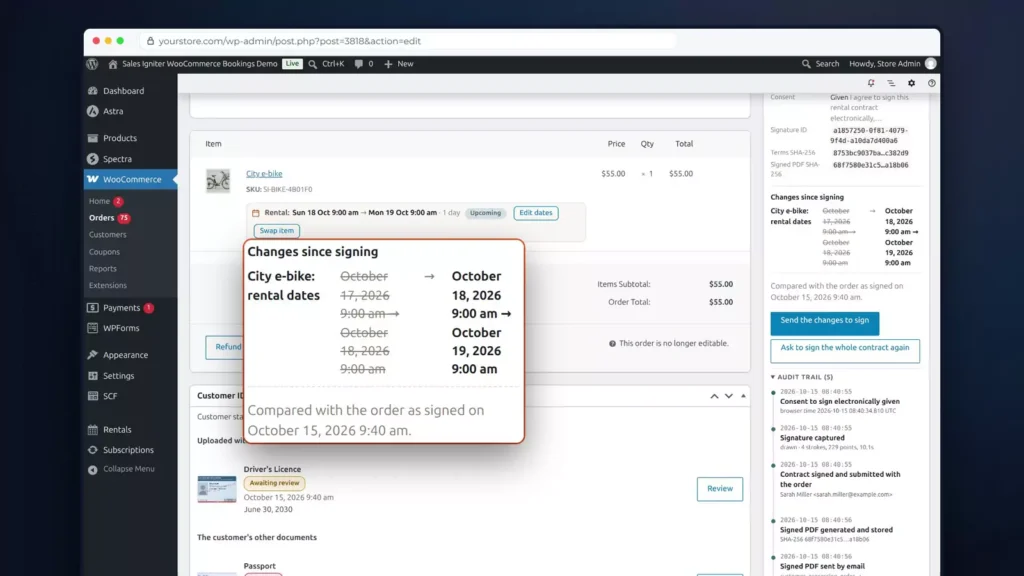
The amendment is its own PDF, with its own signature certificate. The contract she signed never changes, and Verify checks the amendments too.
Which edition: the Rentals Dashboard and Needs you come with Regular. The top bar, the Bookings list, the calendar, phone orders, date changes and Swap item are free in Lite, and contract amendments come with Pro.
Send & Return: scan units out and back in
Know exactly which unit went out, who has it and when it’s due back. Scan it out, and scan it back in.
Serials and labels
Every bike in this shop has its own serial number, BK-101 to BK-112. Under Rentals, Stock, open Serials and search for BK. All twelve are there, with their status, available or out on hire, and the last time each one moved. Select them all and print labels: QR codes, or barcodes with the code printed under each one. Stick a label on every bike.
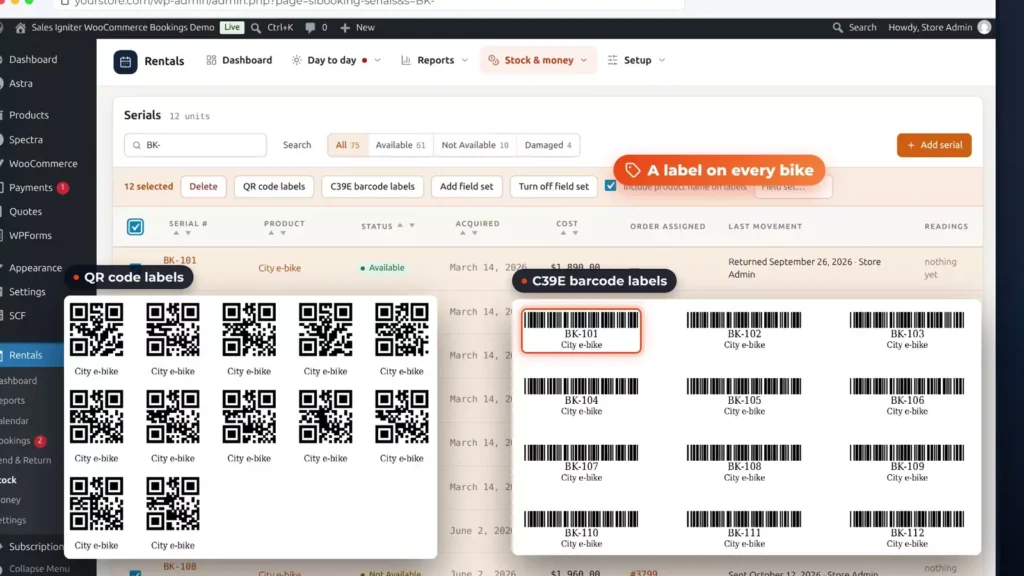
The Send desk
Now the Send desk. Three bookings go out today. The tabs show what’s due today, what’s overdue and the next seven days, and each row counts how many are sent, of how many booked.
Sarah needs one bike. Pick a serial, BK-101. This shop records the battery level on every e-bike, so the desk asks for it before the bike can go. It’s at 100%. Click Send.
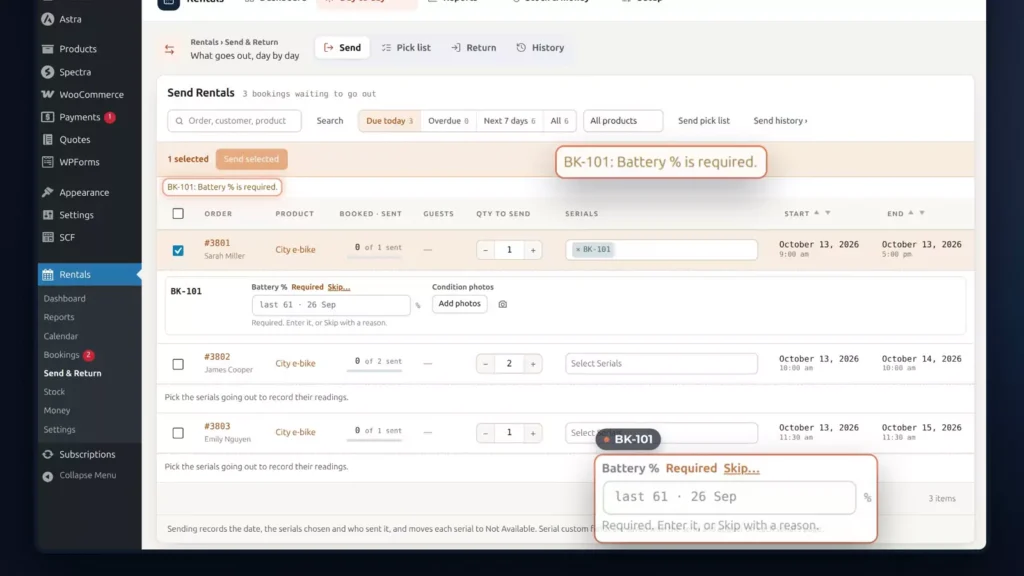
James needs two bikes, so pick two serials and fill in both batteries. Tick Emily’s booking too, and send them together. Each customer gets a Sent email, with the time the bike is due back. The pick list is the record of the day: who got which serials, as a CSV or a PDF.
The Return desk
When the bikes come back, open the Return desk. It starts with what’s overdue and what’s due today. Lucas is two days late. Marco is back with BK-104. Click in the scan box and scan the label. A barcode scanner types the code, just like a keyboard. The desk finds Marco’s booking and ticks it.
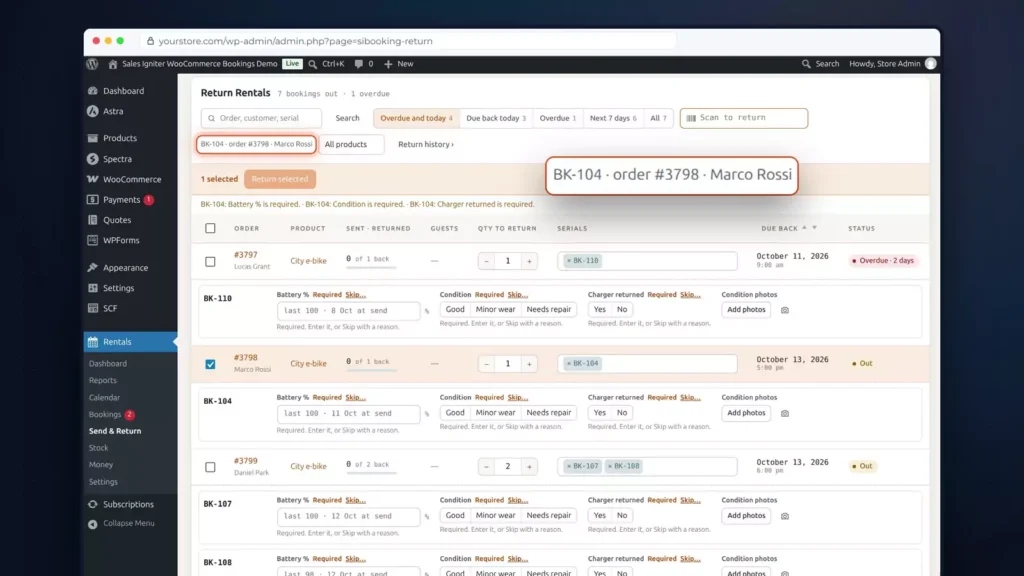
Now the check-in. The battery went out at 100% and it’s back at 46%. Condition: good. Charger: returned. Add a photo. Marco dropped it off at 9:44, so set Returned at to that time and click Return. He gets a Returned email, and because he’s early, the calendar frees the bike up early too.
Open BK-104 and you see its whole history: every send and return, with the battery, the condition, the photos and the order each time.
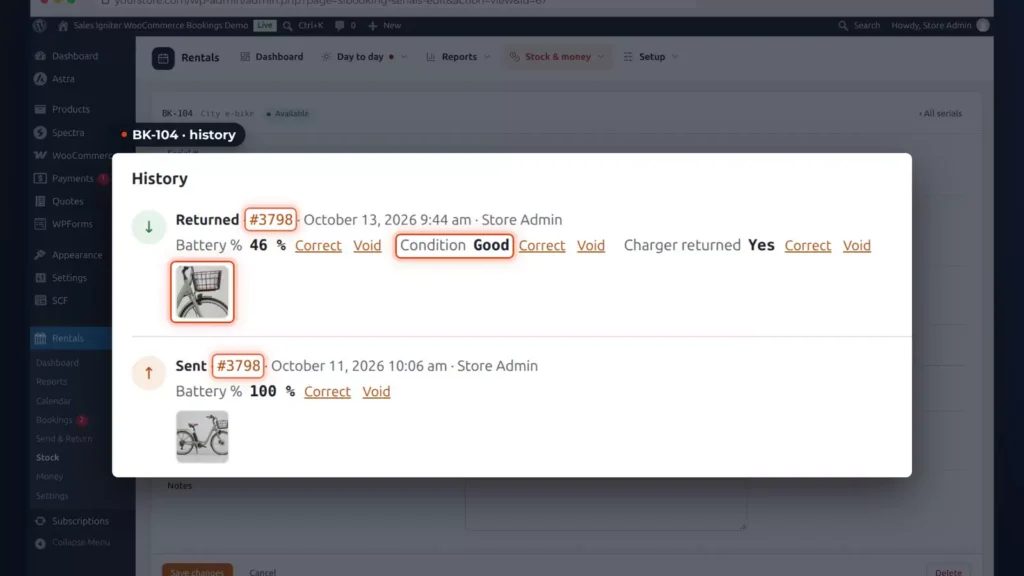
The readings come from a field set in the settings: battery, odometer, hours, fuel, condition or photos. Give it to your products, and the desks ask for it. Two switches keep the calendar true: an early send moves the start date, and an early return moves the end date.
Which edition: Send & Return and serials come with Regular.
Delivery & pick-up: time slots, areas and transport
Pick up in store, delivered to the door, or sent by courier: customers choose how a rental reaches them and how it comes back, with a time slot for each.
Delivery and pick-up is off until you switch it on, under Rentals, Settings, Delivery and pickup. There are three ways out: Pick up, Delivery and Transport. And there are three ways back: return in store, we collect, or transport it back.
Days, cut-offs and time slots
Each way has its own days, an order cut-off, how long until a return counts as late, and blackout dates. Here, pick-ups run Tuesday to Sunday, and orders close at 4 the day before.
Time slots split the day, here 8 to 12, 12 to 5 and 5 to 8, each with its own limit. A slot can carry a surcharge: $5 for the last one. While a customer checks out, the slot holds their place, and a full slot can’t be picked.
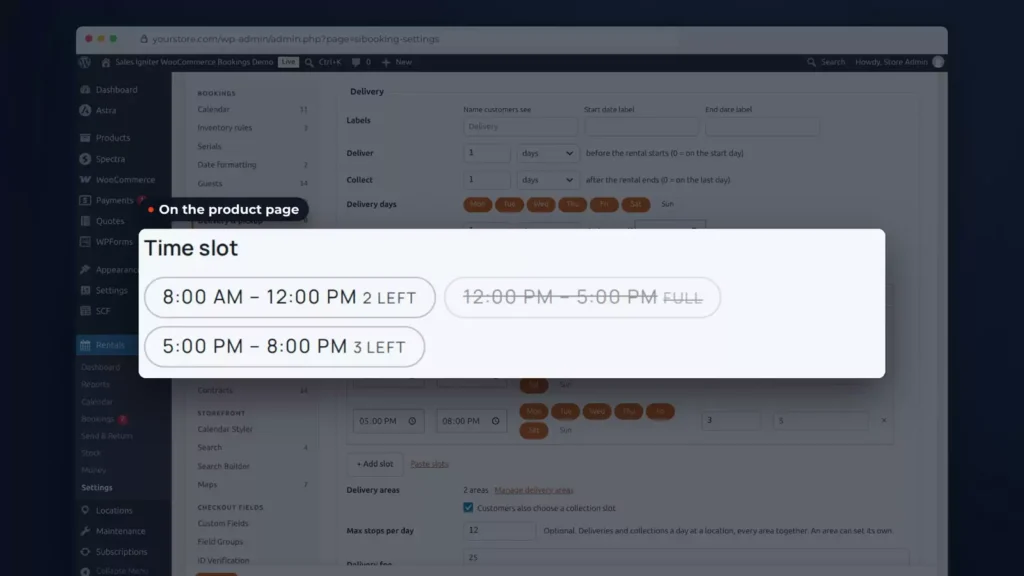
A delivery can go out the day before the rental starts and be collected the day after it ends. Here it’s one day before and one day after.
Delivery areas
Delivery areas set where you go. Each area is a list of postcodes or a radius around the shop, with its own days and time slots, a fee per stop, a minimum order and a limit on stops per day. An address outside every area is refused at checkout.
What the customer sees
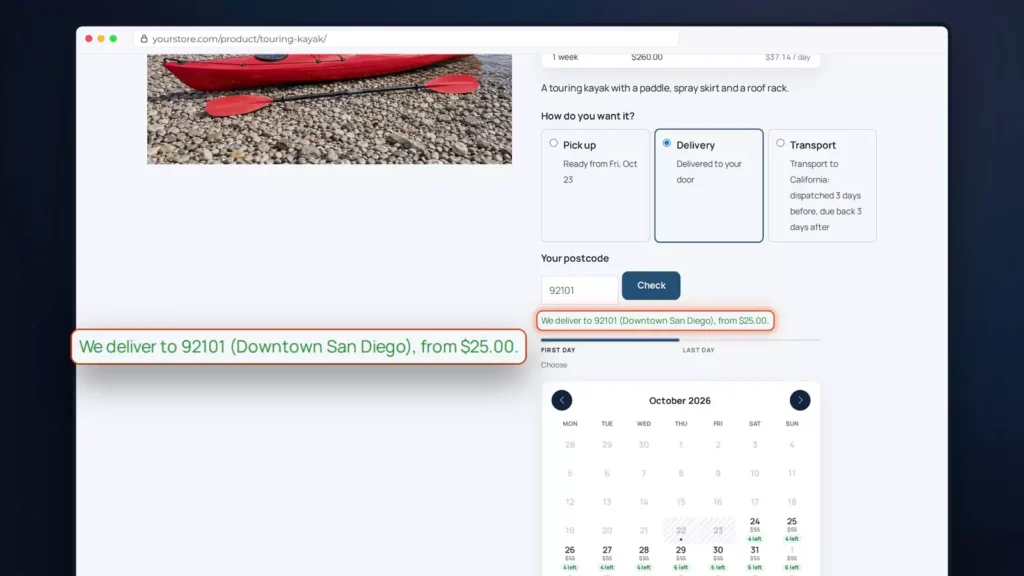
On the product page, the customer answers How do you want it? before picking dates. Delivery asks for the postcode first and says which area it’s in. Then come the dates and a slot, such as Saturday, 8 to 12, with two left.
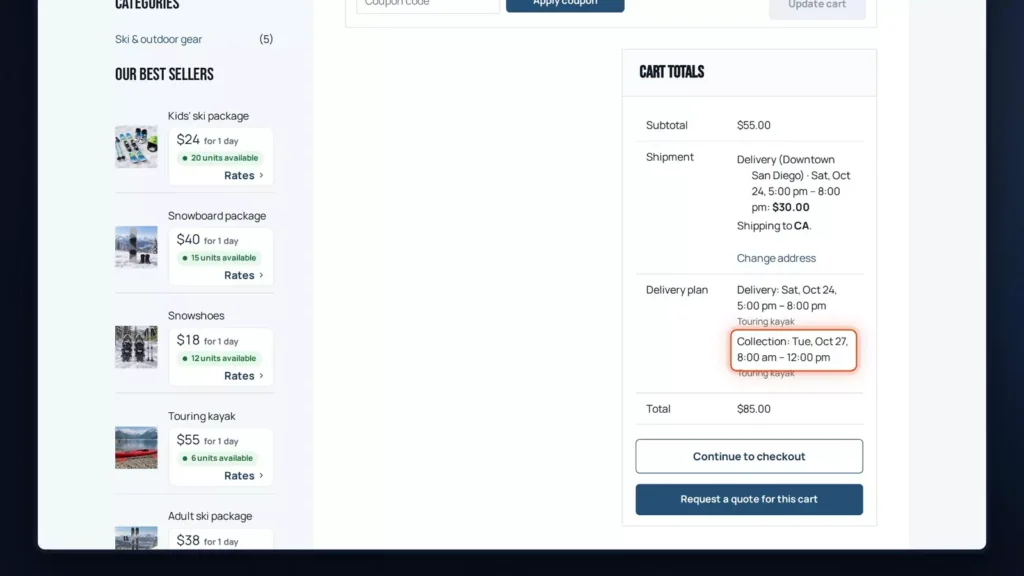
The cart and checkout show the delivery plan: when it arrives, when it’s collected and the time slot for each stop. The delivery fee and the slot’s surcharge come through as the shipping line, with no WooCommerce shipping zones to set up.
On the order, the Delivery and collection box shows both stops. Send and Return list the rental on its delivery and collection days, and reminders and late fees count from them.
Transport: rentals you ship
Transport is for rentals you ship. Days in transport sets how long the parcel is on the way, out and back, in calendar days or working days. The calendar holds those days before and after each rental, on top of the turnover time: three days on the way plus a day’s turnaround blocks four days on each side.
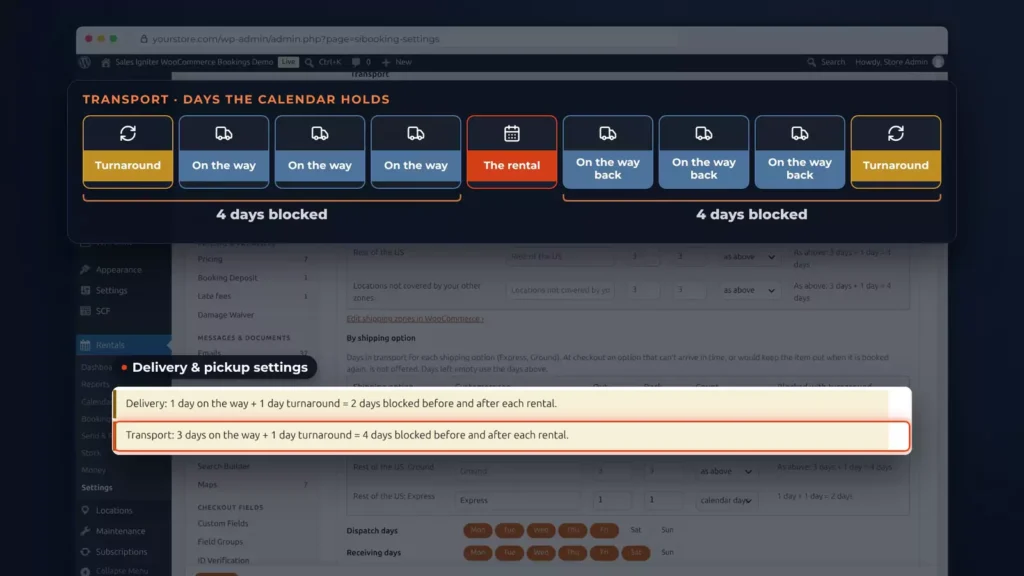
Days in transport can also follow the destination, by WooCommerce shipping zone, or the shipping option: Express in one day, Ground in four. At checkout, the plan is checked again with the shipping address. For a rental that starts on Monday the 26th, shipped to Florida, Ground takes four days and can’t arrive in time, so it isn’t offered. Only Express is.
Planning routes for your drivers, or pricing each address by distance? Smart Routing and Delivery by Distance each have their own video.
Which edition: delivery and pick-up, time slots, delivery areas and transport come with Regular.
Late returns, extensions and late fees
Customers can extend a rental before it’s late, and a late return gets a fair late fee, worked out for you.
Extensions
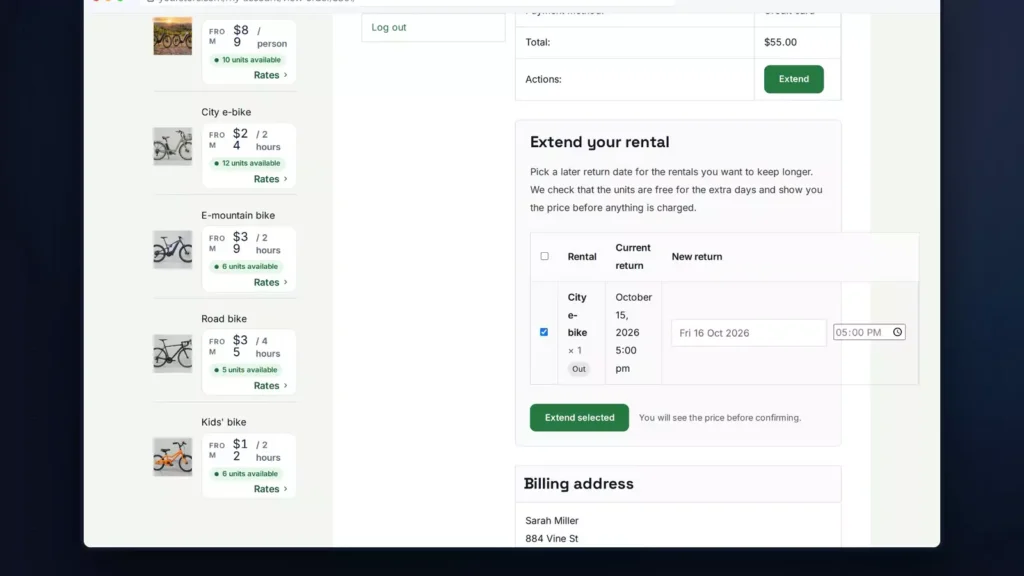
Customers who need more time extend from My Account. Sarah picks a new return date, the extra days are checked against the stock and priced by the product’s own rates, and once she pays, her booking moves to the new date.
Late fees
Late fees are off until you switch them on, under Rentals, Settings, Late fees. By default, a late item costs its own rental price for each started hour or day, after a 60-minute grace period. A fixed amount, a percentage, a cap and a 30-day stop are settings, and each product can follow the store, set its own or have none.
Lucas brings his City e-bike back two days late. On the Return screen, Returned at records when it really came back, and the late fee waits under To review, with one line per late item.
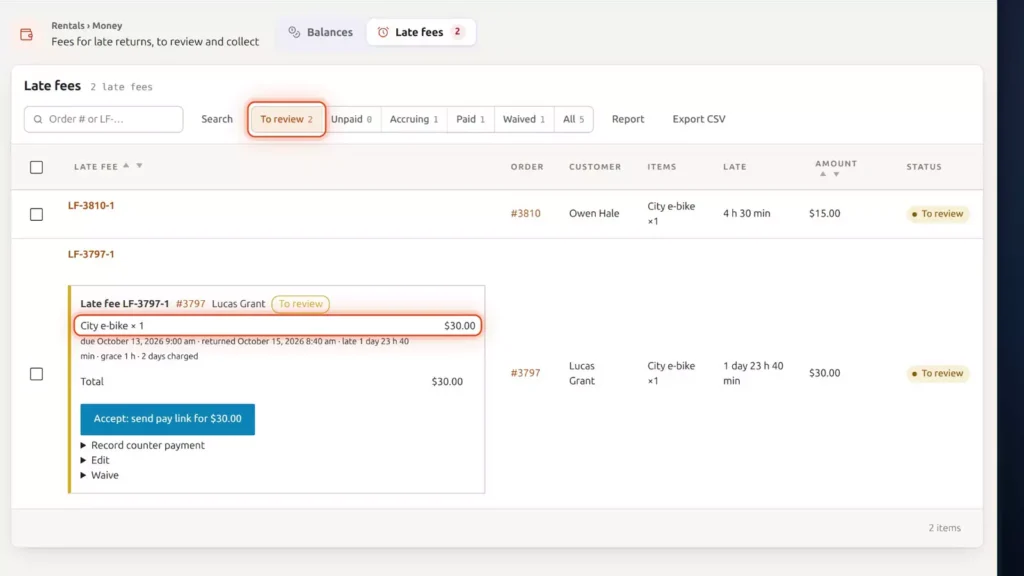
Accept creates a late-fee order and emails Lucas a link to pay. Or edit the lines with a note to him, record a payment at the counter, or waive it with a reason.
While a rental is still out, the overdue reminder shows the late fee so far and how much it grows each day. Rentals, Money, Late fees lists every fee, to review, unpaid, accruing, paid and waived, with bulk Accept and Waive, and a CSV.
Which edition: extensions and late fees come with Regular.
Reminders by email, text message and WhatsApp
Reminder emails are free in Lite: one before pick-up and one before the return, each with its own timing and wording. Regular adds the overdue reminder, for rentals that haven’t come back, with the late fee so far.
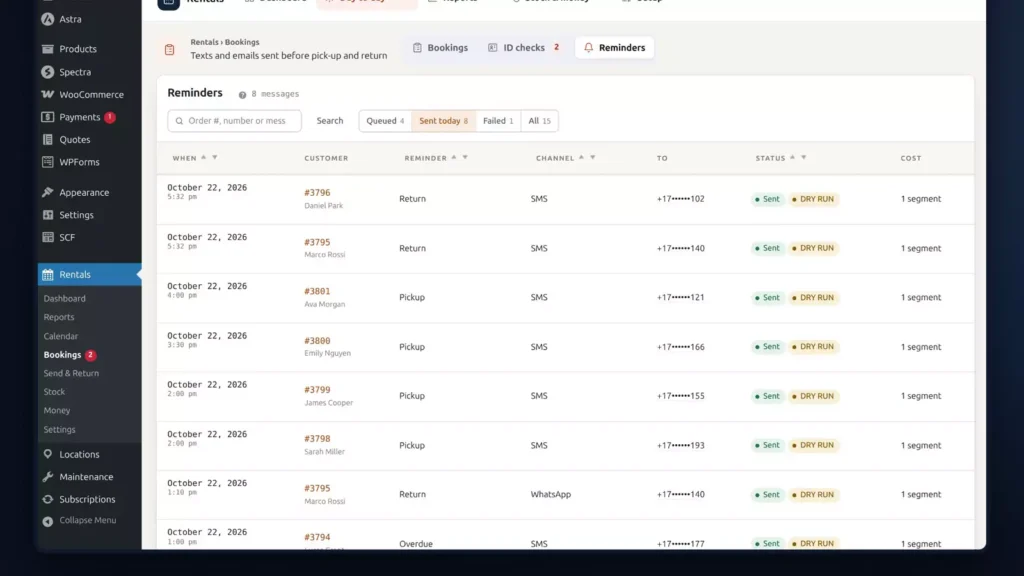
Text messages are under Rentals, Settings, Text messages: SMS through Twilio, and WhatsApp through Twilio or straight from Meta. The SMS wording is yours, customers agree at checkout, and a reply of STOP always works.
The Reminders tab, under Rentals, Bookings, keeps a record of every reminder sent.
After the rental comes a review request. It’s off until you give it a timing, under Rentals, Settings, Emails. It goes only to rentals that were handed over, or to tour guests who checked in, so a no-show is never asked. The link goes to any review page you choose, like Google, or to the product’s own reviews.
Which edition: reminder emails are free in Lite. The overdue reminder, text messages and review requests come with Regular.
Request a Quote for the big jobs
For this chapter the video moves to a party rental shop: tents, tables, chairs and lighting for weddings and events. Big jobs like these are priced by quote. Customers ask for a quote with their event dates, you send the offer, and they accept and pay online.
Request a Quote & Hide Price is included in Ultimate, or sold on its own. With Rentals & Bookings, it gets its own Quotes menu, with the same top bar, and its key sits on the same Licenses screen.
Who sees prices
In the Quotes settings, Hide price rules decide who sees prices and Add to cart. This rule covers the Tents and marquees category, for everyone: hide the price, show Price on request instead, and replace Add to cart with the quote button.
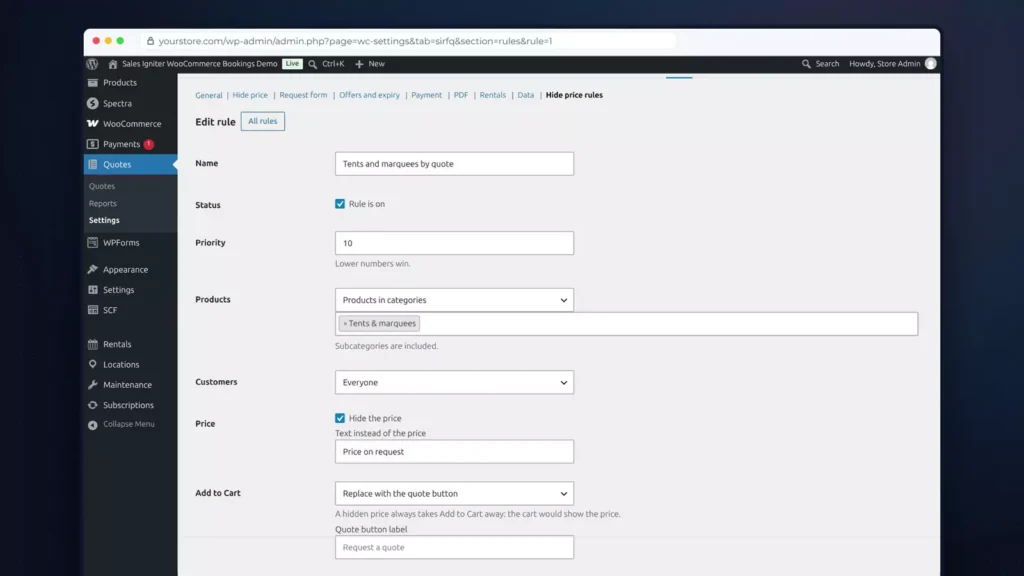
The quote button can add the product to the quote basket, open a quick quote form for just that product, or go to a page you choose.
The shop lists show Price on request, the search engine tags and the store’s API don’t carry the price, and a direct add to cart is refused.
A product’s own Quote tab comes before any rule. This marquee is Quote only: customers can ask for it, but never add it to the cart.
On a rental, the quote button sits in the booking bar. On the marquee it’s the only button, and the bar asks for dates, not a price. A product without a rule, like these chairs, shows Add to quote beside Reserve.
The request form
The request form is under the Quotes settings. Add the fields you need, from eight field types: here, the venue, the guest count and the type of event. Switch on file attachments. Guests can ask without an account, and reCAPTCHA or Turnstile keeps the spam out.
Asking for a quote
Now Emily, who’s planning a wedding. On the marquee, she picks Saturday the 14th to Sunday the 15th and adds it to her quote. Then she adds 80 chairs and 10 round tables for the same dates, each with a note. Each quantity is capped at what’s in stock, and the quote icon in the header keeps count.
The request form asks for what you need: her name, email and phone, the venue and the guest count, and a file, her floor plan. She sends it, and her email says the prices will follow.
Building the offer
In the admin, the Dashboard’s Needs you counts the new request, and Quotes lists it at the top, waiting for an offer. Open it. The rental lines carry her dates, priced by your rental rates. Give the chairs a fixed price, take 10% off the tables, add delivery and setup as an item of its own, and set an expiry date.
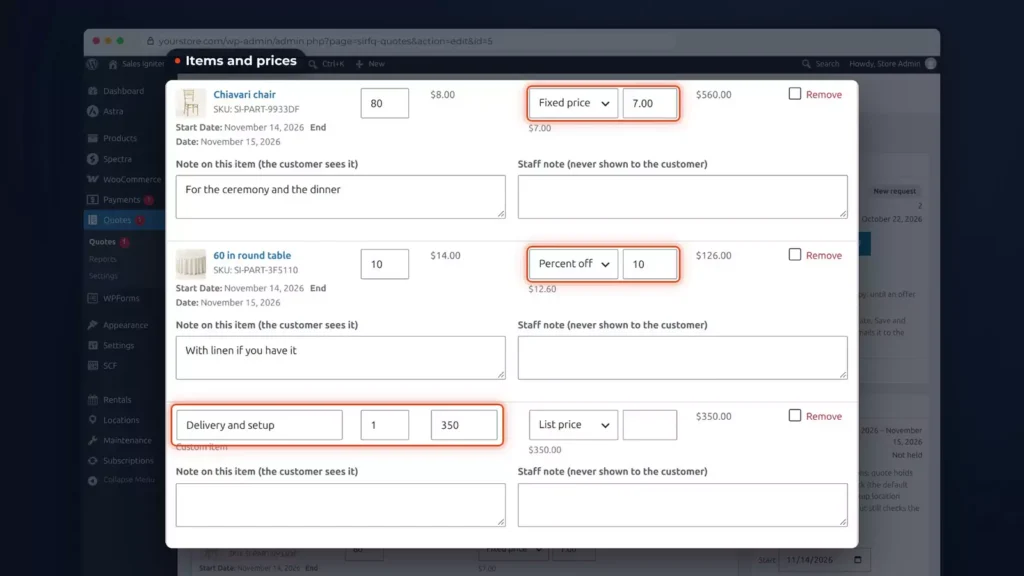
Save and send locks this version and emails it to her, with a PDF of the offer.
Emily asks for a change on one line: 60 chairs, not 80. Apply her change with one click. The editor keeps every version and shows what changed from one to the next. Send again.
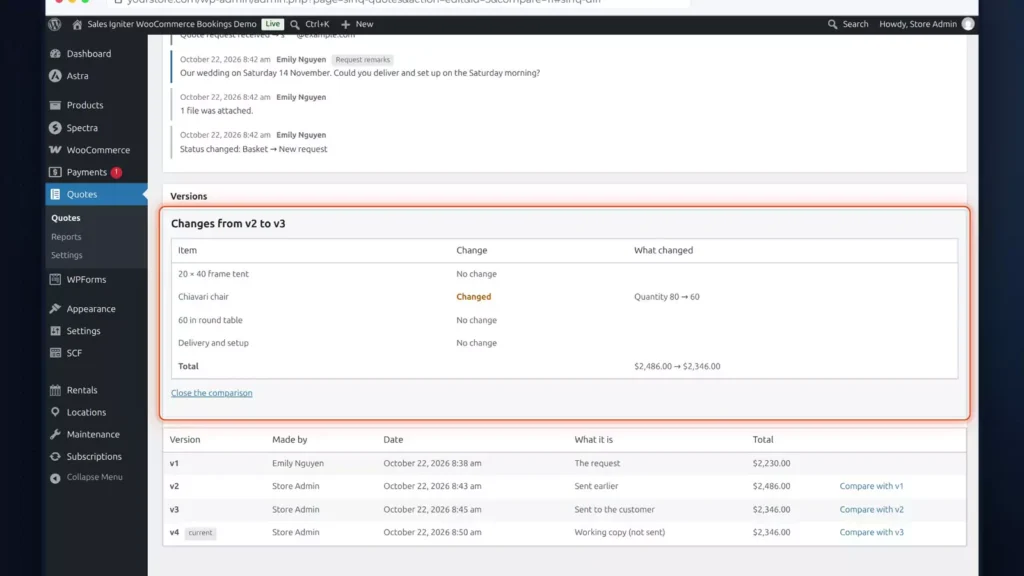
Rental quotes get their own tools. The Rental panel shows whether her items are held. Change all dates moves every rental line to new dates at once, with the stock and the prices checked again. Hold stock and Release hold do it by hand.
Accepting and paying
On her quote page in My Account, Emily sees the quoted price, the date it’s valid until, the PDF, what changed since the last offer, and Accept and pay.
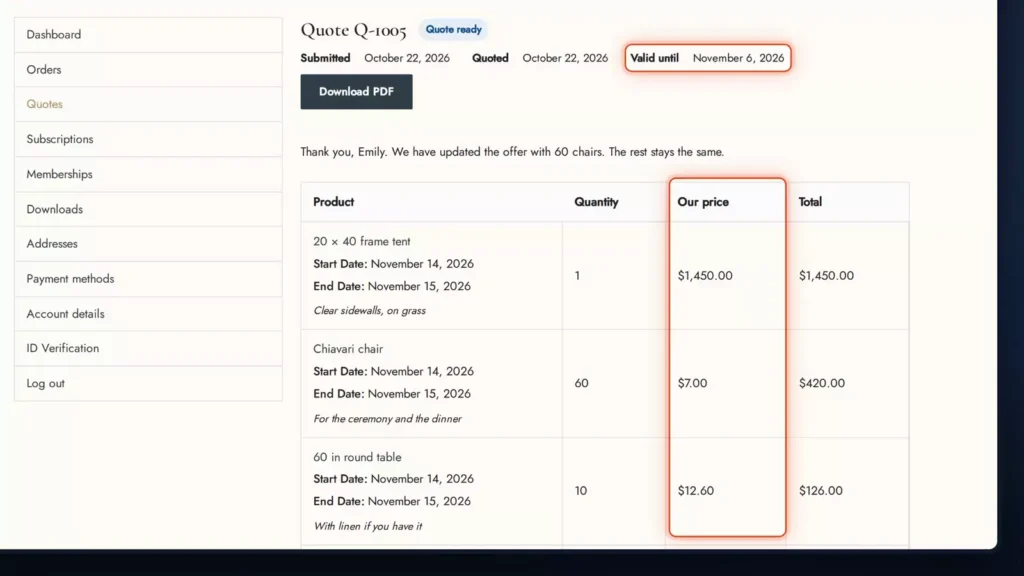
When she accepts, her items are held, so nobody else can book them before she pays. Accept and pay goes to the normal WooCommerce checkout, at the quoted price, and the booking deposit and the rental contract work just as they do for any booking.
The order names the quote on every line, the quote becomes Ordered, and the hold is released, because the rentals have moved to the order.
An offer that isn’t answered gets a reminder three days before it expires. The quote reports show requests, offers, the win rate and the first response time. Customers can also ask for a quote for a whole cart: Request a quote for this cart.
There’s more in the full Request a Quote tutorial.
Which edition: Request a Quote & Hide Price is included in Ultimate, or sold on its own.
Maintenance and inspections
Repairs, inspections and service schedules, with every damaged unit kept off the calendar until it’s fixed. Maintenance & Inspections is included in Ultimate, or sold on its own. Its pages sit under Stock and money in the top bar, and the Dashboard’s Needs you lists overdue repairs and problem reports to confirm.
It starts at check-in. James Cooper’s e-bike comes back with a loose brake, so tick Needs service. That opens a ticket, and the bike comes off the calendar until it’s fixed: customers can’t book that unit.
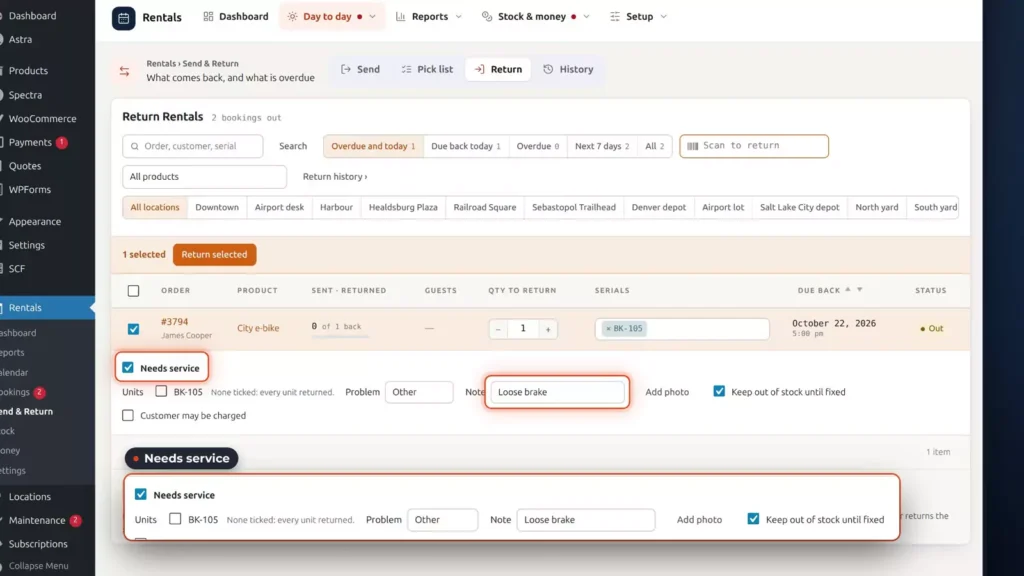
The ticket board lists every repair with its status, and each ticket keeps a timeline and any photos. Marco Diaz, the technician, takes the ticket, works through its checklist, and records the parts, the labour and the vendor. If the damage was the customer’s, add a damage charge.
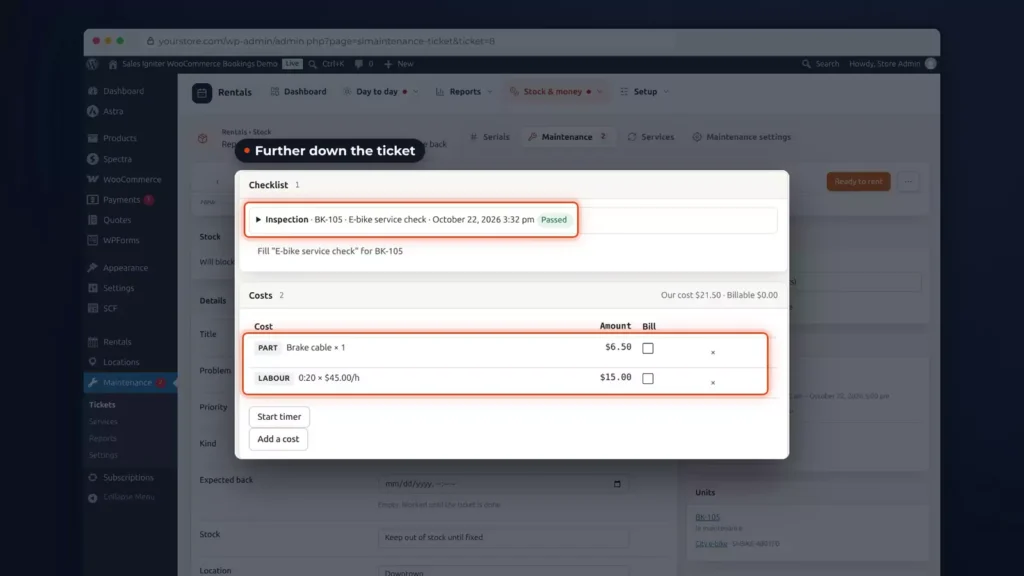
Service schedules keep routine checks on time, and with the block switched on, a unit that’s overdue for its service is stopped at check-out. Customers can report a problem too, and staff confirm it before it takes a unit out of stock.
Click Ready to rent and the e-bike is back in stock. The maintenance reports show what each unit has cost, and the Dashboard card shows what’s open.
Which edition: Maintenance & Inspections is included in Ultimate, or sold on its own.
Reports: which rentals earn their keep
Reports show which rentals earn their keep and which sit on the shelf. Most are one click away, in the top bar’s Reports menu.
The Inventory Report shows what’s out and what’s free, day by day: seven days in Lite, and 14 or 30 days in Regular.
The Usage report shows how hard each rental works: its utilisation, how often it goes out and its revenue, for every product and every serial. The kayaks are out most weekends. The tandem bike mostly sits idle.
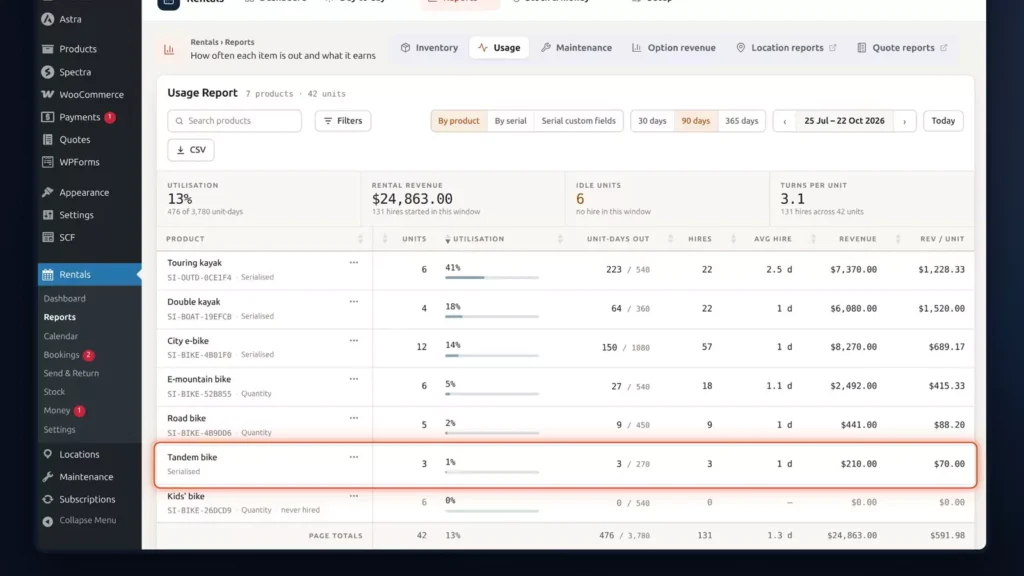
The late fees report adds up what late returns brought in. The reports export as CSV, with your bookings as an ICS calendar feed.
Which edition: the seven-day Inventory Report is free in Lite. The longer views, the Usage report and the late fees report come with Regular.
Which edition do you need?
Start with Lite. It’s free, with no time limit: rentals by date, by the hour or by the night, guests, variable products, the bookings calendar and reminder emails.
Regular adds the tools that run a rental shop every day: serials and the Send & Return desks, advanced pricing, calendar sync, search and maps, deposits and balances, delivery and pick-up, late fees, SMS and WhatsApp reminders and the full reports. It also includes Bundles & Composites and Delivery by Distance, each with its own video.
Pro adds a checkout that protects you, with custom fields, signed contracts, damage waivers and ID checks, plus refundable security deposits, subscriptions and memberships.
Ultimate adds Request a Quote, maintenance and inspections, multiple locations and Smart Routing, plus Live Chat, AI Chatbot & Help Desk.
Each edition includes the one above it. Regular, Pro and Ultimate are one-time purchases with a year of support and updates, and the plugin keeps working whether or not you renew.
| Edition | What it adds | Price |
|---|---|---|
| Lite | Rentals by date, by the hour or by the night, guests, variable products, the bookings calendar and reminder emails. | FreeNo time limit |
| Regular | Serials and Send & Return, advanced pricing, calendar sync, search and maps, deposits and balances, delivery and pick-up, late fees, SMS and WhatsApp reminders, full reports, Bundles & Composites, Delivery by Distance. | $199Code 150regular, list $349 |
| Pro | Custom fields, signed contracts, damage waivers and ID checks, refundable security deposits, subscriptions and memberships, free installation. | $299Code 200pro, list $499 |
| Ultimate | Request a Quote, maintenance and inspections, Multi Location Inventory, Smart Routing, Live Chat, AI Chatbot & Help Desk, free installation. | $499Code 300multi, list $799 |
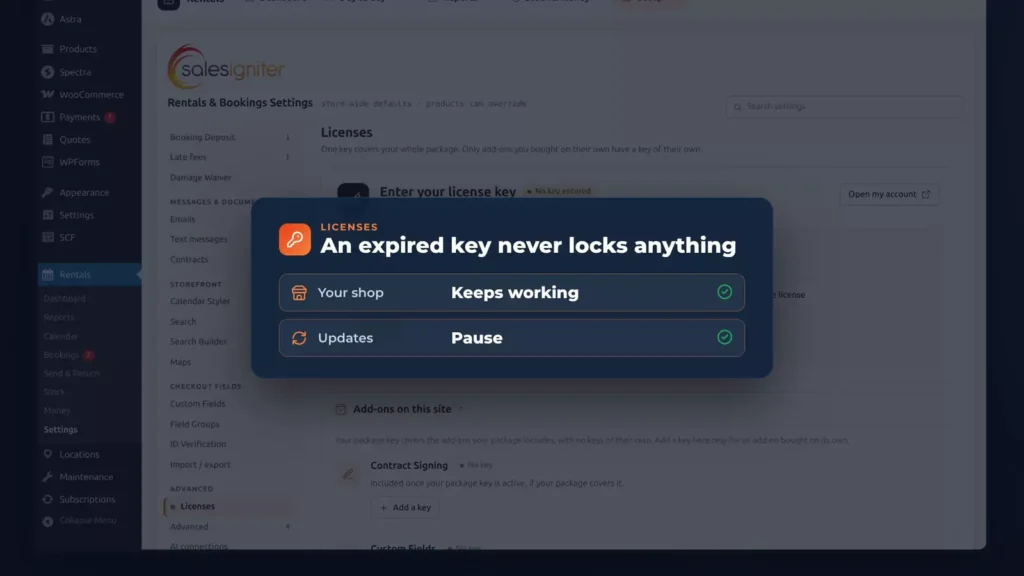
Whichever you pick, one key goes in one place: Rentals, Settings, Licenses. Every add-on your package covers runs on that same key. And an expired key never locks anything: everything keeps working, and only updates pause.
Try it before you build
Start free with Lite and upgrade when your rental business needs more, or click through every feature on the live demo.
Get Lite freeTry the live demo
Compare every edition or see the full feature list. Rentals & Bookings is also available for Magento 2 and Shopify. Features differ by platform.
Where to go next
- Installation docs and adding rental products, for the settings behind the quickstart.
- Send & Return docs, booking deposits and late fees, for the settings behind those chapters.
- Bundles & Composites video, for kits and build-your-own packages.
- Tours & Activities video, for departures, guides and a waiver for every guest.
- Request a Quote tutorial, for hidden prices, quote versions and online acceptance.
- Multi Location Inventory, if you run more than one branch.
- Smart Routing and the Delivery by Distance video, for driver routes and pricing each address by distance.
- We tested 9 paid WooCommerce rental plugins, if you’re still comparing.
FAQ
You can build the basics for free. WooCommerce, Secure Custom Fields and Rentals & Bookings Lite cost nothing, and Lite has no time limit. It covers rentals by date, by the hour or by the night, guests, variable products, the bookings calendar and reminder emails. You still pay for hosting and a domain.
The first booking takes about five minutes in the video, with the WooCommerce store basics filled in off camera. After that it depends on how many products you have and how much of the video you need. A rental theme adds sample products and a homepage in one import, which you can then edit.
No. Everything in the tutorial is done in the WordPress admin. The closest it comes is a map on a page of your own, which is one shortcode in a Shortcode block.
The plugin keeps working. Regular, Pro and Ultimate are one-time purchases, and the first year of support and updates is included. An expired key only pauses updates.
Every product counts its units day by day, and a day closes when the last unit is booked. If two customers check out at the same moment, the cart is checked again at Place order and the second order is refused.