
Once customers start subscribing, you manage everything from Subscriptions in the admin menu and from the WooCommerce order screen. This page walks through the subscriptions list, editing a subscription, renewals, and what customers can do themselves.
The Subscriptions list #
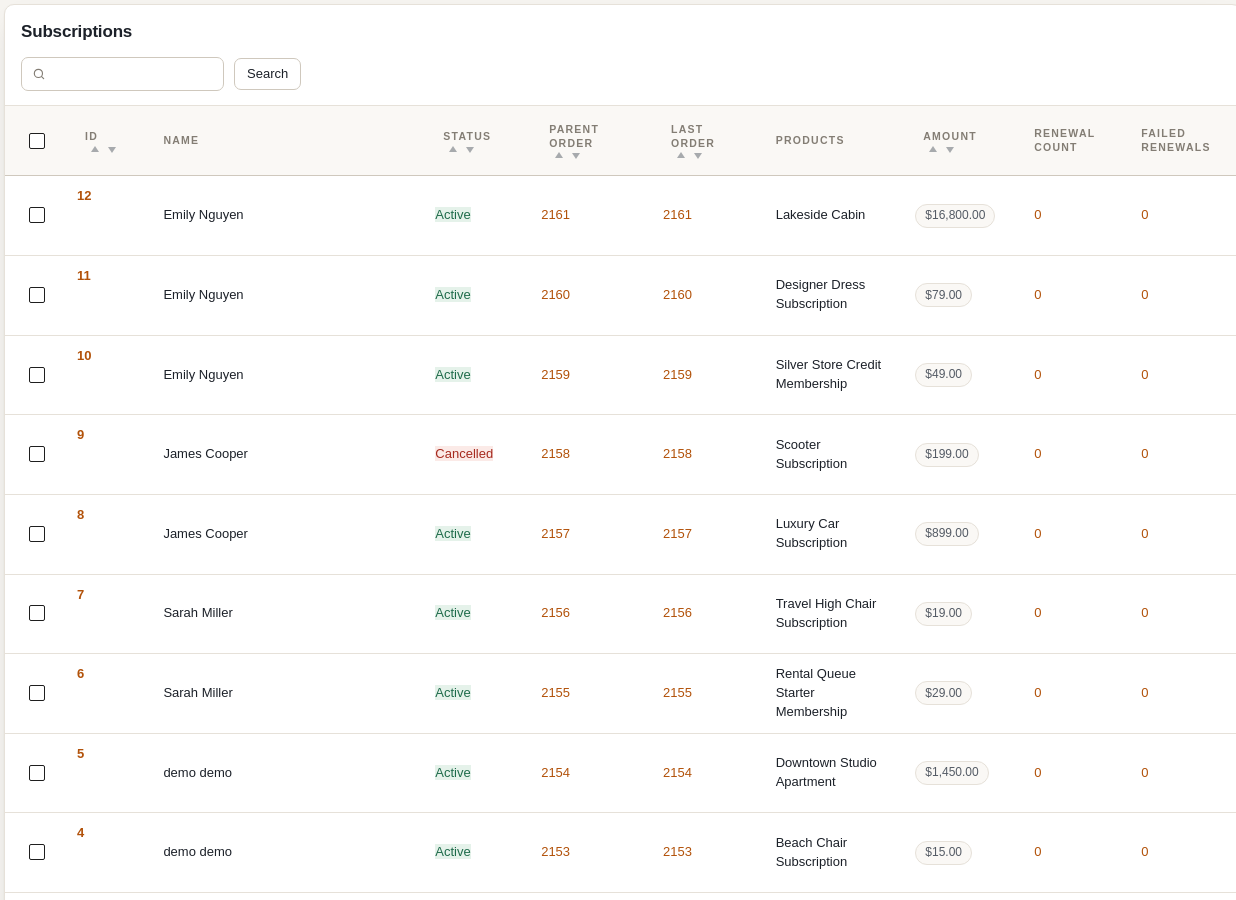
| Column | Meaning |
|---|---|
| ID | The subscription number. Hover for Edit (opens the parent order, where the subscription is edited) and Delete. |
| Name | The customer. |
| Status | Active – renewing normally. Paused – kept but not billed until resumed. Cancelled – stopped by the customer or you; its rental bookings are released. Expired – reached its “Stop renewing after” limit. Pending – created but the first payment has not completed. |
| Parent Order | The original checkout order. Its payment method is what renewals charge. |
| Last Order | The most recent renewal order (or the parent order if there have been none). |
| Products | The subscribed products. |
| amount | The recurring amount charged each billing period. Renewal orders never include shipping, so this can be lower than the parent order total. |
| Renewal Count | Number of successfully paid renewal orders. Click it to see those orders in the WooCommerce orders list. |
| Manual Renewals | Renewal orders sitting On hold waiting for you to take payment (manual gateways). The column only appears when at least one subscription has one. |
| Failed Renewals | Renewal orders that did not get paid – failed card charges, or orders stuck pending. Click through to see them with a Failure Reason column. |
Use the search box to find subscriptions by customer, and the Bulk actions > Delete option to remove several at once. Deleting a subscription removes the recurring billing record only; existing orders are untouched.
Editing a subscription from the order #
Subscriptions are edited from their parent order. Open the order (click Edit in the list, or the parent order number) and find the Subscription Management box:
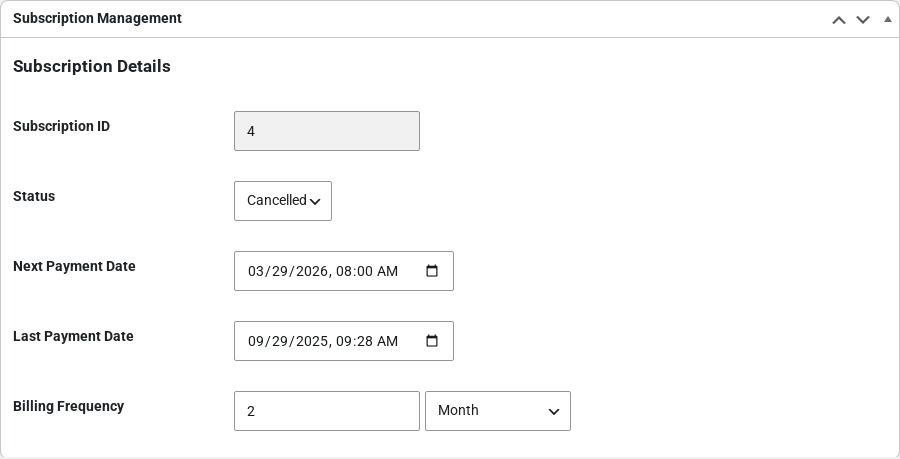
- Status – change it to Active, Paused, Cancelled, Expired or Pending. Setting a subscription to Cancelled also cancels its rental bookings so the inventory frees up.
- Next Payment Date – when the next renewal will be created and charged. Move it forward to give a customer extra time, or backwards to bill sooner.
- Last Payment Date – the date of the last successful payment. For store credit memberships this is also the start of the current credit period.
- Billing Frequency – the interval and period (for example every 2 months).
Click Update on the order to save. On an order that is not yet a subscription, the box offers Add Subscription Settings so you can attach recurring billing to an order created by hand.
Renewal orders show a note in this box instead of the fields – This is a subscription renewal order. To modify the subscription please edit the parent order – with a link to the parent.
Finding subscription orders #
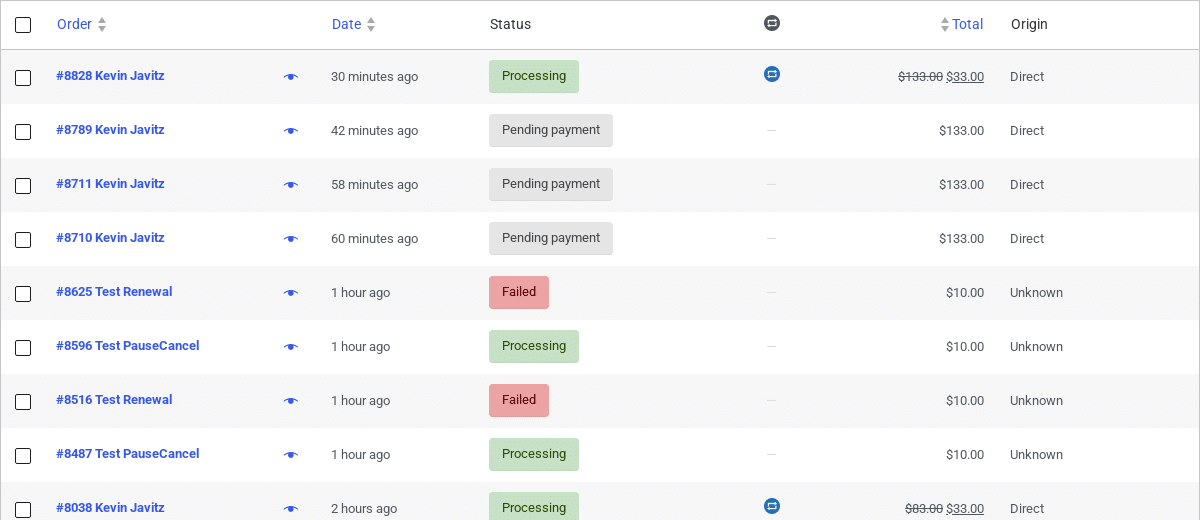
In WooCommerce > Orders a subscription icon column marks every order that belongs to a subscription, both parent orders and renewals, so they are easy to spot among normal bookings:
Renewals #
Renewals are processed automatically once a day. For each active subscription whose next payment date has been reached, the plugin creates a renewal order (a copy of the parent order’s subscription items, with the booking dates moved forward by one billing period and no shipping), charges the saved payment method, and then:
- Payment succeeds – the order becomes Processing/Completed, the subscription’s next payment date moves forward one billing period, the rental reservation is extended, and any store credit membership on it is topped up.
- Payment fails – the order is marked Failed and the customer receives the Subscription Renewal Payment Failed email asking them to update their card. The subscription stays active and the renewal is retried on the next daily run; you can also retry it manually (below).
- Manual payment method – the order is left On hold for you to collect payment.
Manual renewal processing #
Subscriptions > Renewals > Manual processing lets you run renewals without waiting for the cron:
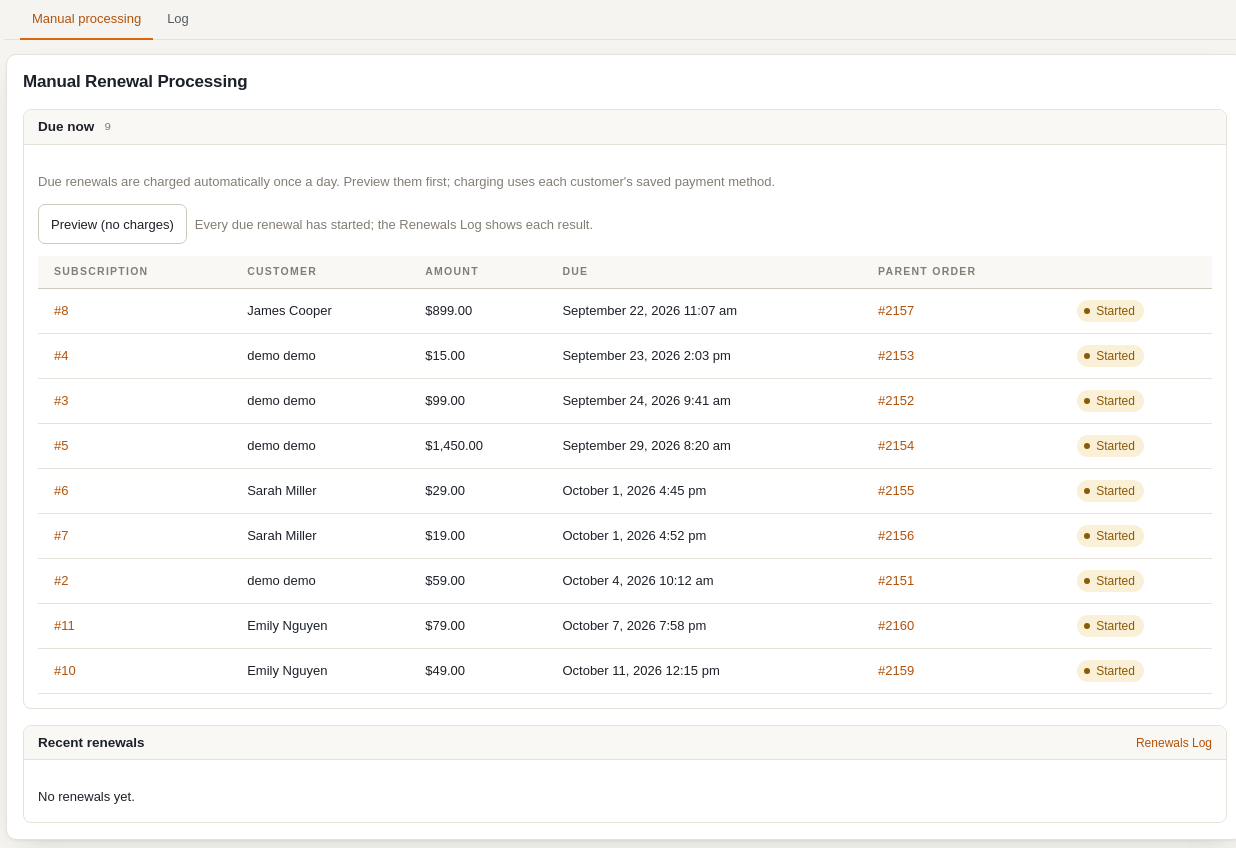
- Test Renewal Process – checks that the renewal system is working without creating or charging anything.
- Process Due Renewals – runs the same job the daily cron runs, right now.
- Due for Renewal – every subscription whose next payment date has passed, each with a Process Now button to renew just that one (useful for retrying a failed card after the customer updated it).
- Recent Renewal Actions – the last few renewal attempts with their result.
A warning is shown at the top of this page if the daily renewal event is not scheduled, which usually means WordPress cron is disabled on the server.
Renewals Log #
Subscriptions > Renewals > Log is the full history of every renewal attempt. Filter by subscription, customer, order number, status, note text or date range to trace exactly what happened to a specific renewal.
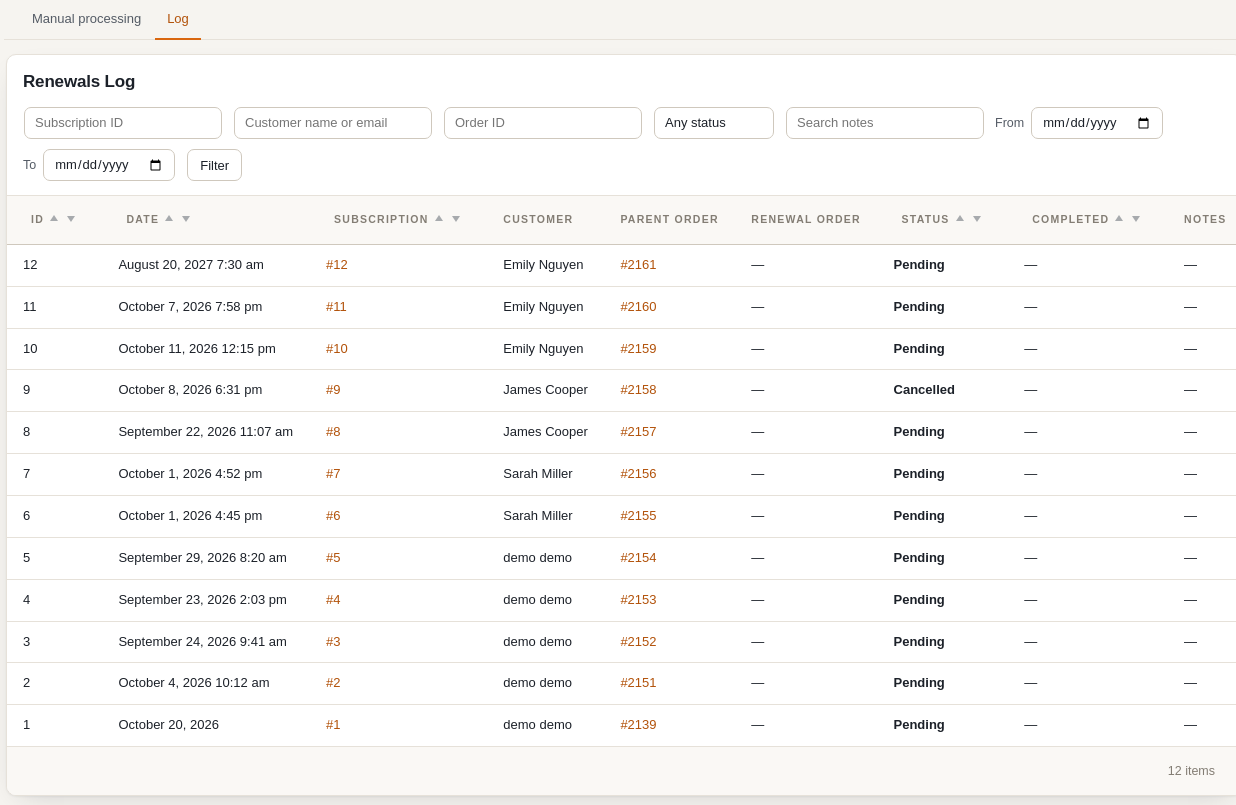
| Status | Meaning |
|---|---|
| Pending | Scheduled for the date shown; nothing has been charged yet. |
| Completed | The renewal order was created and paid. The Renewal Order column links to it. |
| Failed | The attempt did not succeed; the Notes column has the reason (for example the gateway’s decline message, or “Subscription not found or not active” when the subscription was cancelled or deleted before the scheduled date). |
What customers can do #
Under My Account > Subscriptions customers see each subscription with its status, next payment date, frequency and total. Clicking the subscription number expands its details – creation date, last payment, original order, payment method and the items:
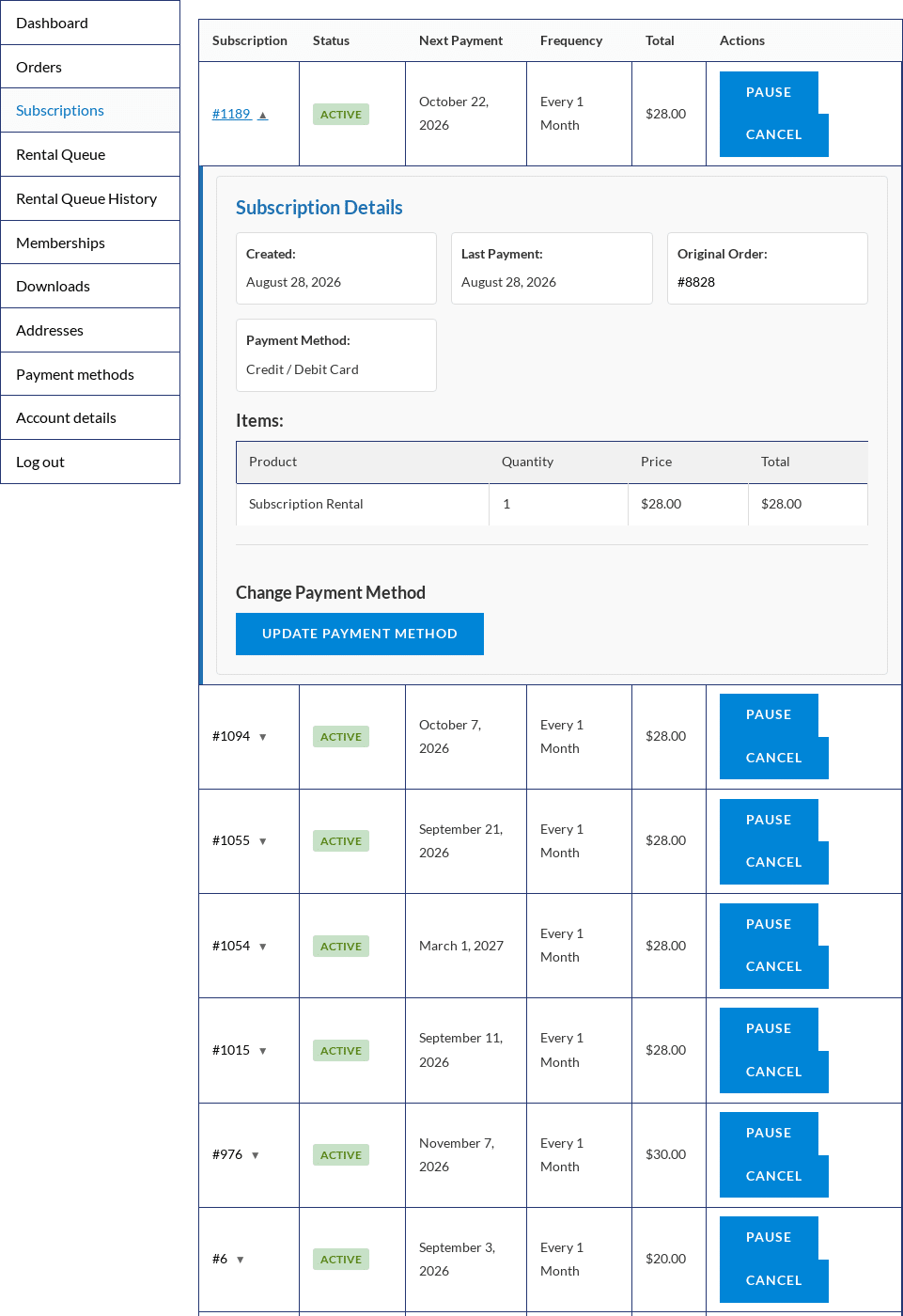
- Pause / Resume – stops renewals until the customer resumes. Paused memberships lose their benefits while paused.
- Cancel – ends the subscription. The change is recorded as a note on the parent order.
- Update Payment Method – how this works depends on the gateway that paid the original order (see below).
- Stripe: an inline card form; the new card is saved to the customer and used for all future renewals.
- Braintree: a drop-down of the cards the customer has saved under My Account > Payment methods.
- PayPal / Authorize.net: renewals always use the customer’s current saved payment method, so the button links to My Account > Payment methods where they can add or change it.
- Manual methods (Check, Bank Transfer, COD): no payment method to update; nothing is shown.
If you would rather customers could not change anything themselves, use the [sisubscriptions_customer_subscriptions] shortcode on a page: it can render the same table read-only.


