
This Magento 2 tutorial builds a rental store from scratch: install the extension with Composer, add a product with day and week rates, and take a first booking in about five minutes. The next 38 minutes run the whole operation, from pricing and calendars to deposits, returns, late fees and maintenance, on Hyvä or Luma.
It’s a tutorial for one job. It assumes you already have a working Magento 2 or Adobe Commerce store, and it shows Rentals & Bookings for Magento 2, our rental extension. This page is the whole video written out, chapter by chapter, with its screenshots, so you can follow it without watching.
The short version. Rentals & Bookings installs with Composer, like any Magento extension. A new Reservation product takes a price grid, a quantity and a turnover time, and customers book it by date. Most of the video needs Regular. Contracts, security deposits, customer extensions and maintenance are in Pro, and Multi Source Inventory is only in Ultimate.
- What you’ll build
- What you need
- Chapter guide
- Quickstart
- Every way to rent
- Configurable and bundles
- Rental pricing
- Availability and calendars
- Rental search
- Contracts and waivers
- Deposits and balances
- The daily desk
- Send and return
- Late fees and extensions
- Reminder emails
- Maintenance
- Rental reports
- Multi Source Inventory
- AI assistants
- Hyvä, Luma and headless
- Which edition you need
- Where to go next
- FAQ
What the rental store will do
Rentals & Bookings for Magento 2 is for stores that rent out equipment, event gear or anything with dates. It gives you stock by the date, the right price for any rental length, and every unit tracked out and back. The video takes a first booking in five minutes, then runs the whole operation: pricing, calendars, deposits, sending items out and checking them back in, late fees, maintenance and AI assistants. It works on Hyvä and on Luma.
The demo store rents tools, cameras, bikes and dresses. By the end you’ll know how to set up all of this:
- Rent by the day, the night or the hour, for a fixed length, or sell outright, with configurable rentals and bundle kits.
- Set day, week and month rates once. The cheapest mix wins for any length, and seasons, quantity bands and catalog price rules apply on top.
- Units are reserved for their dates, with turnover time, store hours, closed days and blackout dates.
- Calendar feeds go out to Google, Apple and Outlook, Calendar Sync brings dates in from Airbnb, Booking.com and Vrbo, and a rental search lists only what’s available.
- Take booking deposits and balances, refundable security deposits, signed rental contracts and damage waivers.
- Staff get a dashboard, a rental calendar and admin orders with dates, with an overbooking warning.
- Serial numbers, Send and Return, scanned returns, QR and barcode labels, readings and photos track each unit out and back.
- After the rental: late fees, extensions, reminder emails, maintenance tickets and reports.
What you need before you start
- A Magento store. Magento 2.3.x or 2.4.x, Open Source or Adobe Commerce.
- Composer and the command line, or a developer who has them. Pro and Ultimate include free installation.
- A licence key. It’s your Composer password, and it goes in the admin too.
- A storefront. Hyvä or Luma. On Hyvä you also require the Hyvä module.
- A card gateway that can save cards, only for automatic balance charges and holding a deposit on the card. The demo has none, so the video shows those two as settings only.
Chapter guide: all 19 chapters, with times
Click a time to play the video from there. “Comes with” shows the edition you need to follow along. Each chapter is written out below in the same order.
| Time | Chapter | What it covers | Comes with |
|---|---|---|---|
| 0:00 | Rentals & Bookings for Magento 2 | What the extension does and what the video covers. | Any edition |
| 0:42 | Quickstart: install to first booking | Composer install, licence key, a tile saw with day and week rates, a turnover day, the first order. | Regular |
| 3:42 | Rent by the day, night or hour, or sell | Booked by days or nights, hourly times, fixed lengths and a Buyout button. | Regular |
| 6:40 | Configurable and bundle rentals | A dress in two colours and two sizes, and a camera kit as one booking. | Regular |
| 9:25 | Rental pricing | The Reservation Price grid, the cheapest mix for any length, seasons and catalog price rules. | Regular |
| 12:30 | Availability calendar and calendar sync | Units left, turnover time, store hours, closed dates, calendar feeds and Calendar Sync. | Regular |
| 15:39 | Rental search by date | A search by dates, category pages that follow them, the Search Styler and the widget. | Regular |
| 17:34 | Checkout, signed contracts, damage waivers | A damage waiver on the product page, a signed contract at checkout and the evidence panel. | Pro; checkout settings in Regular |
| 20:24 | Booking deposits, balances, security deposits | Deposit amounts, balance collection, the Balances desk, releasing or keeping a deposit. | Regular; security deposits in Pro |
| 23:42 | The daily desk | Dashboard, Rental Calendar, phone orders with dates, the overbooking warning and manual holds. | Regular |
| 26:57 | Send and return | Serial numbers, QR and barcode labels, readings, Send Rentals, Return Rentals and Scan Returns. | Regular |
| 29:46 | Late fees and rental extensions | Extensions from My Account or the admin, and late fees from accruing to paid. | Late fees in Regular; customer extensions in Pro |
| 32:28 | Reminder emails | Upcoming, check-in, return, overdue and satisfaction emails, and the Reminders list. | Regular |
| 34:08 | Maintenance and inspections | Tickets, checklists, service schedules, parts and labour, damage charges. | Pro |
| 36:18 | Rental reports | Inventory Availability, Usage, Serial Numbers and Late Fees reports. | Regular |
| 38:08 | Multi Source Inventory | Renting from two sources, each with its own stock. | Ultimate only |
| 39:20 | AI assistants check your rentals | Assistants read real dates and prices and hand over a booking link. | Regular |
| 40:36 | Hyvä, Luma and headless GraphQL | The same calendar on each storefront, and GraphQL for prices, availability and carts. | Regular |
| 41:59 | Which edition do you need? | Regular, Pro and Ultimate side by side. | Any edition |
Quickstart: install and take your first booking
In five minutes, your Magento store will take its first rental booking. There are three parts: install, add a product, take a booking.
Install with Composer
Rentals & Bookings installs with Composer, like any Magento extension. Add the Sales Igniter package repository, and give Composer your licence key as the password. Require the rental extension. On a Hyvä theme, also require the Hyvä module. Then run the usual Magento steps: setup upgrade, compile, deploy the static files and flush the cache. These are the commands on screen, for Regular:
composer config repositories.rental composer https://rental.rentalbookingsoftware.com/composer/regular
composer config http-basic.rental.rentalbookingsoftware.com rental <your licence key>
composer require salesigniter/releaserental2
# Hyvä storefronts only:
composer require salesigniter/hyvarental
bin/magento setup:upgrade
bin/magento setup:di:compile
bin/magento setup:static-content:deploy
bin/magento cache:flush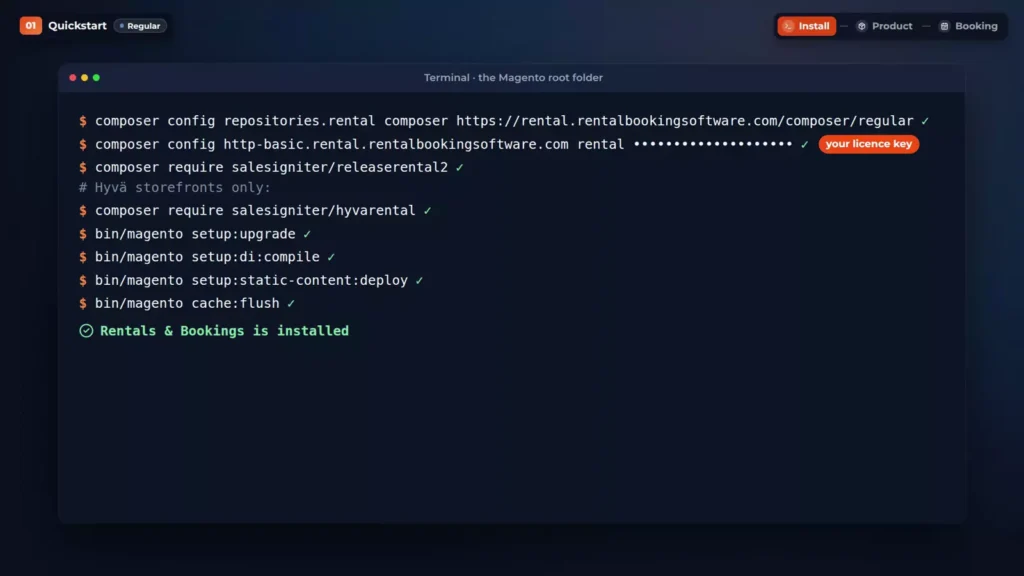
Add your licence key
In the admin, open Stores, Configuration, Sales Igniter, Rental. License and version comes first. Paste your licence key here and save. Below it, you can see every installed extension and its version.
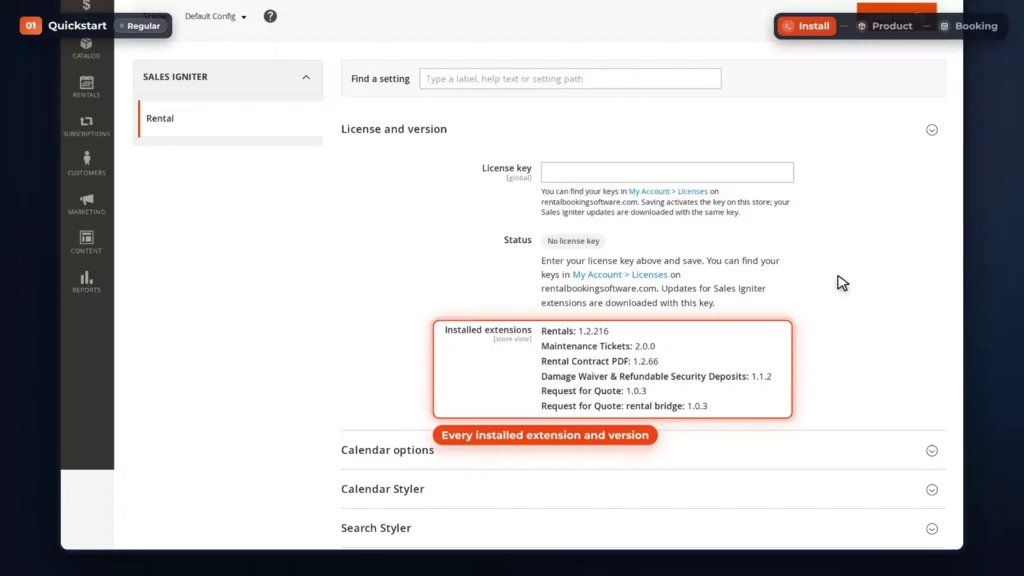
There are a lot of settings, so use Find a setting. Type turnover, and every setting that mentions it opens up, highlighted.
Add the first rental product
In Catalog, Products, add a Reservation product. The video rents a tile saw. A new Reservation product already starts as Reservation, Calendar, so it’s booked by dates.
In Reservation Price, add one row per rental period: $35 for one day and $120 for one week. The period is a number and a letter: 1d, 1w.
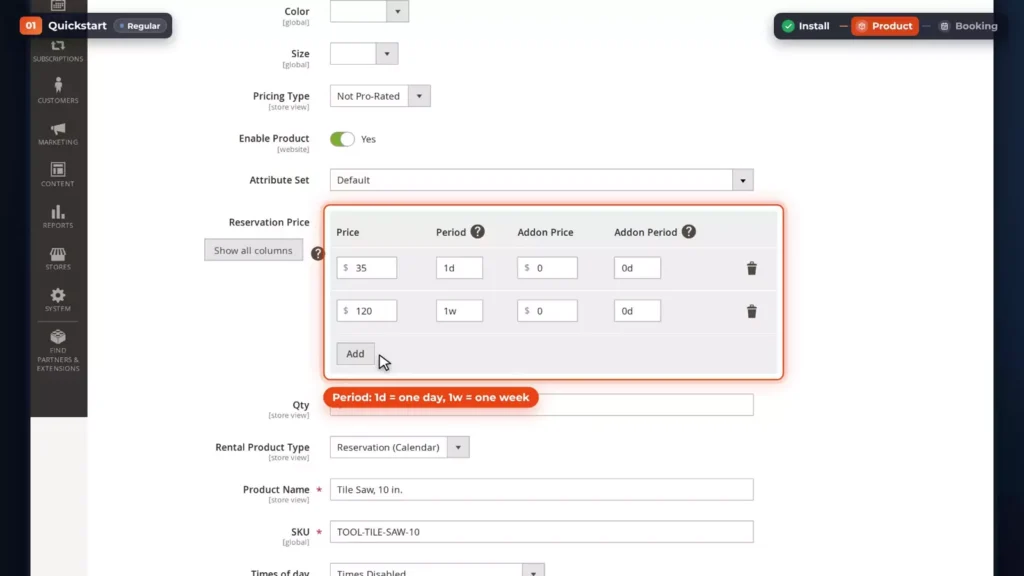
The shop owns three saws, so the quantity is 3. Put the product in the Tools category.
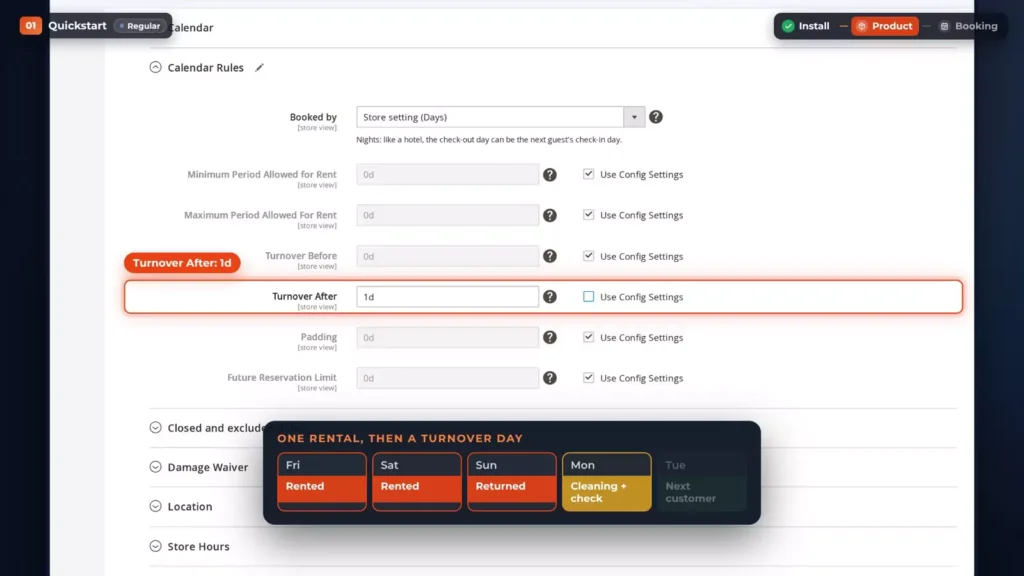
Then open Rental, Calendar Rules. Untick Use Config Settings beside Turnover After, and type 1d. After every rental, the saw rests for a day, for cleaning and a quick check, before the next customer can take it. Save.
Book it as a customer
This store runs the Hyvä theme. The product page shows from $35 a day, and as low as $17.14 a day when you rent for a week. Next available tells shoppers when they can start. Click Select your dates.
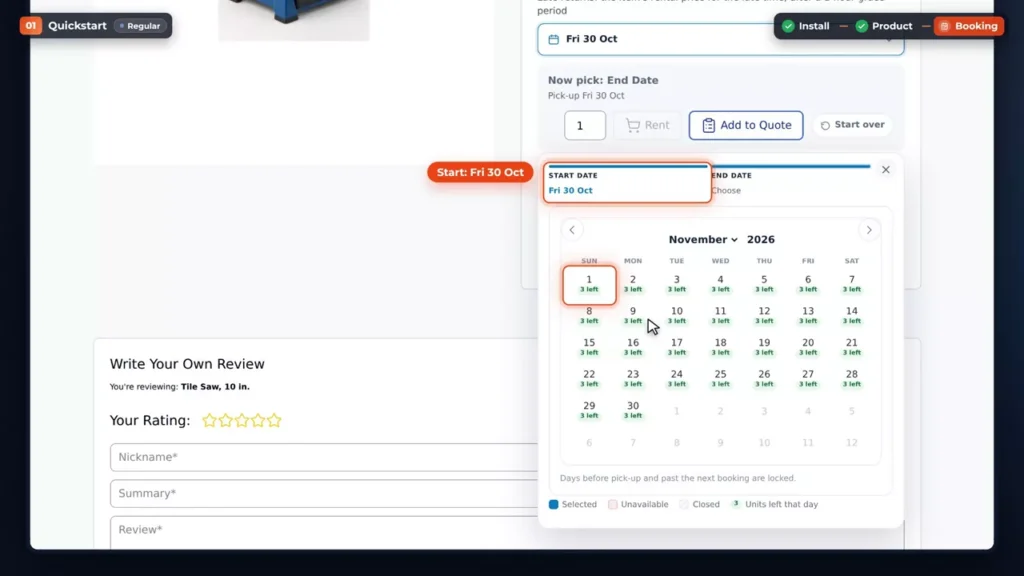
Pick a Friday to start and the Sunday to return. The total for your dates is two days, $70. The return day isn’t charged, unless you switch that on. This demo also runs the Pro add-ons, so you see a refundable security deposit and a damage waiver. They have their own chapters.
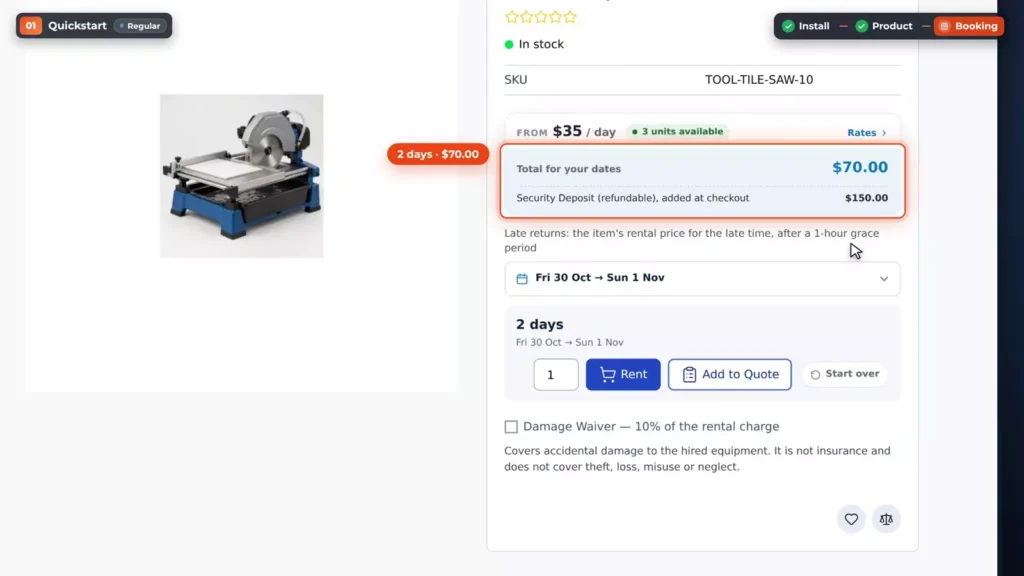
Click Rent. The saw is in the cart, with its start date, its end date and the price for those dates. Proceed to checkout. Sam, the demo customer, fills in the details, signs the rental contract and places the order. The order is placed with the rental dates on it.
Check the booking in the admin
Back in the admin, the order shows the rental dates on its line.
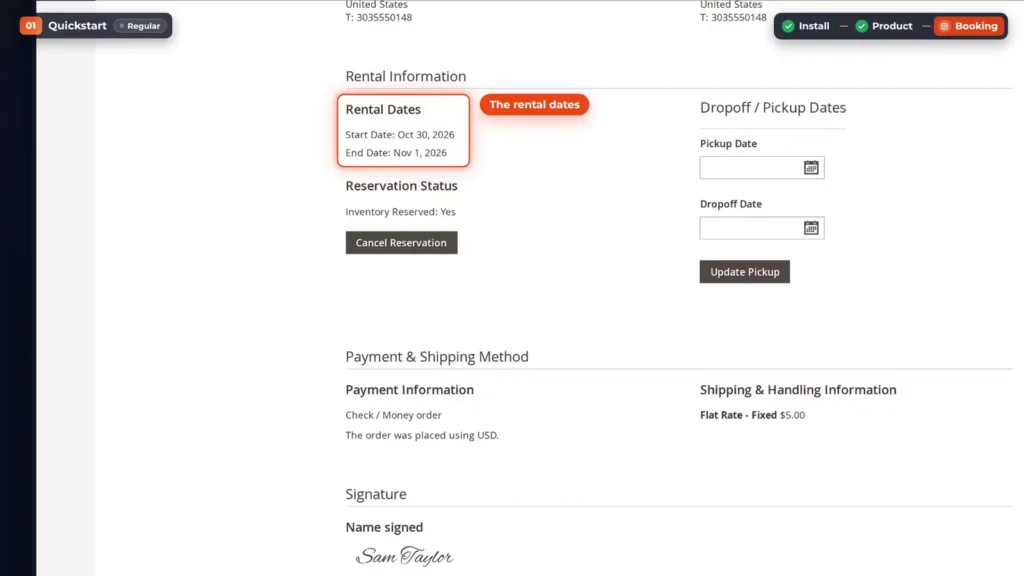
Under Rentals, the Rental Calendar shows the saw going out on Friday and coming back on Sunday. On the product page, those days now show two saws left.
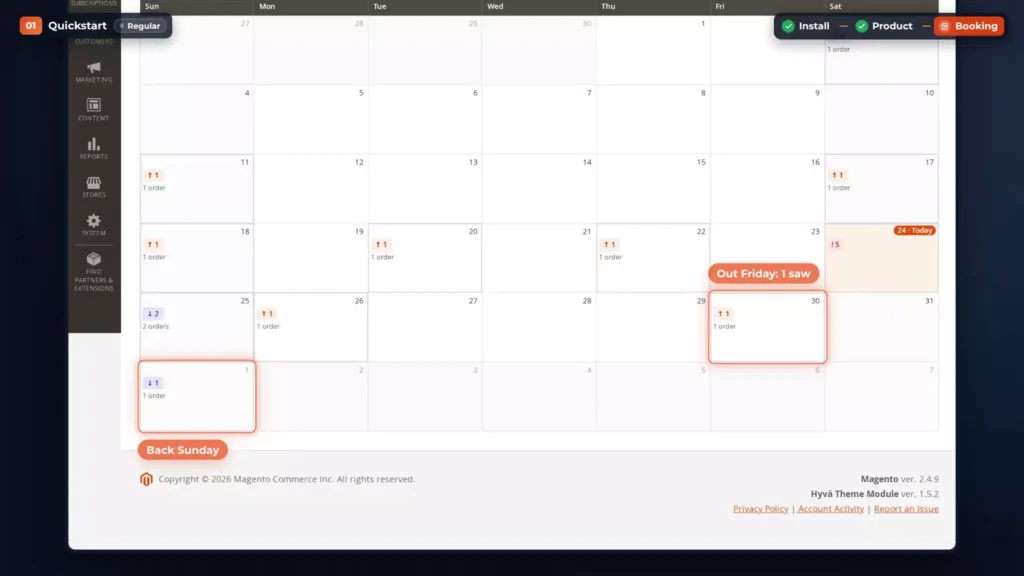
That’s a working rental store, in five minutes. Everything from here makes it run smoothly. You can try it yourself on the live Magento demo.
Rent by the day, night or hour, or sell outright
Magento products aren’t only for sale. A rental can be booked by the day, by the night, by the hour or for a fixed length, and it can be bought outright too.
By the day or by the night
The store default sits in Stores, Configuration, Sales Igniter, Rental, Calendar options. Date-only rentals are booked by Days: returned on the last day, so the whole return day is booked. The other choices are Days where the item can go out again on its return day, and Nights.
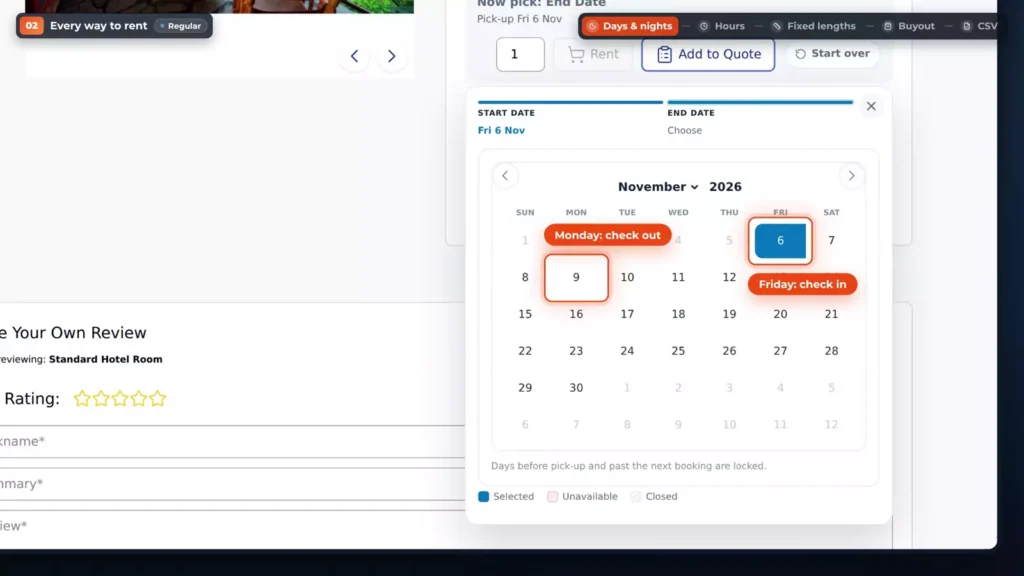
Each product can choose its own. On the Standard Hotel Room, open Rental, Calendar Rules, and under Booked by, choose Nights. Like a hotel, the check-out day can be the next guest’s check-in day.
Save, and a guest who checks in on a Friday and leaves on Monday books three nights, charged per night. Monday stays open for the next check-in.
By the hour
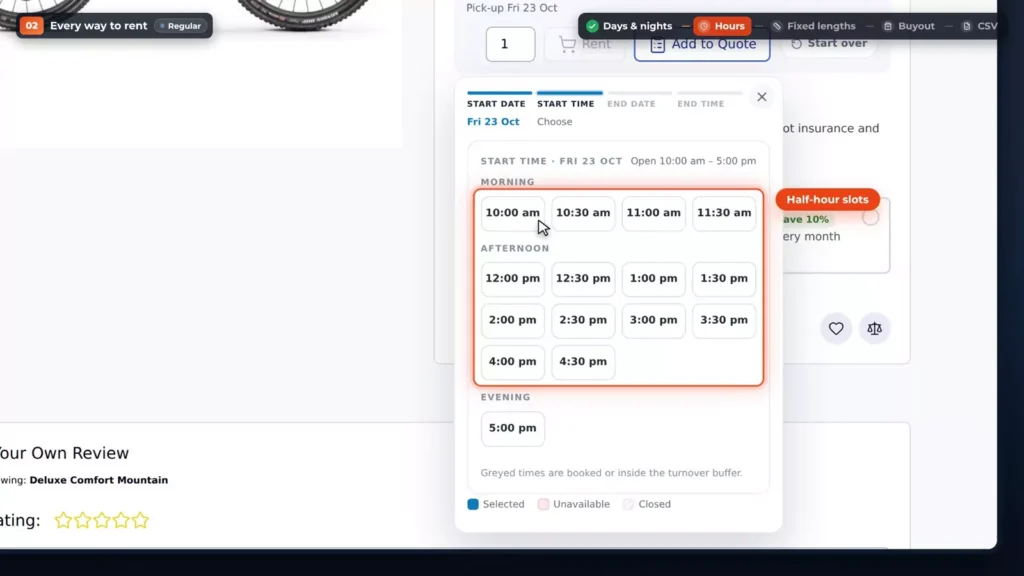
By the hour is set in Times of day. The Deluxe Comfort Mountain bike is a Reservation, Calendar product, with 15 in stock, set to Use Times With Grid. The other choices drop the grid, reserve the full day, or switch times off.
On the product page, it rents from $3 an hour. Select your dates, and the picker goes step by step: start date, start time, end date, end time. Pick a Friday, and the times follow the store hours, ten to five, in half-hour slots. Start at ten and finish at one the same day: three hours, $9.
Fixed rental lengths
Some rentals only go out for set lengths, say one day or three. In the product’s Calendar group, untick Use Config Settings, choose Radio Buttons or a drop-down, and type the lengths: 1d, 3d. Autoselect and Hide Start Date goes further: the rental starts on the first available date, so the customer doesn’t pick one.
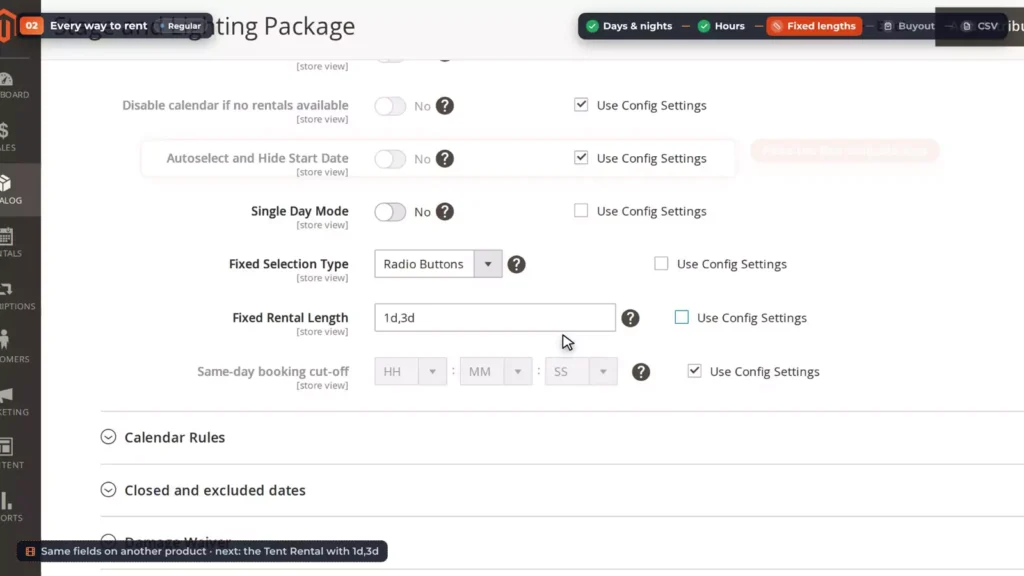
Save, and the product page asks for a Rental Length. Choose three days and a start date, and the end date follows by itself.
Buyout
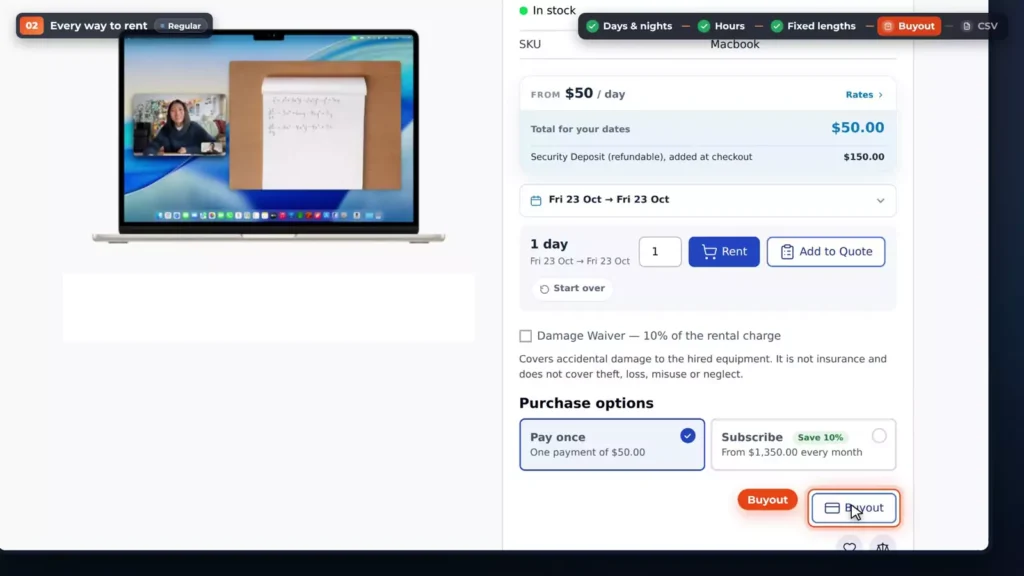
Some customers would rather buy. On the Macbook Air, under Pricing, switch on Enable Buyout and set the Buyout Price: $1,000. The page still rents it from $50 a day, and adds a Buyout button. One click, and it’s in the cart at the buyout price.
Many products at once
For many products at once, Magento’s own Export and Import carry the rental settings too, price grid and serial numbers included.
Day, night, hour, fixed length or buyout: every way to rent is in Regular, and you can try them all on the live Magento demo. Monthly plans, memberships and a rental queue have their own video.
Configurable and bundle rentals
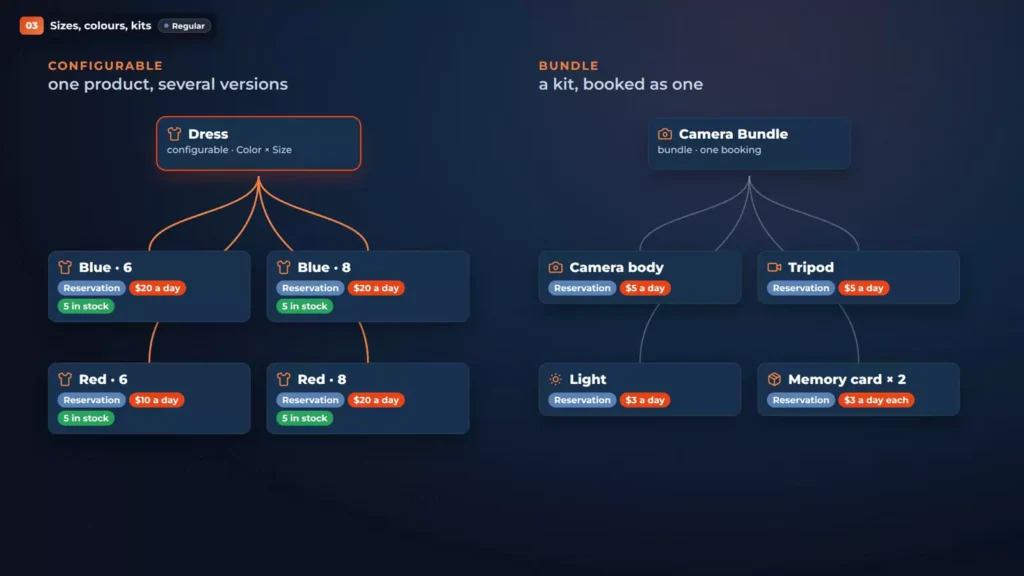
You can rent one product in several sizes and colours, or a whole kit as one booking. A configurable rental is one product in several versions. Here it’s a dress in two colours and two sizes. Each version is its own Reservation product, with its own price and its own stock, and the configurable product holds them together on one page. A bundle does the same for a kit: several Reservation products, booked together on the same dates.
Set up the versions
Start with the versions. This one is the blue dress in size 8: Color blue, Size 8. Its Reservation Price is $20 a day, and the shop has five of them. Visibility is Not Visible Individually, so shoppers only see the main dress. The other three versions are set up the same way, each with its own price.
Link them on the main product
Now the main product. In Configurations, Current Variations lists the four versions, with their colour and size. Edit Configurations opens the wizard. Step one picks the attributes: Color and Size, both global. Step two picks the values: blue and red, 6 and 8. Each row then points at its own Reservation product, and Add Products Manually links more.
Book the dress
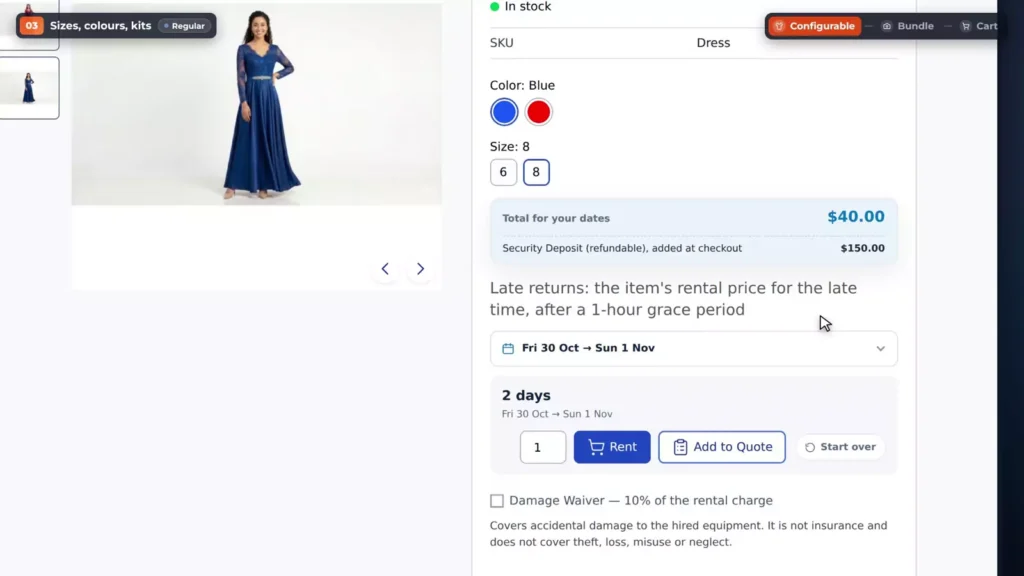
On the storefront, the price card shows from $10 a day, the cheapest version. Until a colour and a size are chosen, the calendar asks for them first. Choose blue and 8, and the calendar shows the days this version is available. Pick the dates, and the total uses the blue dress’s own price: two days, $40.
Build a camera kit as a bundle
A camera kit is a Magento bundle. In Bundle Items, Add Option creates each part of the kit: a drop-down to choose the camera body, a tripod, a light, and checkboxes for the memory cards. Add Products to Option picks Reservation products, with a default quantity.
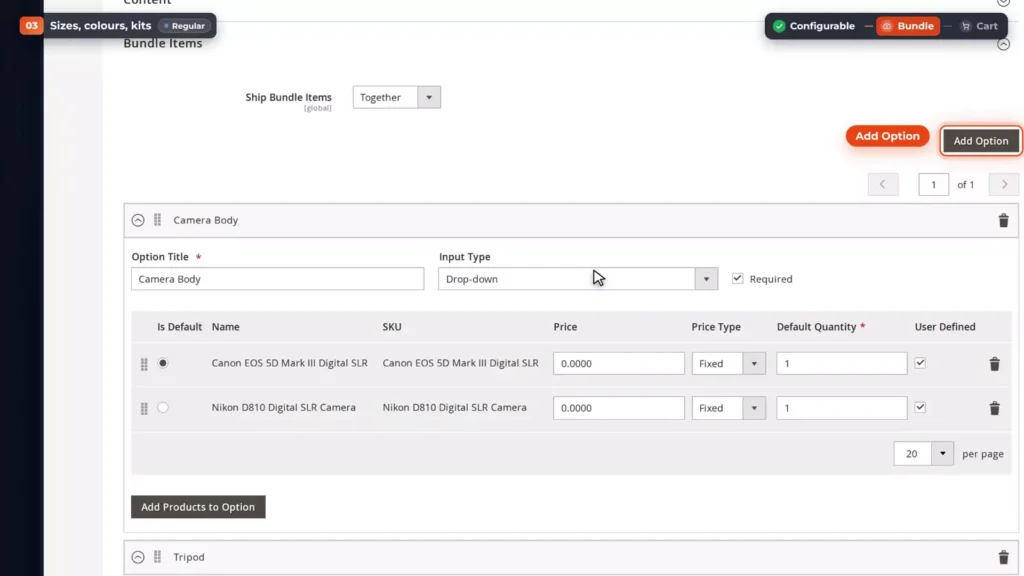
Bundle Price Type sets the price. Per Product adds up each part’s own rental rates. For all uses the kit’s own Reservation Price instead.
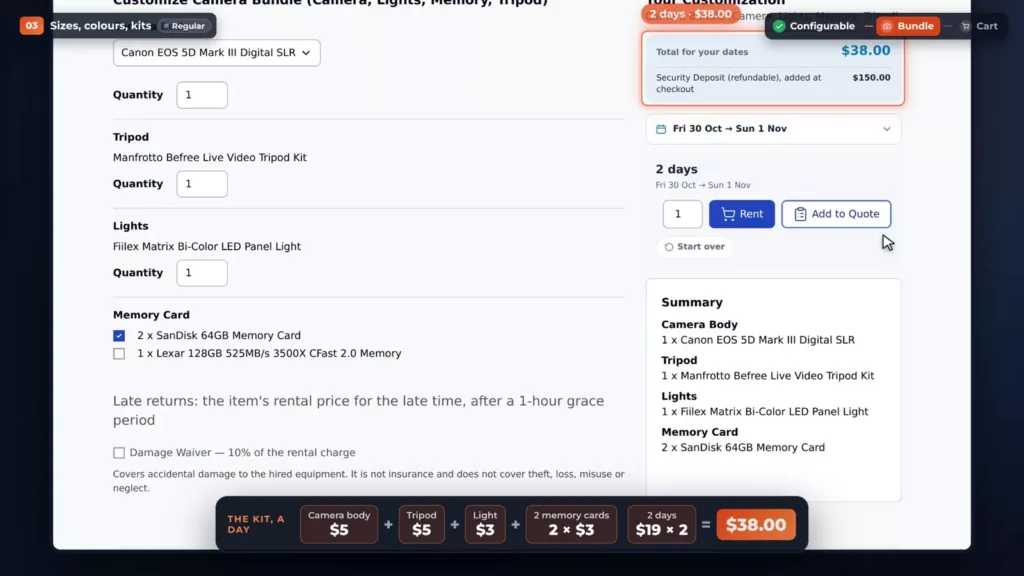
On the storefront, the shopper chooses the parts, and the booking sits in Your Customization. Pick the dates, and the total covers the whole kit: two days, $38, with a summary of what’s inside.
In the cart, the dress keeps its colour, size and dates, and the kit keeps its parts, each line priced exactly as on the product page. Quantity price bands work on configurable lines too.
Configurable and bundle rentals come with Regular, on Hyvä and Luma. The dress and the camera kit are both on the live demo.
Rental pricing in Magento 2
Set your day, week and month prices once, and Magento works out the cheapest fair price for any rental length.
The Reservation Price grid
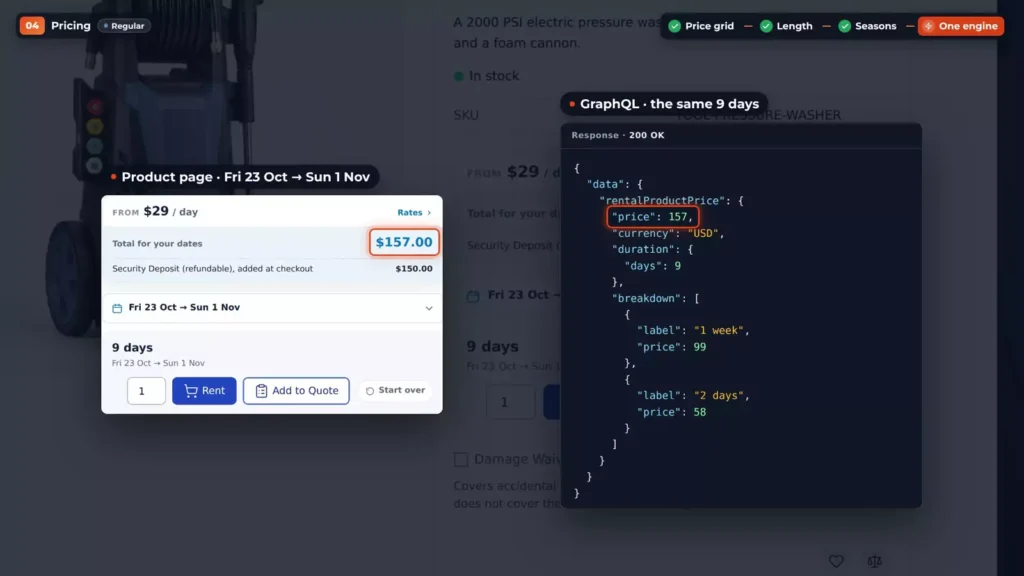
Every rental product has a Reservation Price grid, with one row per rental period. This pressure washer has $29 for 1d, a day, and $99 for 1w, a week. The question mark lists the units: h for an hour, capital M for a month.
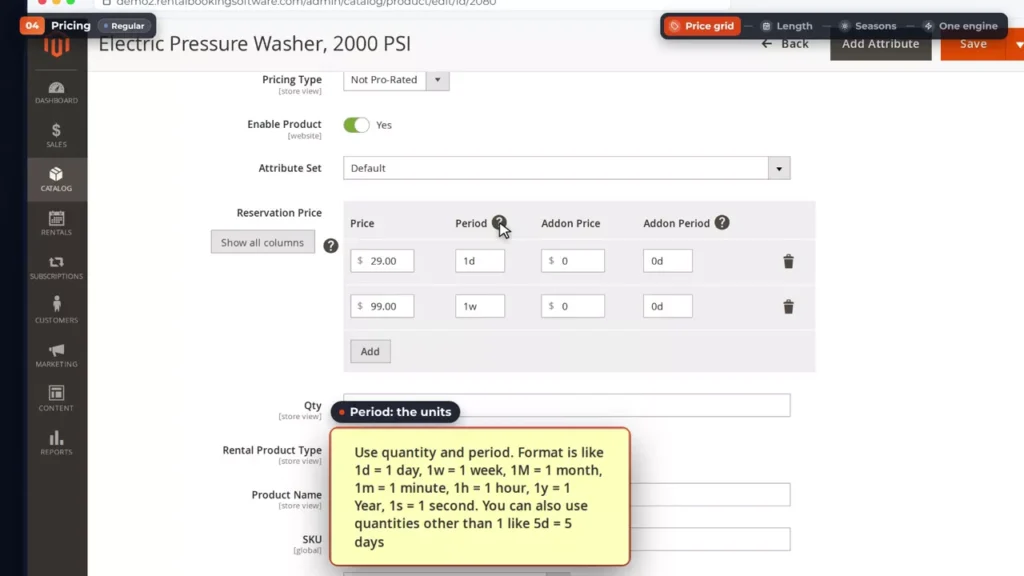
On the product page, that shows as from $29 a day, and as low as $14.14 a day on a week. Rates opens the full price list.
How a rental length is priced
Pick a Friday to start and the Sunday to return: two days, $58. The return day isn’t charged. That’s the default, and Also charge the return day changes it, for one product or for the whole store.
Now a longer rental, from a Friday to the Sunday after next. Nine days cost $157: one week plus two days, the cheapest mix of your prices. Thirty days are four weeks and two days: $454.
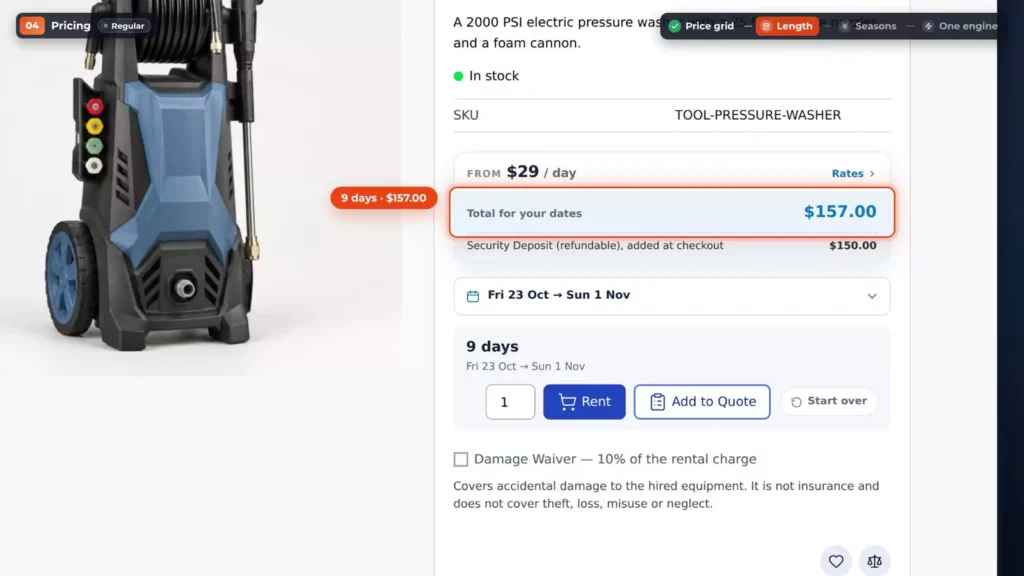
Add a month, $299 for 1M with a capital M. A month counts as 30 days, so a 30-day rental now costs $299.
Websites, customer groups and quantity bands
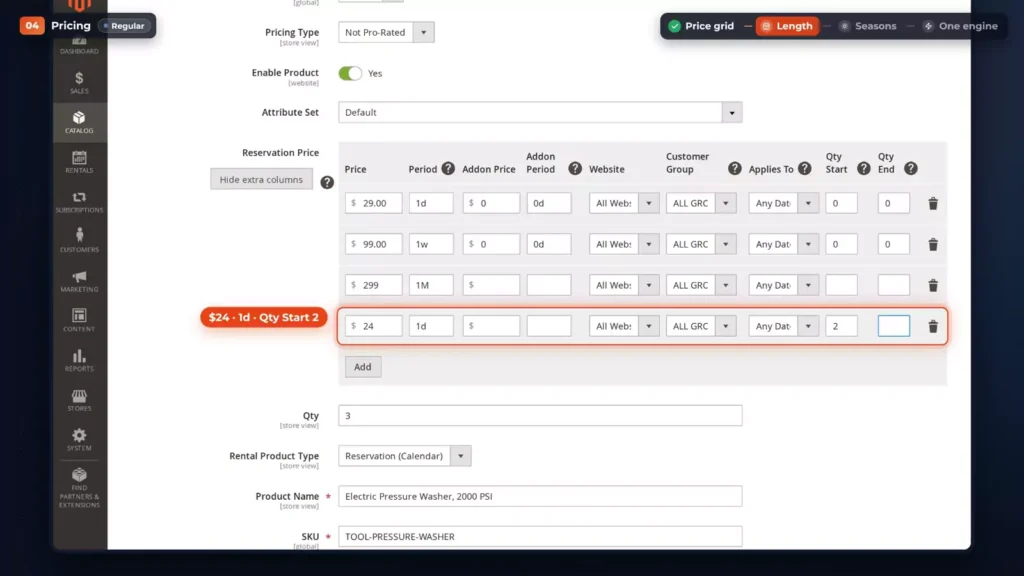
Show all columns adds five more. A row can be just for one website, one customer group, a pricing period, or a quantity band, from Qty Start to Qty End. Add $24 a day from two units, and a customer renting two washers pays $24 a day for each.
Seasons and holidays
Seasons and holidays are Date Based Pricing Periods, under Rentals. Each has dates, which can repeat, and a discount: a percent or a fixed amount, with a plus sign for an extra charge. Surge Pricing lets the higher price win.
Give a product its periods under Special Pricing Rules, or the whole store under Special pricing dates. Only the days inside a period change price, unless you apply it to the whole rental.
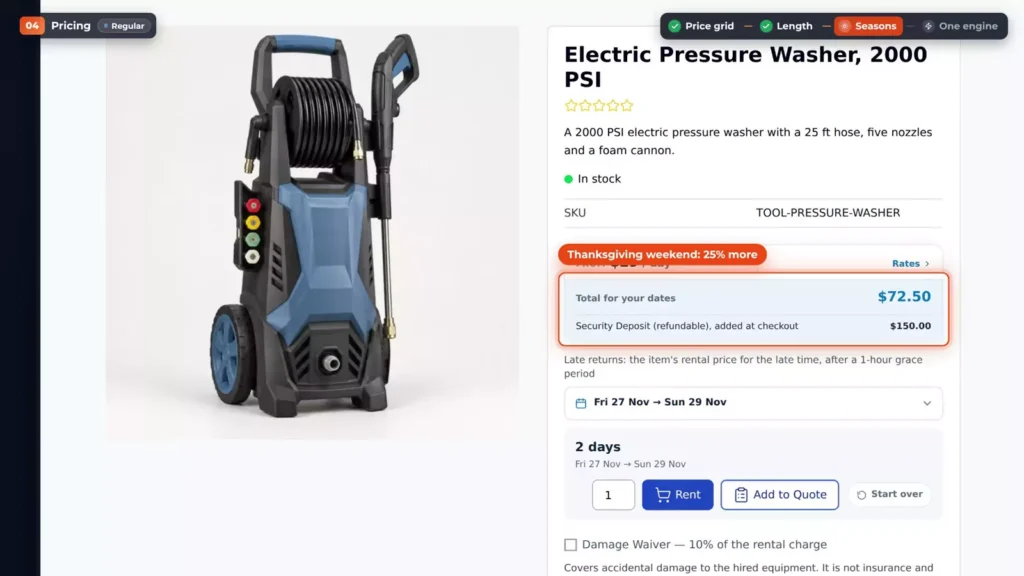
Here’s Thanksgiving weekend: plus 25 percent, with Surge Pricing on. A Friday to Sunday the weekend before costs the usual $58. Friday to Sunday on Thanksgiving weekend costs 25 percent more, $72.50.
Minimum and maximum periods, and catalog price rules
Minimum period and Maximum period set the shortest and longest rental, for the store or each product. Magento’s catalog price rules work on rentals too, applied once, to the rental’s total.
One price everywhere
One pricing engine prices the product page, the cart, admin orders and GraphQL. Ask GraphQL for the same nine days and you get $157, one week plus two days. A placed order keeps its price, even if you change the grid later.
Rental pricing is in Regular, and you can try the prices on the live Magento demo.
Availability and the booking calendar
Every unit is counted, every day, so your rental stock stays right, even with turnover time between rentals.
Greyed days and units left
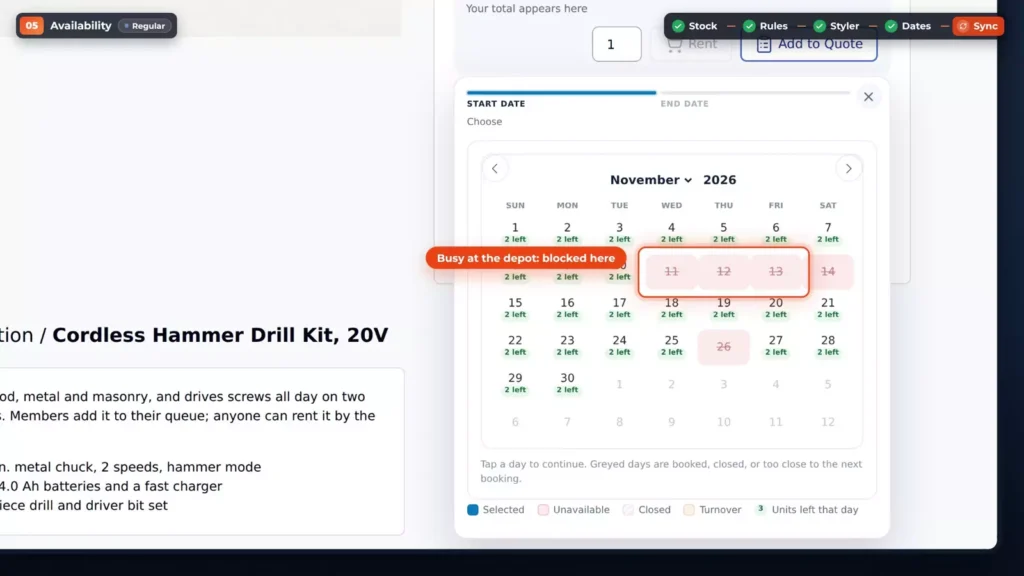
Every rental holds its units for its dates, so the same unit is never sold twice. On the circular saw’s page, greyed days are booked, closed, or too close to the next booking, and the legend says which.
On a busy week, all three circular saws go out on the same days. Those days turn grey and won’t take a click, and no rental can run across them.
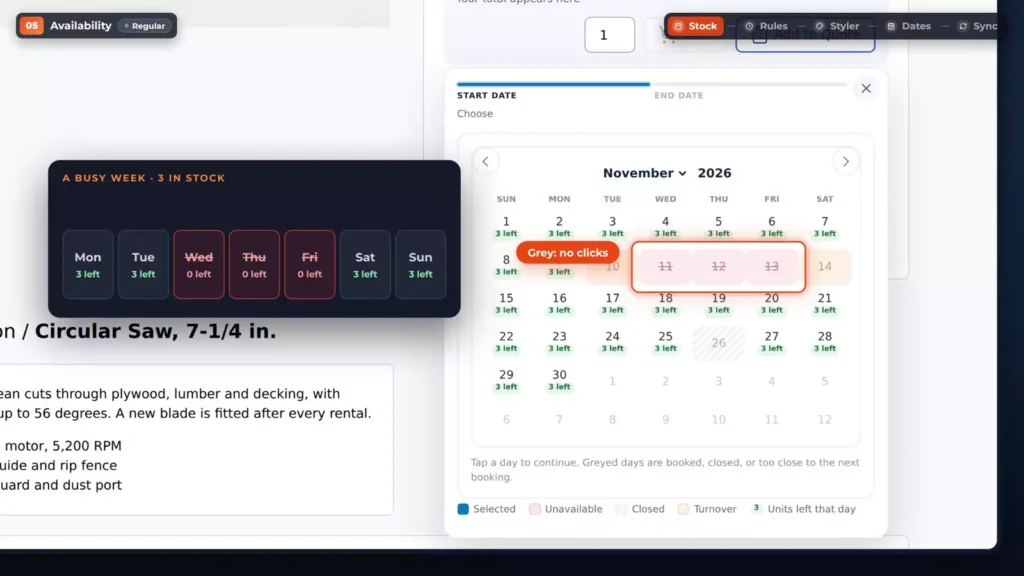
In the Calendar Styler, set Show units left in each day to Yes, and every date gets a badge: three left, two left, one left.
Turnover time
Turnover time keeps a unit back after a rental, for cleaning and checks. Set Turnover before and after for the store, or per product under Calendar Rules, and Start date padding for how far ahead a rental must start. Switch on Show turnovers on calendar, and the turnover day gets its own colour.
Store hours, closed days and blackout dates
Store hours set when rentals start and end: ten to five here, and each weekday can have its own. After the same-day booking cut-off, 5 p.m., today can’t be booked.
On closed weekdays no rental starts or ends, and you can also block just starts or just ends. Holidays and blackout dates go in Closed and excluded dates: all day or some hours, repeating if you like, and excluded from the calendar, the price or turnover. In the video, Thanksgiving is closed.
Choosing and styling the picker
Choose the picker: an inline panel that’s always open, a popup range picker, which is the default, or separate start and end fields.
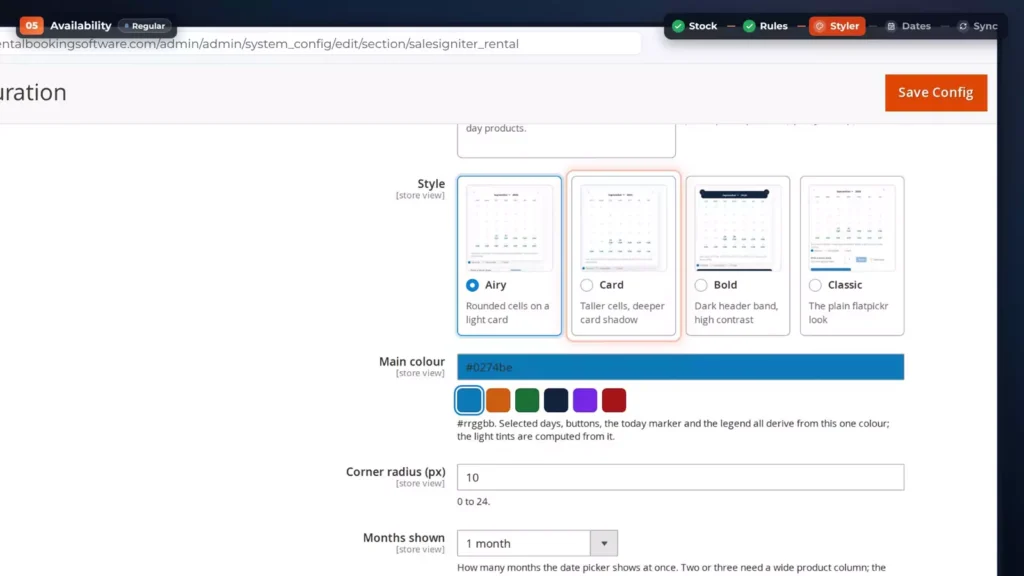
The Calendar Styler’s live preview uses sample stock. Click a Friday, and it walks the customer’s steps: a start time, with the booked hours greyed out, then the return date. Pick a style, Airy, Card, Bold or Classic, and one main colour. Nothing is saved until you click Save Config.
Dates follow the shopper
Pick Friday to Sunday on the pressure washer: two days, $58. Open the wet tile saw, and the same dates are already filled in: $70. Product pages can show the next available date, and category pages an Available today label.
Calendar feeds and Calendar Sync
Calendar feeds send bookings out to Google Calendar, Apple Calendar or Outlook. Each product has two private addresses. Availability has only the dates every unit is out, with no customer names. Bookings has order numbers and names, for your staff.
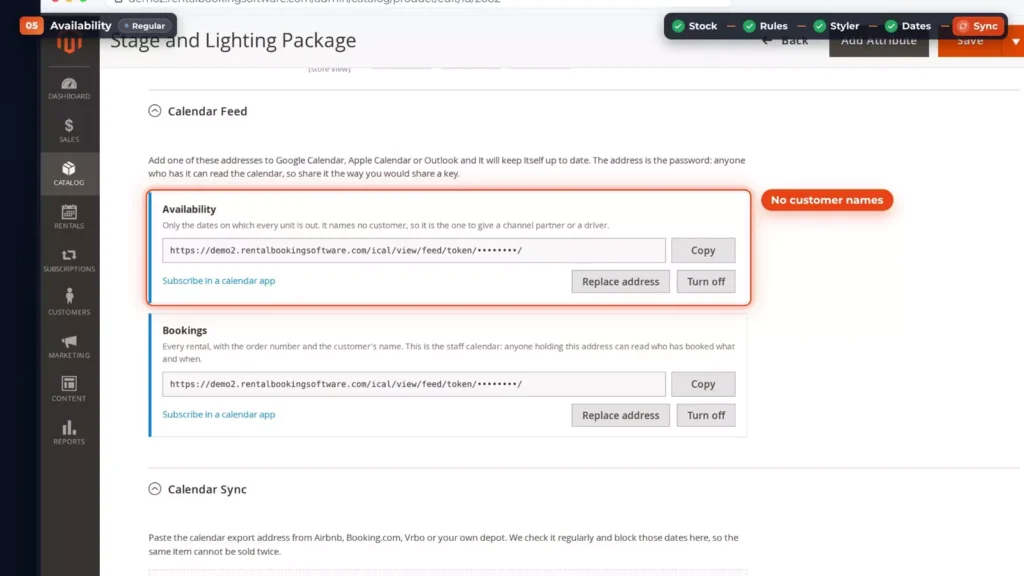
Calendar Sync brings them in. Paste a calendar address from Airbnb, Booking.com, Vrbo or your own depot, and the dates it says are taken stop being sellable here. A depot calendar on the drill kit blocks its busy days on your store.
Availability and the booking calendar come with Regular. The settings are in the calendar sync docs, and the calendar is on the live demo.
Rental search by date
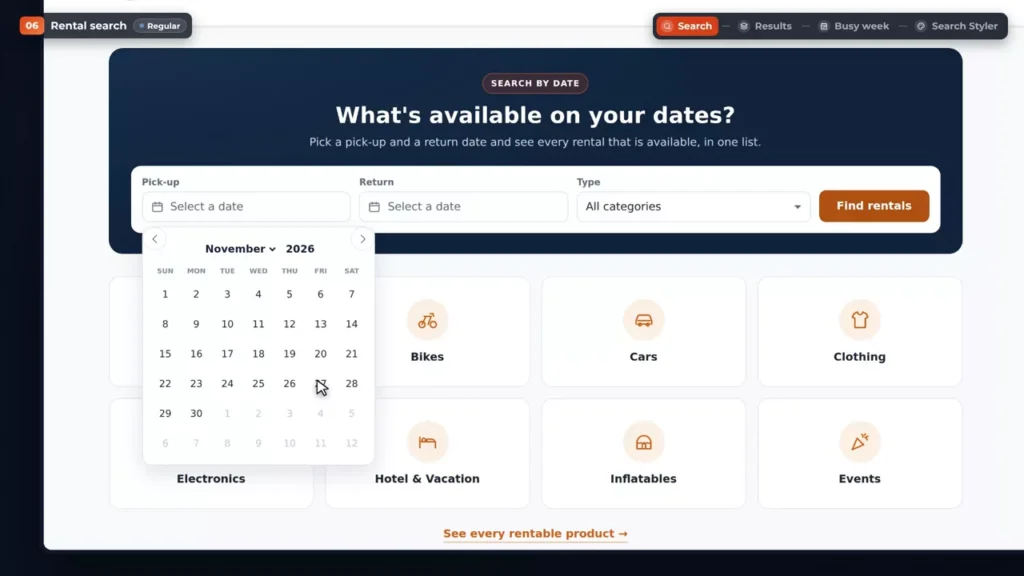
Most customers know their dates before they know the product, so the rental search asks for them first and shows only what’s available, with the price for those dates. On the home page, the search band has a pick-up date, a return date and a type. Pick a Friday to start and the Sunday to return, choose Tools, and click Find rentals.
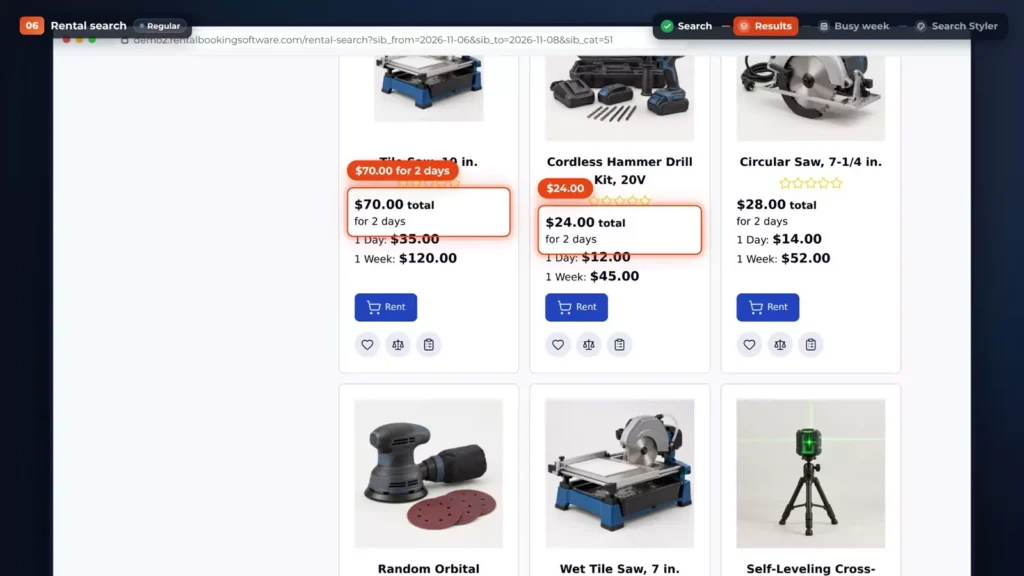
The results page lists the rentals that can be booked for those dates, and the cards show the total: $70 for two days on the tile saw, $24 on the drill kit, $28 on the circular saw. The search form stays above the results, so changing the dates takes a moment. Search all categories, and a category filter appears on the left.
Sold-out rentals and category pages
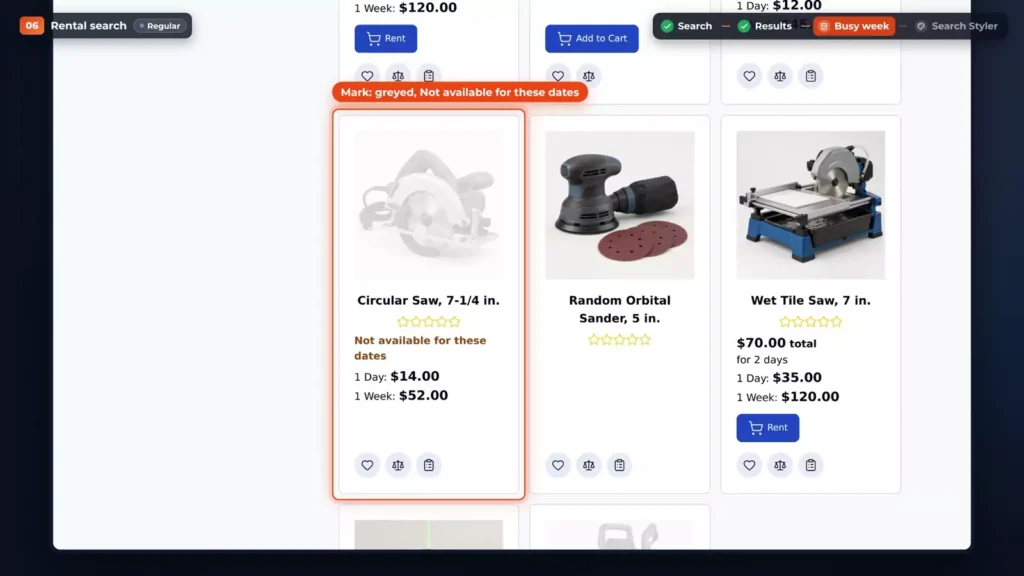
On a busy week, the sold-out circular saw and pressure washer simply aren’t in the results. Category pages can follow the searched dates too, with one setting: Off, Mark or Hide. Mark keeps a booked-out rental on the page, greyed out, as Not available for these dates. Hide leaves it out. Either way, the pages stay in the full page cache.
The Search Styler
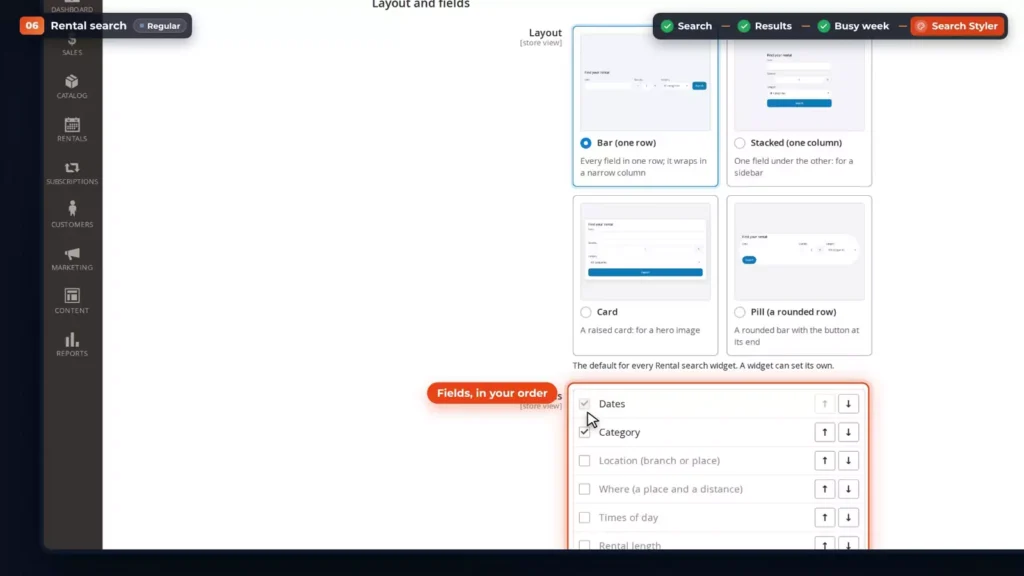
The Search Styler sets the look, with a live preview of settings you haven’t saved yet, on a desktop or a phone. Pick a layout: a bar, stacked, a card or a pill. Tick the fields and set their order: dates and category here, with location, times of day, rental length and more ready to switch on. Type a heading, and the preview shows it at once. The pop-up calendar can follow your product calendars’ skin.
Put the search on any page
Paste the widget code into a CMS page or block, or add a Rental search widget in Content, Widgets. Rental search comes with Regular.
Checkout, signed contracts and damage waivers
This chapter gets a signed rental contract and an optional damage waiver on every order, right in Magento checkout.
The damage waiver
On the product page, the wet tile saw costs $70 from Friday to Sunday. Below the Rent button, the customer can add a damage waiver: 10 percent of the rental charge. Tick it, and the price card adds Damage Waiver, plus $7. The refundable security deposit comes at checkout.
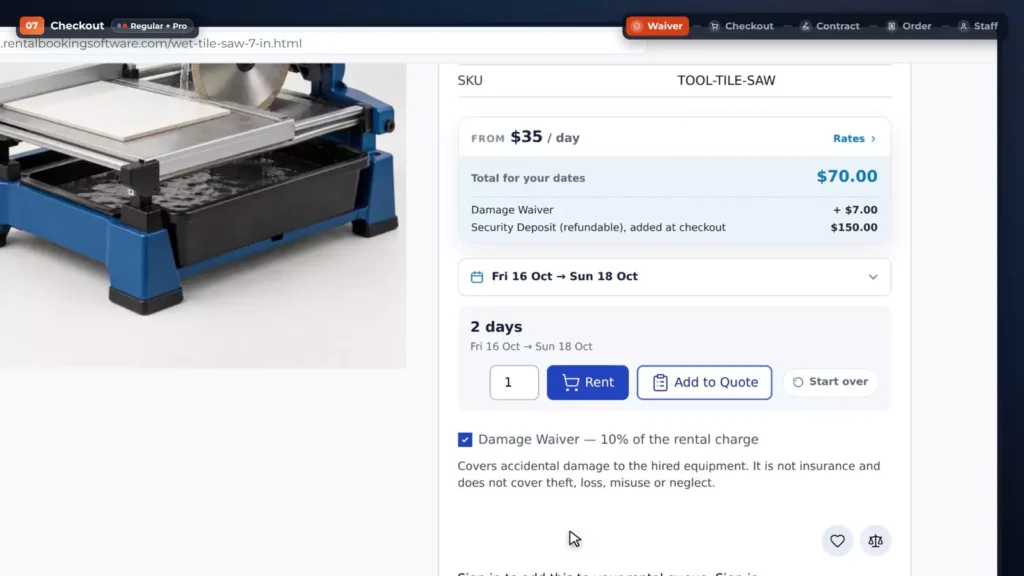
The waiver lives under Stores, Configuration, Rental, Damage waiver: a label, and the description shoppers read. Offer it optional and unticked, pre-ticked, or mandatory, with no checkbox at all. Here it’s 10 percent of the rental charge. It’s also taxable, because the waiver is a sale, unlike the deposit.
Checkout settings
Checkout has three settings of its own: no guest checkout when the cart holds rentals, no shipping for rentals, and rentals kept apart from items for sale. On this demo, all three are off.
The rental contract
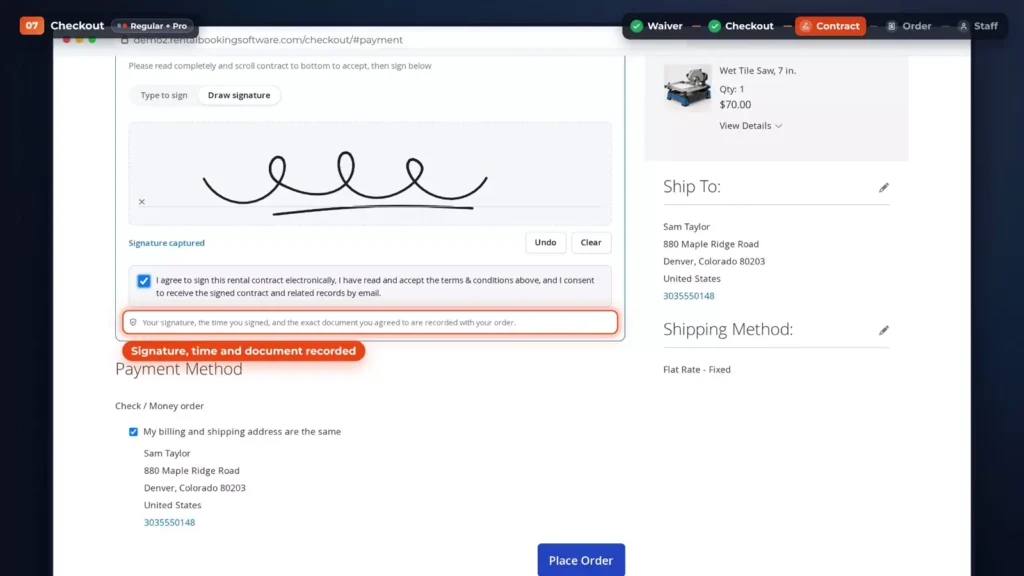
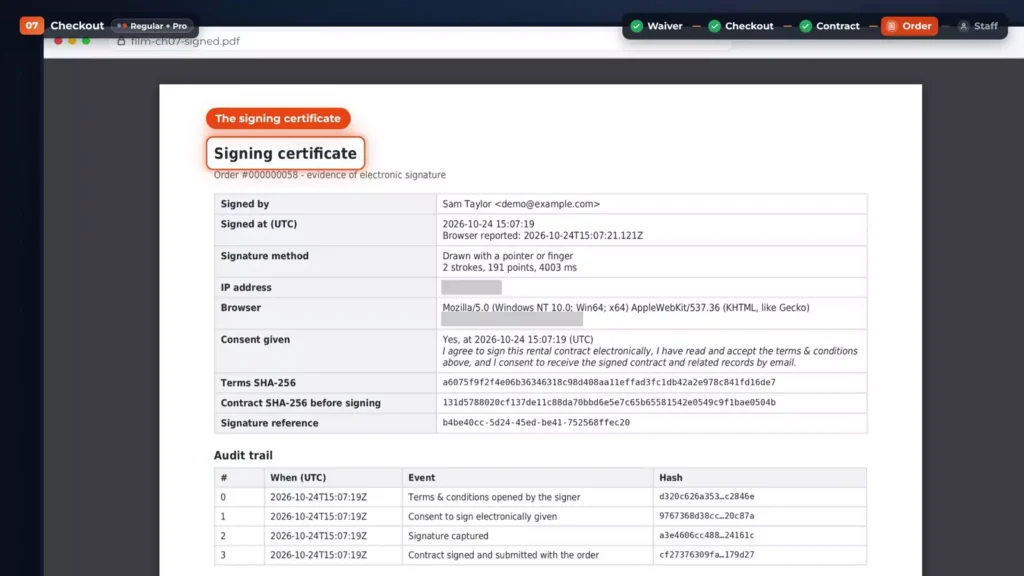
Require a signature, and the order can’t be placed until the customer signs. Offer a typed name in a handwriting face, or a signature pad for a mouse, a stylus or a finger. The consent wording is recorded word for word, and the PDF gets a signing certificate.
Sam Taylor checks out. The cart keeps the saw’s dates, and the order summary lists the waiver and the deposit. Then comes the contract card: the terms, Type to sign or Draw signature, and one consent box. The signature, the time and the exact document are recorded with the order. Click Place Order.
What the order keeps
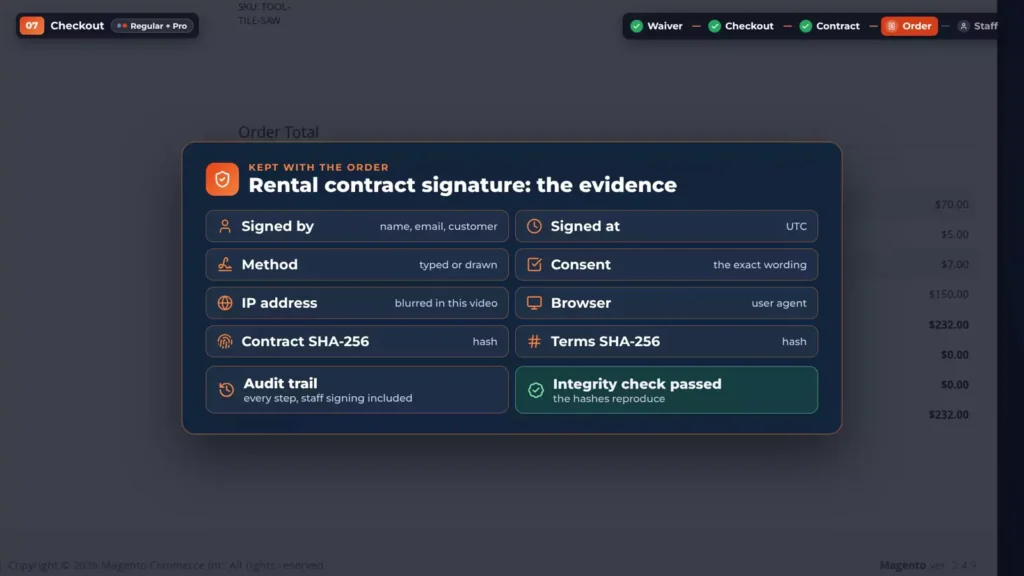
In the admin, the waiver and the deposit sit in the order totals. A signed order shows the signature and an evidence panel: who signed and when, the method, the consent, the IP address and browser, and hashes of the contract and the terms, with an audit trail and an integrity check.
View Signed Contract opens the PDF: the order, billing and shipping, each item with its dates, and the totals. Then come your terms, filled in with your store’s name and address, and the signing certificate on the last page. The PDF goes out with the order email too.
No signature yet, say on a phone order? Sign Contract opens the same card on the admin order. Type the customer’s name or draw it, and save. The audit trail notes it was signed on the customer’s behalf.
Big event orders that need a quote, or prices you’d rather hide? That has its own video.
Booking deposits, balances and security deposits
Most rental shops don’t take the whole price at booking. They take a part, collect the rest later, and hold a refundable security deposit on the side. Those are three separate things: the booking deposit, the balance and the security deposit.
The booking deposit
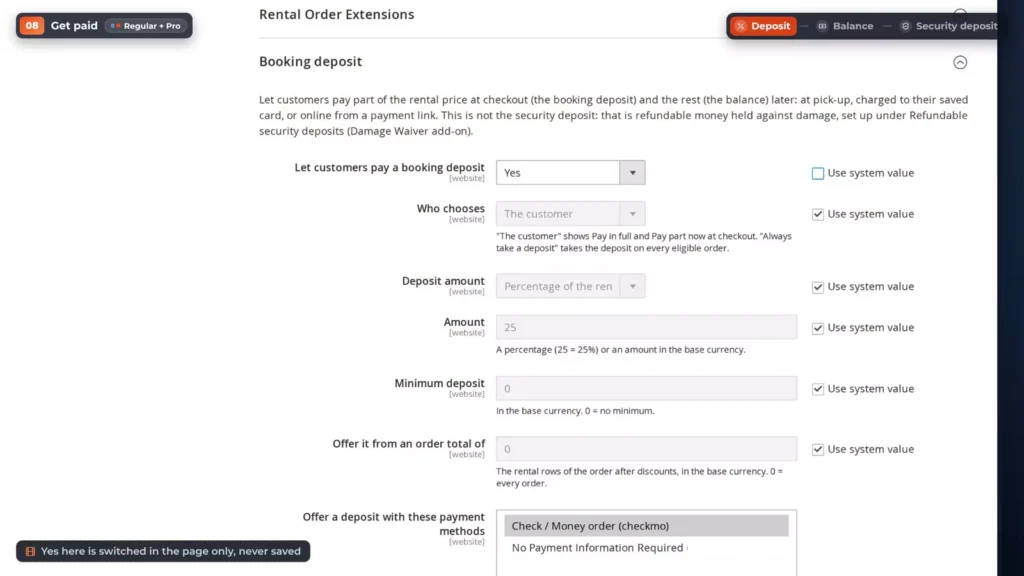
The booking deposit lives under Stores, Configuration, Rental, Booking deposit. It’s off until you turn it on, so switch Let customers pay a booking deposit to Yes. Who chooses can be the customer, or you can always take a deposit. Deposit amount is a percentage of the rental price, a fixed amount per unit, a fixed amount per order, or the price of the first days. Here the amount is 25, so 25 percent. Then tick the payment methods that may take a deposit. The offline ones stay unticked until you tick them.
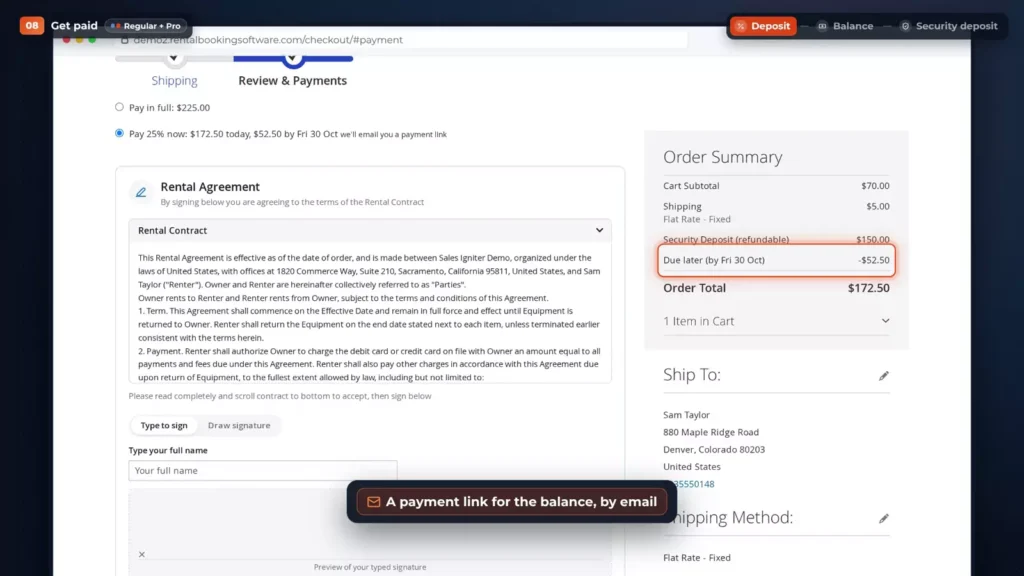
At checkout, the customer then sees How would you like to pay? Pay in full, or Pay 25 percent now. Choose the deposit, and the summary adds a Due later row, and the customer gets a payment link for the balance by email.
Collecting the balance
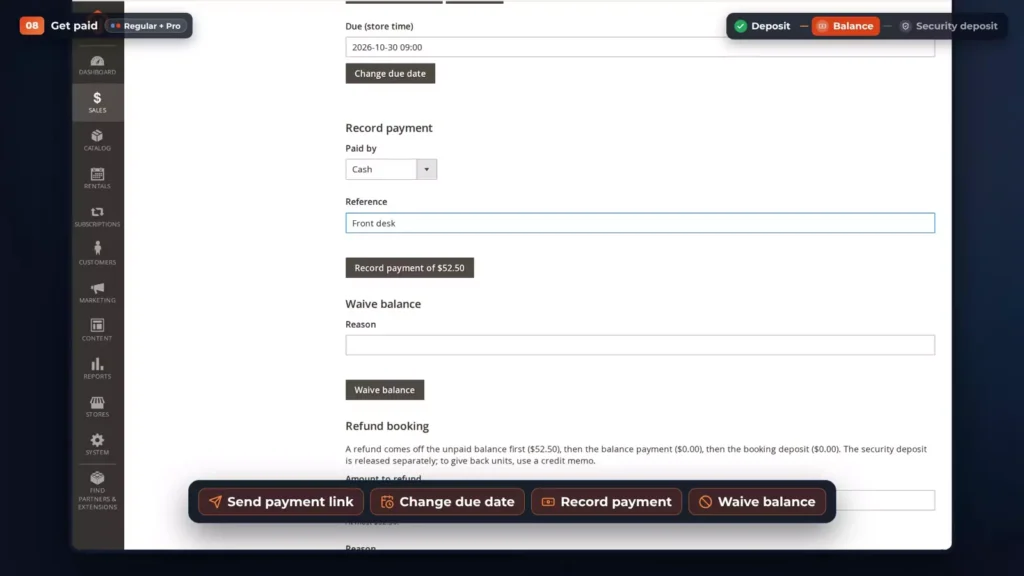
Balance collection has three choices: collect at pick-up, charge the saved card automatically, or the customer pays online from a link. The automatic choice needs a card gateway that can save cards. This demo has none, so the video shows the setting only.
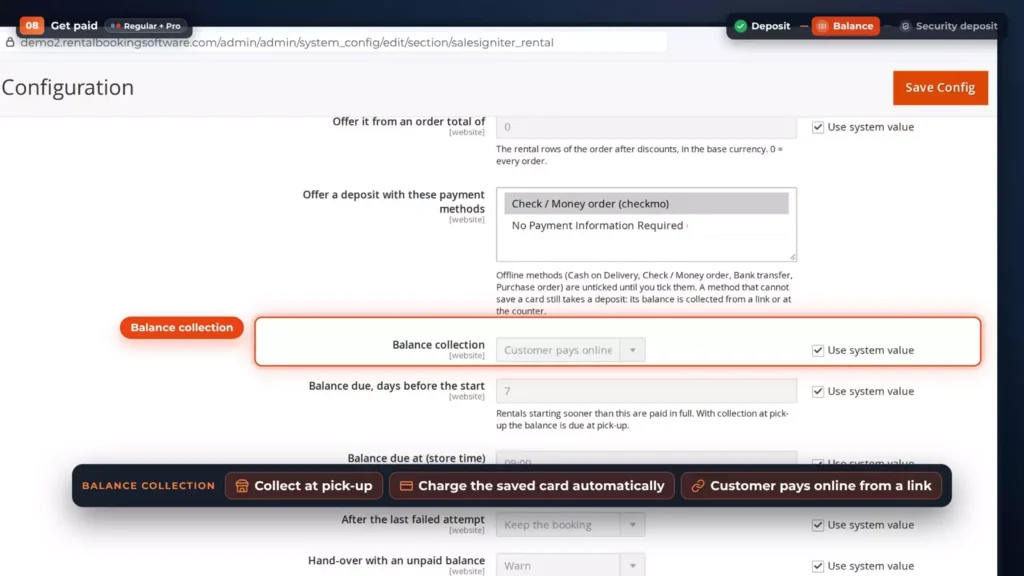
The balance is due seven days before the start, at 9 in the morning, store time. A rental starting sooner is paid in full. A hand-over with an unpaid balance can warn staff, or block. Reminders go out three days before the due date, on the day, and the day after. While a balance is unpaid, the security deposit release waits.
The Balances desk
Rentals, Balances is the desk for it. Each balance shows its order, customer, amount, due date, collection method, status and next action. It’s empty in the video, because no booking on this demo took a deposit. On the order, a Rental payment panel can send the payment link, change the due date, record a payment at the counter, or waive the balance.
The security deposit
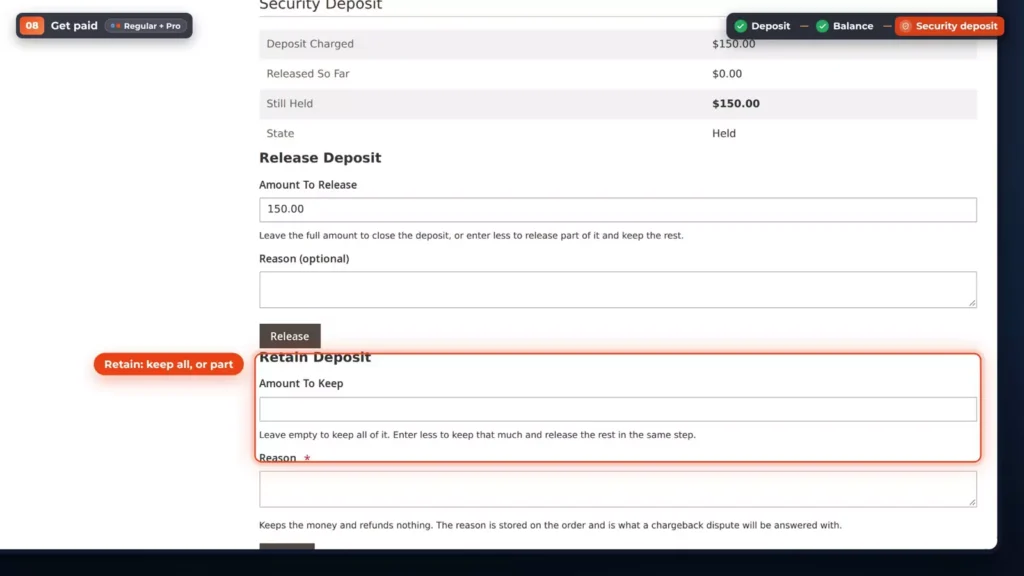
The security deposit is separate, and refundable. Under Refundable security deposits there’s a label, Security Deposit, and a fixed amount: $150 per unit. It’s not taxable, because it’s the customer’s money, held. On the product page it’s its own line, added at checkout, and it’s charged with the order. It’s released automatically three days after the last return. A setting to hold it on the card instead needs a card gateway too, and it’s off here.
In the admin, Security Deposits lists every one: charged, held, released, kept. On the order, Release Deposit gives the money back, all of it or part. Retain Deposit keeps it, and needs a reason: that’s what a chargeback dispute is answered with. Customers see it too: Security Deposit, refundable, in their order totals, and My Security Deposits.
The settings are in the booking deposit docs.
The daily desk: dashboard, calendar and phone orders
This is the screen a rental shop opens every morning, and how staff book a phone order with dates.
The Rental Dashboard
Rentals, Dashboard has four tiles across the top: Going out today, Due back today, Overdue in red, and Currently out. On this demo nothing leaves or returns today, but five units are overdue, the oldest more than a month late, and 10 of 28 units are out, 36 percent of the stock.
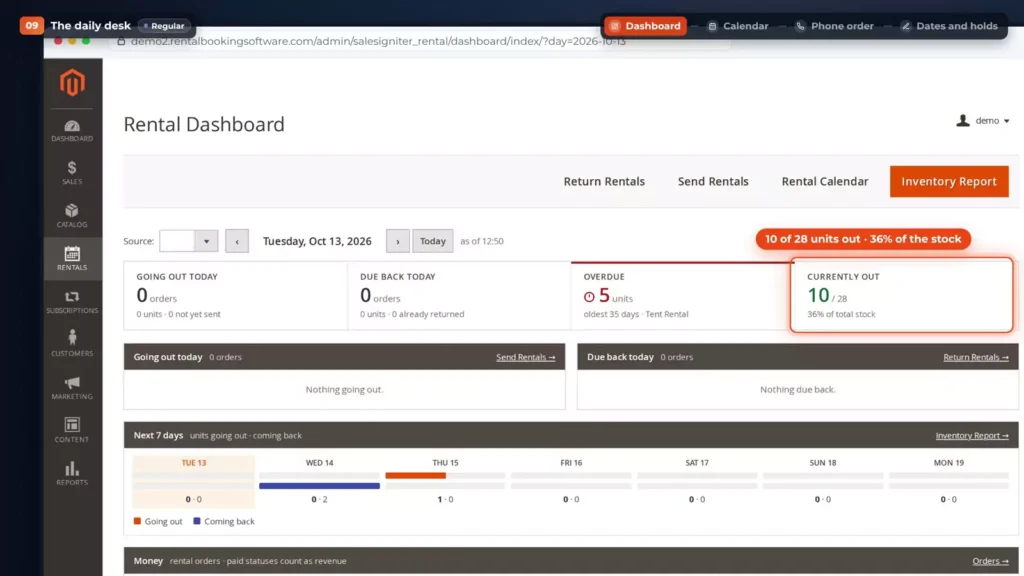
Further down, Next seven days shows the units going out and coming back, day by day. Then comes the money: revenue this month, the last 30 days against the 30 before, and what’s awaiting payment. Then the overdue orders, each with a Return button and Open order, and Currently out, product by product.
The Rental Calendar
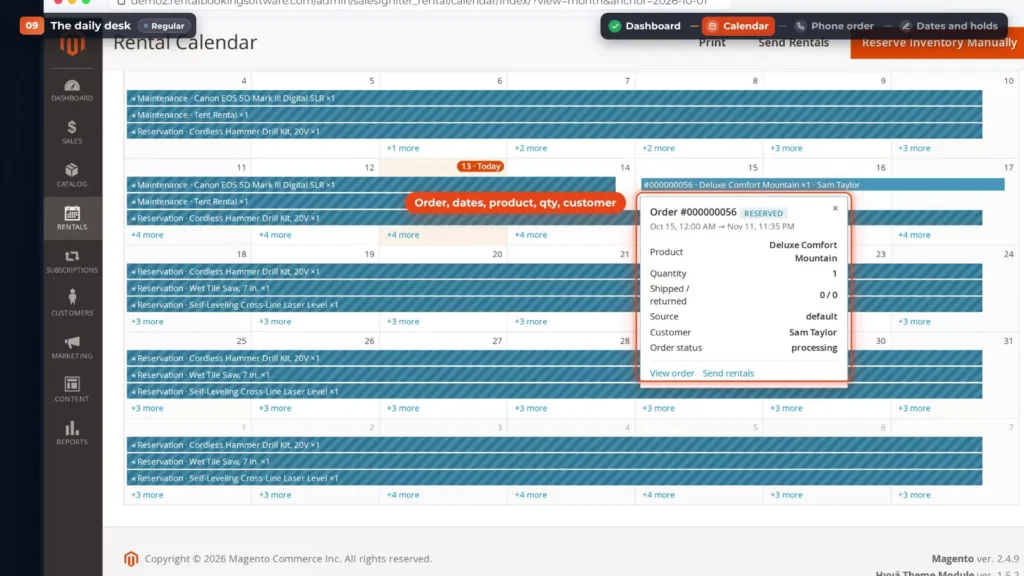
Out and In is the default view: an arrow up for units going out, an arrow down for units coming back, and a red exclamation mark for overdue, so today shows the five. Click a day to list its orders, with Send Rentals for this day and Return Rentals for this day.
By order draws every booking as a bar. Point at one and its card opens: the order, the dates, the product, the quantity and the customer, with View order and Send rentals. Week lists each day’s pick-ups and returns, and Timeline by product gives every product a row, with its stock, and a line for today.
Take a phone order
Go to Sales, Orders, Create New Order, then pick the customer. The form opens with Items Ordered, and the dates go per line: each product has its own start and end, and the picker shows how many units are left on those days. Above the items, Change All Dates sets every line at once.
When the stock can’t cover a line, the admin warns you: Not available, saving this will overbook, with the number needed and the number left. It warns, and never blocks. Tick Overbook, save anyway, and the order goes through, with a private note, and a red Overbooked badge in the order list. When every line shares one window, the order shows it once, as Rental Dates, with the Reservation Status: Inventory Reserved, Yes.
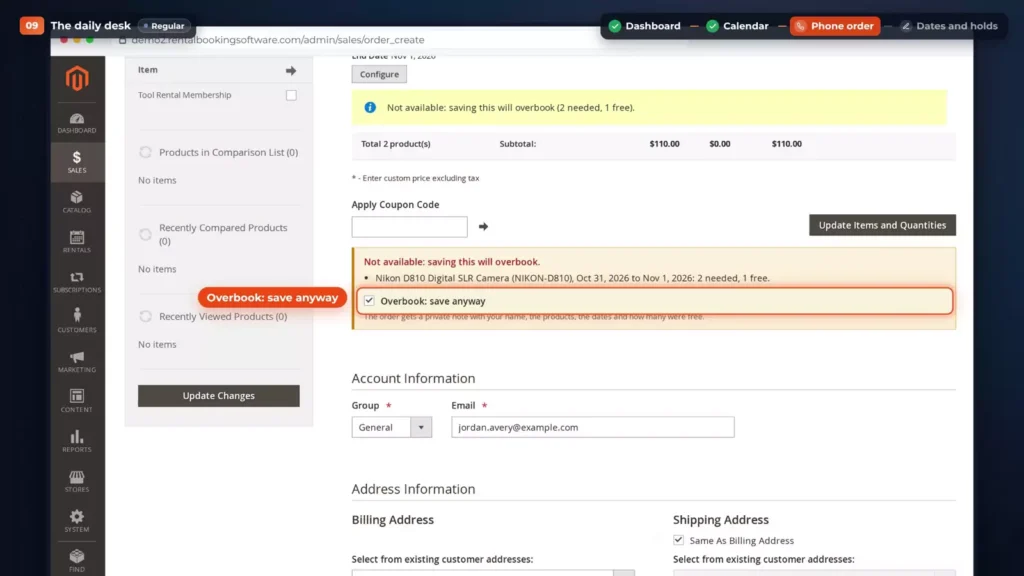
In Sales, Orders, the Overbooked column marks every order booked past the stock, and the Overbooked filter lists them all, so none is missed.
Change dates and make holds
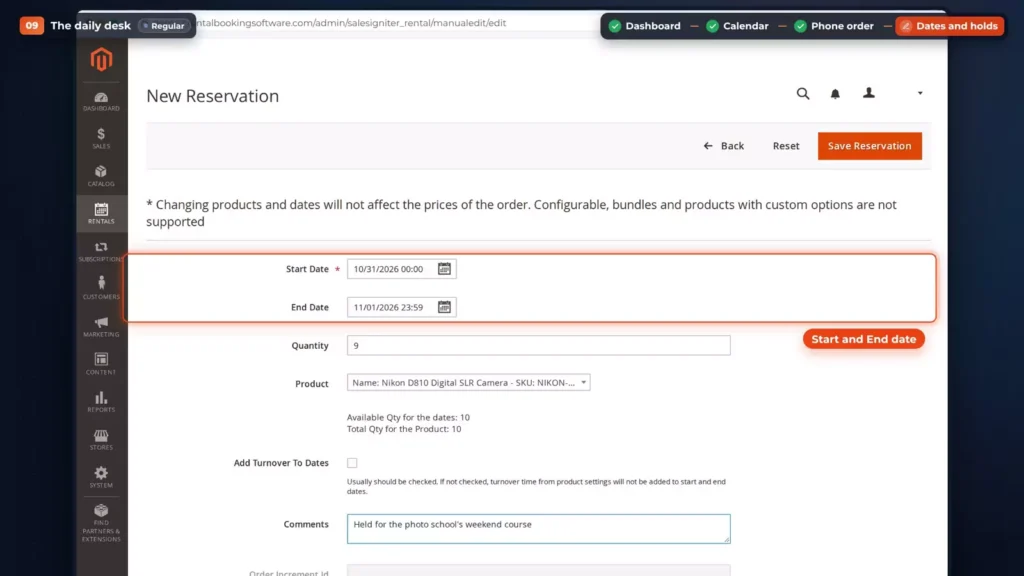
To change the dates, open Rentals, Manually Reserve Inventory, and Edit the order’s reservation. It moves the reservation and the order’s dates, never the price. Once the item has been sent, only the End Date can change. As you type, the lines under it answer with the available quantity for the dates and the total for the product.
The same page makes holds. Add New Reservation takes a start and an end date, a quantity, a product and a comment. Save, and the hold shows on the calendar in its own colour, with Edit hold on its card.
Send and return: serials, scanning and labels
Know which unit went out, who has it, and what shape it’s in when it comes back.
Serial numbers
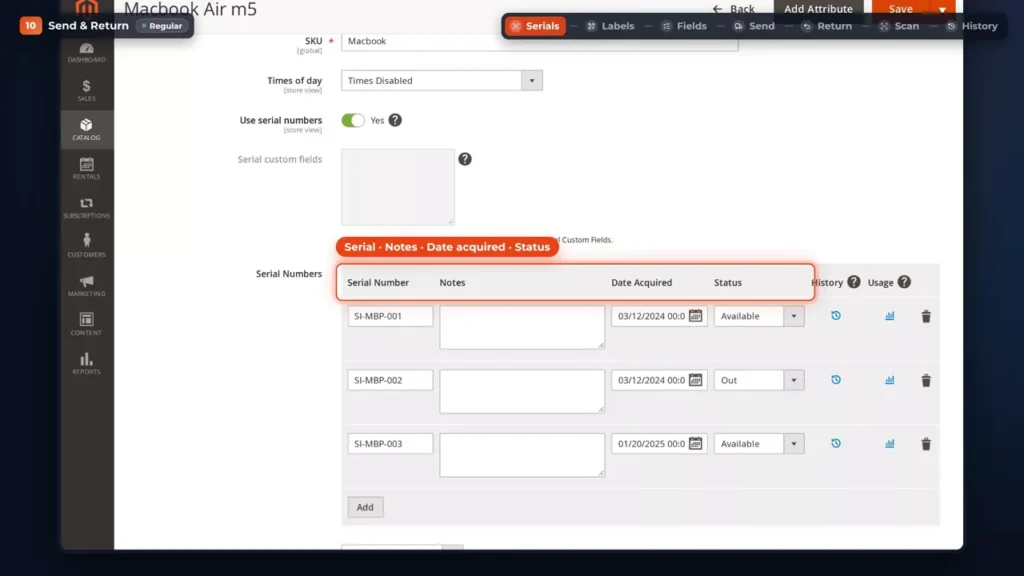
Every rental unit can have its own serial number. On the Macbook Air, Use serial numbers is on, and the Serial Numbers rows list each unit: its serial, notes, the date it was acquired and its status. Add a unit here, or under Rentals, Serials, with Add serial.
Rentals, Serials shows every unit in one grid, with tabs for Available, Out, Maintenance, Broken and Retired. Open a unit, and its page shows the order it’s on, its photos and its history.
QR and barcode labels
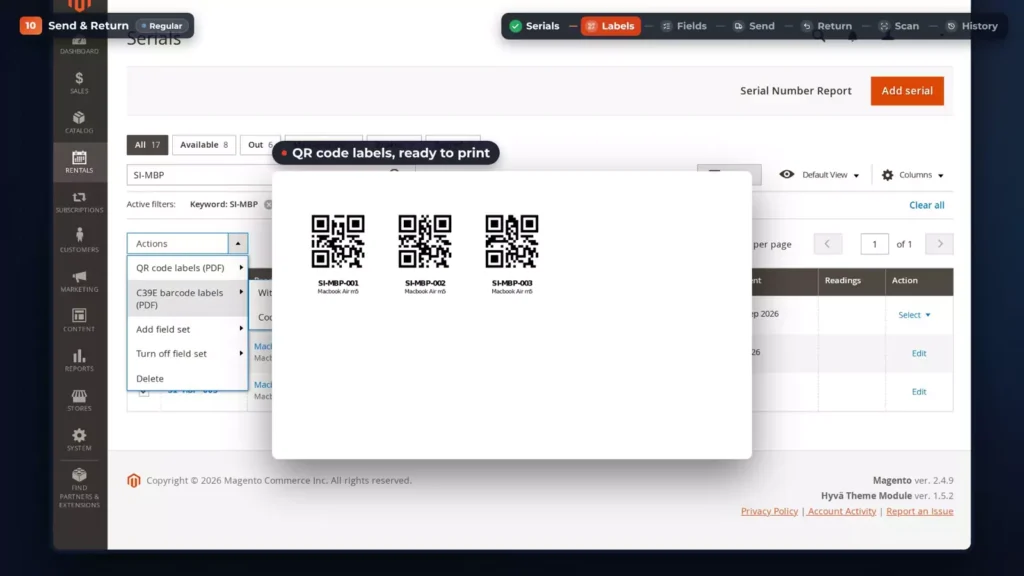
Need labels? Select units in the grid, and under Actions, choose QR code labels or C39E barcode labels. They come as a PDF, ready to print and stick on.
Readings
Staff can record readings when a unit goes out and when it comes back. Serial Custom Fields holds field sets: a meter that only goes up, like an odometer or an hour meter, a number, a choice, yes or no, a line of text, or photos. Start from a template, like Vehicle meter, Engine hours or Condition check, and give the set to your products.
Send a rental
Rentals, Send Rentals lists what’s going out. Filter to the order, and on the Macbook row, type the serial. Only units that are available are offered. Custom fields asks for the readings, here the hours and the condition. Click Use these values, then Actions, Send. The unit is out, on that order.
Sending from another system? Switch on Auto mark rentals as sent, and rentals are marked as sent at their start time.
Return a rental
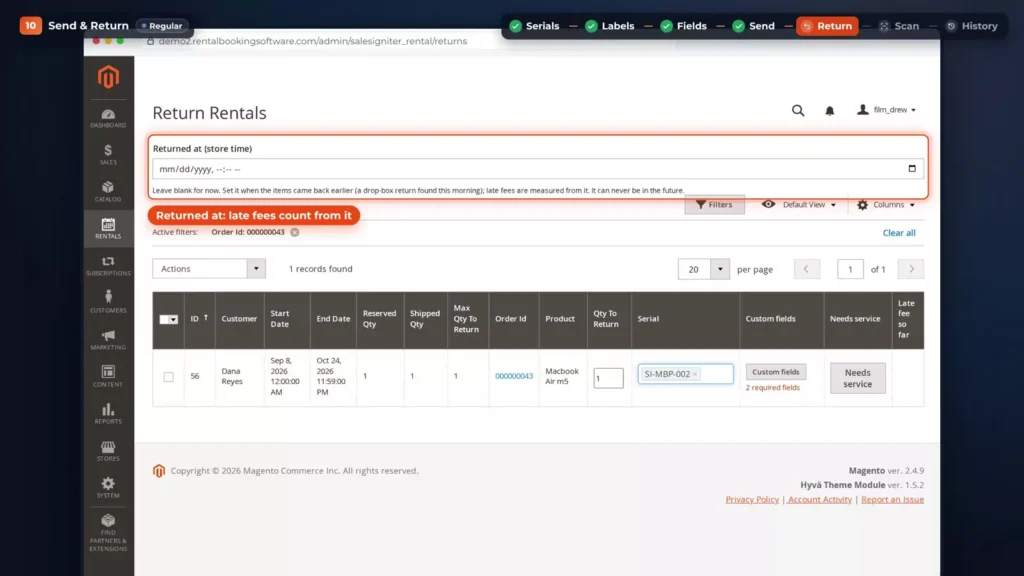
Coming back, Return Rentals lists what’s out, with the serials already filled in. Returned at records when it really came back, say a drop-box return found this morning, and late fees are measured from it. Record the readings and a photo, then Actions, Return.
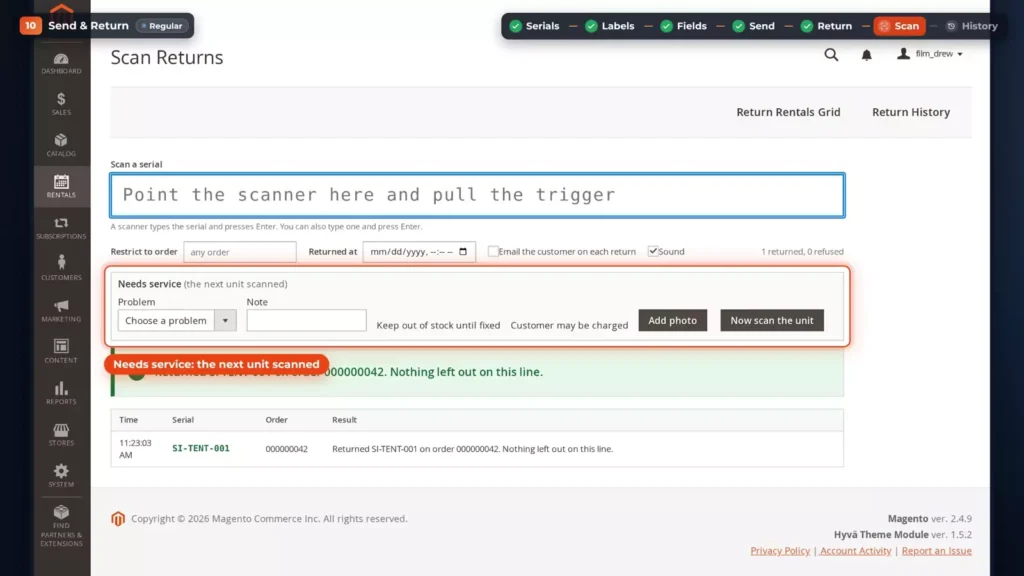
Scan Returns
At a busy counter, use Scan Returns. Point the scanner at the field and scan the label: the unit is returned, with a sound for each scan. If a unit needs work, fill in Needs service before you scan it: the problem, a note, and Keep out of stock until fixed.
Every move lands in the unit’s history. A reading typed wrong can be corrected: the original stays in the history, struck through, with the reason. The Usage report, grouped by serial number, shows how often each unit goes out. With the PDF add-on, packing slips list the serials too.
The serial numbers docs go through the same steps.
Late fees and rental extensions
A late return blocks the next booking. Two things help: letting customers extend, and charging a fair late fee when they don’t.
Extensions from My Account
With Rental Order Extensions, customers extend from My Account. While a rental is out, My Orders shows an Extend icon on it. Sam picks a new end date, the calendar checks the stock, and the extension goes in the cart, paid through the normal checkout as a new order. You can set how close to the end date an extension is allowed, and which lengths are on offer.
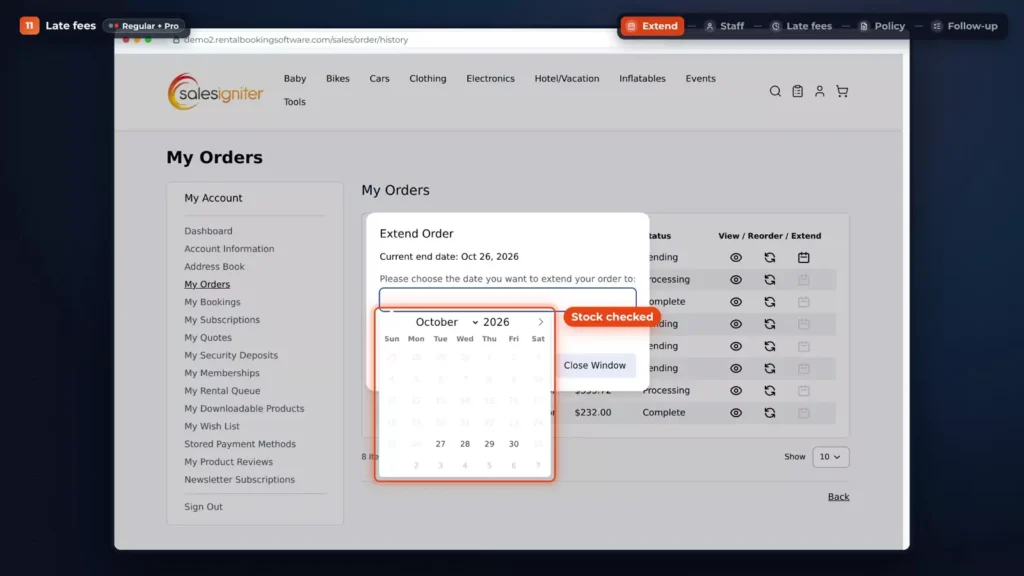
Extensions from the admin
Staff extend from the admin order. Extend opens Extend rental: the current end date, a new date, and the quantity of each item. Staff can still book days that are fully booked. With booking deposits on, one setting stops extensions while a balance is overdue.
Late fee settings
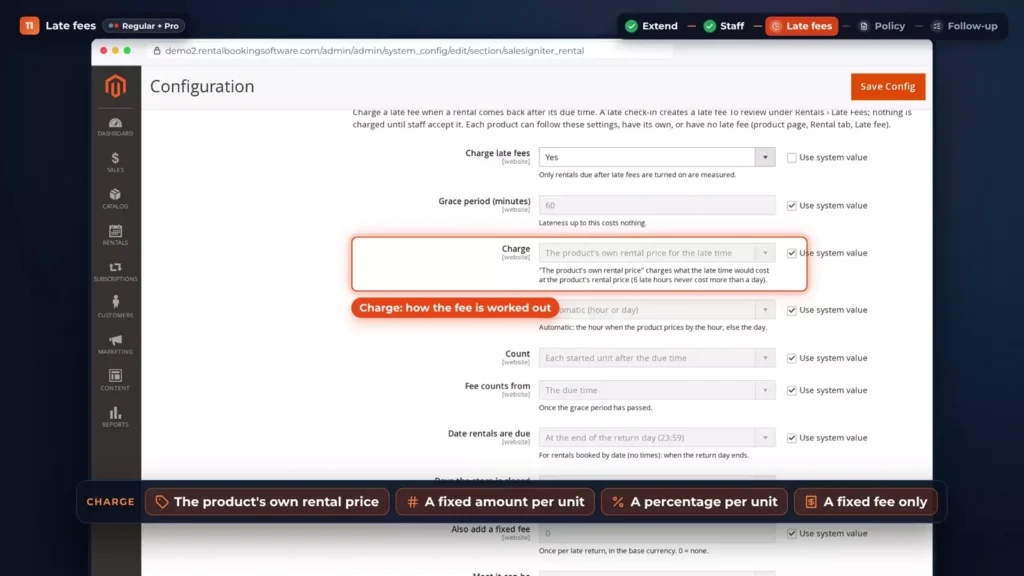
Late fees live in Stores, Configuration, Rental, Late fees. Switch on Charge late fees. The grace period, 60 minutes here, costs nothing. Charge sets how the fee is worked out: the product’s own rental price for the late time, a fixed amount or a percentage per unit, or a fixed fee only. Most it can be sets a cap, and after Stop counting after, 30 days, staff get a long overdue alert instead. Each product can follow these settings, have its own, or have no late fee.
When a rental comes back late, the safe default is to wait for staff. Accept then collects in the order you set: from the security deposit, from the card saved at checkout, or with a pay link by email. Staff can always record a payment at the counter.
Shoppers see the policy before they book, in one sentence under the price and in the cart: late returns, the item’s rental price for the late time, after a one-hour grace period.
Following a fee
Rentals, Late Fees follows every fee: Accruing while the rental is still out, To review once it’s back, Unpaid after a pay link goes out, then Paid or Waived. Turned late fees on while rentals were already overdue? Apply late fees to rentals already overdue gives each of them a fee from its due date, and nothing is charged until someone accepts it.
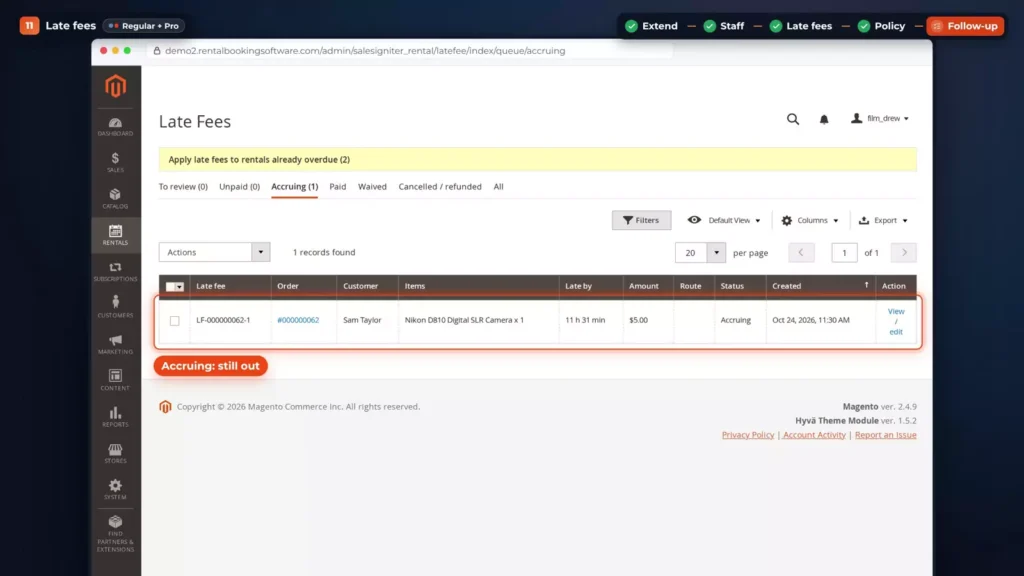
The customer sees the fee on the order in My Account, with Pay now. The Late Fees Report totals what was billed, collected, waived and still outstanding. More in the late fees docs.
Reminder emails
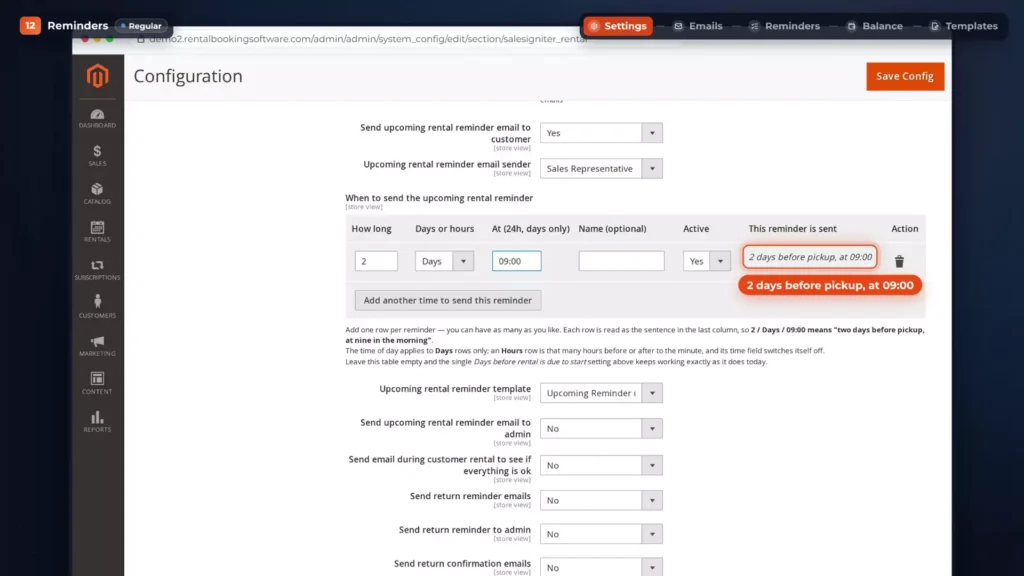
You can remind customers before pick-up, before the return date and the day after, all automatically. In Stores, Configuration, Rental, Emails, each kind has its own switch: upcoming rental, a check-in during the rental, return reminder, return confirmation, overdue, and a satisfaction email afterwards.
Switch one on and say when it goes out: 2, Days, 09:00 reads back as 2 days before pickup, at 09:00. Add as many rows as you like, in days or hours: the check-in a day after pickup, the return reminder a day before.
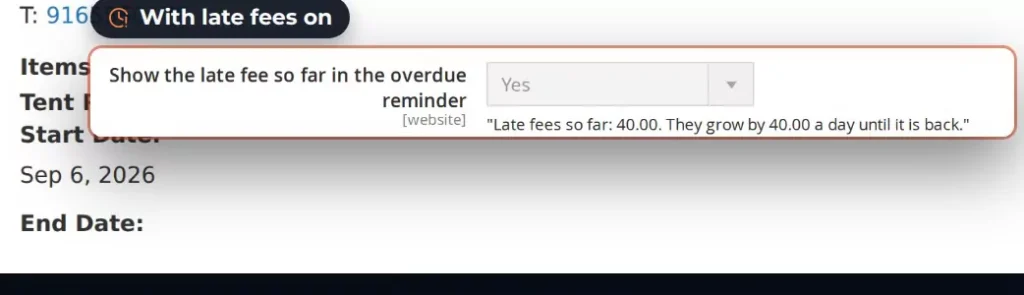
Your customer gets the start date coming up, a check-in with a link to extend, and an overdue note listing what’s still out. With late fees on, it shows the fee so far and how fast it grows. Afterwards, a thank-you asks for feedback.
Rentals, Reminders lists every reminder: when it’s due, the order, the customer, whether it went out, and if not, why not.
With booking deposits, balance reminders go out three days before the due date, on the day and a day after. If a saved card expires before an automatic charge, the customer gets a link to pay now.
Every email is a Magento email template. In Marketing, Email Templates, load Upcoming Reminder, make it yours, and pick your copy in the Emails settings.
Maintenance and inspections
Rental Product Maintenance keeps a broken unit out of stock until it’s fixed, with tickets, checklists and service schedules. It adds two menus: Maintenance Work, with the tickets and reports, and Maintenance Setup.
From the return to the workshop
It starts at the return. On Return Rentals or Scan Returns, Needs service records the problem, a note, and Keep out of stock until fixed, and the unit goes to the workshop as a ticket.
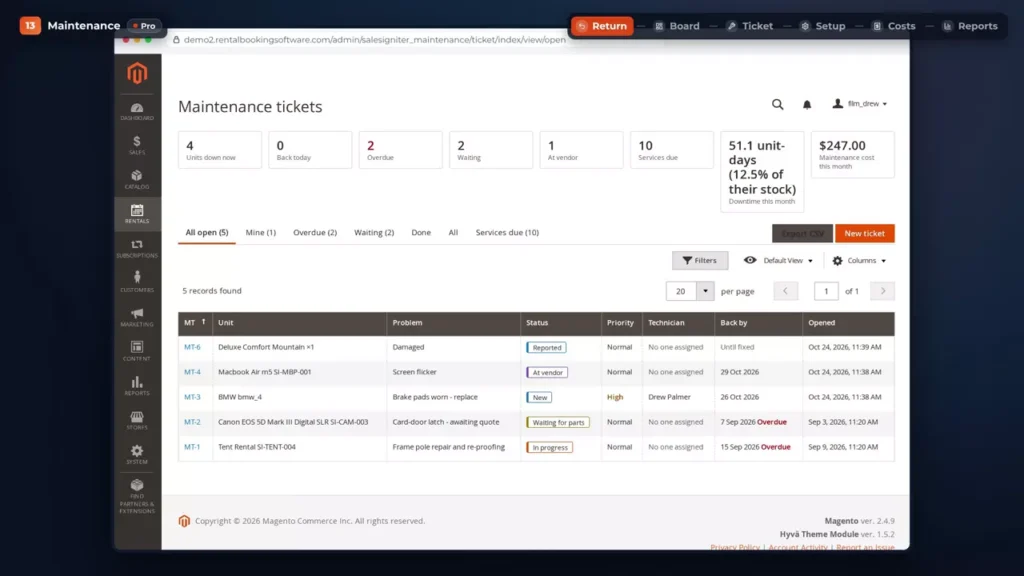
The tickets board shows the units down now, overdue tickets, units waiting for parts or at a vendor, services due, and this month’s downtime and maintenance cost. The tabs filter it: All open, Mine, Overdue, Waiting, Done.
Working a ticket
A ticket takes its units out of availability until it’s done. Its step bar moves it from New to In progress to Ready to rent, and the stock line says what it blocks. When you open a ticket, the conflict panel lists any booking left short, so you can sort it out before the customer arrives.
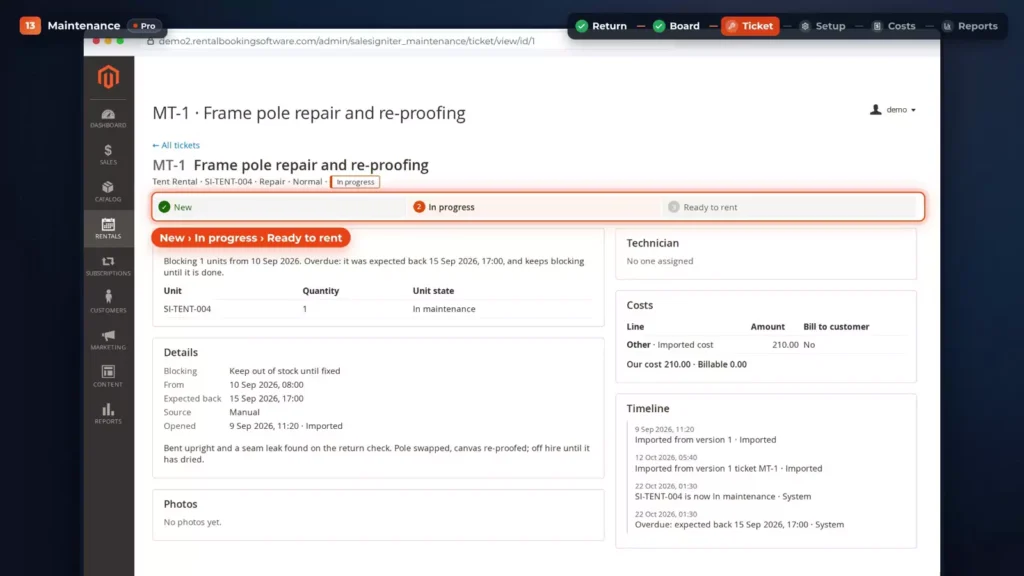
On a ticket, add parts, labour with a timer, and a vendor for outside repairs. Damage can be charged to the customer, from the security deposit, the saved card or a pay link.
Checklists and service schedules
Maintenance Setup holds the rest. Checklists are field sets that staff fill in at check-out and check-in, and a failed one opens a ticket. Services are schedules: every so many days, rentals, days on rent, or meter readings. A unit due for service at check-out can warn staff, or block the send when it’s overdue.
Customer reports and maintenance reports
Customers can report a problem too. In My Account, Report a problem with this rental takes the item, what happened, photos and how to get in touch, and it arrives as a Reported ticket.
Maintenance reports show the cost per item, downtime, the effect on utilisation, service compliance, and the problems that keep coming back. The rental dashboard also gets a Maintenance card.
Rental reports
Reports show which rentals earn and which sit idle, and they spot conflicts before they happen. Rentals, Reports holds four of them.
Inventory Availability
Inventory Availability shows how many units of each rental are left every day, shaded by how much is booked. In September, the BMW drops to four while one is out, and the Canon to two, then one.
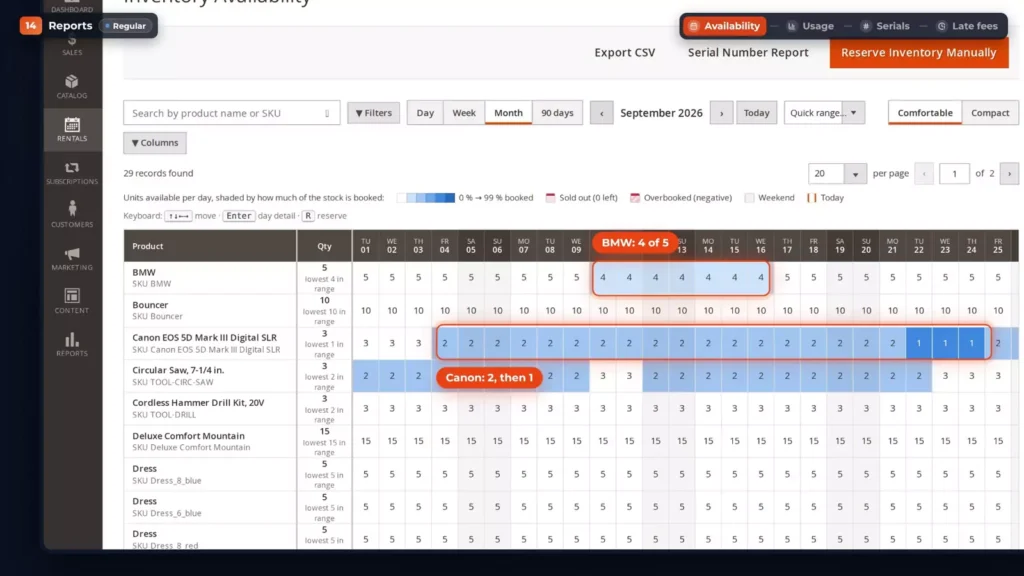
Hover a day to see what holds the stock. Day detail lists every kind of hold: orders, manual holds, maintenance, quotes and calendar blocks.
Switch to a week, a single day by the hour, or 90 days. One filter keeps only the products with a sold-out or overbooked day, so you catch conflicts before they happen. In the video, nothing is sold out.
Usage
Usage shows what earns and what sits idle. For Tools, over the last 90 days, it shows 10.6 percent utilisation and 32 unit-days out. Each row has its stock, bookings, utilisation and a state, like Underused. Open a row to see every serial number.
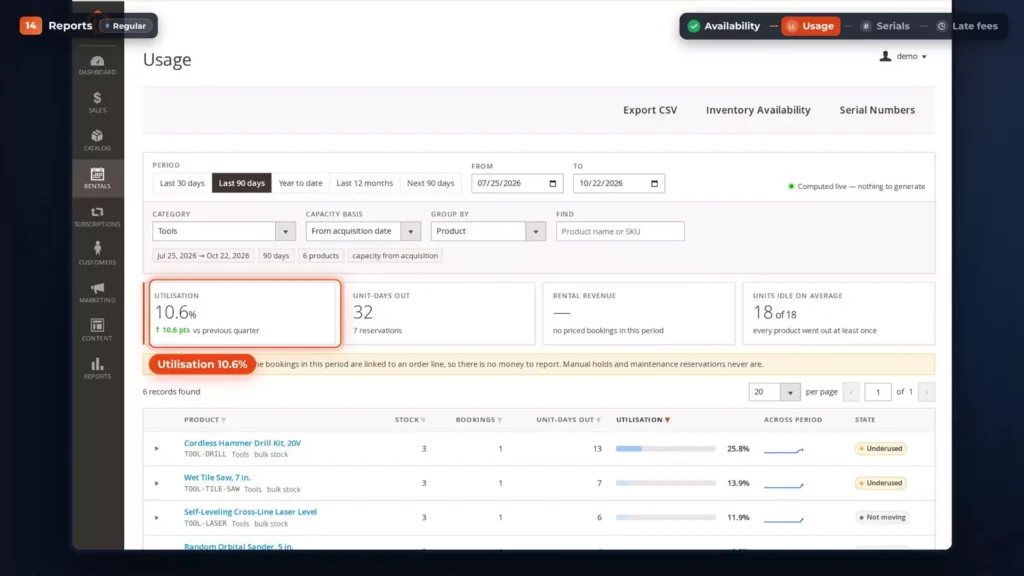
Group by serial custom fields, and the readings staff take at send and return, like a BMW’s odometer or a camera’s shutter count, become usage per unit.
Serial Numbers and Late Fees reports
The Serial Numbers report is a timeline of every unit: on hire, booked, returned, overdue or in maintenance. The Late Fees Report totals what was billed, collected, waived and is still outstanding, by month, product or customer, with the collection rate of each route: security deposit, saved card, pay link or counter.
Multi Source Inventory
Renting from more than one place? With Magento’s Multi Source Inventory, each warehouse or branch is a source with its own stock. The multi-source demo store has two, California and New York, and one account works in both.
Under Stores, Inventory, Sources, each one is listed. The rental Inventory Availability report then shows stock per source: switch its filter from California to New York, and the counts change, like ten mountain bikes instead of eight.
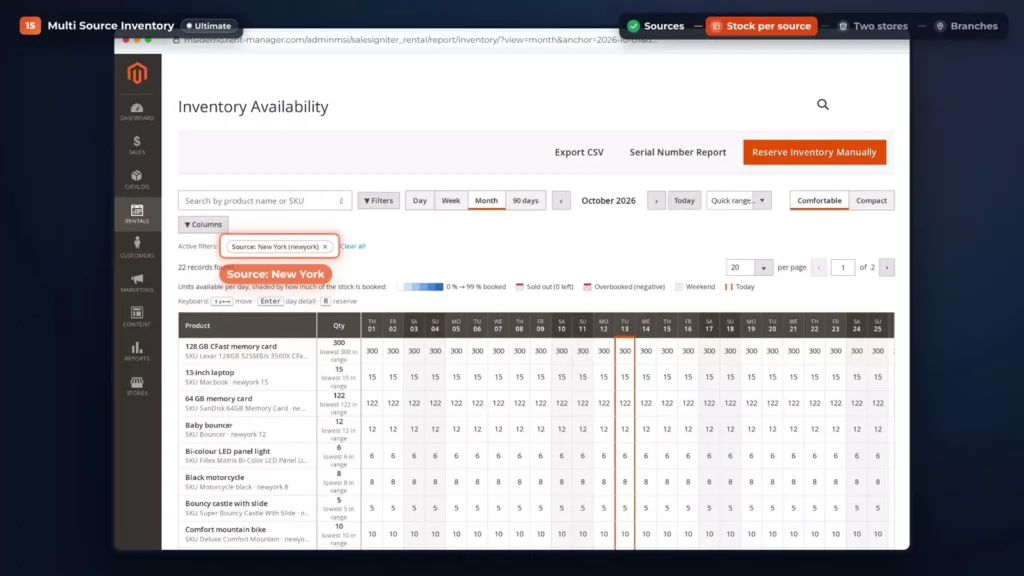
On the storefront, each store rents from its own source. The same bike books against California’s stock in one store and New York’s in the other, so a weekend that’s booked out in one can still be open in the other.
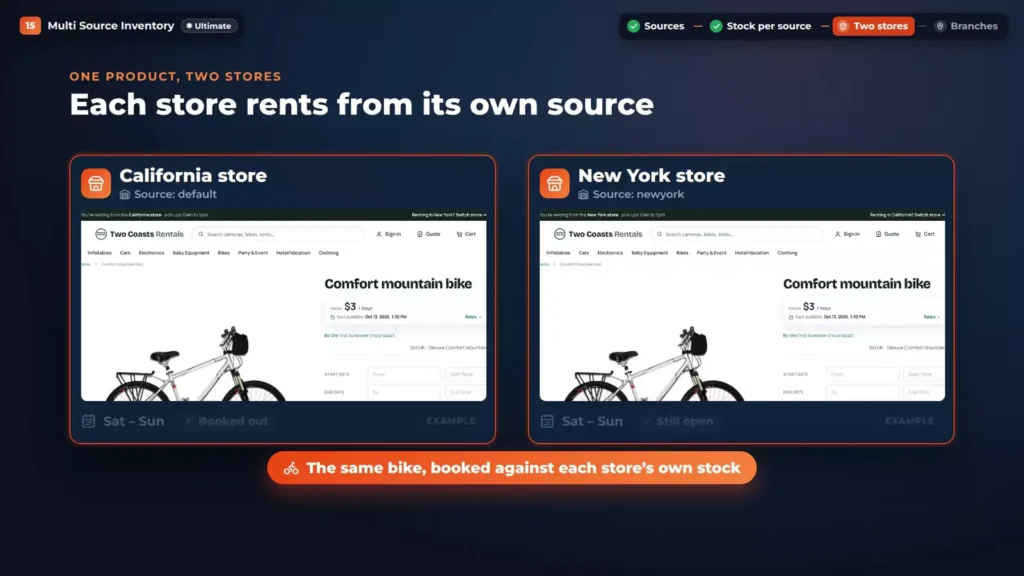
Running branches inside one store instead? Switch on the rental search’s Location field: a search for a branch lists what that branch has, and the booking is reserved there. The Multi Source Inventory page has the rest.
AI assistants check your rentals
Some shoppers ask an AI assistant where to rent. With AI connections, assistants such as Claude and ChatGPT can check your rentals for them. Turn it on in Stores, Configuration, Sales Igniter, Rental, AI connections: Let AI assistants check rentals, for each store view.
Ask a connected assistant: is the wet tile saw available this Friday to Sunday, and what does it cost? It searches your rentals, reads the product, checks the dates, and gets the price the cart will charge: $70 for two days.
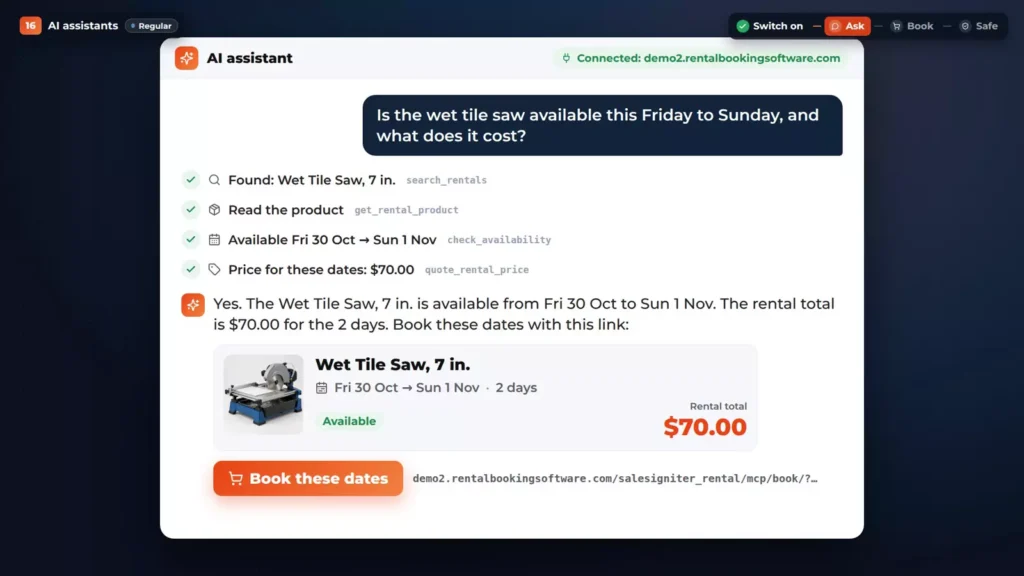
The answer ends with a booking link. It puts the saw in the cart with those dates, and the customer checks out as usual. The link is signed and good for seven days, and nothing is held before checkout.
The assistant sees only what any visitor sees, and it books nothing. Requests are limited per visitor and per store, and the answers come from the same services as your GraphQL fields.
Hyvä, Luma and headless GraphQL
Your store can run on Hyvä, on Luma or headless, and the rental calendar, search and booking work on all three.
Hyvä
On Hyvä, the price card, date picker and Rent button are made for the theme. Pick a Friday and the Sunday after it, and the total appears: $200 for two days, with the refundable security deposit added at checkout.
Luma
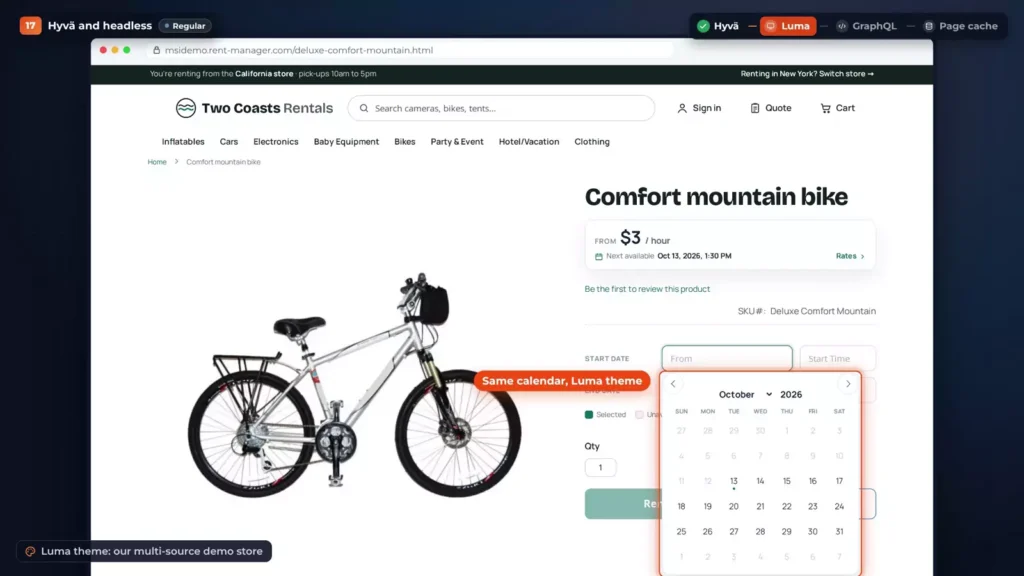
On Luma, the same calendar opens under the date fields. A Hyvä store can also keep the Luma checkout, as this demo does.
Headless
Going headless? Prices, availability and the booking calendar are all in GraphQL. Ask for the tile saw from Friday to Sunday, and the answer comes back: $70 for two days.
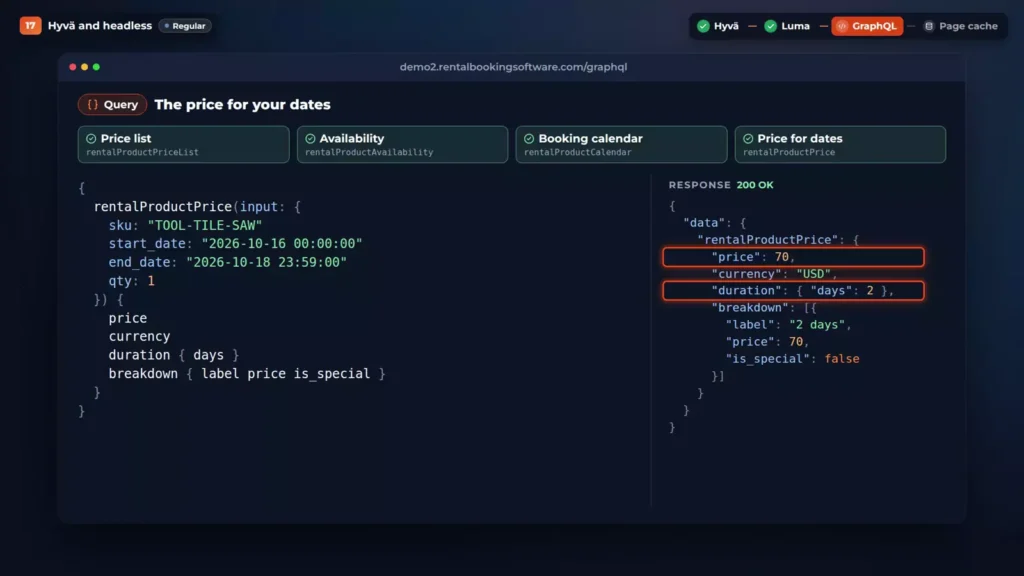
One mutation adds the rental to a cart with its dates. With an admin token, you can also read serial numbers, quotes, subscriptions and maintenance tickets.
Product pages stay in the full page cache: the page comes from the cache, then availability and the price load for the dates you pick.
Which edition do you need?
Regular is the complete rental system: every way to rent, configurable and bundle rentals, pricing, the booking calendar and rental search, booking deposits, the daily desk, send and return with serial numbers, late fees, reminders and reports, and AI connections, on Hyvä and Luma.
Pro adds the protection around every order: signed rental contracts, damage waivers and refundable security deposits, customer extensions, and maintenance and inspections. Ultimate adds Multi Source Inventory, which you can only get in Ultimate, and Request for Quote.
| Edition | What it adds | Price |
|---|---|---|
| Regular | Every way to rent, configurable and bundle rentals, pricing, the booking calendar and rental search, booking deposits, the daily desk, send and return with serial numbers, late fees, reminders, reports and AI connections, on Hyvä and Luma. | $399Code 100hyva, list $499 |
| Pro | Signed rental contracts, damage waivers and refundable security deposits, customer extensions, maintenance and inspections, free installation. | $699Code 200hyva, list $899 |
| Ultimate | Multi Source Inventory, which you can only get in Ultimate, and Request for Quote. | $1099Code 300hyva, list $1399 |
Request for Quote and Subscriptions & Memberships are also sold on their own, and each has its own video. That’s the whole operation, from the first booking to the last return.
Try it on the live demo
Most of the video can be tried on the live Magento demo. Multi Source Inventory and the Luma view were filmed on a separate multi-source demo store.
Open the Magento demoSee the extension
All features or contact us. Rentals & Bookings is also available for WooCommerce and Shopify. Features differ by platform.
Where to go next
- Installation docs, for each edition’s install steps.
- Calendar sync, booking deposits, serial numbers and late fees, for the settings behind those chapters.
- GraphQL API docs, if you’re building a headless storefront.
- Multi Source Inventory, if you rent from more than one warehouse or branch.
- Request for Quote & Hide Price, with its own video, for big event orders.
- Subscriptions & Memberships, with its own video, for monthly plans and a rental queue.
FAQ
It’s for beginners to rentals, not to Magento. The video assumes a working store. You’ll need Composer and the command line for the install, or a developer who can do it, and after that everything is in the Magento admin. If you’re new to Magento itself, learn the basics of the platform first. Pro and Ultimate include free installation.
Yes. On Hyvä the price card, date picker and Rent button are made for the theme, and you also require the Hyvä module when you install. It works on Luma too.
Yes. It works with Magento 2.3.x and 2.4.x, on Adobe Commerce and Open Source.
Yes. The API is GraphQL. Prices, availability and the booking calendar are all there, and one mutation adds a rental to a cart with its dates. With an admin token you can also read serial numbers, quotes, subscriptions and maintenance tickets.
Yes. The Magento demo is live, and you can try every chapter of the video on it.