
Calendar sync stops one item being booked twice when you rent it out in more than one place. Your store publishes each product’s booked-up dates as a calendar that Google Calendar, Apple Calendar, Outlook or a listing site such as Airbnb can subscribe to. It can also read other calendars back, so dates sold on Airbnb, Booking.com or Vrbo stop being sellable in your store.
Everything is on the product. Open Catalog > Products, edit the product, open the Rental section and scroll to Calendar Feed (the calendar you share) and Calendar Sync (the calendars you read). Calendar feeds were added in 1.2.202 and calendar sync, the import half, in 1.2.203. Both need the Magento cron to be running.
Share your availability #
The Calendar Feed box gives each product two private calendar addresses. They are made when you first open the product, so there is nothing to switch on.
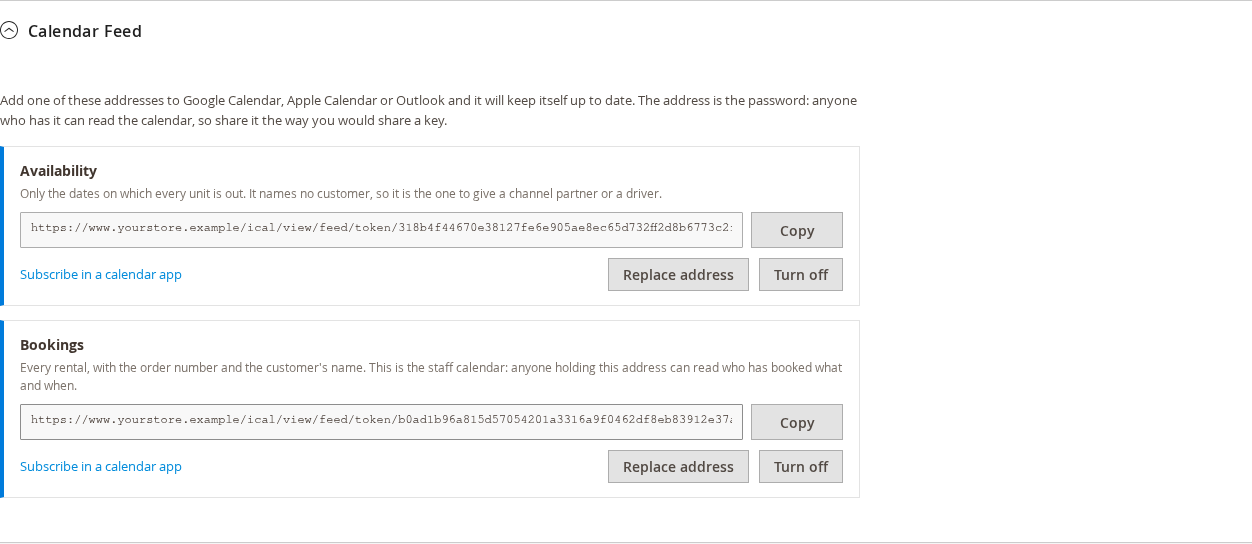
| Address | Who it is for | What it shows |
|---|---|---|
| Availability | A channel partner, a listing site, a driver or a customer. | Only the dates on which every unit is out. It names no customer and no order. Each blocked period is just “Unavailable”. |
| Bookings | Your own staff: a depot screen, a van driver’s phone, your diary. | Every rental, with the order number, the quantity and the customer’s name. |
Treat the Bookings address like a password. Anyone who has it can read who has booked what and when. The two addresses are different, so handing the Availability address to a listing site can never expose your customers.
- Copy puts the address on your clipboard. The button says “Copied” when it has worked.
- Subscribe in a calendar app opens the address in the calendar program on your computer.
- Turn off stops one address answering. The address itself is kept, and Turn on brings it back, so nobody has to subscribe again.
- Replace address throws the old address away and makes a new one. Use it if an address has gone somewhere it should not have. You are asked to confirm, because every calendar already subscribed to the old address stops updating until somebody pastes the new one in.
Where to paste it #
Copy the address first. The menus on the bigger platforms move around, but the path is always some variation of “subscribe to a calendar from a web address”.
- Google Calendar: next to Other calendars click +, choose From URL, paste the address and click Add calendar.
- Apple Calendar: File > New Calendar Subscription, paste the address and click Subscribe.
- Outlook: Add calendar > Subscribe from web, paste the address and give the calendar a name.
- Airbnb, Booking.com, Vrbo: in the listing’s calendar settings look for “Connect another website”, “Sync calendars” or “Import calendar” and paste the Availability address.
Each product has its own address. If you list five products on Airbnb you subscribe five times, once per listing. There is no single address for the whole store.
What the Availability calendar shows #
The Availability calendar shows dates you cannot sell, not dates you have sold. Your stock decides that. A date is published as unavailable only when every unit is out.
Say you have five frame tents. On Saturday one is out and four are free, so nothing is published and Airbnb can still sell Saturday. On Monday and Tuesday all five are out, so Monday and Tuesday are published as one “Unavailable” block. If one tent out of five published a block you would lose four tents’ worth of Saturday bookings on every channel you sync with.
A day you cannot hire the product for any other reason is published as well: the turnaround day after a rental, or a day your store is closed.
- Products booked by the date. A day belongs either to you or to the customer, so when the last unit goes out the whole day is published as unavailable.
- Products booked by date and time. Only the hours that are busy are published. A hire from 9am to noon publishes 9am to noon and leaves the afternoon on sale. Airbnb, Booking.com and Vrbo think in whole days and usually round an hourly block up to the day. Google Calendar, Outlook and Apple Calendar show the hours exactly.
Block dates booked elsewhere #
The Calendar Sync box is the other direction. Dates booked on Airbnb, Booking.com, Vrbo, or any other system that publishes a calendar, arrive in your store and the product stops being sellable for them.
- On the other platform, find the export address of the listing. It ends in
.ics. On most platforms it sits on the same screen you use to import a calendar. - In the product, open Calendar Sync and click Add a calendar.
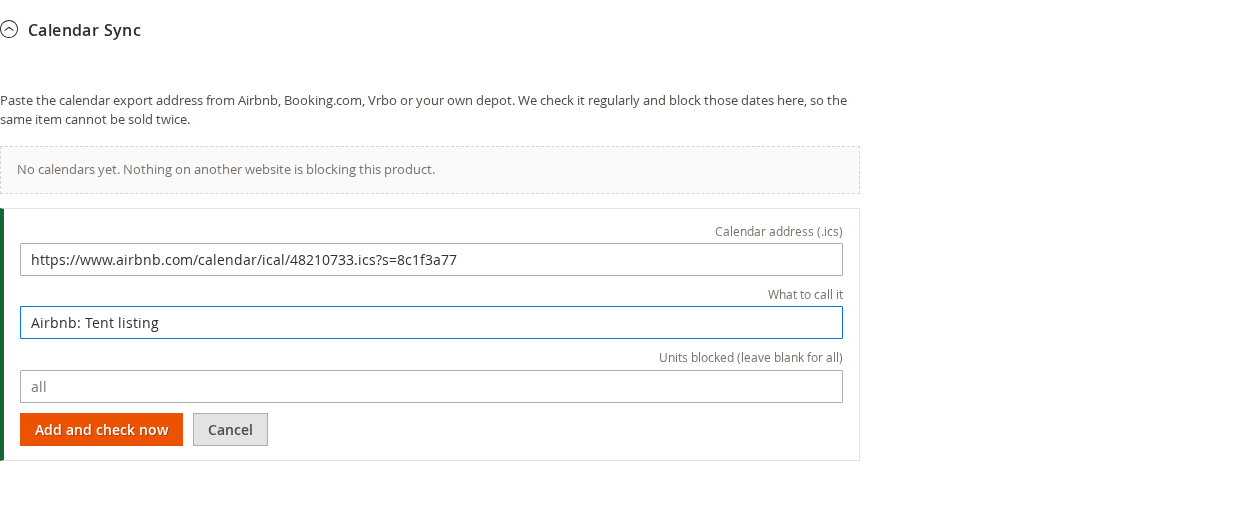
- Paste the address into Calendar address (.ics). Give it a name you will recognise in What to call it, for example “Airbnb: Tent listing”.
- Set Units blocked. Leave it blank to block every unit, which is right when one item is listed in two places. If the other listing really covers only one of several units, enter 1.
- Click Add and check now.
Each calendar then has a line showing where things stand, for example “Last checked 2026-10-02 09:26 | 3 blocked period(s) | Next check 2026-10-02 10:26”. If the last attempt failed, the line says “Last check failed”, gives the reason, and says “Nothing was released: the dates this calendar had already blocked are still blocked.”
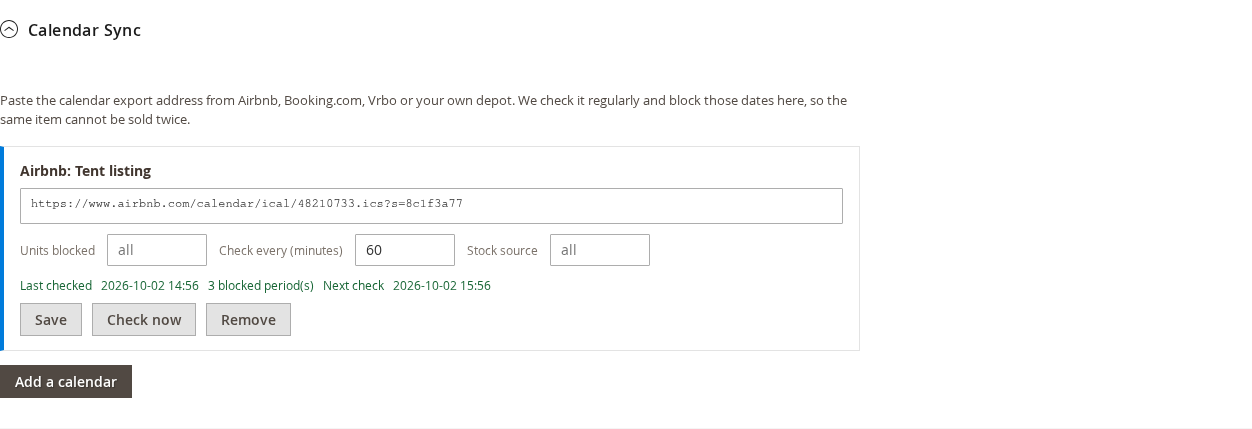
- Check every (minutes) is set for each calendar. Five minutes is the lowest value; below that the calendar platforms start refusing the requests.
- Stock source is for stores with several stock sources. Leave it as “all” to count against every source.
- Save keeps your changes, Check now reads the calendar straight away and Remove deletes the calendar and releases the dates it was blocking.
- Calendars are also read automatically. The cron looks every ten minutes for calendars that are due.
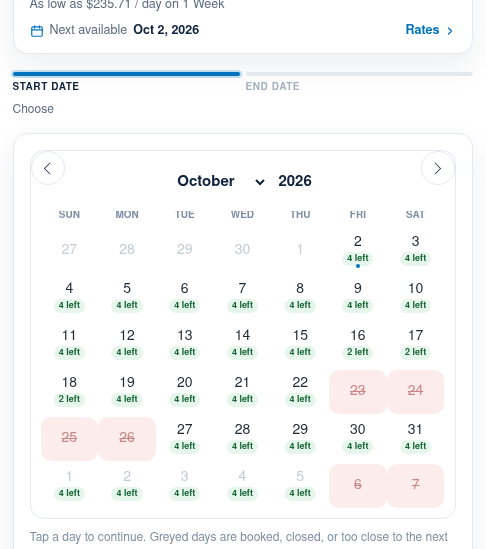
The dates block the product everywhere a customer or staff member can book it. Here is the frame tent with an Airbnb booking from 23 to 26 October blocked on the store’s calendar:
Good to know #
- A failed check never frees dates. If the other calendar times out, returns an error or is not a calendar at all (a common mistake is pasting the listing’s web page instead of its
.icsaddress), the dates already blocked stay blocked and the store tries again later, waiting longer after each failure, up to six hours. Only removing the calendar releases dates, or the other platform no longer listing a booking. - Your own bookings are never touched. An imported block is a separate kind of reservation. Removing a calendar removes only its blocks.
- The echo is deliberate. Imported dates appear in your own Availability feed. That is how three channels end up showing the same dates. A booking that comes back from the platform it started on is recognised and not duplicated.
- Cancellations are followed. When the other platform stops listing a booking, the dates are released at the next check.
- Addresses on a private network are refused unless you allow them in the settings below. Otherwise anyone who can add a calendar could make your server fetch things from inside your network.
Settings #
Go to Stores > Configuration > Sales Igniter Rental > Calendar Feeds (iCal). You can set these per store view.
| Setting | Default | What it does |
|---|---|---|
| Publish calendar feeds | Yes | Stops every feed answering when set to No, without destroying any address. |
| Suggested refresh interval (minutes) | 60 | A hint to the calendar program. Most poll on their own schedule whatever this says, and none honour less than 5 minutes. |
| Cache the built calendar for (seconds) | 300 | Within this time the feed answers from cache, and a program that already has the current copy gets an answer with no body. |
| Include this many days of history | 30 | Rentals that ended longer ago are left out, so a busy product’s feed stays a size programs accept. |
| Include this many days ahead | 365 | How far ahead the feed looks. |
| Maximum polls per minute, per feed | 60 | A calendar program that polls too often is told to slow down. 0 turns the limit off. |
| Re-open the old unauthenticated feed | No | See below. |
| Block dates booked on other websites | Yes | Turns the Calendar Sync checks on or off. Turning them off does not release dates already blocked. |
| Check each calendar every (minutes) | 60 | The starting value for a newly added calendar. Each calendar can then be changed on its own. |
| Calendars to check per run | 20 | A cap so one unreachable calendar cannot hold up the rest. Calendars not reached are first in line next time. |
| Allow calendar imports from private addresses | No | Leave it at No unless the calendar really is on your own network. |
If an old calendar stopped updating #
Before 1.2.202 a product’s calendar was at /ical/view/product/id/<product id>. It took a plain product id and showed customer names against booking dates to anyone who could guess the number, so it now refuses to answer. If a calendar you gave out earlier has gone quiet, copy the new Availability or Bookings address from the product and paste it into the calendar program.
If you need a few days to move every subscription, set Re-open the old unauthenticated feed to Yes. It re-opens the old address for every product at once and puts a warning on your admin dashboard for as long as it is on. Set it back to No as soon as everyone has moved to the new addresses.
Troubleshooting #
- A calendar says “Not checked yet”. The cron has not reached it. Click Check now, and make sure the Magento cron is running.
- The platform will not accept the address. Some platforms read a calendar only from a public address on the internet, so a store that is not yet online cannot be read by them.
- Dates are blocked that should not be. Check Units blocked. Blank blocks every unit of the product.
- A product with stock management off never shows as booked. With no limit on units it can never be fully booked, so its calendar stays empty. Set a rental quantity on the product if you want availability published.


