
Quote requests live under Sales > Quote Requests, next to Orders. From there you open a request, price it in the quote editor (Magento’s own Create New Order page, working on the quote) and send the offer. You can also start a quote yourself, clone one from an order, or make one from a customer’s cart.
The grid #
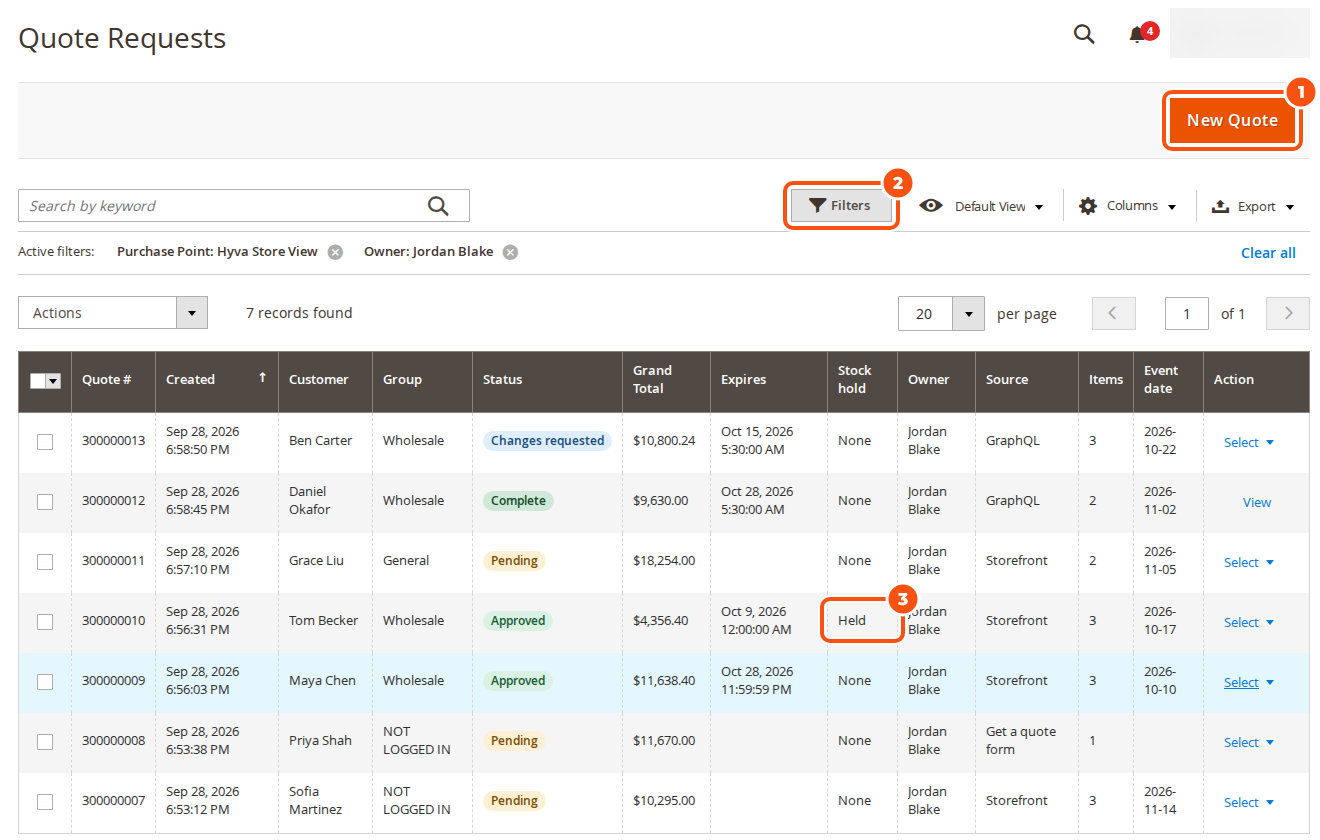
Columns: quote number, store, created, customer, email, group, status, totals, expiry, owner (sales rep), source (storefront, “Get a quote” form, admin, GraphQL, import), items, your custom-field columns, and on rental stores rental start, rental end and stock hold. Show or hide them with Columns.
Mass actions: approve and send, cancel/close, extend expiry, assign owner, delete (quote carts and drafts only), export. Staff without the permission “See quotes owned by other staff” see their own and unassigned quotes.
A quote’s page #
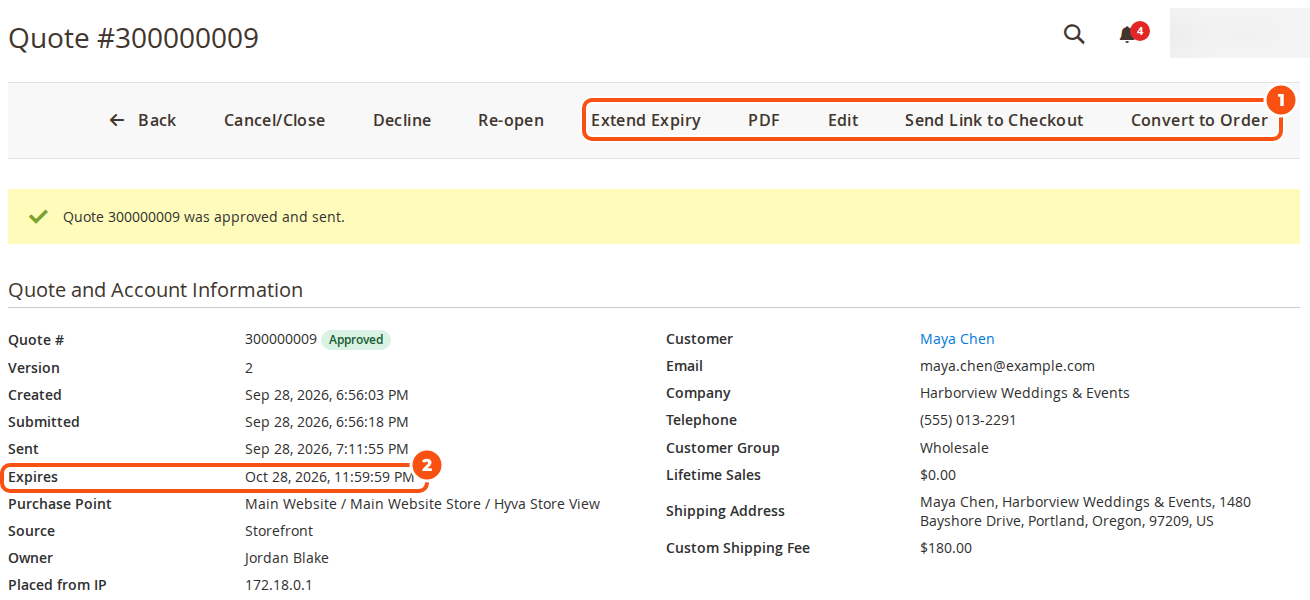
The buttons follow the status: Edit, Approve / Send (expiry, reminder, a message, email or not), Decline (with a reason the customer receives), Cancel/Close (no email), Re-open, Extend Expiry, Convert to Order, Send Link to Checkout and PDF.
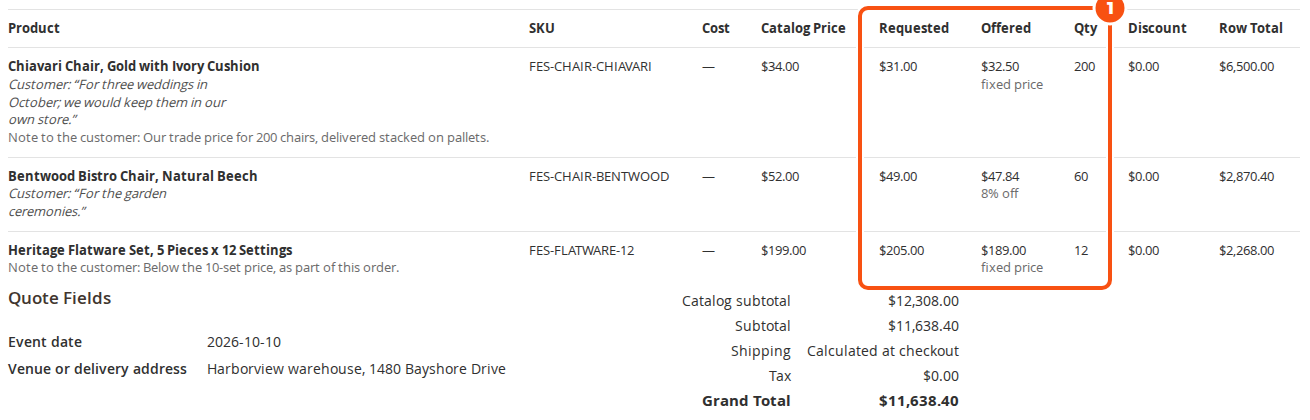
Below: the customer and store; the lines with cost, catalog price, the price asked for, the offer, quantity, discount and total; the totals; your custom fields; the conversation and attachments (a message can be internal or visible to the customer, who is then emailed); the status history; and every version with what changed.
Pricing a quote in the editor #
Click Edit on the quote’s page. The editor is Magento’s Create New Order page working on the quote, so product search, configuration, customer addresses and shipping methods work as they do for an order.
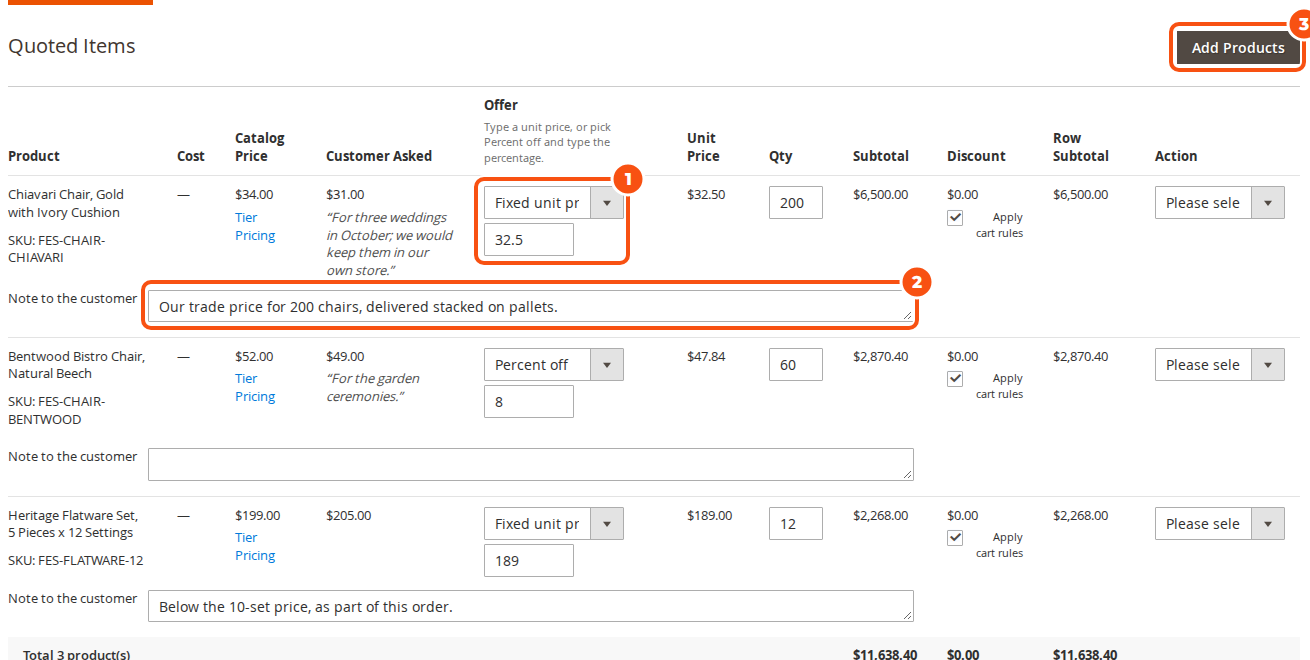
For each line:
- Offer: Catalog price, Fixed unit price or Percent off, and the value.
- Note to the customer: shown on the quote, in the emails and on the PDF.
- Change the quantity or configure the product; add or remove products with Add Products and the line’s Action.
Click Update Items and Prices to see the result. Then, in the Quote panel:
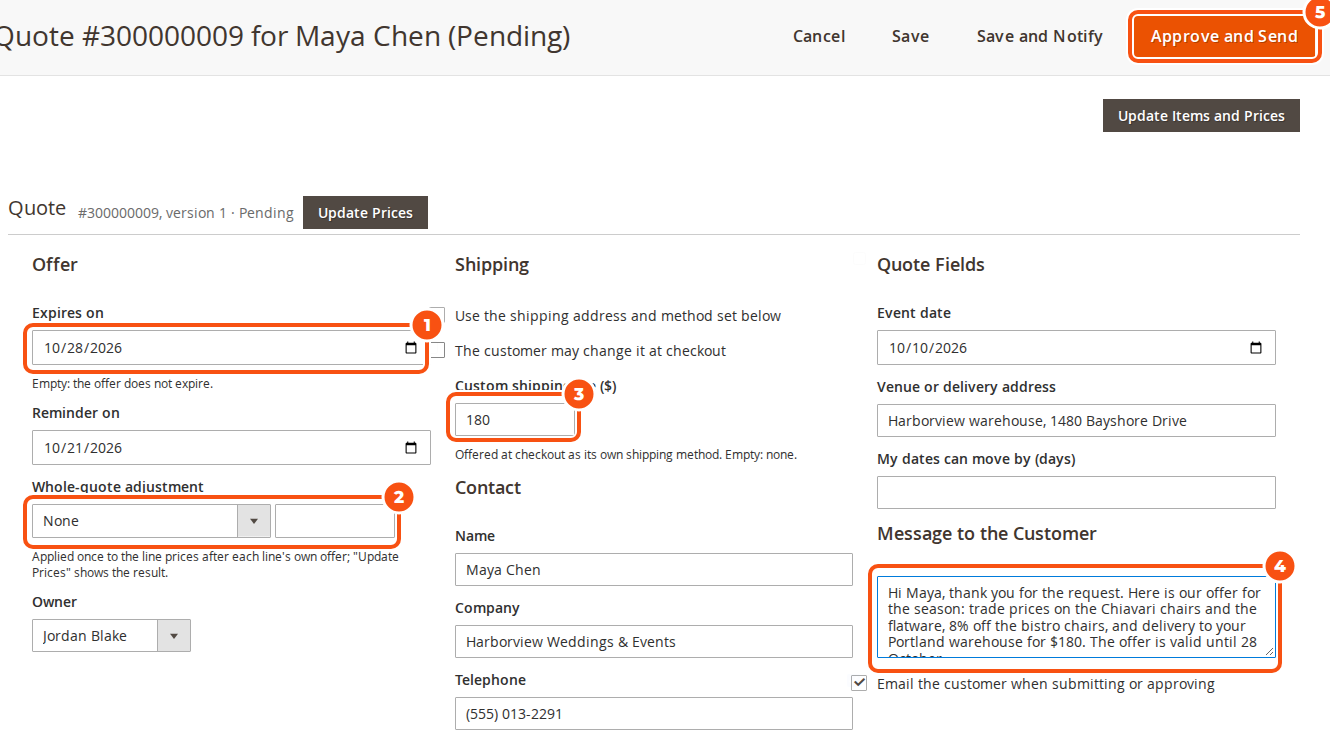
| Field | What it does |
|---|---|
| Expires on / Reminder on | The offer’s expiry and the reminder date. Empty expiry: the offer does not expire |
| Whole-quote adjustment | Discount %, surcharge %, discount amount or a target total. Applied once, after each line’s own offer, however often you press Update |
| Owner | The sales rep, copied on emails about the quote |
| Shipping | Use the address and method set below, or offer a custom shipping fee, which checkout shows as its own shipping method. Choose whether the customer may change it |
| Quote fields | Your custom fields, editable |
| Message to the Customer | Shown on the quote and in the email this save sends |
The buttons at the top:
- Save: saves silently.
- Save and Notify: saves and emails “Quote updated”.
- Approve and Send: saves and sends the offer (“Quote ready”, with the PDF and a checkout link).
If someone else saved the quote while you were editing, your save is refused with a message, so no one overwrites a colleague’s offer.
Starting a quote yourself #
- New Quote on the grid: pick or create the customer and the store, add products, then Submit (the customer gets “Quote created for you”) or Submit and approve (they get “Quote ready”).
- Clone as Quote on an order (a button, or the orders grid mass action). Rental dates come along.
- Create Quote from Cart on a customer’s page in the admin turns their current shopping cart into a quote.
Converting to an order #
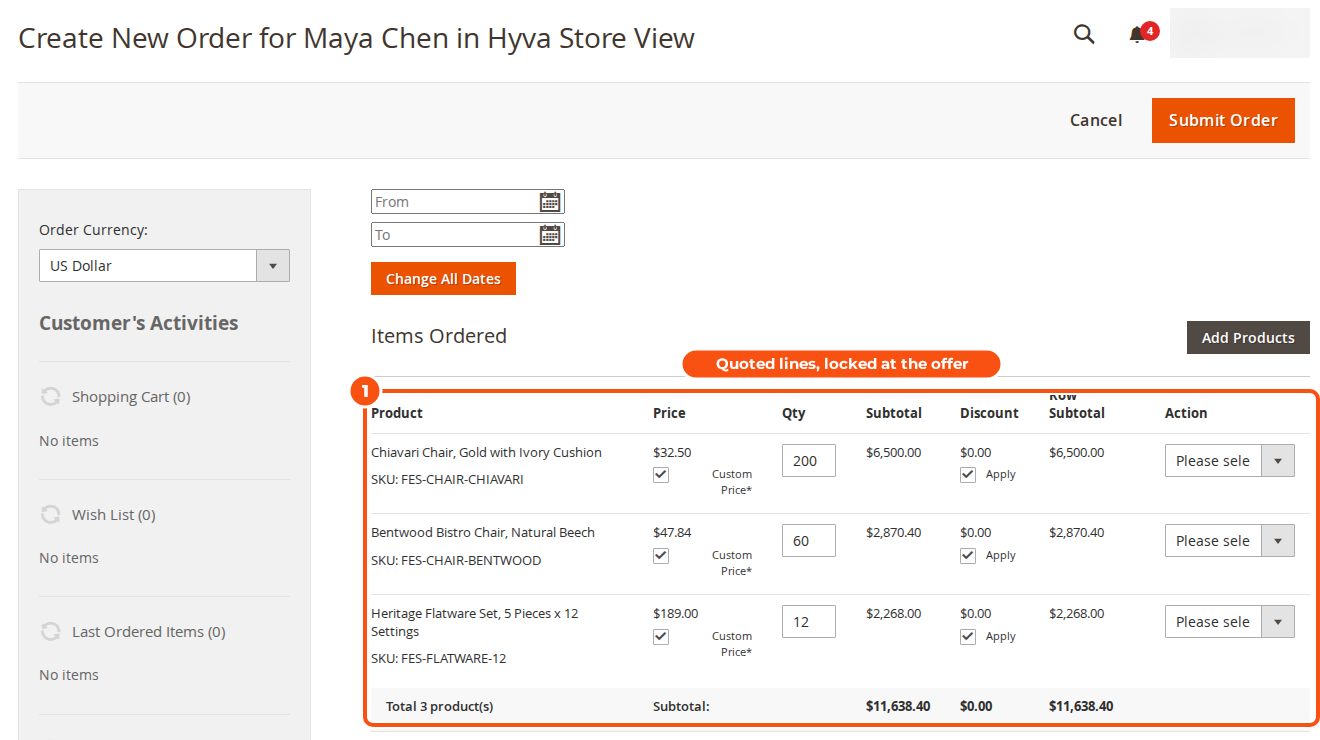
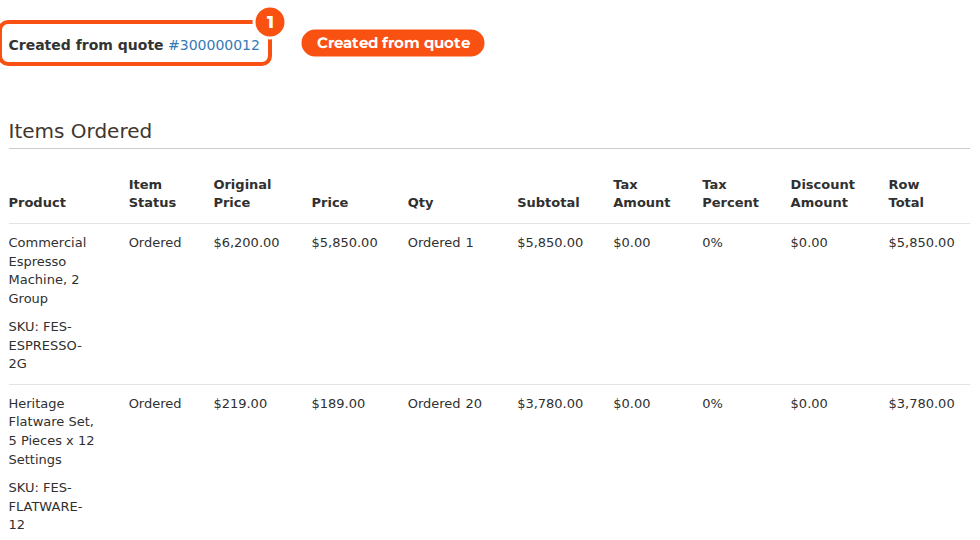
Convert to Order opens Create New Order with the quote’s lines at their offered prices, locked. Placing the order completes the quote, and the order links back to it.
Sales reps #
Sales Reps in the settings assigns new requests to nobody, to a rep per customer group (one customer group id:admin user id per line), or round robin between chosen admin users. The owner is copied on staff emails about their quotes, and you can change it on the quote or with the grid’s mass action.
Good to know #
- Cost attribute shown to staff (General settings) chooses the product attribute shown as Cost on the lines.
- Apply cart price rules to quoted items is off by default: an approved price is final and coupons do not reduce it further.
- The quote report is under Reports > Sales > Quote Requests.
- Sending, emails and the PDF: Sending Offers, Emails and the PDF.


