
Besides the search form and results page (the first page), the rental search can find rentals near a place or at a branch, show them on a map, and make your ordinary category pages follow the dates a customer has chosen. All of it is off or inert until you switch it on, and each part is separate.
Category pages that follow the dates #
Without this, a customer who searched for 23 to 25 October and then clicks “Tents & Dance Floors” sees every product, whether or not it is free for those dates. Turn on Category and search pages honour the searched dates and category pages and the quick search use the dates in the address.
Go to Stores > Configuration > Sales Igniter Rental > Search & Results, find Category and search pages honour the searched dates and choose:
- Off is the default and keeps the older behaviour.
- Mark keeps every product in the list but greys the ones that are not free and says “Not available for these dates” in place of the price.
- Hide takes them out of the list.
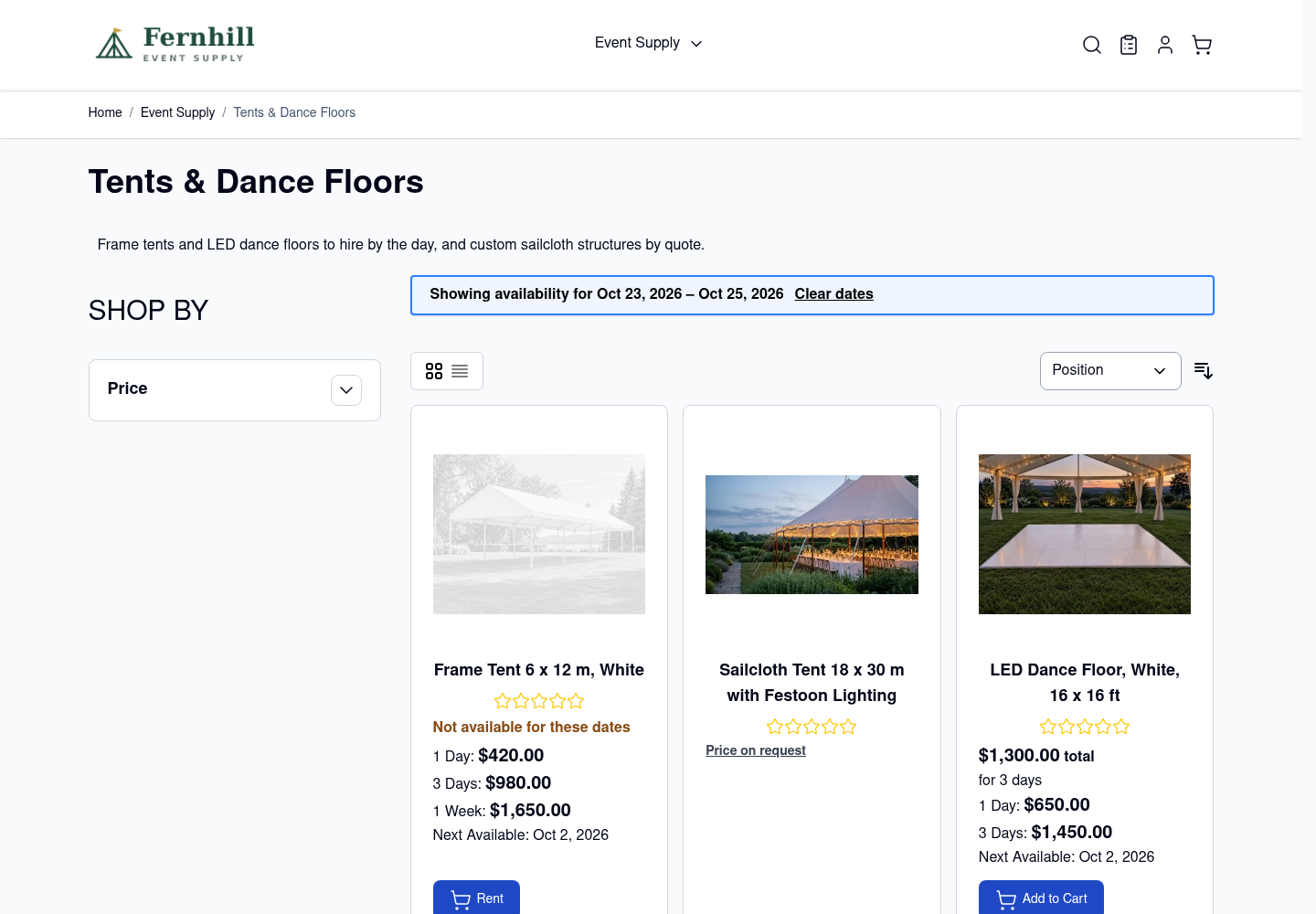
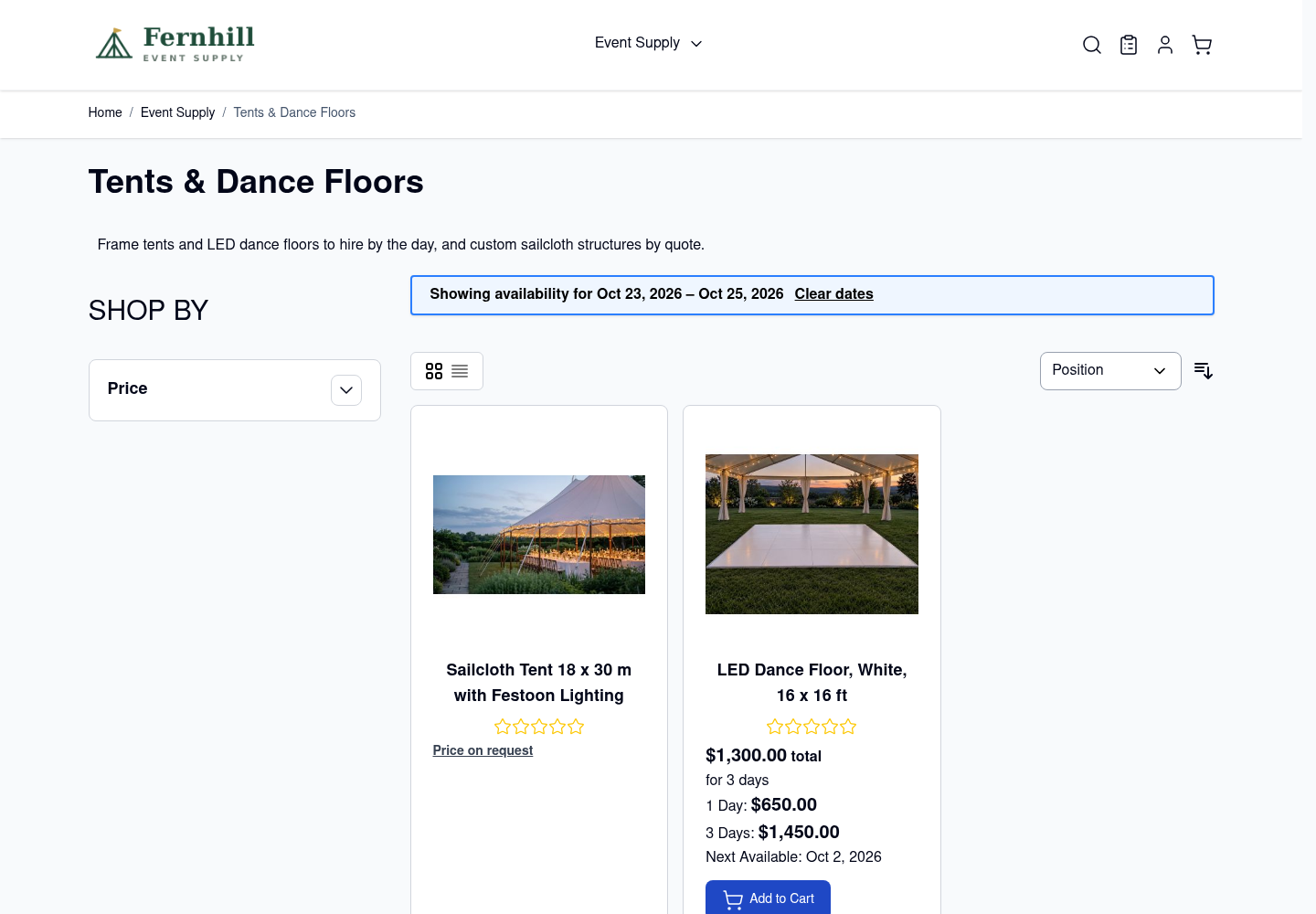
The page shows “Showing availability for Oct 23, 2026 – Oct 25, 2026” with a Clear dates link. The dates come from the search form, the Rental Calendar widget’s category link or any address that carries sib_from and sib_to. Category pages stay in the full page cache. Pages with dates in the address are not indexed by search engines.
When this setting is on, the older “session dates” listing settings under Category / Listing Page (the ones that read the dates from the customer’s session and disable the page cache) step aside. They stay in the module and come back if you set this to Off.
Rentals near a place, or at a branch #
Customers can search by where the rental is.
- A branch is an inventory source of your website’s stock. It needs the Multi Source Inventory add-on. A search for a branch lists what that branch has free, and the booking is reserved there. The product page shows “Pick-up: Downtown” under the calendar, the order line carries it, and so do the order screens and emails. Each branch is judged on its own, never summed: one booking, one pick-up.
- A place is a town or a postcode plus a distance, for example “Portland, Maine, within 25 miles”. Places come from your branches (name, city, region, postcode) and from the locations you set on products.
Under Search & Results:
| Setting | What it does |
|---|---|
| Location field | What the widget’s location field shows: automatic, off, branch, place, or both. |
| Place search: distances offered, default distance, distance unit | The choices in the distance list. Miles are the default in the US and the UK. |
| Place search: hide rentals without a location | No (the default) still lists a rental that has no location of its own. |
| Place search: “Try:” places | The place buttons under the field. Empty uses the four places with the most rentals. |
A location on a product #
Open the product, then the Rental section and Location.
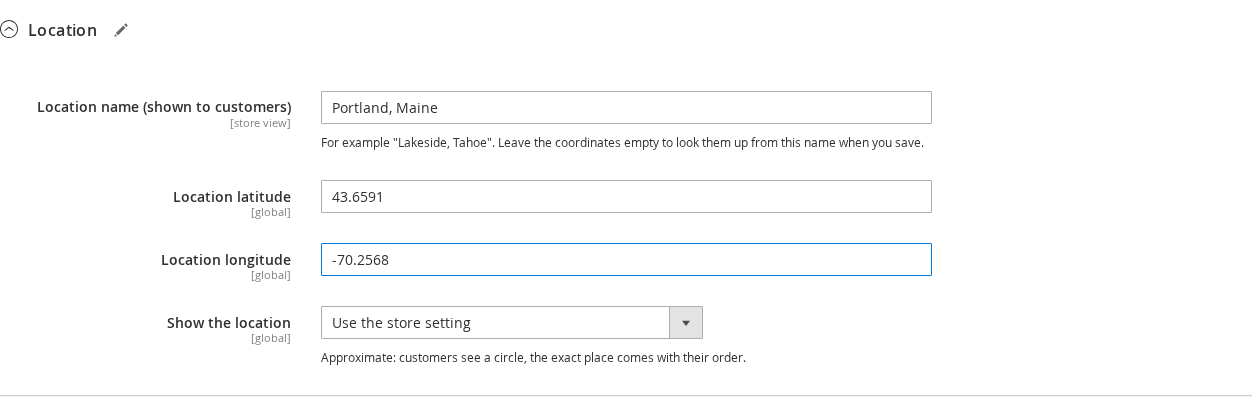
- Location name (shown to customers) is the name that appears, for example “Lakeside, Tahoe”.
- Location latitude and Location longitude place the product. Leave both empty and the store looks them up from the name when you save. A lookup that fails never stops the save; you see a notice instead.
- Show the location is Use the store setting, Approximate (customers see a circle, and the exact place comes with their order) or Exact.
A typed place that is not in your own list is looked up in Magento’s offline postcode table (import it with bin/magento inventory-geonames:import <country>). Google is asked only when you have entered a Google key, and the store limits those requests. Without a key nothing connects to Google.
The map #
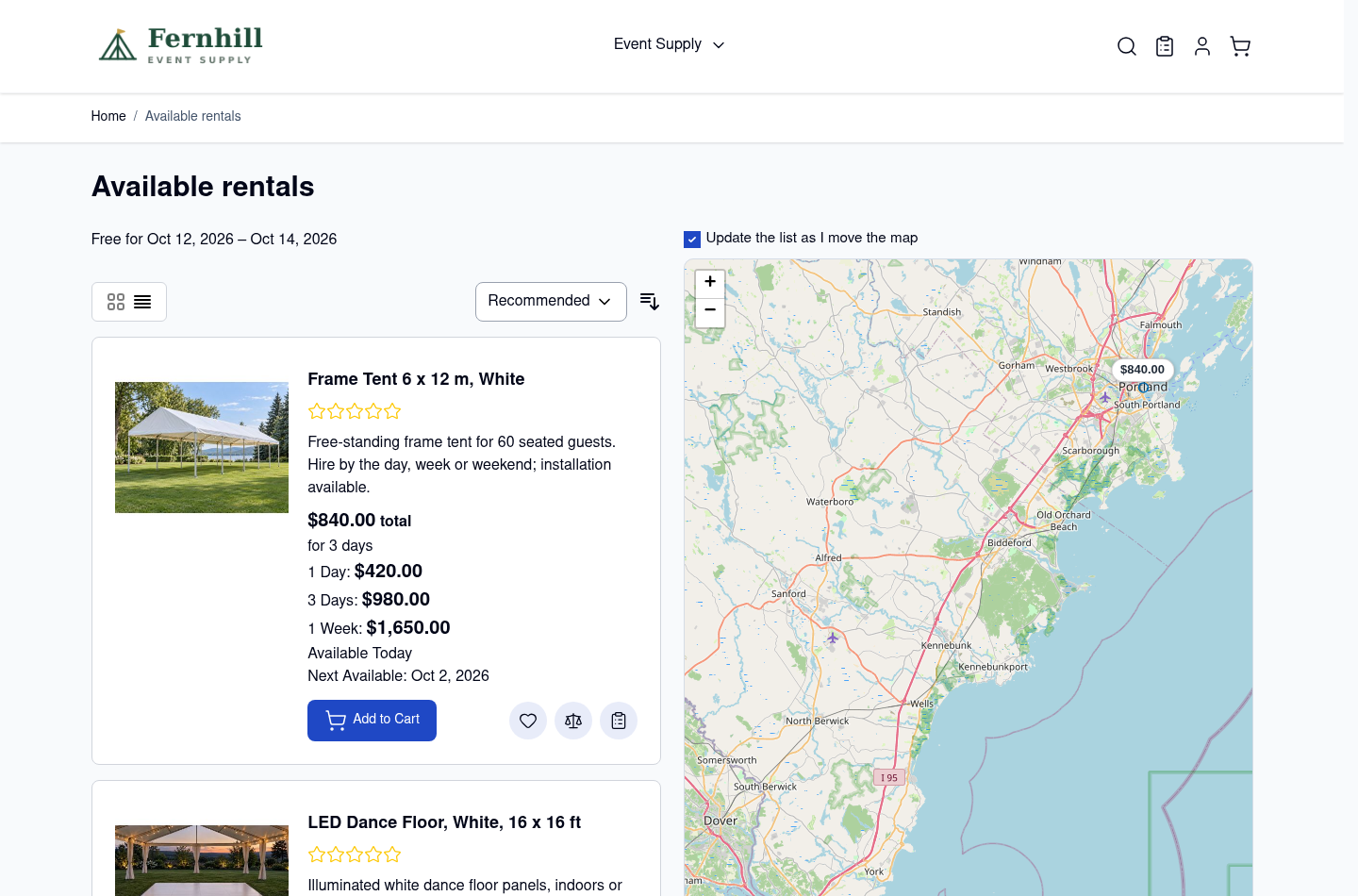
Turn on Show a map on the results page under Stores > Configuration > Sales Igniter Rental > Maps & Locations to give the results page a List | Map switch. The map sits next to the list, each pin shows the price for the searched dates, and the list follows the map as it moves.
| Setting | What it does |
|---|---|
| Show a map on the results page | Off by default. Off means no map and nothing is loaded from a map provider. |
| Map tiles | OpenStreetMap, a provider you give a tile address and key for, or Google Maps. OpenStreetMap’s own server is for light use only; use a provider with a key for a busy store. |
| Tile URL, Tile attribution, Tile maximum zoom | For a custom provider: a tile address with {z}, {x} and {y}, and the credit line it requires. |
| Google Maps key | For the Google provider. Use a browser key restricted to your domains. |
| Product locations are shown, Approximate location: circle radius | The store default for how exactly a product’s place is shown. Branches are business addresses and are always exact. |
| Pins of results not on this page show | What a pin off the current page displays. |
| “Update the list as I move the map” ticked | Whether the list follows the map. Customers can untick it, and the map then offers Search this area. |
| Find coordinates when saving | Look up coordinates when a branch or product is saved without them. |
Customers see approximate places unless you choose Exact. The exact point is stored only on the order line.
Good to know #
- On Hyvä the map and results work the same as on Luma. On a phone the list and map take turns, with a Map and List switch.
- The map uses Leaflet and OpenStreetMap, bundled with the extension. No outside address is called until you turn the map on.
- If a branch has no coordinates it is not shown on the map and is skipped by place searches. Add its address under Stores > Inventory > Sources; the coordinates are looked up when it is saved.


