
When a customer damaged what they rented, you can charge them for it from the ticket: from the security deposit you hold, from the card saved at checkout, with a pay link or at the counter. Nothing is ever charged without a member of staff reviewing it first.
Before you start #
- Damage charges are on by default. You find the settings under Rentals > Maintenance Setup > Settings, in the Maintenance Tickets group: Charge customers for damage, Hold the security deposit until damage is decided and Tax class of damage charges (most stores charge damage without tax).
- Staff need the Charge customers for damage permission (System > Permissions > User Roles, in Rentals > Maintenance).
- The ticket must come from a rental (a check-in, a serial sent from a booking, or a customer report) and have Customer may be charged ticked.
- To charge the saved card, the customer must have saved a card at checkout and agreed to late fees being charged to it. Guests are never charged to a card.
- To take it from the deposit you need the Refundable Security Deposits and Damage Waiver extension, with a deposit still held on the order.
While it is undecided #
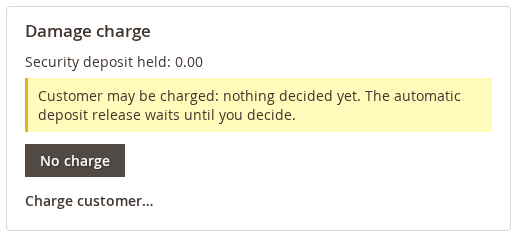
A ticket with Customer may be charged shows the Damage charge card: the security deposit held, and whether the booking has a damage waiver. While you have not decided, the automatic release of the security deposit waits (you can still release it by hand). No charge decides it the other way: the deposit is released as usual.
Charging the customer #
Click Charge customer… on the Damage charge card.
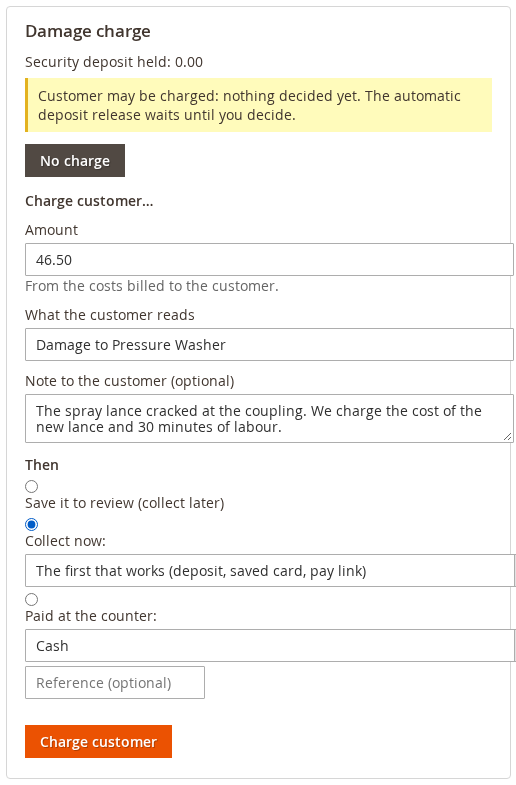
- Check the Amount. It starts at the costs ticked Bill to customer. If the booking has a damage waiver, it starts at 0 with a note: charge only what the waiver does not cover.
- Write What the customer reads. It goes in the email and on the charge.
- Add a Note to the customer if you like.
- Under Then, choose Save it to review (collect later), or Collect now: The first that works (deposit, saved card, pay link), Keep from the deposit, Charge the saved card or Email a pay link.
- Click Charge.
Keep from the deposit is used only when what is left of the deposit covers the whole amount; the rest of the deposit is released as usual.
If you took the money yourself, open Paid at the counter… on the charge, choose Paid by (Cash, Card terminal, Bank transfer or Other), add a reference and click Record payment.
Each damage charge is numbered DC-… and listed on the ticket’s Damage charge card, where the number links to the rental order; the order’s history records it as a comment, and it is not a change to the rental. The same charges also show in the list at Rentals > Late Fees, next to the late fees, with the actions Accept (it emails the customer the pay link) and, for a failed or unpaid link, Send pay link. The Late fees panel on the order page shows late fees only, so a damage charge does not appear there. The customer gets the email “Damage charge: please pay” (with the pay link) or “Damage charge: receipt” when it is paid.
When a card is declined #
A declined card is tried again after 1 day and after 3 days, and the customer gets the pay link after the first failure. A hard decline, an expired card or a card that cannot be charged goes straight to the pay link, and a bank that asks for 3-D Secure sends the customer a link to confirm. The charge on the ticket shows its status and the last error. Click Send the pay link again to resend the email. To try again yourself, use the buttons under the charge on the Damage charge card (the ways it can still be collected), or Send pay link in the Late Fees list.
Waive and refund #
- Waive… cancels an open charge, with a reason (Why (staff only)).
- There is no refund button on the ticket in this version. To give back part or all of a paid charge, refund it the usual Magento way, with a credit memo on the order that was paid, or in your payment gateway.
Reports #
Billable costs and charges show in Rentals > Maintenance Work > Reports > Cost per item (“Billable”).


