
Some prices are not for everyone: trade prices only for logged-in customers, made-to-order work you price case by case, or large installations you quote after a site visit. Request for Quote hides prices with one store rule plus each product’s own settings, and it does it on the server: when a shopper may not see a price, no page, listing, search result, widget, JSON or GraphQL response carries it, and the cart refuses the product even if someone posts to it directly.
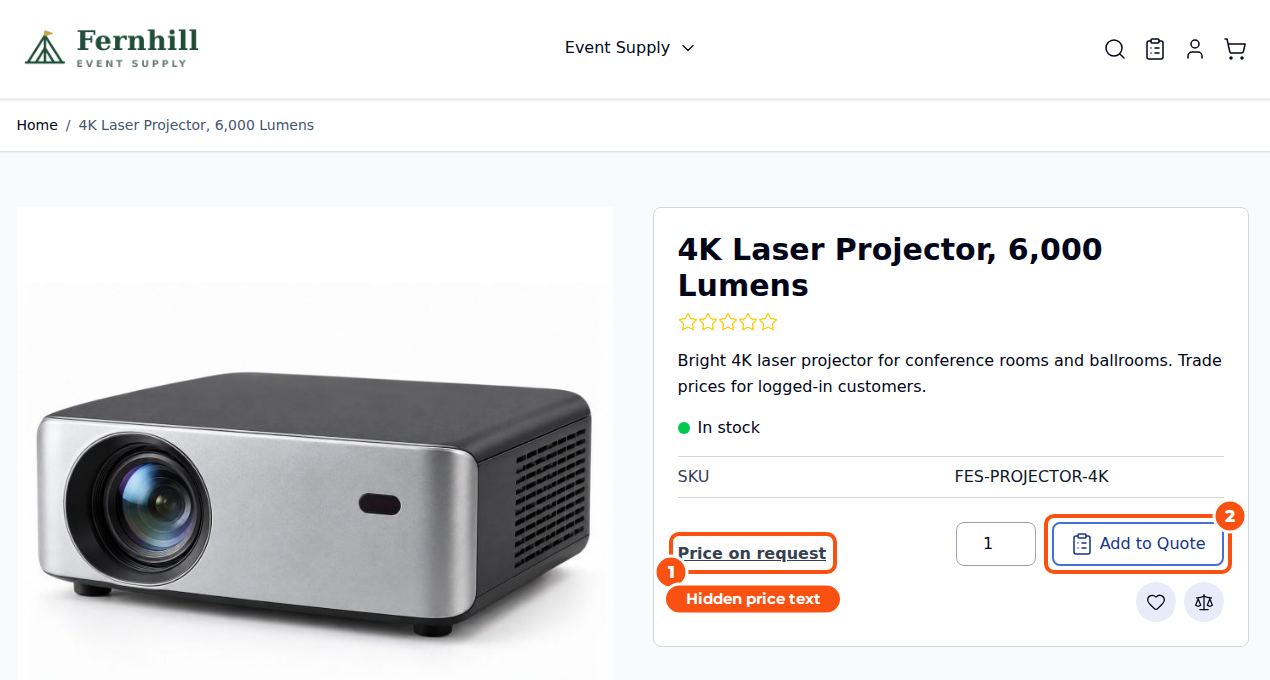
The store rule #
Stores > Configuration > Sales Igniter > Request for Quote > Hide Price:
- Enable the store rule.
- For these customer groups: none selected means every group. Pick NOT LOGGED IN to hide prices from guests only.
- In these categories: none selected means the whole catalog. A product in any selected category is covered.
- Show instead of the price: the text shown where the price was. With no text set, customers see “Price on request”. You can show an image instead.
- Clicking that text: nothing, a page of your choice, or the “Get a quote” form.
- Add to Cart: keep it, hide it, or replace it with a button whose label and action you choose (Add to Quote, a link, or the “Get a quote” form).
There are also Never for these product ids and Never for these customer ids (exceptions while the rule is on), Hide “Add to Wish List” too, Hide “Add to Compare” too, Extra CSS, and for Luma themes that print prices in their own places, a list of extra selectors to hide.
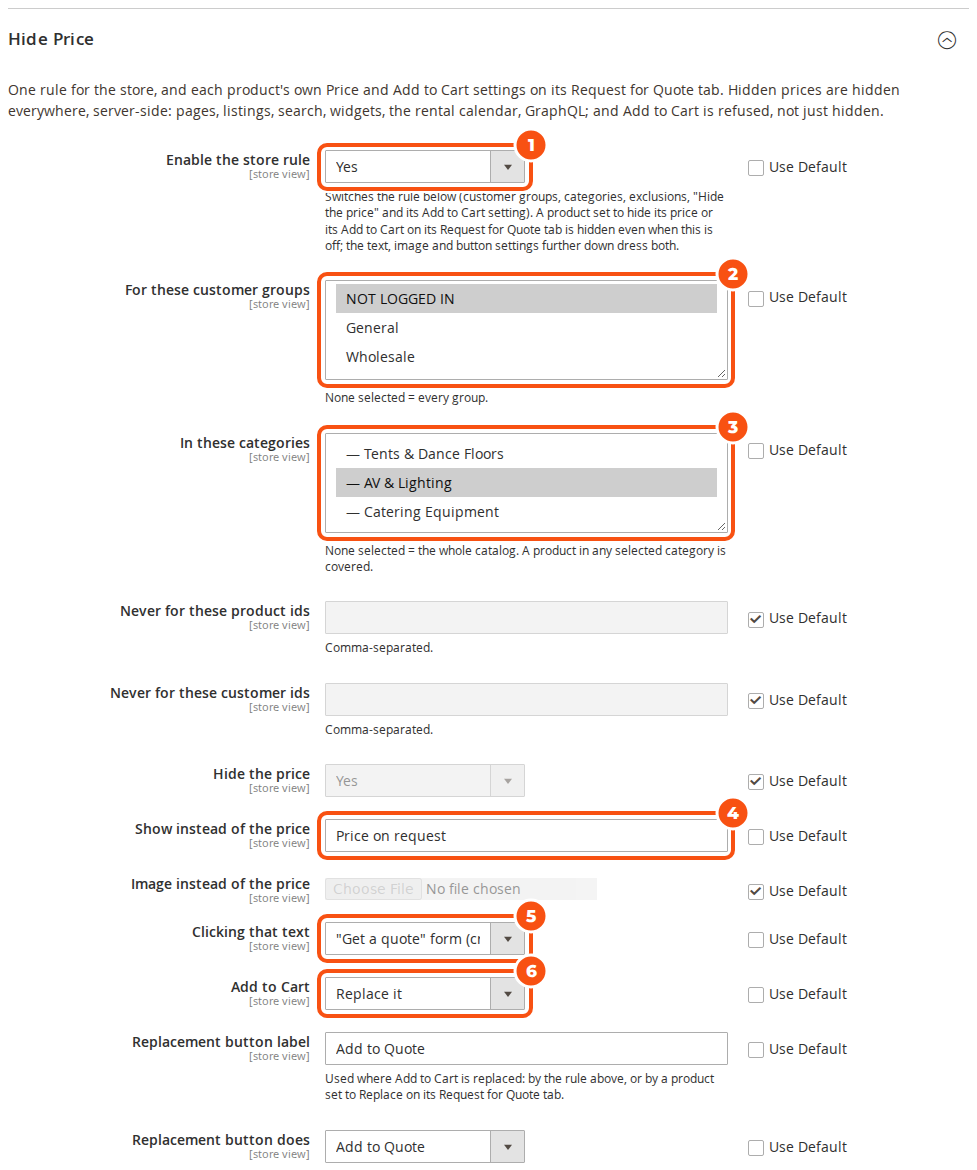
Enable the store rule switches only the rule (groups, categories, exceptions, “Hide the price” and its Add to Cart setting). The text, image and button settings below it dress whatever is hidden, by the rule or by a product’s own settings.
A product’s own settings #
Every product has a Request for Quote tab:
| Setting | Choices |
|---|---|
| Request for quote | Use store settings, Can be quoted, Cannot be quoted, Quote only (no Add to Cart) |
| Price | Use store settings, Always show the price, Hide the price |
| Hide the price for | The customer groups the product-level hide applies to. None selected means every group |
| Add to Cart | Use store settings, Show, Hide, Replace |
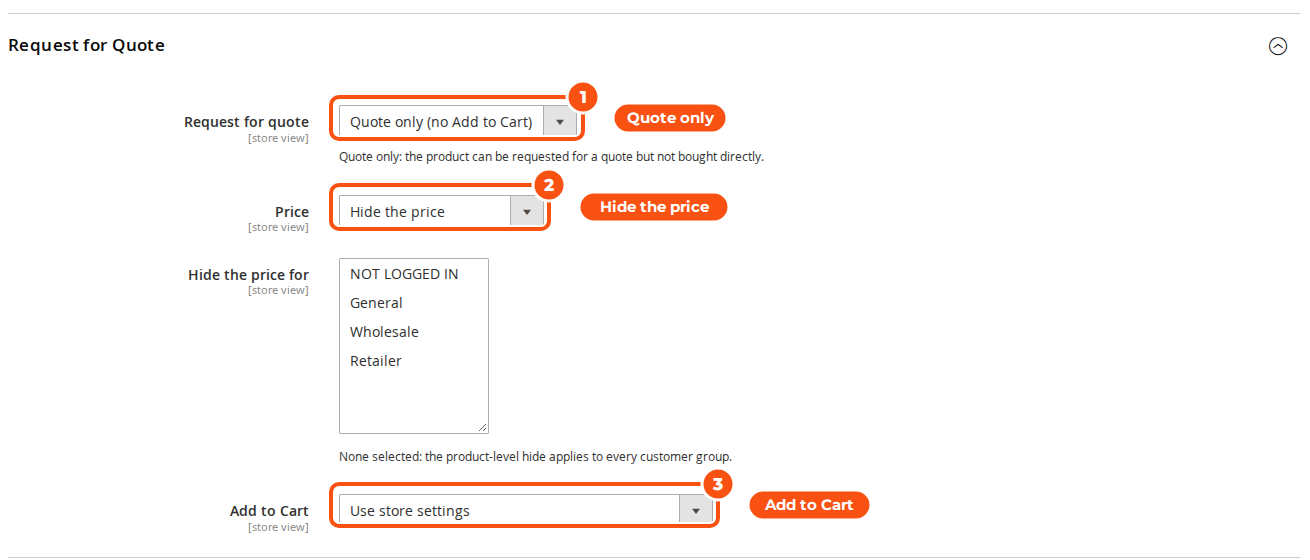
A product’s own Price and Add to Cart settings work on their own: a product set to hide its price is hidden even when the store rule is off. Saving the product is enough; no cache refresh is needed.
Which wins: excluded customers and products (while the store rule is on), then the product’s own settings, then the store rule.
The “Get a quote” form #
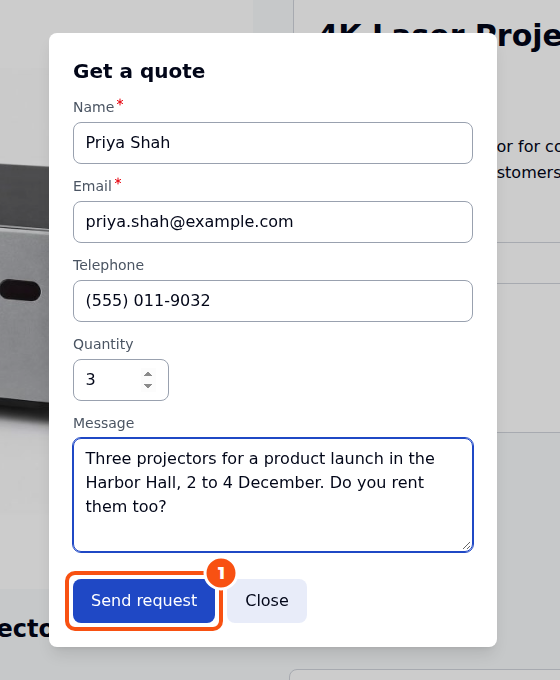
Clicking the hidden-price text or the replacement button can open a short form: name, email, telephone, quantity and a message. It creates a real quote request (source “Get a quote form”) that appears in Sales > Quote Requests and sends the same emails as any other request.
Where hidden prices stay hidden #
- Product pages, category and search pages (the price filter and “sort by price” disappear on covered categories), widgets, recently viewed and compare, the wishlist and the mini cart, Open Graph tags.
- The configurable, bundle and custom-option price data, Magento’s REST products-render-info, and GraphQL
price_rangeandprice_tiers(the values are null, never 0). - On rental stores: the pricing card, rental price lists, the calendar’s price for the chosen dates and the rental GraphQL prices.
- Quote emails, the PDF and My Quotes show prices only once the offer is approved.
- Staff always see prices in the admin.
Good to know #
- One product with a hidden price in a quote hides all the prices of that quote from the customer until you send the offer.
- Quote-only mode in the General settings (store-wide or for chosen customer groups) is different: customers accept offers but do not check out online, and you invoice them.


