
- Installing and enabling
- Settings
- Writing the contract terms
- What the customer sees
- Where staff find signed contracts
- Troubleshooting
- The signing card does not appear at checkout
- Nobody can place an order
- An order has no signature
- The store’s name, address or governing law is missing from the contract
- The terms say “Client First Name Client Last Name”
- HTML tags are printed in the PDF
- The signed contract will not open
- The PDF is not attached to the order email
- Staff cannot see the evidence panel or open View Contract
- The integrity check failed
- FAQ
The Rental Contracts extension puts your rental agreement in front of the customer at checkout and has them sign it before the order can be placed. They can type their name or draw a signature with a mouse, a stylus or a finger. The signed contract is saved as a PDF, attached to the order confirmation email and shown to your staff on the order.
Along with the signature it records what you would need if a signature were ever disputed: the exact terms and consent wording the customer agreed to, when they signed, the IP address and browser they signed from, and fingerprints (SHA-256 hashes) of the terms and of the PDF. Every step goes into an audit trail that shows whether anything has been changed since.
- The customer reads the terms and signs in a card on the payment step of the checkout.
- They tick a box agreeing to sign electronically. The order cannot be placed without the signature and the tick.
- A signed PDF, with an optional signing certificate page, is stored and emailed with the order confirmation.
- Staff see the signature, the evidence and the audit trail on the order, and can record a signature themselves for phone or counter orders.
This page describes version 1.2.64 of Rental Contracts (Composer package salesigniter/releaserentalcontract2), which is included with Rental Booking Pro.
Installing and enabling #
The extension is installed with Composer from the Pro repository. If you have not added that repository yet, follow the Pro installation instructions first; they come after the Regular installation. Then, from the Magento root:
composer require salesigniter/releaserentalcontract2
bin/magento setup:upgrade
bin/magento setup:di:compile
bin/magento setup:static-content:deploy -f
bin/magento cache:flush
It needs the core rental extension at version 1.2.206 or later. Composer also installs mpdf, which draws the PDF, and Fooman Email Attachments, which attaches it to the order email. Check that it is on with bin/magento module:status SalesIgniter_RentalContract.
Installing it changes nothing at the checkout. Signing stays off until you set Require rental contract signature for checkout to Enable (see below).
Upgrading to 1.2.63 or later #
- Terms you saved yourself are kept. Only the shipped default changed, so a store that never edited its terms gets the new neutral ones (see Writing the contract terms).
- No signature now switches signing off instead of blocking every checkout.
- The customer signing page,
/salesigniter_rentalcontract/rentalcontract/sign/…, is gone, and nothing about contracts appears in My Account. Record a signature for an existing order with Sign Contract in the admin. - 1.2.64 needs the core rental extension 1.2.206 or later; Composer updates it with the contracts extension.
Upgrading from 1.2.61 or earlier #
setup:upgradeadds the evidence columns to the contracts table and creates the audit trail table. Existing signatures are kept.- Orders signed before the upgrade keep their signature image and typed name but have no evidence record, and the order page says so.
- 1.2.62 adds four admin permissions (see Staff permissions). The Administrators role has them automatically. Any custom role needs them ticked, or its users lose View Contract and Sign Contract.
Settings #
Go to Stores > Configuration > Sales Igniter > Rental and open the Rental Contracts group. Rentals > Settings in the admin menu opens the same page. Every setting can be changed per website and per store view, so each store view can have its own terms and wording. The fields in the group are not in a tidy order, so the tables below sort them by what they do.
Signing at checkout #
| Setting | Default | What it does |
|---|---|---|
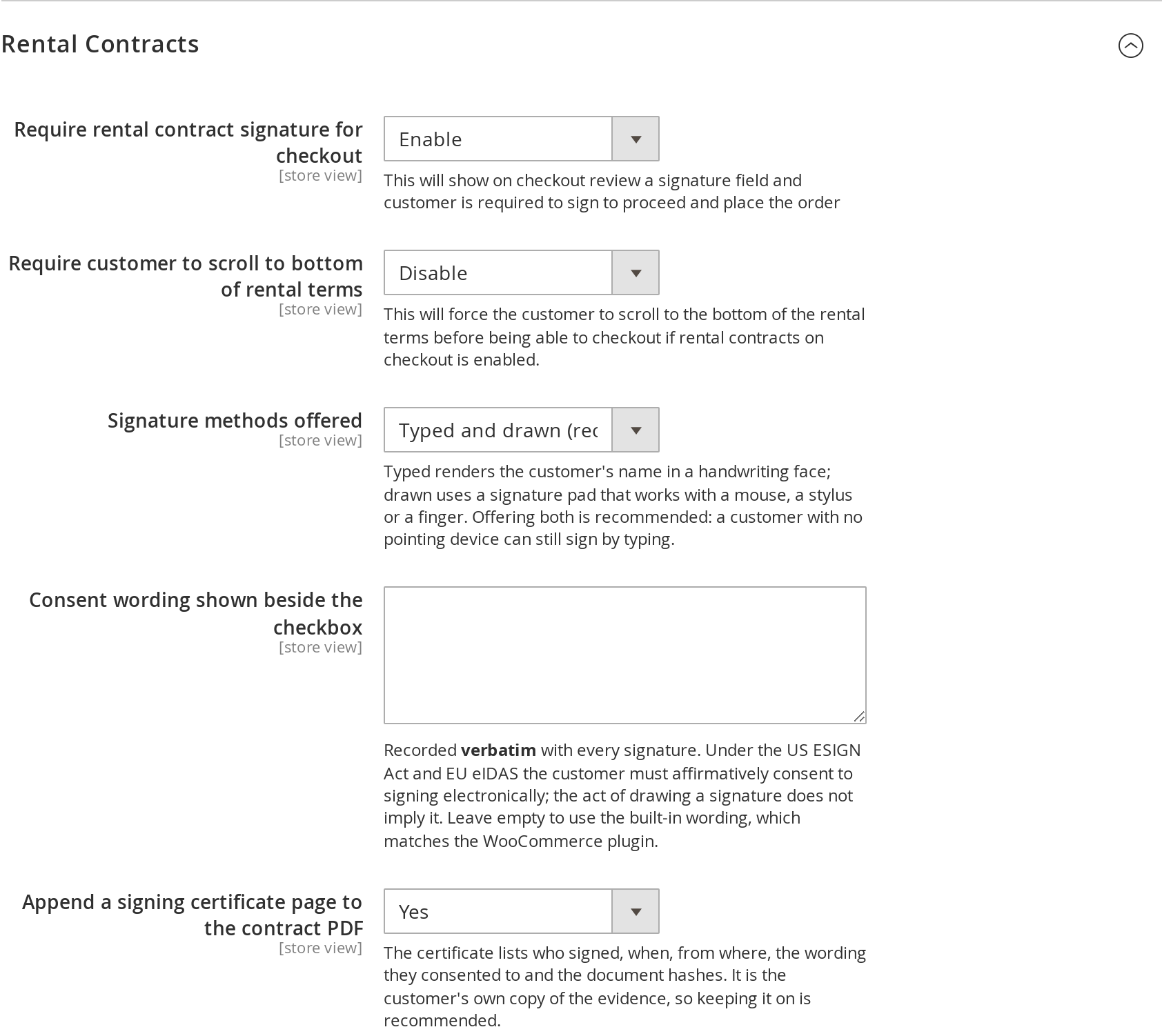
| Require rental contract signature for checkout | Disable | Shows the signing card on the payment step. The order cannot be placed until the customer signs and ticks the consent box. Only carts with a rental product get the card, unless you change Show rental contract signing … even if order contains no rental products? |
| Require customer to scroll to bottom of rental terms | Disable | The customer has to scroll the terms box to the end before the order goes through. Until they do, the card says “Please read to the end of the rental contract terms before signing.” |
| Signature methods offered | Typed and drawn (recommended) | Typed and drawn gives two tabs, Type to sign and Draw signature. Typed only and Drawn only offer one. Keep both if you can: a customer without a mouse or touch screen can still sign by typing. No signature collects none; see below. |
| Consent wording shown beside the checkbox | empty (built-in wording) | The sentence next to the consent checkbox. Left empty it reads “I agree to sign this rental contract electronically, I have read and accept the terms & conditions above, and I consent to receive the signed contract and related records by email.” The wording in force at the moment of signing is stored with each signature, so changing it later does not change what past customers agreed to. |
| Append a signing certificate page to the contract PDF | Yes | Adds a final page to the signed PDF listing who signed, when, from which IP address and browser, the consent wording, the document hashes and the audit trail. It is the customer’s own copy of the evidence. |
No signature means no signature. The signing card is not shown at checkout, orders are placed without a signature, and no contract record is written for them. It has the same effect as setting Require rental contract signature for checkout to Disable. (In 1.2.62 it blocked every checkout instead.) To keep sending the contract PDF without collecting signatures, see the FAQ.
The contract PDF and the order email #
| Setting | Default | What it does |
|---|---|---|
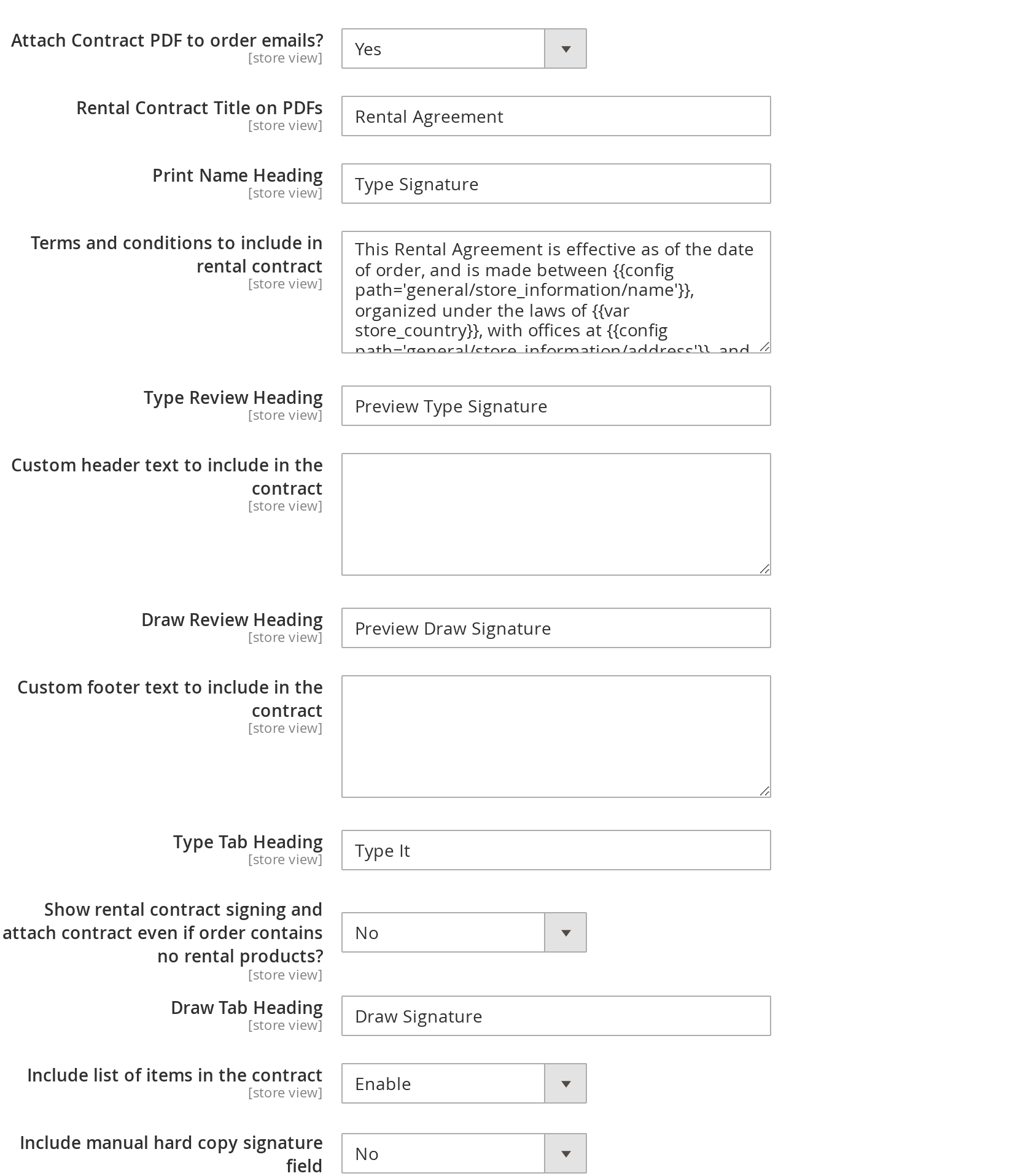
| Attach Contract PDF to order emails? | Yes | Attaches the contract to the order confirmation email (not to invoice or shipment emails). A signed order gets the stored signed PDF; an unsigned one gets a freshly generated copy. This works with checkout signing switched off too, if you only want to send the contract. |
| Rental Contract Title on PDFs | Rental Agreement | The heading of the PDF. It is also the title of the signing card at checkout. |
| Terms and conditions to include in rental contract | General rental terms | The contract text. See Writing the contract terms. |
| Custom header text to include in the contract | empty | Printed above the title on the PDF. Takes the same placeholders as the terms. |
| Custom footer text to include in the contract | empty | Printed at the end of the PDF, after the signature. |
| Show rental contract signing and attach contract even if order contains no rental products? | No | Yes shows the signing card and attaches the PDF for every order, including carts with no rental products. |
| Include list of items in the contract | Enable | Enable prints the order’s items, with their rental start and end dates, in the PDF. Disable leaves the list out. |
| Include manual hard copy signature field | No | Adds blank “Signature of Lessee” and “Signature of Lessor” lines with dates, for a contract that is printed and signed on paper at pickup. |
Five label fields, at the end of the group, label the signing card at checkout:
| Setting | What it labels | Left empty |
|---|---|---|
| Type Tab Heading | The tab for signing by typing a name | Type to sign |
| Draw Tab Heading | The tab for drawing a signature | Draw signature |
| Print Name Heading | The name field on the typed tab | Type your full name |
| Type Review Heading | The caption under the preview of the typed signature | Preview of your typed signature |
| Draw Review Heading | The caption inside the drawing box, until the customer starts drawing | Sign inside the box |
Leave a field empty to keep the built-in wording, which is translated with the rest of the store (see Editing Text & Emails). The old defaults many stores still hold (“Type It”, “Draw Signature”, “Type Signature”, “Preview Type Signature”, “Preview Draw Signature”) were never shown anywhere before 1.2.63, so they count as empty too.
Checkout wording #
| Setting | Default | What it does |
|---|---|---|
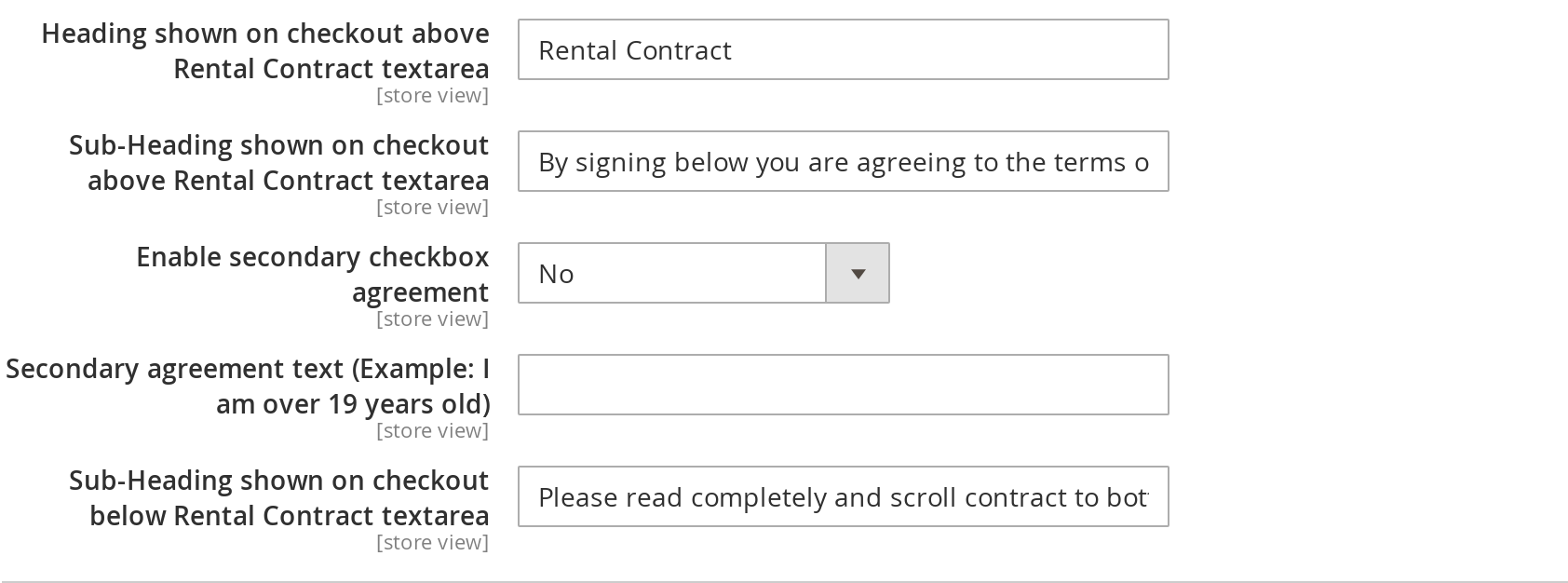
| Heading shown on checkout above Rental Contract textarea | Rental Contract | The label on the bar above the terms box. Clicking the bar folds the terms away. |
| Sub-Heading shown on checkout above Rental Contract textarea | By signing below you are agreeing to the terms of the Rental Contract | The line under the card title. |
| Enable secondary checkbox agreement | No | Adds a second checkbox under the consent box for a declaration such as a minimum age. The customer cannot place the order until it is ticked. It is only shown when the text below is filled in. |
| Secondary agreement text (Example: I am over 19 years old) | empty | The text of that checkbox. It is checked in the browser only and is not part of the stored signing evidence. |
| Sub-Heading shown on checkout below Rental Contract textarea | Please read completely and scroll contract to bottom to accept, then sign below | A note between the terms box and the signing methods. If you leave scroll-to-bottom off, you may want to reword it. |
Staff permissions #
Four permissions control what admin users can do with contracts. They are under Sales > Rental Contracts in System > Permissions > User Roles > Role Resources.
| Permission | What it allows |
|---|---|
| View rental contract signing evidence | Seeing the Rental contract signature panel on the order view. |
| Download the rental contract PDF | Opening the contract with View Contract or Download the contract. |
| Record a rental contract signature | Saving a signature from Sign Contract on the order view. |
| Verify rental contract integrity | Using Re-run integrity check. |
The Sign Contract and View Contract buttons appear for every role. A user whose role lacks the permission gets Magento’s “you need permissions” page when they use them.
Writing the contract terms #
The contract text is one setting, Terms and conditions to include in rental contract. The extension ships with general rental terms that name no business: your store’s name, address and governing law are filled in from Store Information through the placeholders below, and each sentence still reads properly when a detail is not filled in. They are a starting point, not legal advice. Have them reviewed by your lawyer, or replace them with your own, before you switch signing on. Terms you have saved yourself are kept when you update; only the default changes.
Placeholders #
The terms are processed like a Magento email template, so these placeholders are replaced when the contract is shown and printed:
| Placeholder | On the checkout card | On the PDF |
|---|---|---|
{{var store_name}} | The store name from Store Information | Same |
{{var store_address}} | The address from Store Information on one line: street, street line 2, city, region and postcode, country, with only the parts that are filled in | Same |
{{var store_region}} | The state or region from Store Information, whether picked from the list or typed in | Same |
{{var governing_law}} | The region and country, “region, country”, or whichever of the two is set | Same |
{{config path="general/store_information/name"}} | The store name from Store Information | Same |
{{config path="general/store_information/street_line1"}}, street_line2, city, postcode | The address lines from Store Information | Same |
{{var region}} | The same as {{var store_region}}; the name older terms used | Same |
{{var store_country}} | The country from Store Information, or nothing if it is not set | Same |
{{var customerfirst}} {{var customerlast}} | The logged-in customer’s name, or the billing name if the checkout already has it. A guest who has not entered an address yet sees “Client First Name Client Last Name”. | The customer name on the order |
{{var order_number}} | Empty, because the order does not exist yet | The order number |
{{var order.increment_id}} | Empty, because the order does not exist yet | The order number |
Store Information is at Stores > Configuration > General > General > Store Information. Fill it in before you go live: without it the default terms leave out the store’s name (they say “the rental company”), its address and the governing law. A placeholder whose detail is not set prints nothing. To leave a whole phrase out when a detail is missing, wrap it in {{depend store_address}}…{{/depend}}, or use {{if store_name}}…{{else}}…{{/if}} for a fallback. Any other configuration value can be pulled in with {{config path="…"}}. There is no general/store_information/address setting, so that path prints nothing; use the separate street, city and postcode paths. For example:
This Rental Agreement is made between {{var store_name}}{{depend store_address}}, {{var store_address}},{{/depend}}
("Owner") and {{var customerfirst}} {{var customerlast}} ("Renter"), for order{{depend order_number}} #{{var order_number}}{{/depend}}.
Formatting #
- Write plain text. Line breaks and blank lines are kept exactly as you type them, in the terms box at checkout and in the PDF. The same goes for the header and footer text.
- If you used to force breaks with
<br>, or a typed\n, you can leave them: each one becomes a real line break. - Any other HTML is shown as text, at checkout and in the PDF.
- Editing the terms affects new contracts only. Each signed contract keeps a snapshot of the terms exactly as the customer saw them, and its PDF is stored at the moment of signing.
Changing the PDF layout #
The PDF is drawn from the template vendor/salesigniter/releaserentalcontract2/view/frontend/templates/pdf/rentalcontract.phtml. To change the layout or the signature labels (“Signature of Lessee”, “Typed Signature of Lessee”), copy it into your storefront theme. Use the module name, SalesIgniter_RentalContract, not the package name:
app/design/frontend/<Vendor>/<theme>/SalesIgniter_RentalContract/templates/pdf/rentalcontract.phtmlThen flush the cache, and redeploy static content if the store runs in production mode. On a Hyvä store, put the copy in your Hyvä child theme. If you have no theme of your own and use Luma, create a child theme first rather than editing files under vendor/, which are replaced on every update. The logo at the top of the PDF is the store’s email logo (Content > Design > Configuration > Transactional Emails), and the contact address under the title is the Customer Support email from Stores > Configuration > General > Store Email Addresses.
What the customer sees #
Signing at checkout #
With signing switched on, the payment step shows the signing card above the payment methods.
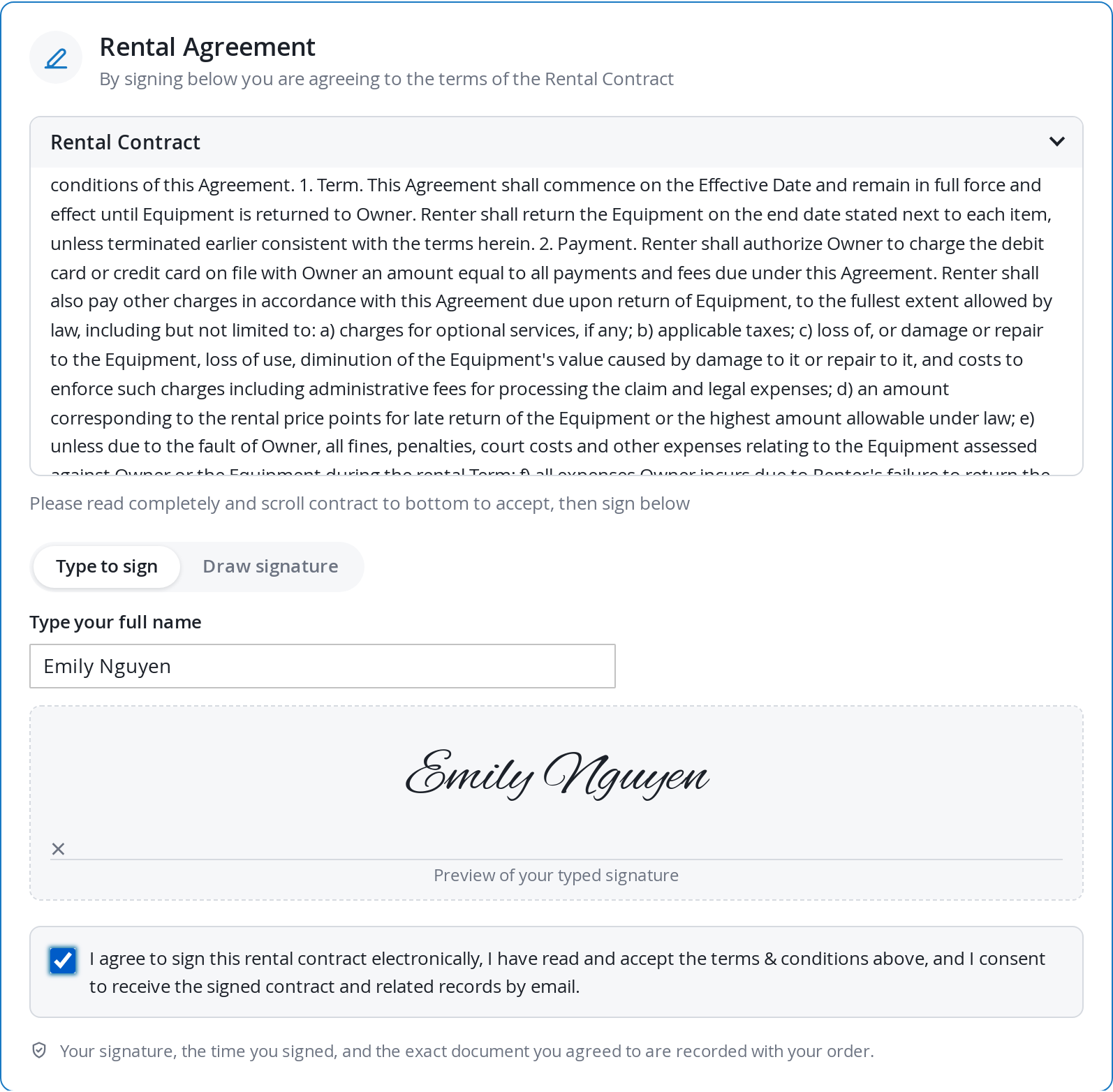
- The card’s title is the Rental Contract Title on PDFs, with your sub-heading under it.
- The terms sit in a scrolling box. The bar above it folds the box away.
- Type to sign: the customer types their full name and sees it previewed in a handwriting face. A name the handwriting face cannot draw, such as one in Cyrillic, Arabic or Chinese script, is shown and printed in a plain font instead of coming out as empty boxes.
- Draw signature: a pad that works with a mouse, a stylus or a finger, with Undo and Clear buttons. On a phone, drawing on the pad does not scroll the page.
- The consent checkbox, which has to be ticked.
- The whole card works from the keyboard, and the typed method needs no mouse at all.
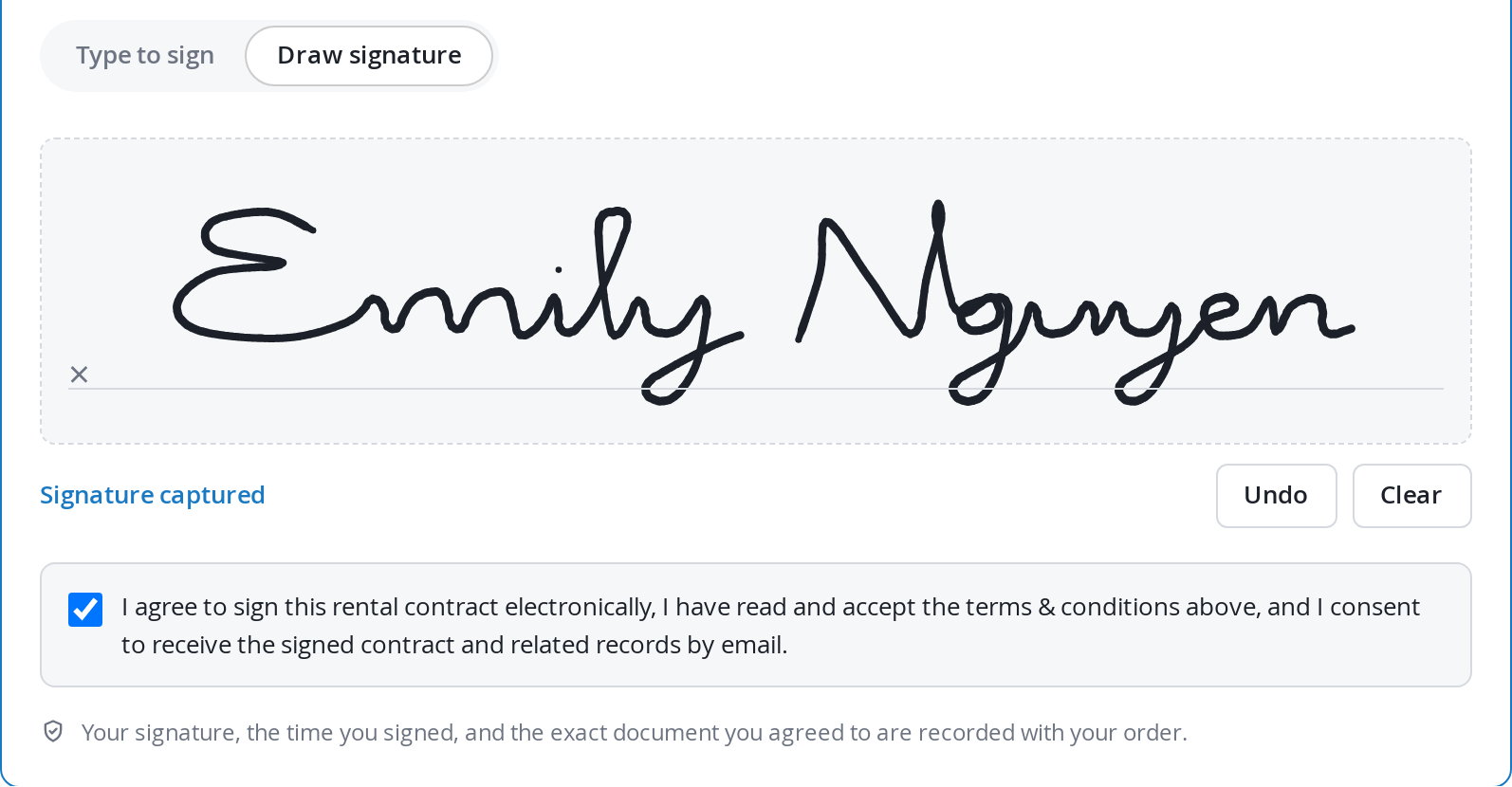
If the customer presses Place Order before finishing, the card says what is missing: “Please sign the rental contract to place your order.” or “Please confirm that you agree to sign the rental contract electronically.” The same checks run again on the server before the order is created, so nobody can get an unsigned order through by working around the browser.
The card is built for Magento’s standard checkout. On a Hyvä theme it runs in Hyvä’s Luma checkout fallback, which is how the live demo works. The separate Hyvä Checkout product is not supported.
After the order is placed #
The order confirmation email waits until the signed PDF has been generated, then goes out with the contract attached (when Attach Contract PDF to order emails? is Yes). The PDF has the store logo, the contract title, the order details and items with their rental dates, the terms, the signature with the date signed, and the signing certificate page if that is switched on.
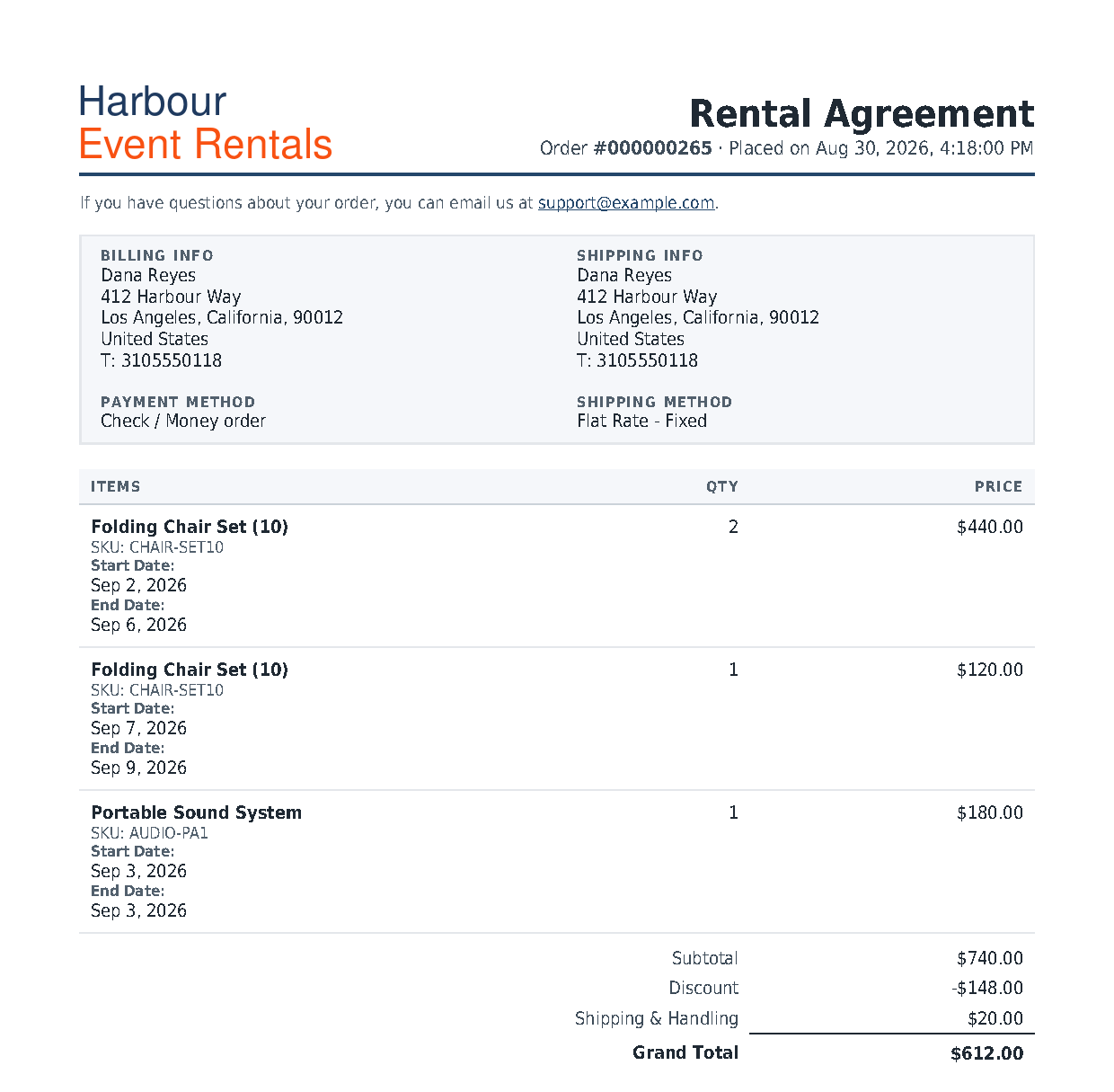

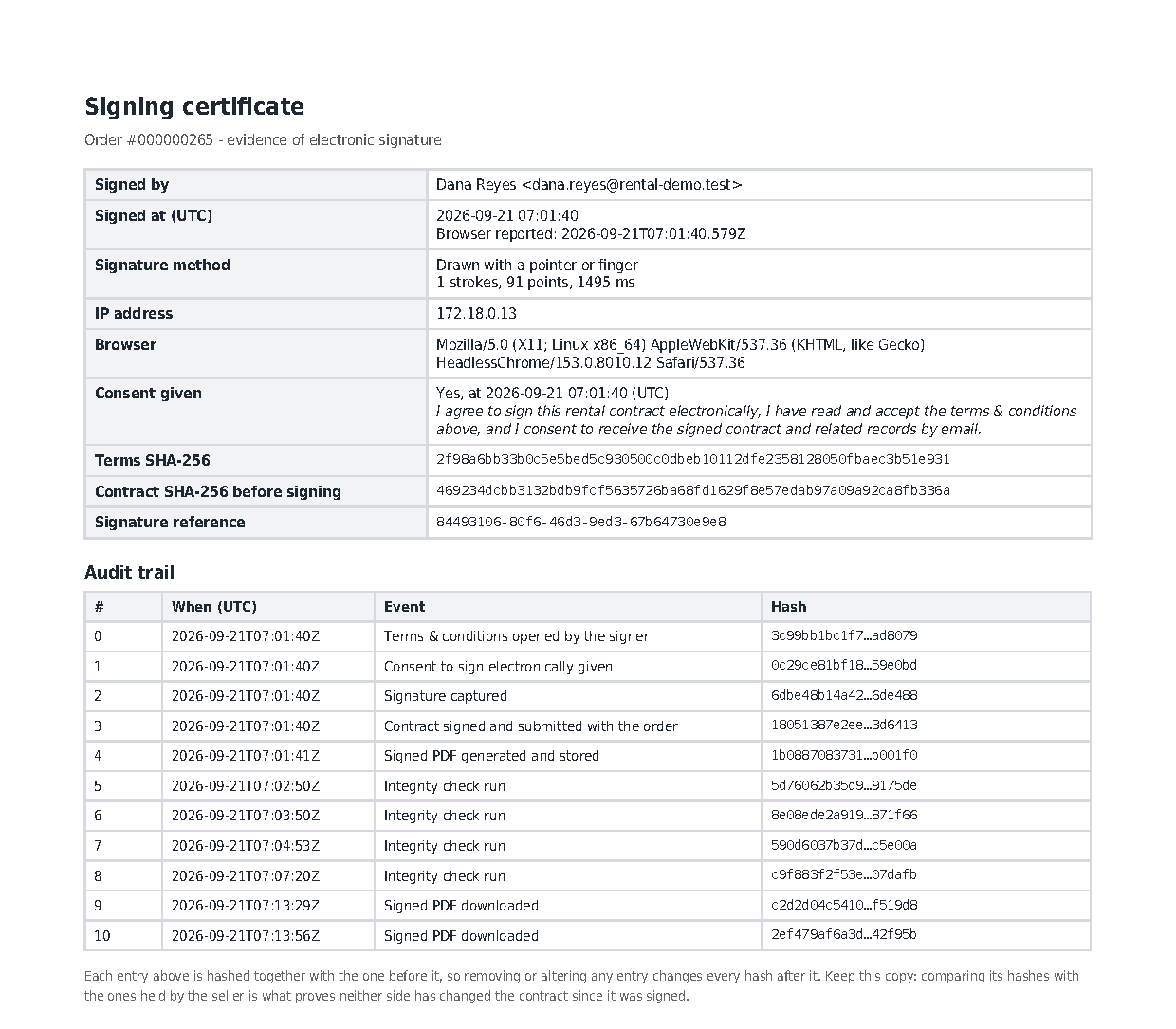
There is nothing about contracts in the customer’s My Account: no contract page and no download link. The PDF attached to the confirmation email is the customer’s copy.
Where staff find signed contracts #
Open the order in Sales > Orders. The extension adds two buttons to the order’s toolbar: Sign Contract, to record a signature for the customer, and View Signed Contract, to open the signed contract as a PDF. On an order with no stored signed copy the second button reads View Contract (preview) instead.

The signature and the evidence panel #
Further down the order’s Information tab, the Signature section shows the drawn signature and the name that was typed.
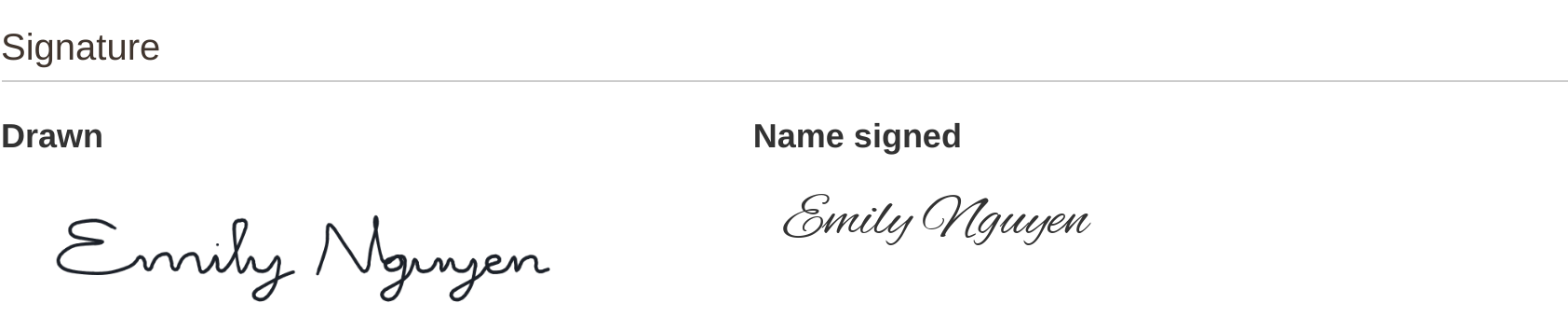
Below it, the Rental contract signature panel shows the evidence. Every time the page opens it checks the stored terms, the stored PDF and the audit trail against their hashes, and says at the top whether they still match. Hover over a shortened hash to see it in full.
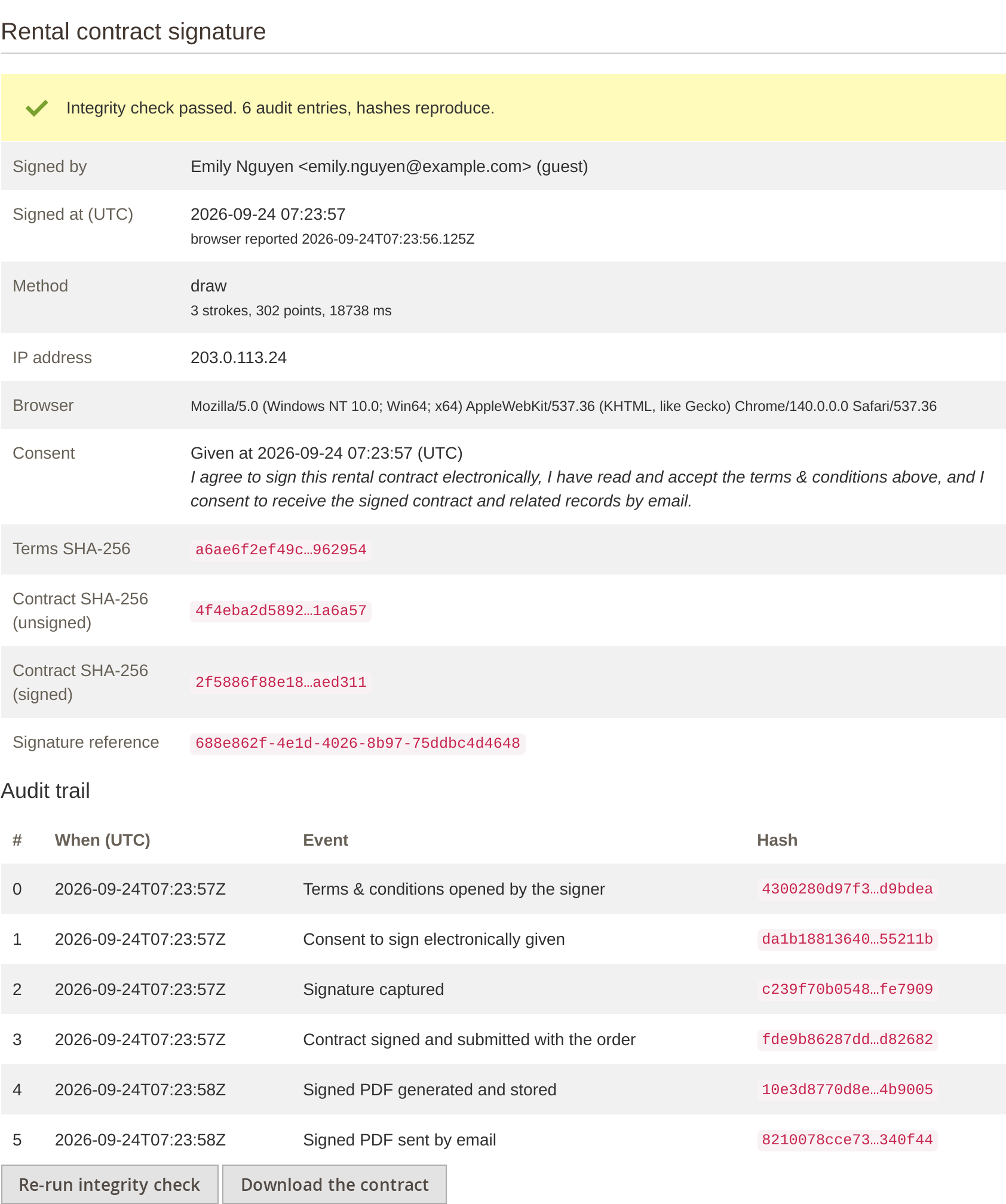
| Row | What it shows |
|---|---|
| Signed by | The name and email on the order, with the customer ID, or “(guest)”. |
| Signed at (UTC) | The server’s time of signing, and the time the customer’s browser reported. |
| Method | type or draw. For a drawn signature, the number of strokes and points and how long the drawing took. |
| IP address, Browser | Where the signature came from. |
| Consent | When the consent box was ticked, and the exact wording it had. |
| Terms SHA-256 | The fingerprint of the terms as they were shown. |
| Contract SHA-256 (unsigned) and (signed) | Fingerprints of the PDF before the signature was added and of the stored signed file. |
| Signature reference | A unique ID for this signature, also printed on the certificate. |
The Audit trail lists each event in order: terms opened, consent given, signature captured, contract signed with the order, signed PDF generated and stored, signed PDF sent by email, and later any download by the customer and any integrity check you run. Each entry’s hash includes the one before it, so removing or editing any entry breaks every hash after it. Re-run integrity check runs the check again and adds it to the trail. Download the contract opens the PDF.
Orders signed with 1.2.61 or earlier show “No signing evidence is recorded for this order.” They still have their signature image and typed name.
Recording a signature for the customer #
Sign Contract opens the same signing card in a side panel. Use it for orders taken by phone, orders created in the admin, or a customer signing on a tablet at the counter.
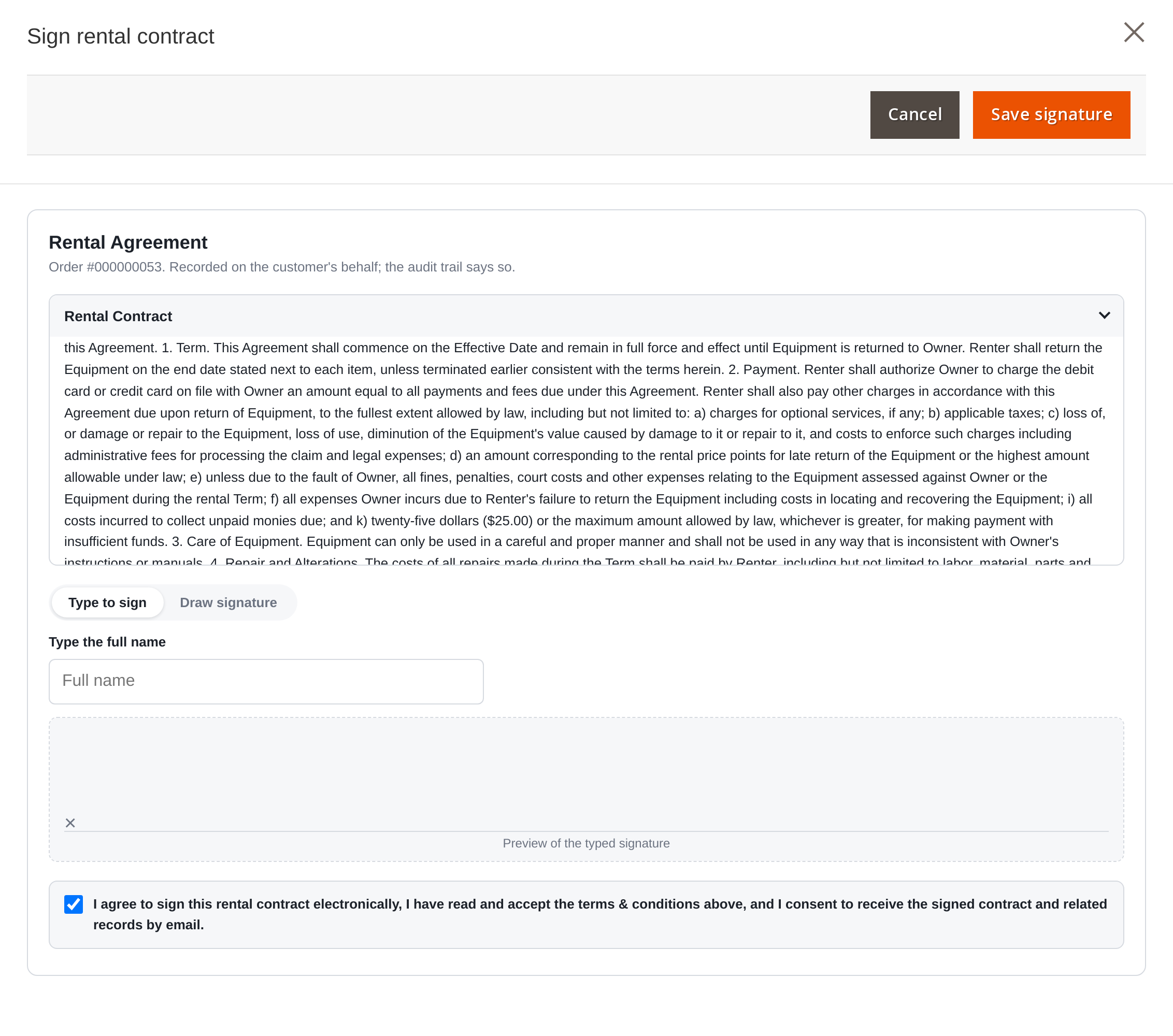
The consent box is already ticked, because the member of staff is consenting on the customer’s behalf. The record marks the signature as made in the admin, and the IP address and browser stored are the staff member’s, so it is weaker evidence than a customer signing for themselves. If the order already has a signature, saving a new one replaces it on the order and in the PDF; the earlier entries stay in the audit trail. Saving needs the Record a rental contract signature permission.
The PDF files and the email #
- The signed PDF is generated once, when the contract is signed, and stored in
pub/media/pdfs/under a random file name. The emailed copy is that same file, so its fingerprint matches the one on record. Include this folder in your media backups. - Drawn signature images are stored in
pub/media/salesigniter/contract/. - View Signed Contract and Download the contract serve the stored signed PDF itself, the same file the customer was emailed, after checking its fingerprint against the one recorded when it was signed.
- An order with no stored copy (not signed, signed before 1.2.62, or its PDF could not be generated at checkout) shows View Contract (preview), which generates a fresh copy from the order. That copy is not the signed document and has no signing certificate page.
- If the stored file is missing, or no longer matches its fingerprint, nothing is shown and no fresh copy is made in its place: the order page shows an error naming the problem, and it is logged. See The signed contract will not open.
- Send Email on the order sends the confirmation again with the contract attached, and the audit trail records it.
Troubleshooting #
The signing card does not appear at checkout #
- Require rental contract signature for checkout is set to Disable for this store view. Check the scope switcher at the top of the configuration page.
- The cart has no rental product and Show rental contract signing … even if order contains no rental products? is No.
- The store uses Hyvä Checkout rather than the standard or Luma-fallback checkout.
- In production mode, static content was not redeployed after installing or updating. Run
setup:static-content:deployand flush the cache.
Nobody can place an order #
If Enable secondary checkbox agreement is Yes, the second checkbox has to be ticked as well, and if scroll-to-bottom is on, the customer has to scroll the terms to the end.
An order has no signature #
Orders placed before signing was switched on, created in the admin, or containing no rental products have none. If signing failed after the order was placed, the order is still created and the reason is written to var/log/system.log or var/log/exception.log on a line starting SalesIgniter_RentalContract. In each case, record the signature from the order with Sign Contract.
The store’s name, address or governing law is missing from the contract #
Fill in Store Information (see Placeholders). Terms saved before 1.2.63 keep their old placeholders, and a detail that is not set now prints nothing rather than “None”; wrap such phrases in {{depend}}, or start again from the new default terms. If your terms use general/store_information/address, replace it with {{var store_address}}.
The terms say “Client First Name Client Last Name” #
That is what a guest sees on the checkout card before the checkout knows their name. Logged-in customers see their own name, and the PDF always uses the name on the order.
HTML tags are printed in the PDF #
Remove them from the terms, header and footer. Use plain text: line breaks and blank lines are kept as you type them.
The signed contract will not open #
If View Signed Contract returns to the order with an error, the stored PDF is either missing from pub/media/pdfs/ or no longer matches the fingerprint recorded when it was signed. The extension will not generate a fresh copy in its place, because that would not be the document the customer signed. Restore the file from your media backup. The signing evidence on the order still records its fingerprint, so you can confirm the restored file is the right one.
The PDF is not attached to the order email #
- Attach Contract PDF to order emails? is No for that store view.
- The order has no rental products and Show rental contract signing … even if order contains no rental products? is No.
- The Fooman Email Attachments module is disabled. Check with
bin/magento module:status Fooman_EmailAttachments. - Order emails are switched off in Stores > Configuration > Sales > Sales Emails.
Staff cannot see the evidence panel or open View Contract #
Their role is missing one of the four permissions. See Staff permissions.
The integrity check failed #
The message names the part that no longer matches: the audit trail from a given entry onward, the stored terms, the stored PDF, or a PDF file that is missing altogether. A failure means the record was changed or lost outside the extension, for example a site moved without pub/media/pdfs/. Restore the folder and the sirental_contract and sirental_contract_audit tables from a backup taken before the change.
FAQ #
Is an electronic signature legally binding? #
In many places, including under the US ESIGN Act and the EU eIDAS regulation, an electronic signature can be valid when the signer clearly consented to sign electronically and the record can be shown to be unaltered. The extension records that consent, the signer’s details and the document fingerprints for exactly that reason. Whether it is enough for your contracts depends on your country and the kind of hire, so check with your lawyer.
Can a customer sign after placing the order? #
Not on the storefront. The signing page customers could open after checkout was removed in 1.2.63, and its address now answers “page not found”. Record the signature from the admin with Sign Contract on the order, with the customer at the counter or on the phone (see Recording a signature for the customer).
Can I use different terms for each store view or language? #
Yes. Switch the configuration scope to the store view, untick Use Website beside a field and enter that store view’s text.
Can I just email a contract without collecting signatures? #
Yes. Leave Require rental contract signature for checkout on Disable and set Attach Contract PDF to order emails? to Yes. Add Include manual hard copy signature field if the customer should sign the printed copy at pickup.
Where is the contract data stored? #
Signatures and their evidence are in the sirental_contract table, one row per order, and the audit trail is in sirental_contract_audit. The signed PDFs are in pub/media/pdfs/ and drawn signature images in pub/media/salesigniter/contract/. Back up all four together.


