Everything about running subscriptions lives under Subscriptions in the admin menu. This page covers the admin screens and what customers can do on their own.
The subscriptions grid #
Subscriptions > Subscriptions lists every subscription with its customer, status, products, next billing date, plan, amount, payment method, renewals paid, orders awaiting manual payment and failed attempts. Use the filters and the Columns menu as in any Magento grid, and the Actions menu on selected rows to pause, resume, cancel or renew several at once.
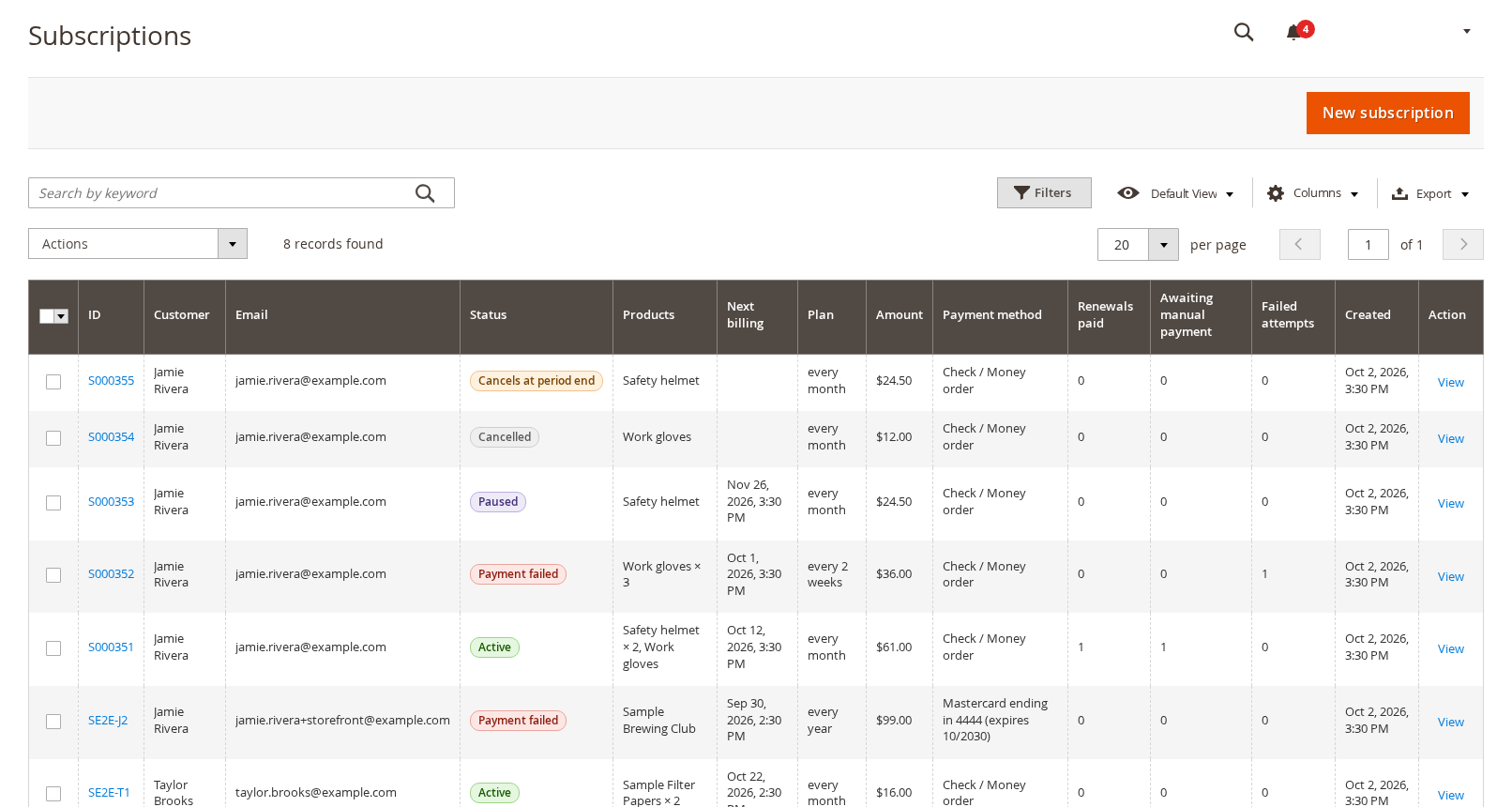
A subscription is always in one of these statuses:
| Status | Meaning |
|---|---|
| — | — |
| Pending | Created but not yet started. |
| Trial | In a free trial; the first charge is at the end. |
| Active | Renewing as planned. |
| Payment failed | A renewal was declined and retries are scheduled. |
| On hold | Retries ran out, or the shipping method was unavailable. Benefits are suspended if you chose so. |
| Paused | Paused by the customer or staff. Nothing is billed. |
| Cancels at period end | Cancelled, but the customer keeps what they paid for until the paid-through date. |
| Cancelled / Expired | Over. Expired means the plan’s billing cycles are used up. |
A single subscription #
Click a subscription to open it. The left menu has Summary, Items, Payment, Addresses and shipping, Orders, Schedule and attempts, Memberships and Activity.
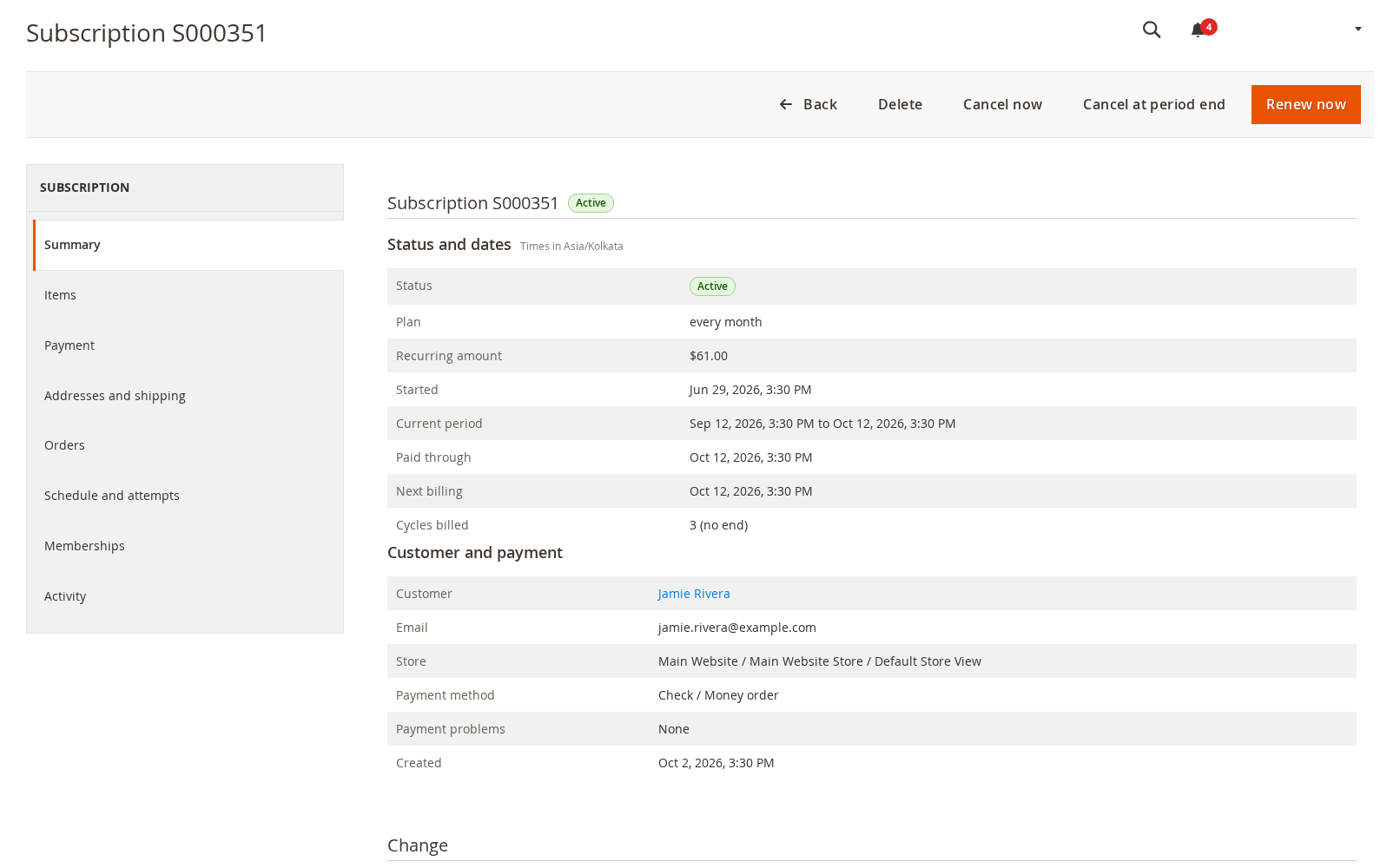
The buttons on top are Renew now (charge the next period today), Cancel at period end, Cancel now, Delete and Back. Below the summary:
- Pause takes the subscription out of billing for 1 or 3 billing periods or until resumed, with an optional reason. A timed pause resumes by itself and the paused periods are not billed.
- Edit next billing date moves the next charge; the scheduled renewal moves with it. The date is in the store timezone.
- Items lets staff change a line to any simple product. Payment changes the saved payment method. Addresses and shipping edits the addresses.
- Orders lists the initial order and every renewal order, with their cycle numbers. Each renewal order also shows a Subscription link on the order page.
- Schedule and attempts shows every scheduled renewal, retry and attempt, with the decline code of a failed one. Activity is the log of everything that happened to the subscription.
Creating a subscription by hand #
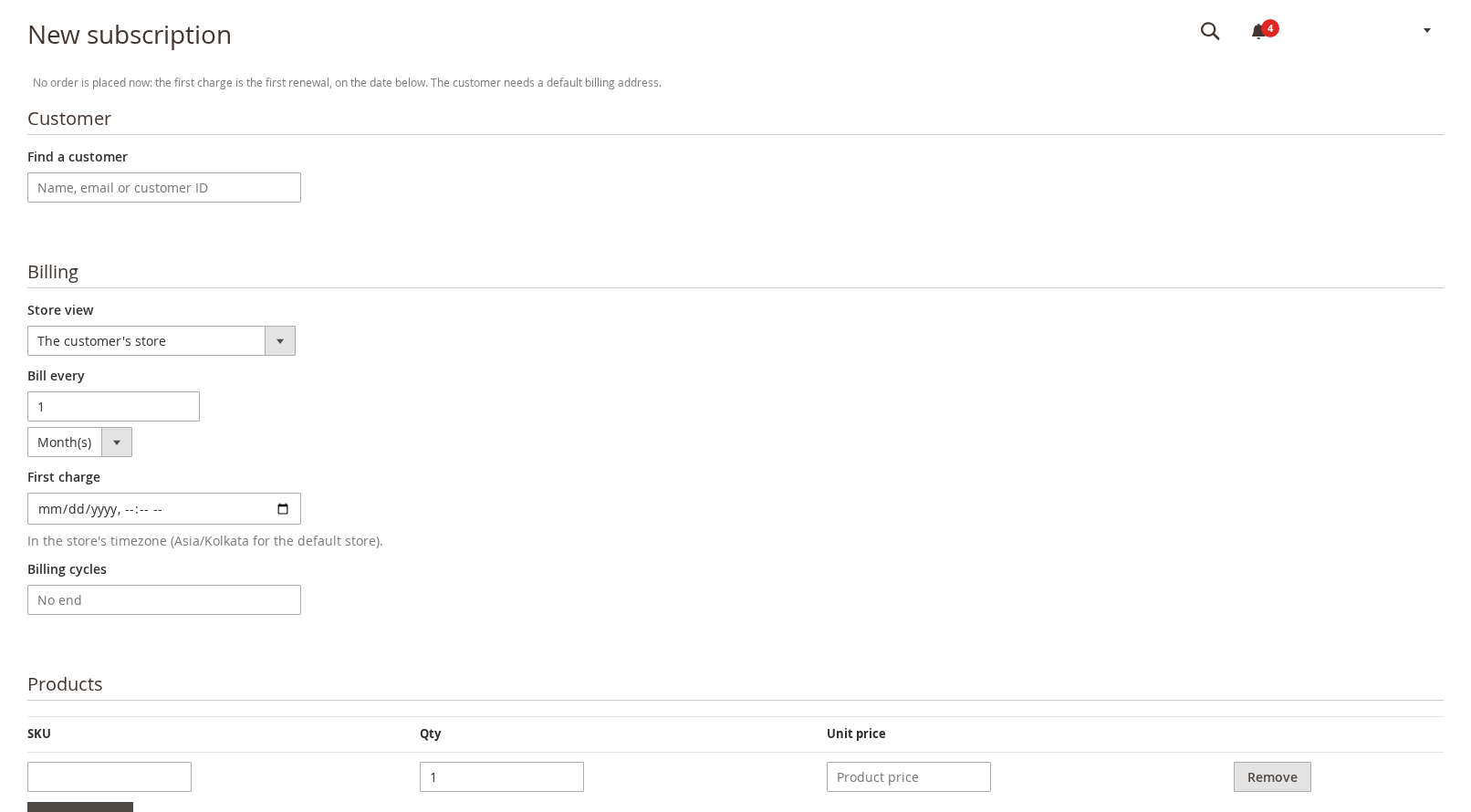
New subscription (top of the grid) creates a subscription for an existing customer without an order. Find the customer, choose the store view, how often to bill, the date of the First charge, optional billing cycles, and the products by SKU, quantity and unit price. No order is placed now: the first charge is the first renewal, on the date you choose. The customer needs a default billing address.
The renewals log #
Subscriptions > Renewals Log lists each renewal that is scheduled, running, succeeded or failed, with its cycle, attempt number, the order it created, the message and the decline code.
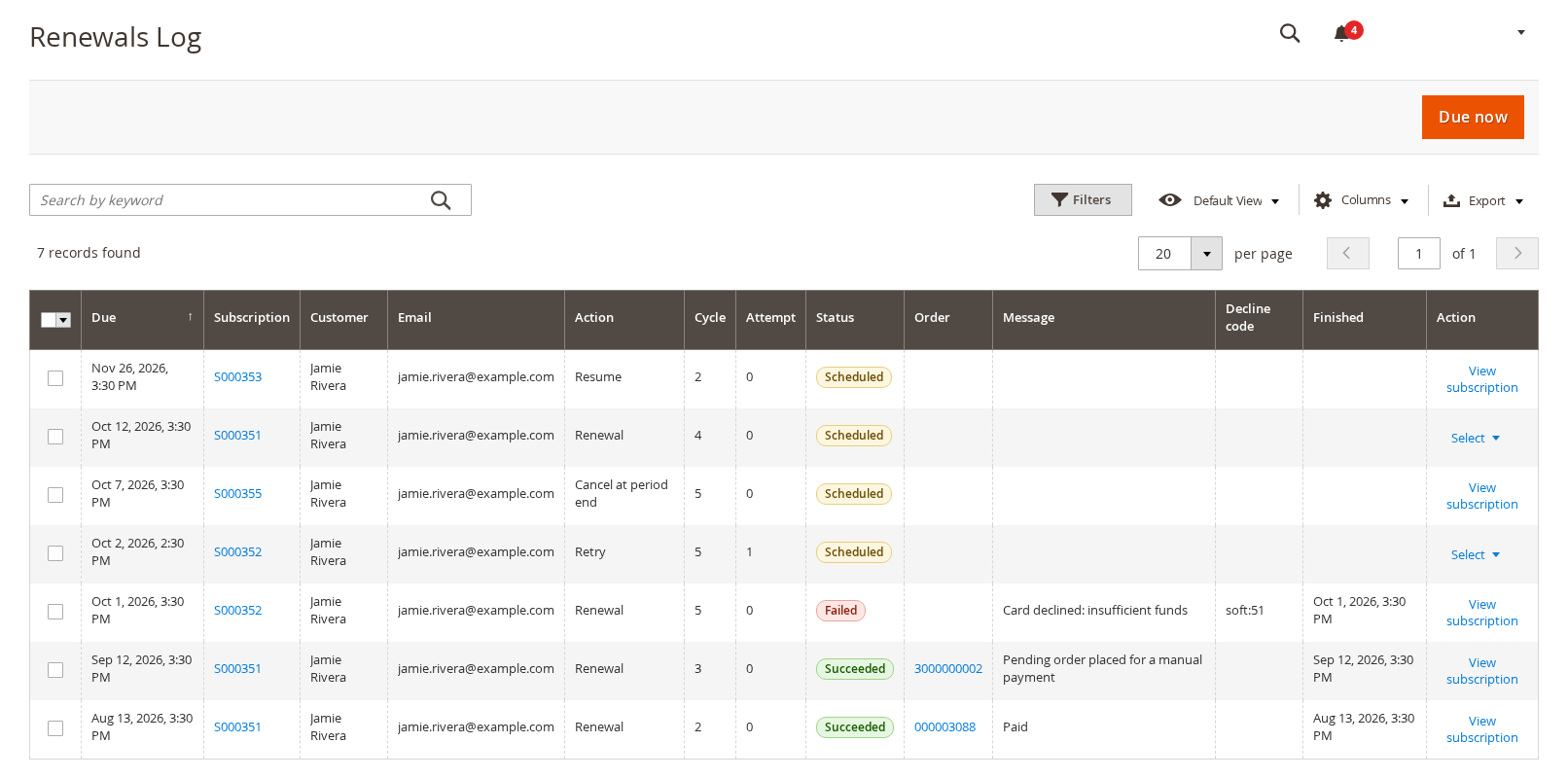
Due now runs every renewal that is due immediately, instead of waiting for cron. Run now on one row runs just that scheduled renewal or retry.
Cancellation reasons #
Subscriptions > Cancellation reasons reports the reasons customers gave, grouped by reason, so you can see why people leave.
What customers can do #
In My Account, My Subscriptions lists the customer’s subscriptions with their status, plan, amount and next payment date. A subscription with a failed payment says “Payment due” with the date.
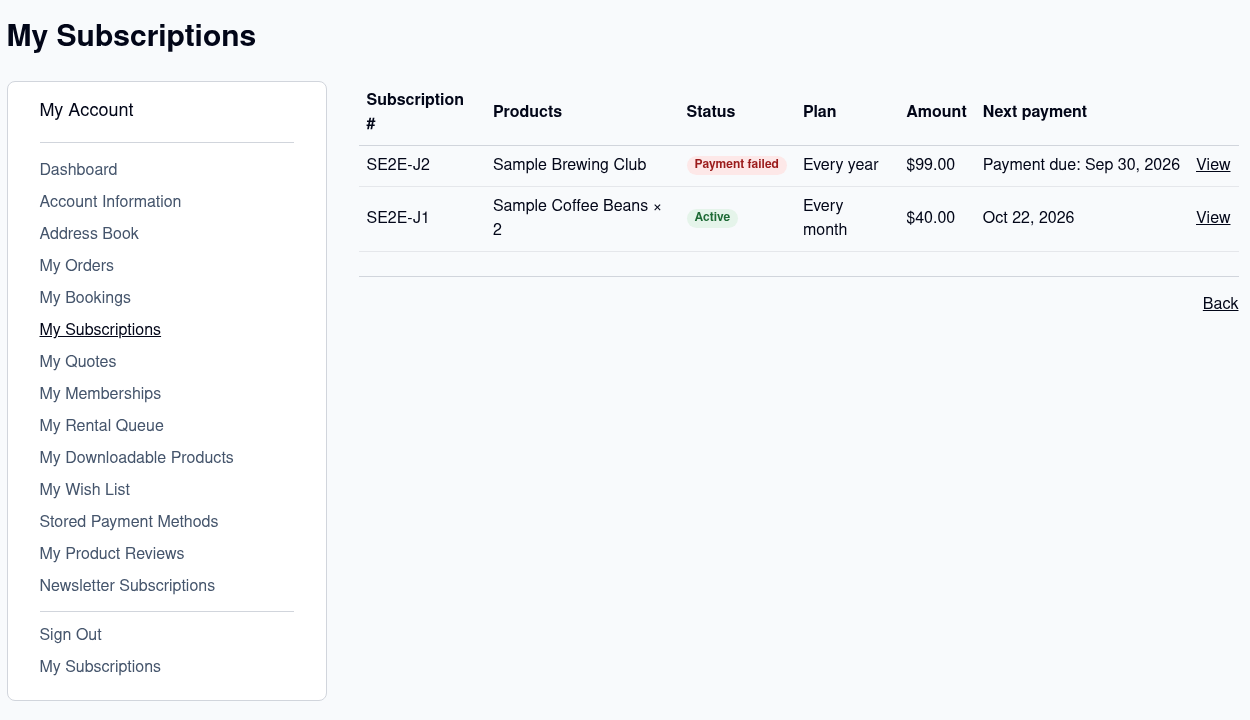
Opening one shows the details, the saved card and these actions, each of which you can switch on or off in the settings:
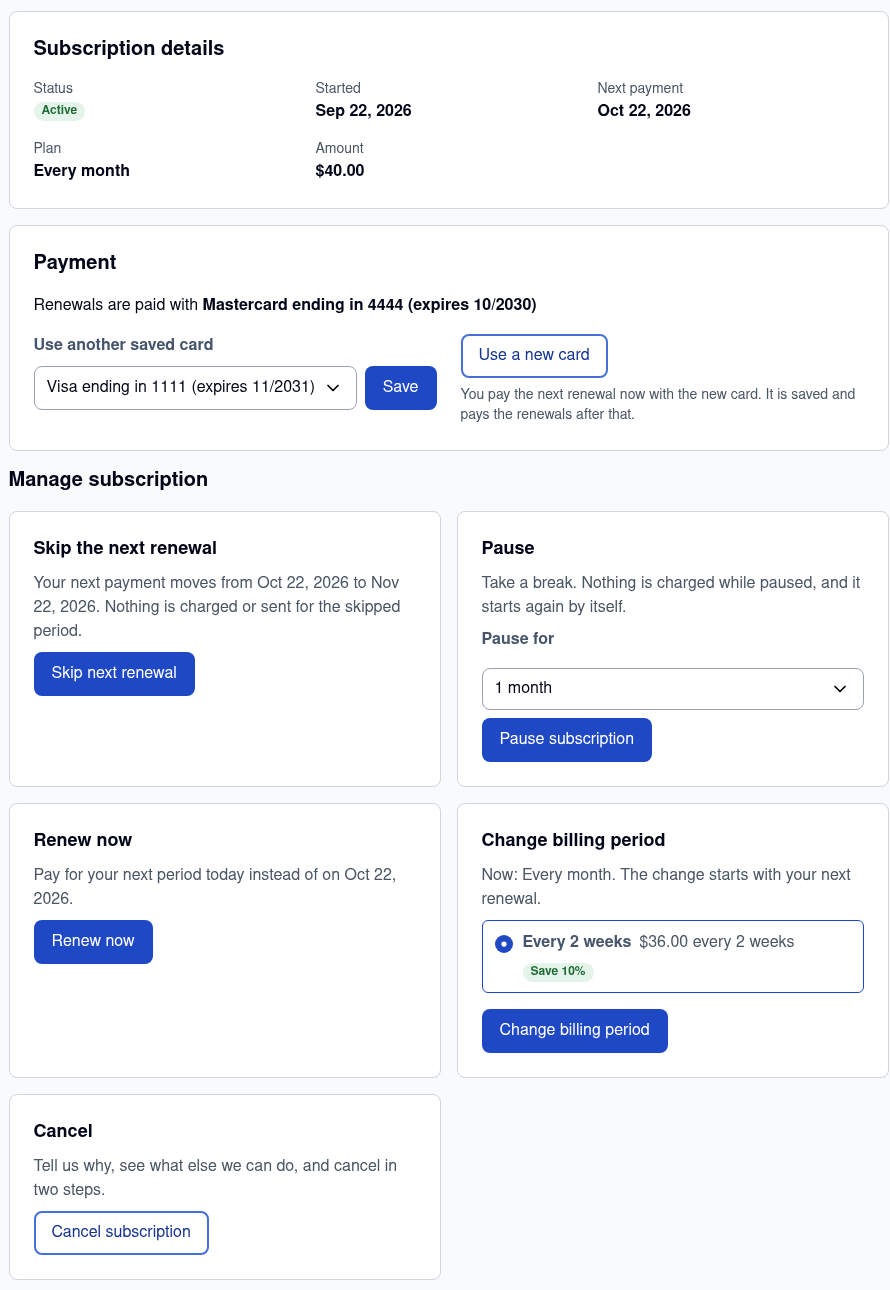
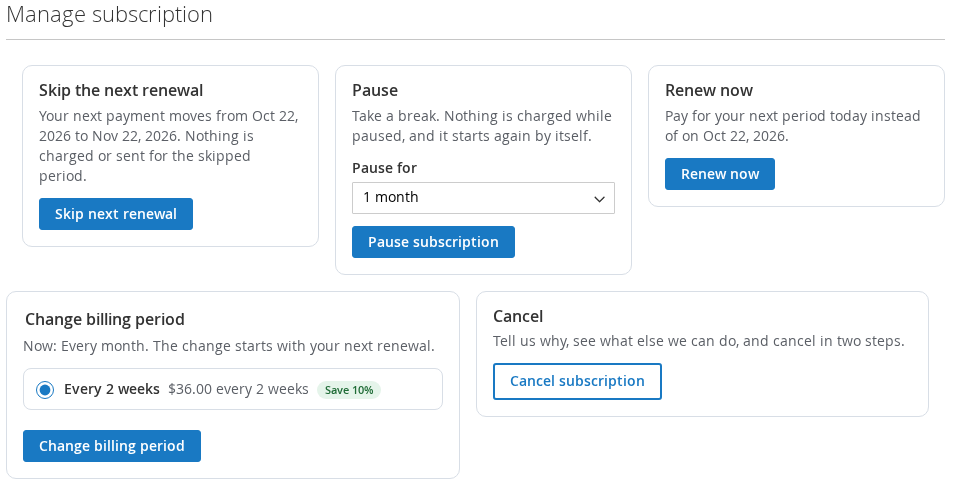
- Skip the next renewal: the next payment moves by one period and nothing is charged or sent for the skipped period.
- Pause: choose how many billing periods; it starts again by itself.
- Renew now: pay for the next period today.
- Change billing period: switch to another plan of the product; it starts with the next renewal.
- Payment: pick another saved card, or Use a new card to pay the next renewal now with it and keep it for the following ones.
- Add to your next renewal: add extra products once, to the next renewal only.
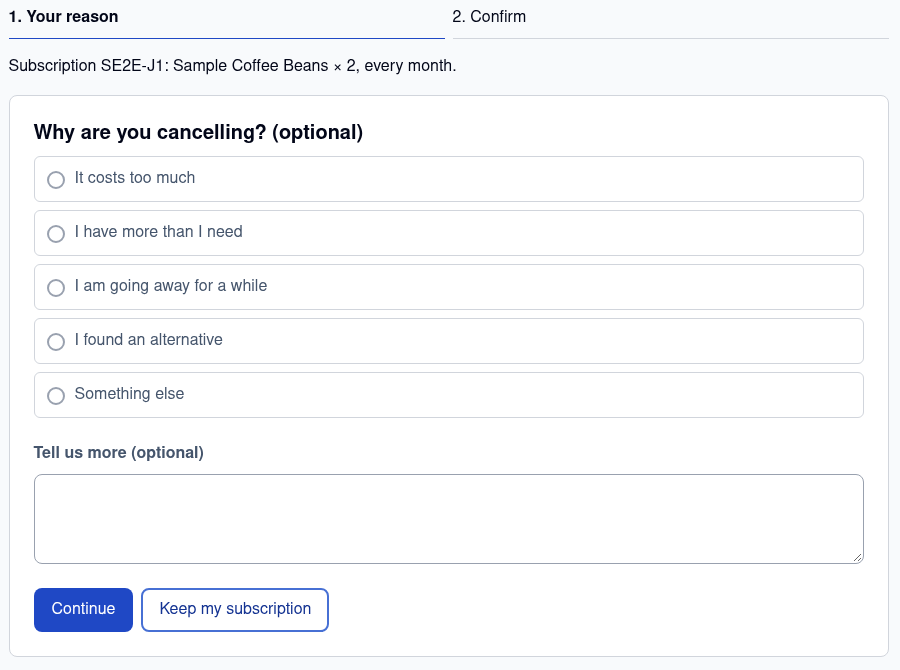
- Cancel: a two step flow.
The cancel flow #
Step 1 asks why (“It costs too much”, “I found an alternative” and so on; the list is yours to edit) and offers the retention choices you enabled, such as pausing instead or a one-time discount. Step 2 confirms. With Customer cancellations end at the paid-through date on, the subscription shows Cancels at period end and the customer can undo it before that date.