
Serial custom fields are what your staff record about a unit each time it goes out and comes back: the odometer or the hour meter, the fuel level, whether it came back clean, what attachments came with it, photos of its condition.
You group fields into field sets, such as Vehicle meter for vans, Engine hours for plant or Condition check for party equipment, and give each set to the products it suits. From then on:
- the Send, Return and Scan Returns screens ask for the fields as units go out and come back (Recording Readings and Photos at Send and Return);
- every serial’s page shows its current values, what its meters have counted, and a full history that can be corrected but never silently overwritten (Serial History, Corrections and Voids);
- the Usage report adds up how far each unit travelled or how many hours it ran, per rental (Usage Report: Serial Custom Fields);
- the order screen shows what each unit did on that hire (Rental Usage and Photos on the Order).
The field sets page #
Go to Rentals > General > Serial Custom Fields. It needs the Serial custom fields: field sets permission.
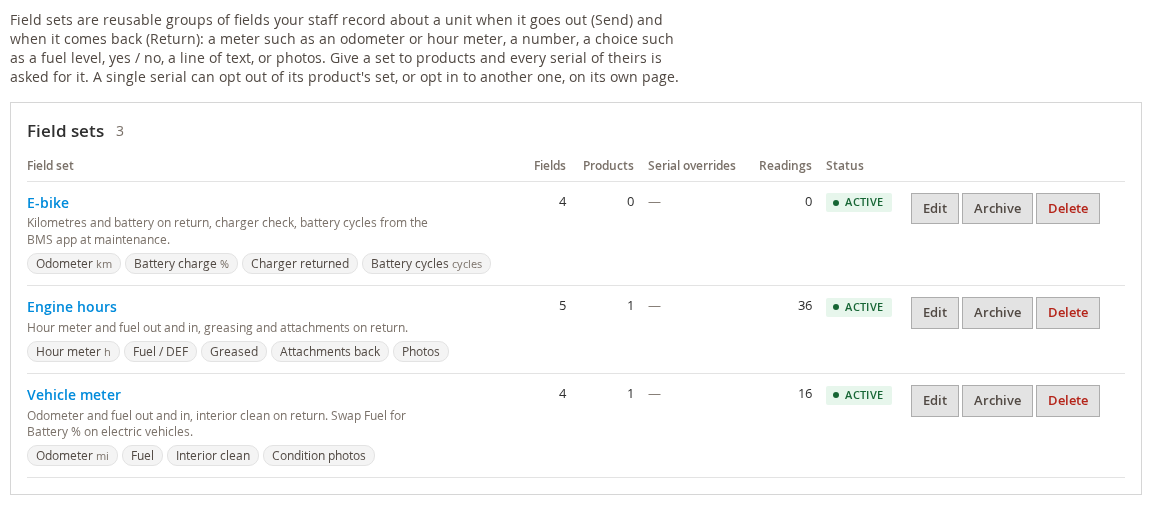
Each set shows its fields, how many products carry it, how many serials have added it or turned it off for themselves, and how many readings it holds.
- Edit opens the set.
- Archive stops the set being asked for anywhere but keeps every reading taken with it. Archive a set you no longer use; you can restore it later.
- Delete is only possible for a set that has never been used.
Starting from a template #
Under the list, Start from a template offers ready-made sets for common rental businesses: car and van rental, scooters and e-bikes, heavy equipment, boats, generators, cameras, projectors, drones and their batteries, party and event equipment, medical and mobility equipment, printers and copiers, RVs and power tools.
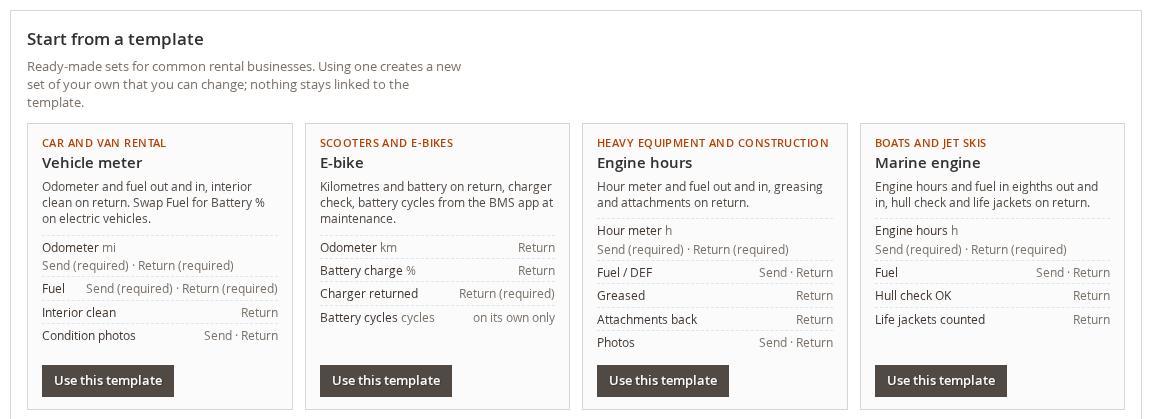
Use this template creates a set of your own from it. Change anything you like afterwards: nothing stays linked to the template. Click New field set to start from nothing instead.
Editing a set #
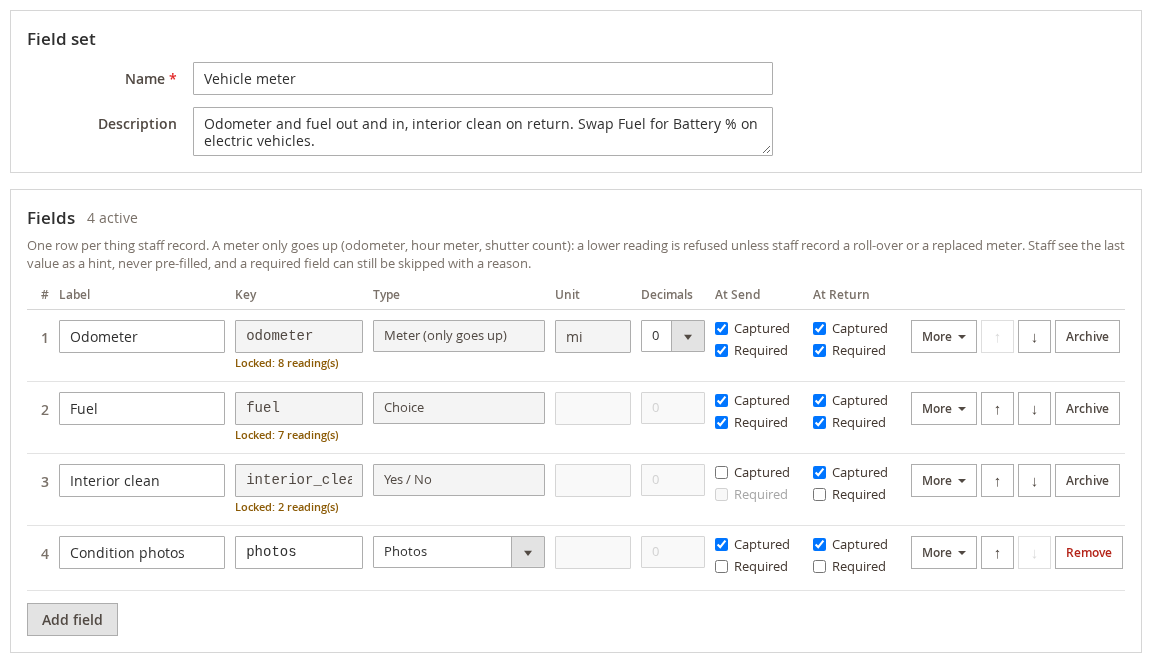
Give the set a Name and, if you like, a Description. Then add a row for each thing staff should record.
| Type | Use it for | How it behaves |
|---|---|---|
| Meter (only goes up) | Odometer, hour meter, shutter count, page counter | A reading lower than the last one is refused unless the staff member says the meter rolled over or was replaced. The Usage report adds up how far it moved on each rental. |
| Number | Fuel %, tread depth, battery health | Any value within the limits you set. |
| Choice | Fuel level from E to F, a condition grade | Staff pick one of the options you list. |
| Yes / No | Cleaned, charger returned, keys returned | Two buttons. |
| Text | Attachments returned, anything else | A line of text. |
| Photos | Condition photos, damage photos | Staff take photos or choose them from the device. |
For each field:
- Label is what staff see. Key is how the field is named in exports and the API.
- Unit (mi, km, h, %, cycles …) and Decimals apply to meters and numbers.
- At Send and At Return: tick Captured where the field should be asked for, and Required where it must be filled in.
- More holds the rest: the lowest and highest values accepted, the value a meter rolls over at, a daily limit that flags an implausible jump (it warns, it never refuses), a hint shown under the box, and a choice field’s options.
- The arrows change the order, Archive retires a field that already has readings, and Remove deletes one that has none.
Two things are deliberate:
- Staff see the last value as a hint, never filled in for them. An odometer copied from last time would record a hire of zero miles.
- A required field can always be skipped with a reason, such as display dead. A broken gauge never stops a unit from being sent or returned, and the reason is kept in the history.
Once a field has readings, its key, type and unit are locked, and its decimals can only go up, so the history it holds keeps its meaning. Locked: 8 reading(s) under the key says so.
Giving a set to products #
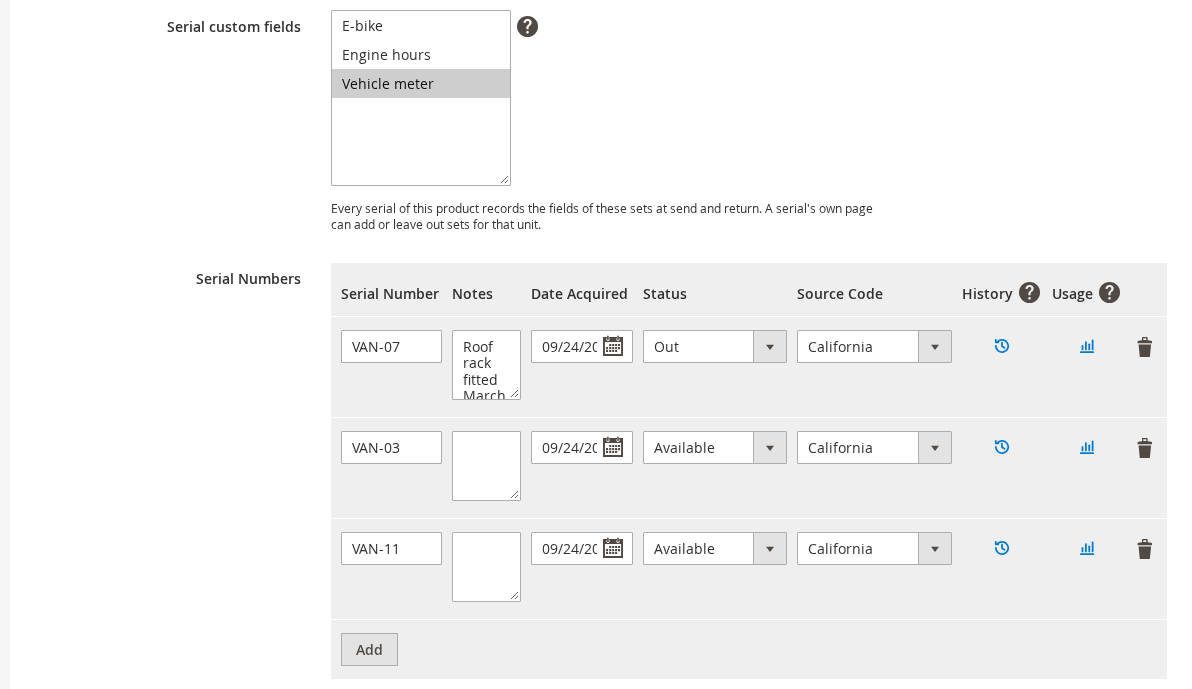
On the product. Open the product’s Rental tab. Serial custom fields, above the Serial Numbers grid, lists every set: choose one or several (Ctrl-click, or Cmd-click on a Mac) and save the product. Every serial of the product is then asked for those fields.
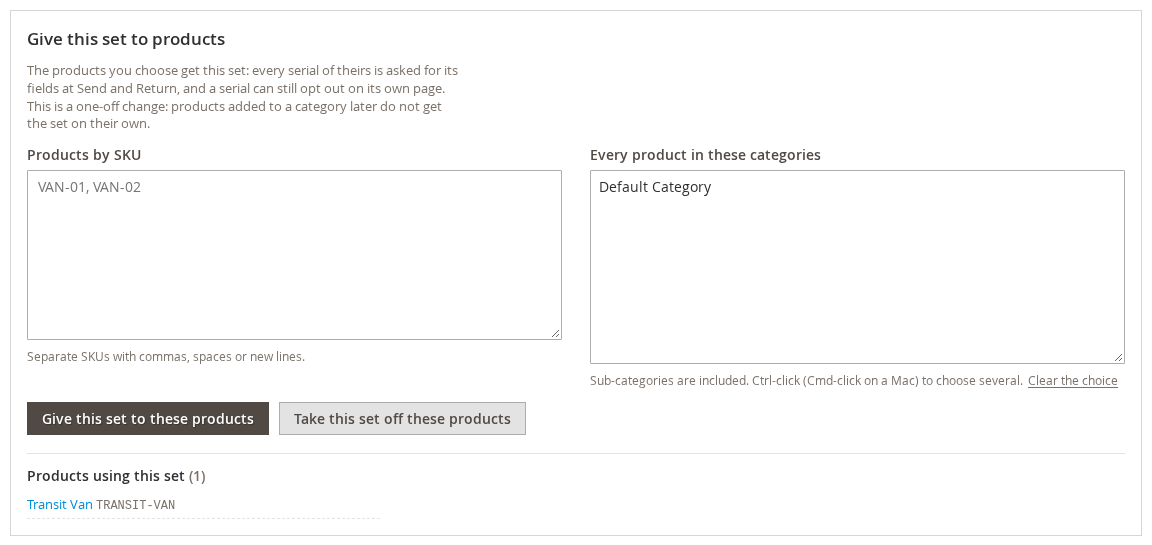
Many products at once. At the bottom of a set’s page, Give this set to products takes a list of SKUs, categories, or both (subcategories included). Click Give this set to these products, or Take this set off these products to remove it. This is a one-off change: a product added to one of those categories later does not get the set on its own. Products using this set lists every product that carries it.
Two sets that give one serial two fields with the same key cannot be combined. The product (or the bulk change) is refused with a message that names the clash, so a unit is never asked for “odometer” twice.
One unit different from the rest #
A serial can opt out of one of its product’s sets, or take a set its product does not have. On the serial’s page, under Serial custom fields, the box Field sets on this serial lists every set: those marked from the product come from the product. Tick or untick, then click Save field sets for this serial.
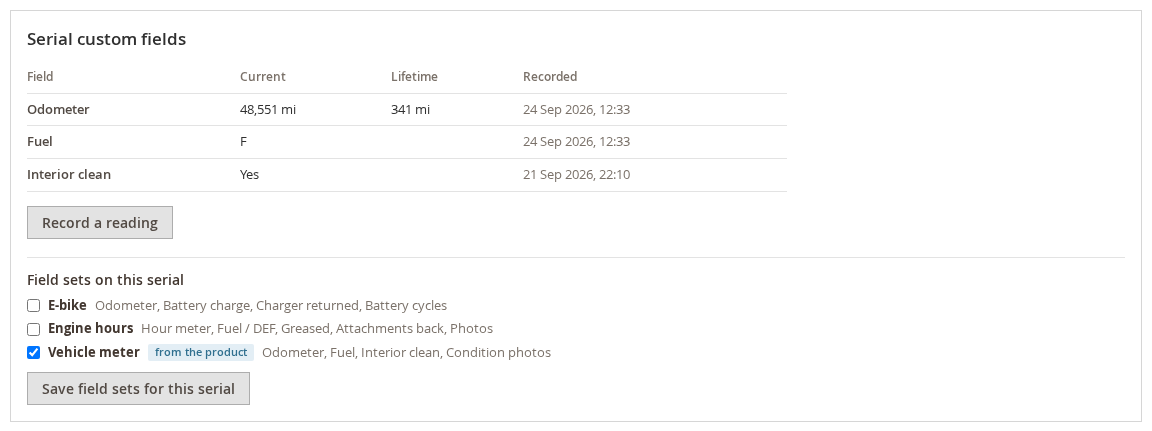
To do the same for many units at once, select them in the Serials grid and use Actions > Add field set or Actions > Turn off field set.


