
The rental search lets a customer pick their dates once and see only what is free to hire, with the price for those dates on every card. It is a search form, the Rental search widget, which you place on any page, and a results page that lists the products available for the dates chosen. The dates then carry over to the product page, so the customer does not pick them again.
It works on both Luma and Hyvä. Nothing is kept on the server for a search: the dates are in the address of the page and the browser remembers the last search, so the results page and every product page stay in the full page cache. The search is part of Rental Booking 1.2.213.
How a customer uses it #
- They choose their dates in the widget, optionally a quantity and a category, and click Search.
- The results page, at
/rental-search, lists the rentals that are free for those dates. Above the list it says “Free for Oct 12, 2026 – Oct 14, 2026”. - Each card shows the total for the chosen dates (“$840.00 total for 3 days”), the price points and, when it applies, the next available date.
- Clicking a card opens the product page with those dates already chosen.

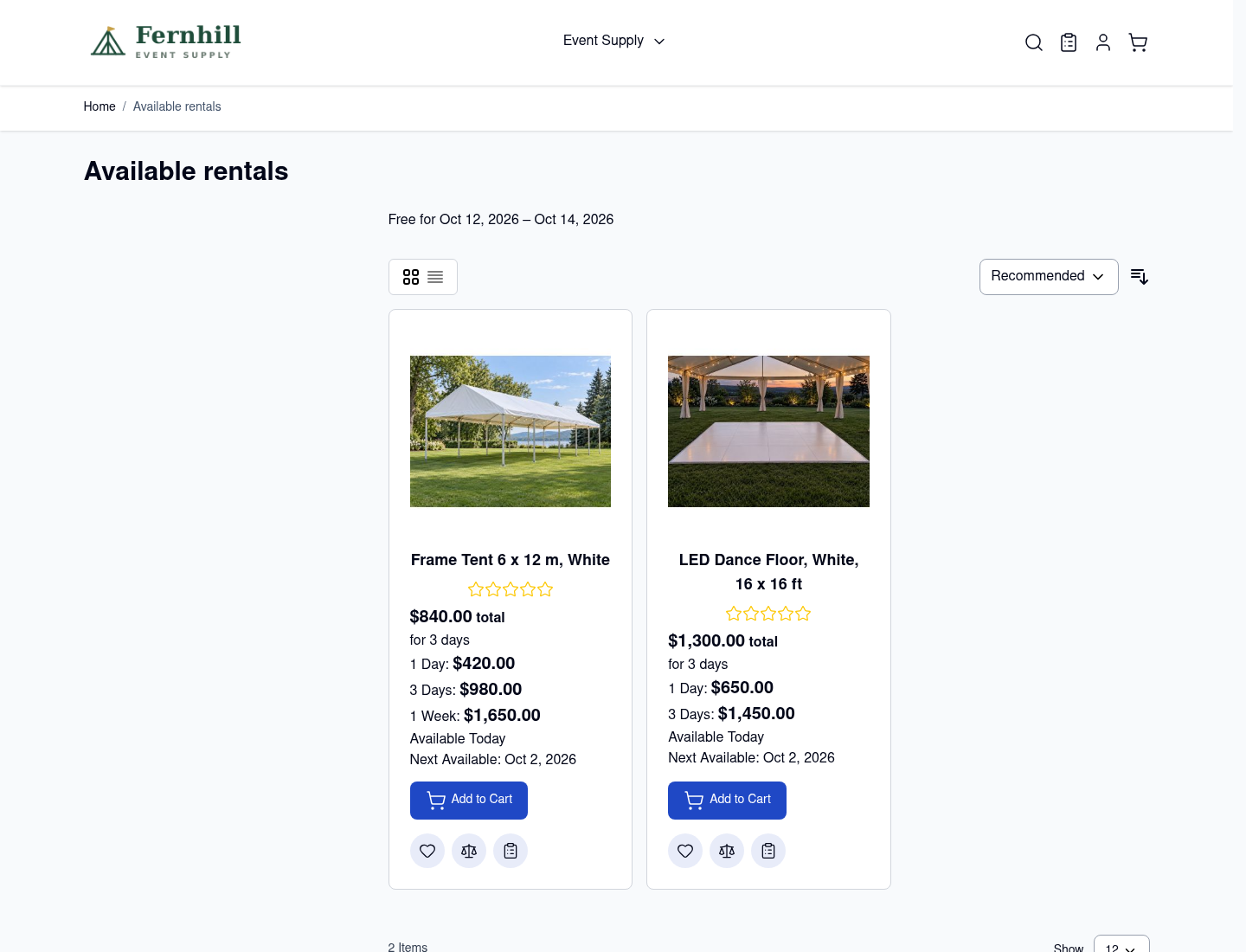
The results page uses your theme’s own product list, so the grid and list switch, the sort menu (Recommended, Price, Product Name) and the filters in the layered navigation all work as they do on a category page. A product that is booked out for the dates, or that refuses them (a minimum rental period, a closed day, a booking window), is left out. A search that cannot be run says why above the form:
- “Please choose a shorter period.” for a range of more than 366 days.
- “That start date has already passed.”
- “That return date is further ahead than this shop takes bookings.” for a last day beyond the store’s booking horizon.
The page is not indexed by search engines. You can also add Disallow: /rental-search? to your robots.txt.
Put the search form on a page #
The form is a widget. It works anywhere a widget works.
- In the admin go to Content > Pages (or Blocks) and open the page.
- In the editor, insert a widget (in Page Builder use an HTML Code or Text element) and choose Rental search.
- Choose the layout and fields, save, and view the page.
You can also type the directive straight into the page:
{{widget type="SalesIgniter\Rental\Block\Widget\SearchWidget" layout="bar" fields="dates,qty,category" heading="Find a rental"}}A widget instance (Content > Widgets) works too, if you want it in a theme position such as the home page or a sidebar. If the results page is turned off for a store view, the widget shows nothing there.
Widget options #
Each option falls back to the store setting of the same name (see below), so you only set the ones that differ for this widget.
| Option | What it does |
|---|---|
layout | bar (one row), stacked, card or pill. |
fields | The fields to show, comma separated and in order: location, where, dates, times, duration, qty, guests, category, search. Dates are always there. |
picker | range is one calendar for both days. two is two date fields. |
heading, button | The text above the form and on the button. An empty button says “Search”. |
durations | For the duration field, buttons such as 4h,1d,1w. The customer then picks a start date and a length instead of an end date. |
guest_types, guests_max | The kinds of guest asked for besides adults, and the most of one kind. The results page does not filter on guests yet. |
categories | The category ids to offer. Empty offers every category that holds a rental. |
results_layout | grid or list for the results page. |
On a phone the form stacks into a column and the guests field opens as a sheet from the bottom.
Several kinds of rental #
The times field adds a start and end time and is meant for products rented by the hour. A product rented by whole days ignores the times. A product booked by Nights reads the dates as nights, with check-out on the last date.
Settings #
Go to Stores > Configuration > Sales Igniter Rental > Search & Results. You can set these per store view.
| Setting | What it does |
|---|---|
| Enable the rental search results page | Turns the results page, and the widget, on. |
| Results page URL key | The address of the results page. The default is rental-search. |
| Results page title and meta description | Leave the title empty for “Available rentals”. |
| Results cache lifetime (seconds) | How long the full page cache may serve a results page. A booking of a product on the page clears it at once. A product that becomes free shows within this time. |
| Search widget: layout, fields, date picker, heading, button text, rental lengths | The defaults for every Rental search widget. |
| Search widget: guest types, most guests of one type | The guest questions the widget asks. |
| Location field and the Place search settings | See “Locations, the map and category pages” (the next page). |
The dates reach the product page #
The dates travel in the address, as sib_from and sib_to (and sib_qty, sib_cat and so on). A customer who clicks a card lands on the product with the start and end already chosen, and the price for those dates shows straight away. You can also build links yourself, for example from a landing page for an event weekend:
/rental-search?sib_from=2026-10-12&sib_to=2026-10-14&sib_cat=72| Key | Meaning |
|---|---|
sib_from, sib_to | First and last day, as YYYY-MM-DD. |
sib_from_time, sib_to_time | Times, as HH:MM, for products rented by the hour. |
sib_len | A length instead of an end date, such as 4h, 3d or 2w. |
sib_qty | Units wanted. |
sib_cat | Category ids, comma separated. |
sib_q | A keyword. |
sib_loc, sib_where, sib_radius | A branch, or a place and a distance. |
sib_layout | grid, list or split (list and map). |
sib_clear | 1 forgets the customer’s stored search. |
Good to know #
- It needs OpenSearch, which Magento 2.4 already requires. After you change a product’s rental settings the search catalogue is refreshed for you.
- Prices follow the cart. A card shows what the cart will charge for those dates, using the same pricing as the product page.
- Display currency. Prices on the cards are shown in the customer’s display currency.
- The older Rental Calendar widget still works. It is now labelled “Rental Calendar (older; see Rental search)” and writes the same search, so a date picked in it carries over to the results page and the product page.
- Translations. New phrases are in English until the locale files are updated.


