
Rental Counter & POS for WooCommerce
The point of sale that rents by the date and sells everything else
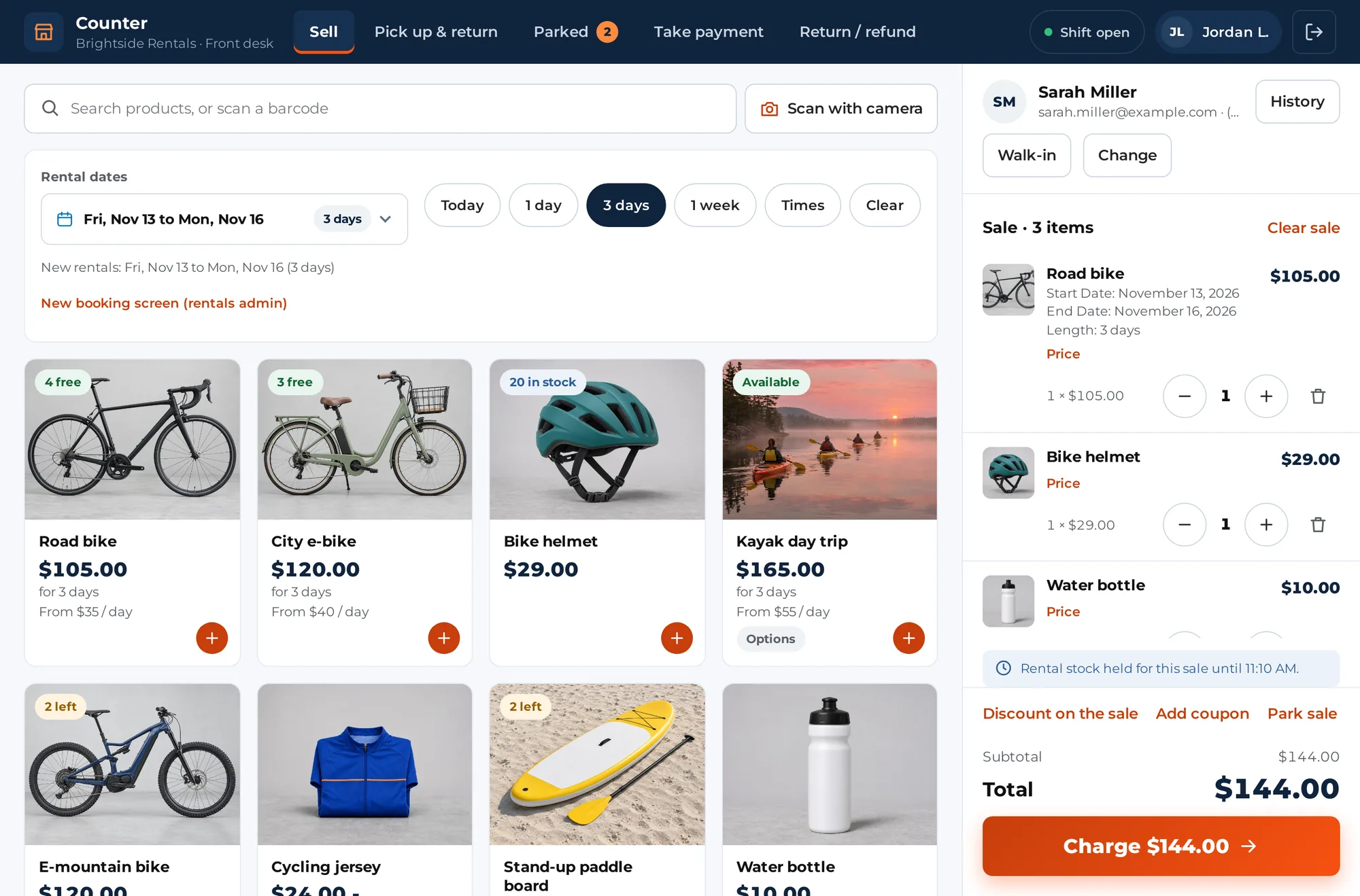
Rental Counter turns a tablet, phone or computer into the counter of your WooCommerce store. Rent by the date and sell from the same stock and prices as your website, in one sale with one payment and one receipt. Then hand the items over, and take them back.
Rental Counter & POS
One year of updates and support. Already on the Ultimate plan? Rental Counter is included: download it from your account.
Everything at the counter on one screen
Staff open /counter/ on your own domain. There’s no theme and no wp-admin around it: products and the rental dates on the left, the sale on the right, and one Charge button. It’s made for touch, and it works with a mouse and a barcode scanner too. Use as many registers, devices and staff as you like.
Every price, every free count and every total comes from your store as it is right now. The website and the counter sell from one stock, so a bike rented at the counter can’t be booked online for the same days.
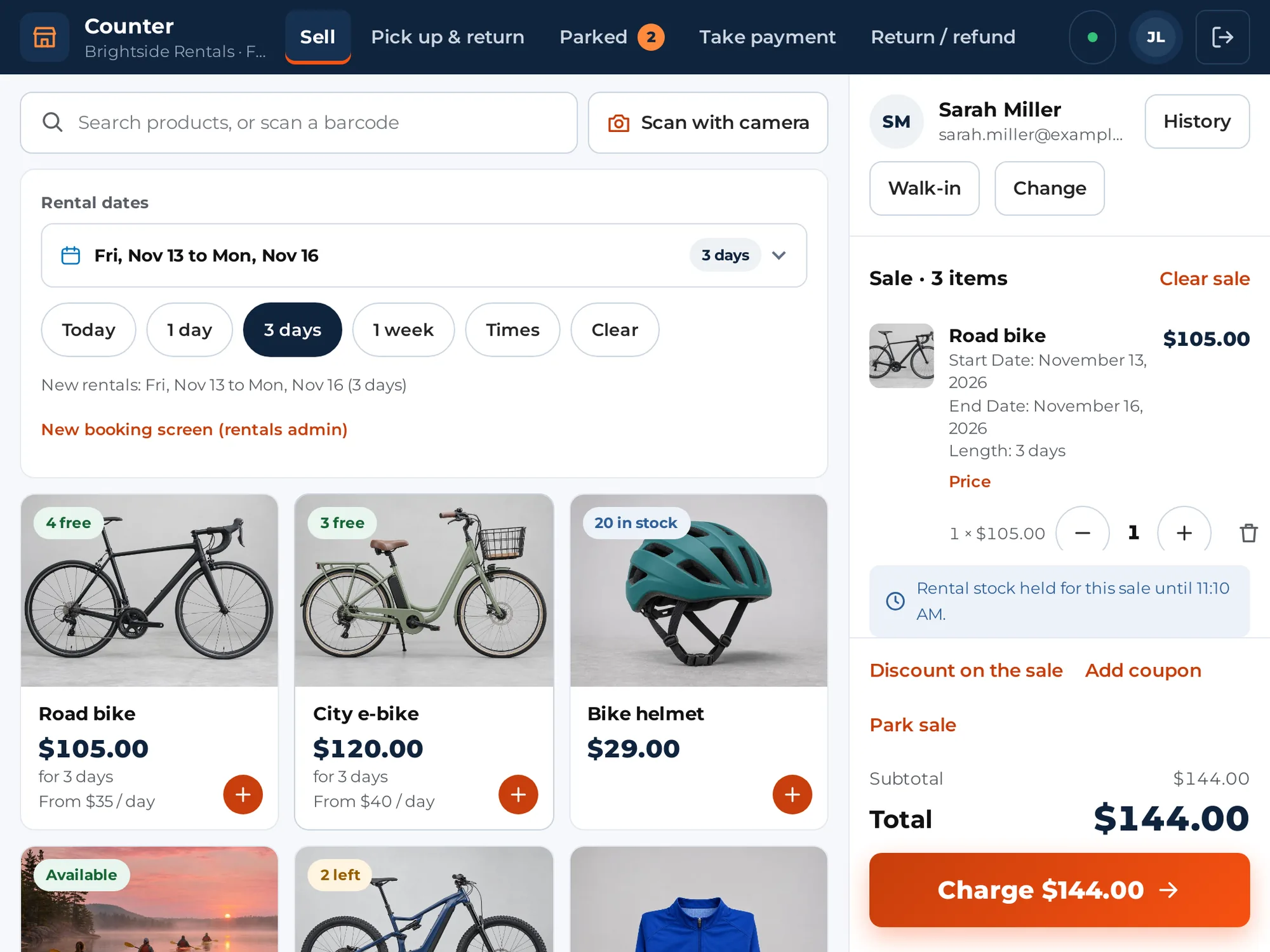
- Rentals, sold items and bundles in one sale, one payment and one receipt
- The unit is held the moment it goes on the sale, so nobody else can take it
- A normal WooCommerce order at the end, with your emails, reports and invoices
A rental counter isn’t a shop till
A till sells what’s on the shelf. A rental counter also has dates, deposits, contracts, and things coming back. Most point-of-sale apps only do the first part.
With a plain POS, or the WooCommerce admin
- Rentals booked in wp-admin while the customer waits, sold items rung up on another till
- Nothing stops the till from renting the last bike the website booked an hour ago
- The contract, the ID check and the waiver on paper, in a folder
- A return is a note on the order: no condition check, no late fee, no damage charge
- At the end of the day, the cash in the drawer is anyone’s guess
With Rental Counter
- Rentals and sold items in one sale, with one payment and one receipt
- The same stock and prices as your website, with each unit held while you take the money
- Signature, ID check, waiver and late-fee consent on the tablet, before payment
- Hand-over and return by serial number, with checks, photos, late fees and damage charges
- A shift with a float, every cash move recorded, and the difference shown when you close
From walk-in to hand-over in five steps
Set the dates
Pick them on the calendar, or tap Today, 1 day, 3 days or 1 week. Each rental shows what’s free and its price.
Add to the sale
Tap a product, search, or scan a barcode. Rentals, sold items and bundles go on one sale.
Before payment
The customer signs, staff check the ID, and the waiver and late-fee policy are agreed on the tablet.
Take the payment
Cash, a Stripe card reader, your own terminal, a pay link or your store’s payment page. Split it if you like.
Hand it over
Print or email the receipt and hand the units over. The order is in WooCommerce like any other.
Pick the dates first, then see what’s free
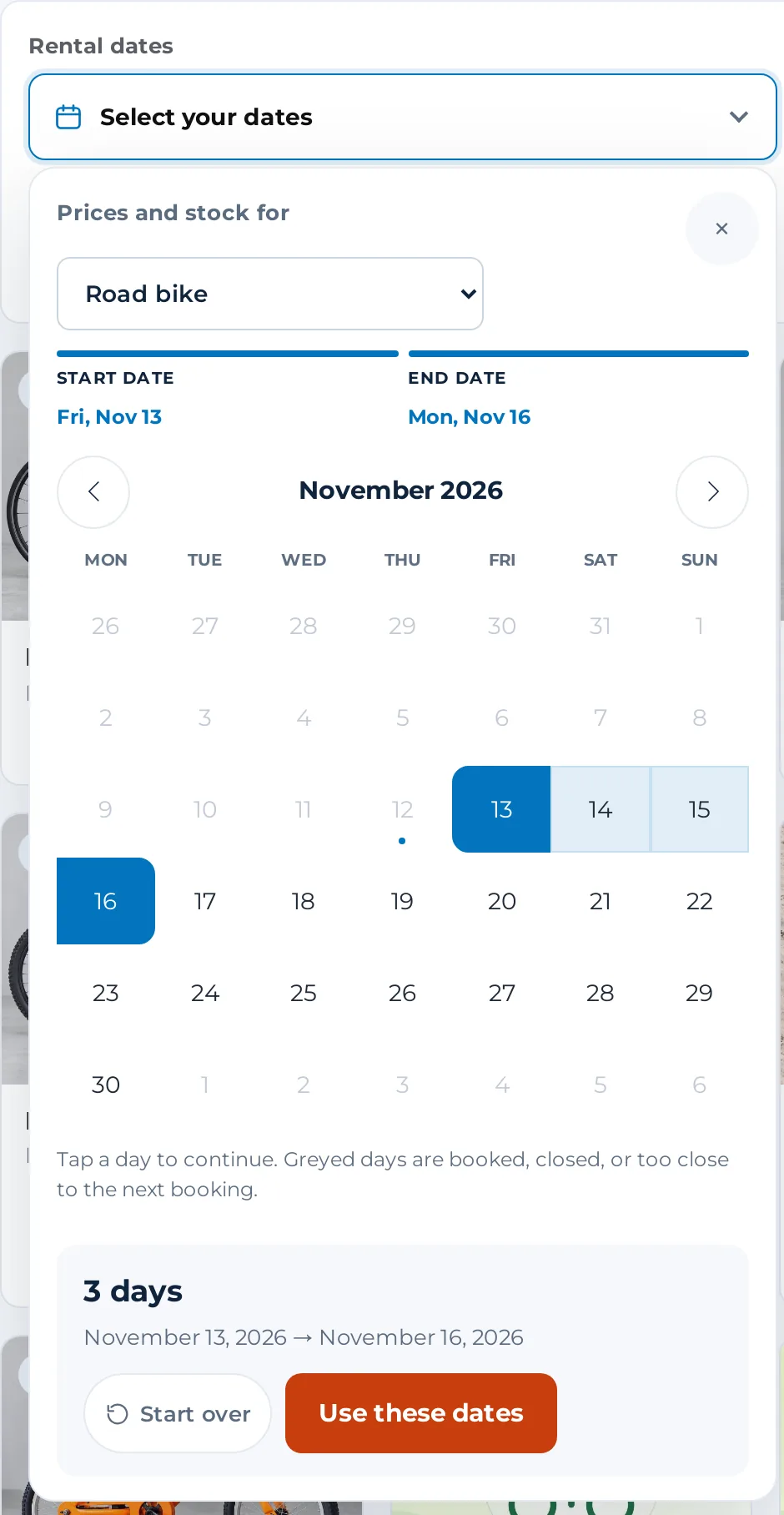
A rental needs dates before it has a price, so the date bar sits above the products. Open the calendar and pick the first and last day, or tap a chip: Today, 1 day, 3 days, 1 week. Tap Times when the rental goes out and comes back at set times.
The calendar is the same one your customers see on the website, with your closed days, buffers and rules. Choose a product in it and the days it can’t go out are greyed: booked, closed, or too close to the next booking. If your product calendar shows prices or units left, so does this one.
Once the dates are set, every rental card shows how many are free for those dates and the price for the whole rental. The moment a rental goes on the sale, the unit is held for this sale (for 30 minutes unless you change it), so another counter or a website shopper can’t take the last one while the customer is paying.
- Each rental goes through the same rules as on your website: closed days, buffers, minimum and set lengths, times
- Prices come from your rental settings, seasons and length discounts included
- Something the sale can’t take, like a booking with no order? One tap opens your rentals admin’s New booking screen
Sell what’s in your store, in the same sale
Rental Counter isn’t only for rentals. It sells the standard WooCommerce product types: simple products (virtual and downloadable too), variable products with their sizes and colours, and grouped products, sold as their parts. It sells bundles and kits from our Bundles & Composites and from WooCommerce Product Bundles and Composite Products, and our own subscriptions and memberships.
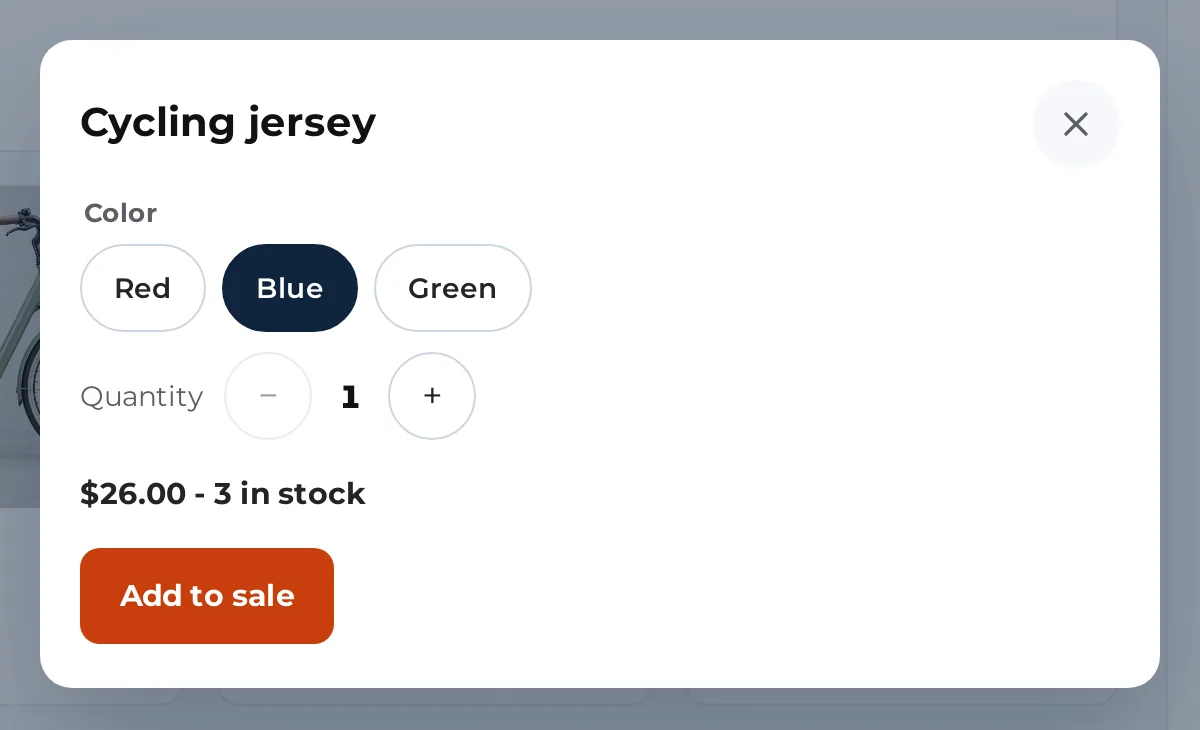
A product with options opens a sheet: a button for each size or colour, the price and the stock of the one you picked. A bundle or a kit shows each part, with the price for your dates, and goes on the sale with its parts underneath.
Prices are your shop prices, with sale prices, coupons and tax worked out by WooCommerce, exactly as at your online checkout. Product types added by other plugins (other subscription or booking plugins, gift cards) aren’t sold at the counter.
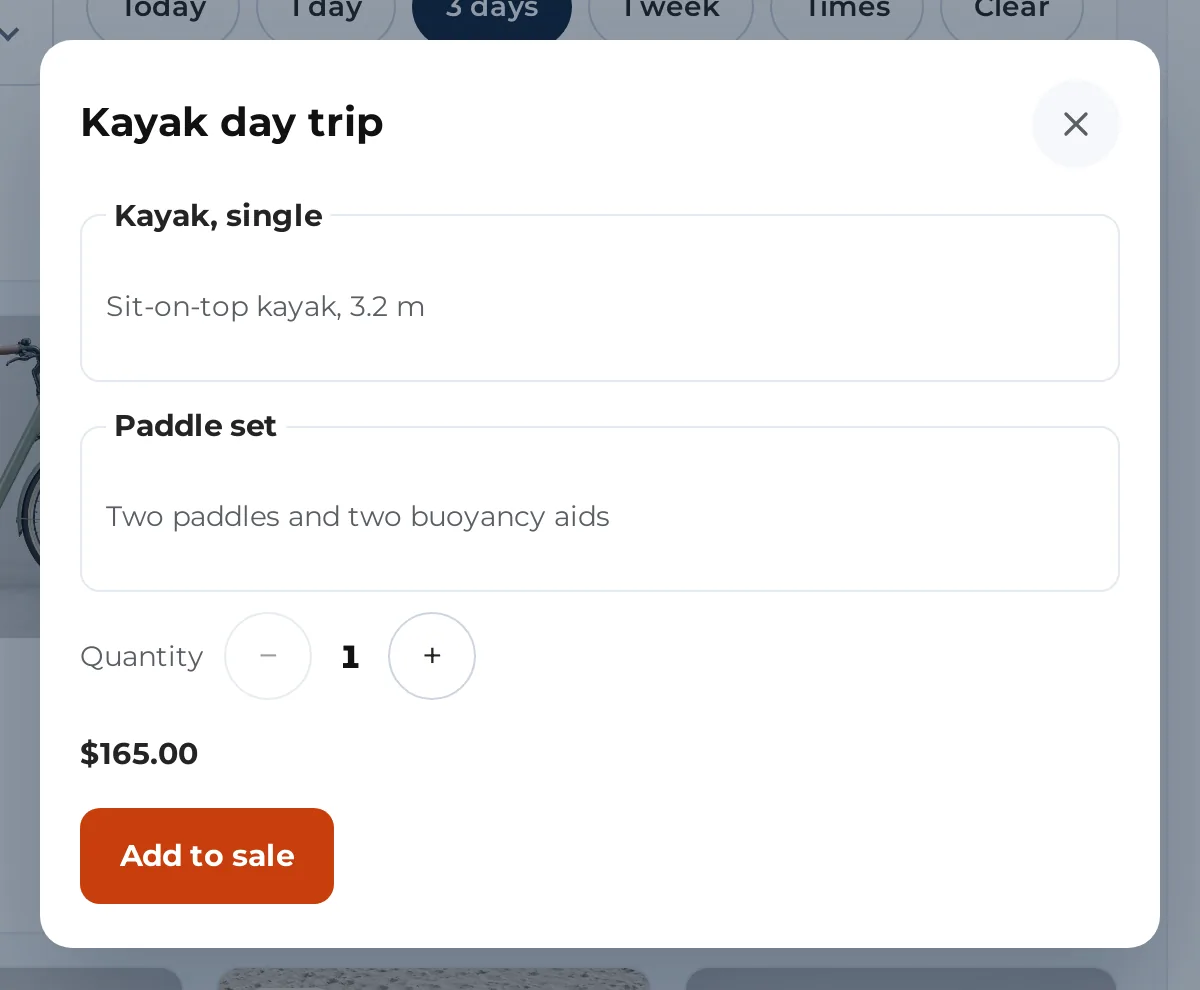
- Sales Igniter Bundles & Composites, WooCommerce Product Bundles and Composite Products
- An out-of-stock choice says so and can’t be added
- External (affiliate) products are left out: they’re sold on another website
Scan a barcode with a scanner or the camera
Plug in any USB or Bluetooth barcode scanner that types like a keyboard. You don’t have to click a box first: the Counter tells a fast scan from someone typing, and acts on it.
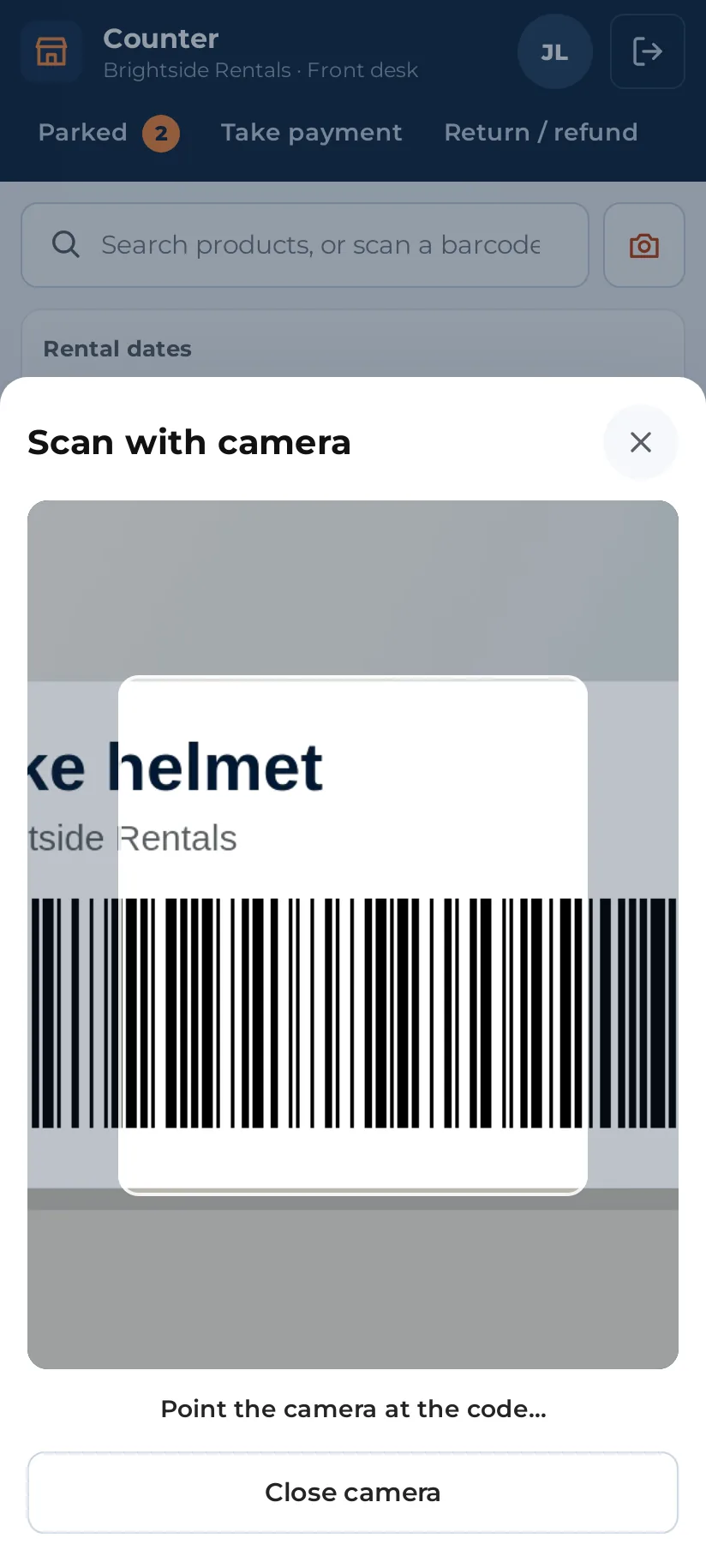
With Rentals & Bookings Regular on your store, the Counter also scans with the device’s camera. Tap Scan with camera, point it at the label, and the item goes on the sale. When the device has a torch, a button turns it on for dark back rooms; with two cameras, another switches between them.
One scan box understands every code in your shop:
- A product or a variation, by its SKU or its barcode (GTIN, EAN, UPC)
- A rental unit, by its serial number or QR label
- A booking or an order, by its number, to hand it over, take it back or take the payment
- The QR code on a receipt from an Epson or Star printer, to start a return
- The camera needs your site on https, as every browser asks
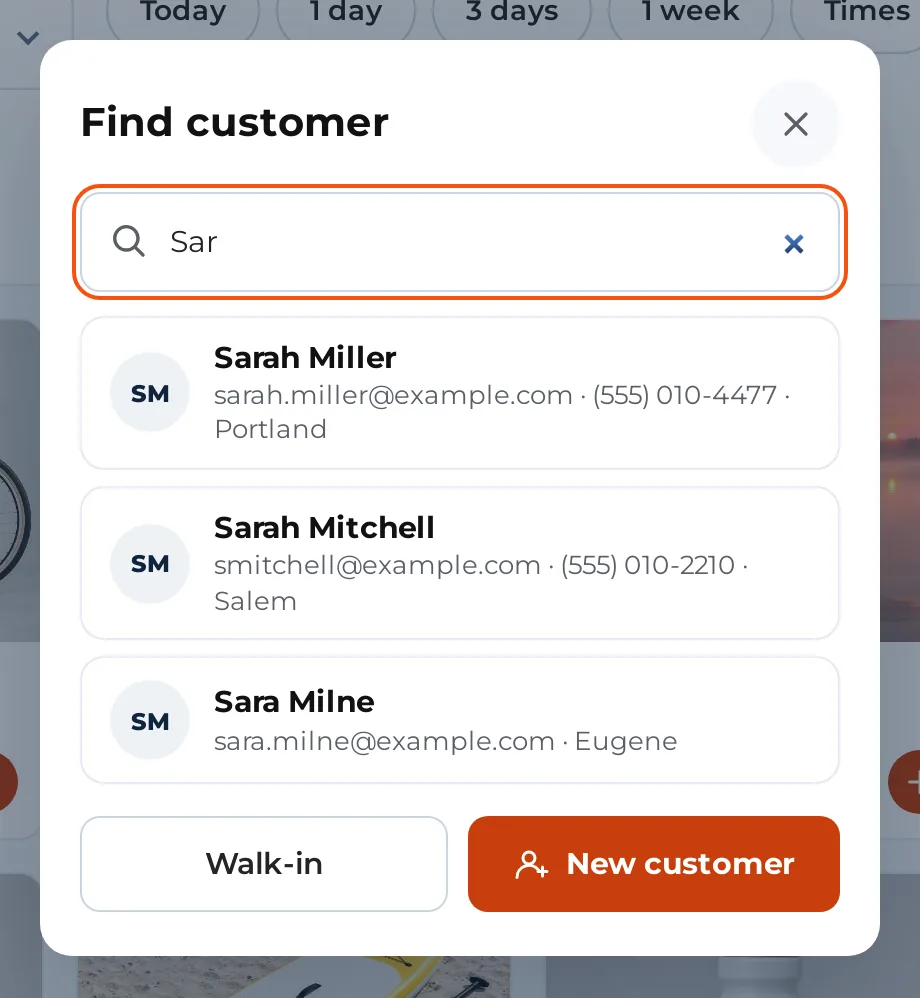
Find the customer, or add them in ten seconds
Type two letters of a name, an email or a phone number and tap the customer. New customer takes a first name, last name, email and phone, and refuses an email that already belongs to someone.
Selling a drink or a helmet? Leave it as a walk-in sale, with no account on the order. A subscription or a membership always needs a named customer, because the renewals belong to someone.
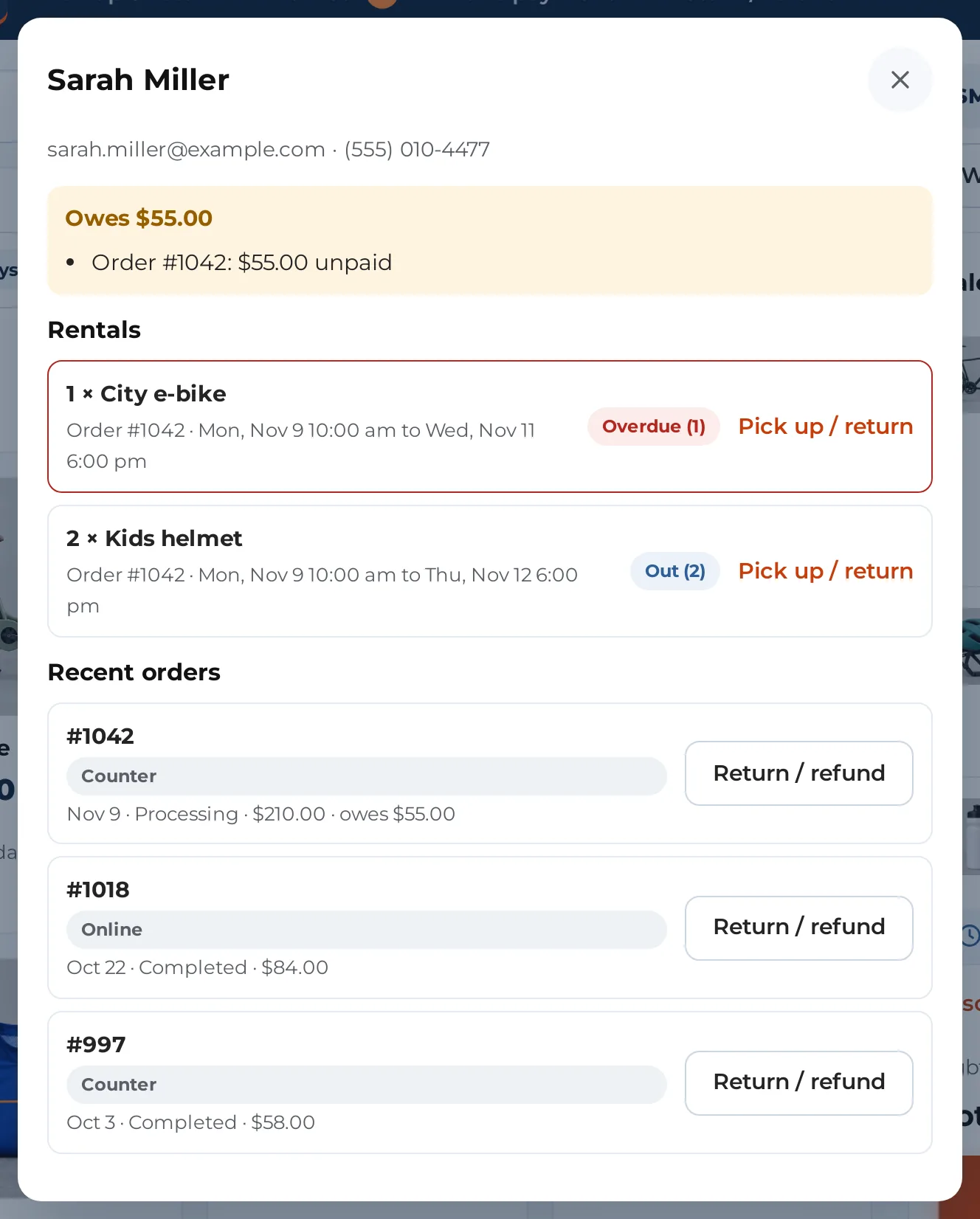
With a customer on the sale, History shows what they owe, what they have out (and whether it’s overdue), and their recent orders, online and at the counter, each with a button to take it back or refund it.
The paperwork, done on the tablet
When a sale needs answers, Charge opens a Before payment sheet with one step at a time. Each add-on asks its questions here, at the moment it would ask them online.
The customer reads the contract and signs on the screen with a finger or a pen. Staff check the photo ID and take a picture of the front and back. The damage waiver is offered as a choice, or required with a tick, and the late-fee policy gets its own “The customer accepts”.
The sheet won’t close if someone taps outside it, so a drawn signature is never lost. A step that’s missing something says what, right on the step.
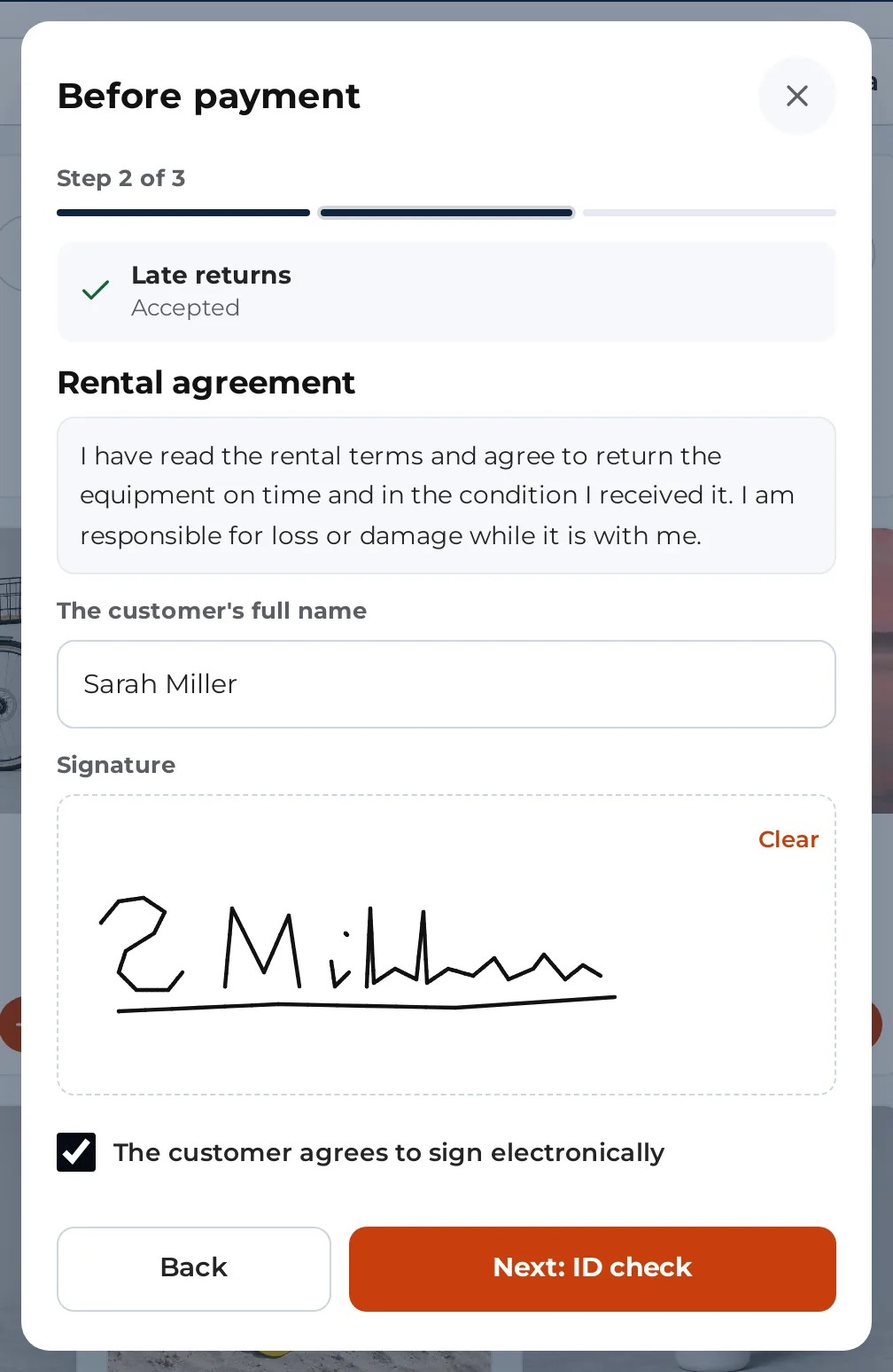
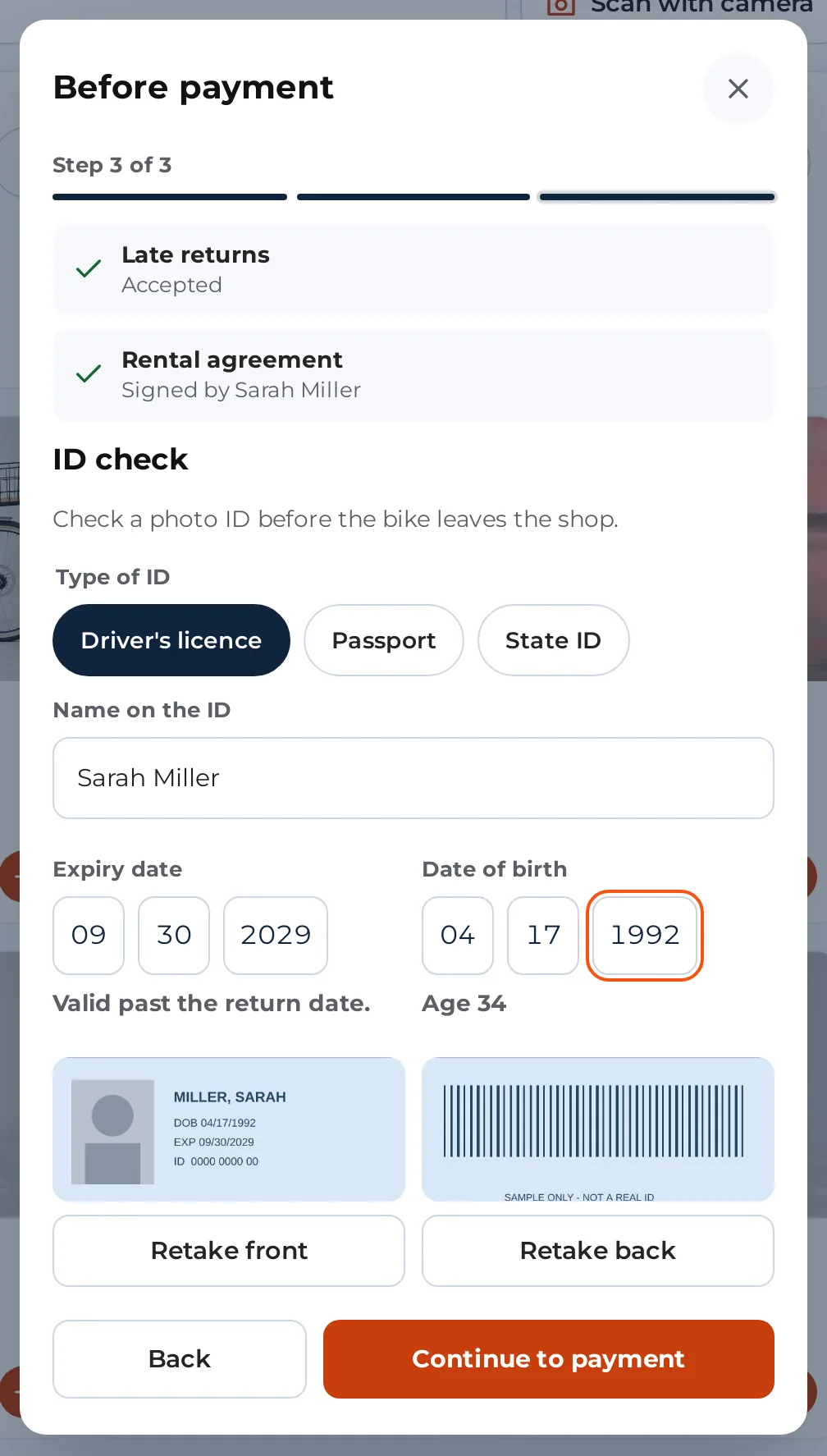
- Contracts with PDF Rental Contract Signing: signed before payment, or later on the same tablet with staff as witness
- ID checks with Custom Fields: the Counter warns when the ID runs out before the return date
- Questions, damage waivers and late-fee consent from your add-ons (questions that ask for a file stay on the website)
- Subscriptions: the customer agrees to the renewals before paying
Take the money the way the customer wants to pay
The payment screen lists every way to pay your store has, and you can use several one after the other: half in cash, the rest by card.
Card reader. The Counter sends the amount to a Stripe smart reader (WisePOS E, S700, S710) from your server, through your WooCommerce Stripe plugin. The customer taps, inserts or swipes; the reader handles the card, so card details never reach WordPress. In test mode a simulated reader lets you practise with Test: approve and Test: decline.
No reader? Charge the card on your own card machine and record it. Or show a QR code, so the customer pays on their phone. You can also open your store’s own payment page and type the card in, or hand the order to the WooCommerce app and its Tap to Pay.
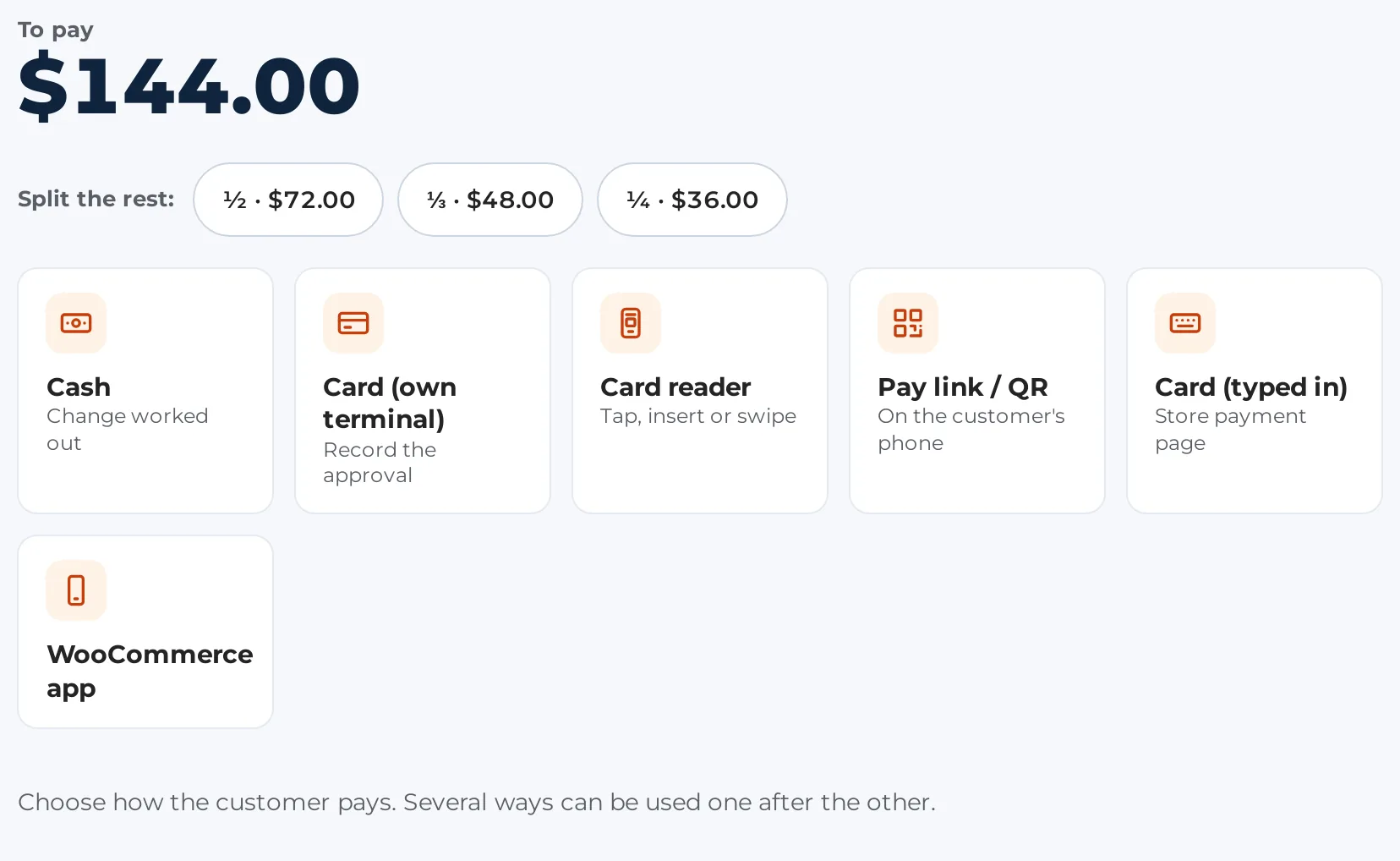
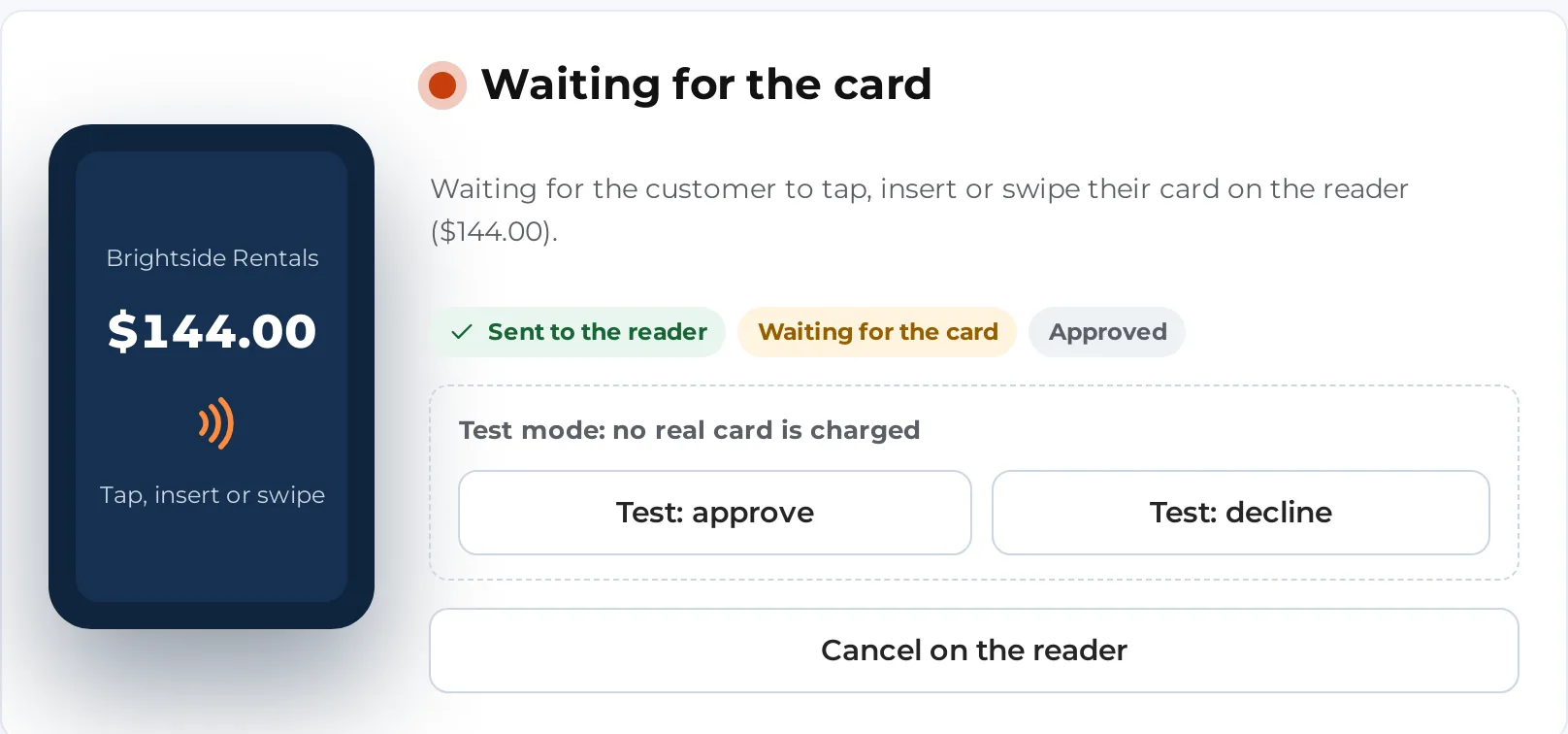
- Split the rest in halves, thirds or quarters, or take part now and the rest later
- A booking deposit now and the balance later, when your rental settings take deposits
- Pay later: the order waits in WooCommerce as pending payment
- A card paid on the reader can be kept for late fees or renewals, only when the customer agrees
Cash with the change worked out, and a receipt to match
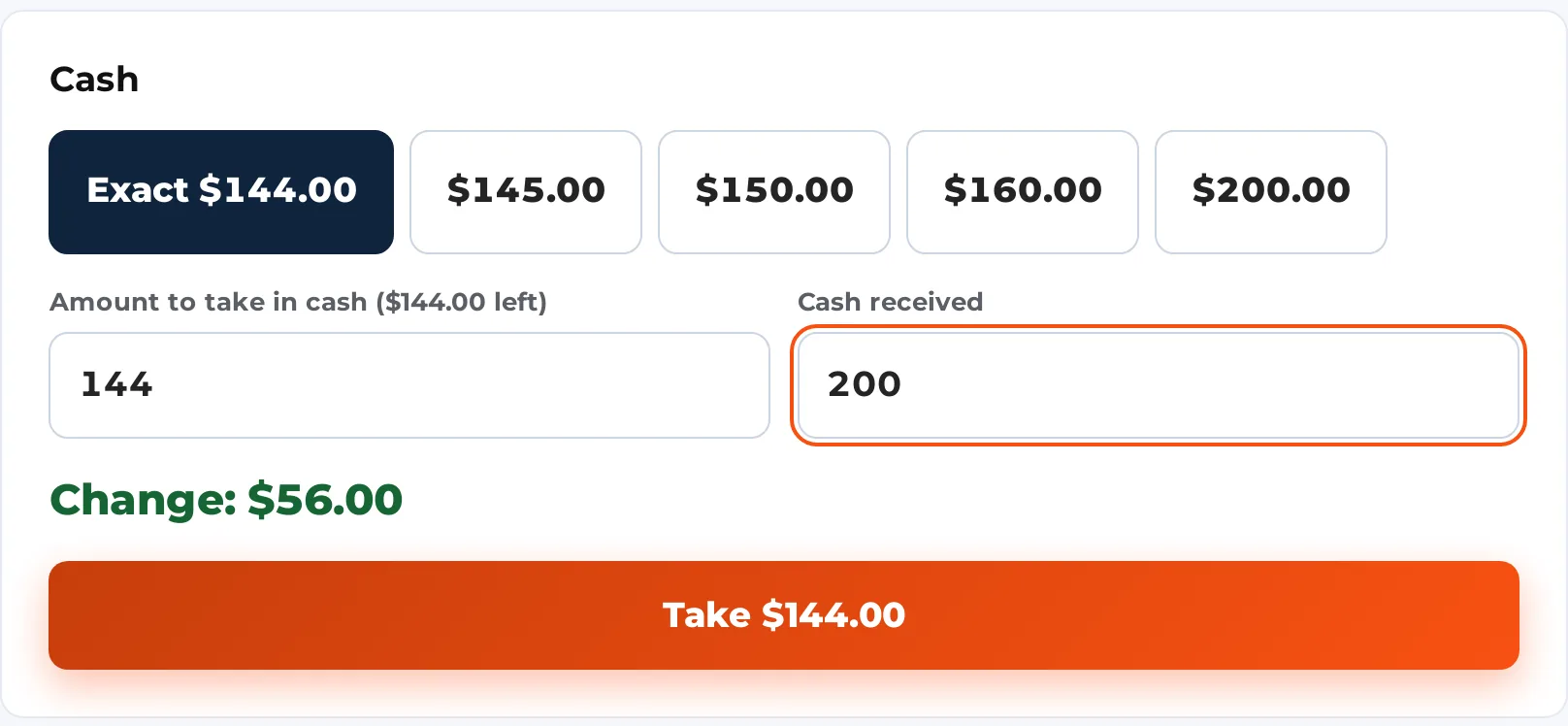
Tap Exact or a banknote, or type what the customer handed over. The Counter shows the change, rounds cash to your smallest coin if you set it, and opens the cash drawer when the register has one.
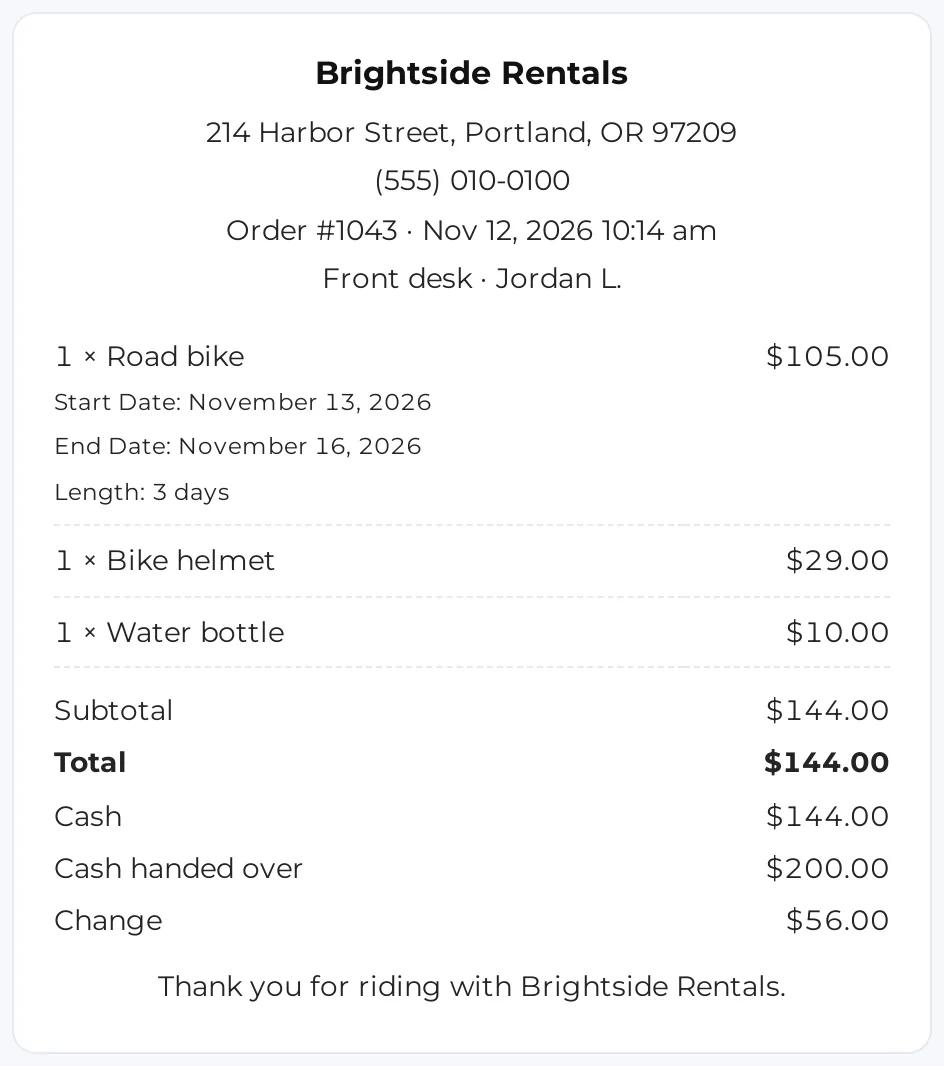
When the order is paid, print the receipt, email it, hand the rentals over or start the next sale. The receipt carries your store name and the register’s address and tax number. Then each line with its rental dates, discounts and tax, every payment with the cash handed over and the change, what’s still to pay, and your own text at the bottom.
Print through the browser to any printer the device can reach, on an 80 mm or 58 mm roll or an A4 or Letter page. Or print straight to an Epson (ePOS-Print) or Star (WebPRNT) receipt printer on your network, with no print dialog, a QR code of the order on the receipt, and the cash drawer kicked open.
Hand the units over, and take them back with a check
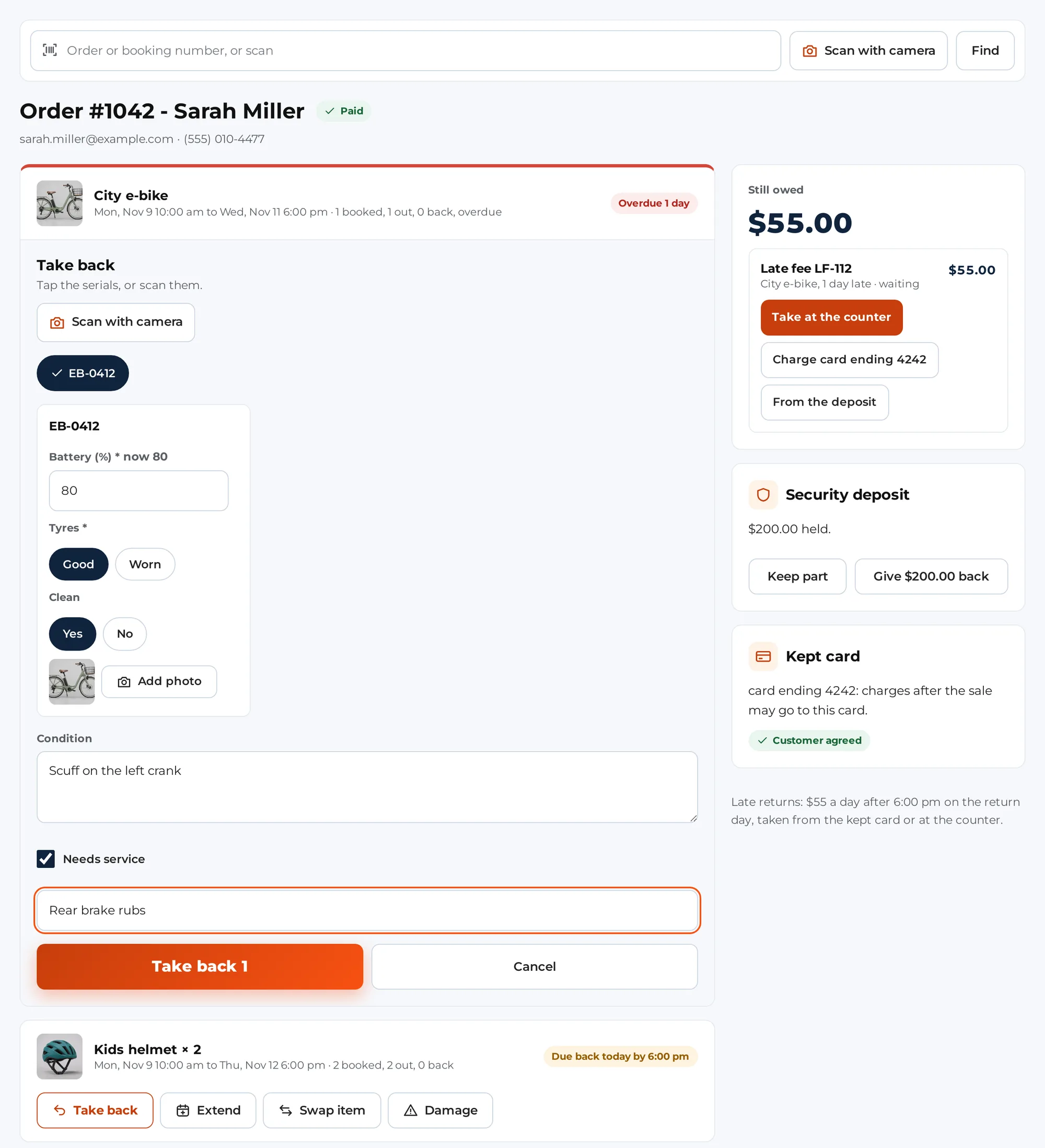
Find the order by its number, a booking number or a scan, and every rental on it is listed with its dates and where it stands: “1 booked, 0 out, 0 back”, due back today, or overdue.
Hand over: tap the serial numbers going out, or scan their labels; for items without serials, set the number. Mark a pick-up as ready the evening before, so the morning shift sees what’s been packed.
Take back: tap or scan the serials coming back. For each one, fill in the checks you set up for that item (a meter reading, Good or Worn, a yes or no) and take a photo with the device camera. With Maintenance & Inspections, tick Needs service and say what’s wrong. If it’s late, the late fee is worked out and shown on the spot.
- Hand-over and return by serial number or by count, with notes
- Meter readings, condition choices and photos for each unit
- No connection in the yard? The scan is saved on the device and sent when the connection is back
- With Maintenance & Inspections, Needs service sends the unit to maintenance
Extensions, swaps, late fees, damage and deposits
Everything that happens after a rental goes out is on the same order screen, under the rental it belongs to.
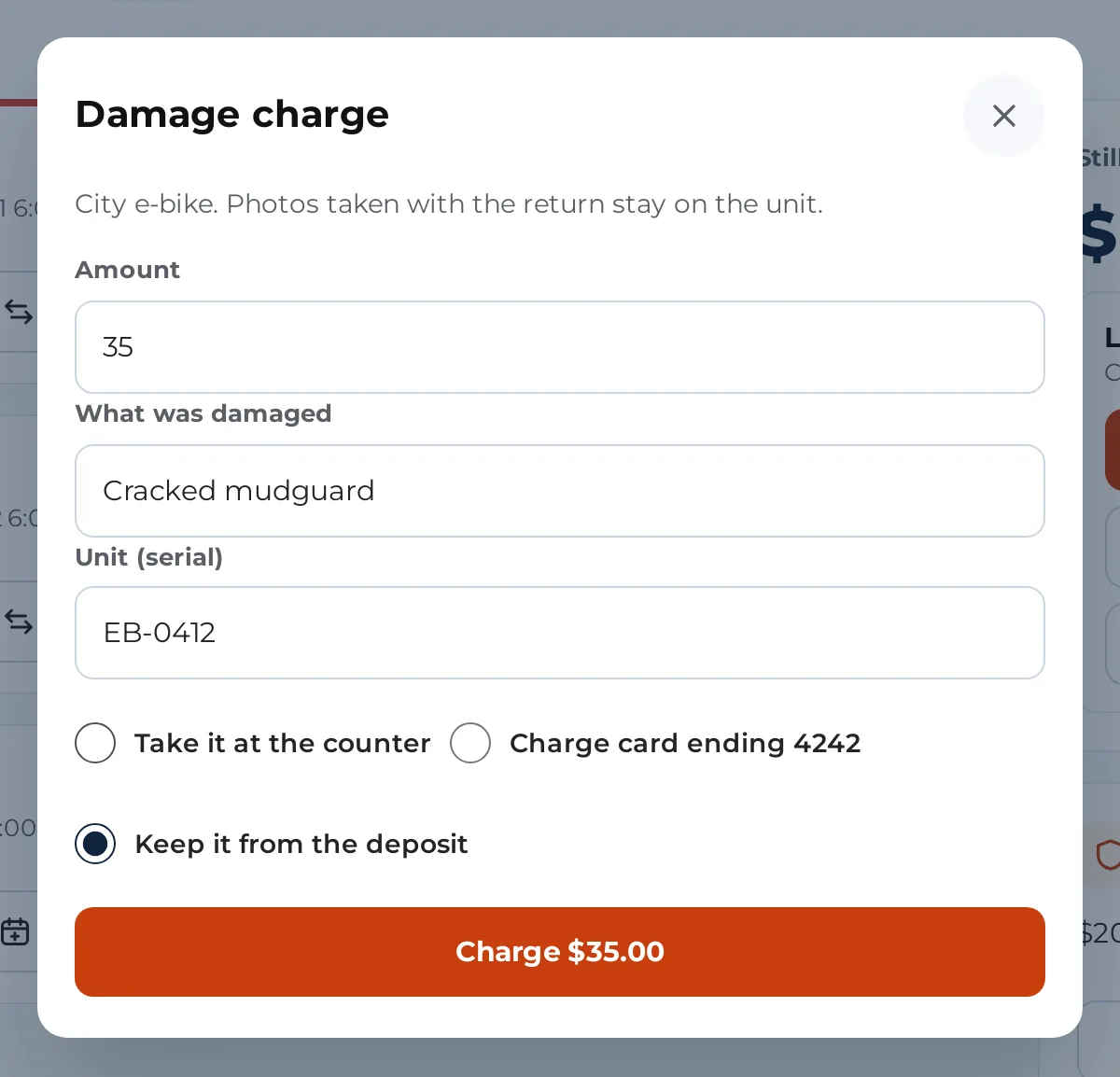
Extend: pick the new return date, see the price for the extra days, and take it at the counter or charge the card on file. Swap: change a faulty unit for another one, or change the item itself, and choose what happens to the price difference. Damage: type the amount and what was damaged, then take it at the counter, charge the kept card or keep it from the deposit.
The Still owed panel lists what the order owes (a balance, an extension, a late fee) with a button to take each one. The security deposit shows what’s held; keep part of it with a reason, and give the rest back to the card, in cash from the drawer or another way.
- A damage charge is its own order, linked to the rental
- With Maintenance & Inspections, each damage charge is recorded there too
- Late fees from your Rentals & Bookings policy: take at the counter, charge the card, or take from the deposit
- A card is only charged after the sale when the customer agreed to it
Take sold items back and refund them the way they were paid
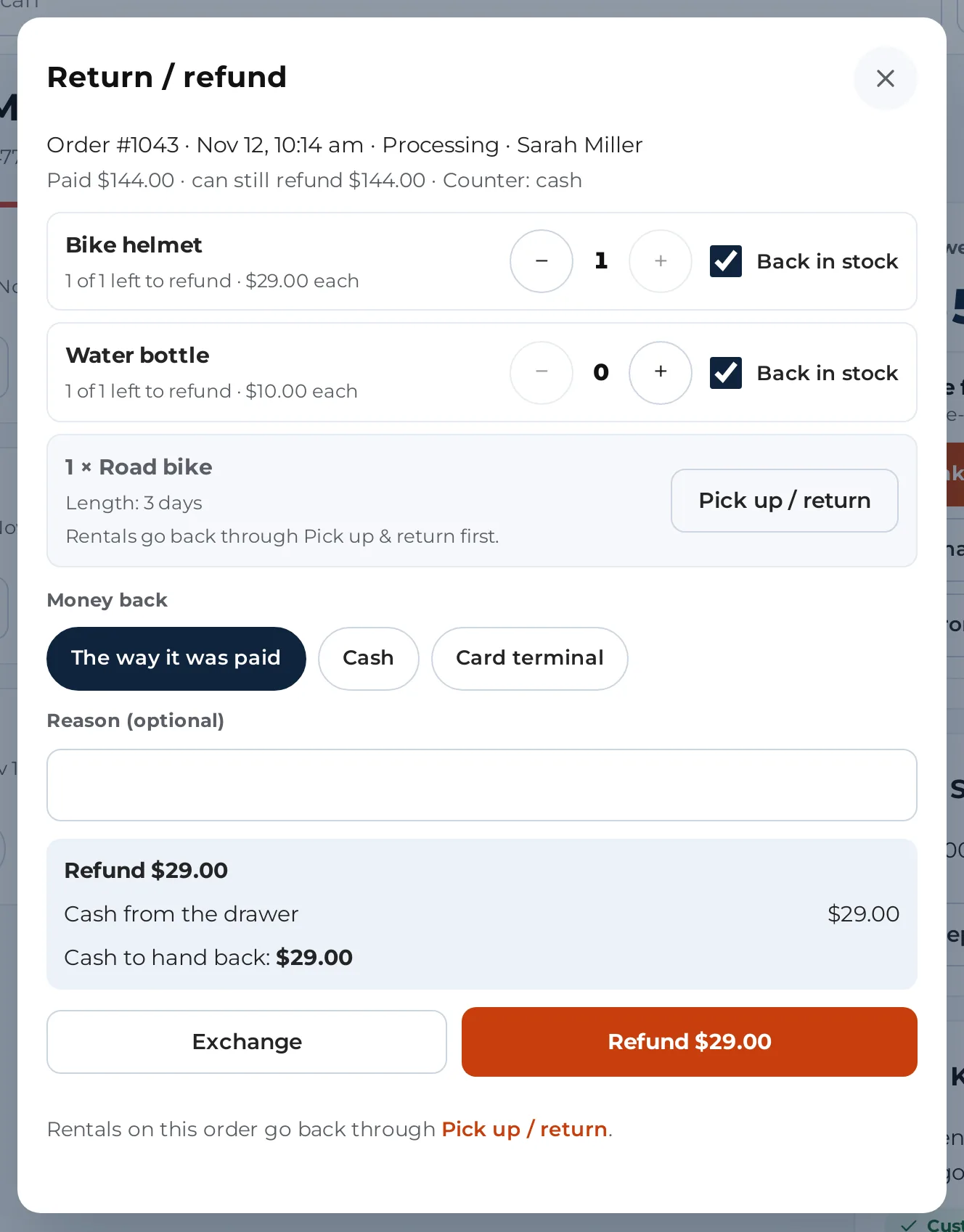
Type the order number, or scan the QR code on a receipt from a receipt printer. Choose how many of each item come back, and tick Back in stock for what goes back on the shelf.
Pick how the money goes back: the way it was paid (the Counter splits it for you), cash from the drawer, your own card terminal, or back to the card. Check refund shows the exact plan before anything moves; then print the refund slip.
An exchange turns the returned items into credit on a new sale: add the new items, and the customer pays the difference or gets it back.
- Rentals come back through Pick up and return, with late fees and the deposit, never as a refund by mistake
- Money goes back to each way it was paid, never more than that way took; a manager can give cash when the card is lost
- A refund is safe to retry: it never pays out twice
- Every refund needs the refund permission
Discounts with a reason, and sales put aside
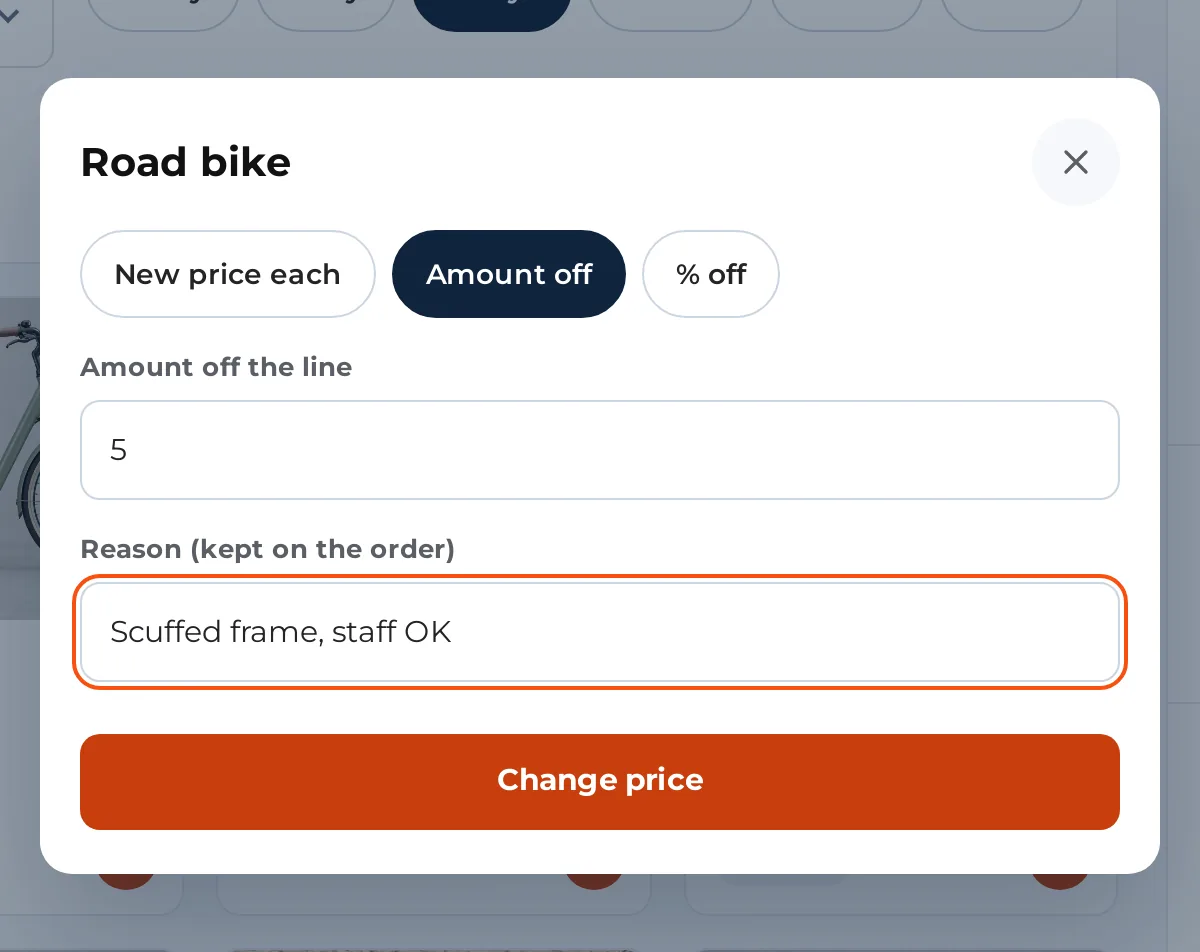
Staff who may change prices can set a new price on a line, take an amount or a percentage off, or discount the whole sale. A reason is required every time, and it goes on the order line and in an order note with who did it. Coupons work as they do online.
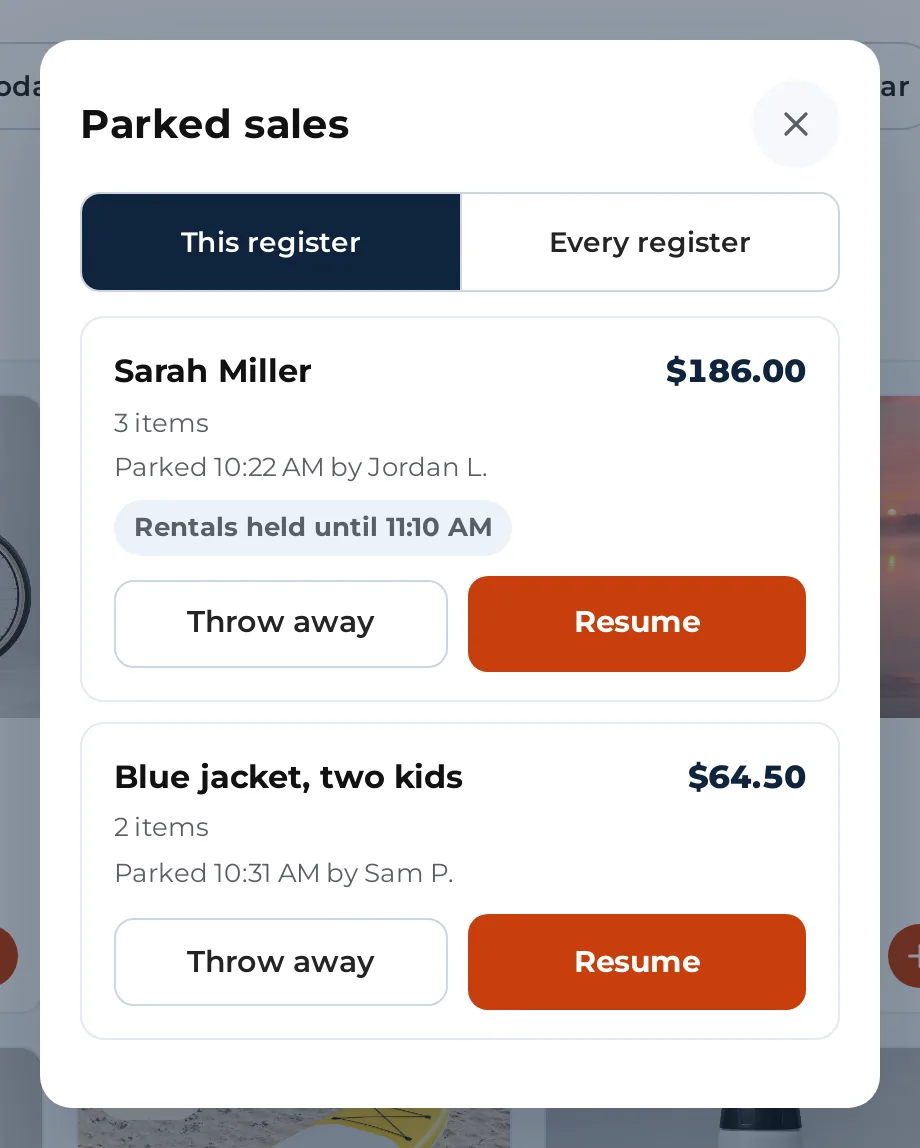
Customer gone to fetch their partner? Park the sale under a name you’ll recognise (“Blue jacket, two kids”) and serve the next person. The rentals on a parked sale stay held (for an hour unless you change it), and come back with the sale when you resume it.
Open with a float, close with a count
Each register opens a shift with the cash already in the drawer. Paid in, paid out, cash drops to the safe and a no-sale open are recorded with the time and who did it, and nothing can be edited afterwards.
The Shift sheet shows the cash expected in the drawer at any moment. At closing, type what you counted: the Counter shows the difference, short or over, gives the closure a number and freezes it.
The day report adds it all up for one register or every register: takings by each way to pay, refunds, the cash drawer, the counter orders and what’s still owed. With Rentals & Bookings Regular it also counts the units out, going out today, due back today and overdue. Print it, or download it as a CSV.
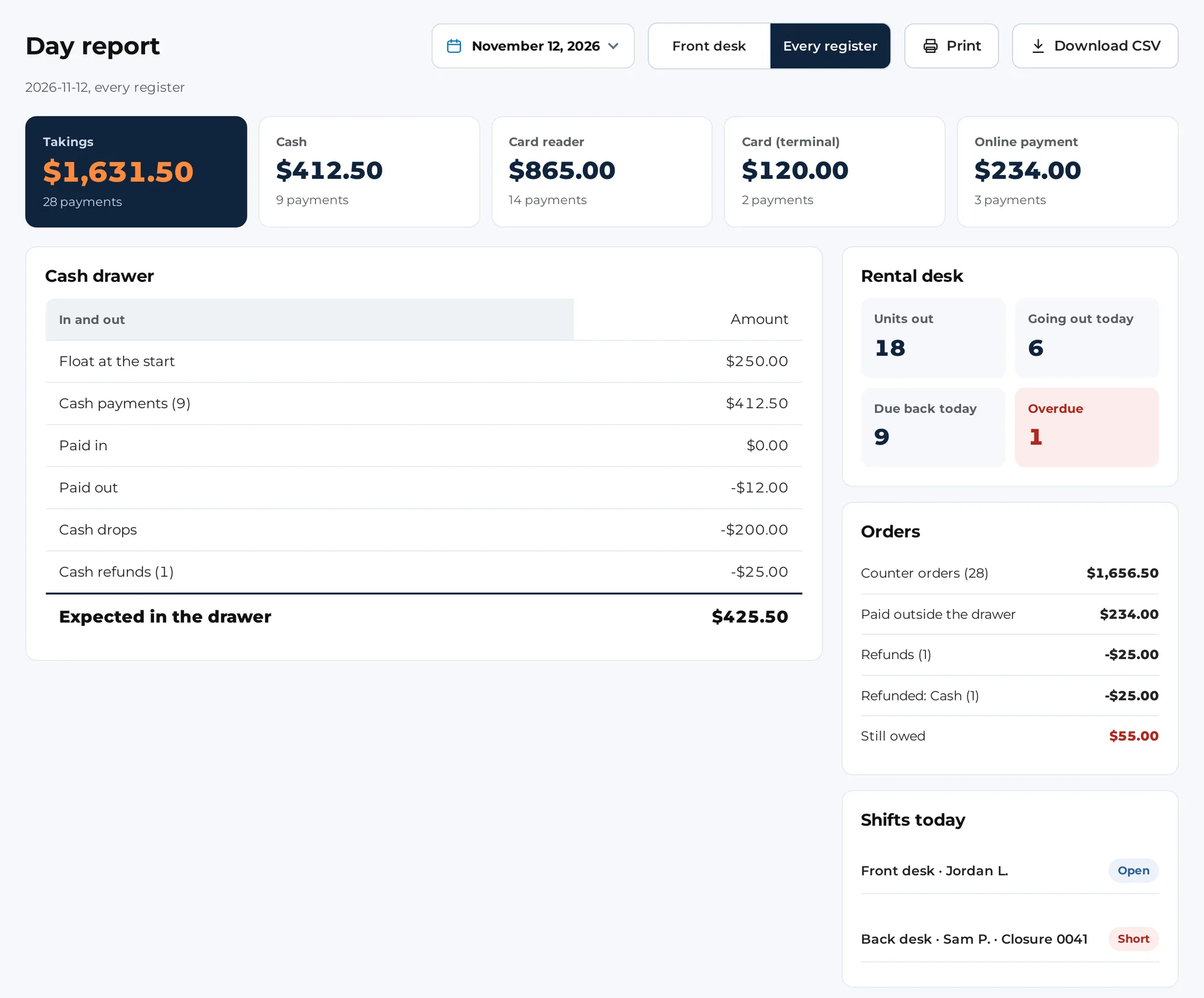
- A closed shift is frozen: no edits, no payments, no cash moves
- Card, pay-link and app payments never count as drawer cash
- A manager can close any shift; staff close their own
- Download the same report as a CSV from WooCommerce > Counter
A screen on the wall for what to get ready
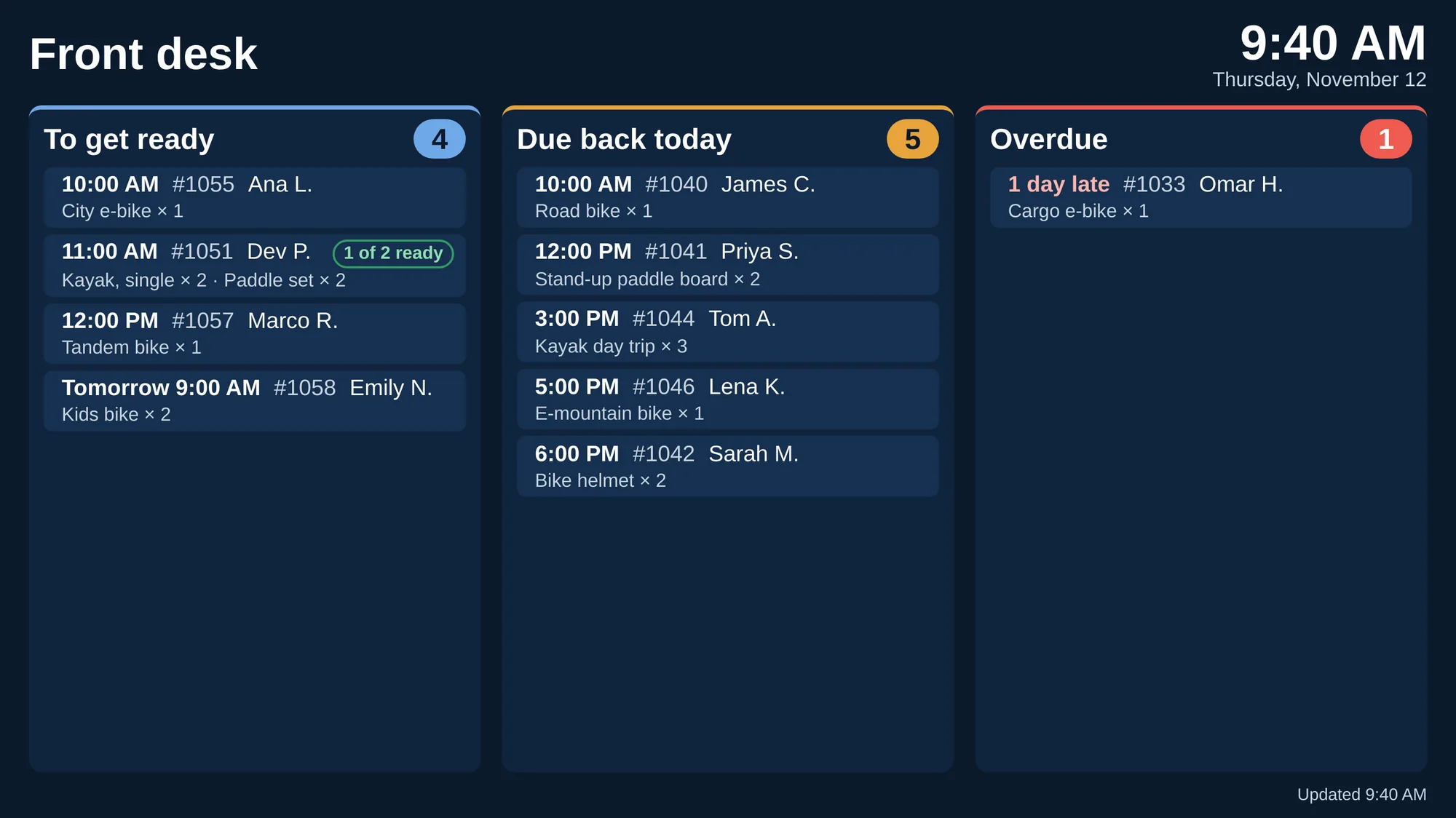
Pair a TV, a tablet or a spare computer as the pick-up and returns board. It shows three columns for the register’s location: what to get ready for pick-up (today and tomorrow morning), what’s due back today, and what’s overdue, with the time, the order number and the item.
The board needs no sign-in and can’t change anything. It shows first names and last initials only, refreshes every 30 seconds, and says so when it can’t reach the store. Staff mark a pick-up as ready from the Counter, and the board shows the tick.
- Pair it with a link or a QR code from the Counter; stop every board in one tap
- The link works for 30 days, then you pair it again
- Needs Rentals & Bookings Regular
Let the customer watch the sale add up
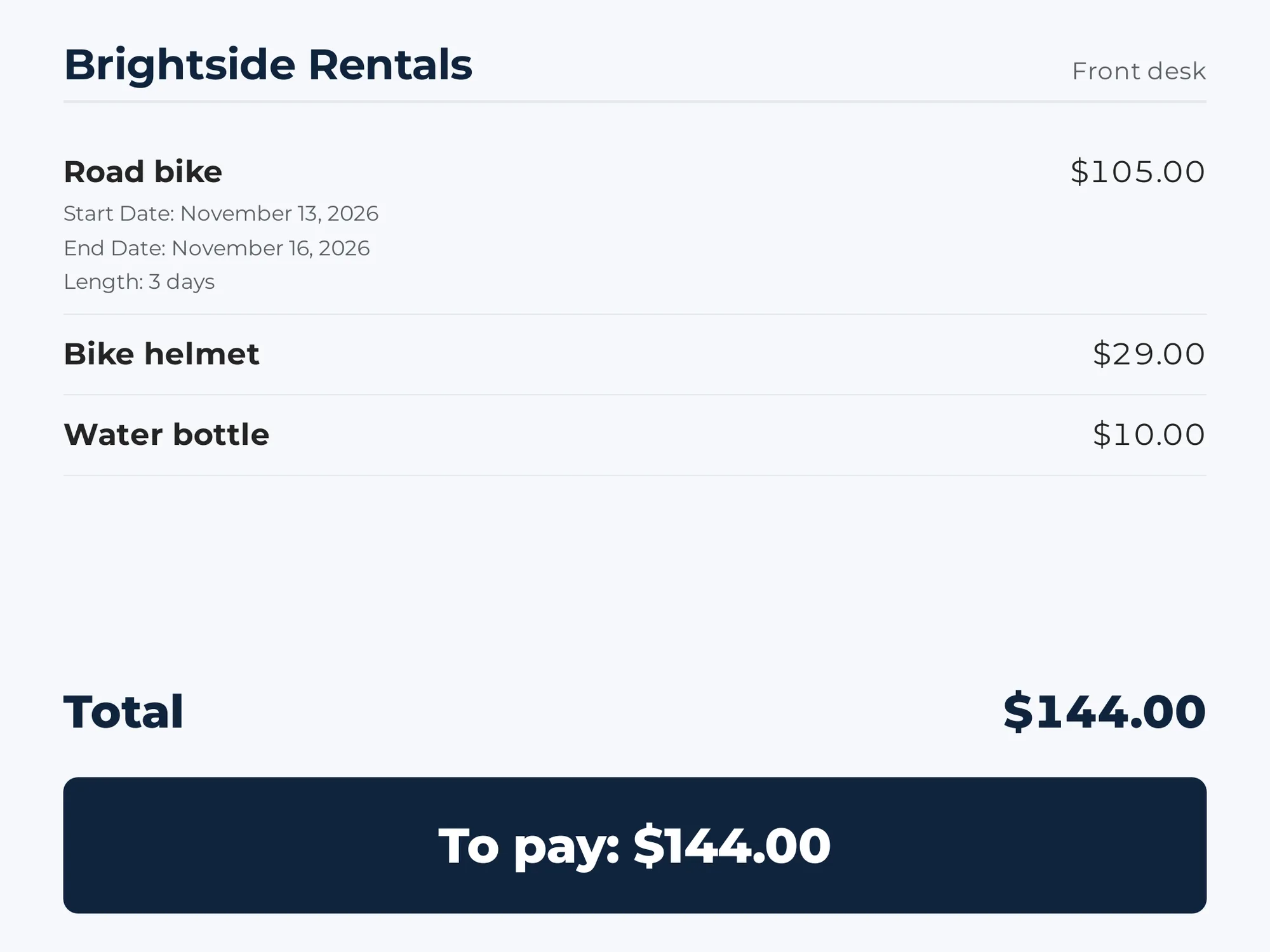
Turn a second monitor, or a tablet or phone facing the customer, into a customer screen. It shows the lines with their rental dates and options, the total and what’s left to pay, then “Paid, thank you” with the change.
It never shows the customer’s name or contact details. A paired device needs no sign-in and its link lasts 12 hours. A Stripe S700 or WisePOS E reader can show the cart on its own screen, too.
- Open on a second monitor from the Shift sheet, or pair a device with a QR code
- Stop every customer screen of a register in one tap
Counter staff use the counter, and nothing else
Rental Counter adds a Counter staff role that opens the Counter and nothing else: no orders, products, settings or reports in wp-admin, only their own profile. Shop managers and administrators can already do everything.
Five permissions keep each person to their job: use the counter, refund, change prices, use the cash drawer and the day report, and manage the registers and settings. Counter staff can use the counter; shop managers have all five. To give a senior cashier refunds and price changes, add those permissions to a role with a role editor plugin (WordPress has no screen for it on its own).
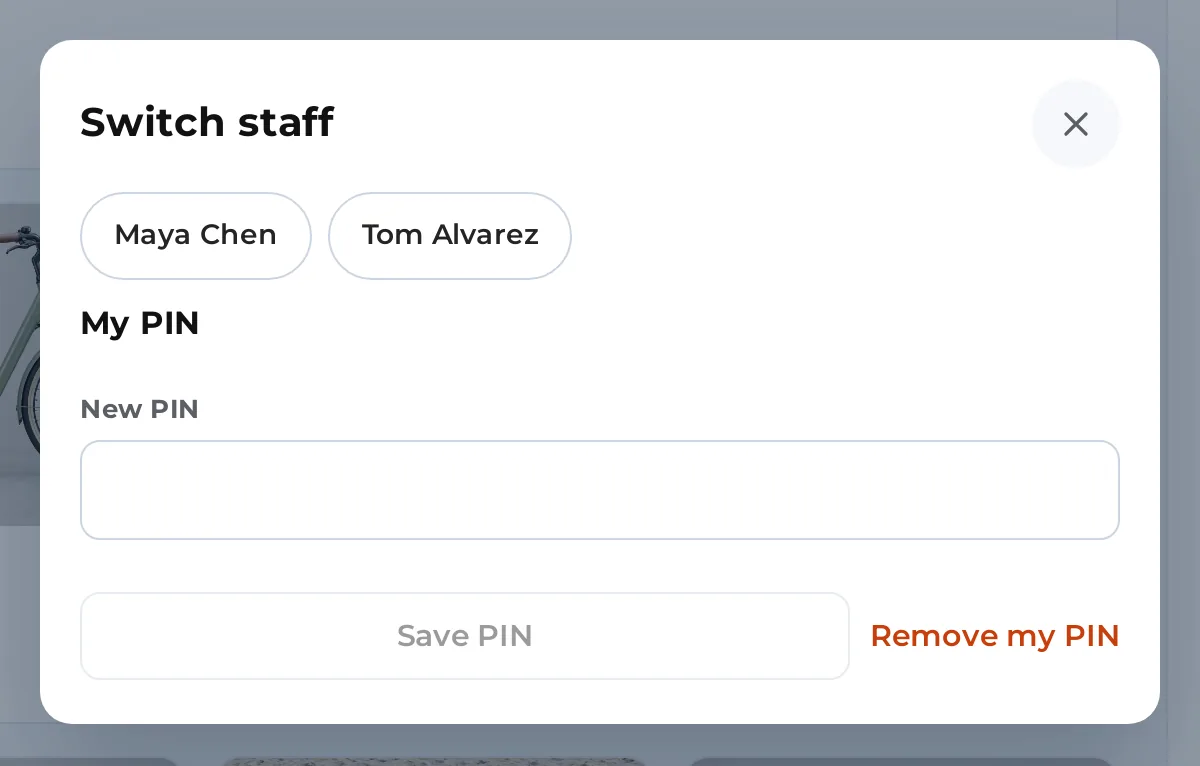
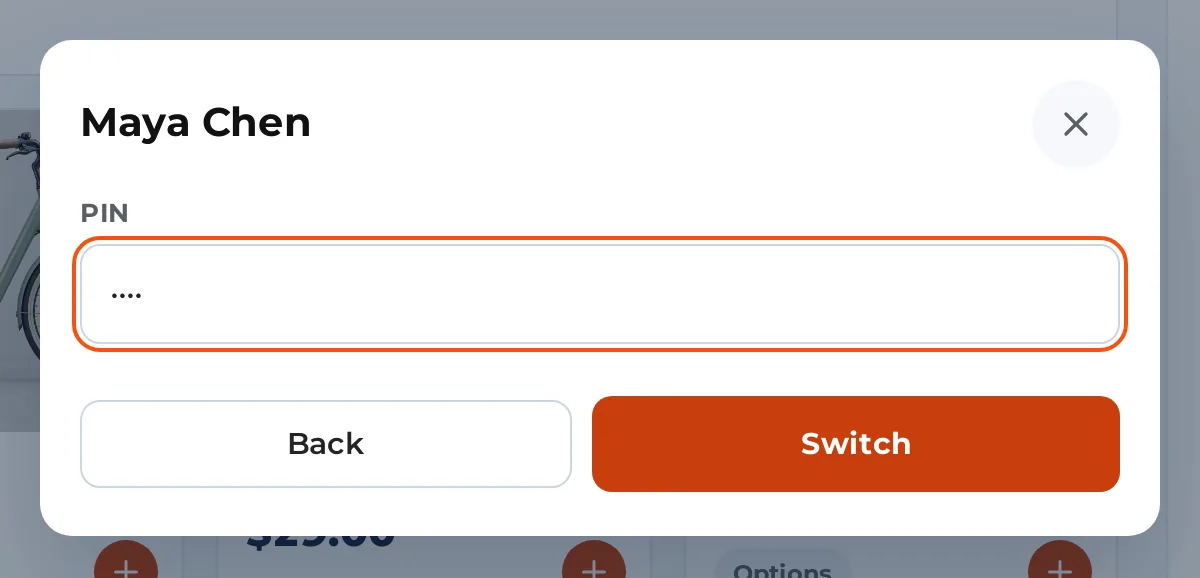
On a shared tablet, staff switch to a colleague with the colleague’s PIN instead of a password. A PIN opens the Counter only, never wp-admin.
- Every price change, refund, cash move and payment is saved with the person and the register
- PIN switching is off until you turn it on; administrators can’t have a PIN
- Too many wrong PINs lock it for 15 minutes
The same counter in your pocket
On a phone, the Counter has tabs at the bottom: Products, Sale and, with Rentals & Bookings Regular, Pick up & return. The sheets are the same as on a tablet. Take it into the yard to hand units over and check them back in, or to sell from a pop-up stand.
On a tablet in landscape, the products and the sale sit side by side. On a laptop or a desktop, the screen just has more room.
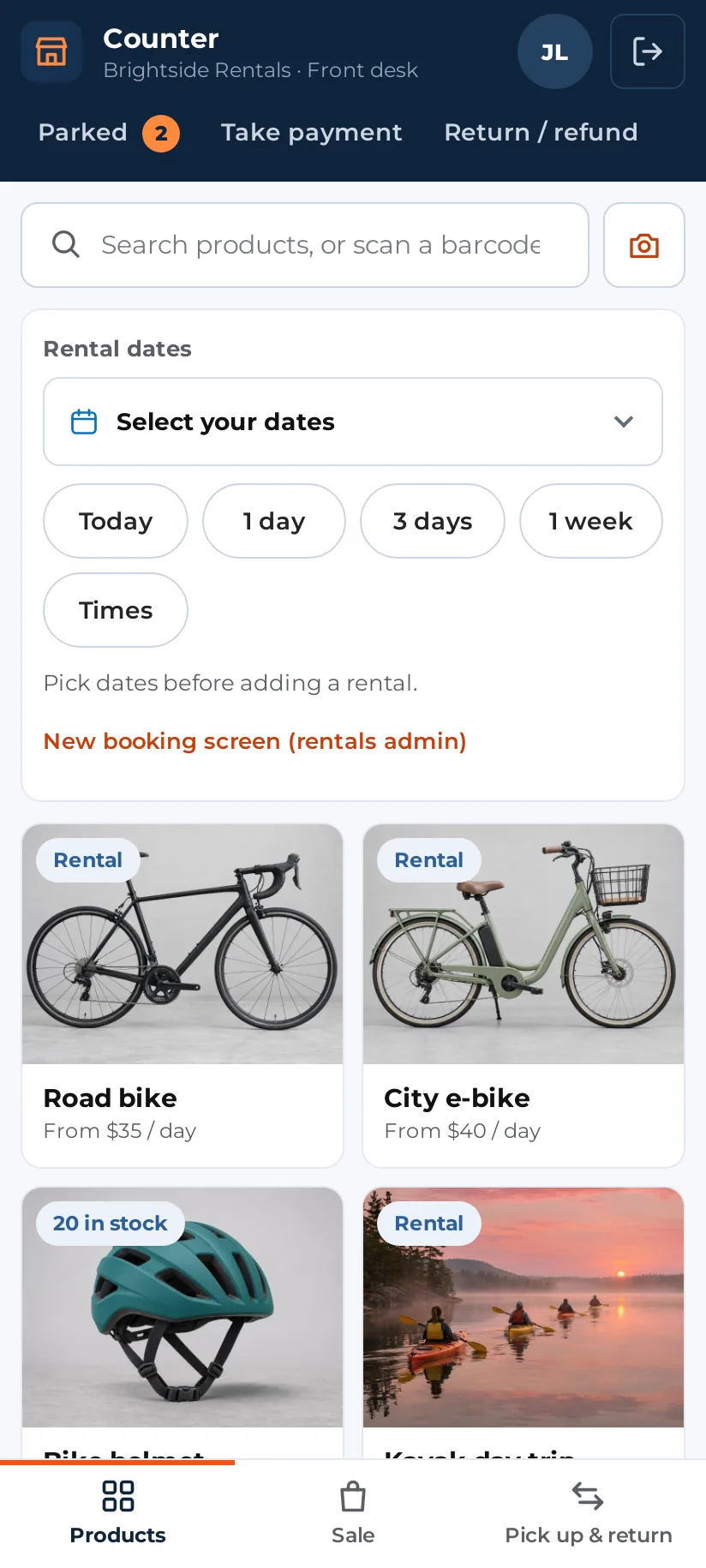
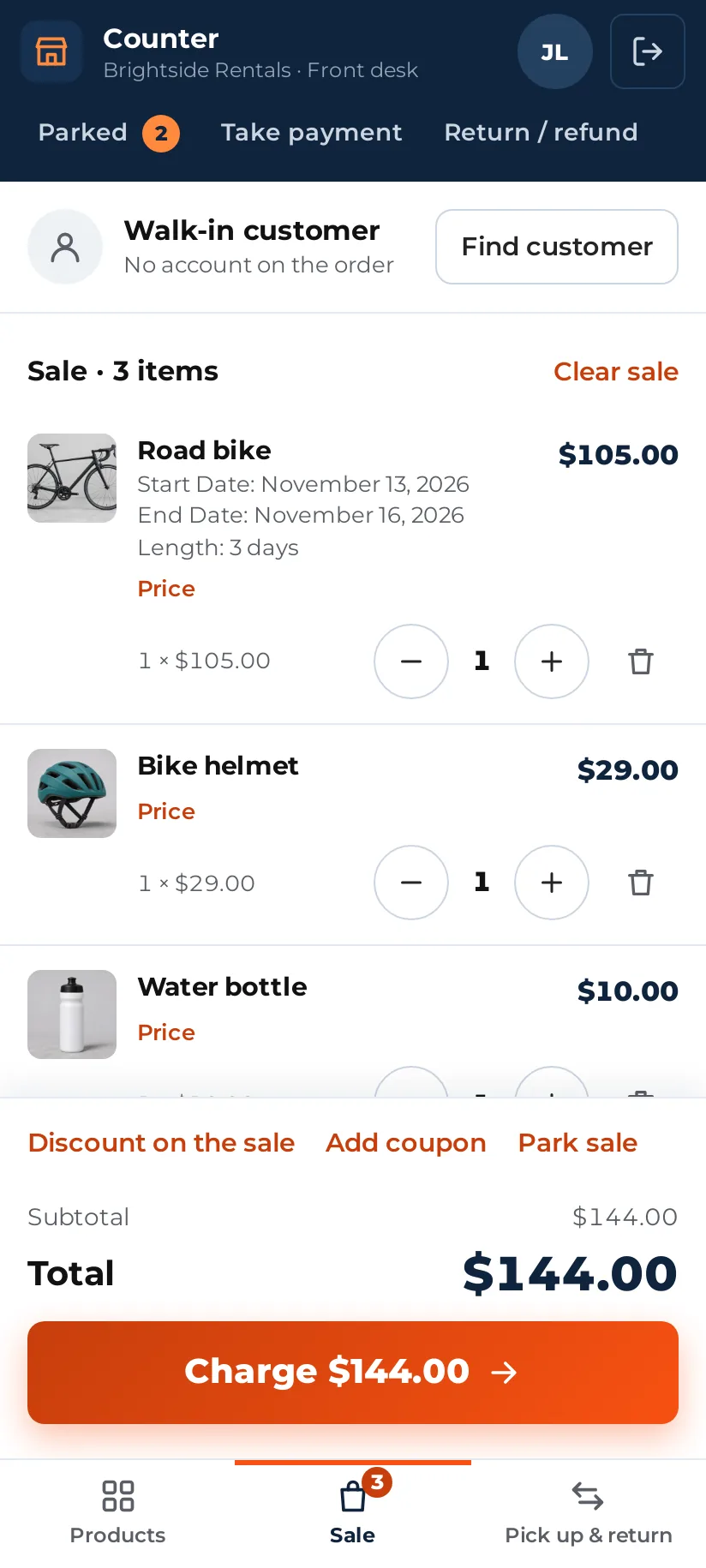
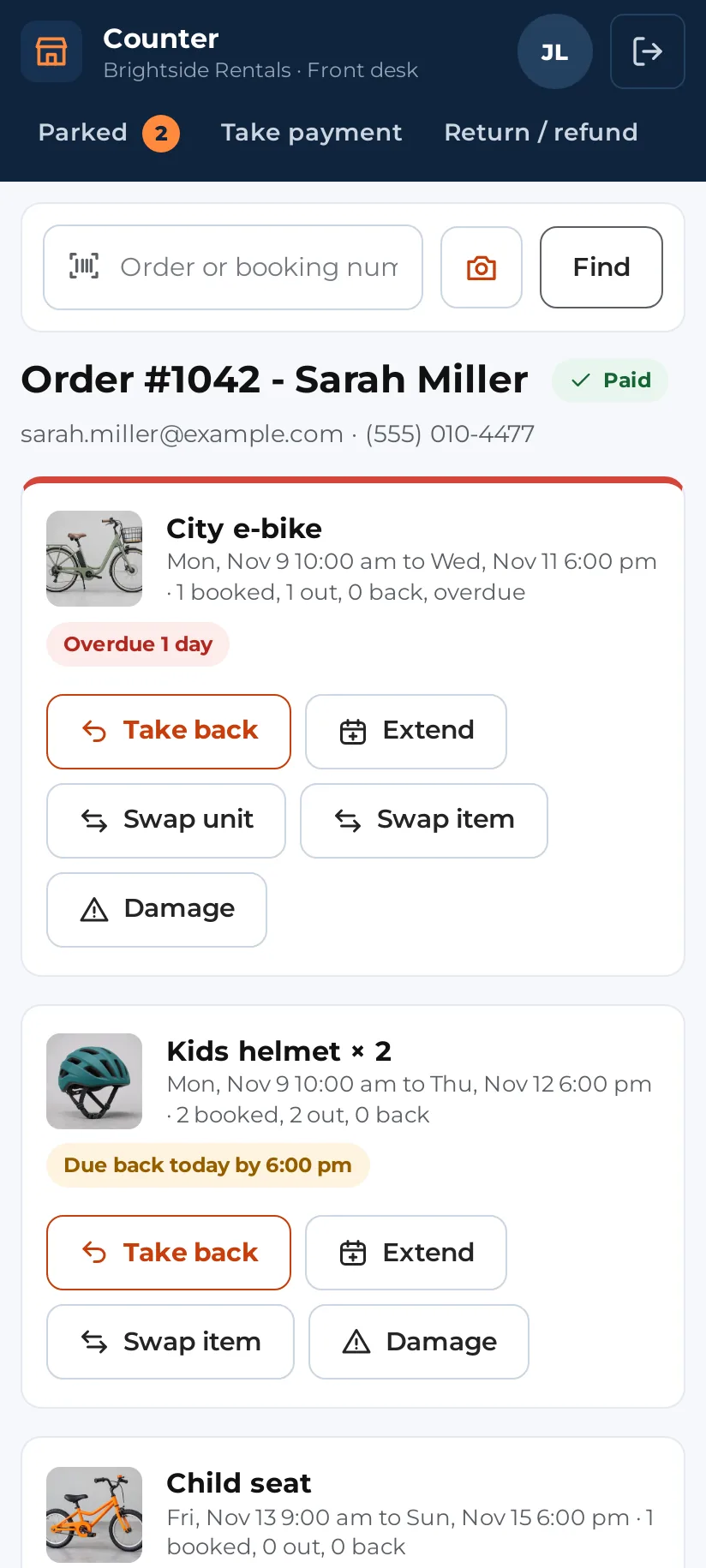
- Any browser: iPad, Android tablets, phones, Windows and Mac
- Touch targets sized for a thumb
- Works with a Bluetooth barcode scanner on a tablet
One register per desk, van or location
A register is one counter desk: the front desk, the rental desk, the van. Each has its own shift and cash drawer, and its own address and tax number for receipts and tax, its own Stripe reader, and its own receipt printer.
With Multi Location Inventory, each register belongs to a location: its sales take stock from that location, tax is worked out at its address, the receipt shows it, and staff tied to a location only see its registers.
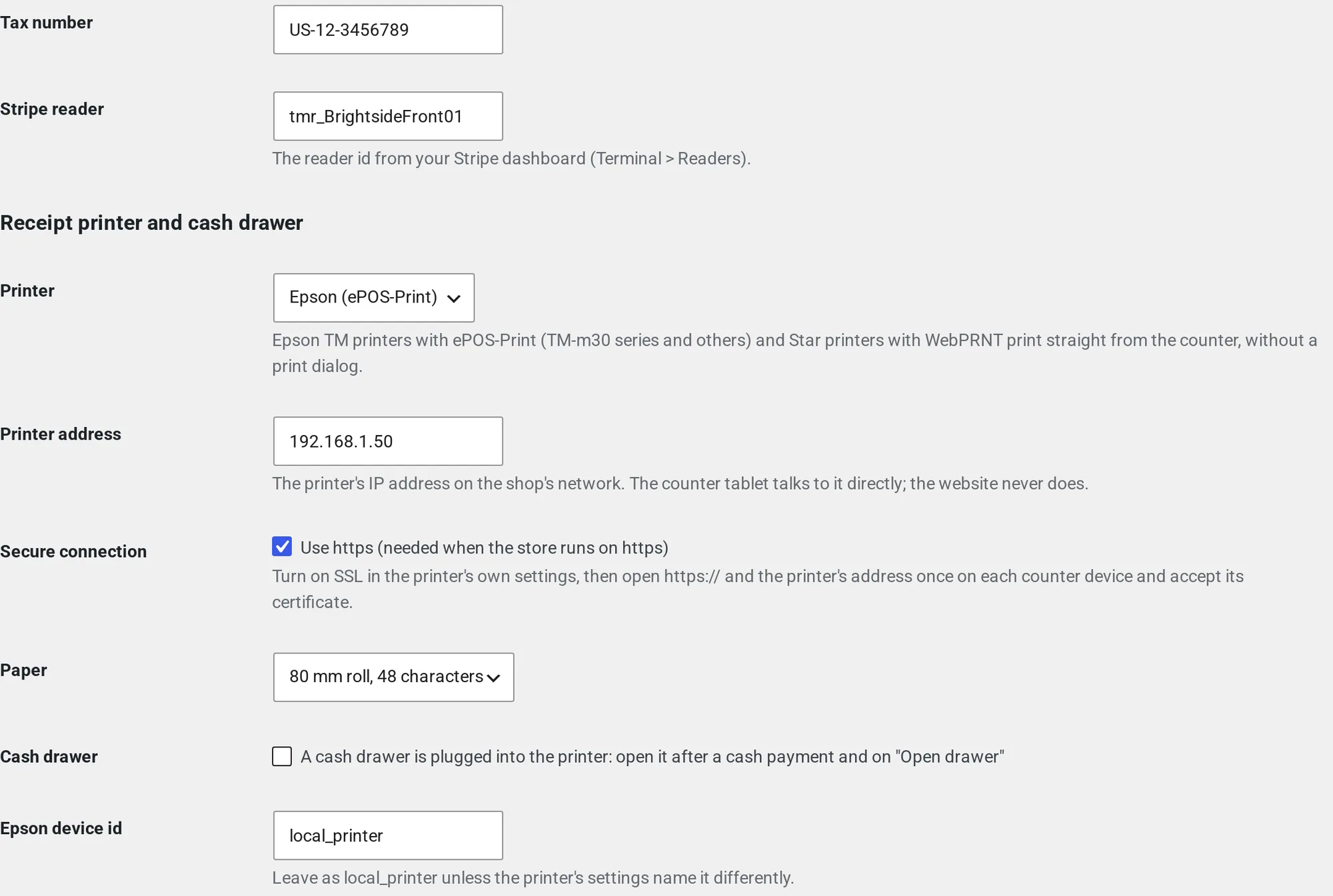
- Settings live in WooCommerce > Counter: receipt text and paper, cash rounding, how long rentals stay held
- Change any word customers see (receipts, refund slips, the customer screen) on the Text screen
- Translation-ready: every word goes through WordPress translations
Works on any WooCommerce store, and does more with ours
Rental Counter sells on any WooCommerce store. Each of our plugins you run switches on more at the counter, and a job your store can’t do simply has no button.
| On your store | What the Counter does |
|---|---|
| WooCommerce on its own | Sells the standard product types with cash, card and every way to pay above; receipts, refunds and exchanges, parked sales, discounts, shifts, the day report, the customer screen and staff roles. |
| Rentals & Bookings Lite (free) | Rentals by date: the date bar and calendar, free counts and prices for the dates, units held on the sale, and the New booking screen for anything the sale can’t take. |
| Rentals & Bookings Regular | Hand-over and return by serial with checks and photos, late fees, extensions, swaps, booking deposits and balances, card-on-file charges, camera scanning, the pick-up and returns board, and the rental desk in the day report. |
| Refundable Security Deposits | The deposit on the order, kept in part or given back when the rental comes in. |
| PDF Rental Contract Signing | The contract signed on the tablet before payment, or after payment when you allow it. |
| Custom Fields, Damage Waiver, ID Verification | Your questions, the damage waiver and the ID check with photos, on the Before payment sheet. |
| Subscriptions & Memberships | Subscribe at the counter; renewals go on the card kept from the reader, when the customer agrees. |
| Bundles & Composites | Kits and bundles with their choices, rental kits too. WooCommerce Product Bundles and Composite Products work as well. |
| Maintenance & Inspections | Needs service at the return, and every damage charge recorded with the unit. |
| Multi Location Inventory | A register per location, with its stock, tax address, receipts and staff. |
Every way to pay, and what each one needs
Card data never touches WordPress or the Counter: the reader, the payment provider or your own terminal handles the card.
| Way to pay | How it works | What it needs |
|---|---|---|
| Cash | Exact, a banknote or the amount handed over; change shown, cash rounding, the drawer opens. | An open shift on the register |
| Card reader | The Counter sends the amount to a Stripe smart reader from your server; the customer taps, inserts or swipes. | The WooCommerce Stripe Gateway plugin, a WisePOS E, S700 or S710 reader, and a Stripe account in a country where Stripe Terminal works |
| Card on your own terminal | Charge it on your bank’s machine, then record the amount and the slip number. | Nothing |
| Pay link / QR | A QR code of your store’s payment page for the order; the screen moves on when it’s paid. | Any online payment method on your store |
| Card typed in | Your store’s own payment page opens on the device for the card to be typed in. Online card fees apply, and the bank may ask the customer to approve. | A card payment method on your store (bank transfer and cash on delivery aren’t offered here) |
| WooCommerce app | The order goes to the WooCommerce app on a phone: tap Collect payment, with Tap to Pay or a paired reader. | The WooCommerce app and an in-person payment provider it supports |
What it works with, and what we’ve tested
We name only what we’ve run. We haven’t run a physical printer, drawer or card reader yet, so tell us your model before you buy and we’ll check it.
| Hardware | How the Counter uses it | Tested so far |
|---|---|---|
| Barcode scanner | Any USB or Bluetooth scanner that types like a keyboard and sends Enter | Tested with simulated scans |
| Camera | The device’s camera, through the scanner of Rentals & Bookings Regular; needs https | Tested in Chrome on phones and tablets |
| Receipt printer, browser | The browser’s print dialog: 80 mm, 58 mm, A4 or Letter | Any printer the device can print to |
| Receipt printer, direct | Epson ePOS-Print and Star WebPRNT over your shop network | Not on a real printer yet |
| Cash drawer | Opened by the receipt printer’s drawer port | Not on a real drawer yet |
| Card reader | Stripe smart readers, driven from your server | Stripe’s test reader only |
| Customer screen | A second monitor, or a paired tablet or phone | Tested in Chrome |
Checked hardware is added to the hardware page in the docs as we run it.
Who can do what at the counter
| Permission | What it allows | Who has it |
|---|---|---|
| Use the counter | Sell, take payments, park and resume, hand over and take back, extend and swap, look up customers, open and close their own shift. | Counter staff, shop managers, administrators |
| Refund | Returns and refunds, exchanges, giving back a deposit or a swap difference. | Shop managers, administrators; others through a role editor plugin |
| Change prices | A new price on a line, or a discount on the sale, always with a reason. | Shop managers, administrators; others through a role editor plugin |
| Cash drawer | Paid in, paid out, cash drops, opening the drawer, the day report and its CSV. | Shop managers, administrators; others through a role editor plugin |
| Manage | Settings and registers, closing any shift, every register’s parked sales. | Shop managers, administrators |
Rental Counter, a POS plugin, or a separate POS app
How the usual choices for a WooCommerce shop with a counter compare. The middle columns describe the common case, not one product.
| Most WooCommerce POS plugins | A separate POS app | Rental Counter | |
|---|---|---|---|
| Sells your WooCommerce products | Yes | From its own catalogue, synced or typed twice | Yes, the standard types, bundles and kits |
| Rentals by date with live availability | No | No | Yes, the same stock and prices as your website |
| Holds the unit during the sale | No | No | Yes |
| Hand-over and return by serial, with checks and photos | No | No | Yes, with Rentals & Bookings Regular |
| Late fees, extensions, swaps, damage, deposits | No | No | Yes |
| Contract, ID check and waiver before payment | No | No | Yes, with our add-ons |
| Card readers | Often, through an add-on | The app maker’s own readers | Stripe smart readers, plus pay link, typed card and the WooCommerce app |
| Shifts, cash drawer and day report | Often | Yes | Yes |
| Selling with no internet | Some can | Usually | No: prices and availability come live from your store |
| Where the orders end up | WooCommerce | The app, then synced | WooCommerce, as normal orders |
| Price | Free, a one-time licence, or a yearly or monthly plan | A monthly plan, often with its own card fees | $99 a year, or included in Ultimate |
Made for shops where people walk in to rent
Bike and e-bike hire
Rent the bikes, sell the helmets, locks and drinks, check the battery when they come back.
Kayaks, paddle boards and boats
Kits with paddles and life jackets, a waiver signed at the dock, the deposit back at the end of the day.
Ski and snowboard shops
Packages by the day, sizes for each person, wax and goggles on the same sale.
Tool and equipment hire
Serial numbers out and back, meter readings, damage charges and deposits.
Party and event rental pick-ups
Tables, chairs and tents collected at the counter, with balloons and plates sold alongside.
Cameras and AV
Kits with their parts, an ID check for high-value gear, and a careful return check.
Costumes and formal wear
Sizes and colours to pick, a damage waiver, and a damage charge when something comes back torn.
Baby gear and travel rentals
Strollers and car seats handed over at a desk, returned on the last day.
Any shop with a counter
No rentals at all? It’s a WooCommerce point of sale for your products, with cash, cards and shifts.
The full list
Selling
- Standard product types, bundles and kits in one sale
- Search, tap, keyboard scanner and camera scanning
- Variations, bundles, composites, grouped products
- Coupons, price changes and discounts with a reason
- Walk-in sales, customer search and quick create
- Parked sales, resumed later
- Customer history
Rentals
- Date bar and calendar with prices and free counts
- Units held the moment they go on the sale
- Days, nights, hours and fixed lengths
- Hand-over and return by serial or count
- Checks, meter readings and photos on return
- Extensions, swaps, late fees and damage
- Security deposits kept or given back
- Mark ready, and the pick-up board
Payments
- Cash with change and rounding
- Stripe smart readers from your server
- Card on your own terminal
- Pay link or QR, and the card typed in
- The WooCommerce app
- Split payments, part payments, pay later
- Booking deposits and balances
- A card kept on file, with consent
Paperwork
- Contracts signed on the tablet
- ID checks with photos
- Damage waivers and questions
- Late-fee and renewal consent
- Receipts printed or emailed
- Refund slips
Counter and back office
- Registers per desk, van or location
- Shifts with a float, counted close and closure numbers
- Paid in, paid out, cash drops
- Day report on screen, printed or as a CSV
- Epson and Star receipt printers and the cash drawer
- Customer screen, and the cart on the card reader
- Saved scans when the connection drops
Staff and setup
- Counter staff role and five permissions
- PIN switching on shared tablets
- Every action saved with the person and the register
- Change any word customers see
- Translation-ready
- Normal WooCommerce orders, with either order storage (HPOS or posts)
Questions about Rental Counter
Do I need a rental plugin to use it?
No. Without one, it’s a point of sale for your WooCommerce products: cash, cards, receipts, refunds, exchanges, shifts and the day report, and the rental parts simply don’t show. With Rentals & Bookings Lite (free) it also rents by date, and with Regular it does the hand-overs, returns, late fees and the rest.
What do I need to run it?
WordPress 6.6, WooCommerce 9.0 and PHP 8.1 or newer, and a browser on a tablet, phone or computer. For rentals, Rentals & Bookings Lite 1.0.26 or Regular 1.0.90 or newer: hand-over and return, the camera, extensions, swaps and late fees need Regular 1.0.90. The deposit panel needs Refundable Security Deposits 1.0.9, and damage records need Maintenance & Inspections 1.0.7. For card readers, the WooCommerce Stripe Gateway plugin and a Stripe smart reader.
How many registers, devices and staff can I use?
As many as you like. There’s no limit on registers, devices or staff accounts, and each register can show the sale on up to five customer screens.
Which card readers work?
Stripe smart readers (WisePOS E, S700 and S710), driven from your server through your WooCommerce Stripe plugin. We’ve tested the flow with Stripe’s simulated reader; no physical reader is on our tested list yet. For Tap to Pay on a phone, or a reader paired with the WooCommerce app, the Counter hands the order to the app.
Do I have to use Stripe?
No. Cash, your own card terminal, a pay link or QR code, and the card typed into your store’s payment page all work with the payment methods your store already has. Only the card reader route needs Stripe, through the WooCommerce Stripe Gateway plugin. On WooPayments, take cards in person through the WooCommerce app (Tap to Pay or its reader): the Counter hands the order to the app.
Do you take a cut of card payments?
No. The Counter adds nothing to any payment. You pay your payment provider’s own rates, for example Stripe’s in-person rates for the card reader, or your bank’s for your own terminal.
Does it work offline?
Selling needs a connection, because the price and what’s free come live from your store and two counters must never rent the same unit. Hand-overs and returns scanned without a connection are saved on the device and sent when it’s back.
Does the website see what the counter rents?
Yes, at once. The Counter books from the same stock as your website, and holds each unit from the moment it goes on the sale, so a shopper online can’t book it for the same dates.
Can counter staff get into wp-admin?
Only to their own profile. The Counter staff role opens the Counter and the profile page, nothing else: no orders, products or settings. A staff PIN signs in to the Counter only.
Can a cashier give refunds without being a shop manager?
Yes. Add the Refund permission to their role with a role editor plugin; WordPress has no screen for this on its own. Price changes and the cash drawer work the same way. Who can do what lists them.
Where are signatures and ID photos kept?
On your own site, with the order, by the add-on that asked for them, exactly as when a customer fills them in online: PDF Rental Contract Signing keeps the signature, its audit trail and the signed PDF, and Custom Fields keeps the ID details and photos. Rental Counter doesn’t send them anywhere else.
What happens to the orders?
Each sale is a normal WooCommerce order, marked as made at the counter, with the register and the staff member on it. Your emails, reports, invoices and accounting sync see it like any other order.
Can I print receipts without a dialog?
Yes, to Epson printers that speak ePOS-Print and Star printers that speak WebPRNT, on your shop network. Otherwise the receipt prints through the browser to any printer, on a roll or a page.
Does it scan with the camera?
Yes, when Rentals & Bookings Regular is on your store: the Counter uses its scanner. Without it, scan with a USB or Bluetooth scanner, or type the code.
Can I change the words on the receipt?
Yes. Add your own text under the receipt on the settings page, and change any word customers see on the Text screen, in each language your store uses.
Is it included in my plan?
It’s included in the Ultimate plan for WooCommerce. On Regular or Pro, or on a store without our rental plugin, buy it on its own for $99 a year.
What if my licence expires?
Nothing locks. The Counter keeps working with everything you set up; you stop getting updates and support until you renew.
Can I try it first?
Read the getting started guide to see every screen. Questions before you buy? Talk to sales.
Rental Counter & POS for WooCommerce
On its own for any WooCommerce store, or included in the Ultimate plan.
Rental Counter
Everything on this page.
- Your products and rentals by date, in one sale
- Cash, Stripe card readers, pay links and the WooCommerce app
- Hand-over, return, late fees, damage and deposits
- Shifts, the cash drawer and the day report
- Receipt printers, customer screen and pick-up board
- Counter staff role, permissions and PIN switching
Included in Ultimate
With Rentals & Bookings.
- Rental Counter comes with the Ultimate plan for WooCommerce
- Ultimate has everything in Pro: security deposits, contract signing, subscriptions, custom fields with ID checks, PDF invoices
- And adds Multi Location Inventory, Maintenance & Inspections, Request a Quote and more
- Already on Ultimate? Download it from your account
Before you buy
- WordPress 6.6, WooCommerce 9.0 and PHP 8.1 or newer
- For rentals: Rentals & Bookings Lite 1.0.26 (free) or Regular 1.0.90 or newer; Regular for hand-overs, returns, extensions, swaps, late fees and camera scanning
- For the deposit panel, Refundable Security Deposits 1.0.9; for damage records, Maintenance & Inspections 1.0.7
- For card readers: the WooCommerce Stripe Gateway plugin and a Stripe smart reader (WisePOS E, S700 or S710)
- A browser on each tablet, phone or computer you use as a counter, and your site on https for the camera
Read the guide before you buy
Set-up and every screen, step by step.
Open your counter on a tablet tomorrow
Rent by the date and sell everything else, from the same stock as your website.