
SI Live Chat & AI Chatbot puts a chat on your storefront and an inbox in your Shopify admin. An AI chatbot can answer first from your products, pages, policies and blog posts, show where its answer came from, and hand the chat to a person when it should. When a visitor leaves, your reply goes to them by email and their answer comes back into the same conversation.
The app works on any Shopify store. If you also use Rentals & Bookings, the chatbot can check live availability and rental prices and link to the booking page. Without it, those parts simply don’t appear.
Install the app #
- Open the app’s page on the Shopify App Store and click Install.
- Shopify lists what the app can see and change in your store. Click Install again.
- The app opens in your Shopify admin. Later you’ll find it under Apps in the left-hand menu.
The first time it opens, the app prepares your chat mailbox and publishes your chat settings to the storefront. If that fails, you see one short message with Try again and Open the inbox anyway. Nothing is lost: the next open tries again.
The setup checklist #
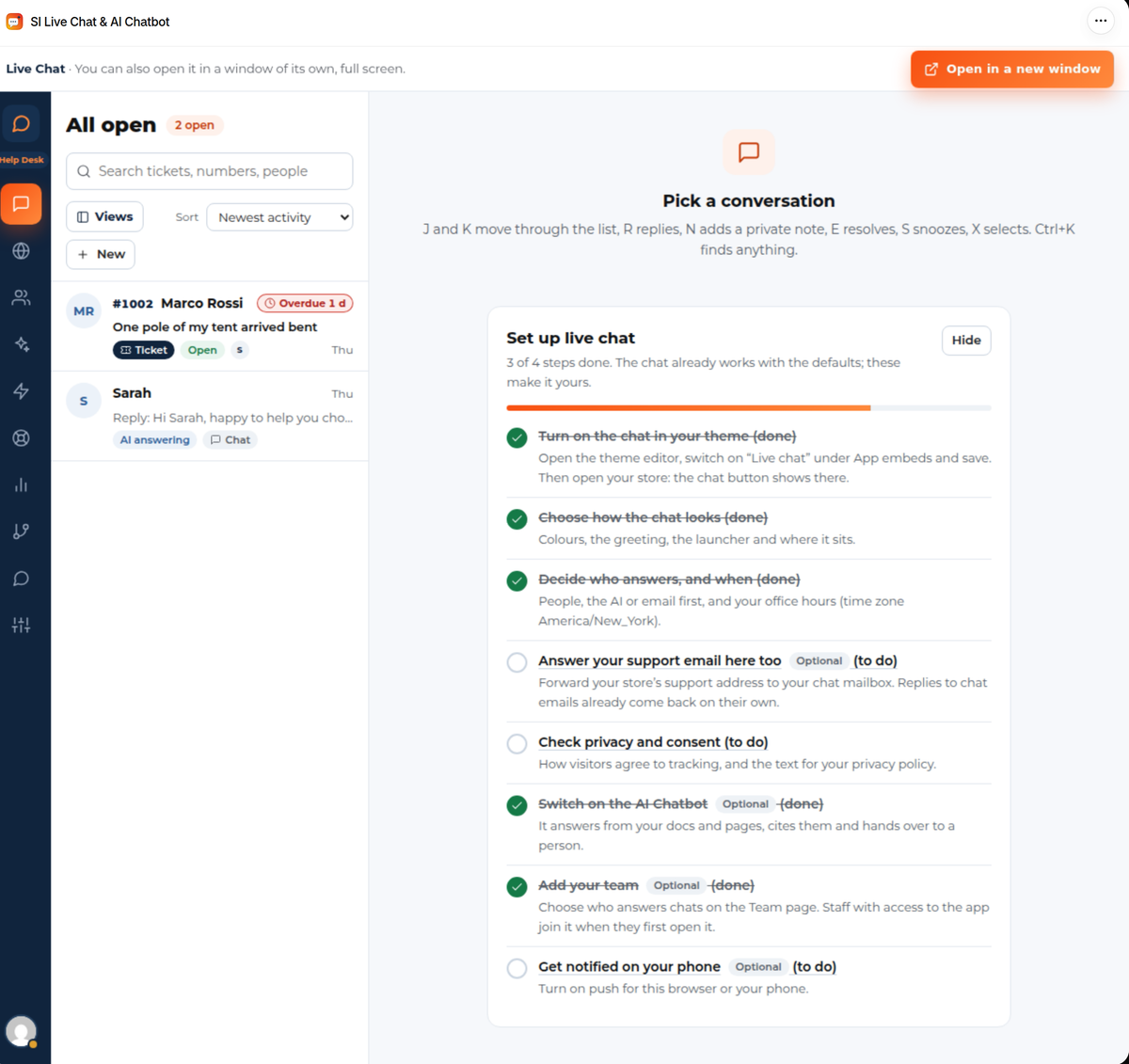
The inbox starts with a Set up live chat card. It counts the steps you have done and ticks each one off. The chat already works with the defaults; these steps make it yours.
| Step | What it is for |
|---|---|
| Turn on the chat in your theme | Adds the chat to your storefront. Required. See below. |
| Choose how the chat looks | Colors, greeting, launcher and position. See The chat on your store. |
| Decide who answers, and when | People first, the AI first or email, and your office hours. See Who answers, office hours and email. |
| Answer your support email here too | Optional. Forward your support address to your chat mailbox and those emails arrive in the inbox. |
| Check privacy and consent | How visitors agree to tracking, and the text for your privacy policy. See Privacy, consent and your data. |
| Switch on the AI Chatbot | Optional. See The AI chatbot. |
| Add your team | Optional. Staff who open the app join the team. See Who answers, office hours and email. |
Hide closes the card. It stays out of the way once you’ve finished.
Turn on the chat in your theme #
The chat is a theme app embed, so it works on any theme and you don’t edit theme code.
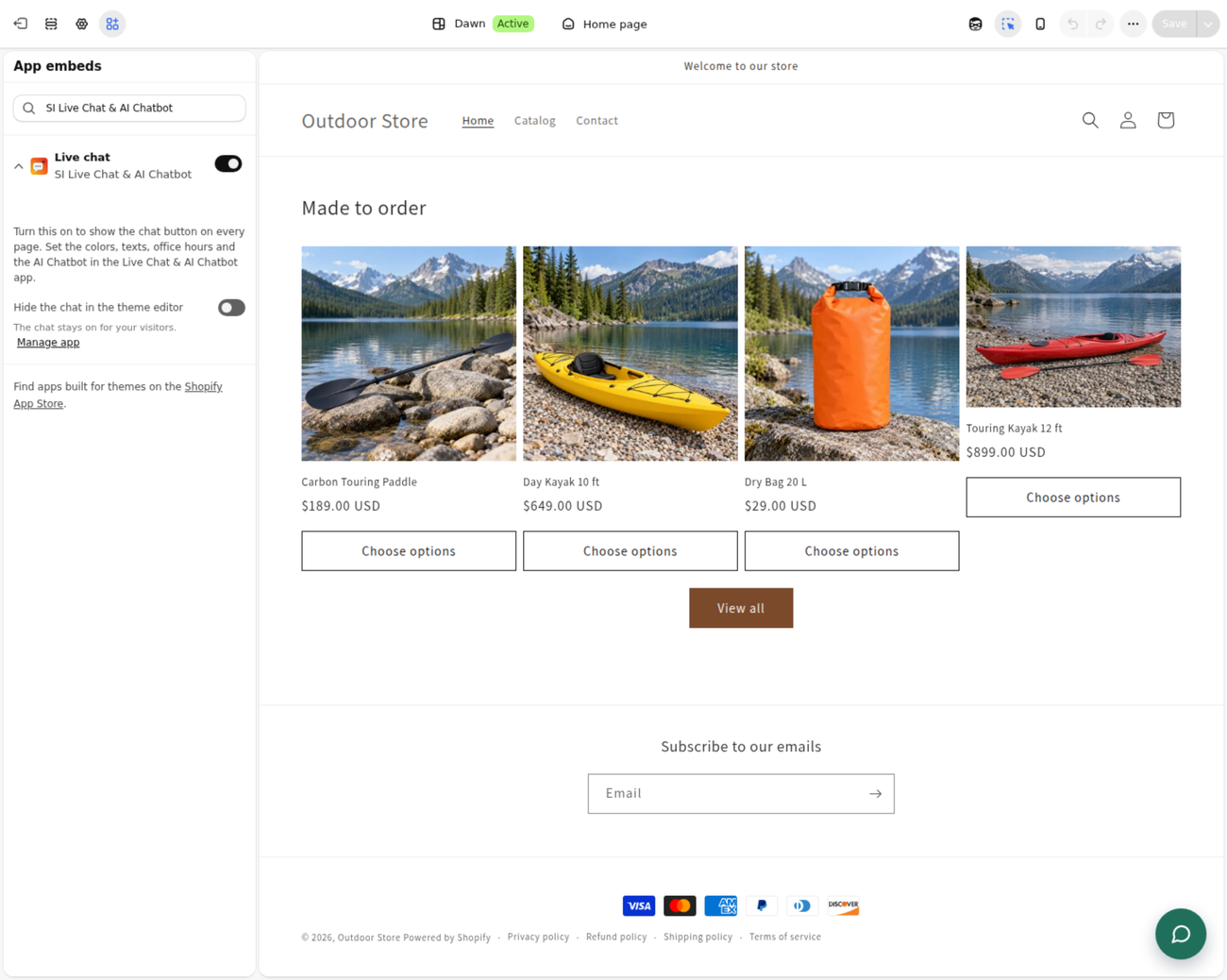
- In the checklist, click the button on Turn on the chat in your theme. The theme editor opens in a new tab.
- Under App embeds, switch on Live chat.
- Click Save.
- Open your store. The chat button shows in the corner.
The step ticks itself once a storefront page has reached the app, so allow a minute after you save. If your store has a password page, open the storefront in a browser that has passed it.
Find your way around #
The app’s items in the Shopify menu are Live visitors, Contacts, AI Chatbot, Settings, Team and Plan. Inside the app, the rail on the left of the inbox opens the other screens.
| Screen | What you do there |
|---|---|
| Inbox | Answer chats, email conversations and tickets. See Answering chats in the inbox. |
| Live visitors | See who is on your store now and which page they are on. |
| Contacts | Everyone who chatted, wrote or signed in. |
| AI Chatbot | Switch the AI on and choose what it reads. |
| Widget | The look, texts and proactive messages. |
| Routing and hours | Who answers, office hours and the questions before the chat. |
| Reports | Chats and tickets over time. |
| Settings | Email, operators, notifications, privacy, export and import, audit log. |
| Help Desk | Tickets, teams, response-time targets and Secure details. Needs the Ultimate + Help Desk plan. See Help Desk. |
Open the inbox in its own window #
Open in a new window at the top of the inbox opens it full screen in its own browser tab. That is the place for sound and desktop notifications for new chats, which a page inside the Shopify admin can’t ask for. Always open in a new window makes clicking the app open the window for you only; everyone else keeps the inbox inside the admin. Back to Shopify in the window’s header takes you back.
Good to know #
- Plans, AI chats and limits are on one page: Plans, AI chats and limits.
- The inbox and the chat are the same software our WordPress chat uses, so some screens look familiar if you know that one. These pages describe the Shopify app only.
- If something doesn’t work, see Troubleshooting.


