
SI Delivery Routing gives your shoppers delivery days and time slots in the cart, plans the day’s routes for your vehicles, and gives your drivers a phone app with proof of delivery. When a driver marks a stop delivered, the order is marked fulfilled and delivered in Shopify, and your customer can be told by email.
It is an add-on in SI Rentals & Bookings, so rental deliveries and collections join your routes (see Delivery Routing with Rentals & Bookings).
Turn it on #
- In SI Rentals & Bookings, open Settings › Add-ons and click Turn on on the Delivery Routing card. Each add-on is part of your Rentals & Bookings plan; if yours doesn’t include this one, the card names the plan that does.
- If the card says it needs access, click Allow and approve it on Shopify’s screen.
- Click Open on the card to reach its pages.
The setup guide #
Using the main SI Rentals & Bookings app? You may not need the setup shown here. You turn Delivery Routing on in Settings › Add-ons, and the Rentals app embed shows it on your store. Start with the quickstart for Delivery Routing.
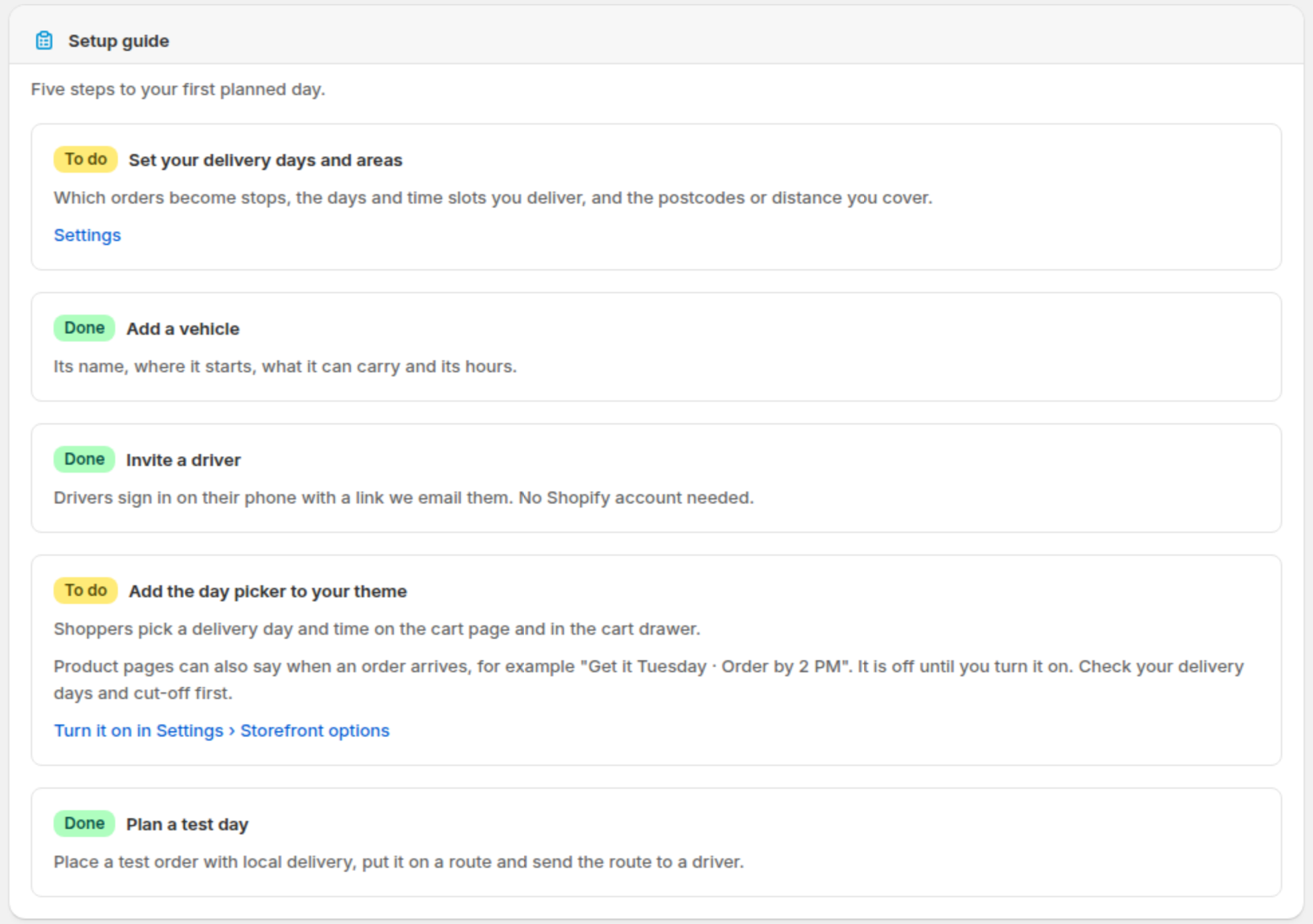
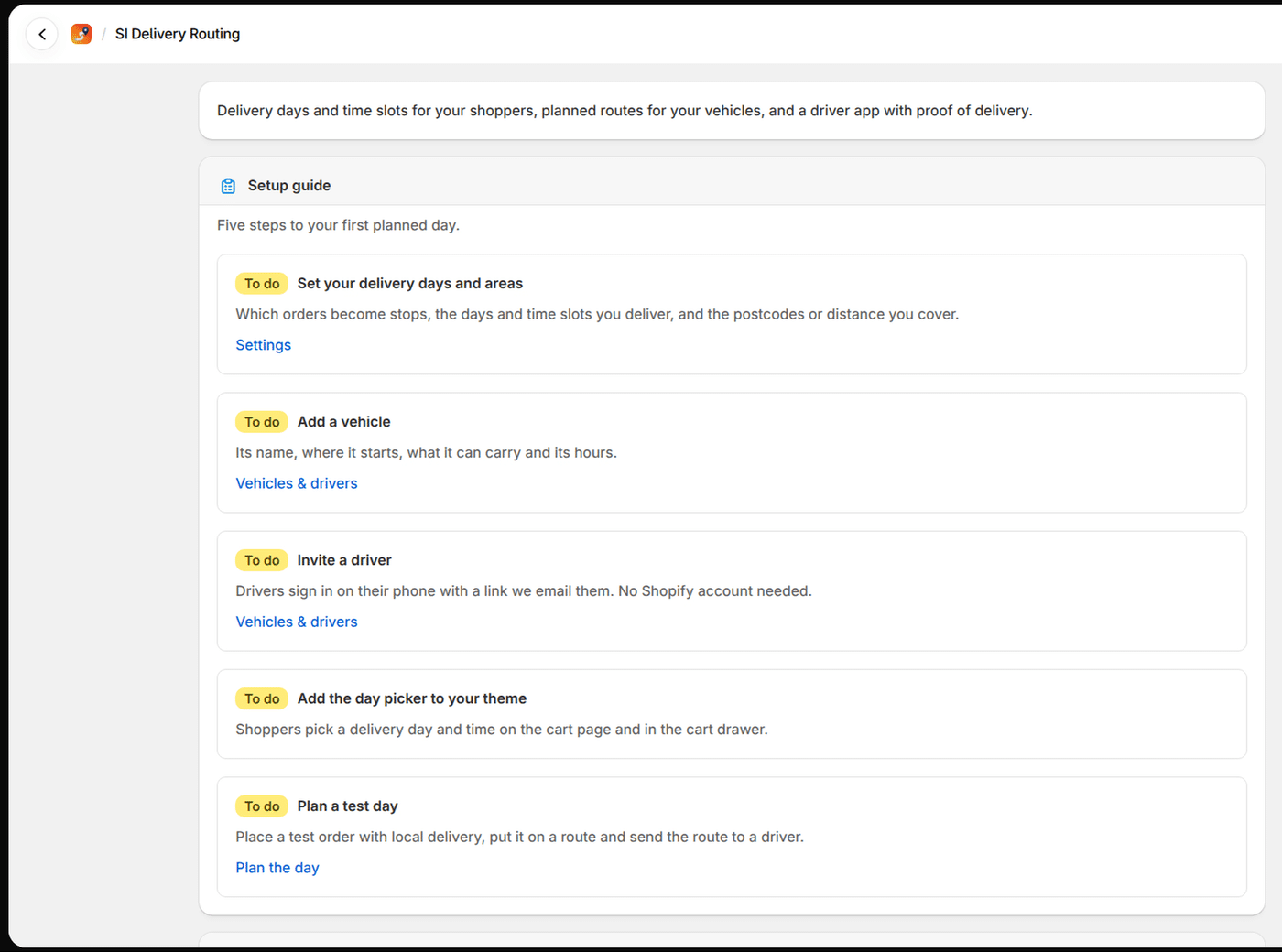
The home page shows the Setup guide, “Five steps to your first planned day.” Each step shows To do until the app sees it done, then Done; you don’t tick anything yourself.
- Set your delivery days and areas: which orders become stops, the days and time slots you deliver, and the postcodes or distance you cover. See Orders, stops and the Deliveries page and Delivery days, time slots and areas.
- Add a vehicle: its name, where it starts, what it can carry and its hours. See Vehicles and drivers.
- Invite a driver: drivers sign in on their phone with a link the app emails them. They don’t need a Shopify account. To put the app on their home screen, see Put the driver app on your phone.
- Add the day picker to your theme: shoppers pick a delivery day and time on the cart page and in the cart drawer. This step is done once a shopper has used the picker. See The delivery day picker in the cart and at checkout.
- Plan a test day: place a test order with local delivery, then plan the day and send the route to a driver. See Plan the day.
Inside SI Rentals & Bookings #
Open Send & Return › Routes. Home shows the same five steps. The day picker shows in the cart through the Rentals app embed, with nothing to add to your theme. The delivery promise on product pages stays off until you turn it on in Settings › Storefront options.
In the standalone app #
The same guide on the standalone app’s home page:
How an order becomes a delivery #
- In the cart, the shopper picks a delivery day and a time slot. The app holds that place for 30 minutes, and checkout checks it again.
- The order is placed with local delivery. Within 15 minutes it shows under Deliveries as a stop, with its day and time slot.
- On Plan the day, the app shares the day’s stops between your vehicles inside their time slots. You lock what must stay, click Accept plan, then Send to drivers.
- The driver opens the route on their phone, taps On my way, and marks the stop Delivered with a signature and photos if you ask for them.
- The order is marked fulfilled and delivered in Shopify, and the customer can be told by email. See Customer emails and texts.
Its pages #
Using the main SI Rentals & Bookings app? There, Delivery Routing opens under Send & Return › Routes, with its pages as tabs, and you may not need the setup on this page. See the quickstart for Delivery Routing.
| Page | What it’s for |
|---|---|
| Home | The setup guide, today’s numbers and anything that needs your attention. |
| Plan the day | Plan one day at one location: share the stops between your vehicles, accept the plan and send the routes to your drivers. |
| Schedule | Your routes by day and week: add or rename routes, move stops, put a route in order, print run sheets and export a CSV. |
| Deliveries | Every delivery and collection with its day, time slot, route and status, and the orders that still need a day. |
| Vehicles & drivers | Your vehicles with their loads and hours, your locations, and your drivers with their sign-in links. |
| Reports | Stops, deliveries done, distance and time on the road per day and vehicle, for up to 62 days. |
| Settings | Delivery days and slots, areas, the day picker and checkout, proof of delivery, the planner and map look-ups, with links to Messages, Plan and usage and API keys and webhooks. |
Inside SI Rentals & Bookings #
Open Send & Return › Routes in the Rentals app’s menu. Its tabs are the pages above: Home, Plan the day, Schedule, Deliveries, Vehicles & drivers, Reports and Settings.

In the standalone app #
The standalone app lists the same pages under Apps in the Shopify left-hand menu.
Today #
Under Today, the home page counts today’s Stops, Planned, Not on a route, Needs a day, Done and Couldn’t deliver.
At the top of the home page, a banner appears when something needs your hand: the hidden Delivery time fee product isn’t on your Online Store yet, Shopify refused to let the app mark delivered orders as fulfilled, or the delivery time check in checkout couldn’t be set up. Each banner says what to do.
Delivery Routing or the delivery in Rentals & Bookings? #
Rentals & Bookings has its own delivery, for rentals. Delivery Routing, an add-on, plans any order you deliver. They do different jobs:
| Feature | Rentals & Bookings: Delivery & pickup | Delivery Routing |
|---|---|---|
| What it covers | Rentals only. | Any order you deliver, sold or rented, and stops you add by hand. |
| Where the customer chooses | On the product page, before the rental dates: pick up, delivery or transport. | In the cart and the cart drawer: the delivery day and time slot. |
| Areas, slots and capacity | Yes, for rental deliveries. | Yes, for every delivery. |
| Routes | A one-day Schedule in Send & Return that you put in order by hand. | Vehicles with loads and hours, Plan the day across all of them, and a Schedule by day and week. |
| Drivers | A printed Schedule and the day sheet email. | A driver app on the phone with proof of delivery, and the order marked delivered in Shopify. |
The rental side is covered in Delivery & pickup and Delivery areas, slots and the Schedule. With Delivery Routing on, one set of days, slots and areas serves rentals and sold orders, and rental deliveries ride on your routes. See Delivery Routing with Rentals & Bookings.
Good to know #
- New orders reach Deliveries within 15 minutes. The first time, the app also reads in the last 60 days of orders; their customers aren’t emailed to pick a delivery time.
- A stop’s personal details (name, address, phone, email, instructions and notes) are cleared 90 days after its delivery day. The postcode, day, slot, load and status stay for your reports. Signatures and photos have their own time: see The driver app.
- The day picker, the emails, the customer’s delivery page and the driver app are in English for now.
- What each plan includes is on Plans and features.


