
Rent an item by the week or the month. The customer picks a start date, pays each period, and keeps the item until they return it, or for a set term such as 6 months. You turn it on once for your store, then on each product you want to rent this way.
Where to find it: in the Rentals & Bookings app, open Settings › Subscriptions. It comes with every paid plan (Regular, Pro and Ultimate) and is part of Rentals & Bookings itself, so it works with the Subscriptions & Memberships add-on turned off.
Before you start #
- A paid Rentals & Bookings plan: Regular, Pro or Ultimate. On the Free plan the Subscriptions tab shows its settings, but you can’t change them. On Free you can still bill rentals per period with the Subscriptions & Memberships app, on its own plan (see the end of this page).
- A product set up as a rental, with its rental rates. One period can be priced by those rates, or by a period price you enter.
- Only if a subscription app will charge the card: the app, such as Shopify Subscriptions, and a payment provider that supports subscriptions, such as Shopify Payments. Billing by invoice needs neither.
Turn it on for your store #
- In the Rentals & Bookings app, open Settings and click the Subscriptions tab. If the tab row is too narrow to show it, it is under More at the end of the row.
- Turn on Offer rentals billed per period.
- Turn on Offer billing by invoice to bill each period with a Shopify invoice. Offer subscription apps’ plans is already on: leave it on if a subscription app will charge some rentals.
- Click Save.
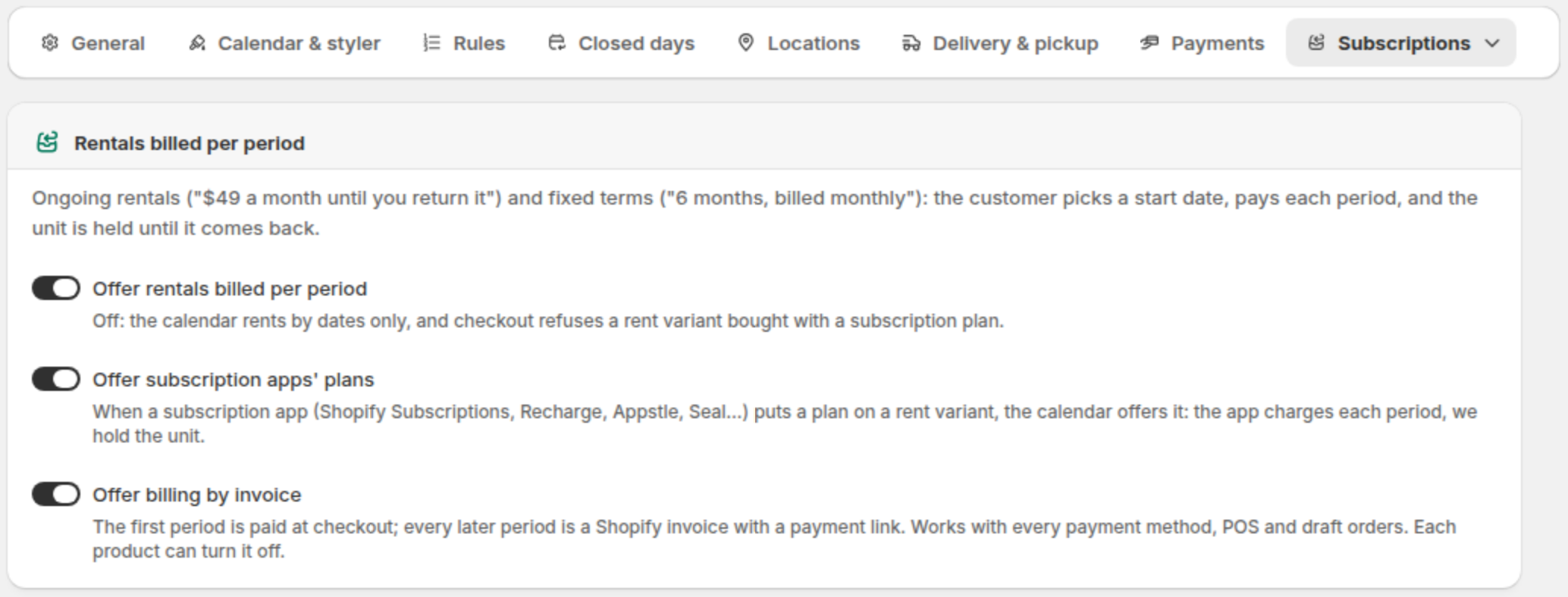
The sections under the switches (how far ahead the unit is held, the grace days before a payment is overdue, what happens when a rental is ended, and when invoices are made and emailed) start with defaults that suit most stores. Each one is explained in Ongoing and fixed-term rentals.
Once you save, Money in the app’s menu gets a Subscriptions tab. That is where you run these rentals (see the end of this page).
Bill a product by invoice #
In the app, go to Stock › Products and open the product’s Rental Settings page. Find the Subscriptions card.
- Turn on Offer this product billed by invoice.
- Under Invoice, choose how often: every week, every month and so on.
- Enter the Period price, the price of one period. Leave it empty to price one period by the product’s rental rates.
- In Terms offered, list the choices customers get, separated by commas:
ofor ongoing (until the item is returned), or a number of periods, such as6or12.o, 6, 12offers all three. - Click Save subscription settings.
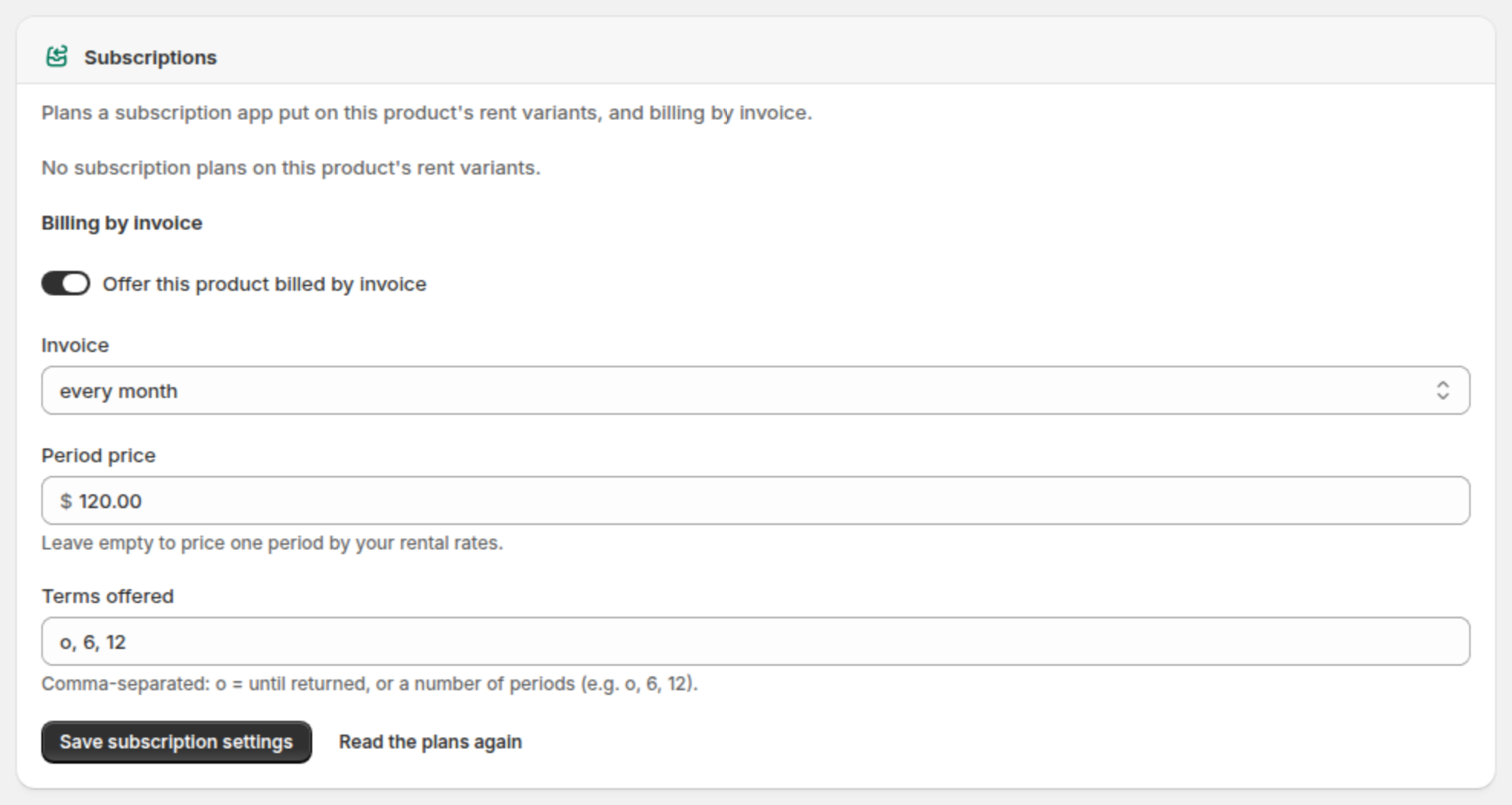
The customer pays the first period at checkout. For each later period the app makes a Shopify invoice with a payment link, 7 days before the period starts, and Shopify emails it to the customer. When the invoice is paid, the period is paid. There is nothing else to install.
Or let a subscription app charge the card #
To have the card charged automatically each period, use the plans of a subscription app, such as Shopify Subscriptions (free from Shopify) or Recharge:
- In the subscription app, create a plan such as “Every month” and add it to the product’s rent variant.
- Set the rent variant’s Shopify price to the period fee. Shopify prices each period from that price, not from your rental rates.
- In the subscription app, turn off shipping for renewals of rent variants.
- In Rentals & Bookings, open the product’s Subscriptions card. It lists the plans found on each rent variant as Offered or Not offered (pre-order and try-before-you-buy plans aren’t offered). Click Read the plans again after a change.
The subscription app charges the card and makes a renewal order each period, and Rentals & Bookings records each payment. Cancelling, Shopify Flow and the limits of this option are in Subscription apps and purchase options.
What your customers see #
On the product page the rental calendar asks How do you want to rent?
- Choose dates: a one-time rental, priced by its dates as before.
- Ongoing, invoiced every month: the rental runs until the customer returns the item.
- 6 months, invoiced every month: one choice for each term you offer.
- A subscription app’s plan shows with its price, for example “Monthly rental · $49.00 every month until you return it”.
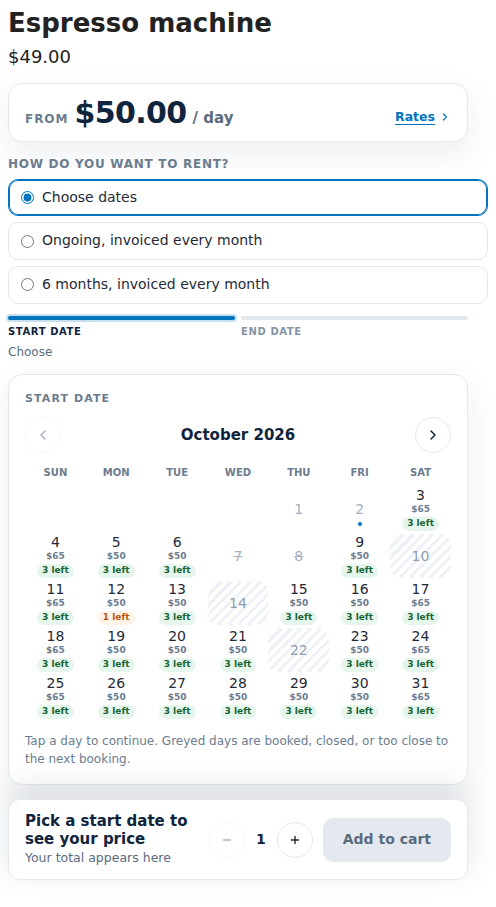
For an ongoing or fixed-term rental the customer picks only the start date. A line under the button says what they agree to, such as “$120.00 every month until you return it” and “We’ll email you an invoice every month.” The cart line reads “From Dec 1, 2026 · until returned”, and the customer’s My rentals page lists each period with a link to pay it.
Run it from Money › Subscriptions #
In the app, open Money › Subscriptions. The tabs Running, Payment overdue, Ending, Ended and All list each rental with how it is billed, its price, Paid through and Next due. From a rental you can Record payment (cash or a bank transfer), Send invoice and End rental. When the item comes back and you check it in, the rental ends and the invoices stop.
Every setting, renting at the counter with POS, quotes, Shopify Flow and the API are covered in Ongoing and fixed-term rentals.
Want more? Subscriptions & Memberships. Our subscriptions app bills rentals with its own rental plans, and each booking shows the rental is billed there. It also runs memberships with member prices and store credit, products for members only, and a rental queue. It is included in the Pro and Ultimate plans: turn it on under Settings › Add-ons. On Free or Regular, add it as its own app, on its own plan. Compare the three ways to bill rentals per period.


