
Widget in the app is where you choose how the chat looks on your store, what it says and when it speaks first. The preview on the right updates as you type. Click Save when you’re done.
Look and texts #
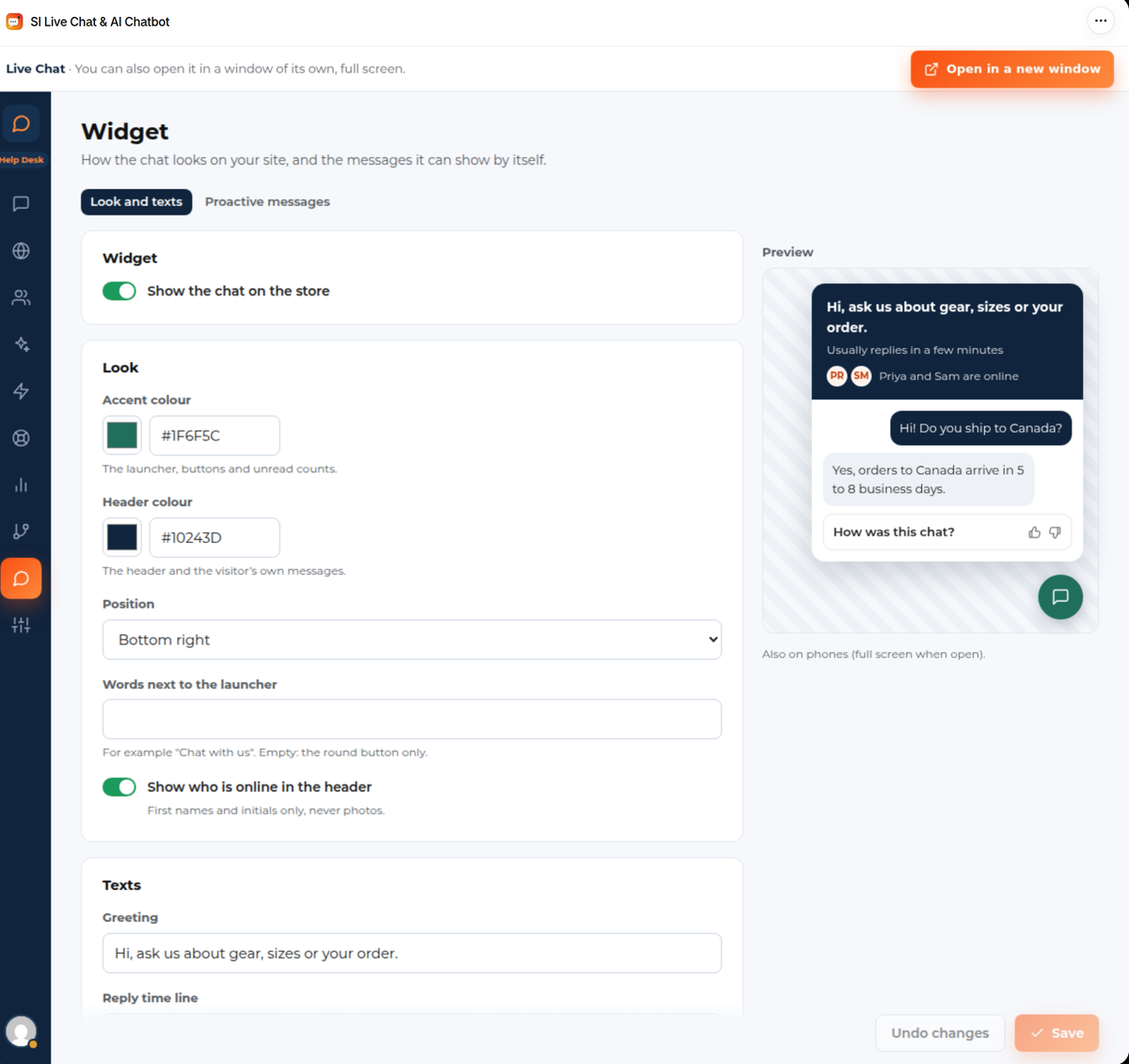
| Setting | What it does |
|---|---|
| Show the chat on the store | Switches the chat off on every page without removing the theme embed. |
| Accent colour | The launcher, buttons and unread counts. |
| Header colour | The header and the visitor’s own messages. |
| Position | Bottom right or bottom left. |
| Words next to the launcher | For example “Chat with us”. Empty: the round button only. |
| Show who is online in the header | First names and initials of the people online, never photos. |
| Greeting | The line at the top of the open chat. |
| Reply time line | For example “Usually replies in a few minutes”. |
| When nobody is online | What visitors read when no one can answer. |
| Show the chat on phones | On a phone the chat opens full screen. |
| Hide on these pages | Addresses that contain any of these, one per line, for example /checkout or /account/login. |
| Ask visitors to rate the chat when it is resolved | Good or bad, with an optional comment. Ratings show in the inbox. You can change the question. |
When the AI answers first, the header says “Our AI assistant can help right now”.
What visitors see #
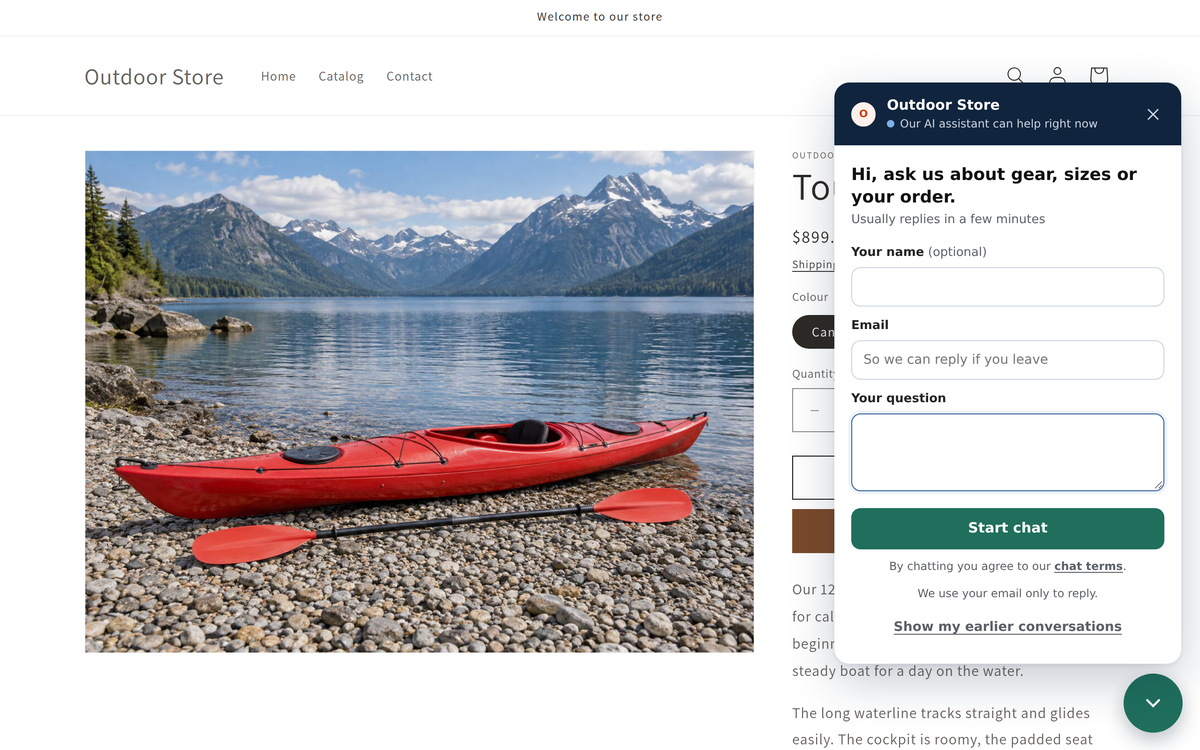
- Questions before the chat: name, email and the question. You choose which are off, optional or required under Routing and hours › Questions before the chat. Customers who are signed in to your store skip them.
- Chat terms: “By chatting you agree to our chat terms”, which opens your chat terms. See Privacy, consent and your data.
- Earlier conversations: Show my earlier conversations asks for an email address and sends a code, so a visitor on a new device can pick their earlier chats up again.
- Files: after the first message a visitor can attach a file.
- Unread replies show as a count on the launcher.
- AI answers show the store pages they came from and a Talk to a person button. See The AI chatbot.
- A rating when the chat is resolved, if you ask for one.
The chat is built to work with the keyboard and screen readers, and it draws itself separately from your theme, so your theme’s styles don’t change it.
Proactive messages #
A proactive message is a short line above the launcher that shows by itself when a visitor matches a condition, for example someone looking at a product page for a while. Open the Proactive messages tab.
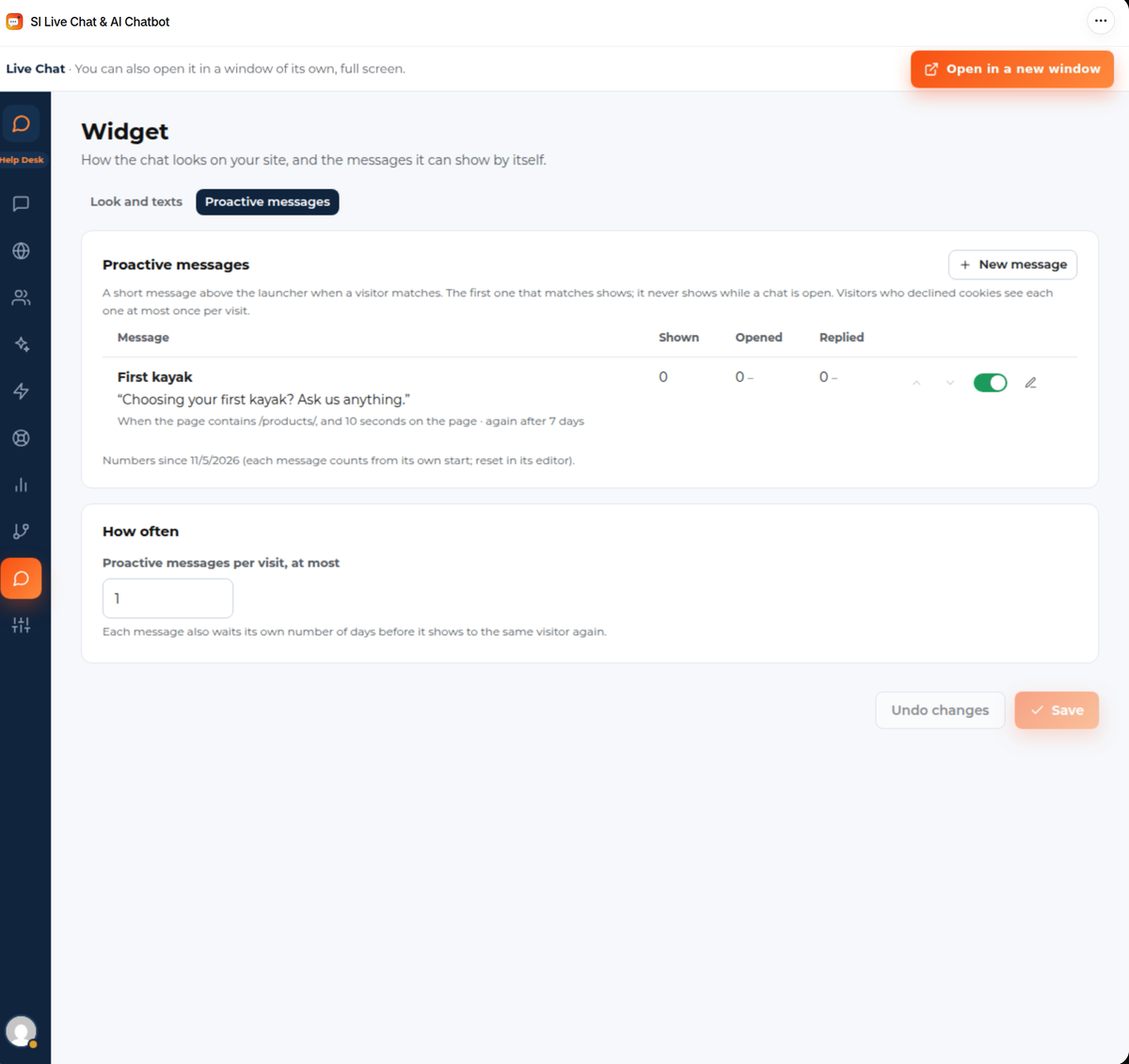
- Click New message.
- Write the message and choose when it shows: the page (for example the address contains /products/), how long the visitor has been there, and how many days to wait before showing it to the same visitor again.
- Save it.
The first message that matches shows, and never while a chat is open. Proactive messages per visit, at most limits how many a visitor sees in one visit. Visitors who declined cookies see each message at most once per visit. The list shows how many times each was shown, opened and replied to, counted from the message’s own start; reset them in its editor.
Good to know #
- The chat is on once the Live chat app embed is on in your theme. See Getting started. Hide the chat in the theme editor on the embed keeps it off the editor preview only; visitors still see it.


