
A stop is one delivery or collection: one address on one day. Orders become stops by themselves, and you can add a stop by hand or add an order from Shopify’s order page. This page covers where stops come from and the Deliveries page that lists them.
Which orders become stops #
Open Settings and find Which orders become stops.
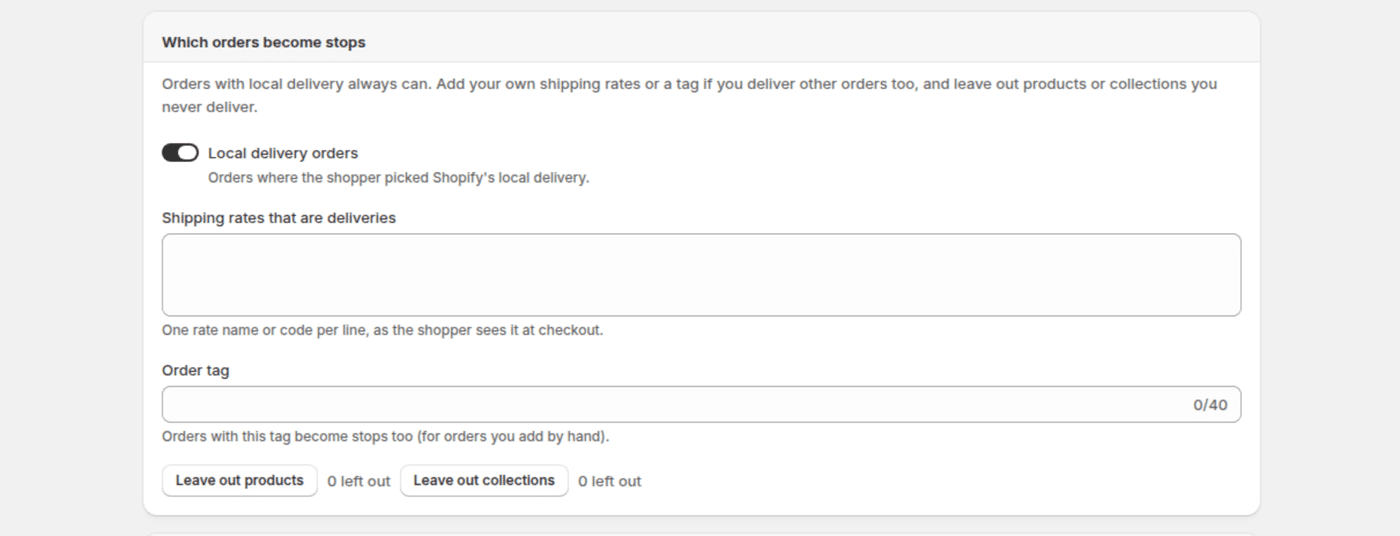
| Setting | What it does |
|---|---|
| Local delivery orders | Orders where the shopper picked Shopify’s local delivery. |
| Shipping rates that are deliveries | One rate name or code per line, as the shopper sees it at checkout. Orders with one of these rates become stops too. |
| Order tag | Orders with this tag become stops too, for orders you add by hand. |
| Leave out products and Leave out collections | Products you never deliver. They don’t count in a stop’s load, and an order with nothing else isn’t a stop. |
Pick-up orders never become stops. Gift cards and items that don’t need shipping don’t count in the load either.
How orders become stops #
- The app reads new and changed orders every 15 minutes.
- The delivery day and time come from the day picker in the cart (see The delivery day picker in the cart and at checkout). An order without one gets the status Needs a day.
- When you set Who sets the delivery day to We arrange the day, customers don’t pick a day. Every new delivery order arrives as Needs a day, and you set the day (see Set the day yourself below).
- An order can have a day and no time: the customer chose Any time, or the day has no time slots. Its stop shows Any time, and Plan the day fits it anywhere in the vehicle’s working hours.
- A later order to the same address on the same day joins the same stop: the items add up, and its instructions and notes are added.
- When an order’s day or address changes, its stop moves with it. A planned stop that moves to another day comes off its route.
- Once a stop is with a driver, a change to the order no longer rewrites it. Its history says “The order changed after it went to the driver”.
- A cancelled order cancels its stop. An order you fulfil in Shopify before it goes out is marked Done, with “Fulfilled in Shopify” in its history.
- The load is the number of items and their weight from Shopify. Space (m³) isn’t kept in Shopify, so stops from orders carry none.
Delivery days from another app #
If another date picker writes the delivery date into the order’s attributes, turn on Read delivery days from order attributes and name them: Date attribute, Time attribute and Date format (Work it out guesses it). The app’s own picker needs nothing here.
Statuses #
| Status | Means |
|---|---|
| Needs a day | The order has no delivery day yet. With We arrange the day, it waits for you to set one. |
| Not on a route | It has a day, but no route yet. |
| Planned | It is on a route that hasn’t gone to the driver. |
| Sent to the driver | The route was sent. |
| On the way | The driver tapped On my way. |
| Arrived | The driver tapped Arrived. |
| Done | Delivered or collected. |
| Couldn’t deliver | The driver couldn’t deliver or collect it. |
| Cancelled | The order was cancelled, or the stop was removed. |
The Deliveries page #
Deliveries lists every delivery and collection.
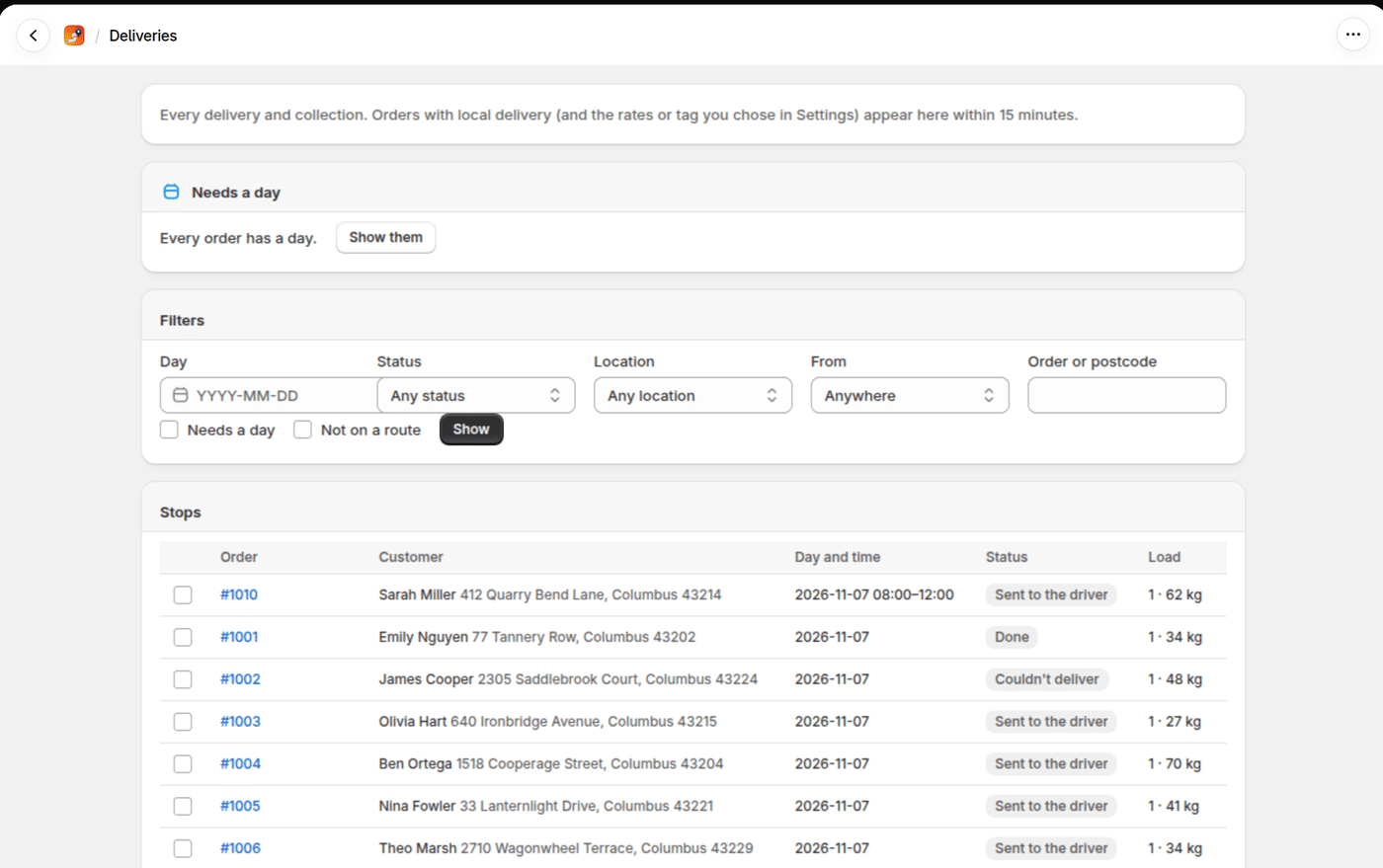
- Needs a day says how many orders have no delivery day yet: “Choose one for them, or ask the customer.” Show them lists them. Each has Send reminder, which emails the customer the Pick a delivery time message again (once a day per order; part of the Pro plan).
- With We arrange the day, it says “3 orders are waiting for you to set their delivery day. The customer is told when you set it.” There is no Send reminder: the customer isn’t asked to pick.
- Filters: Day, Status, Location, From (Orders, Rentals or Added by hand) and Order or postcode, with Needs a day and Not on a route. Click Show.
- Stops: the Order, Customer, Day and time, Status and Load of each stop, with a badge for Added by hand, Needs a pin and Collection. The order number opens the order in Shopify.
Change the day of several stops #
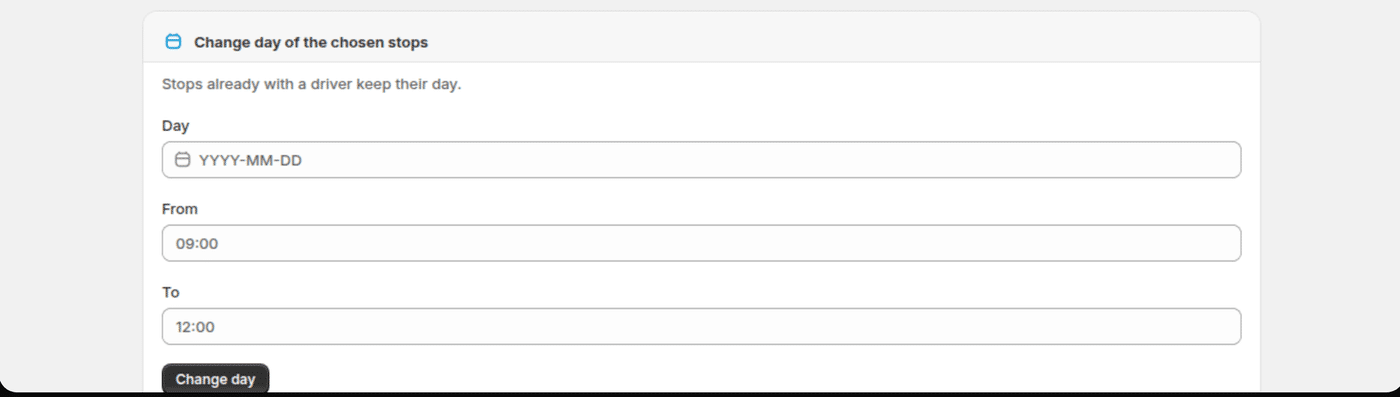
Choose the stops in the list, then under Change day of the chosen stops set the Day and, if you like, From and To, and click Change day. Stops already with a driver keep their day.
Set the day yourself #
With We arrange the day (see The delivery day picker in the cart and at checkout), new delivery orders wait under Needs a day until you set their day. You agree the day with the customer by phone or email, then set it in any of these places:
- Deliveries: click Show them under Needs a day, choose the orders, and use Change day (with From and To if you agreed a time).
- The order in Shopify: More actions › Delivery day, or Delivery day for several orders on Shopify’s Orders list.
- Plan the day: the Needs a day list above the board. Drag an order onto a vehicle, or click Add to this day. See Plan the day.
When you set the day, the customer gets the Delivery day booked email: “Your delivery for order #1042 is booked for Tue 10 Nov 2026, any time.” It is part of the Pro plan. See Customer emails and texts. Changing the day again later sends Delivery time changed, as for any order.
The order keeps Needs a day until you set it. Nothing else happens on its own: no reminder goes to the customer, and the stop isn’t planned.
Add a stop by hand #
Add a stop is for a delivery or collection that isn’t a Shopify order. Fill in Name, Address, City, Postcode, Country code and Phone, choose the Type (Delivery or Collection), the Day, From and To and the Location, add the Items and Weight (kg), and any Instructions for the driver. Click Add stop.
Needs a pin #
Each stop needs a point on the map so the planner can work out travel times. The app uses Shopify’s own map point for the address first. Without one, it looks the address up with the openrouteservice or Google Maps key you add under Settings › Map look-ups. A stop with no map point shows Needs a pin: Plan the day can’t time it and lists it under Couldn’t place, but you can still move it onto a route by hand on the Schedule.
On Shopify’s order pages #
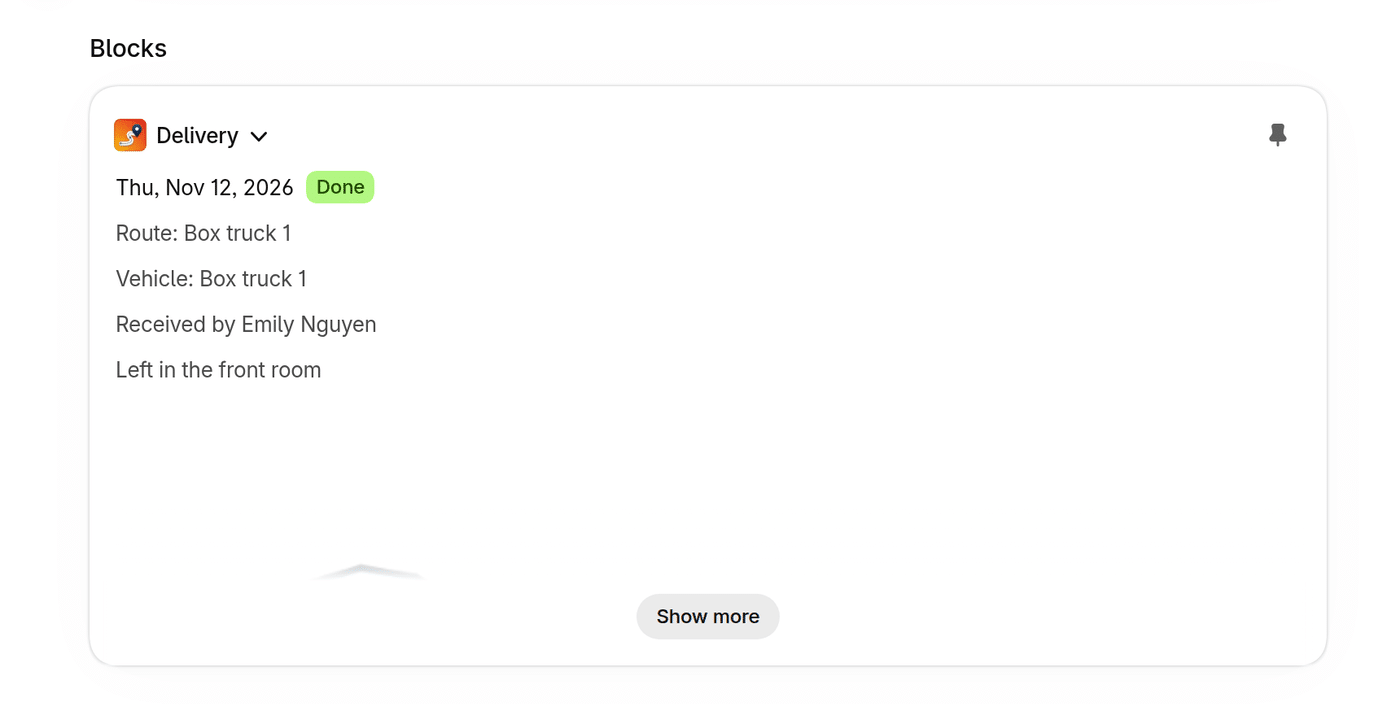
- The Delivery card on an order shows the stop’s status, day and time, and its route and vehicle (or “Not on a route yet”), with Change time. An order that isn’t on your routes says “Not on your delivery routes.” with Add to routes. After the visit it shows Delivered with Received by, the signature and photos, or Couldn’t deliver with the reason. Add the card once: open an order, click + Block in the Blocks section, choose the card and pin it.
- Delivery day in the order’s More actions menu: choose the day (and time) to deliver the order, or add it to your routes with a day if you know it.
- Delivery day for several orders: select orders on Shopify’s Orders list and choose Delivery day from the actions. Pick Add to routes (and set the day) or Change the day of orders already on routes. Up to 50 orders at a time.
An order you add this way stays a stop whatever your settings say. A stop that is already with a driver or finished can’t change its day: “This stop is already with a driver or finished: its day cannot change.” An order with nothing to deliver is refused: “This order has nothing to deliver: no shipping address, only pick-up, or only items you leave out.”
Order tags #
When a stop goes on a route, its order gets the tag delivery- plus the delivery day, for example delivery-2026-11-03, and the tag delivery-failed while it couldn’t be delivered. Use them to filter Shopify’s order list. The app never removes any other tag.
Good to know #
- Each stop counts once toward your plan’s stops a month, in the month of its delivery day. Stops are never refused: see Plans and features.
- Collections come from stops you add by hand, and from rentals when the Rentals & Bookings link is on.
- Any time stops count toward Stops per day, not toward a time slot’s capacity.


