
Every chat, email conversation and ticket lands in one inbox. The list is on the left, the conversation in the middle and, when you open it, the person on the right. Open the inbox from the app in your Shopify admin, or in its own window (see Getting started).
The list #
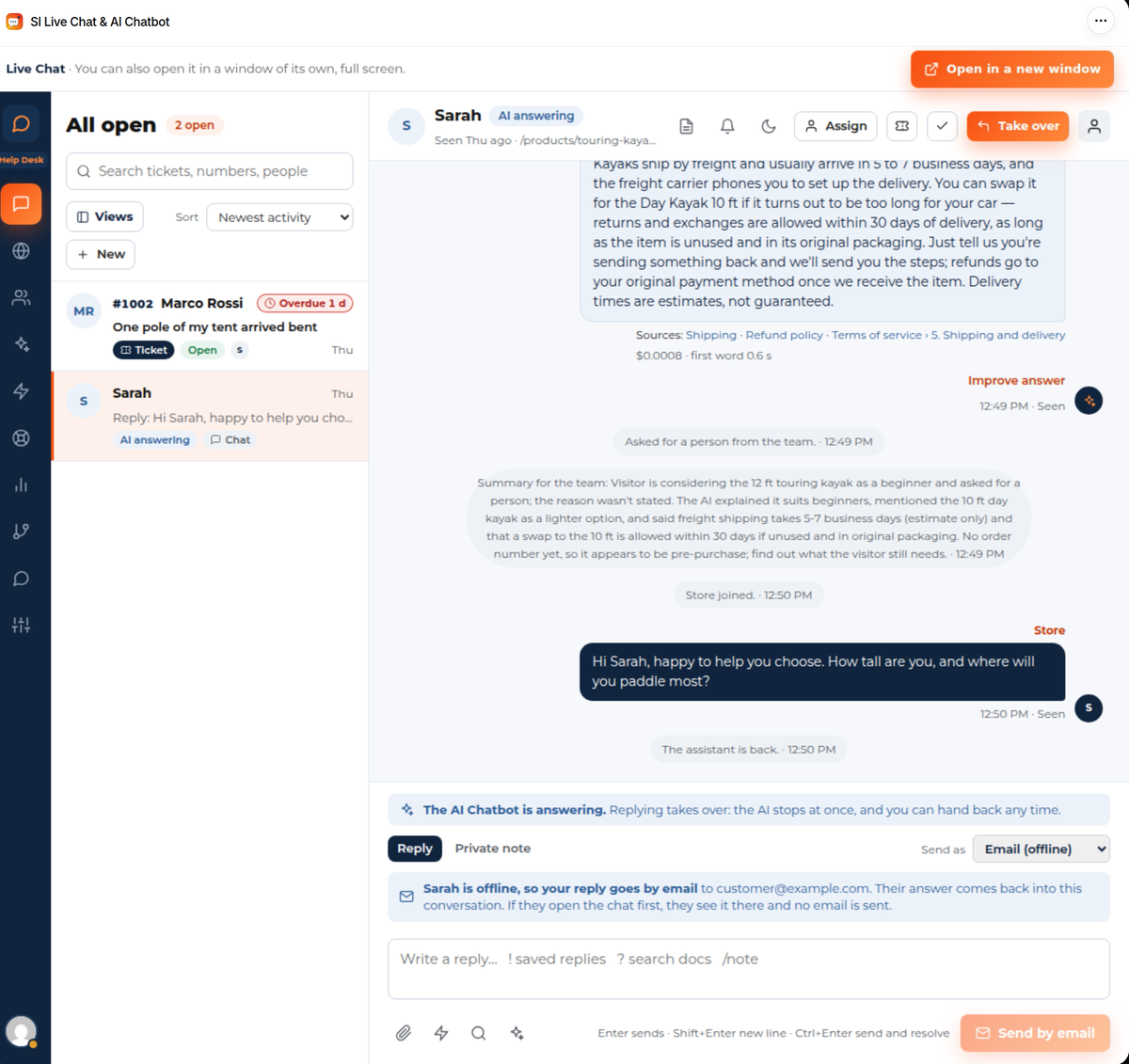
- Views switch between lists such as all open conversations, yours, the ones the AI is answering, the ones waiting for a person, snoozed and resolved ones. With the Help Desk plan there are ticket views too. New starts a conversation yourself, for example to write to a contact.
- Sort orders by newest activity.
- The search box finds tickets, numbers and people.
- A conversation shows its status: AI answering, Chat, Ticket, or Overdue when a ticket’s target time has passed.
Keys when you’re not typing: J and K move through the list, R replies, N adds a private note, E resolves, S snoozes and X selects. Ctrl+K finds anything: a screen, a conversation, or an action on the open one.
Reply, or take over from the AI #
A conversation the AI is answering says The AI Chatbot is answering. Each AI answer lists its Sources, the store pages it used, and Improve answer lets you correct it. Replying takes over: the AI stops at once, and you can hand the chat back later. When someone has asked for a person, or the AI handed over, the conversation shows that it needs one, with a summary of the chat so far for your team.
- Reply writes to the visitor. Private note writes to your team only; a note never reaches the visitor.
- Send as chooses how the reply goes. While the visitor is on your store it goes in the chat. When they’ve left, the box says Send by email and the reply goes to their email address. Their answer comes back into the same conversation. If they open the chat first, they see your reply there and no email is sent.
- Enter sends, Shift+Enter starts a new line and Ctrl+Enter sends and resolves.
- The paperclip attaches a file.
- The sparkle button, Suggest a reply, drafts an answer from your store’s content for you to edit and send. It never sends by itself. See The AI chatbot.
Saved replies #
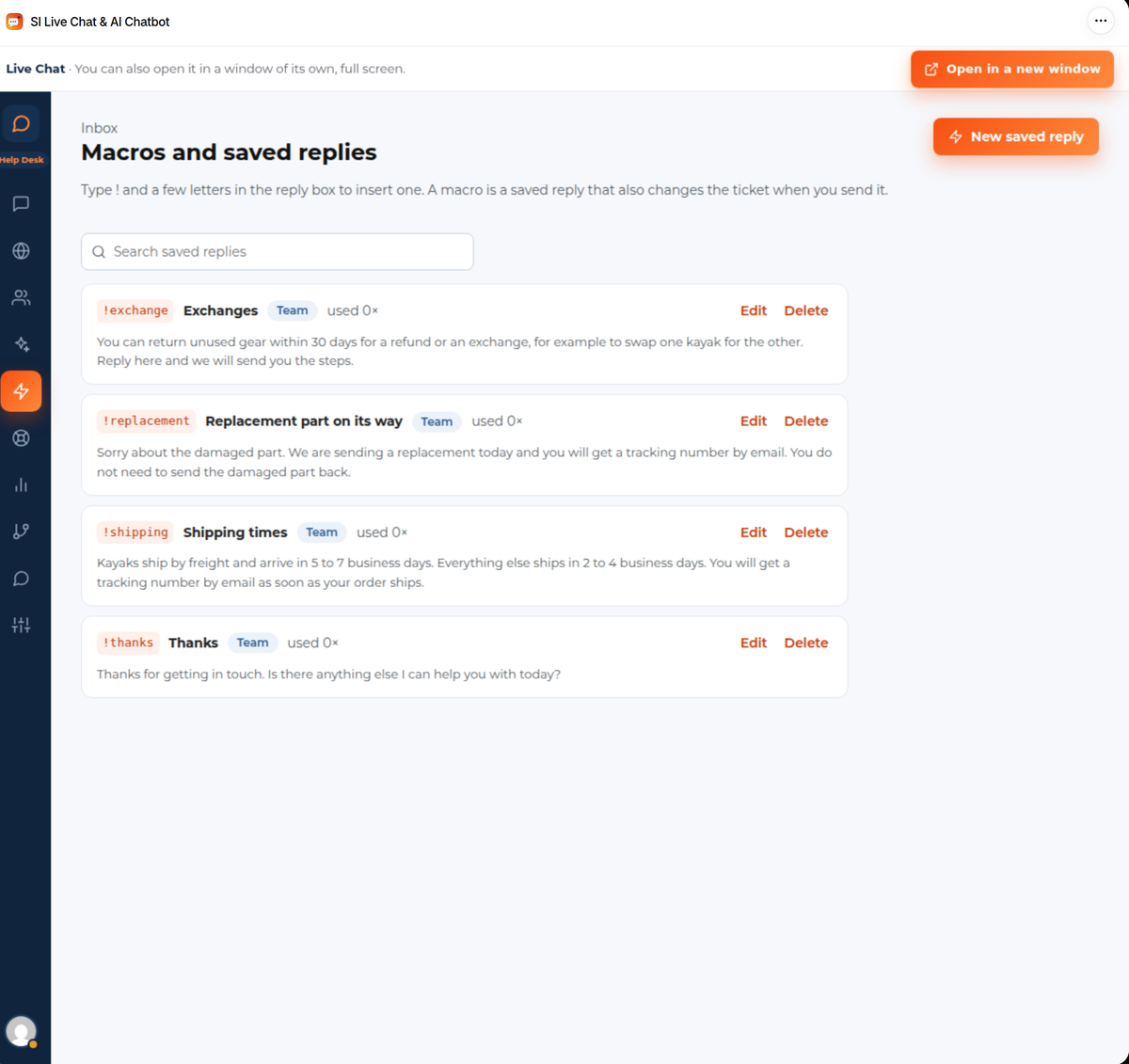
Type ! and a few letters in the reply box to insert a saved reply, for example !shipping. They live under Macros and saved replies: a shortcut, a title and the text. On the Help Desk plan a macro can also change the ticket when you send it.
Assign, resolve and snooze #
- Assign gives the conversation to someone on your team, or back to the queue. New chats are shared out by your routing rules.
- The tick resolves the conversation. It opens again when the visitor writes again. If you ask for ratings, the visitor is asked how the chat went.
- The moon snoozes it until a time you choose.
- Tick the box beside several conversations to resolve, snooze or assign them together.
- When someone else is already replying, you’re asked before your reply goes out, so a visitor never gets two answers at once. This is under Settings › Operators.
The person on the right #
The side panel shows the person’s name and email, whether they are online, their device and country, the page they started on, the conversation number and when they first got in touch. For a customer who is signed in to your store, their orders show here too, with links to the order in your Shopify admin. The orders come live from your store; the app doesn’t keep a copy.
Contacts #
Contacts lists everyone who chatted, wrote or signed in, with their country, number of conversations and when they were last seen. Filters narrow it to known people, customers, people online now, blocked people and possible duplicates. When two records are the same person, a manager can merge them.
Live visitors #
Live visitors shows everyone on your store right now with the page they are on, and how many are chatting, with the AI or waiting for a person. Visitors who declined your cookie banner appear only once they start a chat. You can switch on a sound for new chats here.


