
The AI chatbot answers visitors around the clock from your own store: products, pages, store policies, blog posts, the contact details you publish and the answers you write yourself. It shows where an answer came from, quotes only the prices your store holds, and hands the chat to a person when it should. Visitors can ask for a person at any time. Answers are labelled as coming from the AI.
Switch it on #
- Open AI Chatbot in the app’s menu.
- Under AI Chatbot, switch on AI Chatbot on, then click Save.
- Open the Knowledge tab and check what the AI may read (see below).
- Try a question under Try it.
Who answers first is set under Routing and hours › Who answers. By default a person answers if one is online, else the AI, else it goes to email. Choose the AI first to let it take every chat. See Who answers, office hours and email.
The AI uses the AI chats that come with your plan (see Plans, AI chats and limits). On Pro and Ultimate you can use your own AI provider key instead; answers with your own key are never counted.
What it reads #
Knowledge shows everything the AI may read, in tabs:
| Tab | What it holds |
|---|---|
| Your store | Products, pages, store policies, blog posts, collections, FAQ entries and contact details from your store. Tick what the AI may use. Add new pages of your store automatically adds new ones. |
| Websites | Other websites you add. The app reads their pages, obeys robots.txt and any noindex, and re-reads them. |
| Files | PDF, Word, text, Markdown and CSV files such as size guides and manuals. The file is read once and then deleted. |
| Answers | A question and answer you write yourself. Use these for things your store pages don’t say. |
| Needs review | Items that need your decision before the AI uses them. |
The counts at the top show what is in use and how it compares with your plan’s limits. Check now reads your store again. Your products are kept current by themselves when you change them. Items not updated for 12 months are left out so old prices aren’t quoted; open one and choose Allow anyway if it is still right.
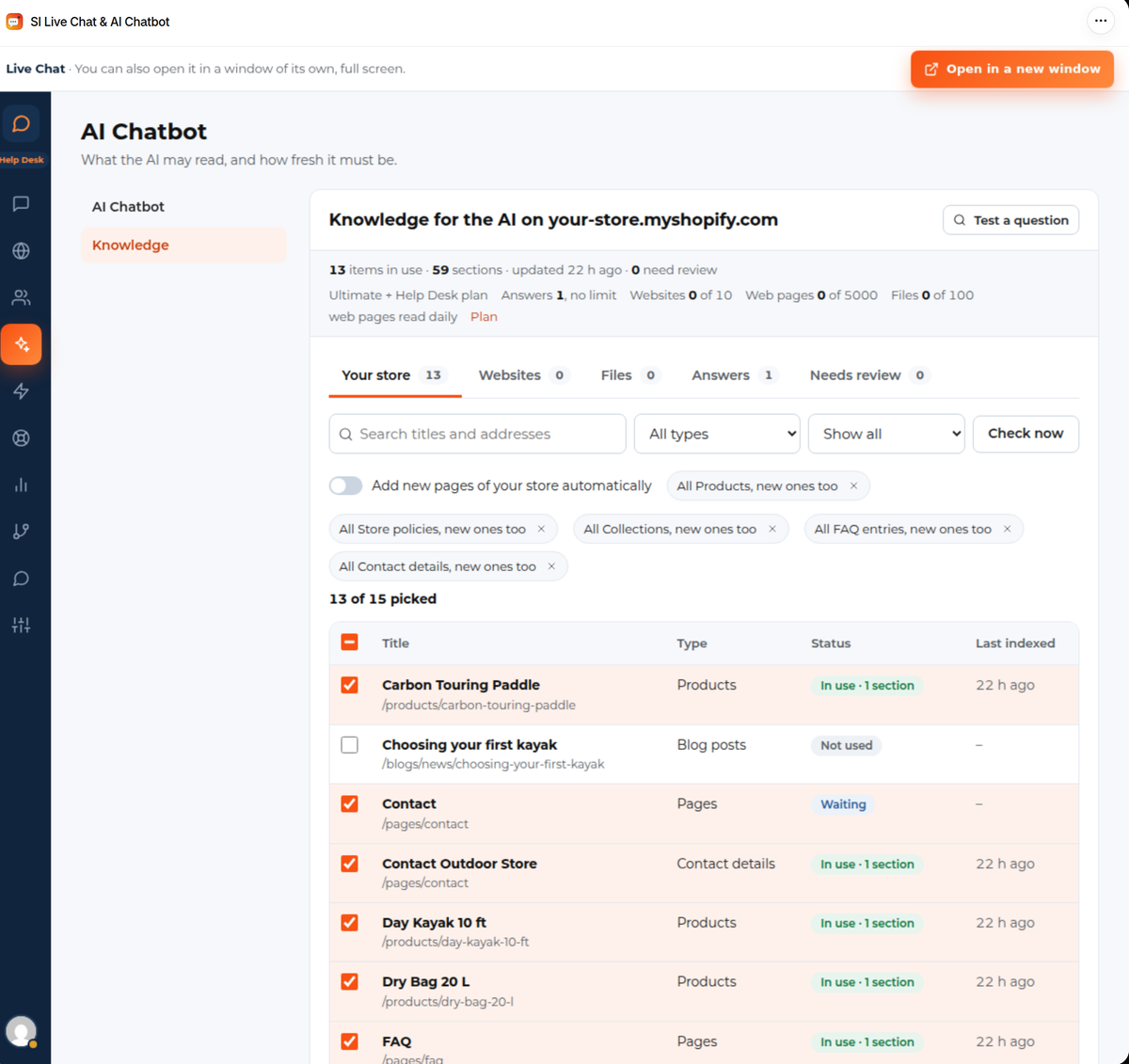
The AI links only to your store, to websites you’ve added and to hosts you name in its instructions.
Test a question #
Test a question shows what the AI would be given for a question, best first, with where each part came from. Nothing is saved and no visitor sees it. Choose Expect this on a result to save the question as a test; Run all checks your saved tests again, and Needs review tells you when one stops finding what you expected.
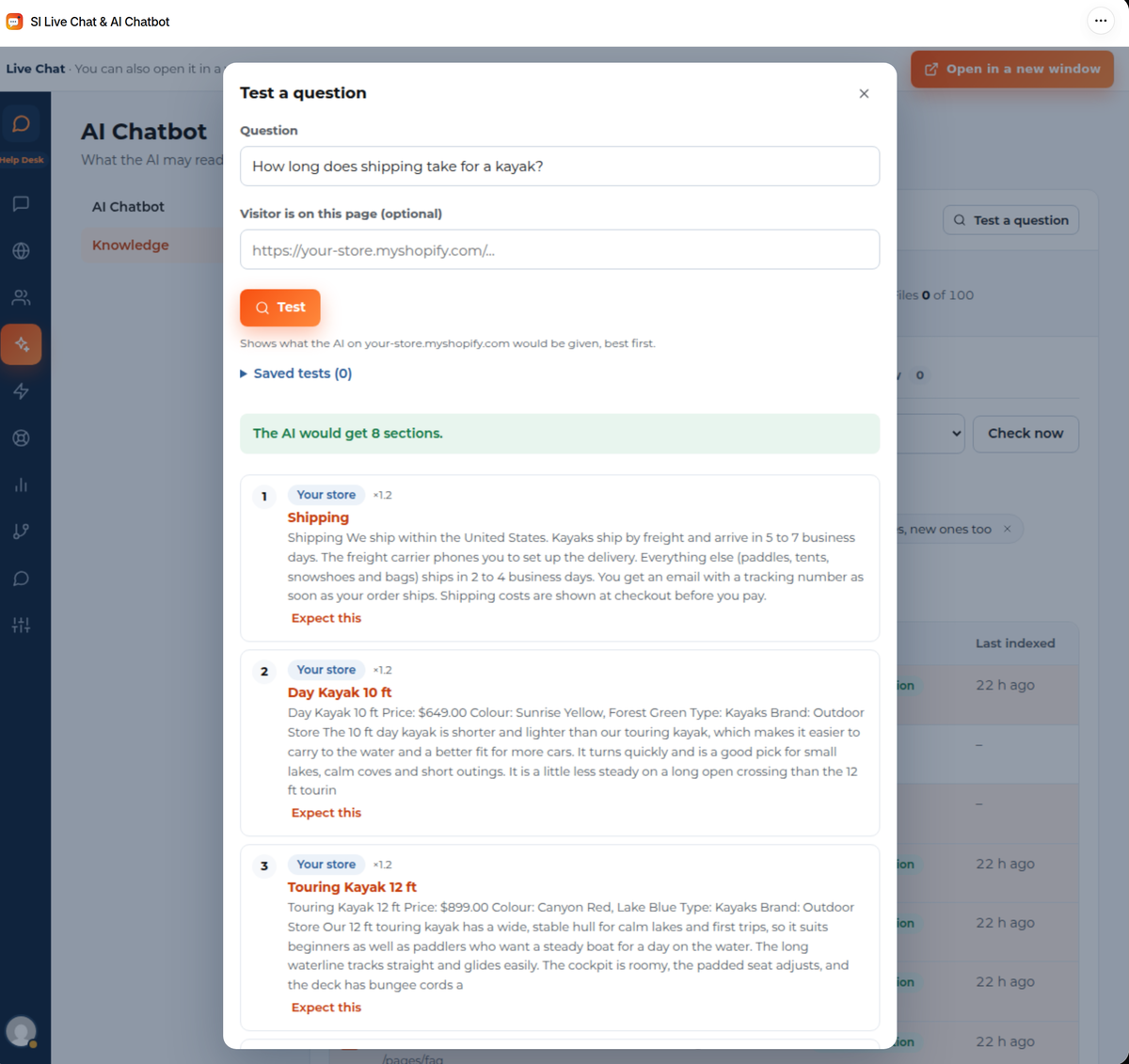
Try it on the AI Chatbot screen asks the AI itself, as a visitor would. Nothing is saved, but the try counts in this month’s use.
Tone, language and hand-over #
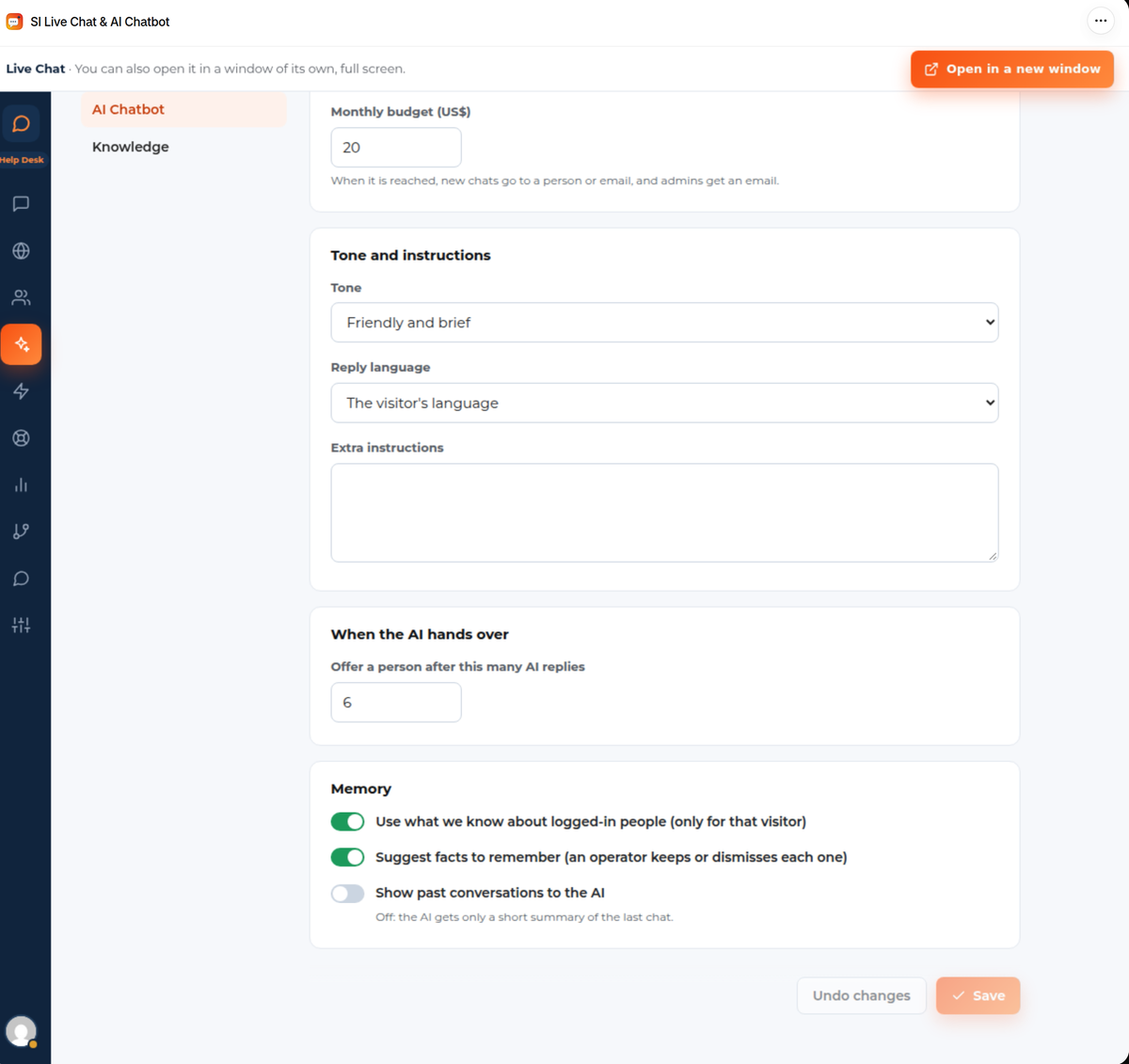
Under Tone and instructions choose the tone (Friendly and brief, Neutral or Formal), whether it replies in the visitor’s language or the site’s, and add extra instructions the AI should always follow. Offer a person after this many AI replies makes it offer a person once an answer hasn’t solved the chat.
The AI hands over when it can’t help: refunds and billing, discounts, an upset visitor, a request for a person, or a question your knowledge doesn’t answer. It never promises what your team will decide. Handing over gives your team a short summary of the chat so far. A visitor who clicks Talk to a person gets the same summary for your team. In the inbox the conversation shows that it needs a person; replying takes over, and you can hand it back.
Memory #
- Use what we know about logged-in people: for a signed-in customer the AI also sees their name and their last 5 orders (number, date, items, total and status), for that conversation only. It’s on by default; switch it off if you don’t want that.
- Suggest facts to remember: the AI suggests facts about a person and an operator keeps or dismisses each one.
- Show past conversations to the AI: off, the AI gets only a short summary of the last chat.
An anonymous visitor who asks about an order is asked to sign in, or handed over.
Budget and privacy #
- Monthly budget (US$) caps what the AI may spend. When it’s reached, new chats go to a person or to email and admins get an email.
- Hide emails and phone numbers from the model (on by default) replaces email addresses, phone numbers and card-like numbers before the conversation goes to the AI provider.
- Zero-data-retention hosts only (on by default) sends requests only to hosts that keep no data.
See Privacy, consent and your data for what the AI provider receives.
Good to know #
- The AI answers only what it finds. When nothing is close to the question it says it doesn’t know and offers a person (this is the setting Say “I don’t know” when nothing matches the question well, under Knowledge).
- When your plan’s AI chats run out, new chats go to a person who is online, else to the leave-a-message form. See Plans, AI chats and limits.
- With the Rentals & Bookings app on the same store, the AI can also check availability and rental prices and give a booking link.


