
Routing and hours decides who answers a new chat, when you’re open and what visitors are asked first. Settings holds the mailbox, notifications and who is on your team.
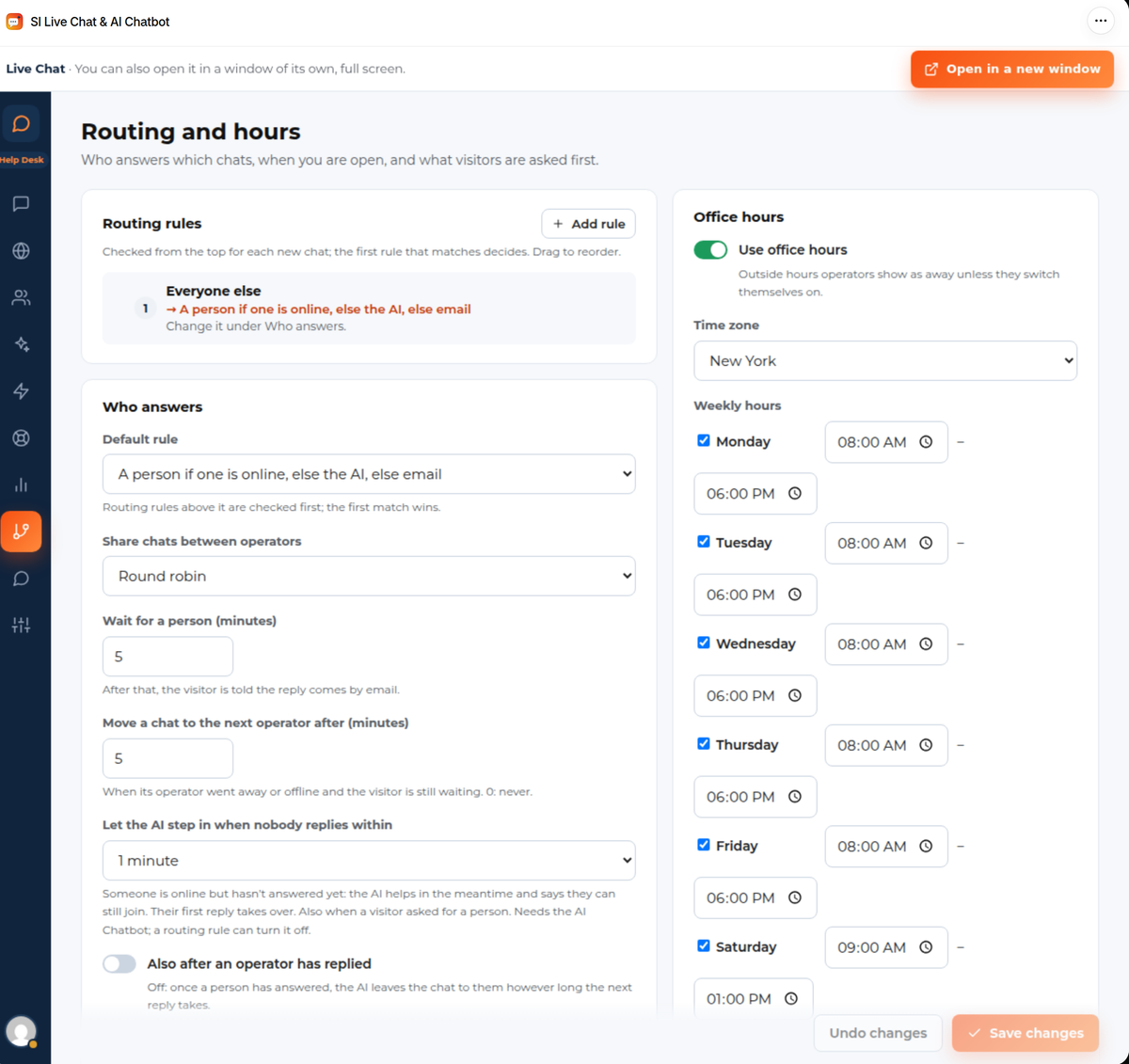
Who answers #
Under Who answers, the Default rule picks one of four ways to handle a new chat:
- A person if one is online, else the AI, else email.
- The AI first; a person when asked.
- A person if one is online, else email (no AI).
- Email only.
Further settings:
- Share chats between operators: Round robin, Least busy, or Nobody: operators pick chats up.
- Wait for a person (minutes): how long a visitor waits for a person. After that the visitor is told the reply comes by email.
- Move a chat to the next operator after (minutes): when its operator went away or offline and the visitor is still waiting. 0 means never.
- Let the AI step in when nobody replies within: Off, or after 30 seconds, 1, 2 or 5 minutes. Someone is online but hasn’t answered yet, so the AI helps in the meantime and says they can still join. Their first reply takes over. It also steps in when a visitor asks for a person. It needs the AI chatbot to be on.
Routing rules are checked from the top for each new chat and the first one that matches decides. Drag to reorder. The last rule is always Everyone else, which uses the default rule. Use Add rule to send some chats elsewhere, for example by page.
Questions before the chat #
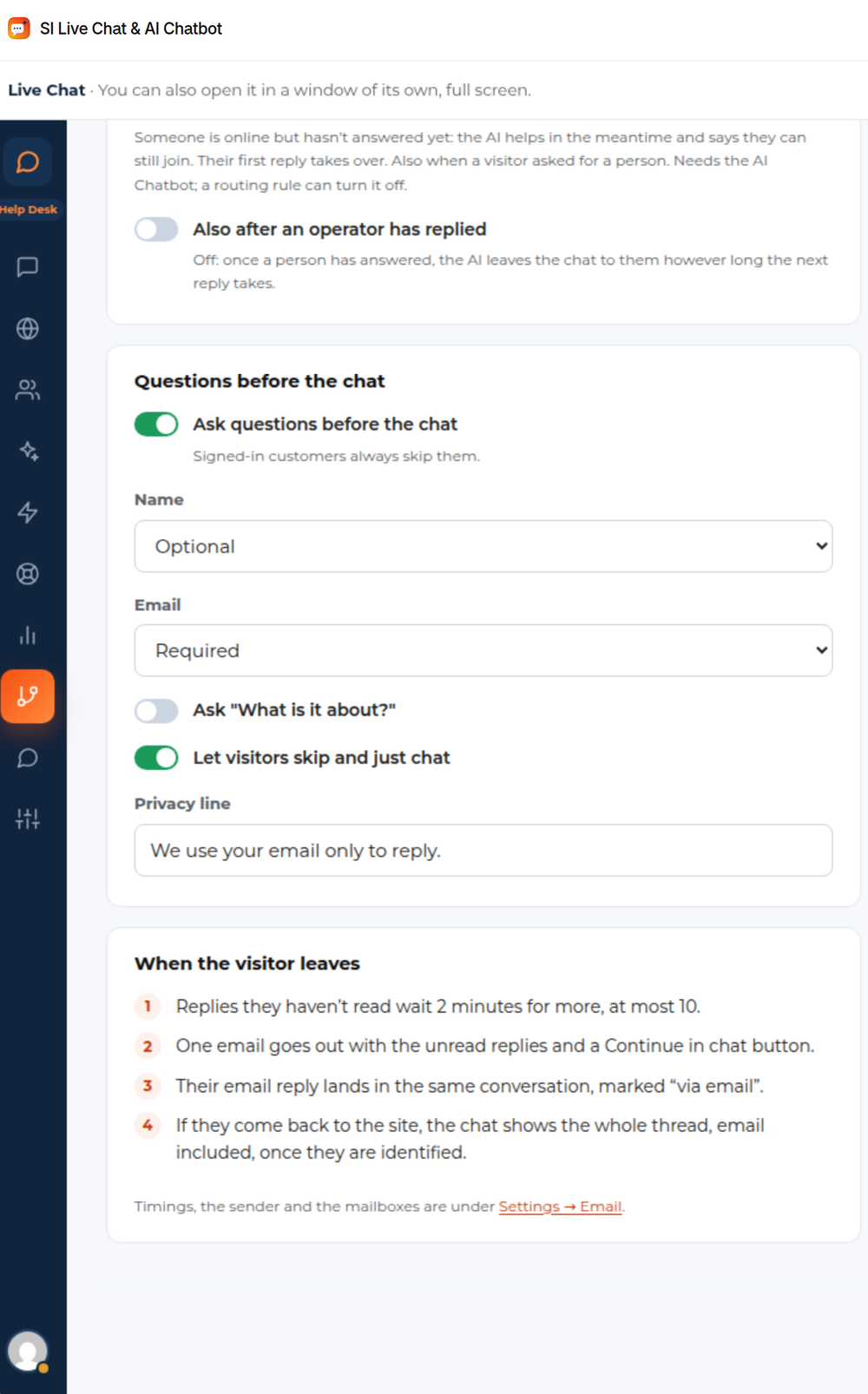
Ask questions before the chat turns the form on. You choose for Name and Email whether the field is off, optional or required, and for email also “Optional, but required when nobody is online”, so there’s an address to reply to. Ask “What is it about?” adds the question field, Let visitors skip and just chat adds a skip link, and the Privacy line is the short sentence under the form. Signed-in customers always skip the form.
Office hours #
Switch on Use office hours, choose your Time zone, tick the days you’re open and give opening and closing times. List Holidays as MM-DD for every year or YYYY-MM-DD for once. Outside hours chooses what happens when you’re closed: the AI answers, or visitors are asked for an email. Outside your hours the people on your team show as away unless they switch themselves on.
Email both ways #
When a visitor leaves the chat, your reply goes to them by email, and their answer comes back into the same conversation, marked “via email”. Nothing needs setting up for that.
- Replies a visitor hasn’t read wait a couple of minutes for more, then go out as one email with a Continue in chat button.
- The email comes from your chat mailbox, with your store’s name.
- Their reply lands in the same conversation. If they come back to the store, the chat shows the whole thread once they are identified.
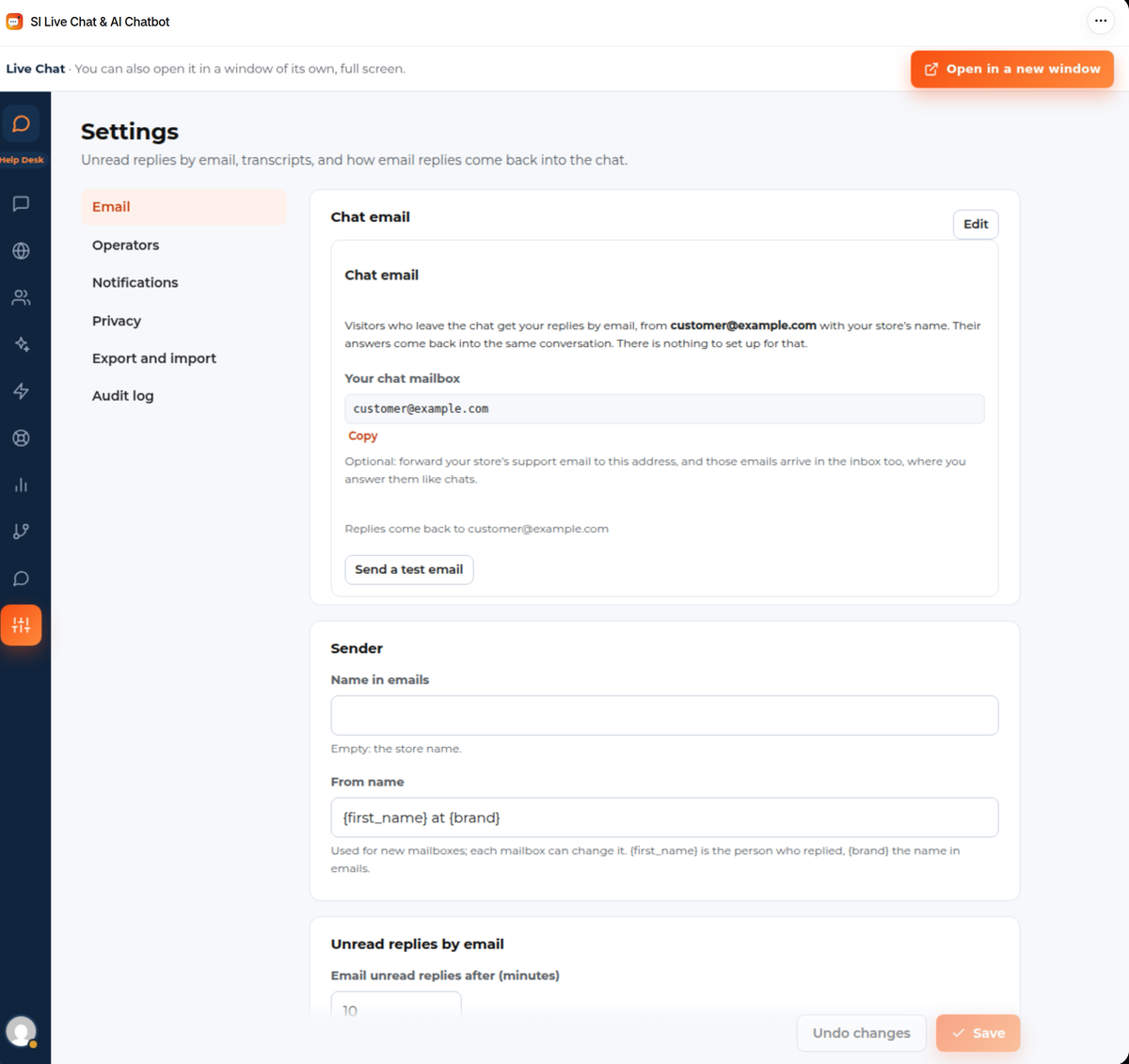
Under Settings › Email:
- Your chat mailbox is the address replies come from and return to. Copy copies it. Optionally forward your store’s support email to it and those emails arrive in the inbox too, where you answer them like chats. Send a test email checks it works.
- Sender sets the name in emails. Empty means the store name.
- Unread replies by email has the timings: how long to wait before emailing, how long to wait for more messages, and how many automatic emails a person can get a day.
- Transcripts can email a transcript after the chat.
- Trust customer account emails as verified is off by default, because customers can create accounts at checkout without confirming their address.
Chats continue by email on the paid plans. See Plans, AI chats and limits.
Your team #
Team in the app’s menu lists everyone on your staff who opens the app. Tick On the team to let someone answer chats. For each person you choose what they may do: answer chats, see the customer’s orders in the sidebar, see all chats and reassign or delete them, change settings (AI, routing, widget, mailbox and team), export and delete people, and change Help Desk settings. New people can answer chats and change settings until you change that.
How many people can answer chats depends on your plan. See Plans, AI chats and limits.
Settings › Operators sets presence and collisions:
- Away after no activity (minutes).
- Default maximum chats per operator; 0 means no limit.
- Ask before replying when someone else is replying.
Notifications #
Settings › Notifications turns on a sound for new chats and browser notifications while an admin tab is open. These work best when the inbox is open in its own window. It also sends email alerts: to operators when a chat has waited a number of minutes, when a request for a person isn’t picked up, and to admins when the AI budget is reached or a mailbox fails. With Help Desk, each person can choose their own ticket alerts.


