Help Desk turns requests into tickets with numbers, statuses, priorities, teams and response-time targets. It is part of the Ultimate + Help Desk plan (see Plans, AI chats and limits). Without it, the ticket form sends plain email conversations instead of tickets, and tickets you already have stay in the inbox to read.
Where tickets come from #
- Email to your chat mailbox, when New emails become tickets is on for it (Settings › Email), with a team chosen.
- The ticket form on your store (below).
- Chats: Make it a ticket in the inbox, a request a visitor leaves in the chat when nobody is online, and chats nobody answered or AI hand-overs out of hours, when those settings are on.
- New in the inbox, to start a ticket for someone yourself.
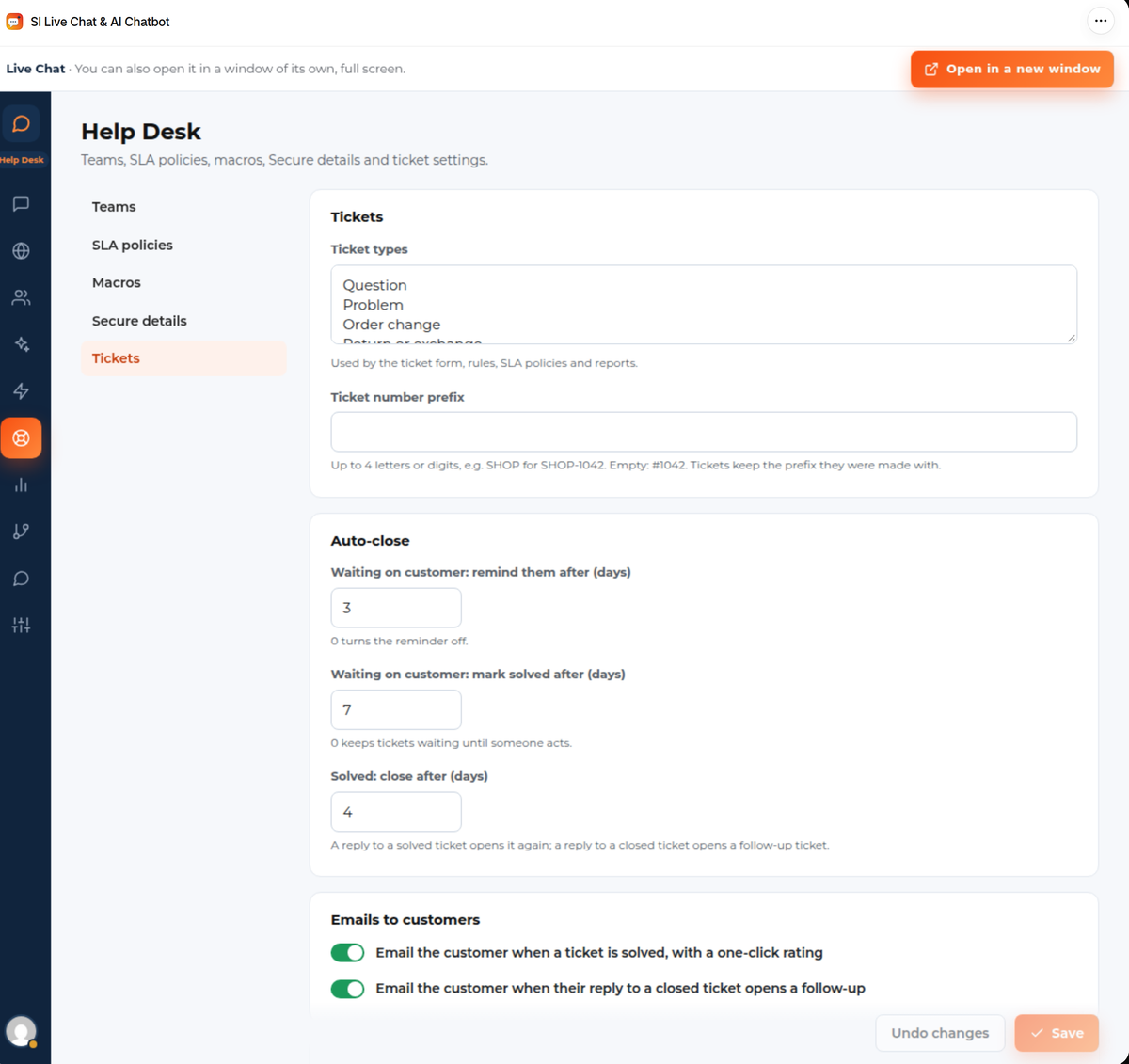
Ticket numbers start at 1001. Help Desk › Tickets lets you add a prefix of up to four letters or digits, for example SHOP-1042.
Working a ticket #
Open a ticket in the inbox. The header shows the number, the status, the due time and, below the subject, the priority, type and team, the response-time policy that applies, who is copied (CC) and the order it is about (Link an order).
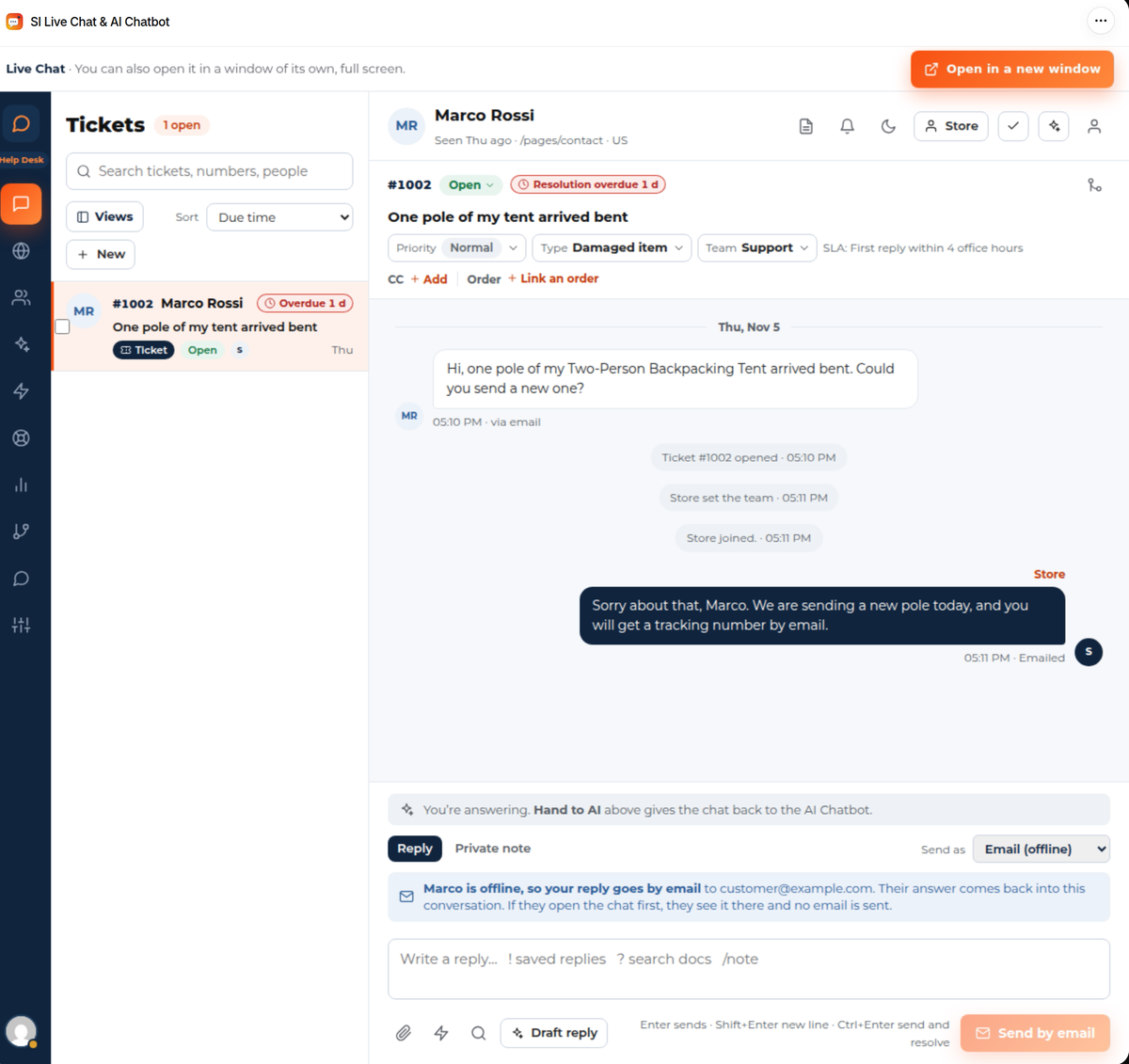
- Status is Open, On hold, Waiting on customer, Solved or Closed. A reply to a solved ticket opens it again; a reply to a closed ticket opens a follow-up ticket.
- Draft reply asks the AI for a draft from your store’s content; Hand to AI gives the ticket to the AI chatbot.
- Several tickets can be merged into one.
- The ticket views in the inbox are all tickets, mine, unassigned, due today, overdue, waiting on customer, on hold and solved.
Teams, targets and saved replies #
Under Help Desk:
- Teams own tickets. A team has members, a default mailbox, a response-time policy and an assignment method.
- SLA policies set the target times. A ticket takes the first policy that matches it, top to bottom, and a team can name its own. The standard targets are:
| Priority | First reply | Next reply | Resolution |
|---|---|---|---|
| Urgent | 1 hour | 1 hour | 1 day |
| High | 4 hours | 4 hours | 1 day |
| Normal | 1 day | 1 day | 3 days |
| Low | 1 day | 1 day | 5 days |
Times count your office hours from Routing and hours.
- Macros are saved replies that also change the ticket when you send them. See Answering chats in the inbox.
- Tickets has the number prefix, auto-close (remind a customer who hasn’t answered, mark solved, close solved tickets after a number of days), the emails to customers (a one-click rating when a ticket is solved) and the AI settings: draft a reply for each new ticket, summarise long tickets, and let the AI reply to tickets that match a rule. Each AI draft and summary counts as an AI chat.
The ticket form and My tickets #
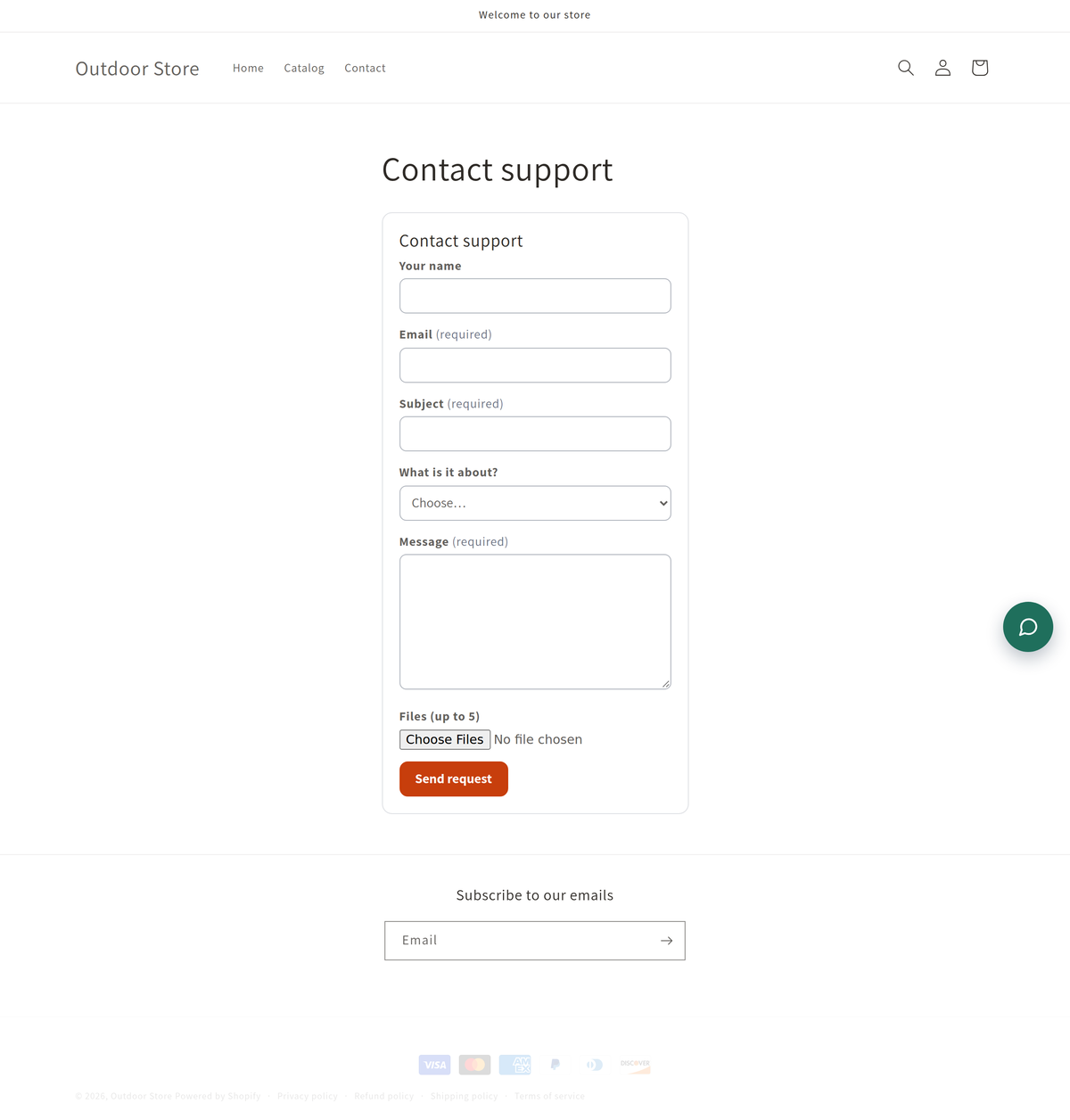
The ticket form lets customers send a request: name, email, subject, message and, for signed-in customers, the order. You can add a type picker, file uploads (up to five files) and extra fields. Never ask for passwords or card numbers there.
- In the theme editor, add the app block Ticket form to any page, or link to the form’s own page.
- Under Help Desk › Tickets, set the form’s title, the team for new requests, an intro line and the extra fields, then click Save the form.
Customers follow their requests under My support tickets in their account (new customer accounts: the My tickets page; classic accounts and guests use the app’s own page and confirm their email with a code). Ticket emails link there. Customers can reply, mark a ticket as solved and, on this plan, keep logins in Secure details.
Secure details #
A place on each customer’s account for the logins your team needs, instead of passwords in tickets. Switch it on under Help Desk › Secure details. Customers add, replace and delete their own entries and never see a saved value again. Your team sees that an entry exists; people you allow can reveal it for 30 seconds, and every reveal is recorded. Nothing from it goes into emails, the AI, reports or exports.
Reports #
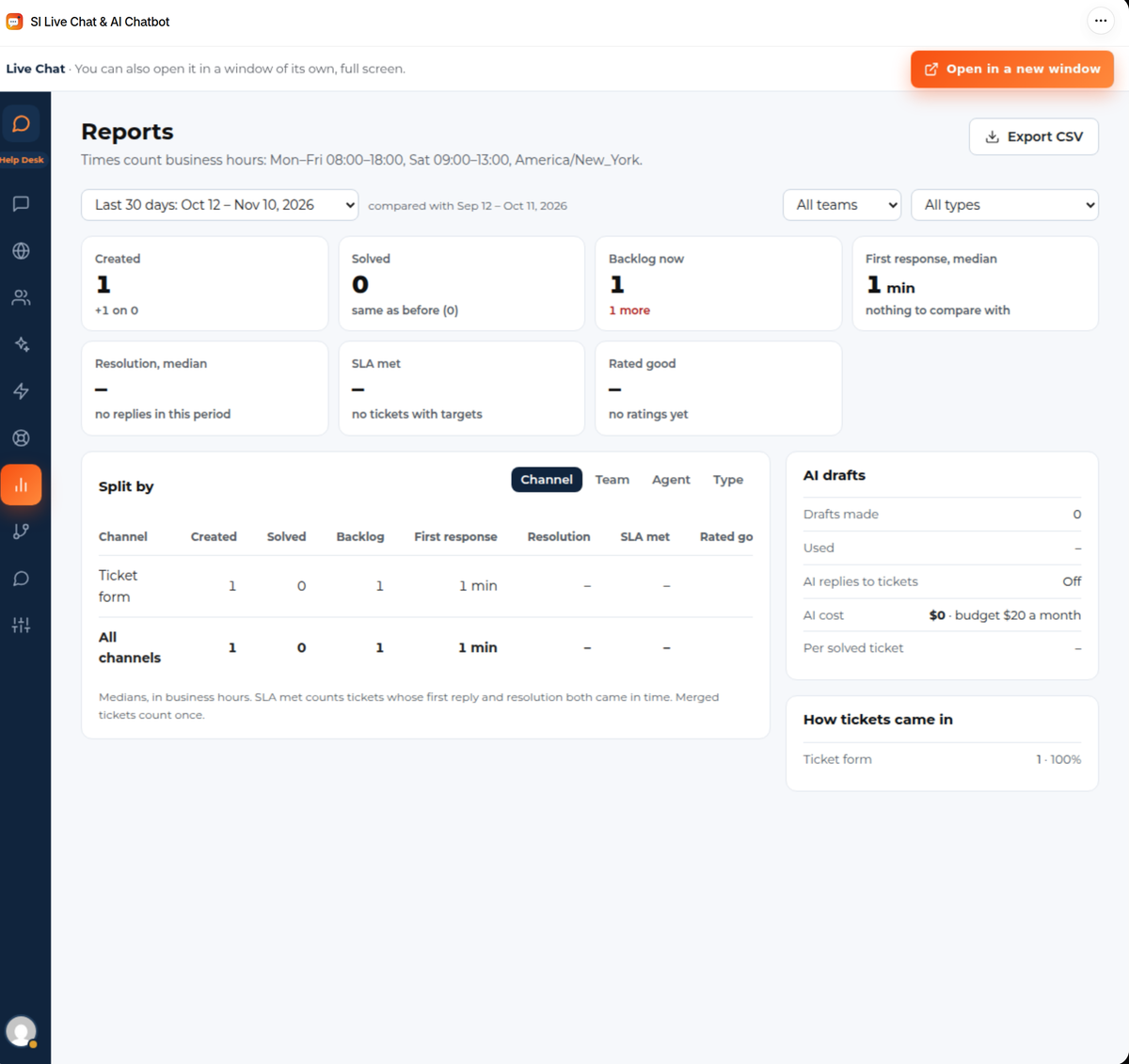
Reports shows your tickets over a period: how many were created and solved, the backlog, the median first response and resolution times, how many met their target and how many were rated good. Split them by channel, team, agent or type, and use Export CSV. Times count your office hours.