
The Rentals & Bookings app emails your customers about their rentals: a reminder before pickup, a reminder before it is due back, a note when it is overdue, and messages when a rental goes out and comes back. You get an alert for every new rental order. You choose the timings and the wording under Settings › Notifications, and the Reminders page shows every email that went, is waiting, or was held back and why.
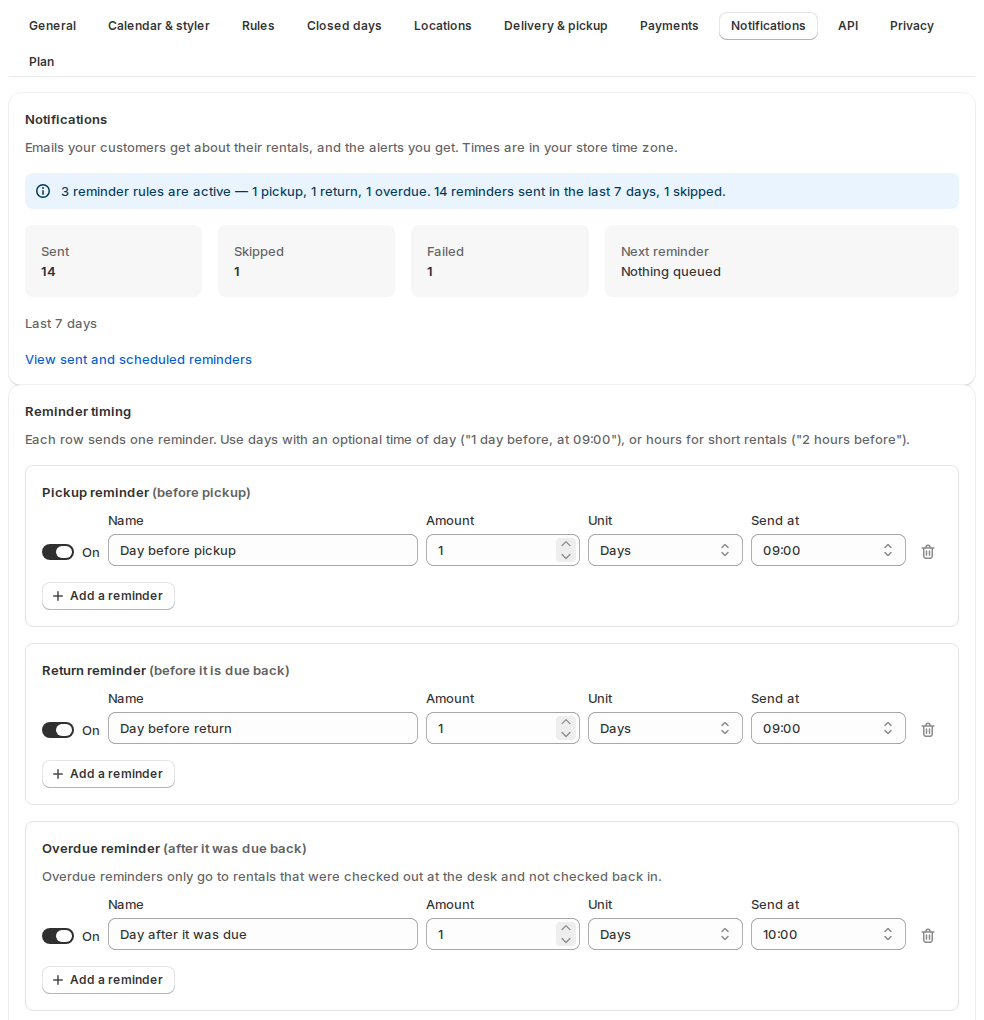
The emails #
| Goes to | When | |
|---|---|---|
| Pickup reminder | The customer | Before the rental starts, by your reminder timings. |
| Return reminder | The customer | Before the rental is due back. |
| Overdue reminder | The customer | After the rental was due back, if it is still out. |
| Rental sent (“Your rental is on its way”) | The customer | When you check the rental out at the desk. |
| Rental returned (“Returned — thank you”) | The customer | When you check it back in. |
| New rental order | You | When an order with rentals comes in. A line without stock is marked. |
Emails about the same order that go out together are merged into one, and each lists every rental with its own dates.
Reminder timing #
Each row under Reminder timing sends one reminder. Click Add a reminder for another.
| Field | What it does |
|---|---|
| On | Switch a row off without deleting it. |
| Name | Only you see it, like “Day before, morning”. |
| Amount and Unit | Days or Hours before pickup, before it is due back, or after it was due back. |
| Send at | The time of day, for days only. Empty = exactly at the offset. |
Use days with a time of day (“1 day before, at 09:00”), or hours for short rentals (“2 hours before”). Times are in your store’s time zone.
Overdue reminders only go to rentals that were checked out at the desk and not checked back in. A reminder is skipped when it no longer makes sense: the rental was already collected or returned, the dates changed (a new reminder is queued for the new time), the order was cancelled, or the email is switched off.
Email wording #
Every email has Send this email, a Subject, a Heading and a Message.
- Leave a box as it is to keep the standard wording, which goes out in each customer’s language.
- Once you change it, your text goes to every customer, unless you add a version for their language under Other languages (Add a language, then a code like fr, de or pt-BR).
- Preview shows the email with sample data. Send a test sends it to an address you type; the subject starts with [Test].
- Use the standard wording undoes your changes.
Merge tags #
| Tag | Becomes |
|---|---|
{customer_first_name}, {customer_name}, {customer_email} | The customer’s first name, full name and email address. |
{shop_name}, {shop_phone}, {store_address} | Your store name, phone number and address. |
{order_number} | The order number. |
{pickup}, {return} | The earliest start and the latest end on this email, with the time if one is set. |
{pickup_date}, {pickup_time}, {return_date}, {return_time} | The same, split into date and time. |
{items} | Everything on this email, one product per line with its own pickup and return date. |
{map_link} | A Google Maps address for your store. Use it as the target of a link. |
{link} | A link to the customer’s order status page. |
{guests} | The party booked, like “2 adults, 1 child”, for products that count guests. |
{order_link} | A link to the order in your Shopify admin (the New rental order email only). |
A paragraph whose tags all come back empty is left out.
Sender and store details #
- Emails come from your store name. Set a Reply-to address so replies reach you.
- Send new rental order alerts to: one or more addresses, separated by commas.
- Store address and Store phone fill
{store_address}, the map link and{shop_phone}. Fill in from Shopify copies them from your store settings.
The Reminders page #
Reminders in the app’s menu (or View sent and scheduled reminders in Settings › Notifications) lists every reminder and rental email: the ones waiting to go, the ones that went, and the ones held back, with the reason. Reminders are scheduled about an hour before they are due.
- Tabs: All, Scheduled, Sent, Skipped and Failed.
- Search by order number or customer name, and filter by Reminder, Channel and Dates.
- Columns: when, reminder, channel, order, customer name, rental dates and status, with the reason in plain words (for example “Already returned”).
- Each row’s menu: Preview, Send now (a scheduled reminder), Try again (a failed email) and Cancel. Each asks first, and each checks the rental again before anything is sent.
Reminders for delivered and transported rentals #
With Delivery & pickup on, each reminder row also has Counts from (the rental start, or the hand-over day) and For (all rentals, or one way, like transport only). Add the reminders for transported rentals adds three rows: a note on the dispatch day, “please transport it back” on the last day, and “your return hasn’t arrived” a day after it was due back. Delivered, transported and collected rentals get wording that fits them unless you have written your own.
Balance reminders #
With pay part now switched on, a Balance reminder asks the customer to pay the rest before the due date, with the payment link. See Pay part now, rest later.
Rental dates in Shopify’s own order emails #
Every rental line carries its dates as the Rental dates property on the order (and Guests when there is a party). Shopify’s order confirmation shows line properties only if its template prints them. If yours doesn’t, add this once:
- In Shopify, open Settings › Notifications › Order confirmation › Edit code.
- Inside the loop over line items, find the variant title (
{{ line.variant.title }}) and paste the snippet below right after its closing{% endif %}. - Save, and do the same in Order edited, Order invoice (staff bookings and rental extensions are invoiced) and any other order email you use.
{%- for sir_p in line.properties -%}
  {%- assign sir_key = sir_p.first | append: '' -%}
  {%- assign sir_initial = sir_key | slice: 0 -%}
  {%- if sir_p.last != blank and sir_initial != '_' -%}
    <span class="order-list__item-variant">{{ sir_key }}: {{ sir_p.last }}</span><br/>
  {%- endif -%}
{%- endfor -%}
It prints every visible line property, for example “Rental dates: Oct 13, 2026 – Oct 15, 2026”. Properties whose names start with _ are private and never print. Shopify’s preview uses a sample order without properties, so check the result with a real test order.
Good to know #
- The Send events to Shopify Flow switch on the same screen sends rental events to Shopify Flow, for texts, Slack messages or Shopify Email. See Shopify Flow, API and headless storefronts.
- The standard wording is translated into the languages the app supports; your own wording is sent as you wrote it.


