
Shoppers often know their dates before they know what they want. The Rental search block lets them search by dates first, then shows what is free: either your collection with the rentals that don’t fit marked, or a results page with only what is free. Their dates follow them to every product page. A product can also have a place, so shoppers can search near a town and see rentals on a map.
Add the Rental search block #
In Shopify › Online Store › Themes, click Edit theme and add the Rental search block to any template (the home page is a common spot) and save. The search works without JavaScript too, so every search is a link you can bookmark or share.
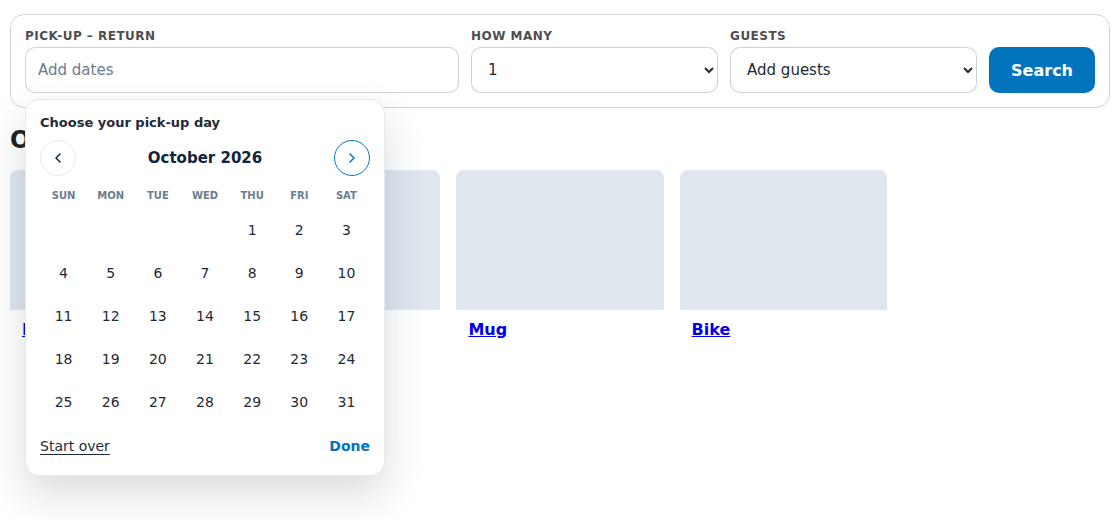
Block settings #
| Setting | What it does |
|---|---|
| Search shows | A collection, rentals marked: goes to a collection and marks the rentals that aren’t free. Only what is free (results page): a page listing only what is free. |
| Collection to search | For marking. Empty: all products. |
| Results page layout | Grid or List. |
| Pick-up and return times | Adds time fields, from Times from to Times until, every Minutes between times. Empty: the store’s opening hours. |
| One date and a length instead of a return date | For rentals hired for a length: a boat for 4 hours, a dumpster for a week. Lengths offered lists them, like 4h, 1d, 3d, 1w, 1m. |
| How many | A quantity field. |
| Guests | Don’t ask, Party size, or party size with children, infants and pets. Largest party offered caps the list. |
| Type (collections) | Let shoppers pick a collection, as a Drop-down or Buttons, from the Types to offer. |
| Keyword | A keyword field that goes to your store’s search. |
| Where (a place and a distance) | Shoppers type a town, area or postcode, with a Default distance and a Distance field they can change or not. Products need a location (below). |
| Location | Lets shoppers choose a pick-up location, when you rent from two or more. |
| Layout | Bar, Stacked, Card, Pill or Calendar always open. |
| Look | Calendar style, Button text, colours for the button, background, fields, text, labels and borders, and Shadow. |
| Labels | Your own words for Pick-up, Return, How long, How many, Guests and Type. |
Rentals marked on collection pages #
Turn on the Rentals app embed and set Products not free on the searched dates to Mark them (or Hide them). Once a shopper has searched, collection, search and home pages show:
- a bar with the dates, like “Showing availability for Wed, Oct 7 → Fri, Oct 9”, and Clear dates;
- a Not available for your dates badge on rentals that can’t take those dates (with Hide them, those cards are removed);
- links to rental products that open on the searched dates.
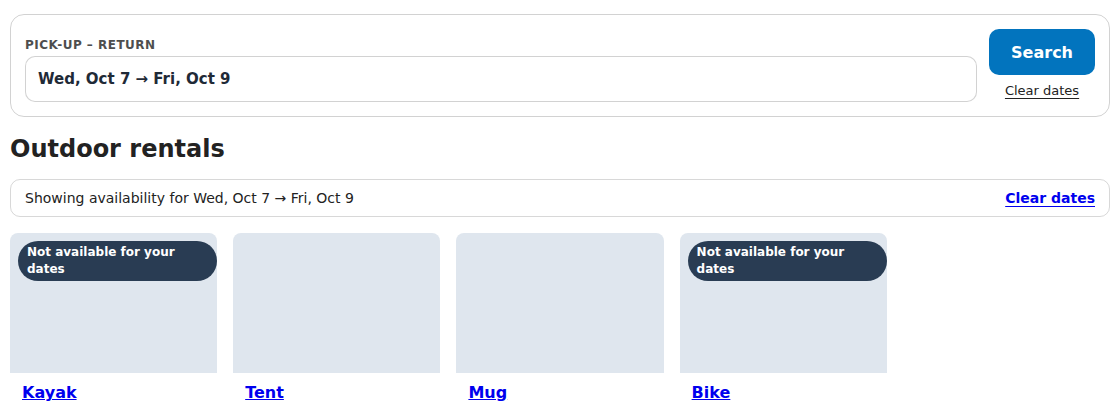
Nothing runs on these pages until a shopper searches, so pages stay fast for everyone else.
The results page #
With Only what is free (results page), the search goes to an Available rentals page inside your theme. It lists the rentals free for those dates with the total for the dates, and Change search. When nothing fits it says “Nothing is free on those dates” and suggests other dates, a shorter rental or fewer items.
The search is remembered #
The last search is remembered for 14 days, or until its pick-up day passes. The product page’s calendar opens on those dates when they are free for that product: dates, times, a searched length, the quantity and the party. A new search replaces it; Clear dates forgets it.
Where a rental is: the product’s location #
A cabin or a boat mooring has a place. Open the product’s Rental Settings page and fill in the Location card below the form: where customers pick this up or stay. It puts the rental on maps and lets customers search by place.
- Enter the address, then look up the coordinates or type them in. Until it has coordinates, the rental is left off maps.
- Choose Approximate or Exact. Approximate shows only the area: a circle around the rental, never a pin at the door, and no street or postcode. Exact shows the full address and a pin. Approximate is the default.
- Add a short description of the area if you like.
The exact address is kept in the app and is never sent to the storefront for an approximate rental.
Searching near a place #
With Where in the search block, shoppers type a town, area or postcode and a distance. Collection pages then also badge rentals outside the area (“Outside your search area”), the date bar says the distance and the place, and the results page keeps only what is within the distance, nearest first.
The Rentals map block #
Add the Rentals map block to a product page or any template:
| Setting | What it does |
|---|---|
| Show | This product’s area, A collection’s rentals or All rentals. |
| Follow the visitor’s search | Greys out rentals not free on the searched dates and keeps to the searched area. |
| Pins | Price (the “From” price on each pin) or Dot. |
| Height, Zoom (one rental), Distances in, Pin colour | The map’s look. |
| Map tiles | Maps use OpenStreetMap unless you set other tiles. A busy store should use its own tile service. |
On a product page the map shows the product’s area, with the area line and your description under it.
Good to know #
- Checkout still checks every rental, whatever a shopper searched.
- A product’s place for maps is separate from stock at your pick-up locations. See Rental locations and stock by location.


