
Customers sign the agreement in the cart, before checkout. This page walks through what they see, from the panel to the signed copy in their inbox, and the other ways to sign: a link for an order you make yourself, the point-of-sale counter, and a link for each guest.
The panel on the cart page #
The Review and sign the agreement panel shows only when the cart needs a signed agreement. It shows:
- This agreement covers: the items it covers (when Include the list of items is on);
- Terms and conditions, in a scrolling box with Show all terms;
- Your full name;
- How do you want to sign? Type to sign or Draw signature, depending on your setting;
- the consent box, then Sign the agreement.
With Type to sign, the name they type becomes their signature, with a preview under the field. With Draw signature, they sign inside the box with a mouse, finger or pen, with Undo and Clear. With No signature (tick a consent box only), the panel shows the terms and the consent box only.
When Who signs is Rentals from Rentals & Bookings, the panel uses the rental wording: Review and sign the rental agreement and You are renting:, with each rental’s dates. The screenshots on this page come from such a store.
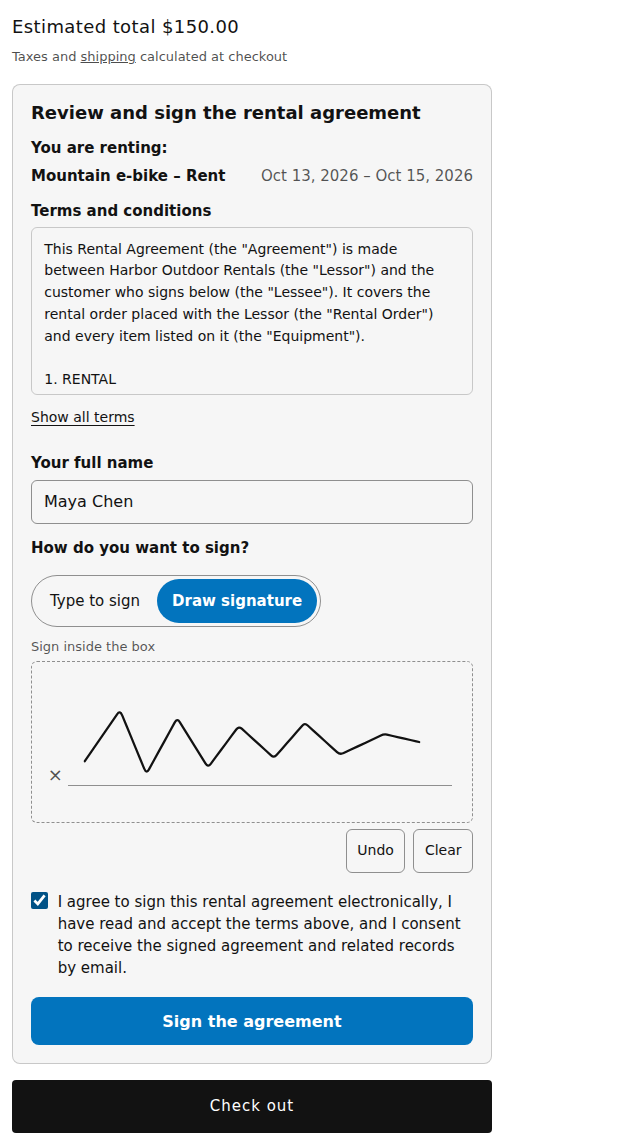
If something is missing, the panel says what, next to the field: “Enter your full name.”, “Tick the box to agree.” or “Draw your signature in the box.”
Once signed #
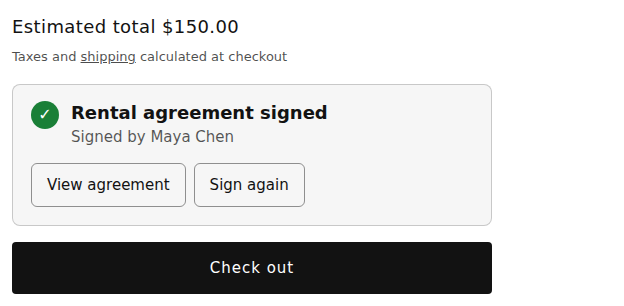
The panel shows Agreement signed and Signed by the name. View agreement opens the terms again. Sign again starts over; Keep my signature goes back.
The customer is asked to sign again when:
- their cart changed: “Your cart changed. Please sign the agreement again.”;
- the signature is older than the number of days you allow: “Your signature has expired. Please sign the agreement again.”;
- you changed the terms while they had the panel open: “The agreement was updated. Please read it and sign again.”
At checkout #
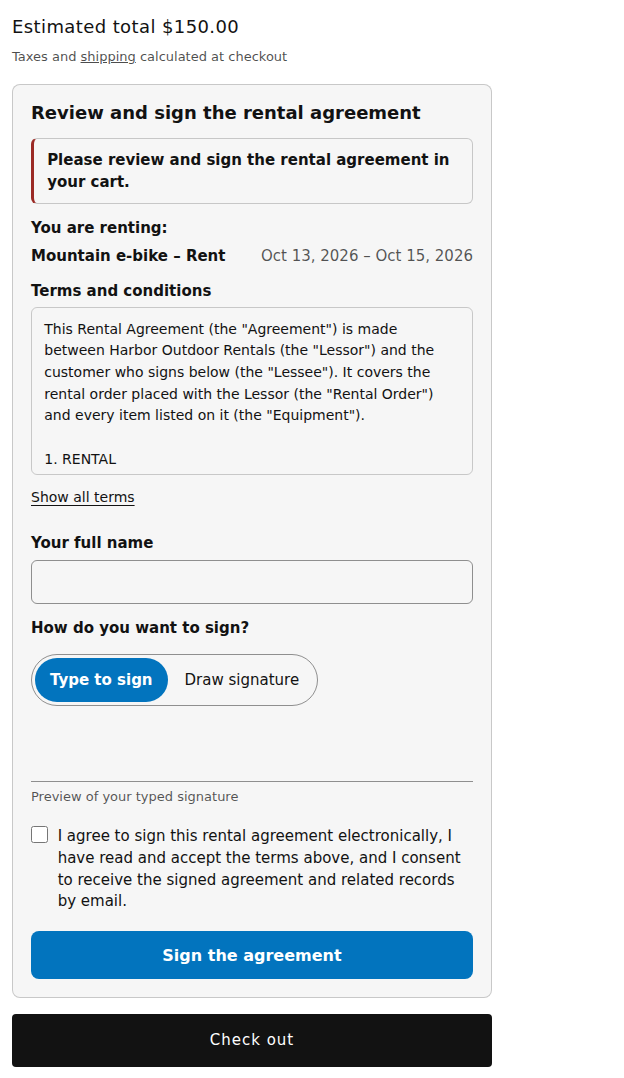
A cart that needs an agreement can’t be paid until everything in it that needs one is covered by a signature. Customers who click Check out too early stay in the cart and see “Please review and sign the agreement in your cart.” The same check runs in Shopify’s checkout, so Buy it now and express checkout buttons can’t skip it.
Cart drawers and older themes #
The Agreement in cart app embed covers every theme. Its settings, in the theme editor:
- Show a notice in the cart drawer: the drawer shows Agreement required with Review and sign, which opens the same panel in a window. After signing, the notice reads Agreement signed.
- Ask for the agreement when customers check out: checkout buttons open the agreement until it is signed. Express checkout buttons can’t be held, but checkout still stops a cart without a signed agreement.
- Show the agreement on the cart page without the app block: for older (vintage) themes, the agreement goes above the checkout button. It stays off when the Agreement block is on the page.
- Accent colour (also on the block): the Sign button and the selected tab. Leave it blank for the default blue.
After the order #
- The customer gets an email, “Your signed agreement for order …”, with the signed PDF attached and the file’s fingerprint (SHA-256), so they can check their copy is unchanged.
- The Thank you page and the order status page show Your agreement with Download your signed agreement. It can take a minute to be ready; until then the page says “Your signed agreement is being prepared…”, and after a while that it will be emailed.
To show the download there, open Shopify › Settings › Checkout › Customize and add the app’s Agreement download block to the Thank you page and to the Order status page.
A signing link for a draft order #
For an order you make yourself in Shopify, the draft order’s Agreement card sends the customer a link to sign on their phone or computer before they pay the invoice.
- Open the draft order. The card says whether anything on it needs an agreement under Who signs.
- Click Send signing link. The customer gets an email, “Please sign your agreement with …”, with the link. A draft order with no customer email shows Create signing link instead. The card then shows the Signing link to copy and share, and Open signing page opens it, for example for the customer to sign on your device.
- The card shows Waiting and how long the link works (7 days). Send again sends it again.
- Once the customer signs, the card says “Signed. Checkout will accept this draft order’s invoice.” Send the invoice as usual.
If you change the draft order’s items, the waiting link stops working and you send a new one. When the draft becomes an order, the agreement is linked to it like any other.
At the point-of-sale counter #
With the Rentals & Bookings app and the link between the two apps on, customers can sign at its point-of-sale desk: they type their name and agree on the POS screen, or scan a QR code and sign on their own phone. You pick the way in Rentals & Bookings under Signing the rental agreement at the counter. See Rentals at the counter with Shopify POS.
Each guest signs #
With Each guest signs on (and the link to Rentals & Bookings on), the person who books signs at checkout as usual, and every other named guest on the booking gets their own signing link. It goes to the guest’s own email when they gave one; otherwise the person who booked gets all the links to share. With Ask whether each guest is under 18 on, each guest’s page asks “Is this guest under 18?”; for a guest under 18, a parent or legal guardian ticks “I am the parent or legal guardian of … and I agree to sign this agreement on their behalf.” and signs with their own name.
Good to know #
- The panel adds nothing to your theme’s cart form, so it doesn’t change how your cart works.
- A drawn signature is only accepted as a real image; the app keeps the pen strokes as evidence too.
- A signing link is for one person. Once they have signed, the page says “Thank you. The agreement is signed.”; a link that ran out or was replaced says “This link doesn’t work any more”.


