
Every signature is kept as evidence: what the customer saw, what they typed or drew, when, and from where. Once the order is placed, the E-Sign Contracts & Waivers app makes a signed PDF, stores it with its fingerprint, and lets you check at any time that nothing has changed.
The Signed agreements list #
The app’s home page lists every signed agreement, newest first. Search by order, name or email. Click a row, or Details, to open one; the order number opens the order in Shopify.
| Column | What it shows |
|---|---|
| Signed | When the agreement was signed. |
| Signer | The name and email. |
| Method | Typed name, Drawn signature or Consent only (no signature). |
| Order | The order it belongs to, or Signed, no order yet for a cart that hasn’t been checked out. |
One agreement #
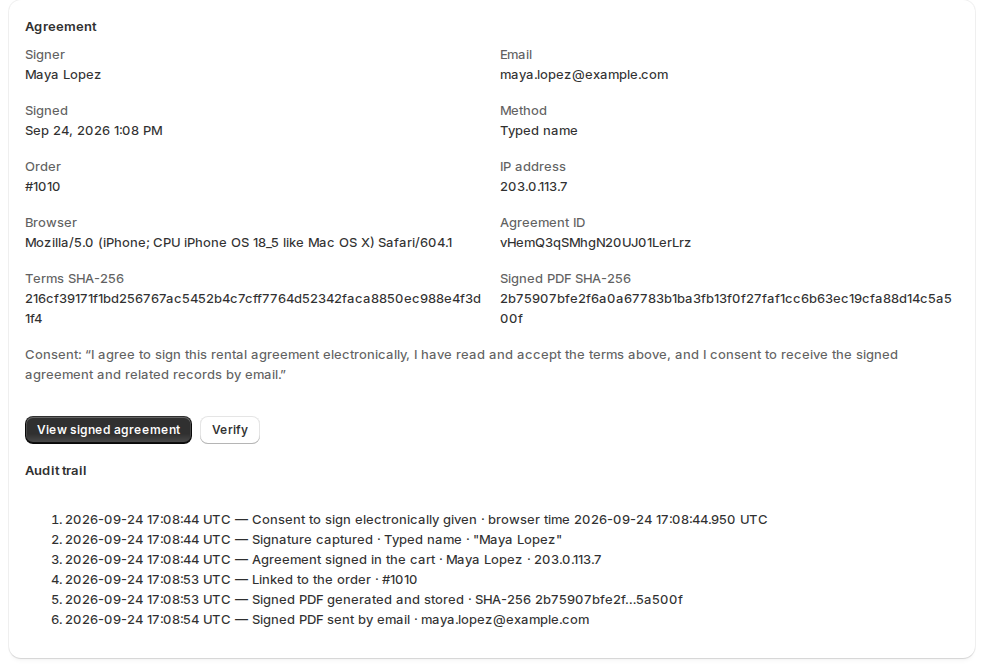
The details show:
- Signer, Email, Signed, Method, Order, IP address and Browser;
- Agreement ID, Terms SHA-256 (the fingerprint of the exact terms the customer saw) and Signed PDF SHA-256;
- Consent: the statement the customer ticked;
- View signed agreement (or View agreement (preview) before the PDF exists) and Verify;
- the Audit trail.
The audit trail #
Each step is written down and chained to the one before it, so the list can’t be edited without breaking the chain:
| Entry | Means |
|---|---|
| Terms opened by the signer | The customer opened the terms. |
| Consent to sign electronically given | They ticked the consent box. |
| Signature captured | They typed or drew their signature. |
| Signed at the POS counter | They signed on the POS screen, with the staff member and location. |
| Agreement signed in the cart | They clicked Sign the agreement. |
| Linked to the order | The order was placed with this agreement. |
| Signed PDF generated and stored | The PDF was made and its fingerprint recorded. |
| Signed PDF sent by email | The customer’s copy went out. |
| Signed PDF downloaded | Someone downloaded it. |
| Integrity check run | Someone clicked Verify. |
Verify an agreement #
Click Verify. The app checks:
- Stored PDF found;
- PDF SHA-256 matches the value recorded when it was made: the file wasn’t changed or replaced;
- Audit trail intact, with the number of entries;
- Terms text matches its hash.
The result is Integrity check passed, or Integrity check FAILED with the line that failed. A stored agreement that fails its check is never shown or downloaded; the app says so and asks you to run Verify for details.
On the order page #
The Agreement card on a Shopify order shows the status (Signed, Not signed or Not needed), the method, the signer, their email, the time and the IP address, with View signed agreement and Verify. An order with nothing that needs an agreement says “Nothing in this order needs an agreement.” Add the card once with + Block in the Blocks section of any order page, then pin it.
Orders with an agreement are also tagged: signed-agreement, or rental-agreement when the agreement covers rentals from Rentals & Bookings.
The signed PDF #
The PDF has the title, the order, your store, the customer (and their billing and shipping addresses when Shopify shares them), the items the agreement covers with their prices (and dates, for rentals), the terms exactly as signed, and the signature. With Add a signature certificate page on, the last page is the certificate: agreement and signature IDs, the fingerprints, the signer, the time, the IP address, the browser, the method, the signature, the consent statement, the audit trail with each entry’s fingerprint, and how to verify the file.
The PDF is made once and kept exactly as it is; later downloads are the same file. It is printed in the language the customer signed in.
How long agreements are kept #
Signed agreements are kept for the time after the order you set under Settings › Keeping records (7 years unless you change it), then erased. When a customer asks your store to erase their data, a signed agreement is kept until then as a legal record, unless you turn that off; signatures that never became an order are erased at once. Erasing removes the PDF, the signature, the name, email, IP address and browser; the fingerprints stay, and Verify reports “Personal data was erased”.
Shopify Flow and the API #
- Shopify Flow: the trigger Agreement signed runs once a signed agreement belongs to its order, with the order, Order name, Agreement ID, Agreement title, Signer name, Signer email, Signature method and Signed at. Use it to tag the order, add a note or email your team. With Each guest signs, it runs once per guest.
- API: other software can read signed agreements, their audit trail and a download link, verify them or email them again through the REST or GraphQL API. Create a key under Settings › API access; keys belong to your store and work with every Sales Igniter app you have. See REST API reference: E-Sign Contracts & Waivers and GraphQL API reference: E-Sign Contracts & Waivers.
Good to know #
- An agreement is linked to its order a few minutes after the order is placed, or at once when you open the order’s Agreement card.
- An agreement is linked only to the order placed with the cart that signed it (or the draft order’s invoice), so a signature can’t be moved to another order.
- Without a plan, signed agreements, their PDFs and Verify keep working; only new signing stops.


