
A service schedule opens a service ticket when a unit is due: every so many days, weeks, months or years, every so many rentals or days on rent, or every so many hours on a meter, whichever comes first. You see every unit’s state on one screen, and you choose whether a unit that is overdue for its service may go out on a rental.
The Services screen #
Go to Rentals > Maintenance Work > Services. The tabs sort the units by state: Due and overdue, Due soon, Snoozed and All units. Below the units, Service schedules lists your schedules.
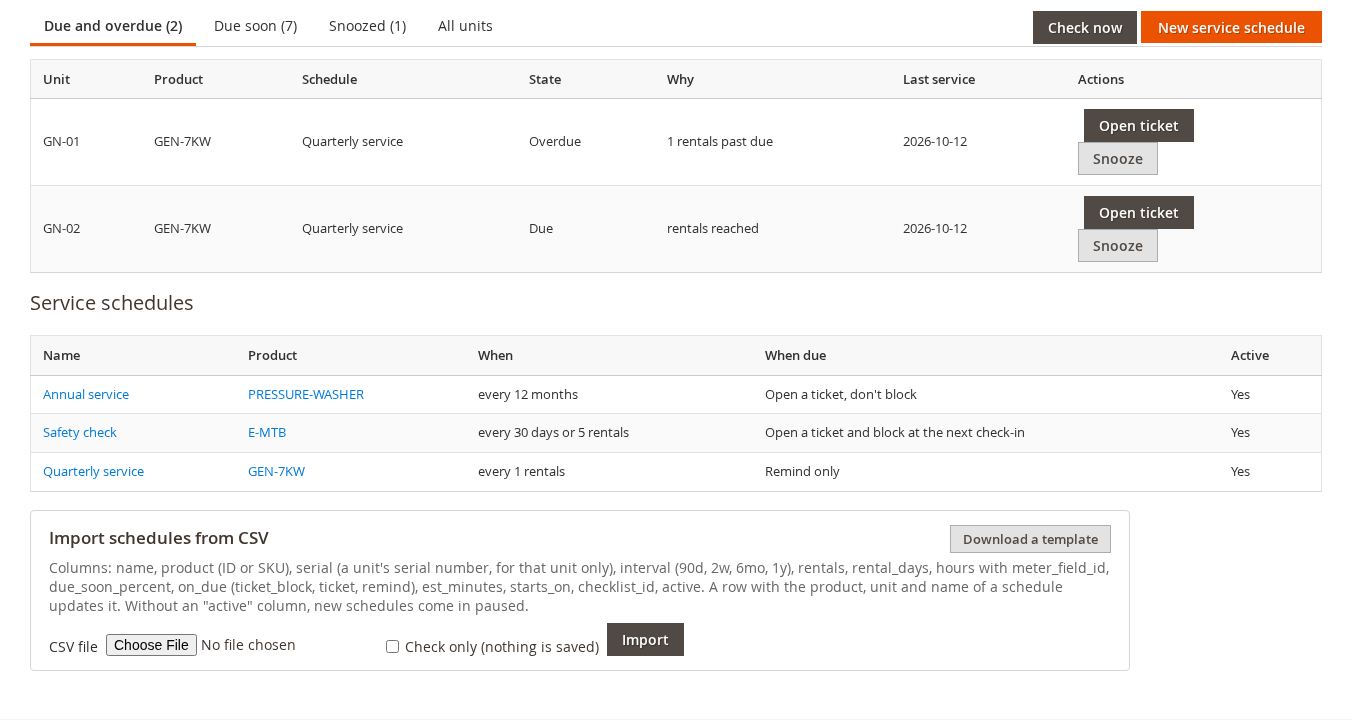
For each unit you can:
- click Open ticket to send it to maintenance now (if it is already on a ticket, the row links to it);
- click Snooze to put it off Until a date, or or for a number of rentals (units with a serial number), with a Reason. End snooze brings it back.
Check now works out every unit’s state again straight away. It is done by itself every hour, and after every send and return.
The board’s Services due tab and card show the same units, and the managers’ daily digest lists the services due.
The states #
| State | Meaning |
|---|---|
| OK | Not due yet |
| Due soon | Close to due, by the warning you set |
| Due | Due now |
| Overdue | Past due |
| Snoozed | Put off on purpose |
Adding a schedule #
Click New service schedule (or Add a service schedule in the Maintenance section of a product’s edit screen).
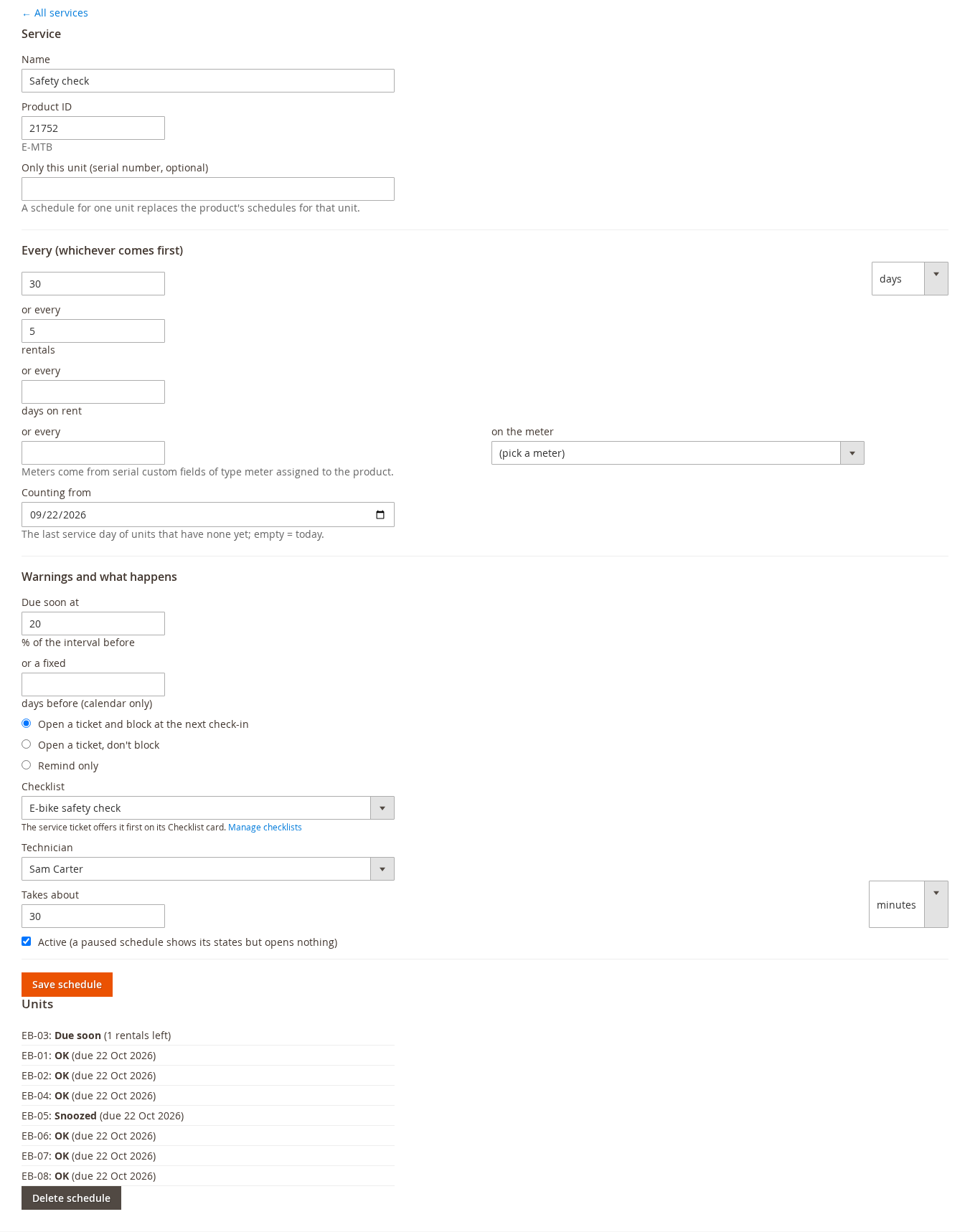
- Give it a Name (Annual service, Safety check) and enter the Product ID.
- Leave Only this unit empty for every unit of the product, or enter one serial number. A unit with a schedule of its own follows only that one.
- Set the intervals under Every (whichever comes first). Fill in one or more: every N days, weeks, months or years; or every so many rentals; or every so many days on rent; or or every so many hours on the meter (pick a meter). Whichever comes first makes the unit due. A product without serial numbers is serviced by the calendar only, and its ticket never blocks by itself.
- Counting from: the last service day of units that have none yet. Empty means today. Rentals and hours count from when the schedule is saved.
- Under Warnings and what happens, set Due soon at a percentage of the interval (or a fixed number of days before, calendar only). This is how early the Services screen and the digest warn.
- When due: Open a ticket and block at the next check-in, Open a ticket, don’t block, or Remind only (the unit is only listed). A unit out on a rental is blocked from the end of that rental, never in the middle of it.
- Optional: the Checklist to fill during the service, the Technician, and Takes about (minutes, hours or days), which becomes the ticket’s Expected back.
- Tick Active and click Save schedule. A paused schedule shows its states but opens nothing.
When a service is done #
Close the service ticket with Ready to rent: the service is recorded and the unit’s counters start again. Cancelling a service ticket does not reopen it; the unit stays due until you service or snooze it. If you serviced a unit without a ticket, record it with the GraphQL mutation completeRentalMaintenanceService (see Maintenance Tickets in GraphQL).
Deleting a schedule keeps the service tickets it opened.
Meter hours #
For engines, generators and anything with an hour meter, add a serial custom field of type Meter to the product’s serial custom field set (Rentals > Serial Custom Fields). Readings entered at Send and Return, or on the serial page, build the unit’s lifetime hours. A schedule set to “every 250 hours on the meter” uses them.
The check-out guard #
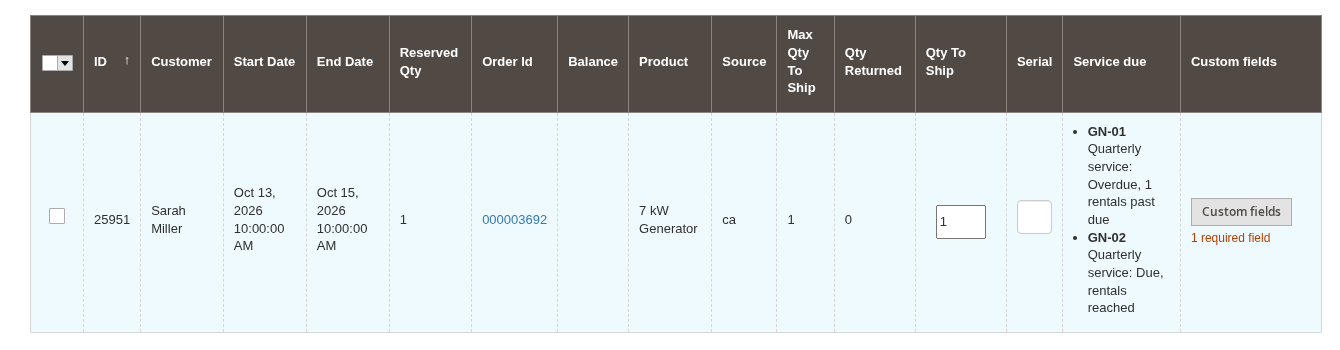
When a unit’s service is due, the Send Rentals grid has a Service due column that names the units that are due or overdue. After a unit went out with a service due, the send tells you. What happens is set under Units due for service at check-out in the settings:
- Warn (the default): the unit can go out, and the note is shown.
- Block when overdue: an overdue unit cannot be sent out until it is serviced or snoozed on the Services screen. A unit that is only due still goes out with a warning. Send another unit, or service it first.
Stock without serial numbers is never blocked.
Importing schedules #
Many schedules at once? Import schedules from CSV at the bottom of the Services screen takes a file with the columns name, product (ID or SKU), serial, interval (for example 90d, 6mo, 1y), rentals, rental days, hours with a meter, due soon percent, what happens when due, minutes, start date, checklist and active. Without an “active” column, new schedules come in paused. Download the template, tick Check only first, then import. Rows that are refused are listed by line.
Version 1 schedules #
The Automated Periodic Maintenance screen of version 1 is replaced by Services. When you import your version 1 data, its schedules come in paused, so that switching them on does not open a ticket for every unit at once. Review each one, then tick Active.


