
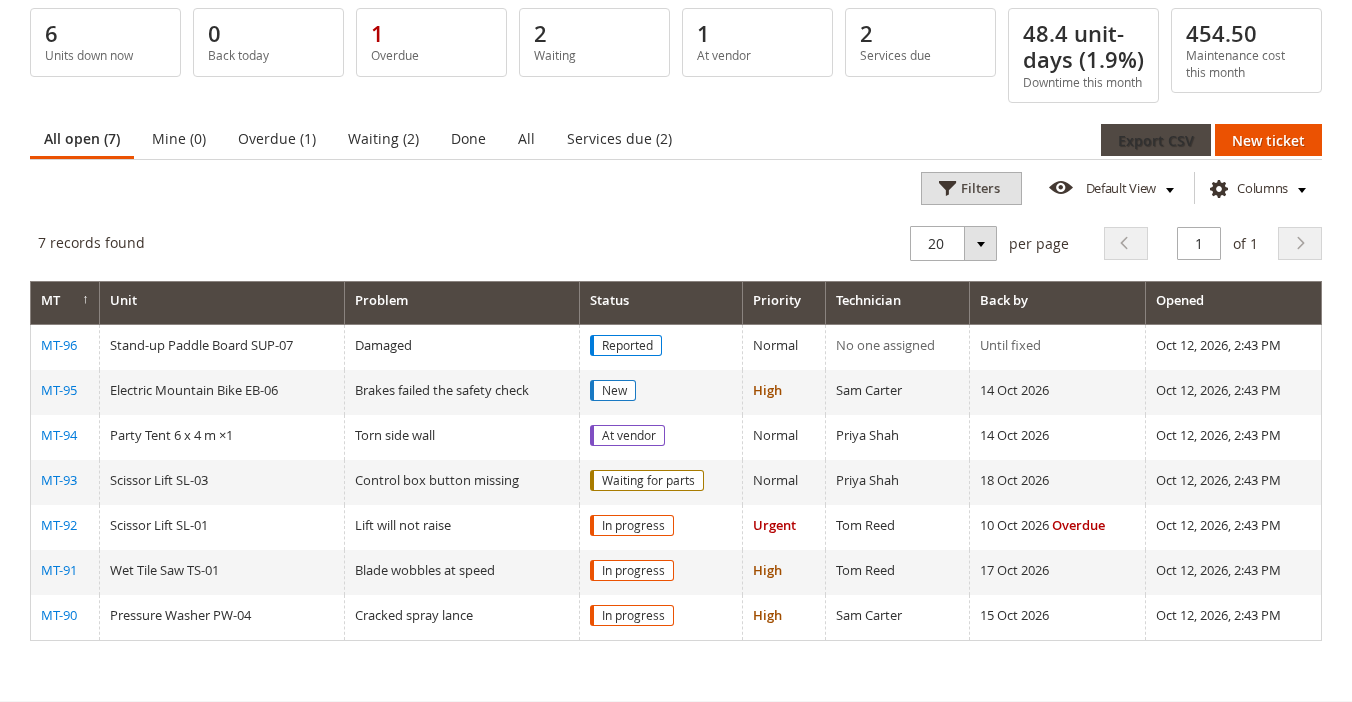
Maintenance keeps track of the repairs and services of your rental stock. When a unit comes back damaged, you flag it on the Return screen: it is checked in straight into maintenance and stays out of stock until its ticket is done. Every repair, service and cost is on one board, under Rentals > Maintenance Work > Tickets.
It also plans services by days, rentals or meter hours, asks checklists at check-out and check-in, records parts, labour and vendor costs, lets your customers report a problem from their account, and lets you charge a customer for damage they caused, from the security deposit, the card saved at checkout or a pay link.
This page is for Maintenance 2.0. Version 1 of the extension (tickets, technicians, statuses and automated maintenance) is replaced; its tickets can be imported (see below).
What you need #
| Item | Requirement |
|---|---|
| Magento | Magento Open Source or Adobe Commerce, with Sales Igniter Rental |
| Rental extension | Sales Igniter Rental for Magento 2 (releaserental2) 1.2.216 or newer. Maintenance 2.0 does not install on an older Rental extension. |
| Cron | Magento’s cron must run. It keeps the stock holds up to date, checks which services are due and sends the reminder emails. |
| Optional | Serial numbers on your products (tickets can also take a quantity). Serial Custom Fields, for checklists. The Refundable Security Deposit feature of the Rental extension, to take a damage charge from a held deposit. |
Install and upgrade #
- Update the Rental extension to 1.2.216 or newer first.
- Install or update the Maintenance extension (
salesigniter/releasemaintenance2) the same way you installed the Rental extension. - Run the usual Magento steps:
bin/magento setup:upgrade, then compile (bin/magento setup:di:compile) and deploy the static content in production mode, then clear the cache.
On setup:upgrade the extension:
- creates its own tables (they start with
simaint_), so a ticket is not stored as an order or a product; - seeds the eight built-in statuses (see Tickets and the board);
- gives the roles that could use Maintenance in version 1 the new permissions.
Nothing changes for your customers until a ticket keeps a unit out of stock.
If you used version 1 #
Your version 1 tickets stay where they are. To bring them over, go to Stores > Configuration > Sales Igniter > Rental > Maintenance Tickets (or Rentals > Maintenance Setup > Settings) and open the Version 1 import link at the bottom. The link only shows when there are version 1 tickets to import. See Setup, emails and the version 1 import.
The menu #
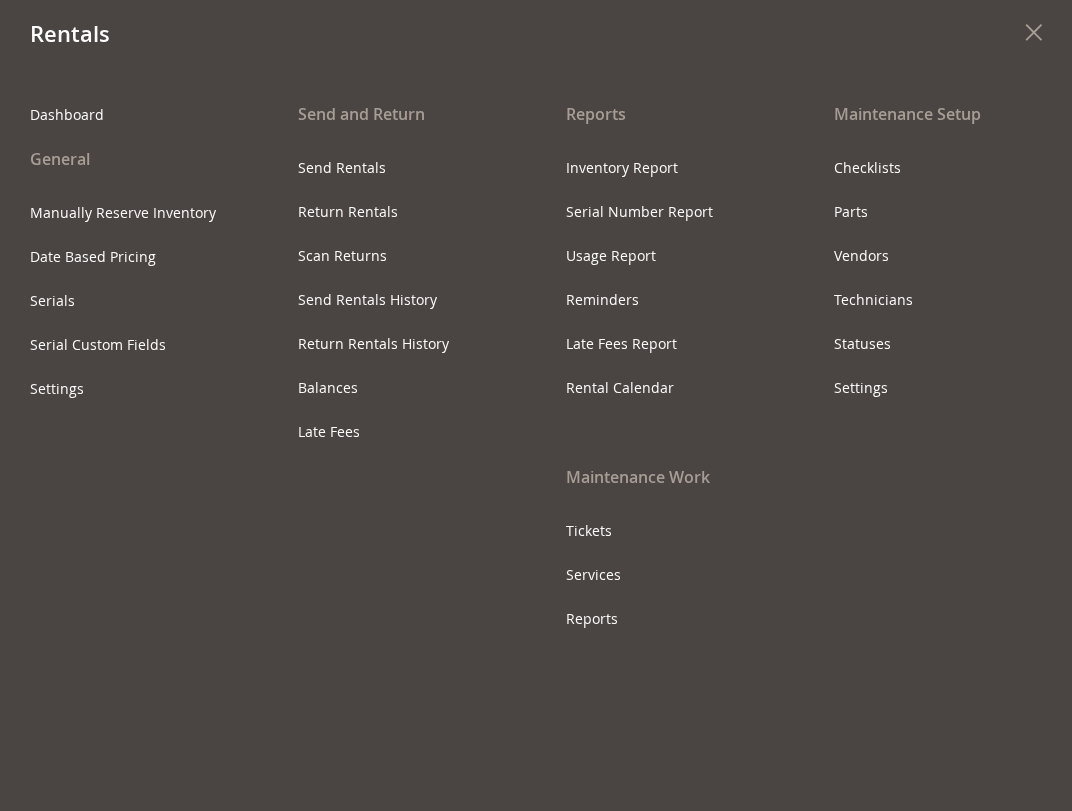
Under Rentals you find two headings.
| Screen | Where | What it is for |
|---|---|---|
| Tickets | Rentals > Maintenance Work > Tickets | The board: every ticket, with tabs, filters and Export CSV |
| Services | Rentals > Maintenance Work > Services | Service schedules and the units due for a service |
| Reports | Rentals > Maintenance Work > Reports | Cost, downtime, utilisation, service compliance and problems |
| Checklists | Rentals > Maintenance Setup > Checklists | Serial custom field sets used as checklists |
| Parts | Rentals > Maintenance Setup > Parts | The parts you use on repairs |
| Vendors | Rentals > Maintenance Setup > Vendors | The workshops you send units to |
| Technicians | Rentals > Maintenance Setup > Technicians | The people tickets can be assigned to |
| Statuses | Rentals > Maintenance Setup > Statuses | The ticket statuses |
| Settings | Rentals > Maintenance Setup > Settings | Opens the Maintenance Tickets settings group |
Who can do what #
Give your staff their permissions under System > Permissions > User Roles > Role Resources, in Rentals > Maintenance.
| Permission | What it allows |
|---|---|
| See tickets and the board | Open the board and the ticket pages, and the reports |
| Create, edit and close tickets | Open, edit, assign, move on and close any ticket |
| Work on tickets assigned to me | Comment, add photos and costs and move on the tickets assigned to you |
| Costs, parts and vendors | See and edit every cost line, tick “Bill to customer”, and manage the parts list, the vendors and a ticket’s vendor card |
| Charge customers for damage | Charge a customer for damage, waive a charge or decide “No charge” |
| Service schedules | The Services screen and the schedules |
| Checklists | Mark serial custom field sets as checklists |
| Statuses | Rename, recolour and add ticket statuses |
| Technicians | Manage the technicians |
| Import from version 1 | Run the version 1 import |
Settings use the Rental extension’s own Settings permission.
A technician does not need access to the whole Magento admin. Make a role with only See tickets and the board and Work on tickets assigned to me, give it to the technician’s admin user, and link that user on the Technicians screen.
First steps #
- Open Rentals > Maintenance Setup > Settings. Check Managers (the email addresses that get maintenance emails) and edit the Problem list to match your stock: one problem per line, offered at check-in, on new tickets and in the customer’s report form.
- Open Rentals > Maintenance Setup > Technicians and add yourself and anyone who does repairs (see Setup, emails and the version 1 import).
- If units you rent need regular servicing, add a schedule on Rentals > Maintenance Work > Services (see Service schedules).
- The next time a unit comes back damaged, use Needs service on the Return screen (see Tickets and the board).
How a ticket keeps stock out #
A ticket that keeps stock out holds its units from the moment it is opened (or from a planned start) until it reaches Ready to rent. While it holds them they are not offered on the calendar, the product page or the cart, and a serial shows as being in maintenance. With an Expected back date, the hold ends at the end of that day. If the ticket is still open after that, it keeps blocking and shows Overdue, unless you set Release stock at the expected date to Yes in the settings.
A ticket never cancels a booking. If the units it holds leave future bookings short, the ticket lists those bookings so you can swap units or contact the customers.
A ticket can also be set to Don’t block (log only): the unit stays rentable while you follow the work.
More in this guide #
- Tickets and the board: the board, the ticket page, statuses and Needs service at check-in.
- Service schedules and the check-out guard
- Checklists and photos
- Repair costs, parts and vendors
- Damage charges
- Customer problem reports
- Maintenance reports and the dashboard
- Setup, emails and the version 1 import
- Maintenance Tickets in GraphQL


