
Every serial’s page keeps the unit’s whole story: its photos, the current value of each of its serial custom fields, and a history of every send and return with what was recorded at each. Readings are never overwritten: a mistake is corrected or voided, and the original stays visible with who changed it and why.
Open a serial’s page from the Serials grid, the History icon in the product’s Serial Numbers grid, or Complete History in the Serial Number Report. Recording, correcting and voiding need the Serial page: record, correct, void readings permission.
Current values #
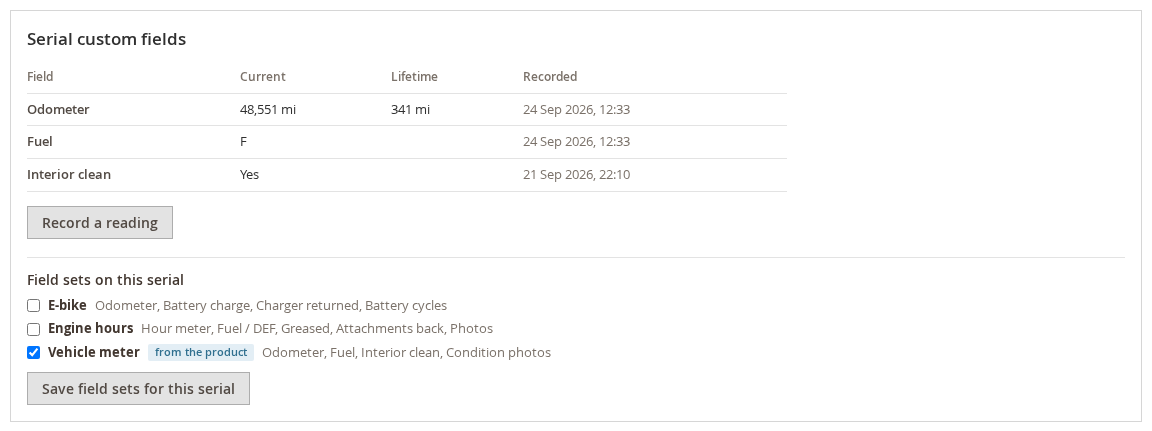
Serial custom fields lists each field with its current value and when it was recorded. For a meter, Lifetime is everything it has counted since its first reading, including roll-overs and replaced meters.
The history #
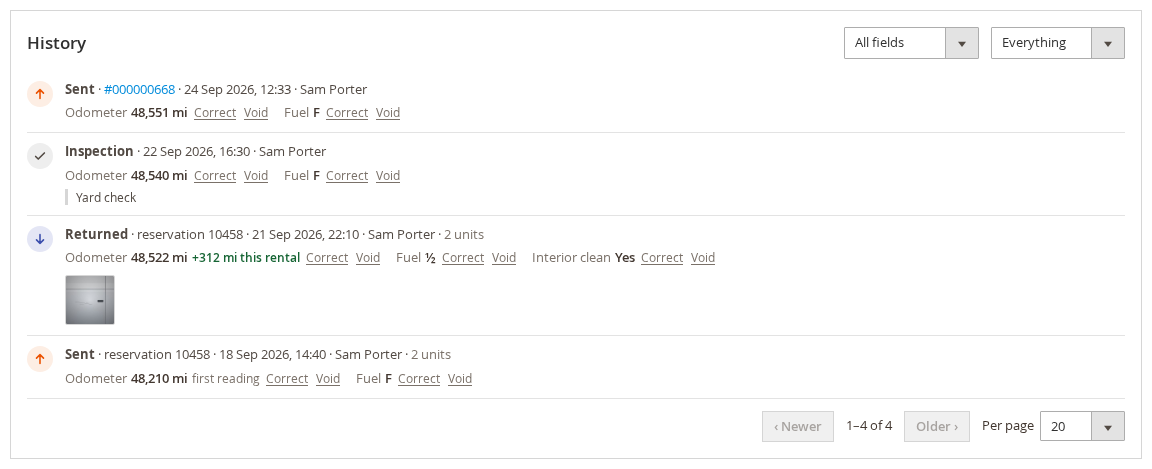
The newest entry is at the top. Each one shows:
- what happened: Sent, Returned, Inspection, Maintenance or another reading recorded on this page;
- the order it belongs to (linked) or the reservation number, the date and time, and who recorded it;
- 2 units when several units moved together;
- every field recorded then. A meter also shows how far it moved during that rental, such as +312 mi this rental, or first reading for the first value ever recorded;
- the photos taken then. Click one to see it full size.
Two lists at the top narrow it down: one field, or one kind of entry (sends, returns, inspections, maintenance, other). Newer and Older page through it, 20, 50 or 100 entries at a time.
Recording a reading between rentals #
Yard checks, services and inspections can be recorded straight on the serial’s page. Click Record a reading:
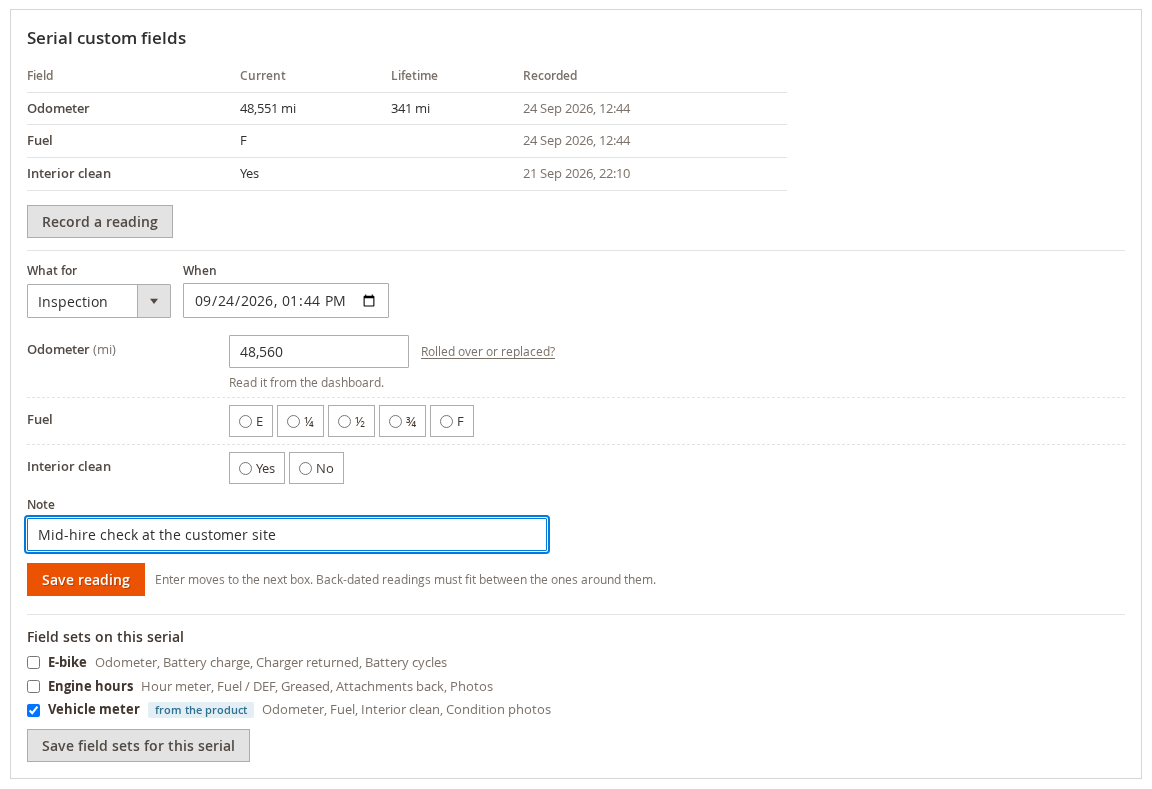
- Choose What for: Inspection, Maintenance or Other.
- When is now unless you change it. A back-dated reading must fit between the readings around it, and a reading can never be in the future.
- Enter the values. As at a return, a meter cannot go down without saying it rolled over or was replaced.
- Add a Note if it helps, and click Save reading.
Correcting a reading #
Click Correct next to the value. Type the right value, then give the reason.
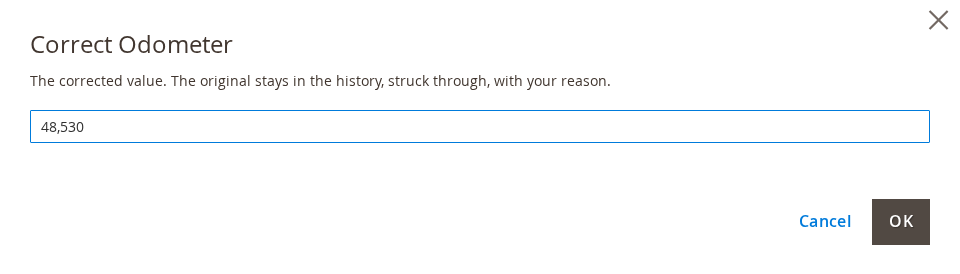
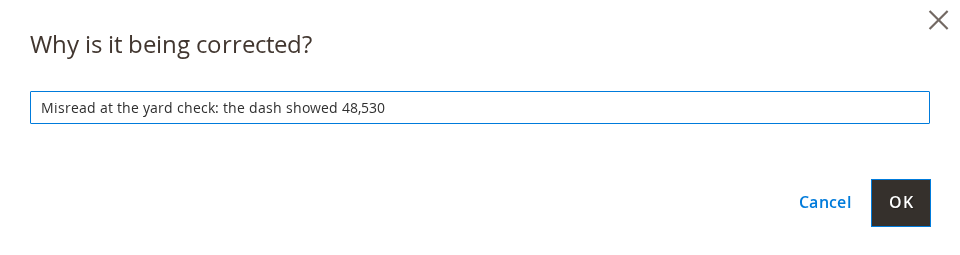
The original stays in the history, struck through, with who corrected it, when and why, and the corrected value appears under it. Everything that depends on the reading, such as the usage of that rental and the current value, is worked out again.

Voiding a reading #
Void is for a reading that should not be there at all, for example one entered against the wrong unit. You are asked why; the reading stays in the history, struck through, with who voided it and why, and usage is worked out again without it.
Photos #
The Photos box, under the serial’s details, holds every photo of the unit: those taken at send and return, and any added here. To add one, choose What the photos show (Condition, Damage, Service, At send, At return or Other), add a note if you like, and click Take photo or Choose photos. Do not put customer details in notes.
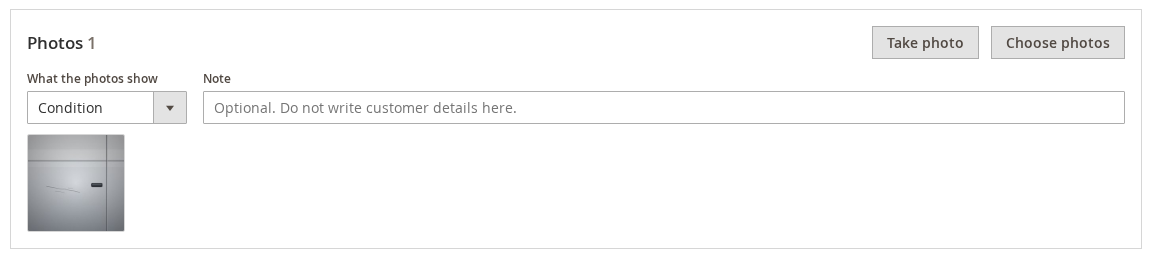
Click a photo to see it full size, with its note, when it was taken and who took it. From there:
- Move to trash takes it off the page. Anyone can trash a photo they took; trashing other people’s photos needs the manager permission below.
- Keep as evidence stops the photo from ever being deleted by the retention setting.
The Trash at the bottom of the box keeps trashed photos for 30 days: Restore puts one back, and Delete permanently removes it for good, keeping only a record of who deleted it and why. Keeping as evidence and deleting permanently need the Serial photos: delete, keep as evidence permission.
Photos are private evidence and are never shown to customers.


