
Customers build a quote the way they build a cart: they add products from your catalogue, then open the quote cart, adjust quantities, say what they would like to pay and add a note to each line. This page covers where the Add to Quote button appears and what the quote cart does.
Where Add to Quote appears #
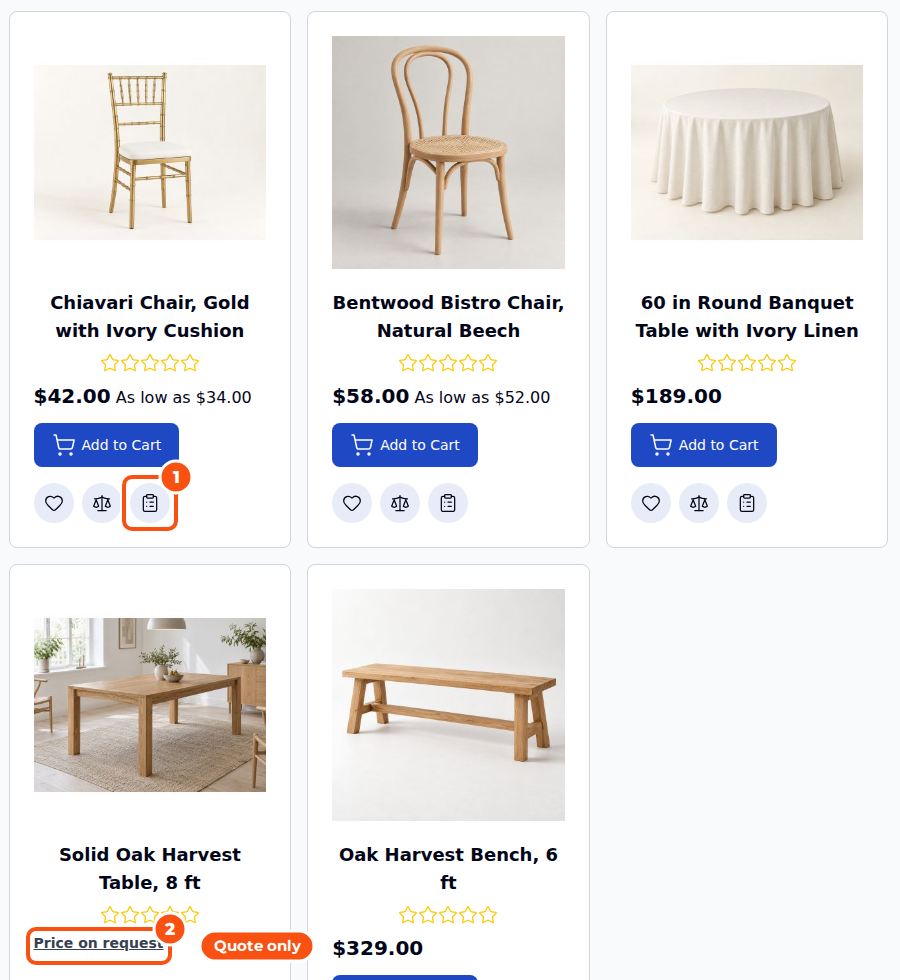
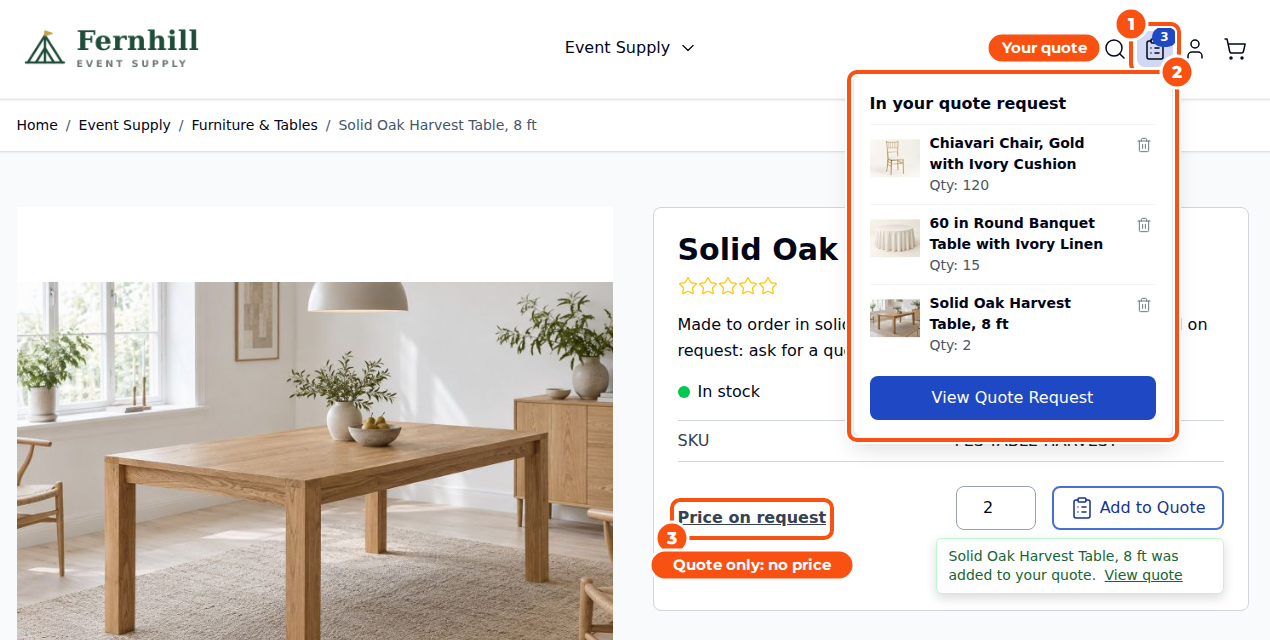
- Product pages, next to Add to Cart. It takes the chosen options, configurable and bundle choices, and on rental stores the dates picked in the rental calendar.
- Category and search pages, and product widgets. Products that need choices link to their page, as Add to Cart does.
- The wishlist (off by default).
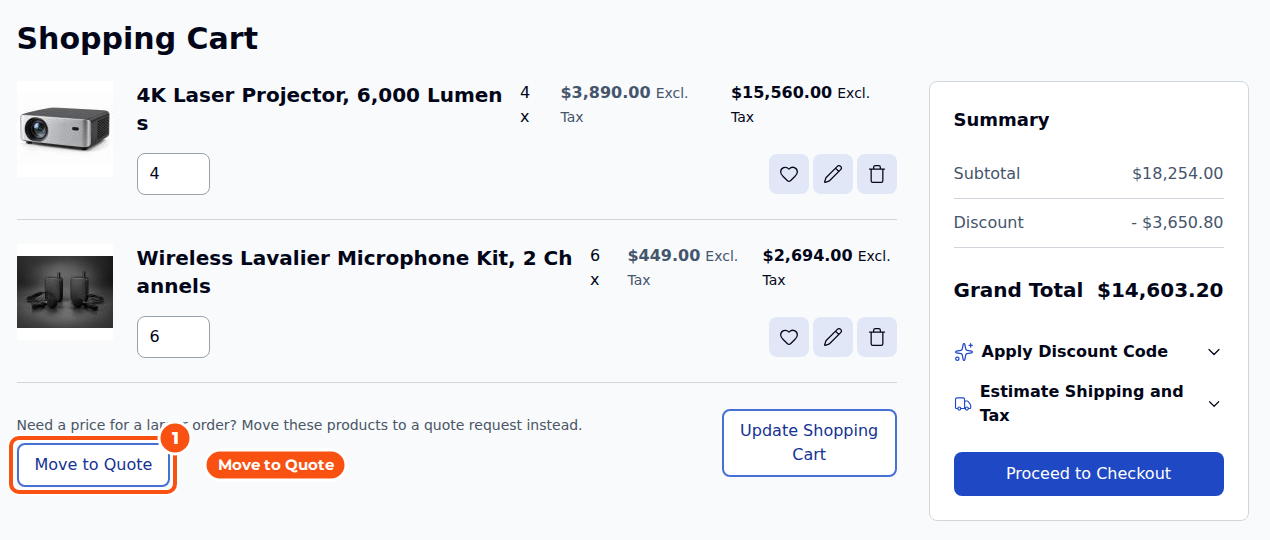
- Move to Quote in the shopping cart moves every line of the cart into the quote.
A link in the header shows how many products are in the quote, with a small dropdown that lists them.
The settings #
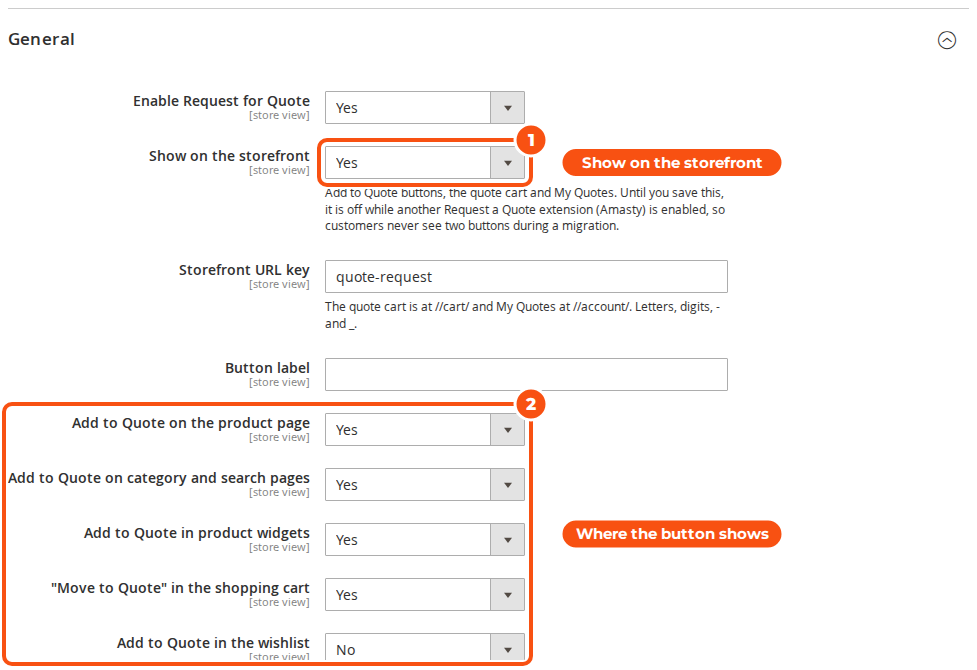
Stores > Configuration > Sales Igniter > Request for Quote > General:
| Setting | What it does |
|---|---|
| Enable Request for Quote | The extension on or off for the store view |
| Show on the storefront | The Add to Quote buttons, the quote cart and My Quotes. While another Request a Quote extension (Amasty) is enabled, this stays off until you save it yourself, so customers never see two buttons |
| Storefront URL key | Default quote-request: the quote cart is at /quote-request/cart/ and My Quotes at /quote-request/account/ |
| Button label | Your own label for Add to Quote |
| Add to Quote on the product page / on category and search pages / in product widgets / in the wishlist | Where the button shows |
| “Move to Quote” in the shopping cart | The Move to Quote button under the cart |
| Product types that cannot be quoted | Every other type can be quoted, including rental products and types added by other extensions. Gift cards are excluded by default |
| Categories where quoting is off | No Add to Quote for products in these categories |
| Customer groups that may request quotes | None selected means every group |
Move to Quote from the cart #
A customer who has filled a cart can click Move to Quote to turn it into a quote request. The lines, their options and quantities move to the quote cart.
The quote cart #
The quote cart is at /quote-request/cart/. Each line shows the product and its options, the quantity, the catalog price (unless prices are hidden), a Your price (each) box and a note. Below the lines are the totals at the catalog prices and at the customer’s prices, then the request form.
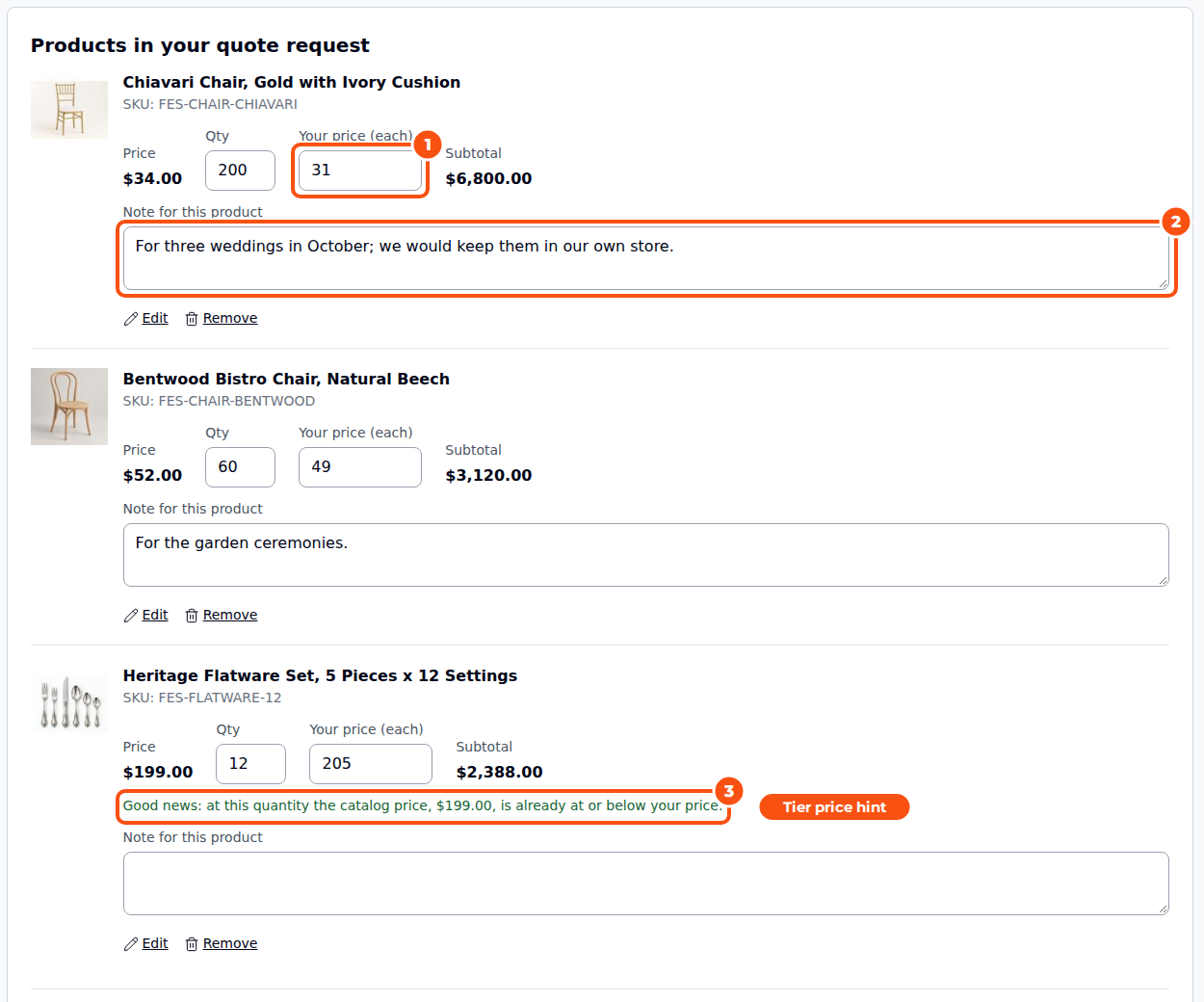
- Your price appears when Customers may propose a price is on (General settings). It is optional.
- If a tier price at that quantity already beats the price asked for, the line says so, so the customer can simply buy.
- Edit opens the product page to change options; the line keeps its price and note. Remove takes the line out, and Clear Quote empties the quote.
- The customer’s changes are saved with Update Quote.
- A guest’s quote cart is kept for Keep unsubmitted quote carts for (days) (Submission settings, default 30).
Good to know #
- When a product in the quote has a hidden price for this customer, the quote cart shows no prices and no Your price boxes for the whole quote until you send the offer. See Hiding Prices and Quote-Only Products.
- Allow out-of-stock products lets customers ask for products you have run out of.
- Sending the request is covered on The Request Form and Guest Quotes.


