
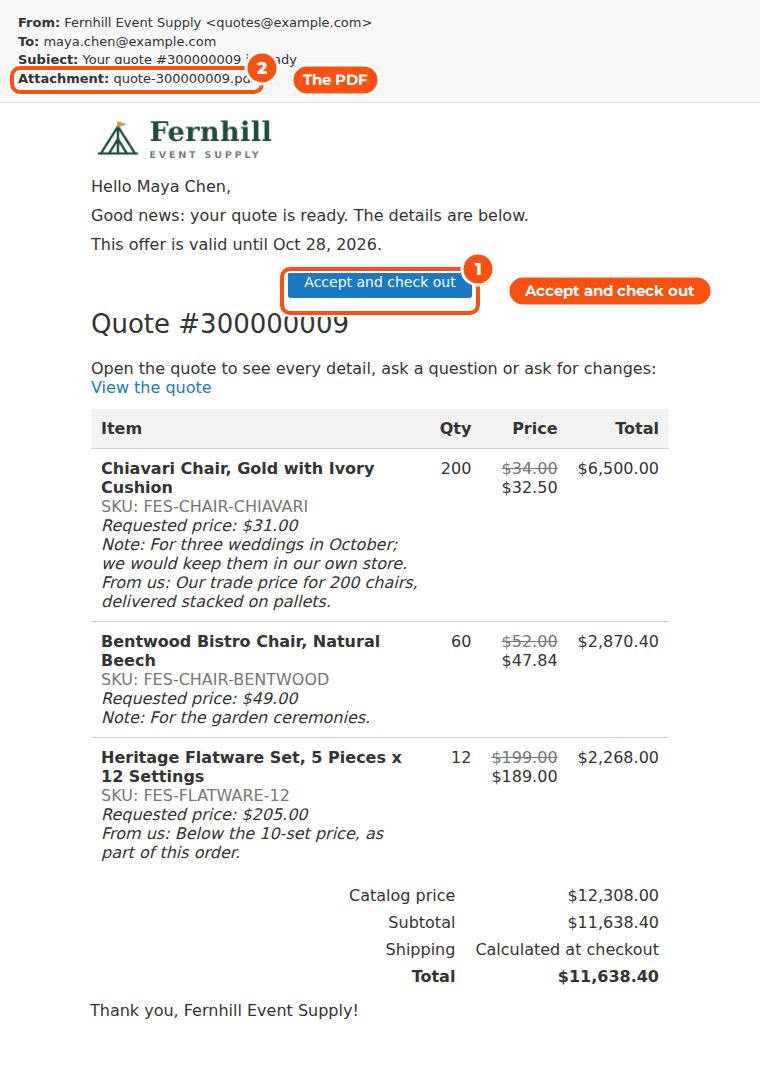
When you approve a quote, the customer gets a “Quote ready” email with the offer, a PDF of it and a link to accept and check out. The offer stays open until it expires, the customer orders, or you or they cancel it. Every step on the way sends an email, to the customer or to your team.
Sending the offer #
Send it with Approve and Send in the editor, or Approve / Send on the quote’s page (choose the expiry, the reminder, a message and whether to email). The quote becomes Approved, and the customer can:
- accept and check out at the offered prices, from the email or from My Quotes;
- ask for changes (a counter-offer in words), which sets it to Changes requested;
- cancel it.
Send Link to Checkout emails the “Quote ready” message again, with its checkout link, without changing anything.
Expiry and reminders #
Expiry and Reminder in the settings:
- Offers expire after (days): counted from approval. Staff can set another date on each quote. 0 means never. Default 30.
- Remind the customer after (days): counted from approval, only while the offer is open. 0 means no reminder. Default 7.
An expired offer can be re-opened with Extend Expiry, which sends the offer again with the new date.
The emails #
| Sent when | To | |
|---|---|---|
| Quote received | The customer sends a request | Customer |
| New quote request | A request arrives (or in the digest) | Your team |
| Quote ready | You send an offer, send it again after changes, extend an expired one, or use Send Link to Checkout | Customer |
| Quote updated | You click Save and Notify in the editor | Customer |
| Quote created for you | You submit a quote you started in the admin | Customer |
| Quote reminder | The reminder date passes while the offer is open | Customer |
| Quote expired | The offer expires | Customer |
| Quote declined | You decline the request, with your reason | Customer |
| Quote canceled | The customer cancels | Customer |
| New message on your quote | You write a message visible to the customer | Customer |
| Order placed from your quote | The order is placed or you convert the quote | Customer |
| Customer activity on a quote | The customer edits, asks for changes, cancels or writes a message | Your team |
| Quote request digest | Daily, weekly or monthly, if you choose a digest | Your team |
Cancel/Close in the admin sends no email.
The email settings #
Staff Notifications: new requests emailed as each arrives, in a digest (daily, weekly or monthly at a time you set) or not at all; the recipients; the sender; the templates. The quote’s sales rep is copied on messages about their quotes.
Customer Emails: a master switch, Do not send for any of the customer emails, the sender, a Bcc copy, and a template for each email. Templates are ordinary Magento email templates, so you can copy one under Marketing > Email Templates and change it.
Emails and the PDF always use the settings of the quote’s own store view.
The PDF #
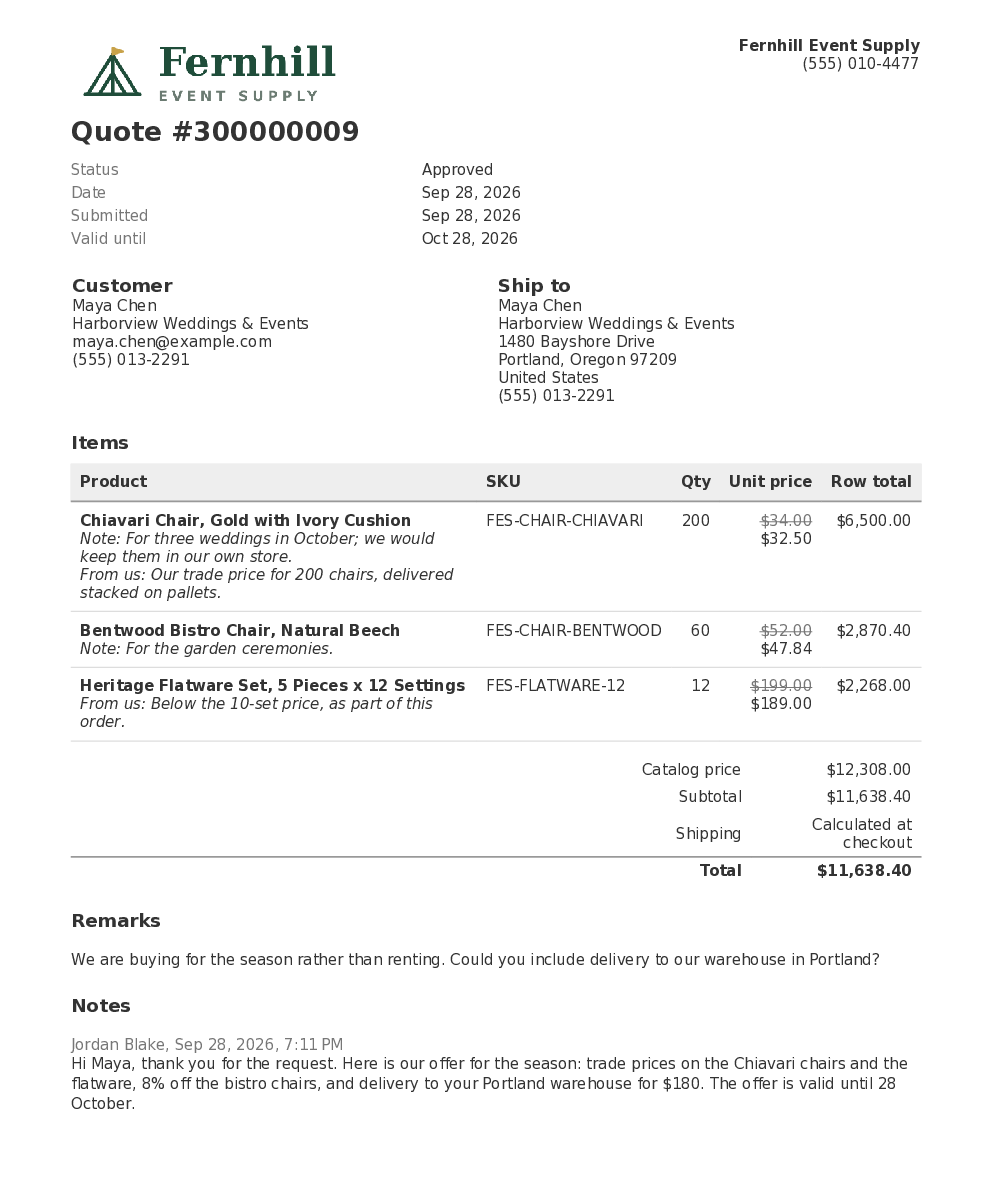
PDF in the settings:
- Attach the PDF to “Quote ready” (on by default).
- Logo: PNG, JPG or SVG.
- Template (HTML): leave it empty for the built-in layout, or write your own HTML with these placeholders:
{{var quote_number}},{{var status}},{{var created_at}},{{var expires_at}},{{var customer_name}},{{var customer_email}},{{var shipping_address}},{{var remarks}},{{var product_grid}},{{var totals}},{{var store_phone}},{{var store_name}}and{{var logo}}.
Customers download the PDF from their quote page; staff from the PDF button on the quote’s page. A quote whose prices are hidden shows prices on the PDF only once the offer is approved.
Good to know #
- Shipping agreed on the quote (an address and method, or a custom fee) is applied at checkout. Until then the offer shows shipping as “Calculated at checkout”.
- Dates and amounts in the emails and the PDF follow the quote’s store view: its currency and time zone.
- What customers see and do with the offer: My Quotes and Checking Out.


