
When a customer pays a booking deposit (Booking deposits: pay part now, the balance later), the rest of the price becomes a balance with a due date. This page covers how each balance is collected, where you see and manage every balance, and what the customer is emailed.
How the balance is paid #
Each balance is paid by a separate balance order, placed through your normal checkout. Every payment method’s own steps (3-D Secure, wallets, redirects) work as usual. The booking order itself is not changed.
You pick the way under Balance collection in the Booking deposit settings.
From a payment link #
The customer is emailed a Pay your balance link. The link works for 14 days. A customer with an account signs in to pay. A guest pays as a guest. A customer can also pay from My Account with the Pay … now button. You can email a link yourself at any time, from the order or in bulk from the Balances screen.
By automatic charge #
On the due date the customer’s saved card is charged without them doing anything. It needs a payment method that can charge a saved card later, and a customer account, because guests have no saved card.
- A soft decline, such as insufficient funds, is tried again one day later and then two days after that. That makes three attempts in all.
- Each failed attempt emails the customer a payment link and alerts you.
- If the bank asks the customer to confirm the payment, the balance waits for them and they are emailed a link.
- If the card cannot be charged at all, for example because the payment module is off, the balance switches to a payment link and the customer is emailed one.
At pick-up, or at the counter #
With collection at pick-up, the balance is due at pick-up. Whichever way a balance is meant to be collected, you can use Record payment on the order to take cash, a card terminal, a bank transfer or any other payment at the counter. It is recorded as a balance order paid with the “Paid at the counter” method.
The Balances screen #
Go to Rentals > Send and Return > Balances. The Rental Balances grid lists every balance with the booking order, the customer, the date the rental starts, the amount, the due date, how it is collected, its status and a Next action hint. The first column groups balances into queues: due this week, overdue, failed, waiting for the customer, scheduled, paid in the last 30 days and closed. You can export the list, and the mass action Send payment links emails a link for every selected balance at once.
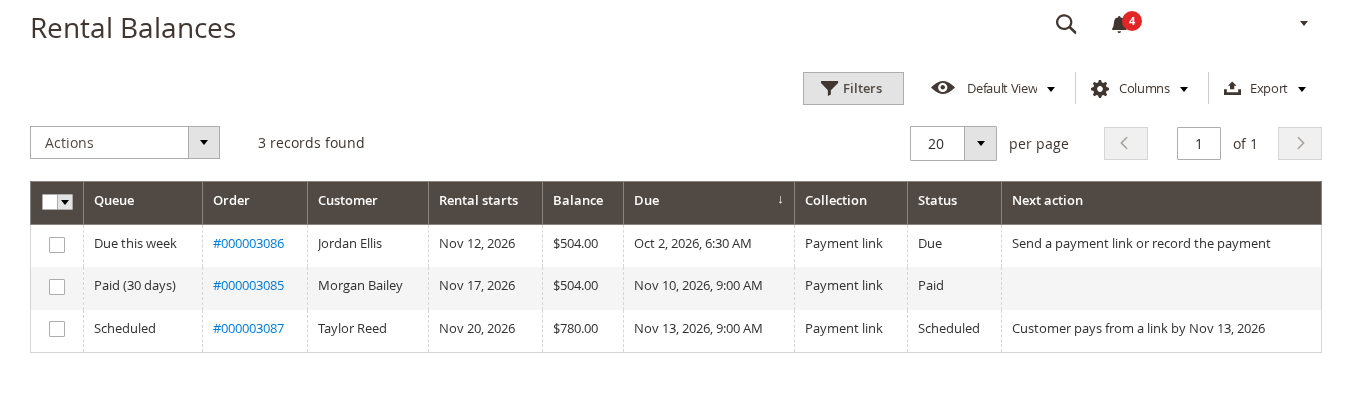
The Orders grid has Balance, Balance due and Balance status columns too, and the Rental dashboard has a Balances due tile.
Balance statuses #
| Status | Meaning |
|---|---|
| Scheduled | The deposit is paid. The balance is not due yet. |
| Due | Due now, collected by link or at pick-up. |
| Charging | An automatic charge is running, or waiting for the payment provider to confirm. |
| Paid | The balance is paid. |
| Failed | The automatic charge was declined. It may be tried again. |
| Needs action | The bank asked the customer to confirm the payment. |
| Overdue | Unpaid two days after the due date. |
| Waived | You wrote the balance off. |
| Cancelled | The booking was cancelled or refunded, so nothing is owed. |
| Released | You released the booking because the balance was not paid. |
If you set After the last failed attempt to release the booking, a booking whose balance is still unpaid that many days after the due date is released. The booking is cancelled where it can be, or the units that have not gone out are put back in stock. The deposit is not refunded, and you are alerted.
The Rental payment panel on an order #
Open a booking order under Sales > Orders. The Rental payment panel shows what was paid at checkout, the balance, the due date, how it is collected, the number of attempts and the last error.
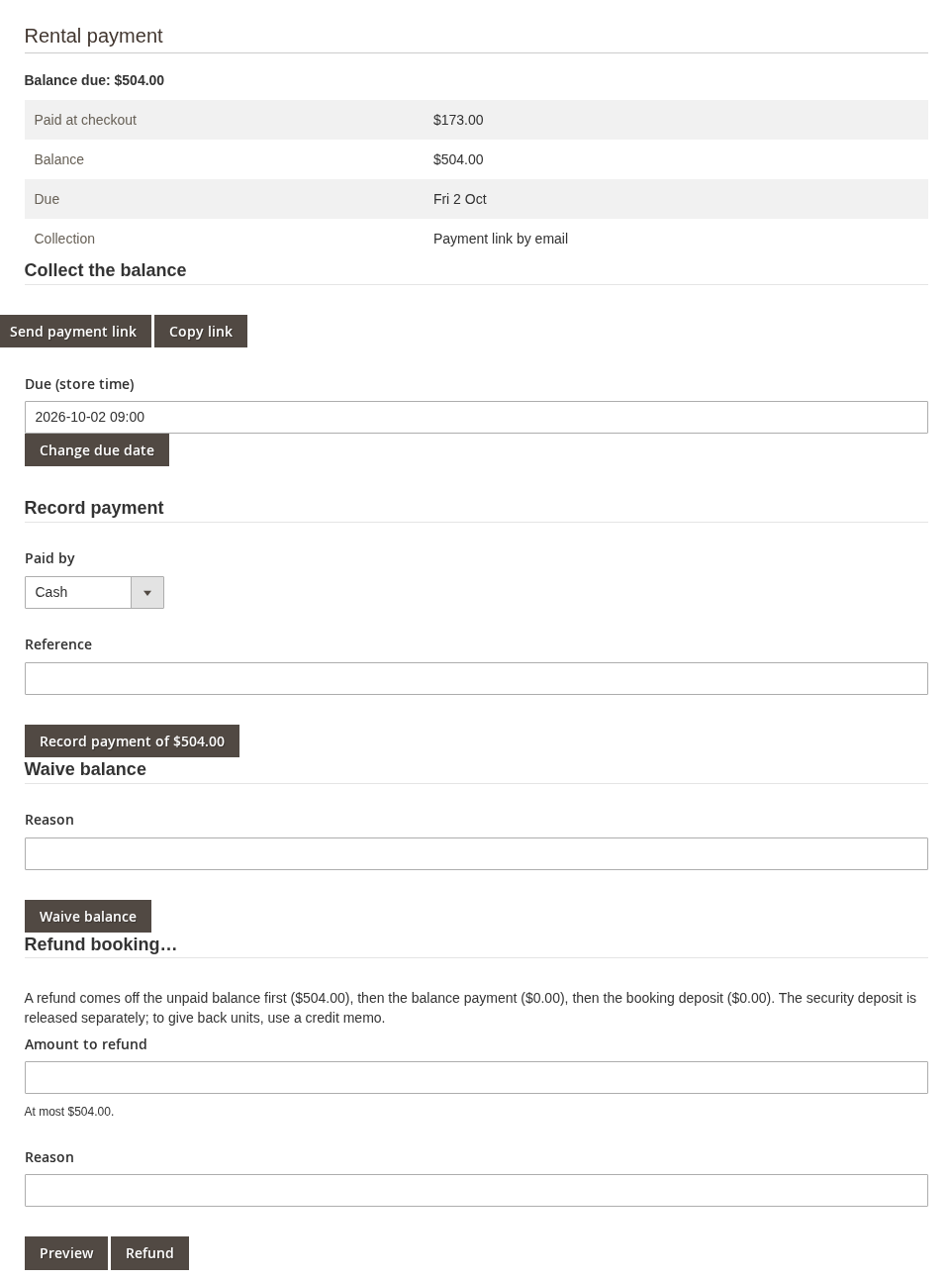
The panel has a block for each job:
| Block | What it does |
|---|---|
| Collect the balance | Send payment link emails the customer a payment link. Copy link lets you copy it instead. When the balance is automatic, Charge now (or Retry the charge) and Switch to pay from a link appear here too. |
| Due (store time) | Change due date moves the due date by hand. |
| Record payment | Take cash, a card terminal, a bank transfer or another payment: choose it under Paid by, add a Reference and click Record payment of …. |
| Waive balance | Writes the balance off, with an optional Reason. The booking keeps what was paid. |
| Refund booking… | An Amount to refund, a Reason, and Preview and Refund buttons. See Changing, refunding and cancelling a booking with a deposit. |
On the order that paid a balance, the panel says so and links back to the booking order.
Who can do what #
Grant the permissions under System > Permissions > User Roles, in the Rental branch of the resource tree:
- Booking balances: view shows the panel, the Balances screen and the grid columns.
- Booking balances: record, send link, charge, waive allows the actions. It sits under “view”, so a role that can manage balances can also view them.
Refunding also needs the permission to create credit memos.
Reminders and emails #
- Balance reminders go out on the days you set before the due date. By default that is 3 days before and on the day. The text matches how the balance is collected: a link, an automatic charge, or pay at pick-up.
- For automatic charges there is no on-the-day reminder, because nothing is asked of the customer.
- The reminder after the due date (1 day by default) is sent for balances paid from a link.
- Card expiring: when an automatic charge is planned and the saved card expires before the due date, the customer gets an email 7 days before the due date with a link to pay now.
- Balance received confirms the payment.
- You get a Balance problem email when something needs your attention.
All five emails can be edited under Marketing > Email Templates, and reminders show in the reminder history.
What the customer sees in My Account #
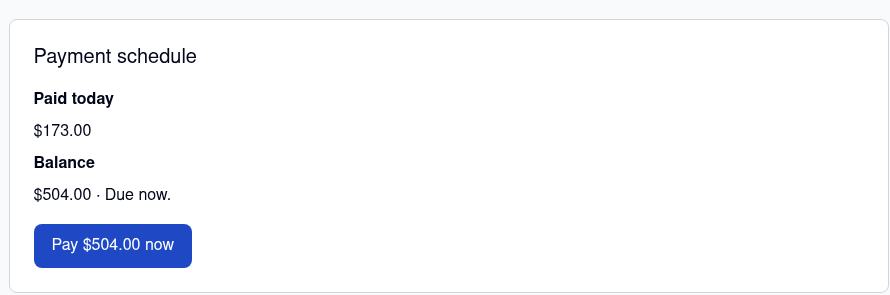
The order page shows a Payment schedule: what was paid today, the security deposit if there is one, and the balance with its due date. Pay … now appears when the balance can be paid. My Orders has a Balance column.
Good to know #
- Balances are collected by the
sirent_balancecron group, every 5 minutes. Without cron nothing is charged and no reminder is sent. - Every balance’s tax is declared once, on the booking invoice, so the balance order carries none and tax is never counted twice.
- Hyvä Checkout support is in beta.


