
Rentals > Stock by location shows every split product at every location, warns you before a store runs short, and suggests transfers. Rentals > Transfers moves units between stores. Both appear once you have two active locations that hold stock.
Stock by location #
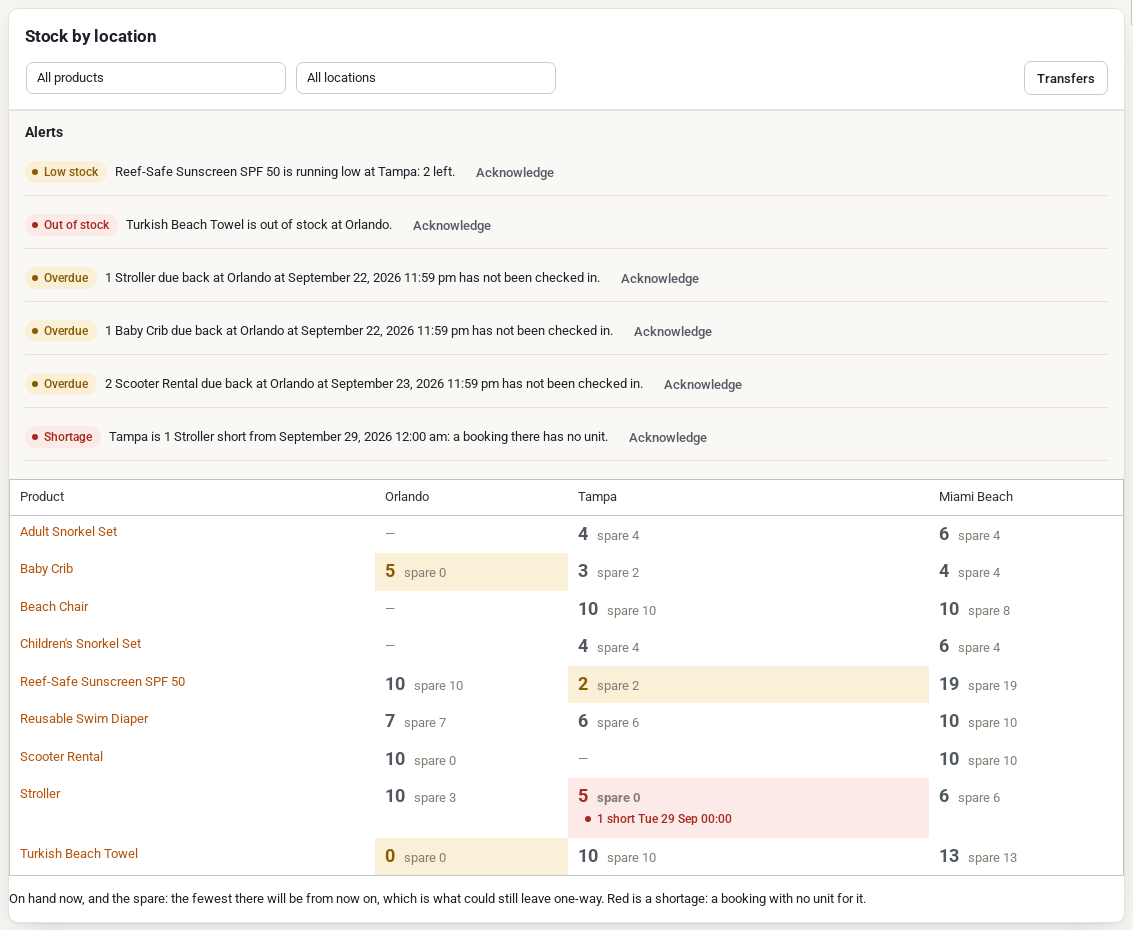
For each product and location the table shows:
- the units on hand now, in large figures;
- the spare: the fewest units that location will have free from now on. It is what could still be lent out, sent elsewhere or taken one-way;
- amber when the location is below the product’s Min or above its Max (set in the product’s Stock by location grid);
- red for a shortage: a booking at that location with no unit for it, and the day it starts.
A dash means the product is not offered at that location. Use the two dropdowns to show one product or one location.
One product, day by day #
Click a product’s name to see it day by day at each location for the next 7, 14 or 30 days: units on hand at the start of each day, units leaving and arriving (rentals, returns and transfers), the lowest point of the day, and the spare. Use the arrows to move through the calendar.
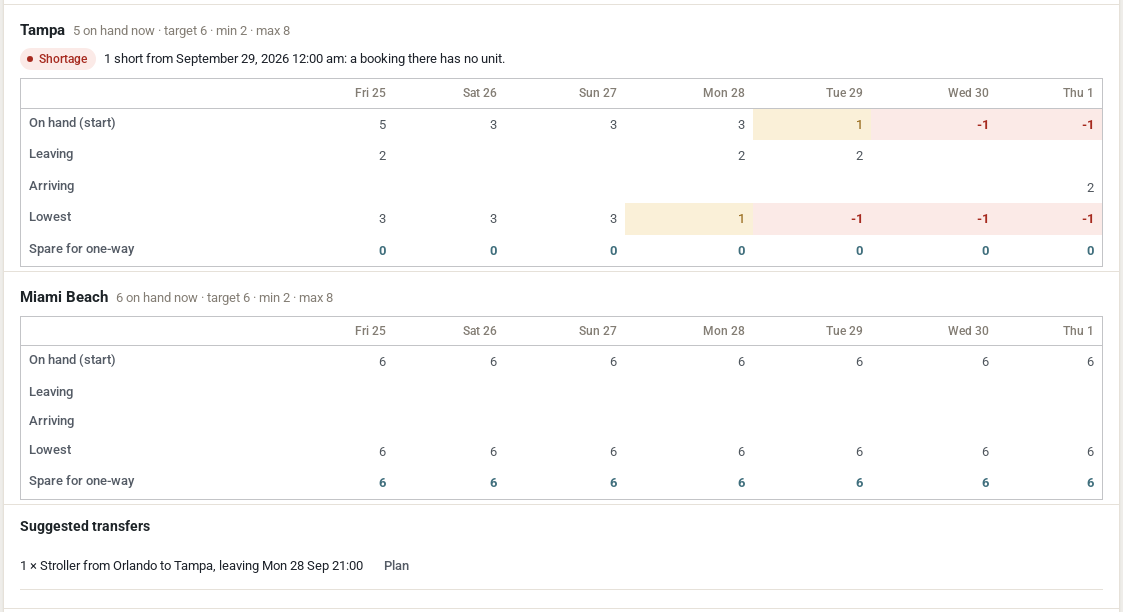
Under the locations you will find:
- Suggested transfers. A shortage is covered from the location that can spare the most; a location below its Target is topped up from one above its own target. Click Plan to open a transfer with everything filled in. Nothing is moved until you plan it.
- Units (for products with serial numbers): which units are at which location.
- Upgrades: if the product has Can be upgraded to set, the product that has a unit free at that location that day is listed as an option. Nothing is swapped by itself.
Alerts #
Every hour the shop looks for:
| Alert | When |
|---|---|
| Shortage | A booking at a location has no unit for it |
| Late transfer | A transfer was dispatched but has not been received by its arrival time |
| Overdue | A rental due back at a location has not been checked in |
| Low stock | A product sold outright falls to its Low stock at figure at a location |
| Out of stock | A product sold outright has none left at a location |
New alerts show at the top of Stock by location and are emailed once: shortages, late transfers and overdue returns to the location’s managers and the store admin, low and out of stock to the location’s staff, the inventory managers and the store admin. Low and out of stock are emailed at once, when the stock changes. Click Acknowledge to take an alert off the list. An alert that clears by itself (a transfer arrives, a unit is checked in) goes away on the next check.
Turn the emails off under Shortage alerts in Location Settings. The alerts still show on this screen.
Transfers #
A transfer moves units from one location to another. Units stop counting at the origin when the transfer leaves and start counting at the destination when it arrives, so the calendars at both stores are right while it is on the road.
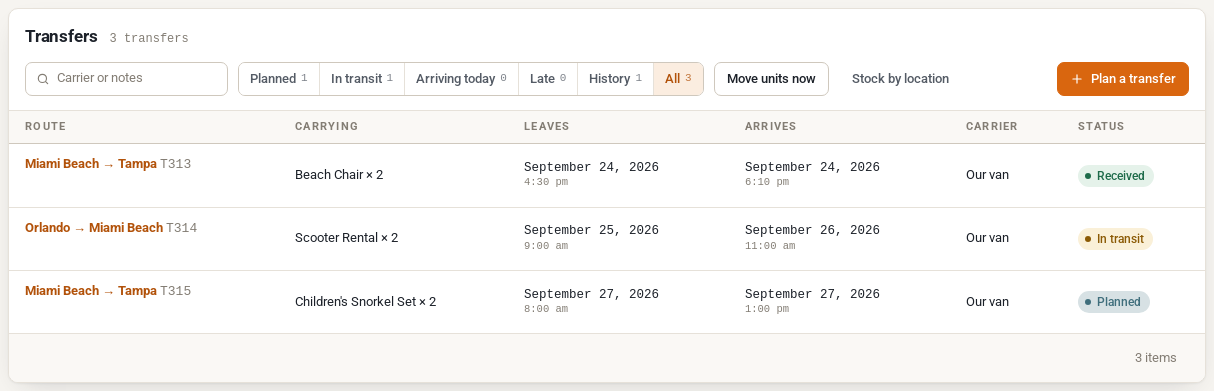
The buttons at the top filter the list: Planned, In transit, Arriving today, Late, History and All.
Plan a transfer #
- Click Plan a transfer (or Plan next to a suggestion on Stock by location).
- Choose From and To.
- Set when it Leaves and Arrives.
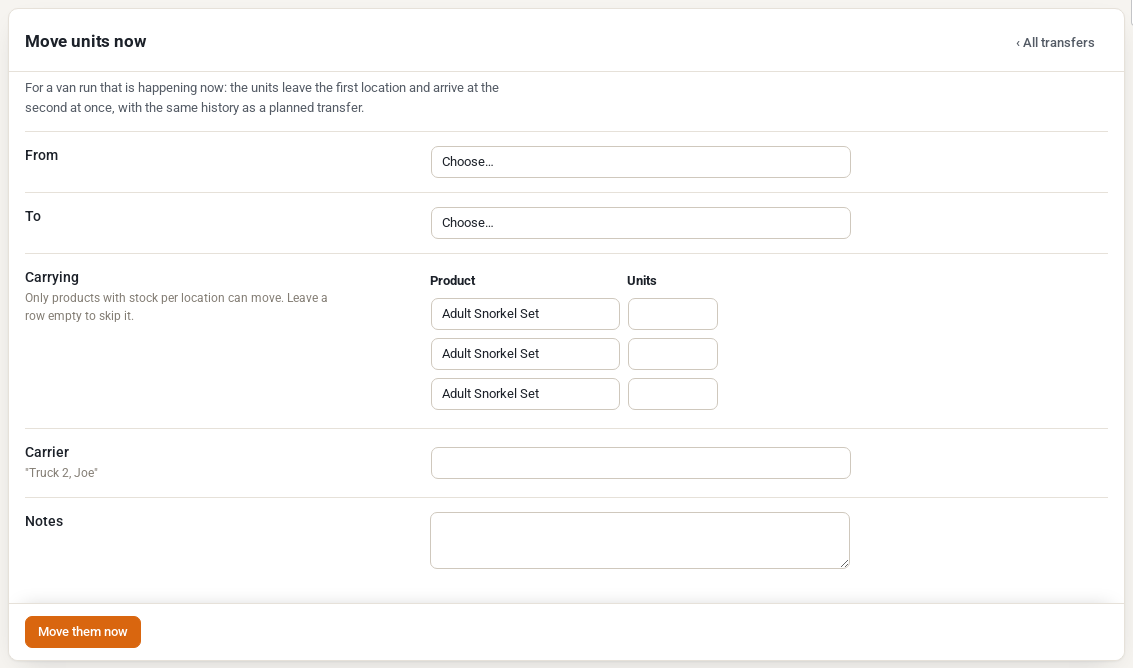
- Under Carrying, choose each product and the number of units. Only products with stock per location can move.
- Choose Why, and optionally the Carrier and Notes.
- Click Plan the transfer.
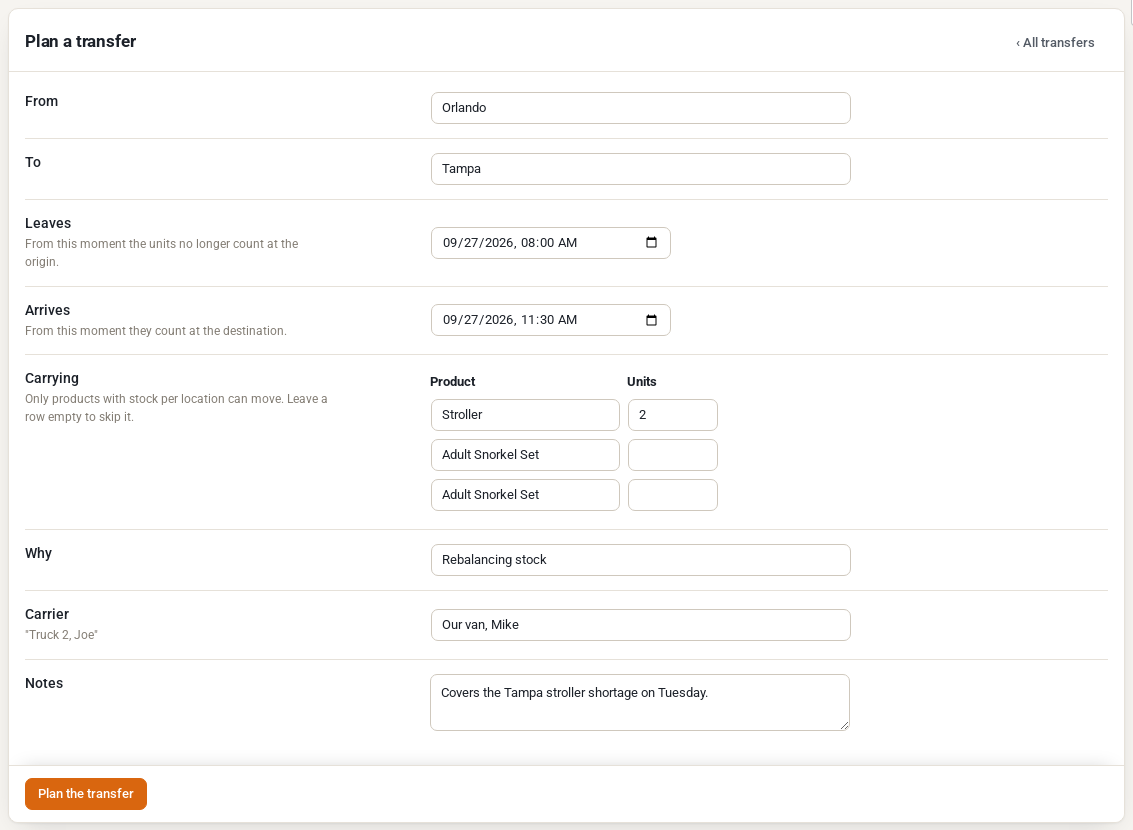
A plan counts at once in both stores’ availability. If it would leave a booking at the origin short, it is refused and the message says how many units are missing. You can still plan it by giving a reason, which is kept in the notes.
Dispatch and receive #
- Open a planned transfer and click Dispatch now when the van leaves. The units must be at the origin at that moment.
- When it arrives, open it, check the numbers under Receive now and click Receive. You can receive part of it; the rest stays in transit.
- Turn it back cancels a dispatched transfer and returns the units to the origin.
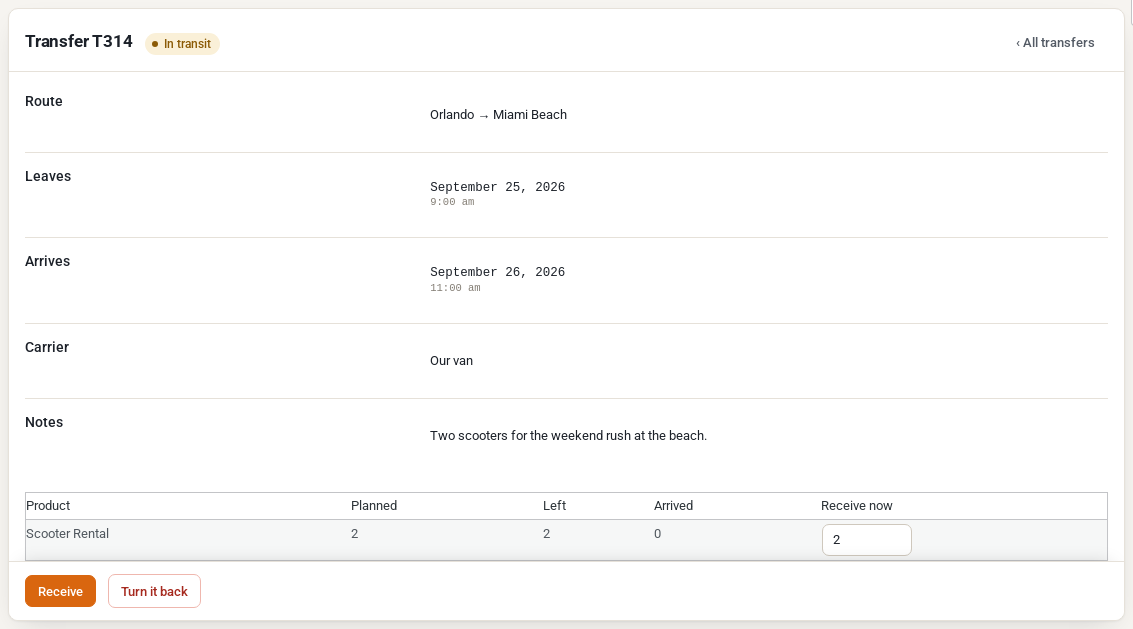
A transfer that has not been received by its arrival time is flagged as late and does not count anywhere until it is received.
Move units now #
For a van run happening right now, Move units now sends and receives in one step, with the same history as a planned transfer.
Units with serial numbers #
Transfers work with serial-numbered products too. Staff can scan the units’ codes when a transfer is dispatched and received (through the REST API, for example from a scanner app). Where each unit is, and how many days it spent at each location, is in Location Reports and the Stock Journal.


