
Skip to content
Sales Igniter
Sales Igniter
  • Features
    • Features
    • Reviews ⭐⭐⭐⭐⭐
    • Demo
      • Live Stores
      • Live Demo
    • Screenshots
      • Magento 2 / Adobe Commerce
      • WooCommerce / WordPress
  • Pricing
    • Magento 2 / Adobe Commerce
    • WooCommerce / WordPress
    • Magento 1.9.x / OpenMage
    • Web Hosting
  • Help
    • Documentation
      • Magento 2
      • WooCommerce / WordPress
    • Screencast
    • FAQ
    • Blog
  • Account
    • My Account
    • My Account (Alternate)
  • Contact
    • Contact Sales Igniter
    • Custom Project Quote Request
Search
Sales Igniter
Sales Igniter
Search
  • Features
    • Features
    • Reviews ⭐⭐⭐⭐⭐
    • Demo
      • Live Stores
      • Live Demo
    • Screenshots
      • Magento 2 / Adobe Commerce
      • WooCommerce / WordPress
  • Pricing
    • Magento 2 / Adobe Commerce
    • WooCommerce / WordPress
    • Magento 1.9.x / OpenMage
    • Web Hosting
  • Help
    • Documentation
      • Magento 2
      • WooCommerce / WordPress
    • Screencast
    • FAQ
    • Blog
  • Account
    • My Account
    • My Account (Alternate)
  • Contact
    • Contact Sales Igniter
    • Custom Project Quote Request

General

12
  • Quickstart Guide
  • Calendar Widget
  • Protected: Install and Updates Magento 2.2
  • Protected: Install and Updates Magento 2.3.x – 2.4.x Regular Version
  • Protected: Install and Updates Magento 2.3.x – 2.4.x Pro Version
  • Protected: Install and Updates Multi Source Inventory Pro
  • Protected: Install and Updates Rental Multi-Vendor Marketplace
  • Protected: Install and Updates Amasty RFQ Integration
  • Calendar Settings
  • Rental Settings
  • Installing A Specific Version
  • Uninstall or Disable

Content Management

6
  • Spreadsheet Mass Import / Export (CSV)
  • Rental Product Pricing
  • Adding Rental Products
  • Editing Text & Emails
  • Multi-Vendor Marketplace Setup
  • Multi Inventory Setup

Order Management

4
  • Rental Contracts
  • Order Editing
  • Processing Orders
  • Rental Order Extensions

Internationalization

1
  • Languages and Currencies

Installing Extensions

1
  • Installing Third Party Extensions

Troubleshooting

3
  • Theme Integration
  • Module Conflicts
  • Troubleshooting Guide

Programming Guide

1
  • Programming Notes

Version Release Notes

1
  • Release Notes

Reports

1
  • Utilization Report
View Categories
  • Home
  • Doc
  • Magento 2 Rental
  • General
  • Calendar Widget

Calendar Widget

2 min read

Calendar Widget On Homepage #

  1. Go to admin > content > pages and edit your homepage
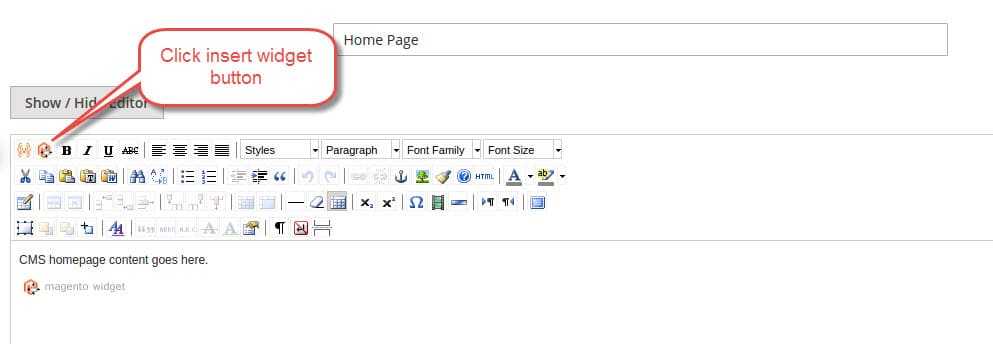
  2. Click the insert widget button. Chose “Rental Calendar” and set the options. You can set the category id to any of your categories, or an all products category (see instructions below on how to make an all products category)
    rental-calendar-widget
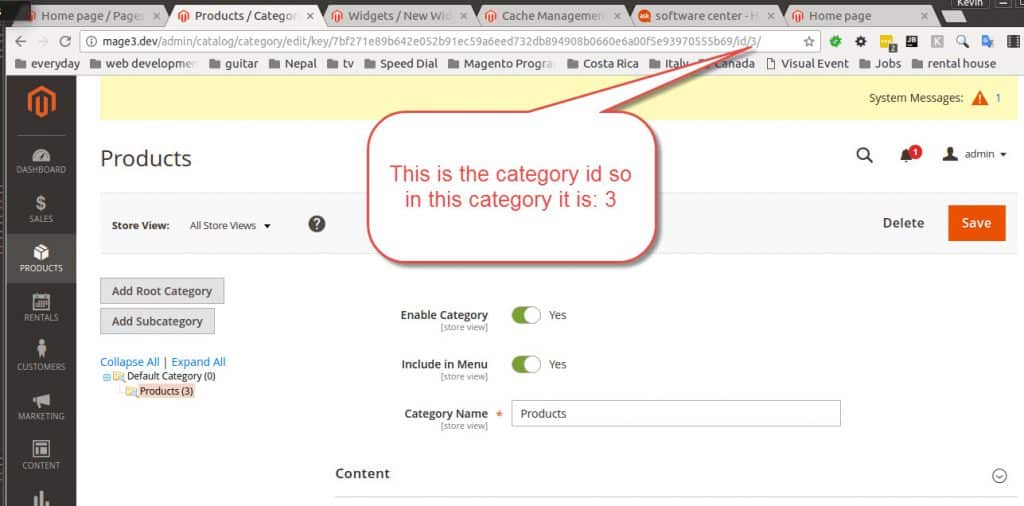
  3. This is how to know what your category id is. Go to admin > products > categories and click on the category you want, it will be in the url bar:
    categoryid
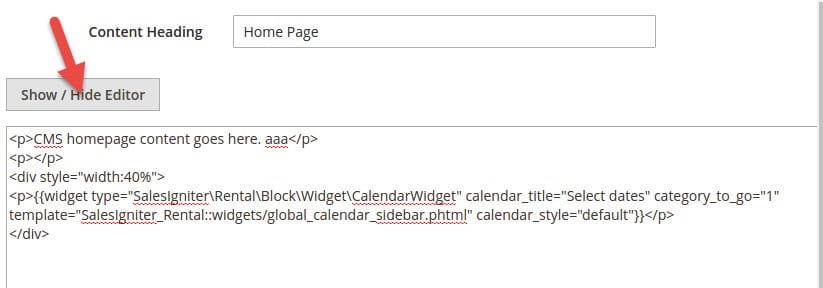
  4. You may also want to add a wrapper div so that the calendar widget is not 100% width on your homepage. To do so click the show / hide editor button and wrap the widget template code with:
    <div style="width:50%">
    // auto inserted widget code
    </div>
    

    rental-widget-wrap-div

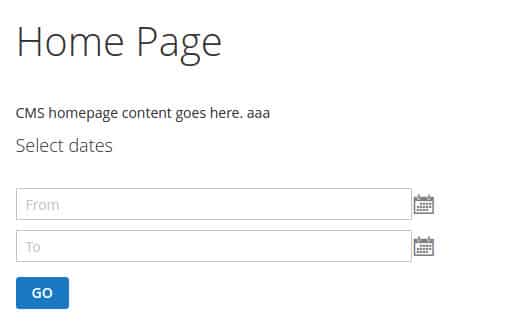
  5. When you are done it will look something like this:
    rental-calendar-homepage
How To Add An All Products Category #
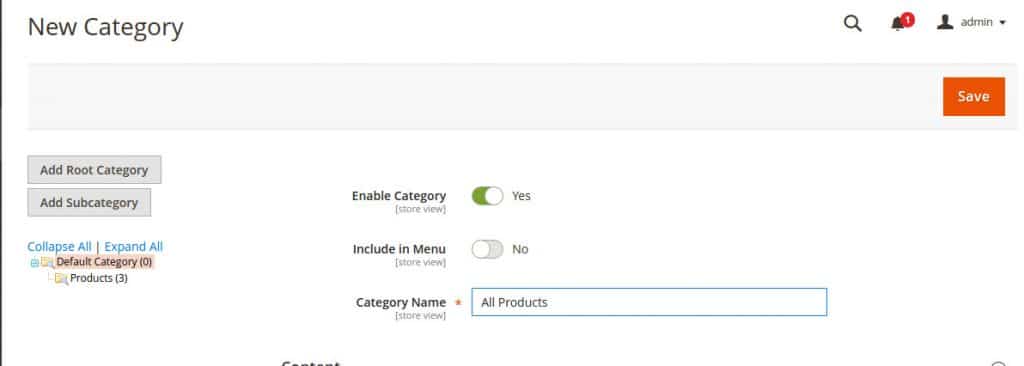
  1. Go to admin > products > categories and click the default category and then click add subcategory.
  2. Now you will probably want to hide the All Products category from your menu
  3. After you have added it, whenever you add products, make sure that you add them to your all products category
    all-products

Category Widget On Sidebar #

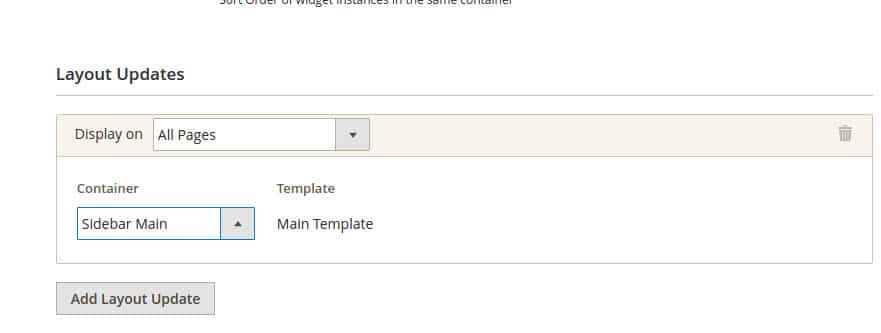
  1. Go to admin > content > widgets and click the add widget button. For type chose Rental Calendar and template chose your current template (by default it is Magento Luma)
  2. Now you can give your widget a title and assign it to your views (to assign it to all just click the top All Store Views hold down shift and chose the bottom one). Now click the add layout update from here chose All Pages and then for the container chose the Sidebar Main
    rental-calendar-on-sidebar
  3. On the widget options tab (on the left) leave the category id blank (otherwise when people click go it will go to a different category – the category id feature is mainly for the homepage)
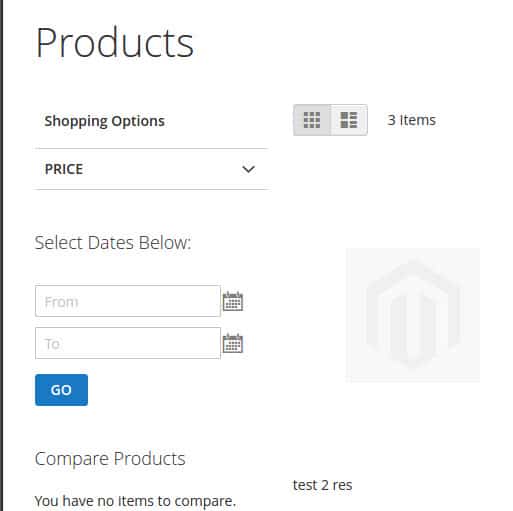
  4. When you are done it will look something like this:
    sidebar

What are your Feelings

  • Happy
  • Normal
  • Sad

Share This Article :

  • Facebook
  • X
  • LinkedIn
  • Pinterest
Quickstart GuideProtected: Install and Updates Magento 2.2
Table of Contents
  • Calendar Widget On Homepage
    • How To Add An All Products Category
  • Category Widget On Sidebar

Rental Newsletter

Learn about the latest rental industry news, features added to our rental system, and receive special offers. Subscribe now.

loader

OVERVIEW
Home
Features
Pricing
Live Stores
FAQs
Blog
Contact Us
INDUSTRIES SERVED
Audio Video, Computer, Electronics
Baby Equipment Rental System
Car Reservation Software
Clothing, Dress, Purse Rental
Heavy Equipment, Construction
Hotel, Property & Vacation Rentals
Inflatable Bounce House
Movies, Video Games, Board Games
Party & Event Rental Software
Sporting Equipment
Watches and Jewelry Rental
LATEST UPDATES
How to Start An Equipment Rental Business
Rental Pricing: How Much Should I Charge To Make The Most Profit?
How to add Bookings and a Rental Calendar to a Magento 2 website?
10 Brilliant Rental Software Apps You’ll Love
ADDITIONAL LINKS
Terms & Conditions
Free Rental Contract Agreements
Free Rental Pricing Calculator
Awesome Rental Business Resources List
Affiliate Program
Social Media

Copyright © 2026 Sales Igniter. All Rights Reserved

Loading...

Insert/edit link

Enter the destination URL

Or link to existing content

    No search term specified. Showing recent items. Search or use up and down arrow keys to select an item.