
Some rentals are really stays: a cabin, a studio, a loft. With Nights the guest picks a check-in day and a check-out day, the stay holds the nights in between, and the check-out day is free for the next guest’s check-in. Everything else, from the cart to the emails to the calendar feeds, speaks in check-in, check-out and nights.
There are two Days choices. Days: returned on the last day, entire return day is booked is how rentals have always worked: the last day is the day it comes back, and nobody else can book that day. Days: can go out again on the return day lets the next rental start on the day the last one comes back.
Days or Nights #
| Days | Nights | |
|---|---|---|
| The guest picks | A start and an end day. | A check-in and a check-out day. |
| Length | Days. A one-day rental starts and ends on the same day. | Nights, at least 1. |
| The last day | Taken: nobody else can book it. With “can go out again on the return day” it is free for the next rental to start. | Free: it is the next guest’s check-in day. |
| Same-day pick | A one-day rental. | Refused with “Choose at least 1 night”. |
| Turnaround time | Hours or days. | Whole days (hours round up). 0 means same-day turnover. |
Booked by only decides which days are held. Whether the return day is charged is a separate setting, Also charge the return day (Settings › General). Nights are always charged per night. A rental from the 1st to the 3rd is 2 days when the return day is free, 3 days when you charge it, and 2 nights with Nights.
Stays are for rentals booked by date only. A rental that has times of day, a subscription, or a delivery & pickup method is always booked by the day.
Turn it on #
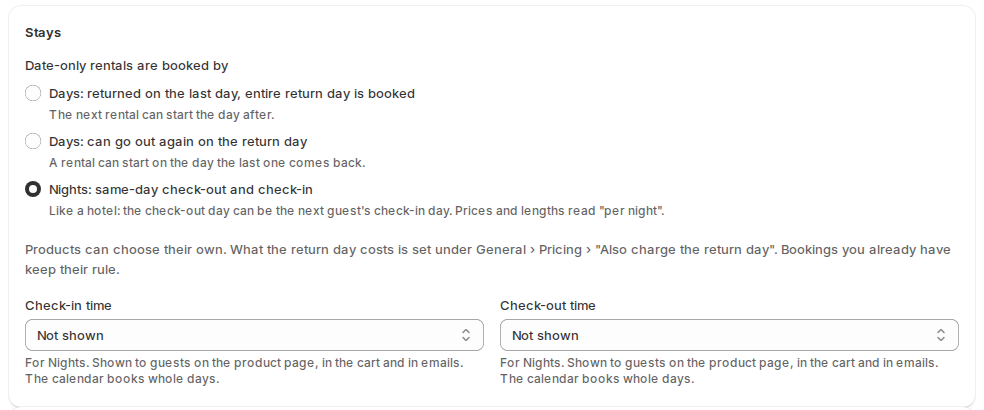
- Open Settings › Rules. The Stays card is the first one. (It used to be under Calendar & styler.)
- Under Date-only rentals are booked by, choose Nights: same-day check-out and check-in.
- Set the Check-in time and Check-out time. They only show for Nights. They are shown to guests on the product page, in the cart and in emails. The calendar itself still books whole days.
- Open Settings › Calendar & styler › Look and leave Split partly booked days on to show a check-in or check-out day half free, half booked.
- Click Save.
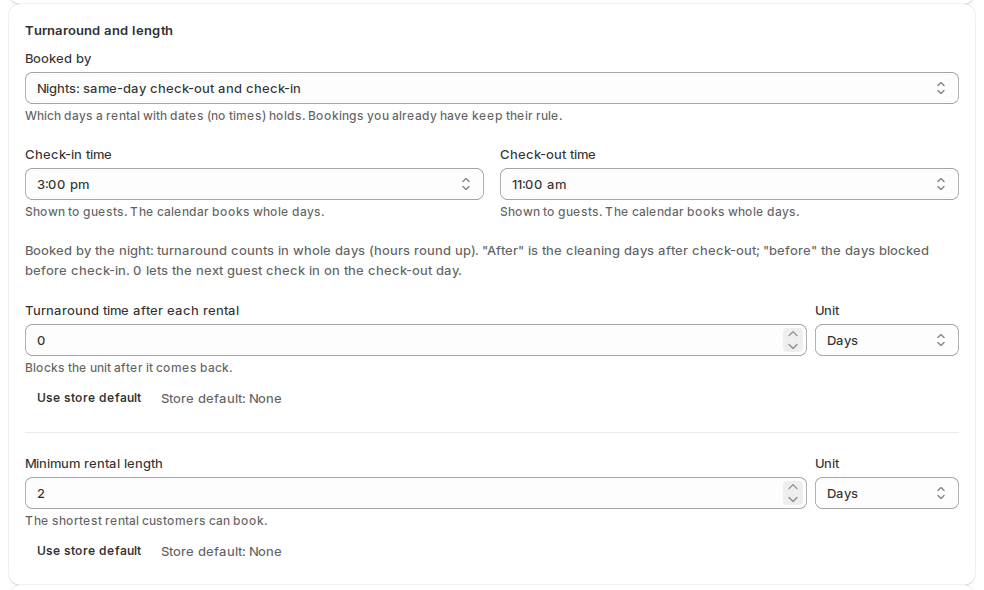
One product can differ from the store. On the product’s Rental Settings page, Booked by is the first field of Turnaround and length. It can be Store setting (it names what the store uses, for example “Store setting (Days, return day booked)”) or any of the three choices. With Nights, the product can have its own check-in and check-out times. The Products list has the same choice for the products you tick.
If you start a new store from the Vacation stays industry kit, it is already set to Nights.
If you switch with bookings already sold #
Changing the setting never rewrites a booking that was sold under the other rule. A banner on the product’s Rental Settings, on Products and on Settings › Rules lists the future bookings sold under the other rule and offers to move them:
- Days to Nights, “Free the check-out day on these bookings”: the bookings become stays. This only ever frees time, so it can’t double-book. A one-day rental becomes one night.
- Nights to Days, “Book their check-out days again”: the bookings become day rentals again. Any day that would then hold more units than you own is listed first, for example “Oct 14 (2 of 1)”, and the move is refused until you move those bookings yourself or tick “I’ll move the clashing bookings myself”.
Only bookings that start today or later move. A stay in progress and the past keep the rule they were sold under.
Closed days #
A stay may run through a closed day. Check-in can’t fall on a day closed for pick-ups, and check-out can’t fall on a day closed for returns. Under Settings › Closed days, choose Closed for stays to close the night itself: it shows as sold out for every product and is left out of your calendar feed.
What guests see #
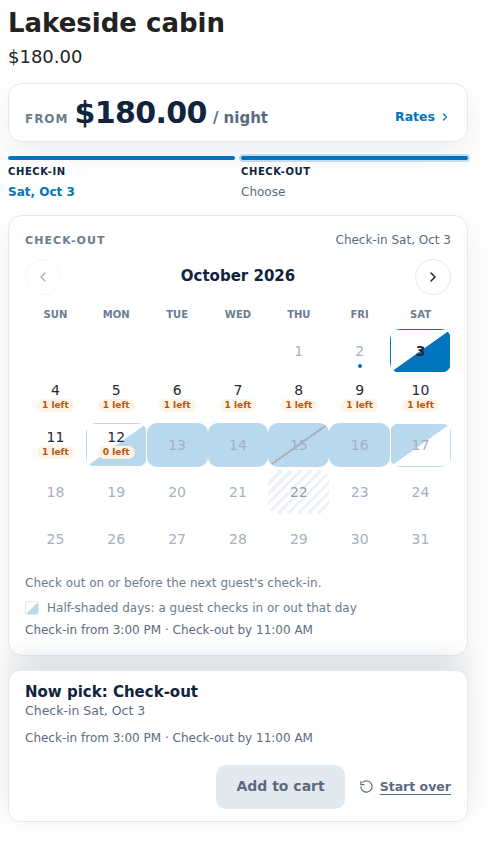
- The product page asks for Check-in, then Check-out, shows the times and the price per night, and explains a day it can’t accept.
- A day where another guest checks in or out is half shaded: you can check in on someone’s check-out day.
- With several locations the page says Stay at. A stay has one place, so there is no “Return to”.
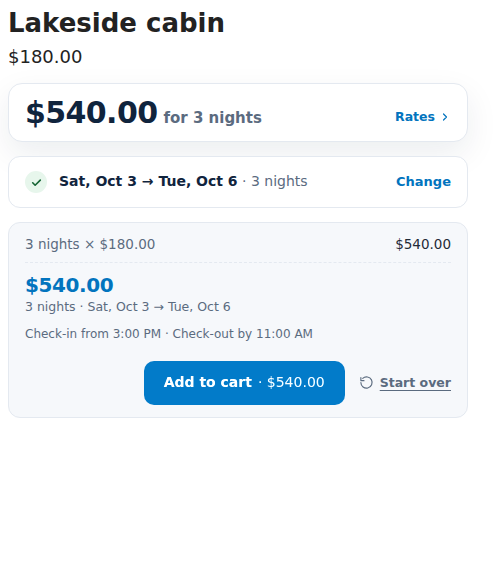
- Cart and order: the dates read like “Nov 7, 2026 – Nov 10, 2026 · 3 nights”. The thank-you page says “Your stay”.
- My rentals: check-in and check-out with the times, and Add nights instead of Extend. While the stay is upcoming or under way, the guest also sees the exact address of the property, and only that guest does.
Emails #
- New merge tags:
{nights},{check_in_date},{check_out_date},{check_in_time}and{check_out_time}.{items}reads “Check-in: … / Check-out: … · 3 nights”. - When every line of an order is a stay, the pick-up reminder becomes a check-in reminder, the return reminder a check-out reminder, and the sent and returned emails a welcome and a thank-you. Anything you wrote yourself is left alone.
- The overdue reminder is off for stays. To turn it on, open Settings › Emails, the reminders, and the Stays option.
- Arrival details is an email you can switch on: at 9:00 the day before check-in it sends the check-in time, the exact address and your arrival instructions.
See Reminders and emails for the full list of merge tags.
Running it day to day #
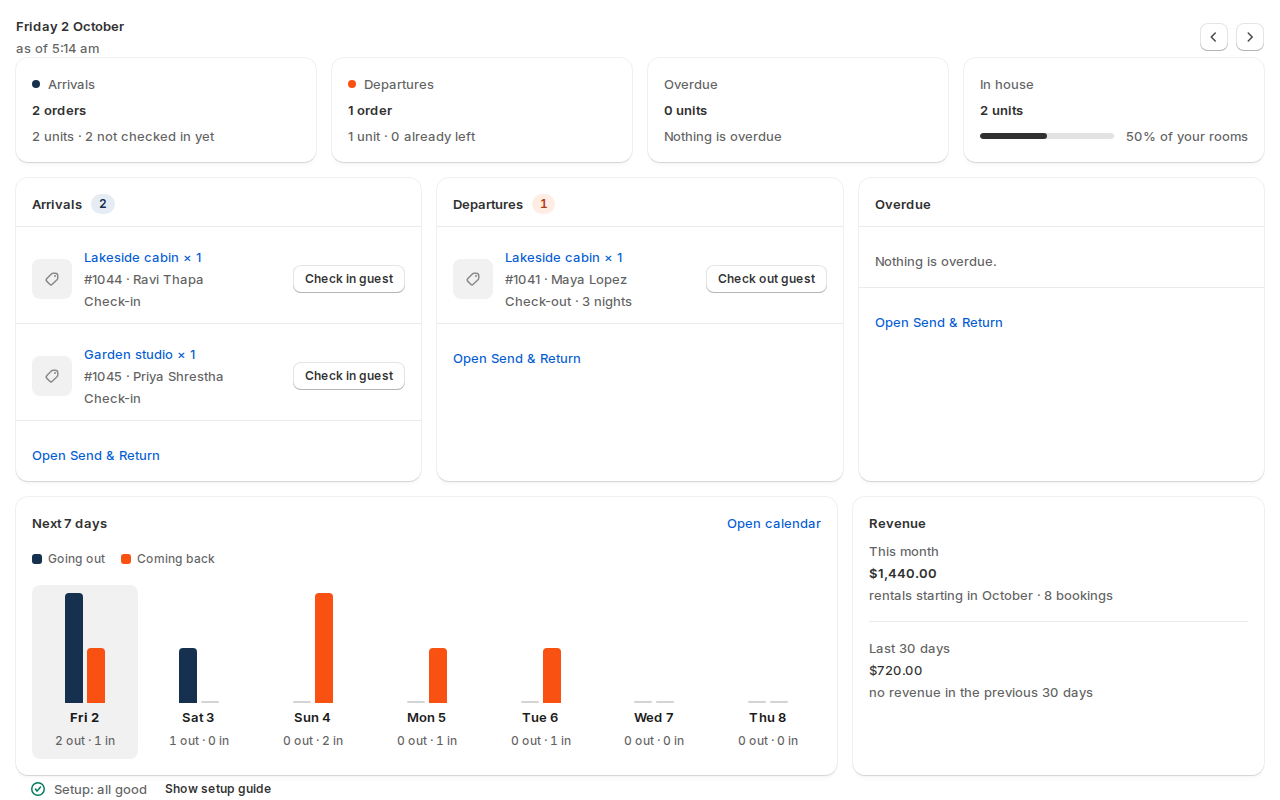
- Dashboard: a store that sells only stays shows Arrivals, Departures and In house. A store that sells both keeps its usual tiles and adds “N arrivals”, “N departures” and “N rooms in house”.
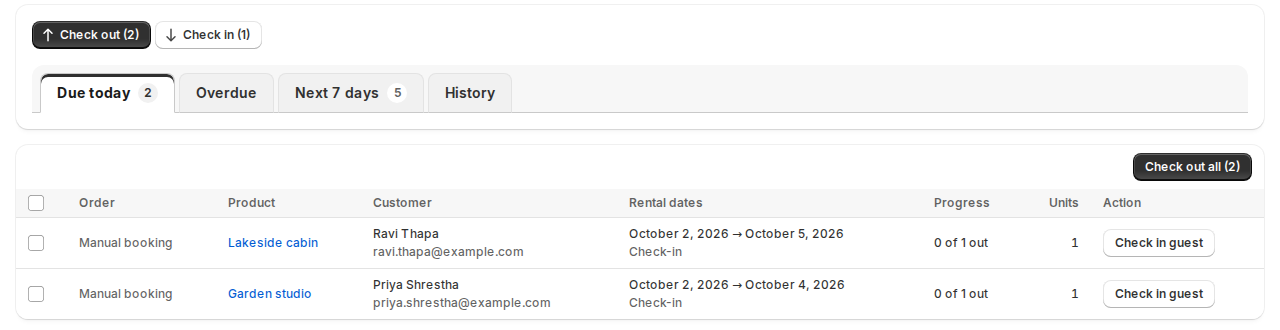
- Send & Return: the buttons read Check in guest and Check out guest. A stay due to check out today is not overdue until the next day.
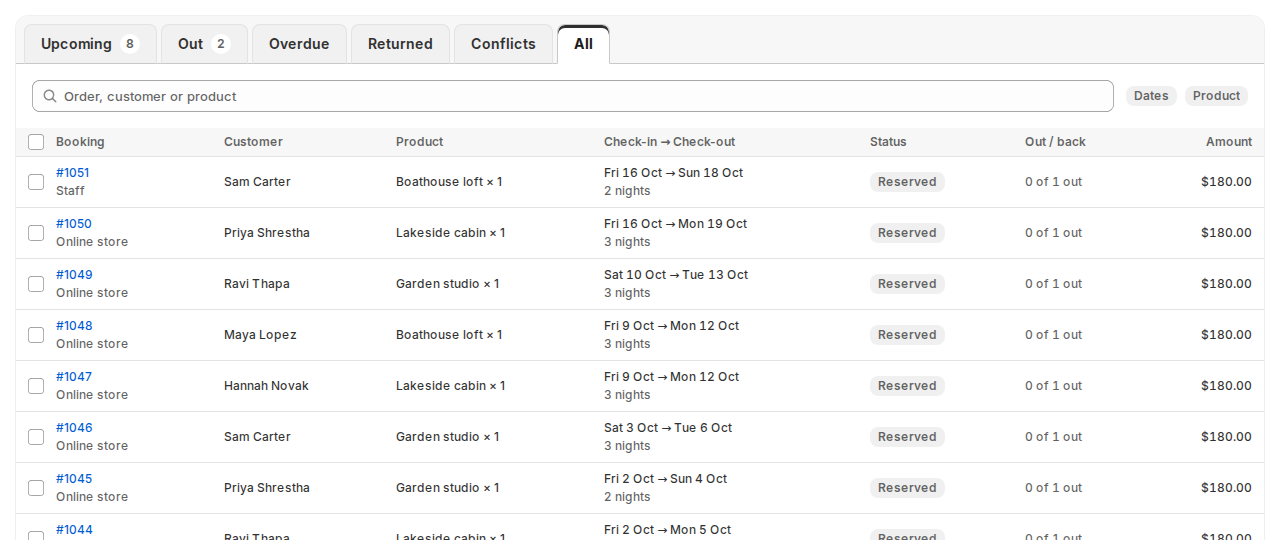
- Bookings: a Check-in → Check-out column when every booking is a stay, or a “3 nights” chip next to the dates in a mixed list.
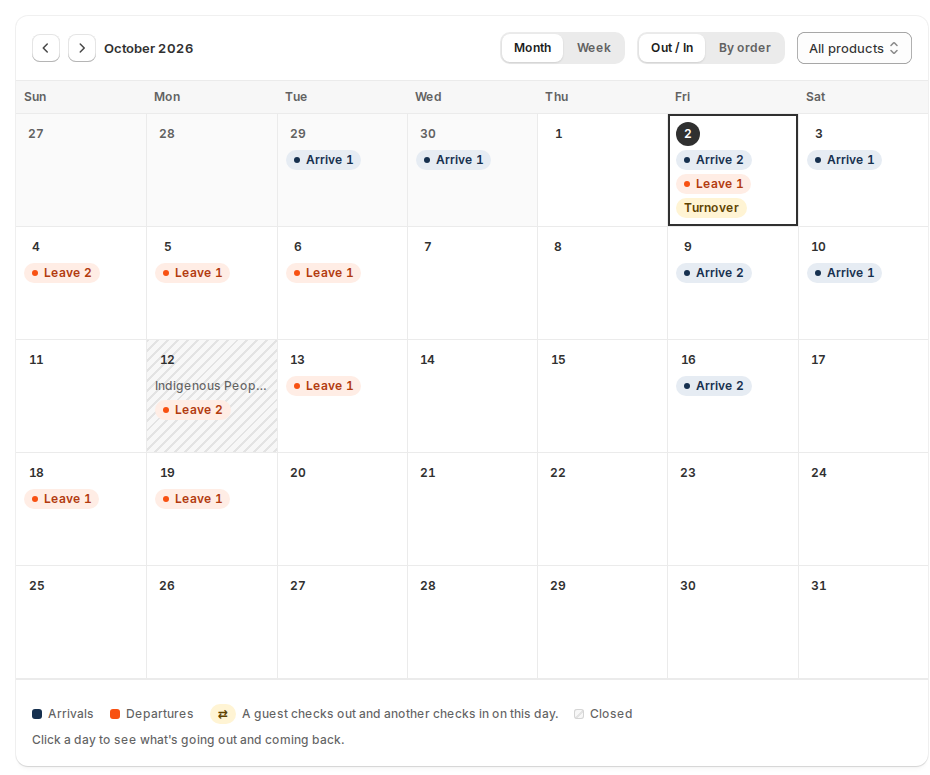
- Calendar: arrivals and departures, a Turnover marker on a day one guest leaves and another arrives, and a day popup listing arrivals, departures and who is in house.
- Utilization counts room-nights for stays (the nights inside the period) and unit-days for everything else. Occupancy is the room-nights sold divided by the room-nights available, and the CSV has a “Counted in” column.
- Edit rental dates and POS work the same way: POS asks for the check-in and the check-out and counts the nights.
Search for stays #
Guests can search the store for stays free on their dates. The results page prices each stay by the night and shows only what is free from check-in to check-out.
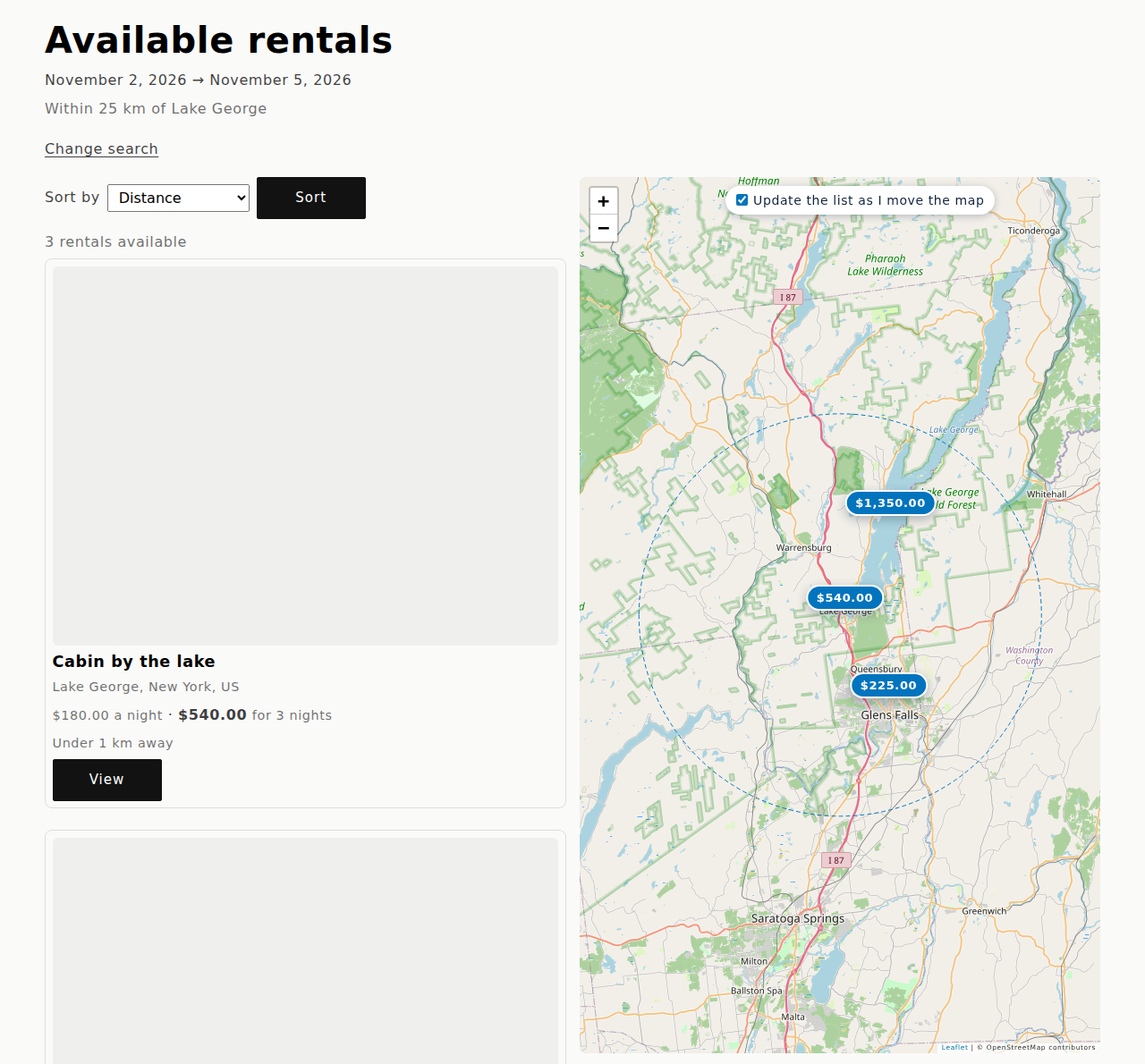
- The results page shows the dates, “Within 25 km of Lake George” when the guest searched a place, and each rental’s distance.
- Map beside the list: every rental with a place on the map gets a price pin. Hovering a card lights its pin. The map needs the rental’s Location card filled in on its product page, and the app’s Rentals embed on in your theme.
- Searching with dates also marks products that aren’t free on those dates in your product lists, as described in Search by date, availability in product lists and maps.
In the theme editor, the search block has a preset called Stays. It arranges the search like a booking site: a Where field with a distance, Check-in and Check-out with the nights counted (“3 nights”), the whole party (guests, children, infants and pets), and “Try:” chips with places to search. Its results page hides what isn’t free and shows the map beside the list. The block’s other settings still apply.
Calendar sync with Airbnb, Booking.com and Vrbo #
Those channels read an all-day end date as the night they must stay free, so the feeds follow the same rule:
- The availability link blocks the nights of each stay, up to the last check-out. Back-to-back stays show as one block, and nights “Closed for stays” are blocked too.
- The bookings link for your team shows each stay as an all-day event from check-in to check-out.
- Importing a channel’s calendar on a product booked by Nights stores each block as a stay, so the other guest’s check-out day stays sellable here.
Channels read your link on their own schedule, often hours apart. Add their links under Calendar sync too, so each side blocks the other. See Calendar sync.
Developers #
The REST and GraphQL APIs report check_in, check_out, nights and a nightly flag, and refuse a same-day pick with zero_nights. The rental settings import and export have the columns stay_type (days, days_free, nights or default), check_in_time and check_out_time. See the developer pages.
Good to know #
- Stock per location: a room at a property is a unit at a location.
- Delivery & pickup is not for stays.
- Kits: the kit’s own Booked by setting governs the items in it.
- Long stays: for a stay of months, use Days with an ongoing or fixed-term rental.
- Part payments work as before; the balance is due before check-in.
- Not available yet: a cleaning fee as its own line, minimum stays that change with the season or weekday, changeover days, early check-in or late check-out fees, assigning a room in advance, and a housekeeping sheet.


