
Every rental becomes a booking: an order from your store, a manual booking you make for a phone or walk-in customer, dates you block for repairs, or dates from a synced calendar. The Bookings page in the app lists them all, and each booking has its own page where you change dates, check units out and in, and sort out conflicts.
The bookings list #
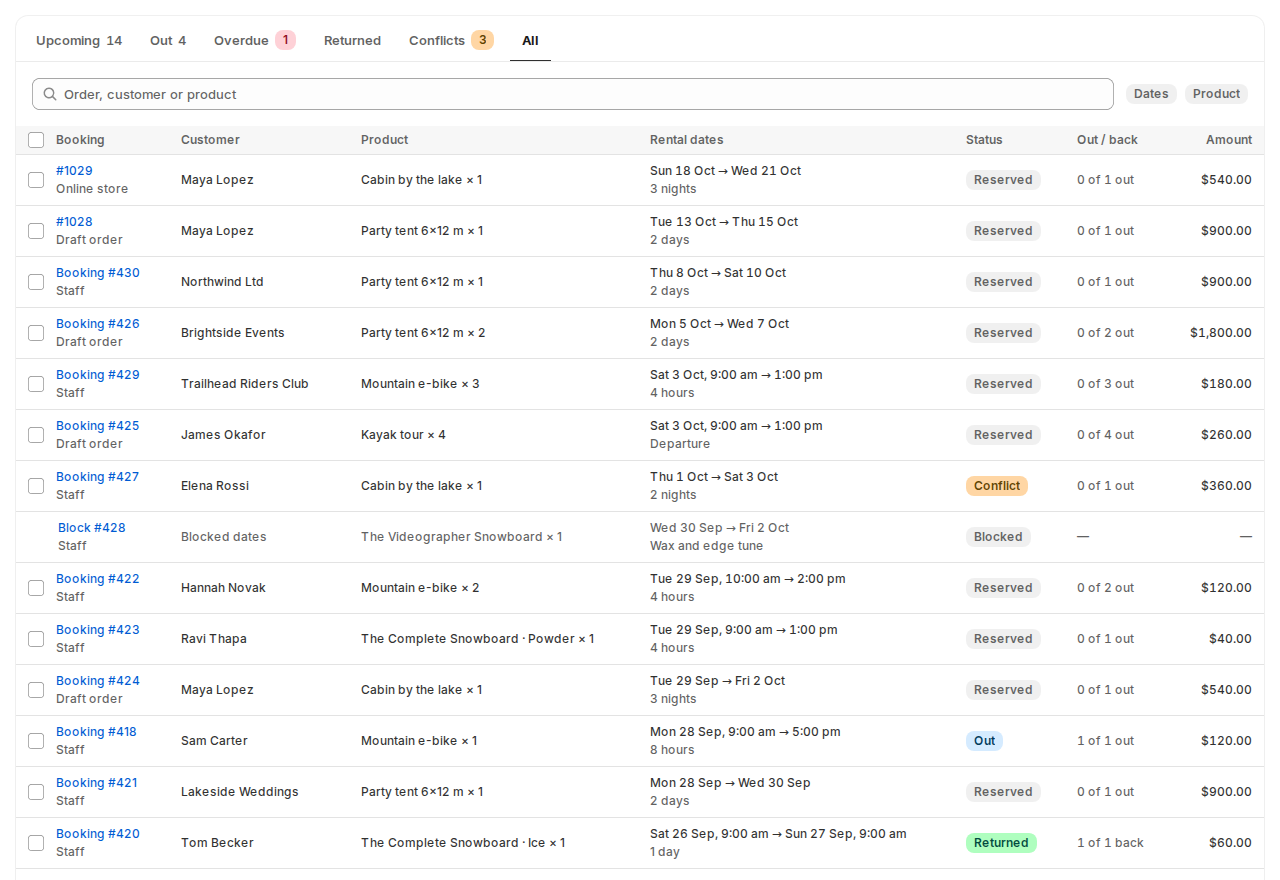
| Part | What it does |
|---|---|
| Tabs | Upcoming (reserved, starting today or later), Out (units checked out), Overdue (units out after the rental ended), Returned, Conflicts and All, each with a count. |
| Search | Order, customer or product. |
| Filters | Dates, Product, and Location when you rent from two or more locations. |
| Booking column | The booking or order number, and where it came from: Online store, Draft order, Staff, Calendar sync, API or Import. |
| Rental dates | The dates and the length: days, nights, hours or “Departure”. |
| Out / back | How many units went out and came back, like “1 of 2 out”. |
Tick bookings and use Check out selected or Check in selected to move many at once.
A booking’s page #
Click a booking to open it.
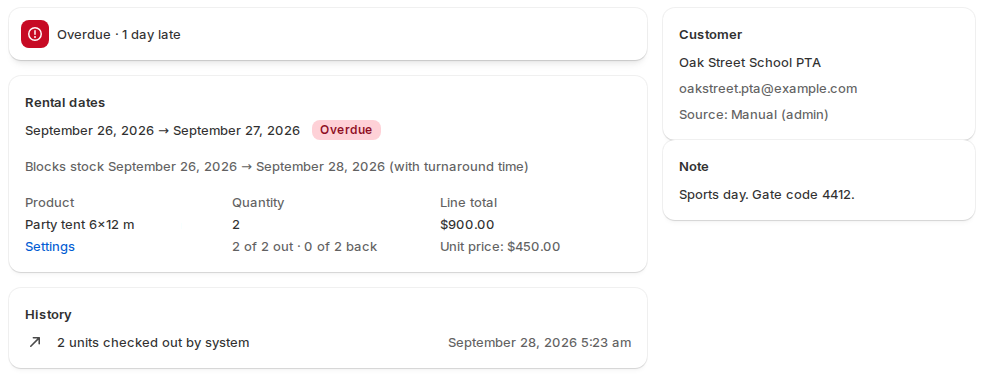
- Rental dates, with the status and the dates the booking blocks stock, turnaround time included.
- The product, the quantity, the progress (“2 of 2 out · 0 of 2 back”), the line total and the unit price, and a Settings link to the product’s Rental Settings.
- Customer, Source and Note.
- History: every check-out and check-in, with who did it and when.
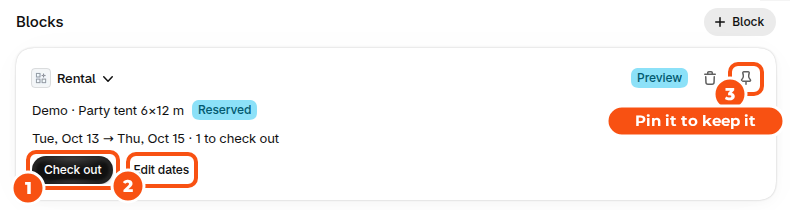
- Check out and Check in, with the number of units.
- Edit dates and Open order.
Change a booking’s dates #
- On the booking’s page, click Edit dates.
- Pick the new dates. We check stock for the new dates before anything changes.
- Click Check dates. The app says “Those dates are free.” and shows the price difference, or says why the dates don’t work.
- Click Apply new dates.
You can do the same from the order page in Shopify: the Rental card’s Edit dates, or More actions › Edit rental dates. Pick the line and the new dates, click Check, then Apply with an optional note. Apply only works after a passing check of exactly those dates. The check tells you whether the price goes up or down, or stays the same.
Manual bookings for phone and walk-in customers #
- Go to Bookings › New booking (or Create a manual booking on the dashboard).
- Choose the Rental product, the Start and End (and times for time-based rentals) and the quantity. For a product with guests, enter the party.
- Enter the Customer email. We create a draft order and you send its invoice.
- Add a Note if you like and click Create booking.
The app says “Draft order created. Send the invoice to the customer:” with Open invoice. The booking holds the stock straight away. If the draft order isn’t paid in time, or you delete it in Shopify, the booking is released and its page says why.
Block dates #
Use Bookings › Block dates to take units out of stock for repairs, maintenance or private use. No order is created. Choose the product, the dates, how many units and a Reason, then click Block these dates. Blocked dates show in the bookings list, the calendar and the inventory grid, but never at the Send & Return desk.
Conflicts #
A conflict is a booking the app couldn’t confirm: most often an order that came in after the stock ran out, sometimes an order whose rental price or quantity doesn’t match what was quoted. Conflicts show under Bookings › Conflicts, on a banner on the dashboard (“3 bookings need attention”) and at the desk before anything goes out.
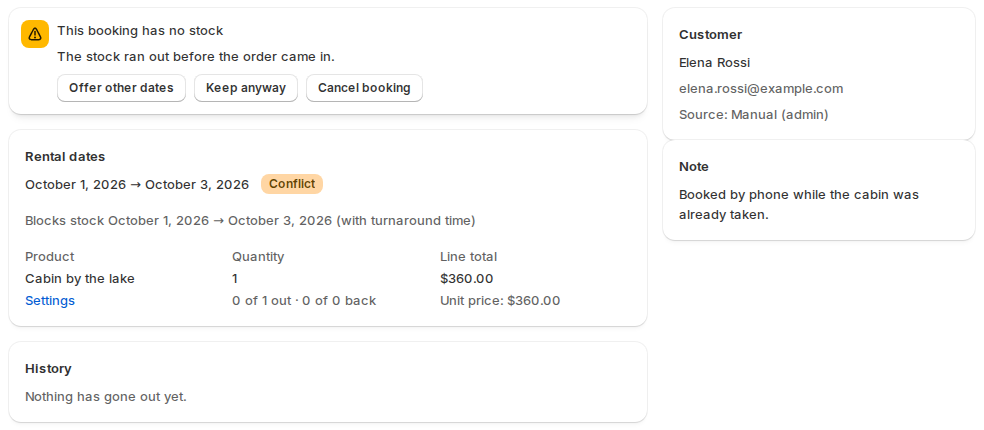
The booking says why, for example “The stock ran out before the order came in.” Then choose:
| Action | What it does |
|---|---|
| Offer other dates | Shows free dates with the same length in the next 90 days. Click Use these dates to move the booking. |
| Keep anyway | Keeps the booking even though it overbooks your stock. |
| Cancel booking | Frees the units. Refund the customer on the order page. |
On the Conflicts tab you can tick several bookings and use Cancel bookings or Keep anyway for all of them. The app asks first and lists the Shopify orders involved. It never cancels or refunds a Shopify order itself: do that in Shopify.
Orders and bookings stay in step #
- Cancelling or refunding a rental in Shopify releases its dates.
- An order cancelled while units are checked out keeps them booked until you check them in.
- The order page’s Rental card shows each rental line with its dates, status and progress (“2 of 2 out”), with Check out, Check in and Edit dates.
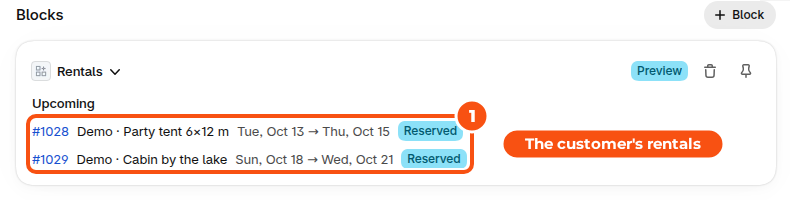
- The customer page’s Rentals card lists the customer’s current, upcoming and past rentals, with View all rentals.
- Orders with rentals are tagged, for example
rental-start-2026-10-13, so you can filter Shopify’s order list by start date.
Good to know #
- Rental dates show on the order line in Shopify as the Rental dates property. To print them in Shopify’s own order emails, see Reminders and emails.
- Bookings can be exported as a spreadsheet or a calendar file from Reports. See Dashboard, calendar and reports.


