
Questions live in field groups. A group decides where its questions show (the product page or the cart page) and on which products. Each question has a type, can be required, can add a price, and can show only when another answer matches.
The list of groups #
Open Custom fields in the app.
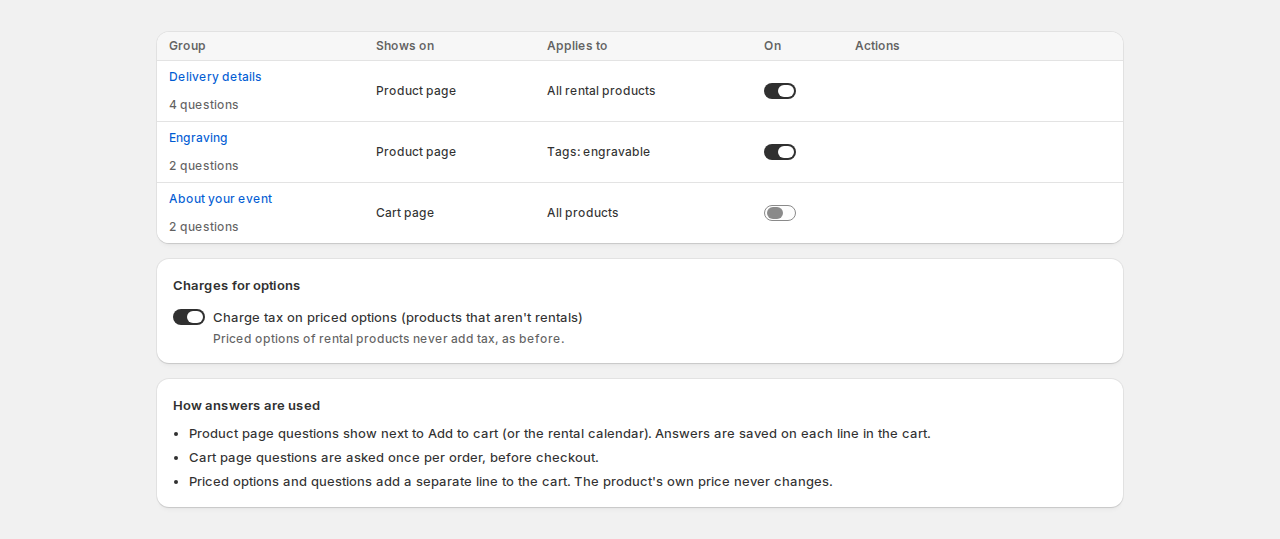
- Group, with the number of questions, Shows on, Applies to and On (switch a group off to hide its questions everywhere without deleting anything).
- Move a group up or down, Duplicate it (the copy starts turned off: change what it applies to, then turn it on), or delete it. Answers already on orders are kept.
- Charges for options: Charge tax on priced options (products that aren’t rentals). Priced options of rental products never add tax.
- Import and Export copy groups between stores (below).
Click Add field group to start one, or a group’s name to edit it.
A group’s settings #
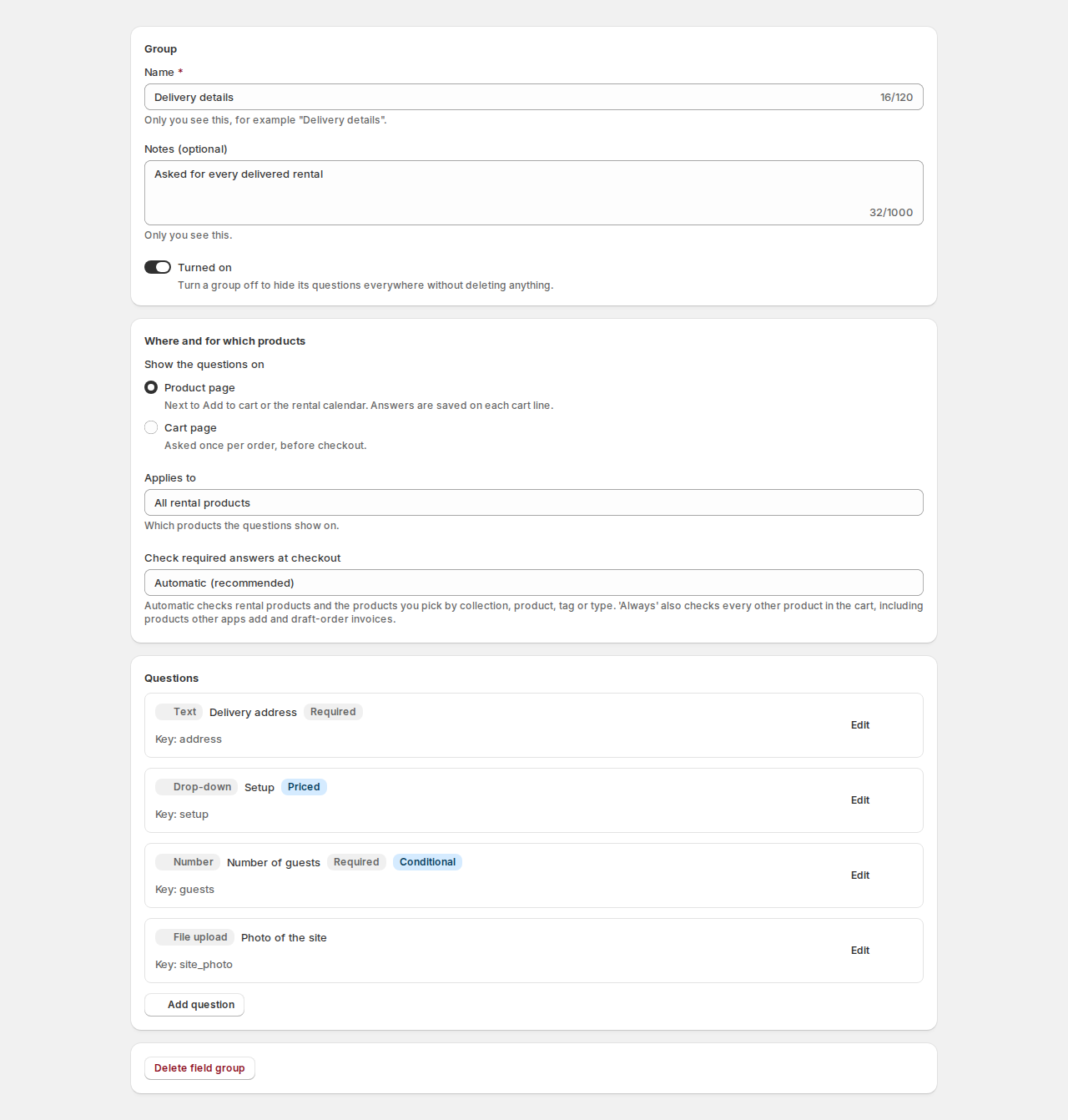
| Setting | What it does |
|---|---|
| Name and Notes (optional) | Only you see these, for example “Delivery details”. |
| Turned on | Off hides its questions everywhere. |
| Show the questions on | Product page: next to Add to cart or the rental calendar; answers are saved on each cart line. Cart page: asked once per order, before checkout. |
| Applies to | All products, All rental products, Products that aren’t rentals, Products in collections, Chosen products, Products with these tags, Products of these types, or Nothing (turned off). |
| Check required answers at checkout | Automatic (recommended) checks rental products and the products you pick by collection, product, tag or type. Always also checks every other product in the cart, including products other apps add and draft-order invoices. Never only asks on the page. |
Tags and types are matched as written on your products; capital letters don’t matter.
Questions #
Click Add question, pick a type, and fill in the question.
| Family | Types |
|---|---|
| Text and numbers | Text (one line), Text area (several lines), Number (with a minimum and maximum), Email, Phone, Web address, VAT / tax number |
| Choices | Drop-down, Multi-select, Radio buttons, Checkbox (one yes / no box), Checkbox group |
| Date and time | Date, Time |
| Uploads and pickers | File upload (a photo or document), Colour |
| Layout | Heading (a title between questions), Text block (text for customers to read) |
| Setting | What it does |
|---|---|
| Label | The question customers see. |
| Help text | Shown under the question. |
| Key | Lowercase letters, numbers and underscores. Used on orders and in exports. Customers never see it. |
| Placeholder | Grey hint inside the empty box. |
| Customers must answer | A question hidden by its rules is never required. |
| Who sees it | Everyone, Logged-in customers or Guests. |
| Options | For choices: a Label, a Value and an optional Price for each. A price on an option replaces the question price for that choice. |
| Price when answered | Fixed amount or Percent of the product price (on the cart page: Fixed amount per order or Percent of the products in the cart). Added as a separate line in the cart while the question has an answer. |
| Charge | Per unit, or Once per cart line (the same price whatever the quantity, like a setup fee). |
| Limits and default | Minimum and maximum, Character limit, Allowed file types and Largest file, and a Default answer. |
Show a question only when… #
Turn on Only show this question when other answers match, choose All of these are true or Any of these is true, and add rules: a Question above this one, a Condition (is, is not, contains, does not contain, is empty, is not empty) and an Answer. A hidden question is never required, never priced and never saved.
Save the group with the save bar.
What customers see #
On the product page, the Custom fields block shows the questions of every group that applies to the product, with option prices next to them (“+$12.00”, or “+$5.00 once”). When they click Add to cart, the answers are checked first; priced options go into the cart as their own “Product option” line. Cart page questions show on the cart page under “A few questions about your order”.
If a customer skips a required answer, checkout says “Answer the questions for … before you check out.”
Import and export #
Open Import and export (Import and export has the details):
- Export questions: JSON (everything, to copy to another store or keep a backup) or CSV (to edit in a spreadsheet), for all or chosen groups, optionally with the damage waiver and ID settings. The file shows your prices; share it only with people you trust.
- Import questions: a .json or .csv file up to 5 MB. Choose what happens When a group with the same key exists (Skip it, Replace it or Import a copy) and whether imported groups start turned off. Check file shows what the import will do, group by group, with any errors, before you import.
- Answers on orders: a CSV of what customers answered, for a date range, with One row per order line or One row per answer. It holds what customers typed, so keep it safe. The file is deleted after 24 hours.
Good to know #
- Customers never see keys. Rename a label at any time; keep keys stable if you export answers.
- Deleting a question removes it from future orders only.


