
The Send & Return desk is where staff hand rentals over and take them back. It lists what is due to go out or come back, takes a barcode scanner or a typed order number, and records every unit that moves, with who moved it and when. Checking rentals out and in is what tells the app a rental is out, back or late.
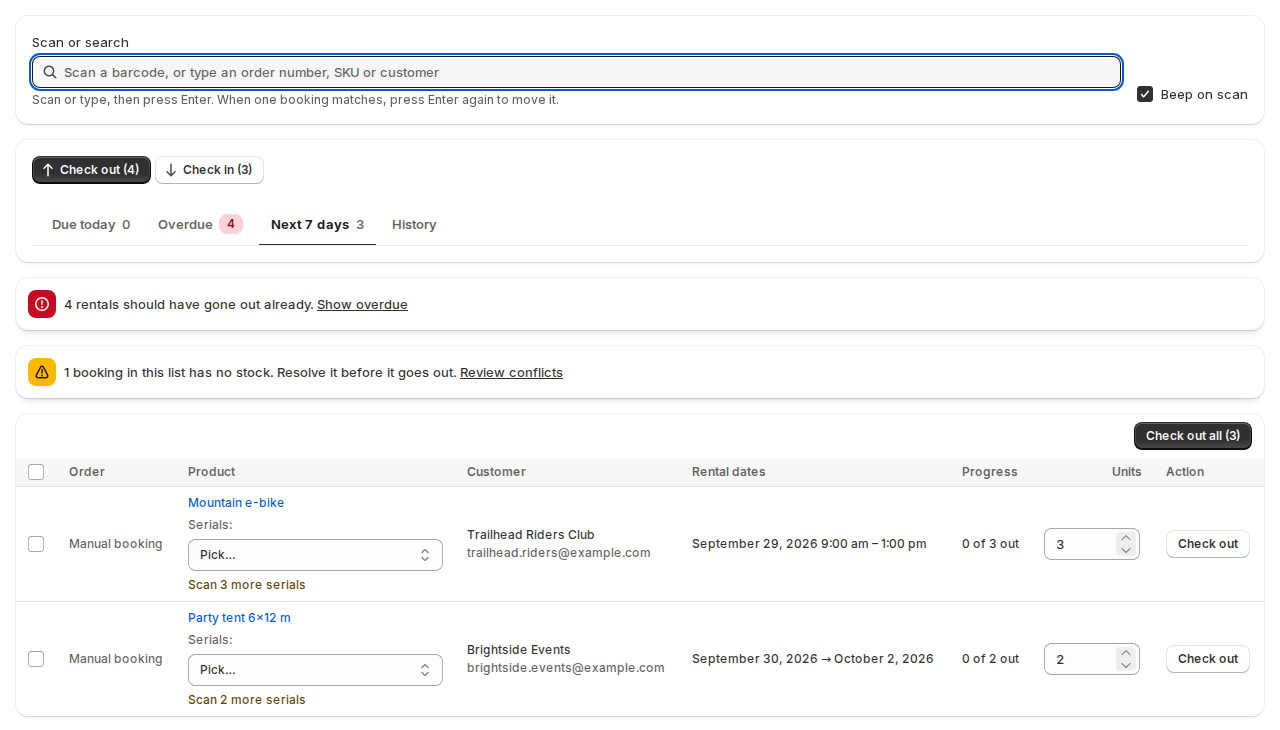
Check rentals out #
- Open Send & Return and choose Check out at the top.
- Pick a list: Due today, Overdue (rentals that should have gone out already) or Next 7 days.
- Click Check out on a row. For a booking with several units, set Units to check out first to hand over only some.
To move many at once, tick the rows and click Check out selected, or click Check out all to move every unit still outstanding on the bookings shown. If one of them has a problem, nothing is recorded and the desk lists what to fix.
Check rentals in #
Choose Check in and do the same with Due today, Overdue or Next 7 days. Units to check in handles part returns: the booking stays open until the last unit is back.
Scan or search #
The Scan or search field takes a barcode scanner or typing: an order number like #1042, a booking number, a SKU or a customer name.
- Scan or type, then press Enter.
- When one booking matches, press Enter again to move it. When several match, pick one.
Tick Beep on scan for a sound when a scan goes through. For products that track serial numbers, scanning a serial number’s label picks that exact unit. See Serial numbers.
History #
The History tab lists every check-out and check-in, newest first, with when, who and any note. A booking’s own page shows its history too.
The pick list #
Click Pick list for everything still to go out, grouped by product, ready to print or download as a CSV. You can also print a pick list from Shopify: on an order, Print › Rental pick list; in the orders list, select up to 50 orders and choose Print › Rental pick list.
Warnings at the desk #
- Conflicts: “1 booking in this list has no stock. Resolve it before it goes out.” with Review conflicts. See Managing bookings.
- Overdue: a banner counts rentals that should have gone out, or are overdue coming back, with Show overdue.
- Unpaid balance: with pay part now, the desk warns before a rental with an unpaid balance goes out, or blocks it, as you choose. See Pay part now, rest later.
Early check-outs and check-ins #
Two settings under Settings › Rules › Send, return and extend decide what happens when a rental moves early:
- Checking out early moves the start date: the booking starts the day you check it out.
- Checking in early moves the end date: the units are free again from the day they come back.
Both are off unless you turn them on.
Emails to the customer #
When you check a rental out, the customer can get Your rental is on its way; when you check it in, Returned — thank you. Lines of one order moved together go in one email. Switch them on or off and change the wording under Settings › Notifications. See Reminders and emails.
Other places to check out and in #
- The dashboard’s lists and the calendar’s day panel have Check out and Check in on each row.
- The Rental card on a Shopify order page checks each rental line out or in.
- A booking’s page has both buttons with the number of units.
- Shopify Flow can check rentals out and in. See Shopify Flow, API and headless storefronts.
Good to know #
- Blocked dates and synced calendar dates never show at the desk: there is nothing to hand over.
- Overdue reminder emails only go to rentals that were checked out and not checked back in, so the desk is what makes them work.
- A rental kit shows as one row with Check out kit and Check in kit, and moves all its items together.
- A transported rental’s button reads Mark as dispatched. See Delivery & pickup.


