
SI Request a Quote, Hide Price lets customers ask for a quote instead of buying at the listed price. They add products to a quote list, or ask for a quote for their whole cart, and fill in your request form. You answer from your Shopify admin with your own prices, discounts and shipping; Shopify works out the tax. The customer accepts online and pays through your Shopify checkout at the quoted price. You can also hide prices, and sell some products by quote only.
SI Request a Quote is sold on its own and works on any Shopify store. It doesn’t need the Rentals & Bookings app; if you have that too, quotes can include rental dates (see Quotes for rentals).
Install the app #
- Open the app’s page on the Shopify App Store and click Install.
- Shopify lists what the app can see and change in your store. Click Install again.
- The app opens in your Shopify admin. Later you’ll find it under Apps in the left-hand menu.
The setup guide #
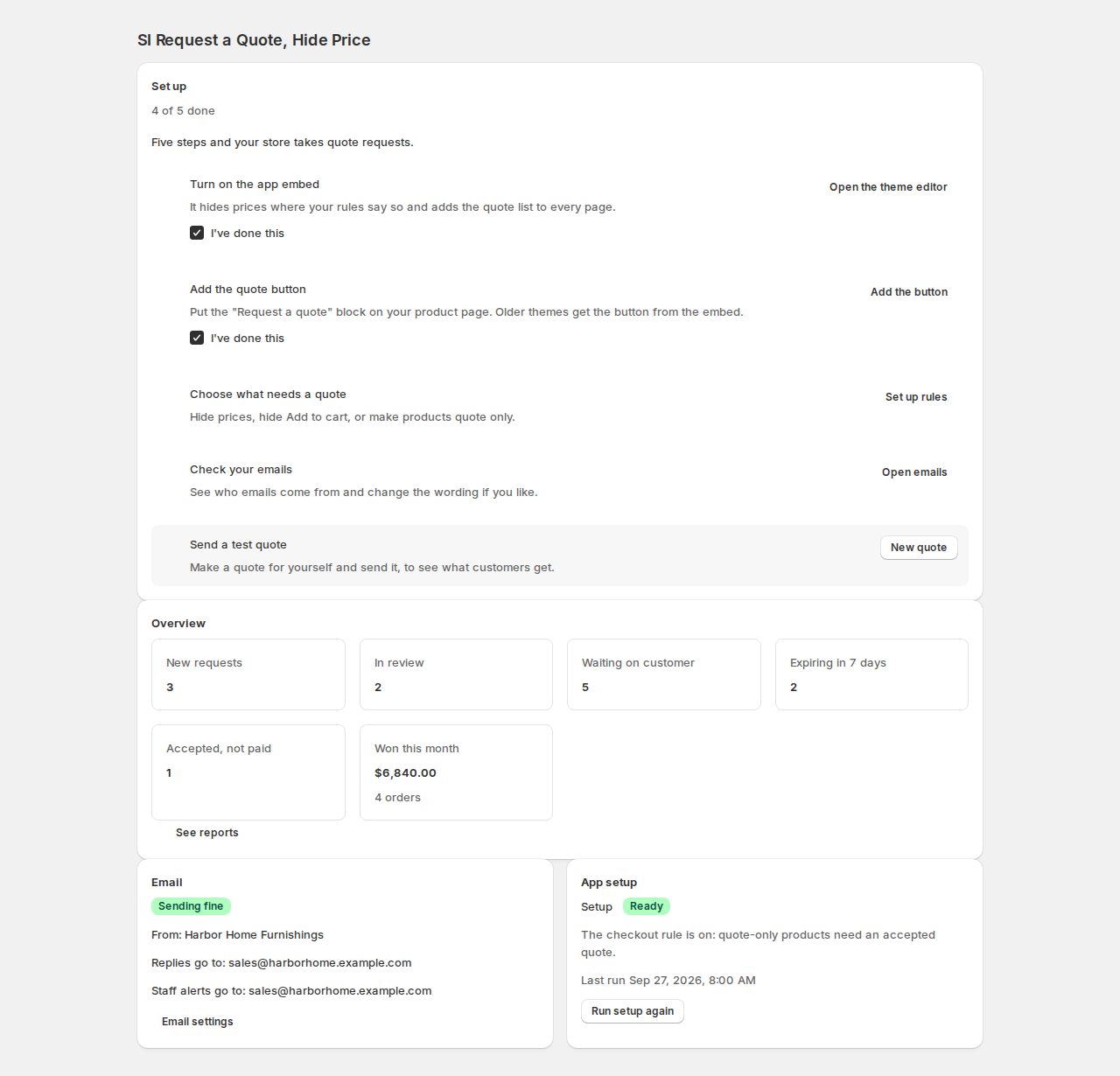
The home page walks you through five steps. It says “4 of 5 done” as you go, and “You’re set up” at the end.
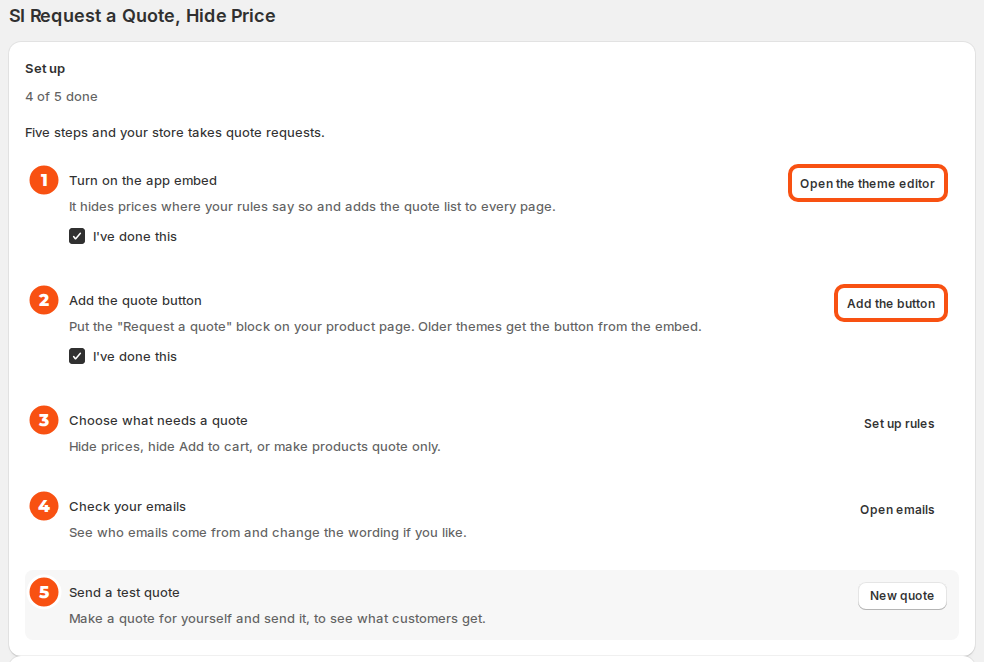
- Turn on the app embed: it hides prices where your rules say so and adds the quote list to every page. Click Open the theme editor, turn on the embed, save, then tick I’ve done this.
- Add the quote button: put the “Request a quote” block on your product page. Older themes get the button from the embed. Click Add the button, save, and tick I’ve done this.
- Choose what needs a quote: hide prices, hide Add to cart, or make products quote only. Click Set up rules. See Hide prices and quote-only products.
- Check your emails: see who emails come from and change the wording if you like. See Emails, PDF and staff alerts.
- Send a test quote: make a quote for yourself and send it, to see what customers get.
What happens to a request #
- A customer adds products to their quote list (or clicks Request a quote on one product, or Request a quote for this cart), fills in your form and clicks Send request. They get a quote number and an email.
- The request shows under Quotes as New, and your team gets an alert.
- You open it (it moves to In review), set your prices, add discounts, shipping or custom items, and click Send quote. The customer gets an email with a link to their quote and a PDF.
- The customer accepts and pays through Shopify’s checkout at your prices, or declines, or asks for changes.
- The paid quote becomes an order and moves to Ordered.
The app’s menu #
| Page | What it’s for |
|---|---|
| Home | The setup guide, the overview cards, email health and app setup. |
| Quotes | Every request and quote, with tabs, search and filters. New quote starts one yourself. |
| Reports | Open value, won quotes, win rate and how fast you answer. |
| Storefront | The theme setup, your hide and quote rules, the button and price texts, the quote list options and spam protection. |
| Request form | The questions customers answer when they ask for a quote. |
| Emails | The wording of every email and the delivery log. |
| Settings | Numbering, validity, checkout, staff alerts, the PDF and privacy. |
| API access | API keys for your own systems. |
The overview #
The home page cards each open the quote list, filtered: New requests, In review, Waiting on customer, Expiring in 7 days, Accepted, not paid and Won this month. The Email card says whether emails are sending fine, and the App setup card whether the checkout rule is on: “The checkout rule is on: quote-only products need an accepted quote.” If setup needs attention, Run setup again tries again.
Good to know #
- Hiding is visual. To stop a sale, mark the product Quote only: checkout then refuses it without an accepted quote. See Hide prices and quote-only products.
- The app never takes payment itself. Customers always pay through your Shopify checkout.
- The storefront, emails and PDF are in English for now.


