
The Rentals & Bookings app connects to the rest of your tools in three ways: Shopify Flow triggers and actions for automations without code, a REST and GraphQL API for your own systems, and a storefront API for Hydrogen or custom storefronts.
Shopify Flow #
Turn on Send events to Shopify Flow under Settings › Notifications (it is on unless you turn it off). Then build workflows in the Shopify Flow app, for example a text message the day before a pickup, or a Slack message when a rental is overdue.
Triggers #
| Trigger | Fires |
|---|---|
| Rental booked | For each rental line of a new order. |
| Rental due out tomorrow | At 09:00 store time the day before the start, if nothing is checked out yet. |
| Rental checked out | When units are checked out. |
| Rental due back tomorrow | At 09:00 the day before the end, if not everything is back. |
| Rental checked in | When units are checked in. |
| Rental overdue | An hour after a timed rental ends, or at midnight after a date rental ends, while it is still out. |
| Rental conflict found | When a booking can’t be confirmed, with the reason. |
| Rental balance due, Rental balance overdue, Rental balance paid | For rentals paid in part at checkout. |
Each trigger carries the customer, order and product, plus Booking ID, Order name, Product title, Rental start, Rental end, Quantity and Rental status. Because it names the customer, you can also use these triggers in Shopify’s marketing automations. A booking without an order or a customer (a walk-in still on its draft order) doesn’t fire them. The time-based triggers follow moved dates and fire once.
Actions #
| Action | What it does |
|---|---|
| Check out rental booking | Checks out one booking (by Booking ID, a number of units or all that are left) or every rental on the order. Tick Skip customer email to leave out the “on its way” email. |
| Check in rental booking | The same, for units coming back. |
| Block rental dates | Blocks dates on a product or variant, like Block dates in the app. |
| Add note to rental booking | Adds a dated note to the booking. |
Actions follow the same rules as the desk: Flow can’t check out a cancelled booking or more units than are left, and the workflow run shows the reason.
REST and GraphQL API #
For your own servers, scripts, spreadsheets and tools. Both APIs do the same things with the same keys: REST is plain URLs and JSON, GraphQL is one endpoint where you ask for exactly the fields you need.
Developers: the API overview covers keys, addresses, limits and errors, and the reference pages list every operation: GraphQL API reference, REST API reference and, for Rental Contracts, Security Deposits, Custom Fields and SI Request a Quote, the GraphQL and REST add-on references.
Make an API key #
- Open Settings › API.
- Under API keys, give the key a name and tick Allow changes (write) if it needs to change anything. A key without it can only read.
- Create the key and copy it. It is shown once. Treat it like a password and keep it on a server, never in a browser.
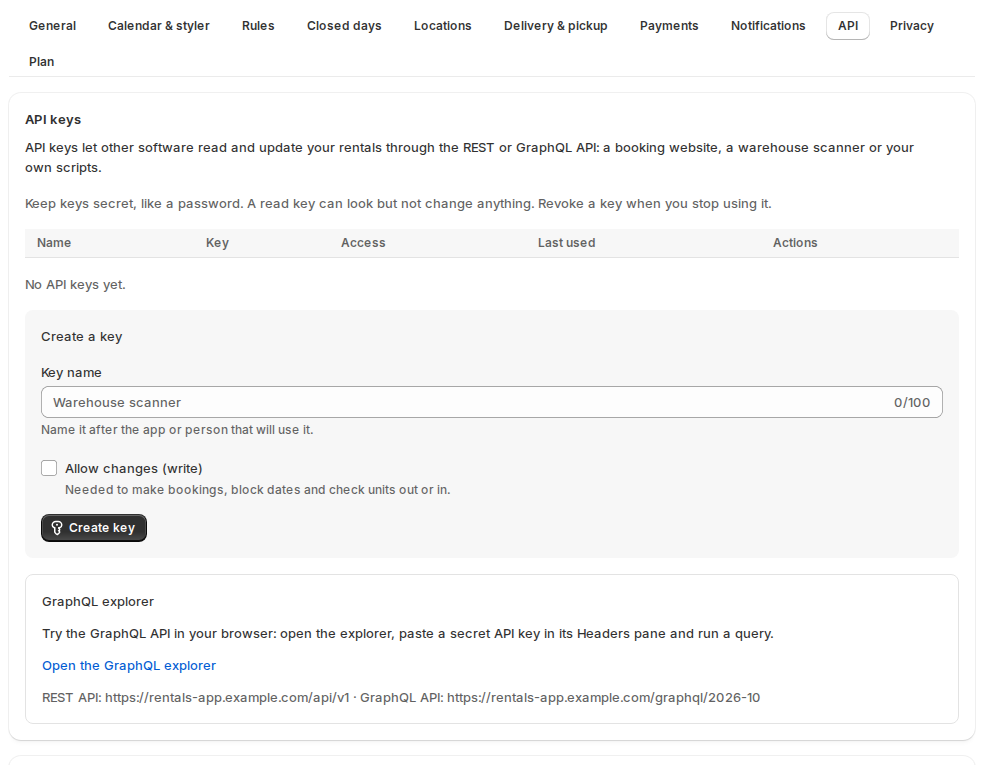
The same screen shows the REST and GraphQL addresses, and Open the GraphQL explorer to try queries in your browser (paste the key in its Headers pane). A store can have up to 20 active keys; revoke one you no longer use. Keys belong to your store, so the same key also works for the Rental Contracts, Security Deposits and Custom Fields apps when you have them.
Send the key in every request:
curl -H "Authorization: Bearer sirb_your_key_here" \
"https://<API address from Settings › API>/api/v1/bookings?state=out"(X-Api-Key: sirb_… works too.) Each key has a rate limit per minute; an answer over it says how long to wait.
What the API covers #
| Area | You can |
|---|---|
| Bookings | List (by product, order, state, status, source, dates or a search), read, create (with a draft order and invoice, or blocked dates), change dates, delete, check out and check in, and read the history. |
| Availability and pricing | Check free units for dates, get the rate card, a quote for dates, and day prices. |
| Orders | List orders with rentals. |
| Send & return | The desk’s lists, counts, batch check-outs and check-ins, barcode scans and history. |
| Serial numbers | List, add (one or a range), change, retire, history, label sheets and usage. |
| Calendar sync | Read a product’s feeds, make new links, and add, change, sync or remove imported calendars. |
| Rental settings | Export every rent variant’s settings as a CSV and import it back (a dry run first, by default). |
| Locations and stock | Your rental locations, and a product’s stock at each. |
| Balances | Rentals paid in part: list, send the invoice, mark paid, waive. |
| Kits | List, create, change and delete rental kits. |
| Delivery & pickup | Hand-over windows, delivery settings and a booking’s hand-over. |
| API keys | List, create and revoke keys. |
Errors have one shape everywhere: a code, a message written for people, and details, for example {"code": "rentals_rest_not_available", "message": "Only 1 unit(s) available for those dates.", "data": {"status": 409, "available": 1}}.
Headless storefronts #
Selling rentals on a Hydrogen or custom storefront? A publishable key lets its pages show the rental calendar, price the dates and reserve them, then add the rental to a Shopify cart. Checkout prices and checks it just like on your online store.
Make a publishable key #
Open Settings › API › Headless storefronts and Create a key with a Key name (like “Hydrogen storefront”) and the Allowed websites, one per line (https://shop.example.com, https://*.example.com for subdomains, or http://localhost:3000 while developing). Give the Storefront API address and the key to your storefront’s developer.
A publishable key is not a secret: it goes in your storefront’s code. It only works from the websites you list, and only for booking. It can’t read your orders or change anything. Rotate makes a new key and keeps the old one working for a while, so you have time to update your storefront; Revoke stops a key at once.
How a headless booking works #
- The storefront asks the storefront API for the calendar (
calendar), then a price for the chosen dates (quote), sending the key in theX-Rentals-Keyheader. reserveholds the units and returns the cart line’s properties.- The storefront adds the line to a Shopify cart with the Storefront API, with those properties as the line’s attributes and the quantity from the reply.
- The customer checks out as usual. Shopify prices the line and checks the dates and the price, as on your online store.
If the dates change before checkout, release the old hold, reserve again and replace the cart line. The same operations are available as GraphQL at the storefront GraphQL address.
For your storefront’s developer: endpoints, examples and limits are in Headless storefronts: the storefront API.
Good to know #
- The storefront API answers the same way as the calendar on your online store, with the same limits.
- API writes are recorded with the key that made them.


