
A product becomes a rental when you fill in its Rental Settings: how it’s rented, what it costs and how many you own. Everything else has a sensible default, taken from your store settings, and you can fine-tune it later.
Where to find Rental Settings #
| Where | What you get |
|---|---|
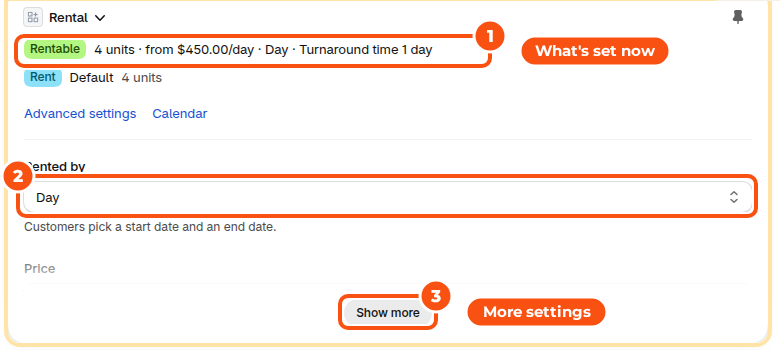
| The Rental card on a product page in your Shopify admin | The rental settings form, right on the product page. Shopify’s own Save saves it. Add the card once with + Block in the page’s Blocks section (see Getting started). |
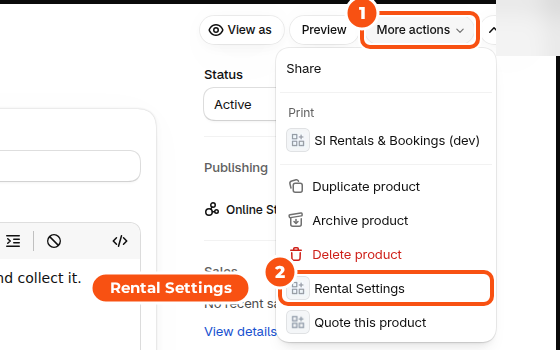
| More actions › Rental Settings on a product page | The same questions in a window, with Save and Advanced settings. Nothing to add or pin. |
| Products list › select products › Rental Settings | The same questions for many products at once. |
| The app › Inventory › the settings button on a row | The full settings page with every option, including the advanced ones below. |
The three questions #
- Rented by: how customers pick their dates.
- Day: customers pick a start date and an end date.
- Day and time: customers pick dates and times, for hourly rentals.
- Fixed lengths: customers pick a start date and one of your lengths, like 4 hours or 1 week. Tick Customers pick a start time too for lengths in hours.
- Set departures: customers pick one of your dates, like tours or events.
- Price: Per day, Per hour, One price per booking, or a Price table with one row per length, for example 4 hours 38, 1 day 55, 1 week 220.
- You own: how many you can rent out at the same time.
Two more questions sit behind More options on the Rental card:
- Time between rentals: turnaround time for cleaning, checks or travel before the item can go out again, in hours or days.
- Sell it too? Rent and buy: keeps your Buy option and adds a Rent option next to it.
Industry preset fills in the answers for your kind of rental. You can change any of them before you save.
The rental types are explained in Rental types and prices in Rental pricing.
Renting several products at once #
- In Shopify, open Products and tick the products.
- Choose Rental Settings from the bulk actions.
- Answer the questions once for all of them and click Save.
A result list shows each product as Rentable or Failed with the reason. Click Try the failed ones again after you fix the cause.
The full settings page #
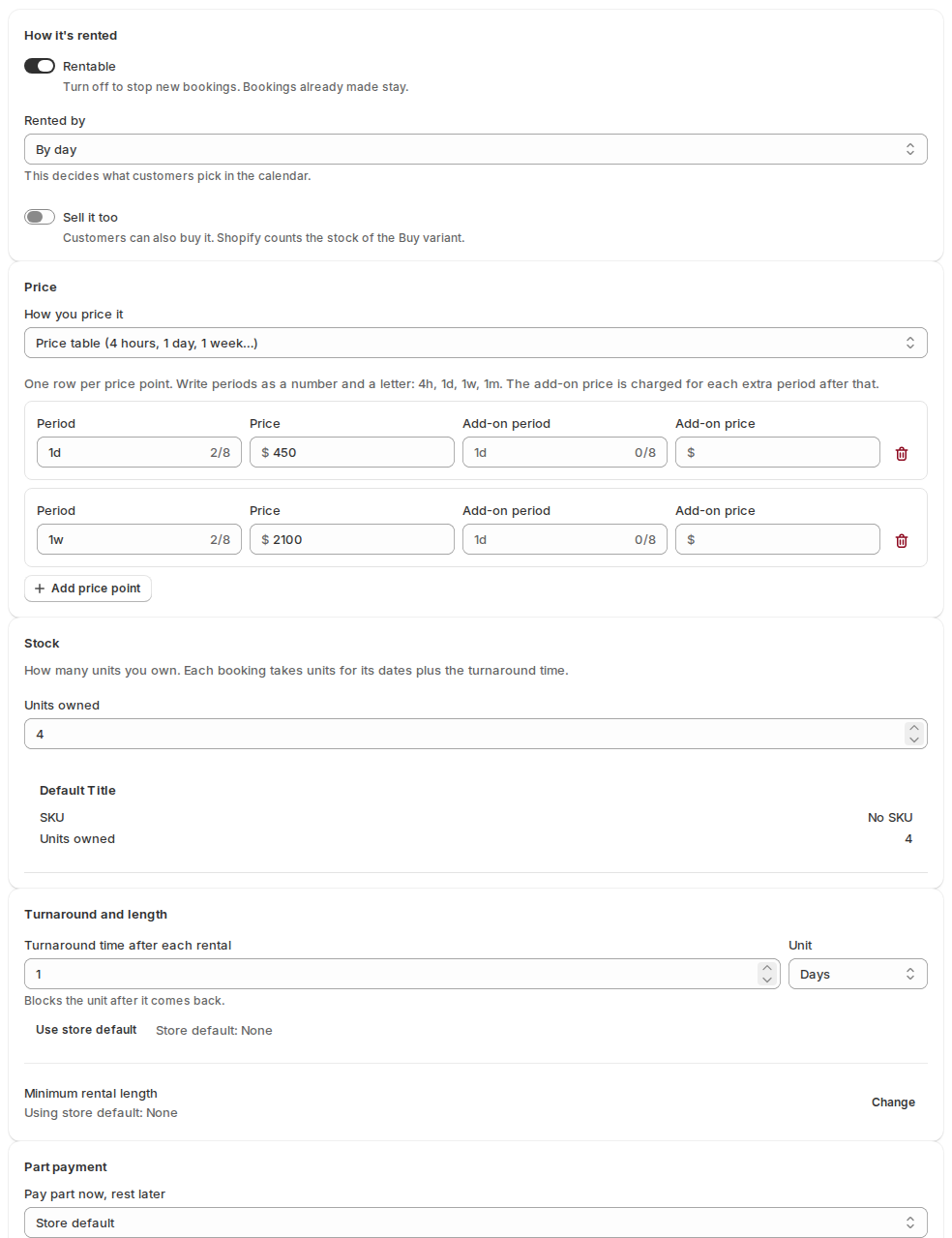
Open Inventory in the app and click the settings button next to a product. The page has these sections.
| Section | Settings |
|---|---|
| How it’s rented | Rentable (turn it off to stop new bookings; bookings already made stay), Rented by and Sell it too. |
| Price | How you price it: Price per day, hour or rental, or Price table (4 hours, 1 day, 1 week…). Then Also charge the return day: Store setting, No or Yes. |
| Stock | Units owned. With several rent variants, each variant can own its own number. |
| Turnaround and length | Booked by (Store setting or one of the three choices, see Stays by the night), Turnaround time after each rental and Minimum rental length. The turnaround and length fields show the store default, and Use store default puts it back. |
| Part payment | Whether customers can pay part now and the rest later for this product. See Pay part now, rest later. |
| Advanced | Click Show advanced settings for everything else (below). |
Advanced settings #
| Setting | What it does |
|---|---|
| Booking rules | Turnaround time before each rental, Lead time, Maximum rental length and Max days ahead for this product. |
| Closed days and holidays | Days this product can’t be picked up or returned. They replace your store’s closed days for this product. |
| Fixed lengths and departures | The lengths customers choose from, and your departures (date, time, length, price and repeats). |
| Pricing rules | Date-based and length-based prices for this product. |
| Guests | Party size for stays, tours and boats. See Guests and party size. |
| Calendar labels | Your own words for the steps, like “Delivery date”, for this product only. Leave blank to use the store’s labels. |
| Price display | Headline price per (the period next to the “From” price; Automatic follows Booked by) and Price shows as: automatic, the rate table, or your own Custom price text. |
| Stock rules | Allow overbooking: take bookings even when every unit is booked. Use it for items you can always get more of. |
| Track serial numbers | Give each unit its own serial number. See Serial numbers. |
| How the price reaches checkout | Keep The app prices each rental at checkout unless each rent variant is one fixed length, like “1 day” and “1 week” variants. Then choose Fixed durations: each variant is one length at its Shopify price. |
Under the form you’ll also find the Calendar sync card, Stock by location, Delivery & pickup and Location, each explained on its own page.
Rent and buy on the same product #
With Sell it too on, the product keeps its Buy variant and gets a Rent variant. Shopify counts the stock of the Buy variant as usual. The Rent variant doesn’t track Shopify inventory: the app counts rental stock for every date instead. The storefront shows the calendar for the Rent variant and the theme’s normal Add to cart for the Buy variant.
If a rent variant still tracks Shopify inventory, the dashboard’s setup line says so. Turn Track quantity off for that variant in Shopify.
Stop renting a product #
On the Rental card or in More actions › Rental Settings, click Stop renting and confirm. Customers can’t book it any more. Bookings you already have stay as they are. You can also turn Rentable off on the full settings page.
Good to know #
- Units owned is the number the calendar uses. With serial numbers on, the app warns you when the number of serials and the stock differ.
- A product’s own setting always wins over the store default. Each store default shows next to the field, so you can see what a product inherits.
- Products and their rental settings can also be exported and imported as a spreadsheet through the API. See Shopify Flow, API and headless storefronts.


