
ID checks ask customers for a photo of their ID before a rental goes out: in the cart, or from their customer account. You review each ID in the Custom Fields app, and checkout (or the hand-over) waits until it is verified, as you choose. ID scans are stored privately and deleted after the period you set.
ID settings #
Open ID settings in the app.
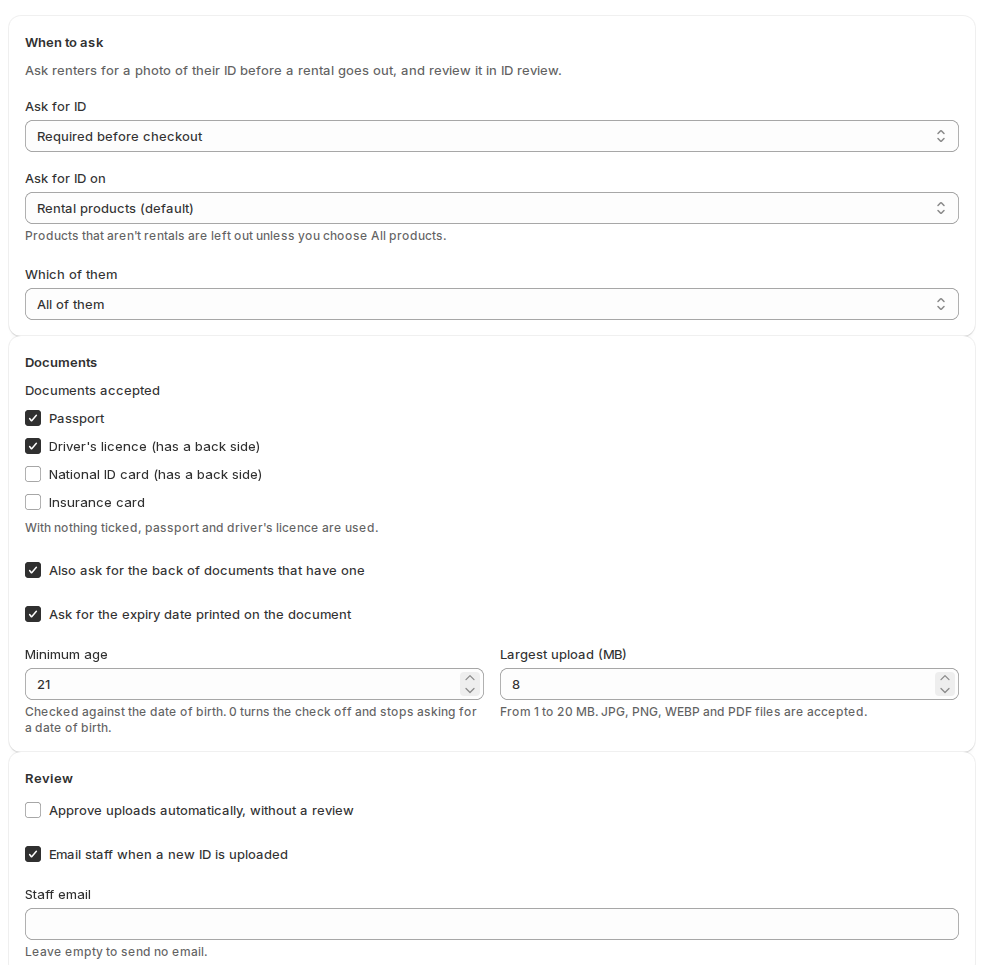
When to ask #
| Setting | What it does |
|---|---|
| Ask for ID | Off, Optional: customers may upload one, Required before checkout, or Required before the rental goes out. |
| Ask for ID on | Rental products (default), or All products, rentals and others. |
| Which of them | All of them, or those in chosen collections, chosen products, or with chosen tags or types. |
With Required before the rental goes out, customers can place the order without an ID. The order is tagged id-needed until an ID is verified, then id-verified, and the order note says “ID check: needed before pickup.”
Documents #
| Setting | What it does |
|---|---|
| Documents accepted | Passport, Driver’s licence, National ID card, Insurance card. With nothing ticked, passport and driver’s licence are used. |
| Also ask for the back of documents that have one | For a driving licence, for example. |
| Ask for the expiry date printed on the document | Expired documents are refused. |
| Minimum age | Checked against the date of birth. 0 turns the check off and stops asking for a date of birth. |
| Largest upload (MB) | From 1 to 20 MB. JPG, PNG, WEBP and PDF files are accepted. |
Review and privacy #
| Setting | What it does |
|---|---|
| Approve uploads automatically, without a review | Every upload counts as verified at once. |
| Email staff when a new ID is uploaded | With the Staff email to send it to. Leave it empty to send no email. |
| Keep documents for (days) | This permanently deletes ID scans. Once a document is older than this and its rentals are checked in or cancelled, the document and its scans are erased. 0 keeps everything until you delete it. |
What customers see #
- On the product page, a short note: “You’ll need to add a photo ID in your cart before you check out.” (or the note for the mode you chose). A customer whose ID is already verified sees “Your ID is verified.”
- In the cart, under Before you check out, a Photo ID step: the Document type, Front of the document, Back of the document when needed, Expiry date, Date of birth when you set a minimum age, and Send ID. Then: “Thanks. We’ll check your ID and let you know.”
- At checkout, with Required before checkout, a cart without a verified or waiting ID stops with “Upload a photo of your ID in your cart before you check out.”
In the customer account #
Stores on Shopify’s new customer accounts can add the Photo ID block to the profile page (Shopify › Settings › Checkout › Customize › Customer accounts › Profile). Signed-in customers see their ID status (verified with its expiry, being checked, not accepted with the reason, or expired) and can upload an ID there before they shop. A verified ID from the account counts at checkout.
Review IDs #
Open ID review. The tabs are All, To review, Verified, Rejected and Expired. Search by order, customer ID or exact email. Each row shows the Document, Customer, Order, Expires, Status and Uploaded; click Review.
The document page shows the Front and Back scans (open full size, or the PDF), and the details: name on the document, date of birth and age, expiry, the order, when and where it was uploaded.
| Action | What happens |
|---|---|
| Approve | Correct the expiry date if the customer typed it wrong, then approve. The customer gets “Your ID has been approved”. |
| Reject | Choose a reason (blurred, cut off, expired, name doesn’t match the order, wrong type, back missing, or other) and write a message to the customer. They get an email asking for another photo, with a link to upload again. |
| Delete | Deletes the document and its scans for good. |
The order’s Custom fields card shows the ID status with Review ID.
Good to know #
- ID scans are never public: they are stored privately with random names and only shown to staff through short-lived links.
- When a customer asks your store to erase their data, their ID documents are deleted.
- The ID emails go to the customer’s email address and, for new uploads, to your staff email.


