
When a quote is ready, you send it. The customer gets an email with a link to their quote and the PDF, and accepts it online. Accepting turns the quote into a Shopify draft order at your prices, and the customer pays through Shopify’s secure checkout. You can also create the order yourself.
Send a quote #
- In the quote editor, check the items, the customer’s email and the message.
- Click Send quote (or Send new version after changes).
- Confirm: “We’ll email [email protected] a link to the quote. Once sent, this version can’t be changed.”
The quote moves to Sent and gets its Valid until date. The timeline shows the email and whether it was delivered, and “The customer opened the quote” once they look at it.
A quote needs at least one item and the customer’s email address before it can be sent.
How the customer accepts #
On their quote page (see What your customers see) the customer clicks Accept and pay. The app creates a draft order with your prices and sends them to Shopify’s secure checkout for it. They also get an email with the payment link.
The quote shows Accepted, waiting for payment, with Open the draft order and Open the checkout link. When the customer pays, the order appears and the quote moves to Ordered with a link to the order.
The draft order and the order carry the quote number, as a line note (“Quote: Q-1048 (version 2)”) and the tags quote and quote-Q-1048. At checkout Shopify checks that the prices still match the quote, so the quoted price can’t be changed in the cart.
Convert a quote yourself #
Click Convert to order on a sent quote. “Version 2 becomes a draft order with these prices.” Then choose how the customer pays:
| Choice | What happens |
|---|---|
| Send the payment link | We email the customer a secure Shopify checkout link for this quote. |
| Create the order now, payment pending | The order is created right away and marked as payment pending. Collect payment later. |
Save or discard unsaved changes first.
Settings for sending and paying #
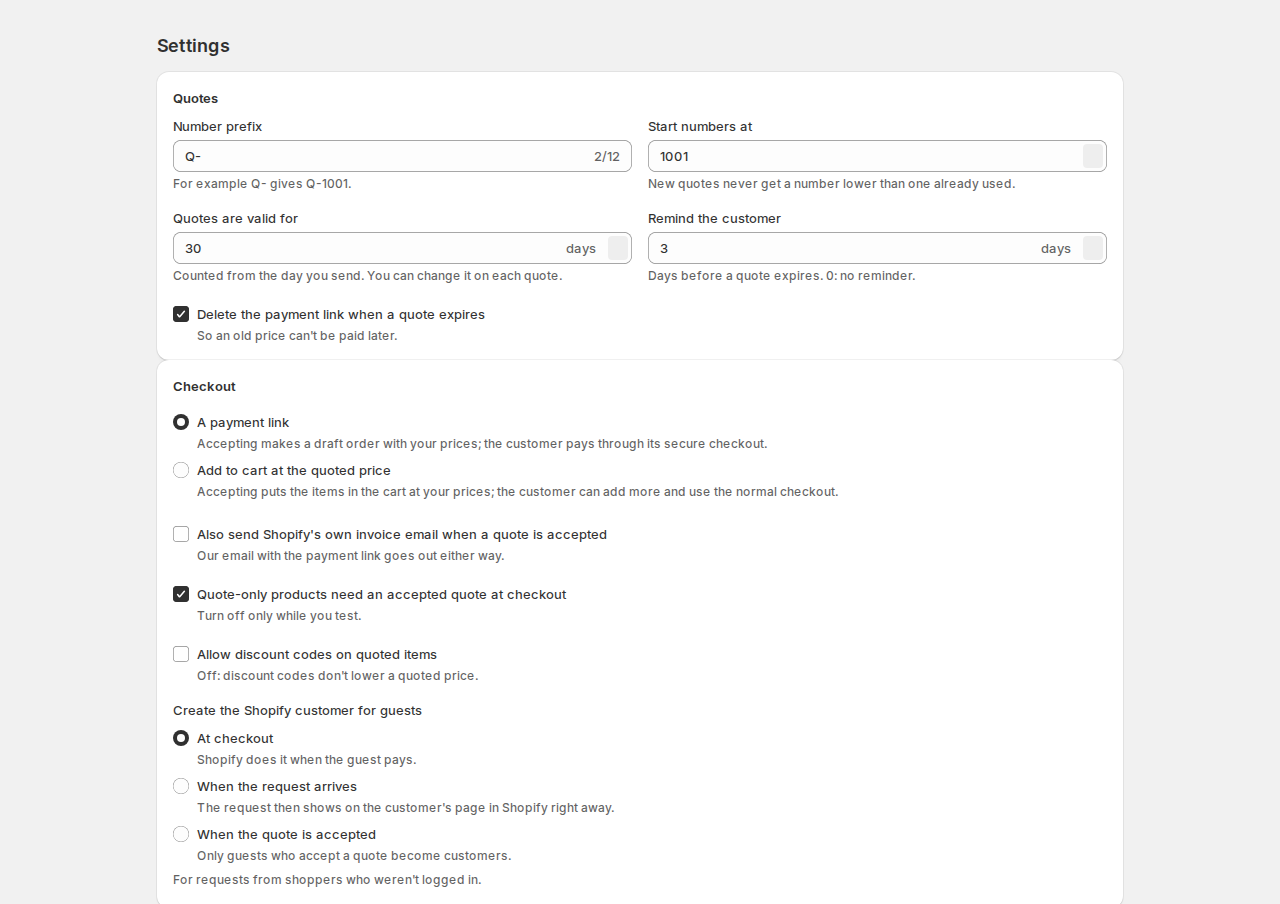
Under Settings › Quotes and Settings › Checkout:
| Setting | What it does |
|---|---|
| Number prefix and Start numbers at | For example Q- gives Q-1001. New quotes never get a number lower than one already used. |
| Quotes are valid for | Counted from the day you send. You can change it on each quote. |
| Remind the customer | Days before a quote expires. 0: no reminder. |
| Delete the payment link when a quote expires | So an old price can’t be paid later. |
| How customers pay an accepted quote | A payment link (a draft order with your prices), or Add to cart at the quoted price. |
| Also send Shopify’s own invoice email when a quote is accepted | Our email with the payment link goes out either way. |
| Quote-only products need an accepted quote at checkout | See Hide prices and quote-only products. |
| Allow discount codes on quoted items | Off: discount codes don’t lower a quoted price. |
Add to cart at the quoted price #
With Add to cart at the quoted price, accepting puts the items in the customer’s cart at your prices; they can add more and use the normal checkout. This works for quotes of catalog products in your store’s currency, without a quote-level discount or shipping. Other quotes keep Accept and pay.
Expiry and reminders #
- A reminder email goes out the number of days before expiry you set.
- At expiry the quote moves to Expired, and by default its payment link is deleted so the old price can’t be paid.
- An accepted quote whose invoice is never paid expires too.
- If you delete the draft order in Shopify before it is paid, the quote goes back to Sent.
Good to know #
- Reserve inventory while the payment link is open (in the editor’s Details) asks Shopify to hold the items for the draft order.
- Payment terms such as Net 30 can be set on a quote for B2B customers. See B2B quotes and payment terms.
- Quote numbers, statuses and totals stay in your reports after a quote is closed.


