
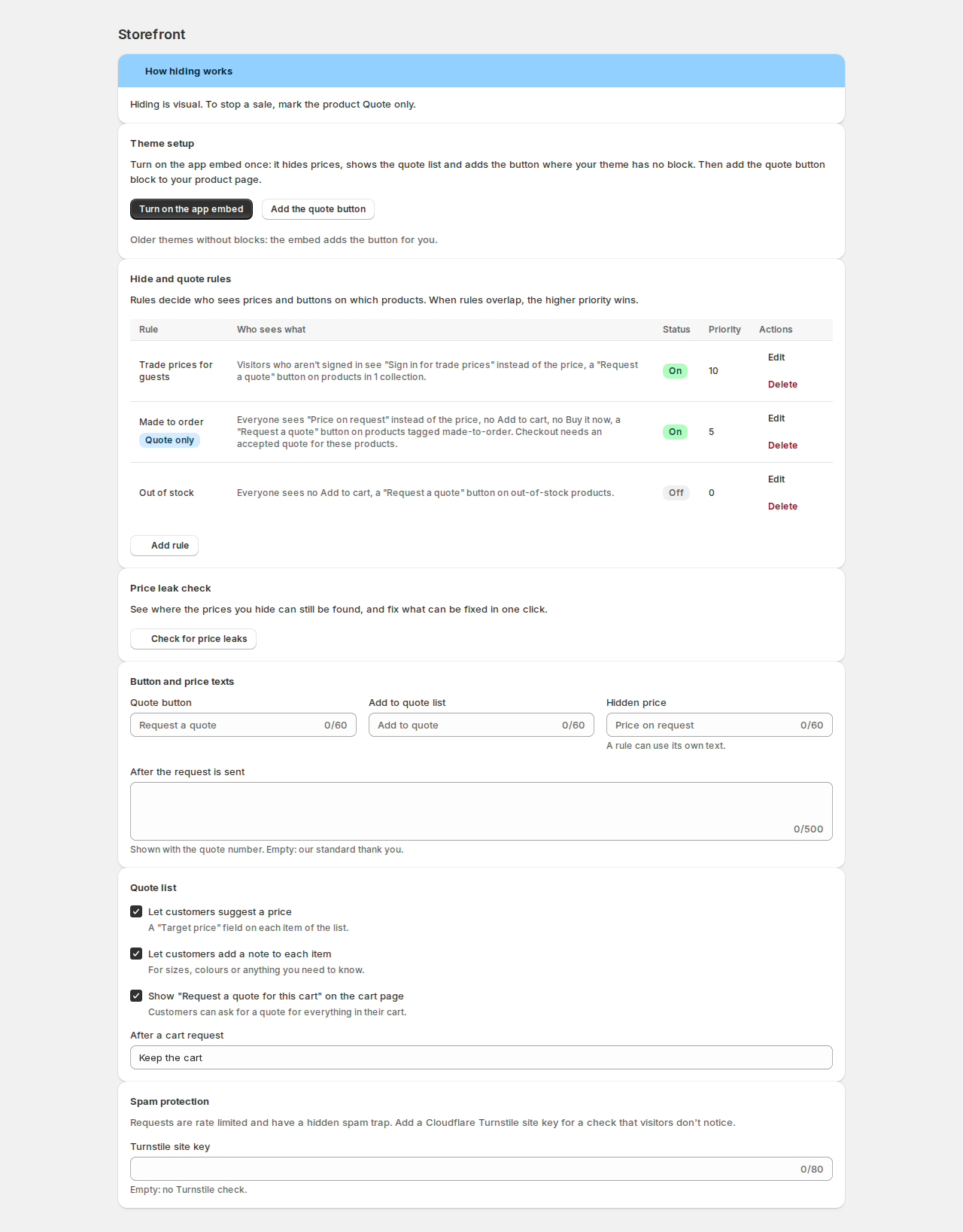
Rules decide who sees prices and buttons on which products. A rule can hide the price (and show your text instead), hide Add to cart and Buy it now, show the quote button, or make products Quote only.
Hiding is visual. To stop a sale, mark the product Quote only. Hiding a price in your theme doesn’t remove it everywhere, and a hidden Add to cart doesn’t stop every way into checkout. Quote only adds a checkout check: a quote-only product can’t be bought without an accepted quote.
Add a rule #
Open Storefront and click Add rule.
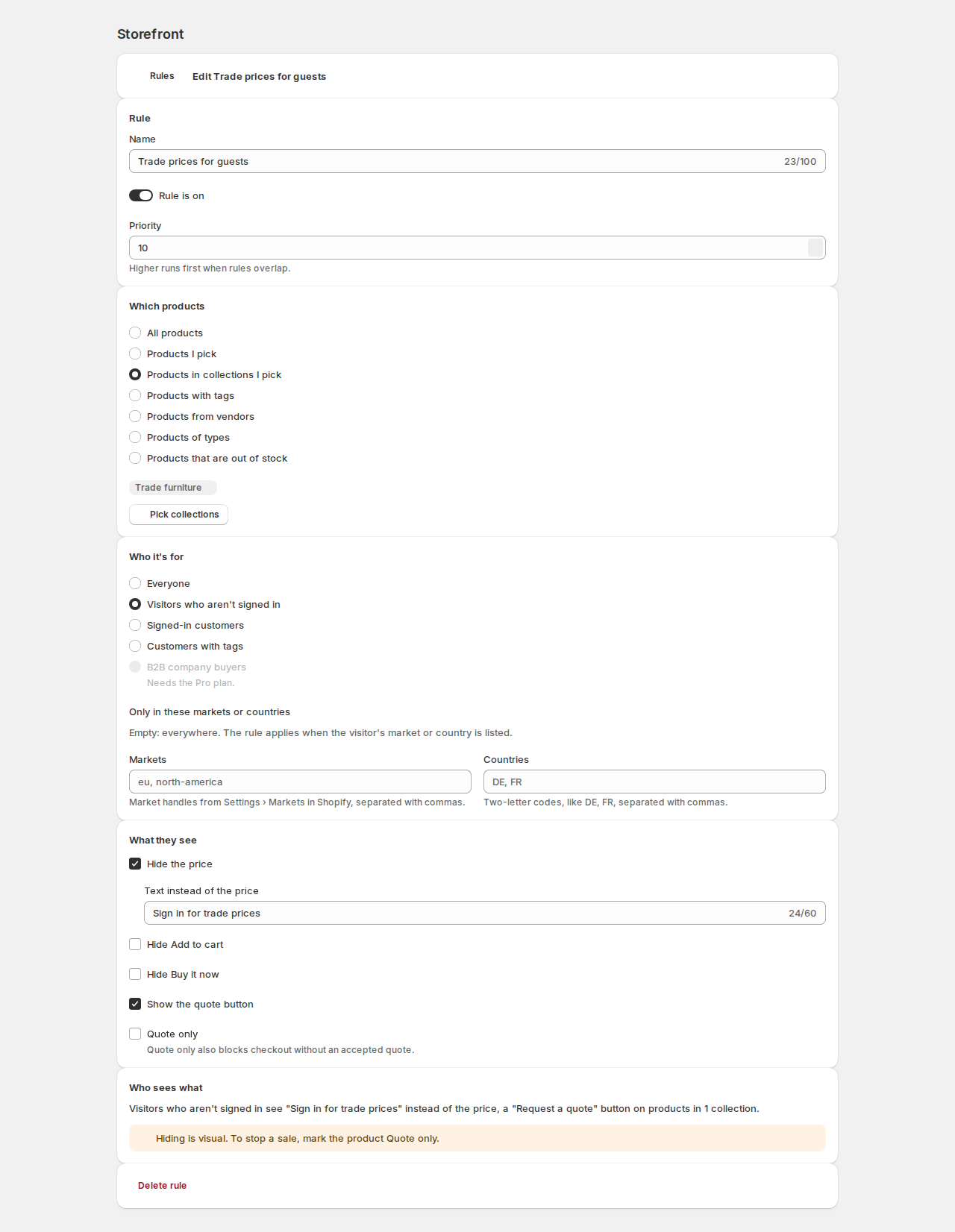
| Section | Setting | What it does |
|---|---|---|
| Rule | Name, Rule is on, Priority | Higher priority runs first when rules overlap. |
| Which products | All products, Products I pick, Products in collections I pick, Products with tags, Products from vendors, Products of types, Products that are out of stock | Tags, vendors and types are typed as in Shopify, separated with commas. |
| Who it’s for | Everyone, Visitors who aren’t signed in, Signed-in customers, Customers with tags, B2B company buyers | B2B company buyers are shoppers who buy for a company you set up in Shopify. |
| Only in these markets or countries | Markets (handles from Shopify’s Markets settings) and Countries (two-letter codes, like DE). Empty: everywhere. | |
| What they see | Hide the price | With Text instead of the price, like “Sign in for trade prices”. Empty: your hidden price text. |
| Hide Add to cart, Hide Buy it now | Removes the buttons for these products. | |
| Show the quote button | Shows your quote buttons. | |
| Quote only | Hides the price and the buy buttons, shows the quote button, and also blocks checkout without an accepted quote. |
The Who sees what box sums the rule up in a sentence, for example: Visitors who aren’t signed in see “Sign in for trade prices” instead of the price, a “Request a quote” button on products in 1 collection.
Save with the save bar. Saving updates your storefront and the checkout check.
How rules combine #
For each product and visitor, the first rule (by priority) whose products and audience both match decides. Later rules never apply to that product. Without any rule, prices show as usual and the quote button shows wherever you add it.
A rule for Products that are out of stock follows stock on the storefront only. It can’t be Quote only: pick the products instead.
The checkout check #
Under Settings › Checkout:
- Quote-only products need an accepted quote at checkout: on by default. Turn it off only while you test. A customer who gets a quote-only product into the cart anyway sees “… is sold by quote only. Request a quote to buy it.” at checkout.
- Allow discount codes on quoted items: off by default, so discount codes don’t lower a quoted price.
The home page’s App setup card says whether the checkout check is on.
Price leak check #
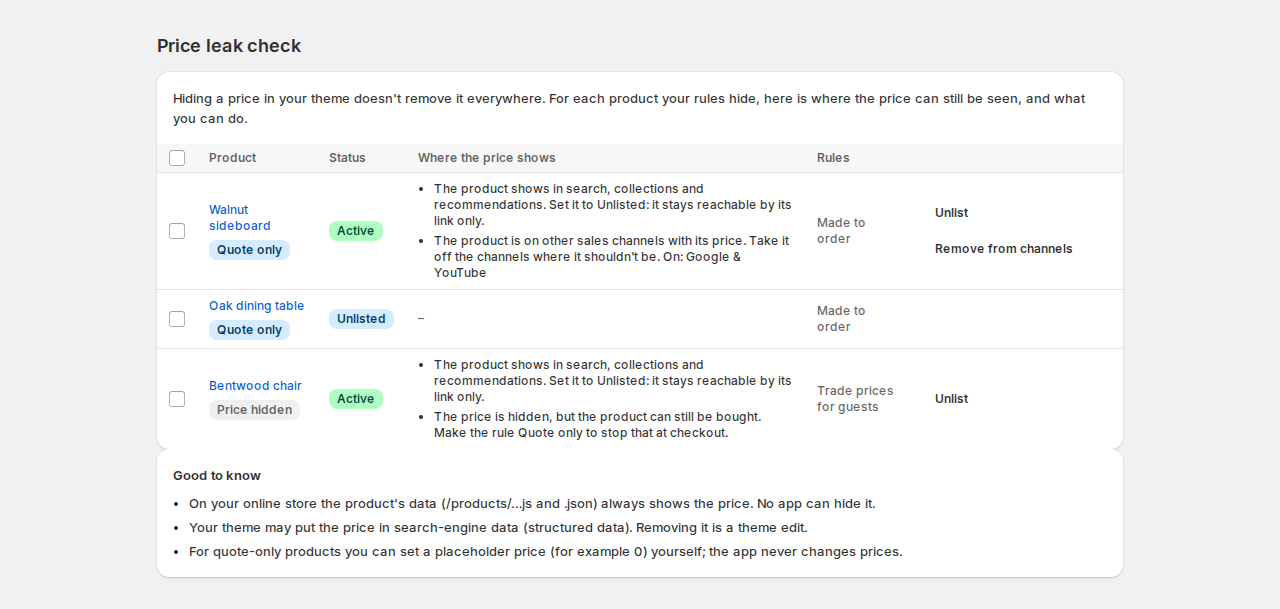
Open Storefront › Check for price leaks. For each product your rules hide (up to 250), the page shows its status, the rules, and where the price can still be seen.
| Where the price shows | What you can do |
|---|---|
| In search, collections and recommendations on your store | Set to Unlisted: the product leaves search, collections, recommendations and your other sales channels; anyone with the link can still open it. |
| On other sales channels | Remove from sales channels: pick the channels. Your online store isn’t changed. |
| The price is hidden, but the product can still be bought | Make the rule Quote only. |
Each fix asks first, and you can undo it in Shopify at any time. Select several products to fix them together.
Some things no app can change, listed under Good to know: your online store’s product data always includes the price, and your theme may put the price in search-engine data (removing it is a theme edit). For quote-only products you can set a placeholder price, like 0, yourself; the app never changes prices.
Good to know #
- Prices hidden by a rule are hidden without a flash on product pages, collection pages and search results. Cards your theme loads later are checked too (the embed’s Check product cards loaded later).
- To hide the price from the page’s code entirely, use the Price or quote block instead of your theme’s price block.
- Quote only also stops Buy it now, express checkout buttons and draft order invoices without a quote.


