
The Rentals & Bookings app counts rental stock for every date. You say how many units you own; each booking holds its units for its dates plus the turnaround time; and the calendar, the cart and checkout all work from the units still free. The Inventory page shows those numbers for every product, day by day.
How stock is counted #
- Units owned is set per product (or per rent variant) in its Rental Settings. See Setting up a rental product.
- A booking takes its units from its start to its end, plus the turnaround time before and after.
- When a customer clicks Add to cart, the units are held while they check out. A hold that isn’t paid in time is released by itself.
- Cancelled and refunded rentals give their units back.
- Blocked dates and dates from synced calendars take units too, although nothing is handed over.
The hold means two customers checking out at the same time can’t both take the last unit. If a hold runs out before the customer pays and someone else takes the unit, the late order shows as a conflict for you to resolve (see Managing bookings).
Rent variants and Shopify inventory #
Rental stock is counted by the app, not by Shopify. Rent variants therefore don’t track Shopify inventory (“Track quantity” off). If one still does, the dashboard’s setup line tells you which to change. A Buy variant of a product you also sell (“Sell it too”) keeps Shopify’s normal stock count.
The Inventory page #
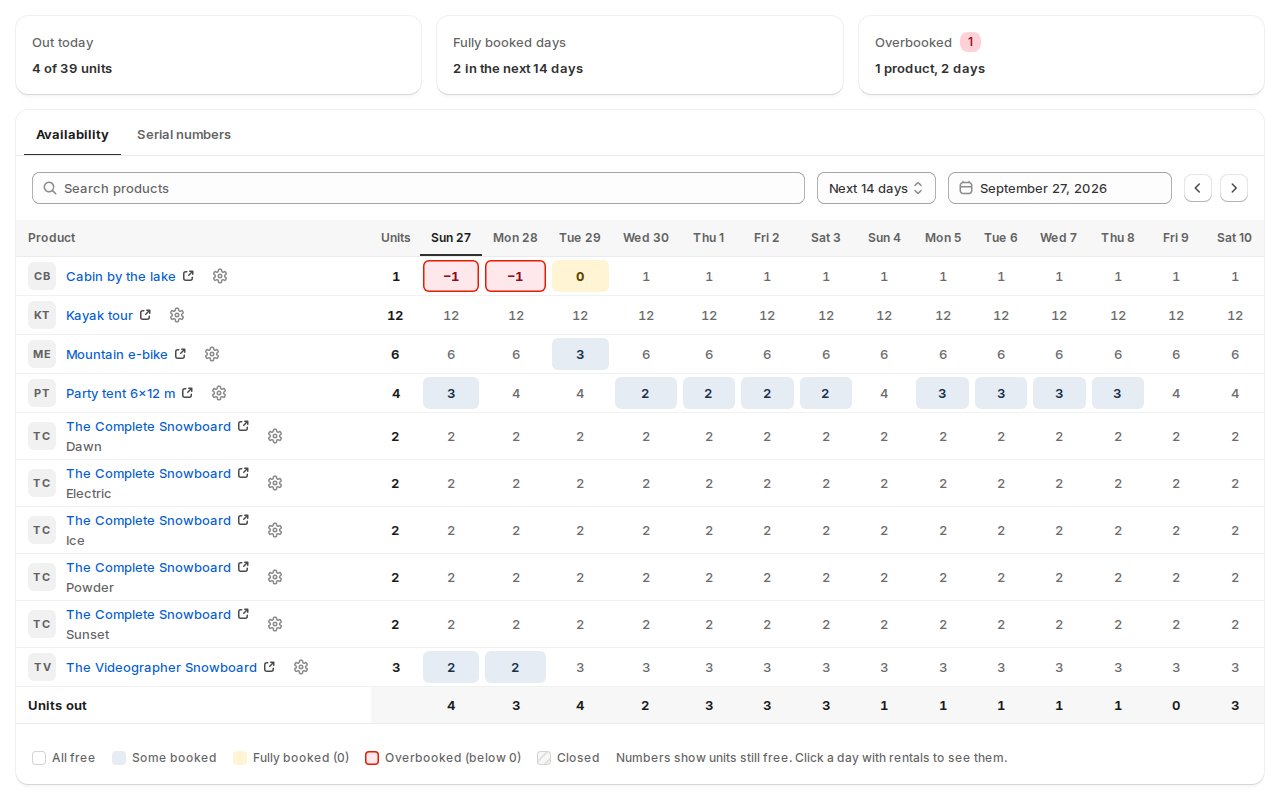
| Part | What it does |
|---|---|
| Out today | Units out right now, out of all your rental units. |
| Fully booked days | Days in the window where a product has no unit left. |
| Overbooked | Products and days booked beyond the stock, for example after you chose Keep anyway on a conflict. |
| The window | Next 7 days, Next 14 days or Next 30 days, from a start date you pick, with arrows for earlier and later. |
| Search products | Find a product in a long list. |
| The grid | A row per rent variant and a column per day. The number is the units still free. |
| Units out | The total units out on each day. |
| Download CSV | The grid as a spreadsheet. |
The grid’s colours:
| Cell | Means |
|---|---|
| Plain | All free. |
| Tinted | Some booked. |
| 0, amber | Fully booked. |
| Below 0, red outline | Overbooked. |
| Hatched | Closed. |
Click a day with rentals to see them: what goes out, what is due back and what is out all day, with Check out and Check in. It also tells you when units are held in checkouts that haven’t finished yet. Click a product name to open it in Shopify, or the settings button to open its Rental Settings.
The Serial numbers tab next to Availability lists every serial number and where it is. See Serial numbers.
Allow overbooking #
Some items you can always get more of, like chairs from a supplier. Open the product’s Rental Settings › Show advanced settings › Stock rules and turn on Allow overbooking: the product takes bookings even when every unit is booked. Its calendar never shows a day as fully booked, and usage reports can’t measure its utilisation.
Units left on the calendar #
To show customers how many units are left on each day, turn on Show units left in each day under Settings › Calendar & styler, and set Low stock at for the orange low-stock chip. See The rental calendar on your store.
Stock at several locations #
When you rent from two or more Shopify locations, each product can have its own units at each location, and customers choose where they pick up. See Rental locations and stock by location.
Good to know #
- Changing Units owned changes availability at once. If you lower it below what is already booked, the extra bookings show as overbooked in the grid.
- With several rent variants that own different numbers of units, saving one number on the product sets them all to it. The page warns you first.
- Rental kits are counted from their items: a kit is free on a day only when every item in it is. See Rental kits.


