
Serial numbers give each unit of a product its own code, like TENT-001 to TENT-020. Staff pick or scan the serial that goes out and scan it again when it comes back, so you always know which unit is where, who has it and when it is due back. Each serial keeps its full history, and a report shows how much each one earns.
Turn on serial numbers for a product #
- Open the product’s Rental Settings page (Inventory › the settings button) and click Show advanced settings.
- Turn on Track serial numbers: give each unit its own serial number. At the desk you pick (or scan) which serial goes out and comes back.
- Save, then click Serial numbers to add the serials.
Once any product tracks serials, Serial numbers appears in the app’s menu.
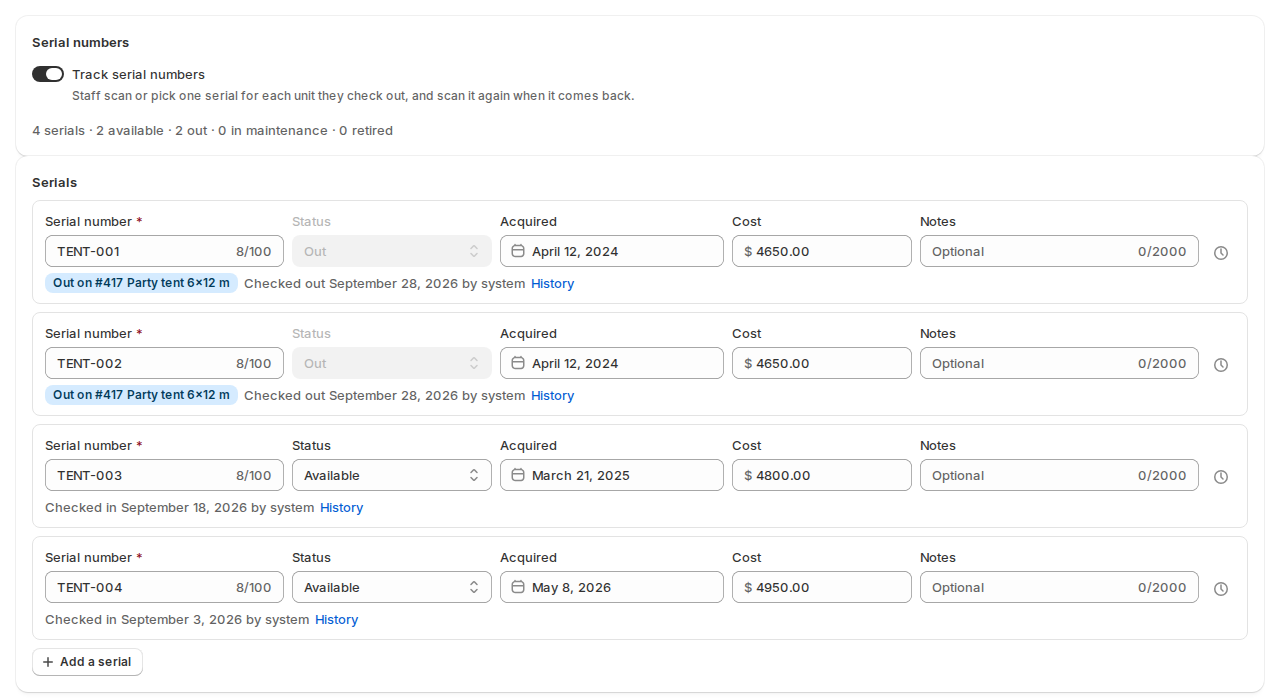
Add serials #
- Add a serial adds one row: Serial number, Variant, Status, Acquired, Cost and Notes.
- Add serials adds a whole range. Type the First serial number and the Last serial number, and every number in between is added: TENT-001 to TENT-020 adds 20 serials. Both numbers must end in a number, with the same text before it. You can set the variant, status, acquired date and cost of each for the whole range.
Click Save after editing the list. The line at the top counts them, for example “20 serials · 17 available · 2 out · 1 in maintenance · 0 retired”.
| Status | Means |
|---|---|
| Available | On the shelf, ready to go out. |
| Out | With a customer. Only a check-out can set it. |
| In maintenance | Being repaired or checked. It can’t go out. |
| Retired | No longer rented. Its history is kept. |
A serial that has been rented can’t be removed, because its history and usage would be lost. Set it to Retired instead.
When the number of serials differs from Units owned, the page says so (“Serial count and stock differ”) with Edit stock. The calendar always uses the stock number.
Print labels #
Click Print labels:
| Option | Choices |
|---|---|
| Serials | All except retired, Available only, or Choose serials. |
| Label type | QR code, Barcode (Code 39) or Barcode (Code 128). QR codes work with phone cameras and any text. Barcodes suit handheld scanners. |
| Show the product name | Prints the product name under the code. |
Click Create labels, then Open PDF and print the sheet. You can also print them from the product page in Shopify: Print › Serial labels.
At the desk #
When a product tracks serials, each check-out needs one serial per unit. Scan the label, or pick from the list; the row counts down (“Scan 1 more serial”) until every unit has one. At check-in, scan or tap the serials coming back.
The desk refuses a serial that is in maintenance or retired, a serial that isn’t out on that rental, and the same serial twice. See The Send & Return desk.
One serial’s page #
Click a serial to see its details, Where it is now (on the shelf, out with a customer, in maintenance or retired) with a link to the booking, and its history: every check-out and check-in with the rental, the customer and who moved it, plus status changes and the day it was added. Print label prints just this one.
The serial number report #
Serial numbers in the menu (also the Serial numbers tab of Inventory) lists every serial number in your store: where it is now, who has it and when it is due back.
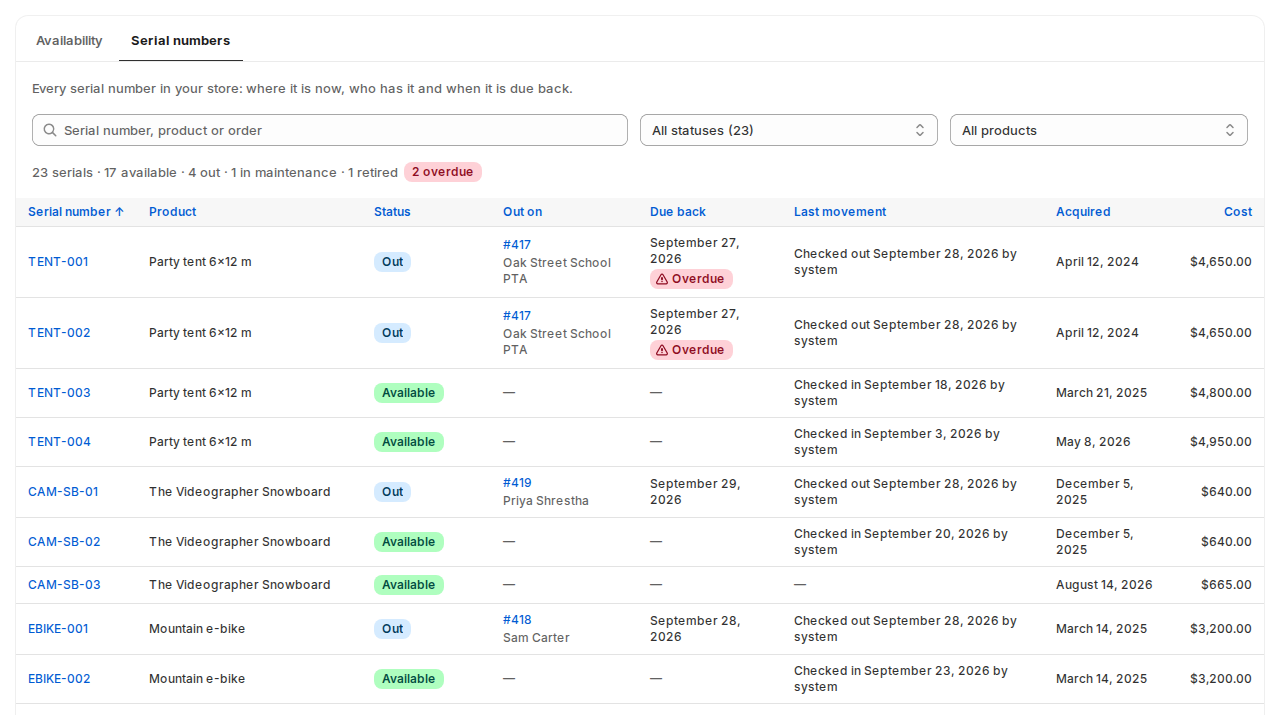
| Column | What it shows |
|---|---|
| Serial number and Product | The serial and its product and variant. |
| Status | Available, Out, In maintenance or Retired. |
| Location | Where it is, when you rent from two or more locations. |
| Out on | The order it is out on, and the customer’s name. |
| Due back | That rental’s end, with an Overdue badge when it is late. |
| Last movement | The last check-out or check-in, when and by whom. |
| Acquired and Cost | As entered on the serial. |
Search by serial number, product or order, filter by status (including Overdue) or product, and sort by any column. Download CSV saves the list. Manage serials opens the product’s serials.
Usage by serial number #
Reports › Usage by serial number shows how hard each unit worked over 30, 90 or 365 days: days owned, days on hire, idle days, utilisation, hires, revenue and revenue per day owned. The days and the money add up to the product view.
- Not linked to a serial: days of hires checked out without a serial.
- Swapped units: extra serial-days when a unit was swapped in the middle of a rental.
Download CSV saves the report.
Good to know #
- Serial numbers ignore capital letters: tent-001 and TENT-001 are the same serial.
- Staff who check out without scanning can pick serials from the list on each row.


