
SI Request a Quote emails your customers at every step, alerts your team to new requests, and attaches a PDF of each quote. You can change the wording of every email, see whether each one was delivered, and style the PDF.
The Emails page #
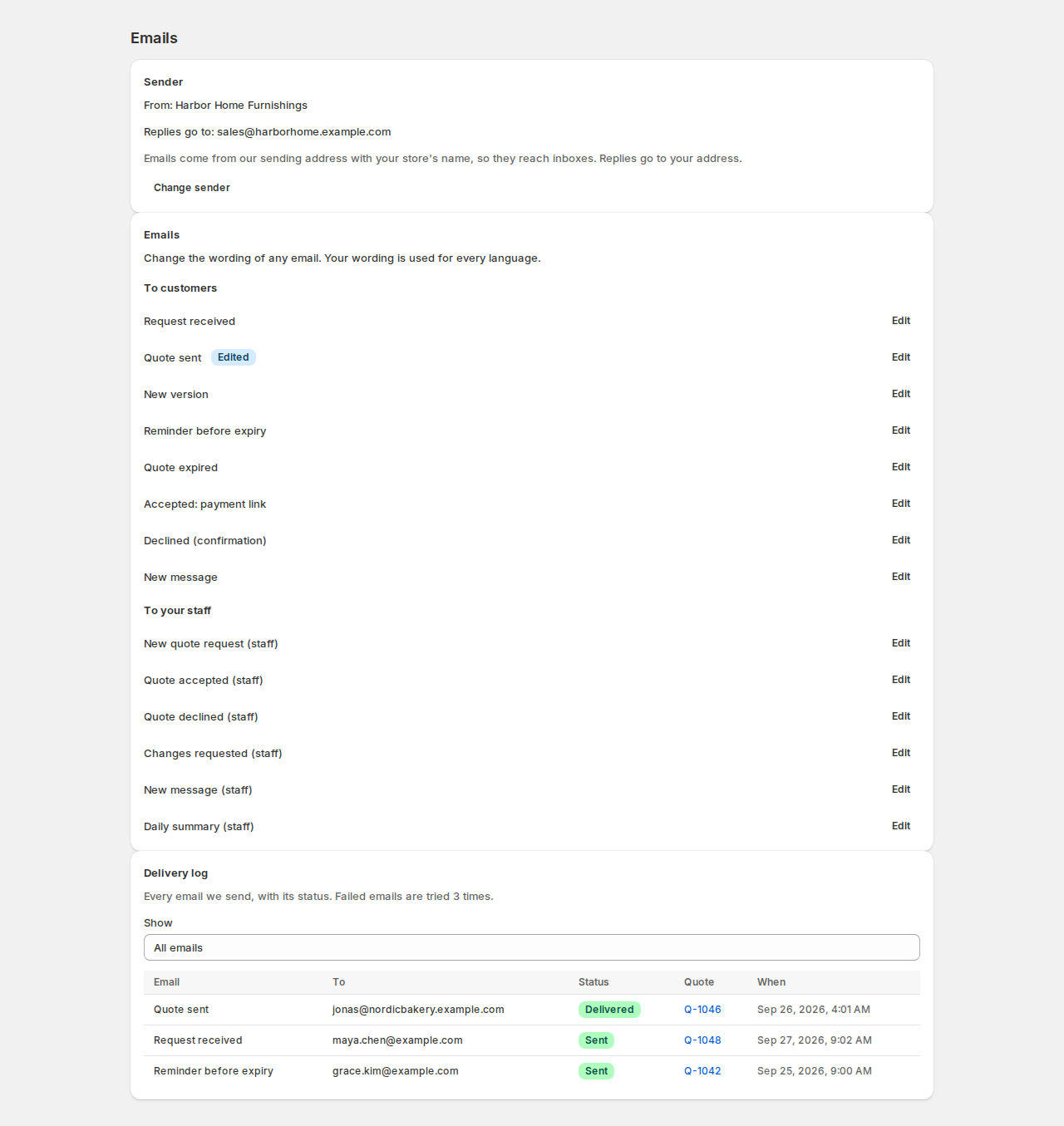
Sender. Emails come from our sending address with your store’s name, so they reach inboxes. Replies go to your reply-to address. Change sender opens the email settings.
Emails. Every email is listed under To customers (request received, quote sent, new version, reminder before expiry, quote expired, accepted: payment link, declined, new message) and To your staff (new quote request, quote accepted, quote declined, changes requested, new message, daily summary). An Edited badge marks the ones you changed. Click Edit to change one:
| Part | What it does |
|---|---|
| Subject, Heading, Message | Plain text. A blank line starts a new paragraph. Merge tags are replaced when the email is sent. |
| Merge tags | Click a tag to add it to the message. {items} adds the table of items. |
| Preview | Shows the email exactly as it will be sent, with your latest quote (or a made-up one). |
| Reset to our wording | Removes your changes. |
| Send a test | Sends the saved wording with your latest quote to your staff address or any address. The subject starts with [Test]. |
Your wording is used for every language.
Merge tags #
| Tag | Becomes |
|---|---|
{quote_number} | The quote number, like Q-1042. |
{customer_first_name}, {customer_name} | The customer. |
{shop_name} | Your store name. |
{quote_link} | The customer’s personal link to the quote page. |
{expires_on} | The date the quote expires. |
{total} | The quote total. |
{items} | The table of items. |
{message} | Your message to the customer, or theirs in a staff email. |
{version} | The version number. |
{pay_link} | The payment link (the accepted email). |
{reason} | The reason the customer gave for declining. |
Delivery log. Every email the app sends, with its status (Queued, Sent, Delivered, Bounced or Failed), the number of tries and the error, linked to its quote. Failed emails are tried 3 times. Show › Failed only lists just those. The home page’s Email card warns you when emails failed in the last 7 days.
Staff alerts #
Under Settings › Staff alerts:
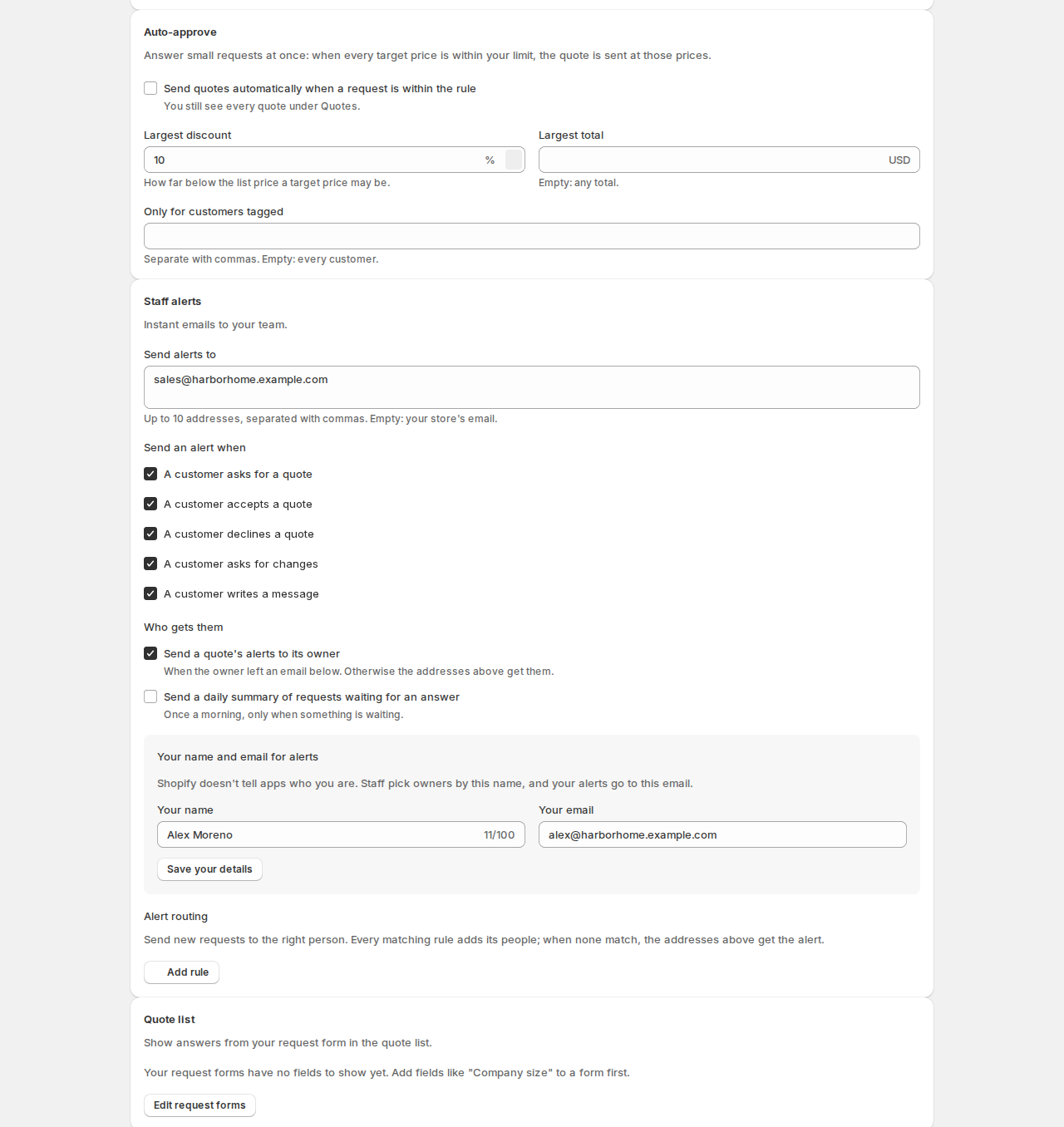
| Setting | What it does |
|---|---|
| Send alerts to | Up to 10 addresses, separated with commas. Empty: your store’s email. |
| Send an alert when | A customer asks for a quote, accepts a quote, declines a quote, asks for changes, writes a message. |
| Send a quote’s alerts to its owner | When the owner left an email below. Otherwise the addresses above get them. |
| Send a daily summary of requests waiting for an answer | Once a morning, only when something is waiting. |
| Your name and email for alerts | Shopify doesn’t tell apps who you are. Staff pick owners by this name, and your alerts go to this email. |
Alert routing. Up to 10 rules send new requests to the right person: when a request has a product in a collection, has a product with a tag, or comes from a country, alert these addresses and/or a staff member. That staff member becomes the owner of a request that has none. Every matching rule adds its people; when none match, the addresses above get the alert.
Email settings #
| Setting | What it does |
|---|---|
| Sender name | Empty: your store’s name. |
| Reply-to address | Empty: your store’s email. |
| Attach the PDF to quote emails | The quote page always has a download too. |
Your own email server. Send quote emails through your own mail server, from your own address: Server, Port, Encryption (TLS, SSL or none), Username, Password (stored encrypted, never shown again) and From address. Stop using it goes back to our sending service.
Slack, Teams and webhooks #
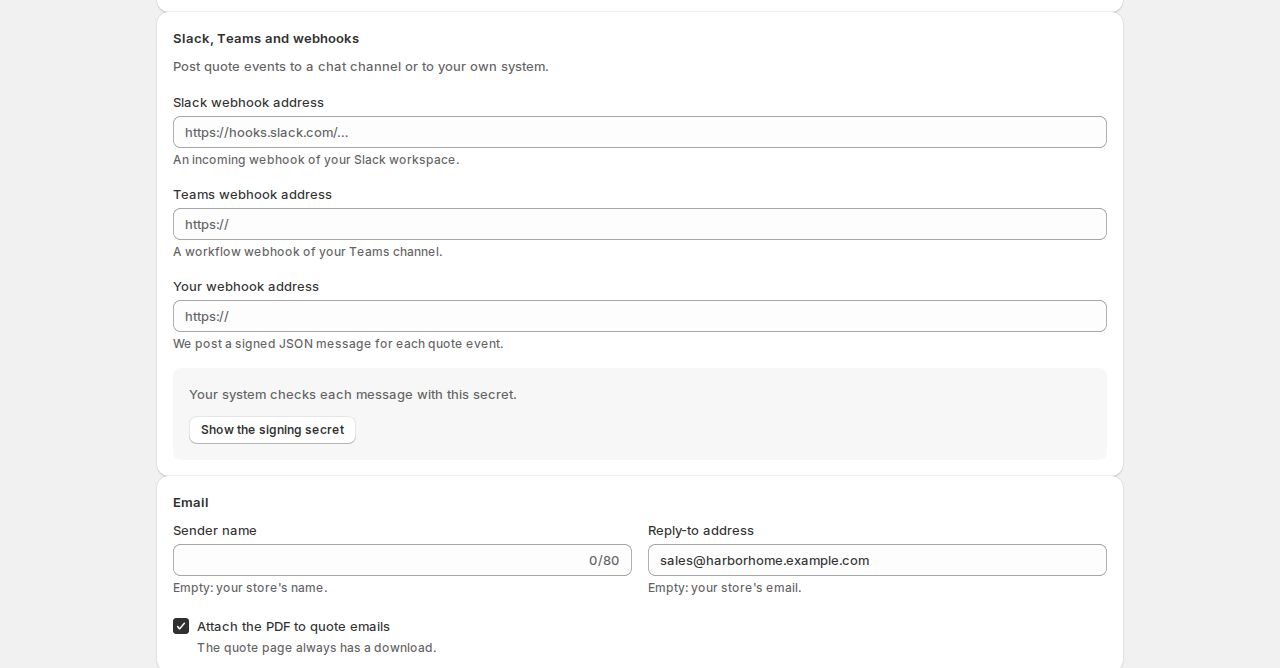
Enter a Slack webhook address, a Teams webhook address, or Your webhook address. For your own webhook, the app posts a signed JSON message for each quote event; your system checks each message with the Signing secret (Show the signing secret shows it, the header it comes in and how it is signed). Make a new secret stops the old one at once.
The quote PDF #
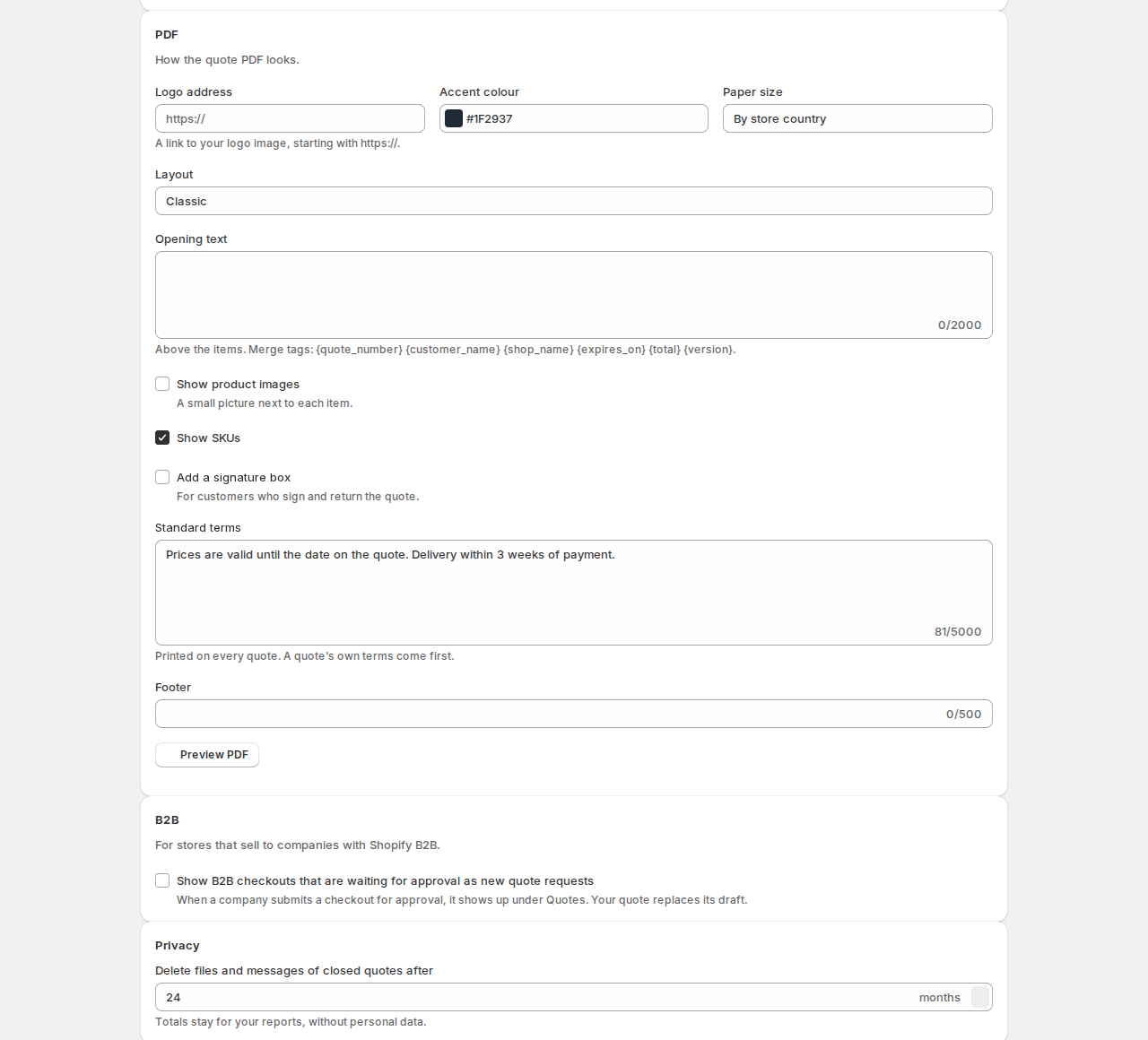
| Setting | What it does |
|---|---|
| Logo address | A link to your logo image, starting with https://. |
| Accent colour and Paper size | Paper By store country or a fixed size. |
| Layout | Classic, Modern or Compact. |
| Opening text | Above the items. Merge tags: {quote_number} {customer_name} {shop_name} {expires_on} {total} {version}. |
| Show product images | A small picture next to each item. |
| Show SKUs and Add a signature box | The box is for customers who sign and return the quote. |
| Standard terms | Printed on every quote. A quote’s own terms come first. |
| Footer | Your own footer line. |
| Preview PDF | Your latest quote with the settings above, before you save. |
Good to know #
- A new request with no matching routing rule alerts its owner (when owner alerts are on and the owner left an email), otherwise your alert addresses.
- Emails and the PDF are in English for now.


