
Once requests come in steadily, SI Request a Quote can answer small ones for you, route them to the right person, report on how you are doing, and connect to Shopify Flow and your own systems. It also adds quote cards to Shopify’s customer, order, draft order, product and company pages.
Auto-approve #
Answer small requests at once: when every target price is within your limit, the quote is sent at those prices. Under Settings › Auto-approve:
| Setting | What it does |
|---|---|
| Send quotes automatically when a request is within the rule | You still see every quote under Quotes. |
| Largest discount | How far below the list price a target price may be, in percent. |
| Largest total | Empty: any total. |
| Only for customers tagged | Separate with commas. Empty: every customer. |
The quote’s timeline says “Sent automatically (auto-approve)”.
Owners #
Every quote can have an Owner: a staff member who has opened the app (their name comes from Your name and email for alerts in Settings). Set it in the quote editor, or select quotes and Assign. Filter the list by owner (Mine, No owner, or a person). With Send a quote’s alerts to its owner on, the owner gets that quote’s emails. Alert routing rules can set the owner of new requests. See Emails, PDF and staff alerts.
Reports #
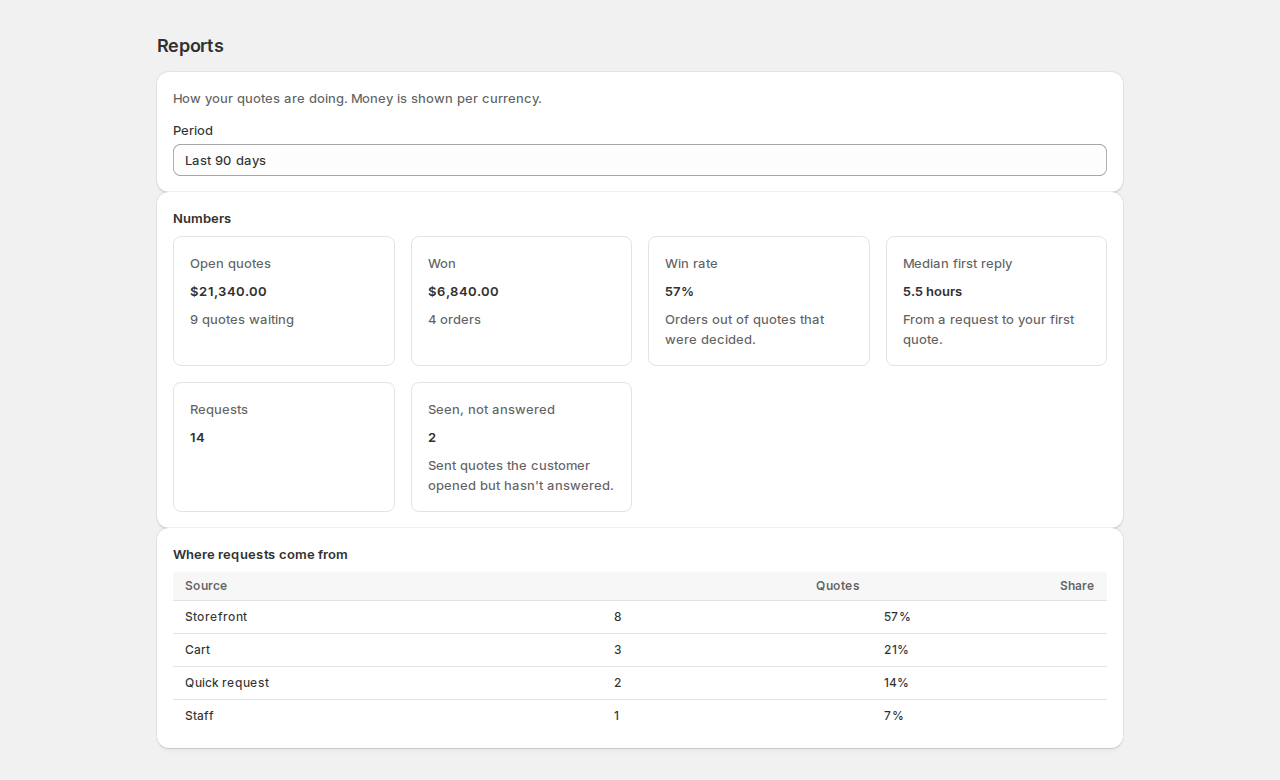
Choose the Period (the last 30, 90, 180 or 365 days):
| Tile | What it means |
|---|---|
| Open quotes | The value and number of quotes waiting. |
| Won | The value and number of orders from quotes. |
| Win rate | Orders out of quotes that were decided. |
| Median first reply | From a request to your first quote. |
| Requests | Requests received. |
| Seen, not answered | Sent quotes the customer opened but hasn’t answered. |
Where requests come from shows the share of requests from the storefront, the cart, quick requests, staff and the API.
Cards in your Shopify admin #
| Where | What it adds |
|---|---|
| Customer page | A Quotes card with the customer’s open and recent quotes and Create quote, and More actions › Create quote. |
| Draft order page | A Quote card (the quote this draft was made from, with the PDF), or Turn into quote; also More actions › Turn into quote. |
| Order page | A From quote Q-1042 card with the version and total. |
| Product page | More actions › Quote this product: pick a variant and start a quote with it. |
| Company page | A Quotes card with Create quote for this company. |
Cards are added once per page type: open a page, click + Block in its Blocks section, choose the card and pin it. Actions in More actions need no setup.
Shopify Flow #
| Triggers | Actions |
|---|---|
| Quote requested, Quote sent, Quote accepted, Quote declined, Quote expired, Quote ordered | Send quote, Add note to quote |
For example: when a quote is accepted, tag the customer; when a quote expires, send your sales team an email.
API #
Your own systems can list, create, change, send, convert and cancel quotes, add notes and messages, and get the PDF through the REST API (/api/v1/quotes) or the GraphQL API. Make a key on the app’s API access page (stores that also have the Rentals & Bookings app can use a key from its Settings › API; keys belong to your store). Send it as Authorization: Bearer sirb_…. A quote can be addressed by its number, like Q-1042.
Signed webhooks for quote events are set up under Settings › Slack, Teams and webhooks.
Good to know #
- Duplicate a quote from the editor, or Start from an order on the quote list, to reuse items. See Quotes in your admin.
- Flow and the API follow the same rules as the admin: a quote that can’t be sent from the editor can’t be sent through them either.


